2017 MERCEDES-BENZ S-Class COUPE change wheel
[x] Cancel search: change wheelPage 173 of 338
Object detection
The rear view camera can detect moving and
stationary objects. If, for example, a pedestrian
or another vehicle is detected, these objects are
marked with bars. The system is only able to
detect and mark stationary objects when your
vehicle is moving. When the vehicle is station-
ary, moving objects can be detected and
marked.
To ensure that you can use the function, it must be switched on in the multimedia system (see
the Digital Operator's Manual).
360° camera (surround view)
General notes
The 360° camera is a system consisting of four
cameras.
The system processes images from the follow-
ing cameras:
RRear view camera
RFront camera
RTwo side cameras in the exterior mirrors
The cameras cover the immediate surroundings
of the vehicle. The 360° camera assists you, for instance when parking or at exits with reduced
visibility.
You can show images from the 360° camera in
full-screen mode or in six different split-screen
views on the multimedia system. A split-screen
view also includes a top view of the vehicle. This
view is calculated from the data supplied by the
installed cameras (virtual camera).
The six split-screen views are:
RTop view and picture from the rear view cam-
era (130° viewing angle)
RTop view and image from the front camera
(130° viewing angle without displaying the
maximum steering wheel angle)
RTop view and enlarged rear view
RTop view and enlarged front view
RTop view and images from the rear-facing sidecameras (rear wheel view)
RTop view and images from the forward-facing
side cameras (front wheel view)
When the function is active and you shift the
transmission from Dor Rto N, the guide lines
are hidden in the multimedia system. When you change between transmission posi-
tions
Dand R, you see the previously selected
front or rear view.
Distances measured by PARKTRONIC will also
be optically displayed:
Rin split screen view as red or yellow brackets around the vehicle icon in the top view, or
Rat the bottom right as red or yellow brackets
around the vehicle symbol in full-screen mode
The line thickness and color of the brackets
show how far the vehicle is from an object.
Ryellow brackets with thin lines: PARKTRONIC
is active
Ryellow brackets with normal lines: an object is present in close range of the vehicle
Rred line: an object is present in the immediate
close range of the vehicle
Important safety notes
The 360°camera is only an aid and may show a
distorted view of obstacles, show them incor-
rectly or not at all. The 360°camera is not a
substitute for attentive driving.
You are always responsible for safe maneuver-
ing and parking. When maneuvering or parking,
make sure that there are no persons, animals or
objects in the area in which you are maneuver-
ing.
You are always responsible for safety, and must
always pay attention to your surroundings when
parking and maneuvering. This applies to the
areas behind, in front of and beside the vehicle.
You could otherwise endanger yourself and oth-
ers.
The 360° camera will not function or will func-
tion in a limited manner:
Rif the doors are open
Rif the exterior mirrors are folded in
Rif the trunk lid is open
Rin heavy rain, snow or fog
Rat night or in very dark places
Rif the cameras are exposed to very bright light
Rif the area is lit by fluorescent bulbs or LED
lighting (the display may flicker)
Rif the camera lenses fog up, e.g. when driving
into a heated garage in winter, causing a rapid
change in temperature
Driving systems171
Driving and parking
Z
Page 186 of 338

Rthe radar sensors in the front or rear bumpers
or the radiator trim are dirty, e.g. obscured by
snow
Rthere are no, several or unclear lane markings
for a lane, e.g. in areas with road construction
work
Rthe lane markings are worn away, dark or cov-
ered up, e.g. by dirt or snow
Rthe distance to the vehicle in front is too small
and the lane markings thus cannot be detec-
ted
Rthe lane markings change quickly, e.g. lanes
branch off, cross one another or merge
Rthe road is narrow and winding
Rthere are strong shadows cast on the road
If no vehicle is detected in the adjacent lane and
broken lane markings are detected, no lane-cor-
recting brake application is made.
Warning vibration in the steering wheel
A warning may be given if a front wheel passes
over a lane marking. It will warn you by means of
intermittent vibration in the steering wheel for
up to 1.5 second s.
In orde r that you are warned only when neces-
sary and in good time if you cross the lane mark-
ing, the system recognizes certain conditions
and warns you accordingly.
The warning vibration occurs earlier if:
Ryou approach the outer lane marking on a
bend.
Rthe road has very wide lanes, e.g. a highway.
Rthe system recognizes solid lane markings.
The warning vibration occurs later if:
Rthe road has narrow lanes.
Ryou cut the corner on a bend.
Lane-correcting brake application
If you leave your lane, under certain circumstan-
ces the vehicle will brake briefly on one side.
This is meant to assist you in bringing the vehicle
back to the original lane.
GWARNING
A lane-correcting brake application cannot
always bring the vehicle back into the original lane. There is a risk of an accident.
Always steer, brake or accelerate yourself,
especially if Active Lane Keeping Assist warns
you or makes a lane-correcting brake appli-
cation.
GWARNING
Active Lane Keeping Assist does not detect
traffic conditions or road users. In very rare
cases, the system may make an inappropriate brake application, e.g. after intentionally driv-
ing over a solid lane marking. There is a risk of
an accident.
An inappropriate brake application may be
interrupted at any time if you steer slightly in
the opposite direction. Always make sure that
there is sufficient distance on the side for
other traffic or obstacles.
If a lane-correcting brake application occurs,
display 0043appears in the multifunction display.
The brake application also slightly reduces vehi-
cle speed.
A lane-correcting brake application can be made
after driving over a lane marking recognize as
being solid or broken. Before this, a warning
must be given by means of intermittent vibration
in the steering wheel. In addition, a lane with
lane markings on both sides must be detected.
In the case of a broken lane marking being
detected, a lane-correcting brake application
can only be made if a vehicle has been detected
in the adjacent lane. The following vehicles can
have an influence on brake application: oncom-
ing traffic, vehicles that are overtaking and vehi-
cles that are driving parallel to your vehicle.
A further lane-correcting brake application can
only occur after your vehicle has returned to the original lane.
184Driving systems
Driving and parking
Page 194 of 338
XPress0064or0063 on the steering wheel to
select the Navimenu.
XConfirm by pressing 0076on the steering
wheel.
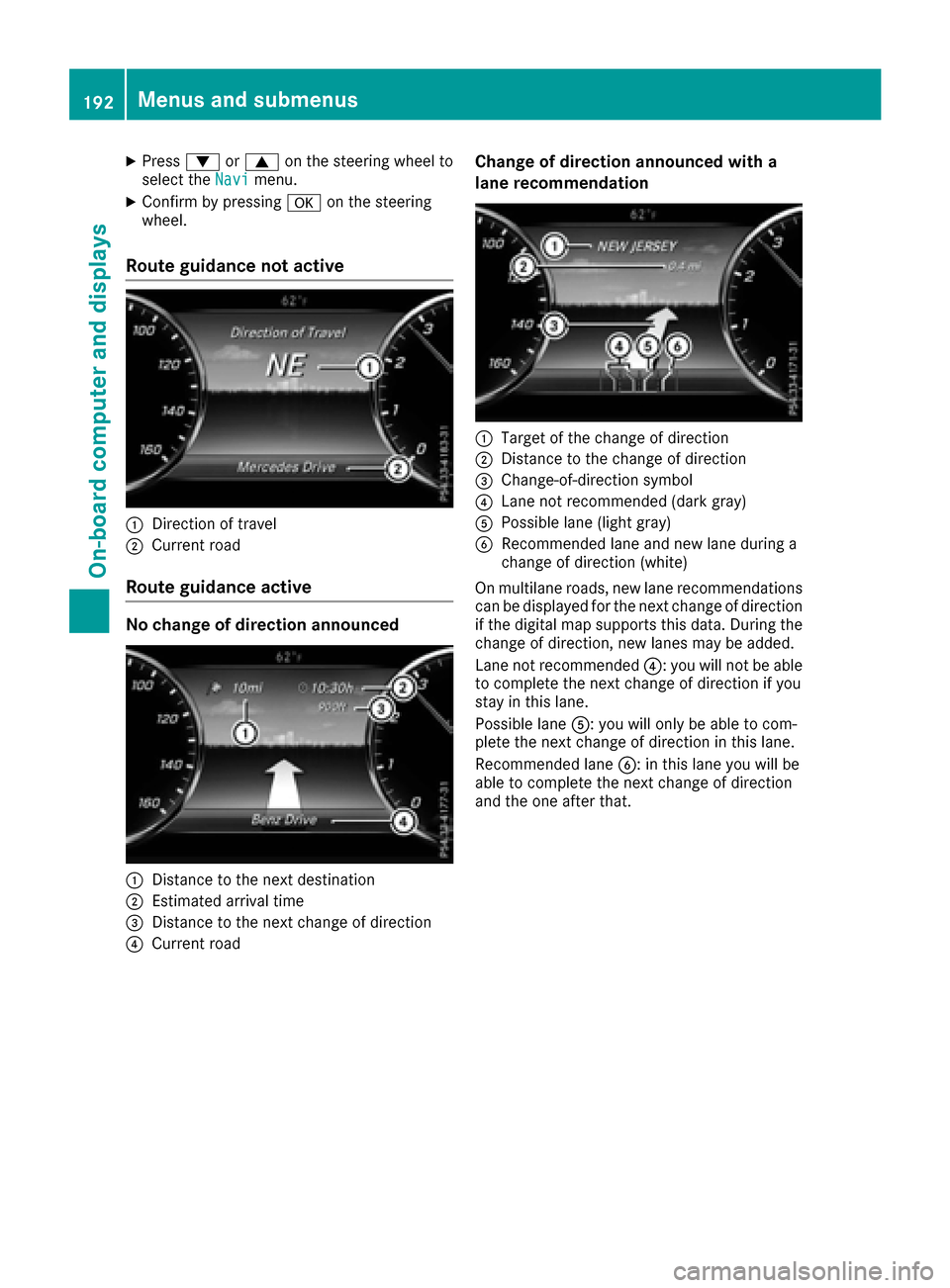
Route guidance not active
0043Direction of travel
0044Current road
Route guidance active
No change of direction announced
0043Distance to the next destination
0044Estimated arrival time
0087Distance to the next change of direction
0085Current road
Change of direction announced with a
lane recommendation
0043Target of the change of direction
0044Distance to the change of direction
0087Change-of-direction symbol
0085Lane not recommended (dark gray)
0083Possible lane (light gray)
0084Recommended lane and new lane during a
change of direction (white)
On multilane roads, new lane recommendations
can be displayed for the next change of direction
if the digital map supports this data. During the
change of direction, new lanes may be added.
Lane not recommended 0085: you will not be able
to complete the next change of direction if you
stay in this lane.
Possible lane 0083: you will only be able to com-
plete the next change of direction in this lane.
Recommended lane 0084: in this lane you will be
able to complete the next change of direction
and the one after that.
192Menus and submenus
On-board computer and displays
Page 196 of 338
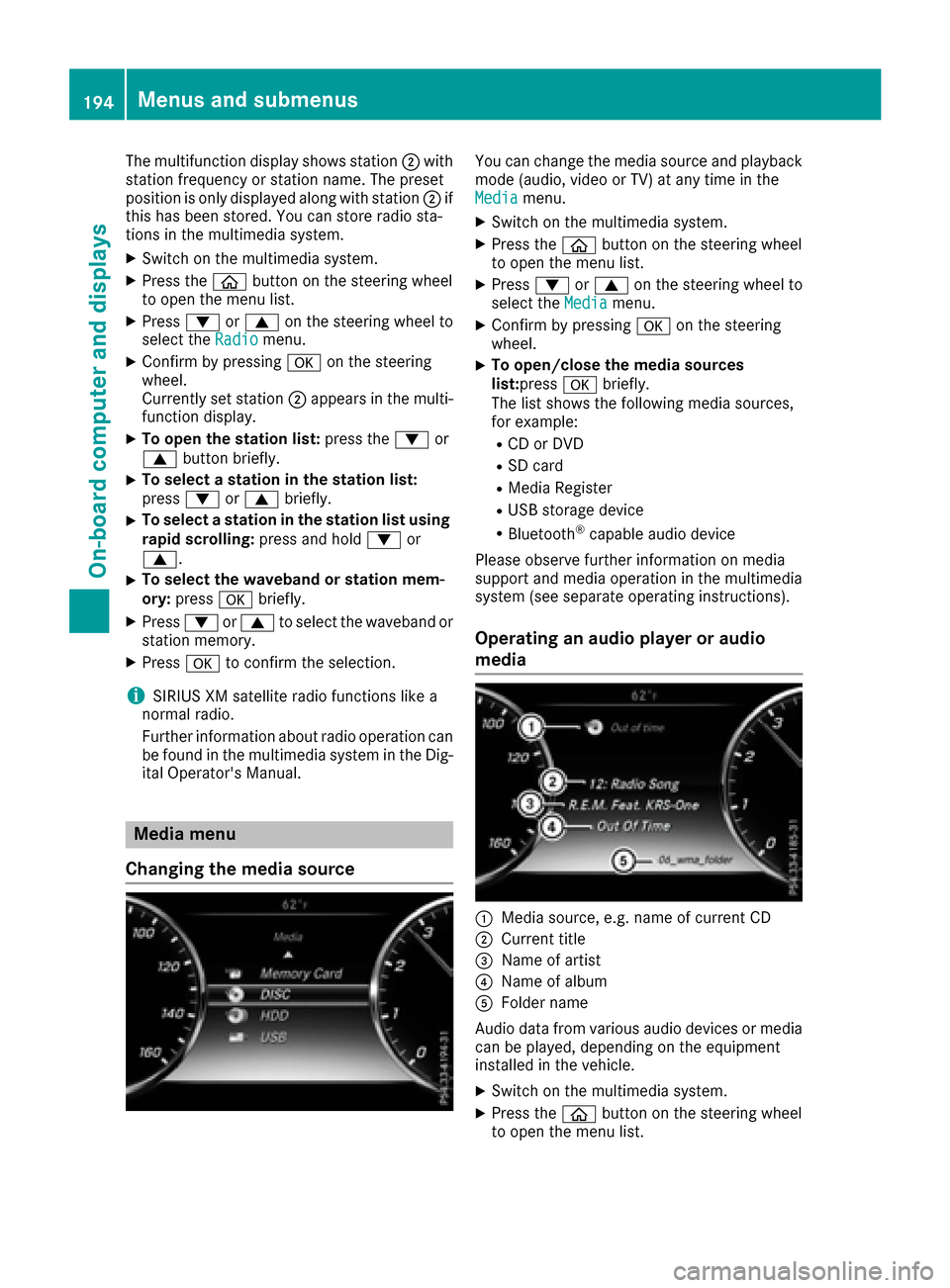
The multifunction display shows station0044with
station frequency or station name. The preset
position is only displayed along with station 0044if
this has been stored. You can store radio sta-
tions in the multimedia system.
XSwitch on the multimedia system.
XPress the 00E2button on the steering wheel
to open the menu list.
XPress 0064or0063 on the steering wheel to
select the Radiomenu.
XConfirm by pressing 0076on the steering
wheel.
Currently set station 0044appears in the multi-
function display.
XTo open the station list: press the0064or
0063 button briefly.
XTo select a station in the station list:
press 0064or0063 briefly.
XTo select a station in the station list using
rapid scrolling: press and hold0064or
0063.
XTo select the waveband or station mem-
ory: press 0076briefly.
XPress 0064or0063 to select the waveband or
station memory.
XPress 0076to confirm the selection.
iSIRIUS XM satellite radio functions like a
normal radio.
Further information about radio operation can
be found in the multimedia system in the Dig-
ital Operator's Manual.
Media menu
Changing the media source
You can change the media source and playback
mode (audio, video or TV) at any time in the
Media
menu.
XSwitch on the multimedia system.
XPress the 00E2button on the steering wheel
to open the menu list.
XPress 0064or0063 on the steering wheel to
select the Mediamenu.
XConfirm by pressing 0076on the steering
wheel.
XTo open/close the media sources
list: press 0076briefly.
The list shows the following media sources,
for example:
RCD or DVD
RSD card
RMedia Register
RUSB storage device
RBluetooth®capable audio device
Please observe further information on media
support and media operation in the multimedia
system (see separate operating instructions).
Operating an audio player or audio
media
0043Media source, e.g. name of current CD
0044Current title
0087Name of artist
0085Name of album
0083Folder name
Audio data from various audio devices or media
can be played, depending on the equipment
installed in the vehicle.
XSwitch on the multimedia system.
XPress the 00E2button on the steering wheel
to open the menu list.
194Menus and submenus
On-board computer and displays
Page 201 of 338
Activating/deactivating PRE-SAFE®
Brake
PRE‑S AF E®Brake is only available for vehicles
wit hth eDrivin gAssistanc ePlus package.
XPress th e00E2 buttonon th esteering whee l
to open th emen ulist .
XPress 0064or0063 on thesteering whee lto
select th eSettingsmenu.
XConfir mby pressin g0076 on thesteering
wheel.
XUse 0064 or0063 to select th eDriveAssistsubmenu.
XPress 0076to confirm your selection .
XPress the0064 or0063 buttonto select PRE-SAFEBrake.
XPress 0076to confirm .
The curren tselection appears.
XTo act ivate/deact ivate:press th e0076 but-
to nagain .
When PRE-SAF E
®Brake is deactivated, th e
00D4 symbol appear sin th emultifunction dis-
play in th eAssistanc eGraphi c
menu.
Fo rmor einformation on PRE ‑SAFE®Brake ,see
(Ypage 68).
Activating/deactivating Active Blind Spot
Assist
XPress th e00E2 buttonon th esteering whee l
to open th emen ulist .
XPress 0064or0063 on thesteering whee lto
select th eSettingsmenu.
XConfir mby pressin g0076 on thesteering
wheel.
XUse 0064 or0063 to select th eDriveAssistsubmenu.
XPress 0076to confirm your selection .
XPress the0064 or0063 buttonto select
Blind Spo tAssist.
XPress 0076to confirm .
The curren tselection appears.
XTo act ivate/deact ivate:press th e0076 but-
to nagain .
When Activ eBlin dSpo tAssist is activated,
whit eradar waves propagating backwards
appear ne xtto th evehicl ein th eAssistanc e
Graphic.
Fo rfurther information about Activ eBlin dSpo t
Assist ,see (
Ypage 180).
Setting ATTENTION ASSIST
XPress th e00E2 buttonon th esteering whee l
to open th emen ulist .
XPress 0064or0063 on thesteering whee lto
select th eSettingsmenu.
XConfir mby pressin g0076 on thesteering
wheel.
XUse 0064 or0063 to select th eDriveAssistsubmenu.
XPress 0076to confirm your selection .
XPress0064or0063 to select ATTENTIONASSIST.
XPress0076to confirm your selection .
XPress0064or0063 to select Off,Standardor Sensitive.
XPress th e0076 buttonto confirm th eselec-
tion.
When ATTENTI ONASSIST is deactivated, th e
00D7 symbol appear sin th eAssistanc e
Graphicmenuin th emultifunction display.
Fo rfurther information about ATTENTI ON
ASSIST ,see (
Ypage 175).
Activating/deactivating Active Lane
Keeping Assist
XPress th e00E2 buttonon th esteering whee l
to open th emen ulist .
XPress 0064or0063 on thesteering whee lto
select th eSettingsmenu.
XConfir mby pressin g0076 on thesteering
wheel.
XUse 0064 or0063 to select th eDriveAssistsubmenu.
XPress 0076to confirm your selection .
XPress the0064 or0063 buttonto select
Lan eKeepin gAssist.
XPress 0076to confirm .
The curren tselection ,Standardor Adap‐tiv e,appears.
XTo change th esetting: press0076again.
Fo rfurther information about Activ eLan eKeep-
ing Assist ,see (
Ypage 183).
Menus and submenus199
On-board computer and displays
Z
Page 202 of 338
Head-up display submenu
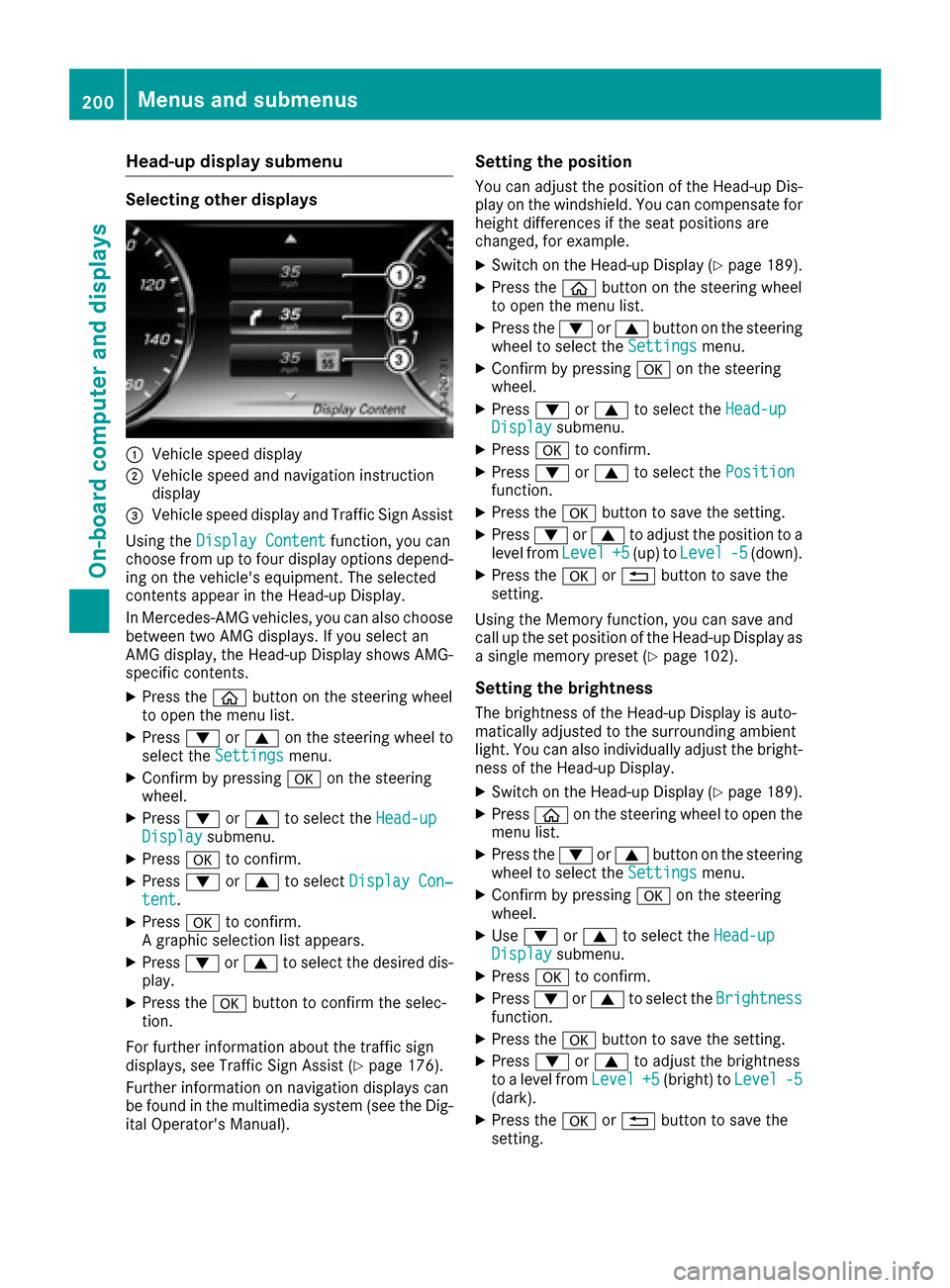
Selecting other displays
0043Vehicle speed display
0044Vehicle speed and navigation instruction
display
0087Vehicle speed display and Traffic Sign Assist
Using the Display Content
function, you can
choose from up to four display options depend-
ing on the vehicle's equipment. The selected
contents appear in the Head-up Display.
In Mercedes-AMG vehicles, you can also choose
between two AMG displays. If you select an
AMG display, the Head-up Display shows AMG-
specific contents.
XPress the 00E2button on the steering wheel
to open the menu list.
XPress 0064or0063 on the steering wheel to
select the Settingsmenu.
XConfirm by pressing 0076on the steering
wheel.
XPress 0064or0063 to select the Head-upDisplaysubmenu.
XPress0076to confirm.
XPress 0064or0063 to select Display Con‐tent.
XPress0076to confirm.
A graphic selection list appears.
XPress 0064or0063 to select the desired dis-
play.
XPress the 0076button to confirm the selec-
tion.
For further information about the traffic sign
displays, see Traffic Sign Assist (
Ypage 176).
Further information on navigation displays can
be found in the multimedia system (see the Dig-
ital Operator's Manual).
Setting the position
You can adjust the position of the Head-up Dis-
play on the windshield. You can compensate for
height differences if the seat positions are
changed, for example.
XSwitch on the Head-up Display (Ypage 189).
XPress the 00E2button on the steering wheel
to open the menu list.
XPress the 0064or0063 button on the steering
wheel to select the Settingsmenu.
XConfirm by pressing 0076on the steering
wheel.
XPress 0064or0063 to select the Head-upDisplaysubmenu.
XPress0076to confirm.
XPress 0064or0063 to select the Positionfunction.
XPress the0076button to save the setting.
XPress 0064or0063 to adjust the position to a
level from Level+5(up) toLevel-5(down).
XPress the 0076or0038 button to save the
setting.
Using the Memory function, you can save and
call up the set position of the Head-up Display as
a single memory preset (
Ypage 102).
Setting the brightness
The brightness of the Head-up Display is auto-
matically adjusted to the surrounding ambient
light. You can also individually adjust the bright-
ness of the Head-up Display.
XSwitch on the Head-up Display (Ypage 189).
XPress 00E2on the steering wheel to open the
menu list.
XPress the 0064or0063 button on the steering
wheel to select the Settingsmenu.
XConfirm by pressing 0076on the steering
wheel.
XUse 0064 or0063 to select the Head-upDisplaysubmenu.
XPress0076to confirm.
XPress 0064or0063 to select the Brightnessfunction.
XPress the0076button to save the setting.
XPress 0064or0063 to adjust the brightness
to a level from Level+5(bright) toLevel-5(dark).
XPress the0076or0038 button to save the
setting.
200Menus and submenus
On-board computer and displays
Page 245 of 338
Operating system
Overview
General notes
Wearing polarized sunglasses may impair your
ability to read the display.
The display has an automatic temperature-con-
trolled switch-off feature. The brightness is
automatically reduced if the temperature is too
high. The display may temporarily switch off
completely.
Cleaning instructions
!Do not touch the display. The display has a
very sensitive high-gloss surface; there is a
risk of scratching. If you have to clean the
screen, however, use a mild cleaning agent
and a soft, lint-free cloth.
The display must be switched off and have
cooled down before you start cleaning. Do not
apply pressure to the display surface when
cleaning it, as this could cause irreversible dam-
age to the display.
Switching the multimedia system
on/off
XPress the 00D0button on the center console
to the right of the controller.
When you switch the multimedia system on, a
warning message will appear. The multimedia
system calls up the previously selected menu.
If you switch the multimedia system off, play- back of the current media source will also be
switched off.
Adjusting the volume
XTurn the thumbwheel to the right of the con-
troller.
or
XPress the 0081or0082 button on the multi-
function steering wheel.
The volume of the media source currently
selected changes.
The volume is adjusted:
Rfor the currently selected media source
Rduring traffic or navigation announcements
Rin hands-free mode during a phone call
Switching the sound on or off
XPress the thumbwheel beside the controller.
or
XPress the 0063button on the multifunction
steering wheel.
If the audio output is switched off, the status
line will show the 0063symbol. If you switch
the media source or change the volume, the
sound is automatically switched on.
iNavigation announcements will be heard
even if the sound is muted.
Functions
The multimedia system has the following func-
tions:
RRadio mode
RMedia mode with media search
RSound systems
RNavigation system
RCommunication functions
RSIRIUS Weather
RVehicle functions with system settings
RFavorites functions
Controller
The controller in the center console lets you:
Rselect menu items on the display
Renter characters
Rselect a destination on the map
Rsave entries
The controller can be:
Rturned 3
Rslid left or right 1
Rslid forwards or back 4
Rslid diagonally2
Rpressed briefly or pressed and held 7
Back button
You can use the0038button to exit a menu or to
call up the basic display of the current operating
mode.
Operating system243
Multimedia system
Z
Page 266 of 338
multifunction display. The audio output is
muted.
If a connection can be made, the Call Con‐
nectedmessage appears in the multifunction
display.
If a mobile phone network and GPS reception
are available, the system transfers data to the
Mercedes-Benz Customer Assistance Center,
for example:
Rcurrent location of the vehicle
Rvehicle identification number
The multimedia system display indicates that a
call is active. During the call, you can change to
the navigation menu by pressing the NAVI but-
ton on the multimedia system, for example.
Voice output is not available in this case.
A voice connection is established between the
Mercedes-Benz Customer Assistance Center
and the vehicle occupants.
From the remote malfunction diagnosis, the
Mercedes-Benz Customer Assistance Center
can ascertain the nature of the problem
(
Ypage 267).
The Mercedes-Benz Customer Assistance Cen-
ter either sends a qualified Mercedes-Benz tech-
nician or makes arrangements for your vehicle
to be transported to the nearest Mercedes-Benz
Service Center.
You may be charged for services such as repair
work and/or towing.
You can find more information in the separate
mbrace manual.
The system has not been able to initiate a Road- side Assistance call, if:
Rthe indicator lamp for Roadside Assistance
call button 0052is flashing continuously.
Rno voice connection to the Mercedes-Benz
Customer Assistance Center was estab-
lished.
This can occur if the relevant mobile phone net-
work is not available, for example.
The Call Failed
message appears in the mul-
tifunction display.
XTo end a call: press the0076button on the
multifunction steering wheel.
or
XPress the corresponding multimedia system
button for ending a phone call.
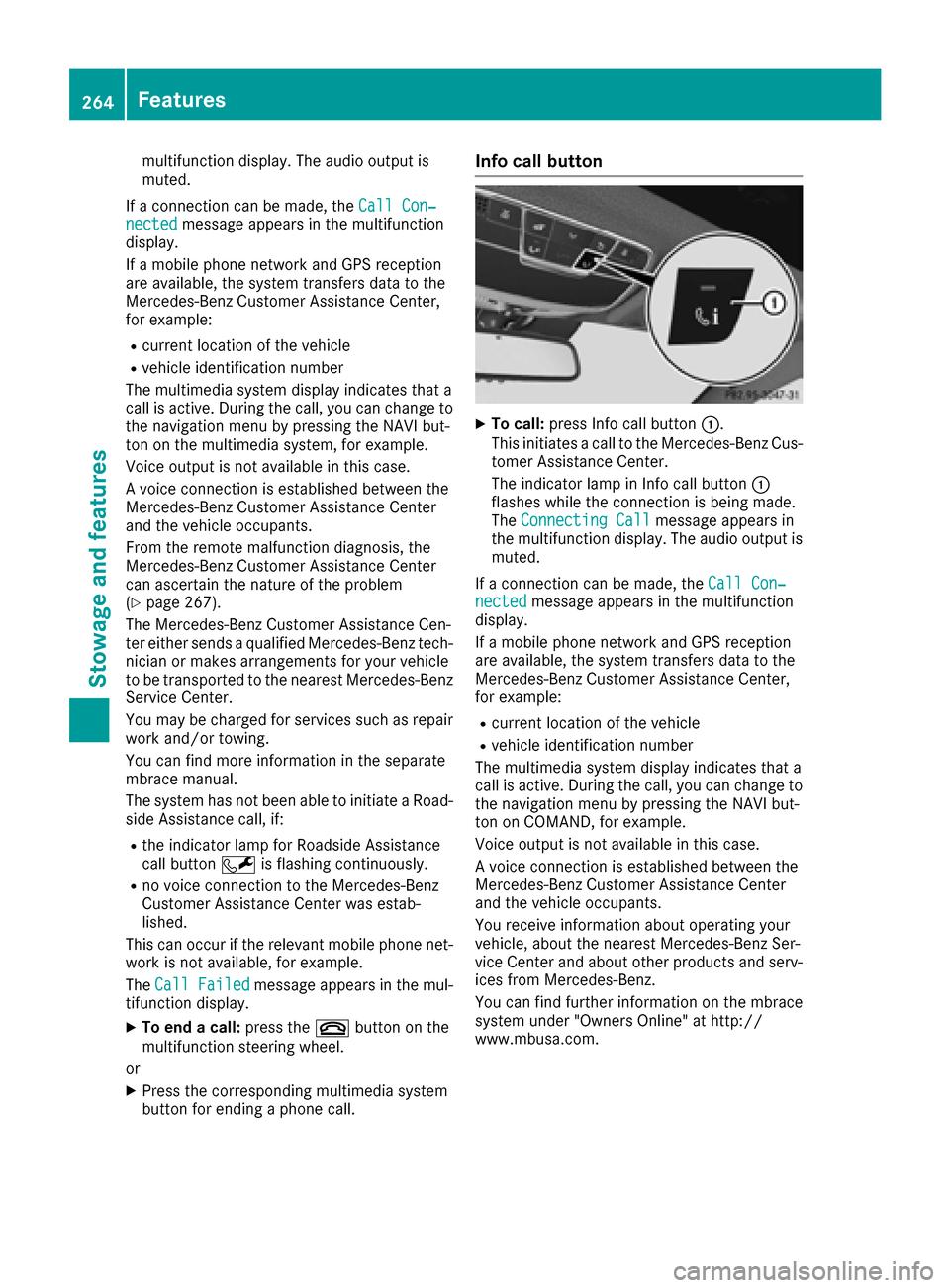
Info call button
XTo call: press Info call button 0043.
This initiates a call to the Mercedes-Benz Cus-
tomer Assistance Center.
The indicator lamp in Info call button 0043
flashes while the connection is being made.
The Connecting Call
message appears in
the multifunction display. The audio output is muted.
If a connection can be made, the Call Con‐
nectedmessage appears in the multifunction
display.
If a mobile phone network and GPS reception
are available, the system transfers data to the
Mercedes-Benz Customer Assistance Center,
for example:
Rcurrent location of the vehicle
Rvehicle identification number
The multimedia system display indicates that a
call is active. During the call, you can change to
the navigation menu by pressing the NAVI but-
ton on COMAND, for example.
Voice output is not available in this case.
A voice connection is established between the
Mercedes-Benz Customer Assistance Center
and the vehicle occupants.
You receive information about operating your
vehicle, about the nearest Mercedes-Benz Ser-
vice Center and about other products and serv-
ices from Mercedes-Benz.
You can find further information on the mbrace
system under "Owners Online" at http://
www.mbusa.com.
264Features
Stowage and features