2017 MERCEDES-BENZ GLC SUV start button
[x] Cancel search: start buttonPage 220 of 374
XTo select a DVD single drive or disc:press
a briefly. The list containing the media
sources appears.
XPress :or9 to select the correspond-
ing DVD single drive or disc.
XPress ato confirm.
XTo open the scene list: press the:or
9 button briefly.
XTo select the next or previous scene in the
scene list: press the:or9 button
briefly.
XTo select a scene from the scene list using
rapid scrolling: press and hold:or9
until desired scene :is reached.
XPress ato confirm your selection.
Telephone menu
Introduction
GWARNING
If you operate information systems and com-
munication equipment integrated in the vehi-
cle while driving, you will be distracted from
traffic conditions. You could also lose control
of the vehicle. There is a risk of an accident.
Only operate the equipment when the traffic
situation permits. If you are not sure that this
is possible, park the vehicle paying attention
to traffic conditions and operate the equip-
ment when the vehicle is stationary.
When telephoning, you must observe the legal
requirements for the country in which you are
currently driving.
XSwitch on the mobile phone (see the manu-
facturer’s operating instructions).
XSwitch on the multimedia system.
XEstablish a Bluetooth®connection to the mul-
timedia system (see the Digital Operator's
Manual).
XPress the òbutton on the steering wheel
to open the menu list.
XPress :or9 on the steering wheel to
select the Telephonemenu.
XConfirm by pressing aon the steering
wheel. You will see one of the following display mes-
sages in the multifunction display:
RPhone READYor the name of the network
provider: the mobile phone has found a net-
work and is ready to receive.
RPhone No Service: there is no network
available or the mobile phone is searching for
a network.
Accepting a call
If someone calls you when you are in the Tele‐phonemenu, a display message appears in the
multifunction display.
You can accept a call at any time regardless of
the menu selected.
XPress the 6button on the steering wheel
to accept an incoming call.
Rejecting or ending a call
XPress the ~button on the steering wheel
to reject or end a call.
Selecting an entry in the phone book
XPress the òbutton on the steering wheel
to open the menu list.
XPress the :or9 button on the steering
wheel to select the Telephonemenu.
XConfirm by pressing aon the steering
wheel.
XPress the :,9ora button to
switch to the phone book.
XUsing :or9, select the names one
after the other.
or
XTo start rapid scrolling: press and hold:
or 9 for longer than one second.
The names are displayed quickly one after the
other in the phone book.
If you press and hold the :or9 button
for longer than five seconds, the name with
the next or previous initial letter in the alpha-
bet appears.
Rapid scrolling stops when you release the
button or reach the end of the list.
XIf only one telephone number is stored for
a name: press the 6ora button to
start dialing.
or
218Menus and submenus
On-board computer and displays
Page 221 of 374
XIf there is more than one number for a
particular name:press the6ora
button to display the numbers.
XPress the :or9 button to select the
number you want to dial.
XPress the 6ora button to start dialing.
or
XTo exit the telephone book: press the~
or % button briefly.
Redialing
The on-board computer saves the last names or
numbers dialed in the redial memory.
XPress the òbutton on the steering wheel
to open the menu list.
XPress the :or9 button on the steering
wheel to select the Telephonemenu.
XConfirm by pressing aon the steering
wheel.
XPress the 6button to switch to the redial
memory.
XPress the :or9 button to select the
desired name or number.
XPress the 6ora button to start dialing.
or
XTo exit the redial memory: press the~
or % button briefly.
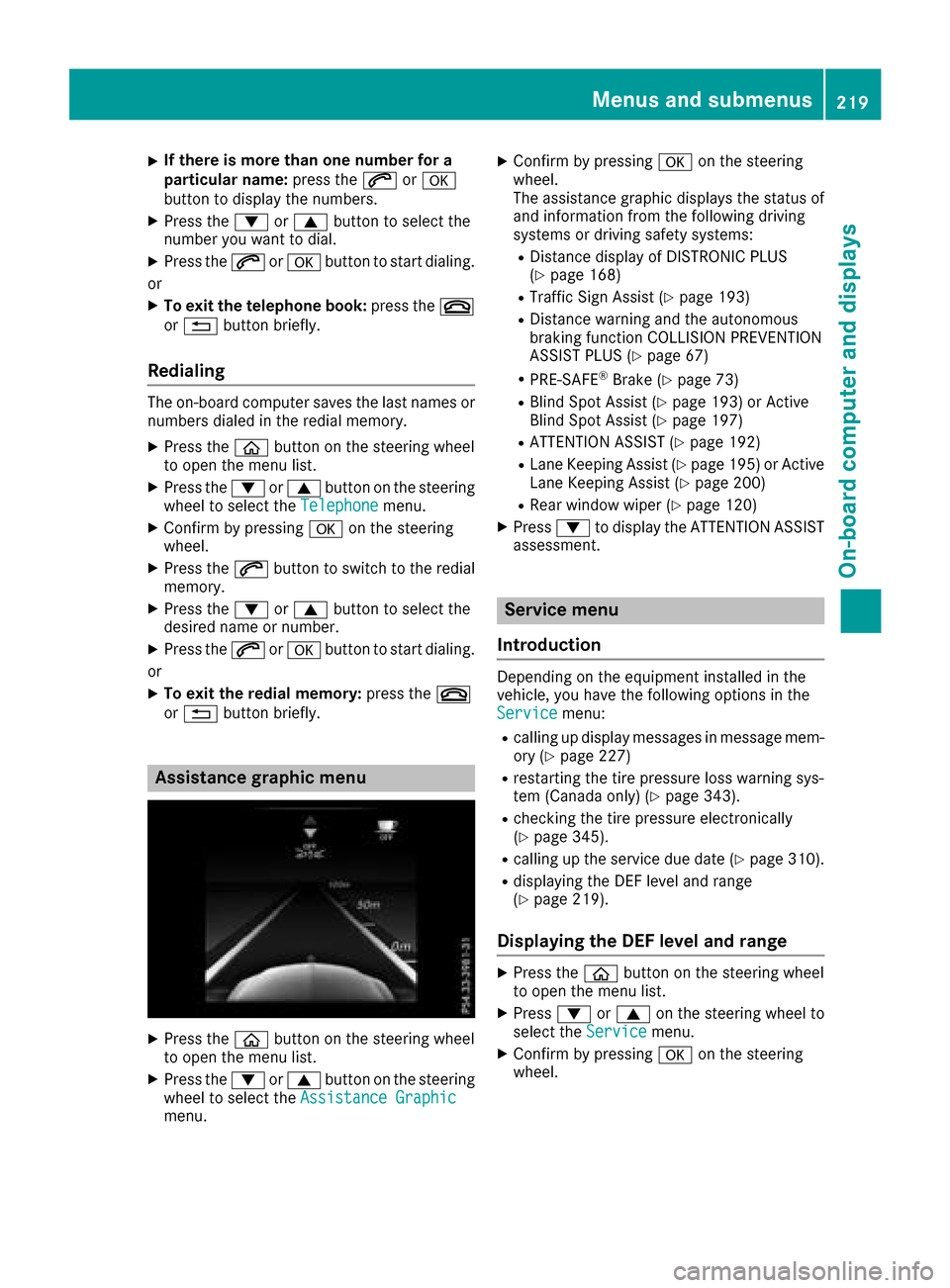
Assistance graphic menu
XPress the òbutton on the steering wheel
to open the menu list.
XPress the :or9 button on the steering
wheel to select the Assistance Graphic
menu.
XConfirm by pressing aon the steering
wheel.
The assistance graphic displays the status of
and information from the following driving
systems or driving safety systems:
RDistance display of DISTRONIC PLUS
(Ypage 168)
RTraffic Sign Assist (Ypage 193)
RDistance warning and the autonomous
braking function COLLISION PREVENTION
ASSIST PLUS (
Ypage 67)
RPRE-SAFE®Brake (Ypage 73)
RBlind Spot Assist (Ypage 193) or Active
Blind Spot Assist (Ypage 197)
RATTENTION ASSIST (Ypage 192)
RLane Keeping Assist (Ypage 195) or Active
Lane Keeping Assist (Ypage 200)
RRear window wiper (Ypage 120)
XPress :to display the ATTENTION ASSIST
assessment.
Service menu
Introduction
Depending on the equipment installed in the
vehicle, you have the following options in the
Service
menu:
Rcalling up display messages in message mem-
ory (Ypage 227)
Rrestarting the tire pressure loss warning sys-
tem (Canada only) (Ypage 343).
Rchecking the tire pressure electronically
(Ypage 345).
Rcalling up the service due date (Ypage 310).
Rdisplaying the DEF level and range
(Ypage 219).
Displaying the DEF level and range
XPress the òbutton on the steering wheel
to open the menu list.
XPress :or9 on the steering wheel to
select the Servicemenu.
XConfirm by pressing aon the steering
wheel.
Menus and submenus219
On-board computer and displays
Z
Page 222 of 374
XPress:or9 to select the AdBluesubmenu.
XPressato confirm your selection.
The range and DEF level appear in a bar graph
in the multifunction display.
Observe the information and notes on "Refuel-
ing" (
Ypage 151).
Settings menu
Introduction
Depending on the equipment installed in the
vehicle, you have the following options in the
Settings
menu:
RChanging assistance settings (Ypage 220).
RChanging head-up display settings
(Ypage 222).
RChanging the light settings (Ypage 223).
RChanging the instrument cluster settings
(Ypage 223).
RRestoring the factory settings (Ypage 223).
Assistance submenu
Deactivating/activating ESP®
Observe the "Important safety notes" section in
the description of ESP®(Ypage 70).
GWARNING
If you deactivate ESP
®, ESP®no longer sta-
bilizes the vehicle. There is an increased risk
of skidding and an accident.
Only deactivate ESP
®in the situations descri-
bed in the following.
It may be best to deactivate ESP
®in the follow-
ing situations:
Rwhen using snow chains
Rin deep snow
Ron sand or gravel
Deactivating/activating ESP®in Mercedes-
AMG vehicles (Ypage 71).
For further information about ESP®, see
(Ypage 70).
XStart the engine.
XPress the òbutton on the steering wheel
to open the menu list.
XPress :or9 on the steering wheel to
select the Settingsmenu.
XConfirm by pressing aon the steering
wheel.
XPress :or9 to select the DriveAs‐sistsubmenu.
XPressato confirm.
XPress :or9 to select ESP.
XPressato confirm.
The current selection appears.
XTo activate/deactivate: press theabut-
ton again.
If the å warning lamp in the instrument
cluster lights up when the vehicle is ready to
drive, ESP
®is deactivated.
If the ÷ andå warning lamps light up
continuously, ESP
®is not available due to a mal-
function.
Observe the information on warning lamps
(
Ypage 259).
Observe the information on display messages
(
Ypage 228).
Activating/deactivating COLLISION PRE-
VENTION ASSIST PLUS
XPress the òbutton on the steering wheel
to open the menu list.
XPress the :or9 button on the steering
wheel to select the Settingsmenu.
XConfirm by pressing aon the steering
wheel.
XUse : or9 to select the DriveAssistsubmenu.
XPressato confirm.
XPress 9or: to select CollisionPrevention.
XPressato confirm.
The current selection appears.
XTo activate/deactivate: pressaagain.
When COLLISION PREVENTION ASSIST PLUS
is deactivated, the æsymbol appears in
the multifunction display in the Assistance
Graphicmenu.
For further information about COLLISION PRE-
VENTION ASSIST PLUS, see (
Ypage 67).
220Menus and submenus
On-board computer and displays
Page 227 of 374
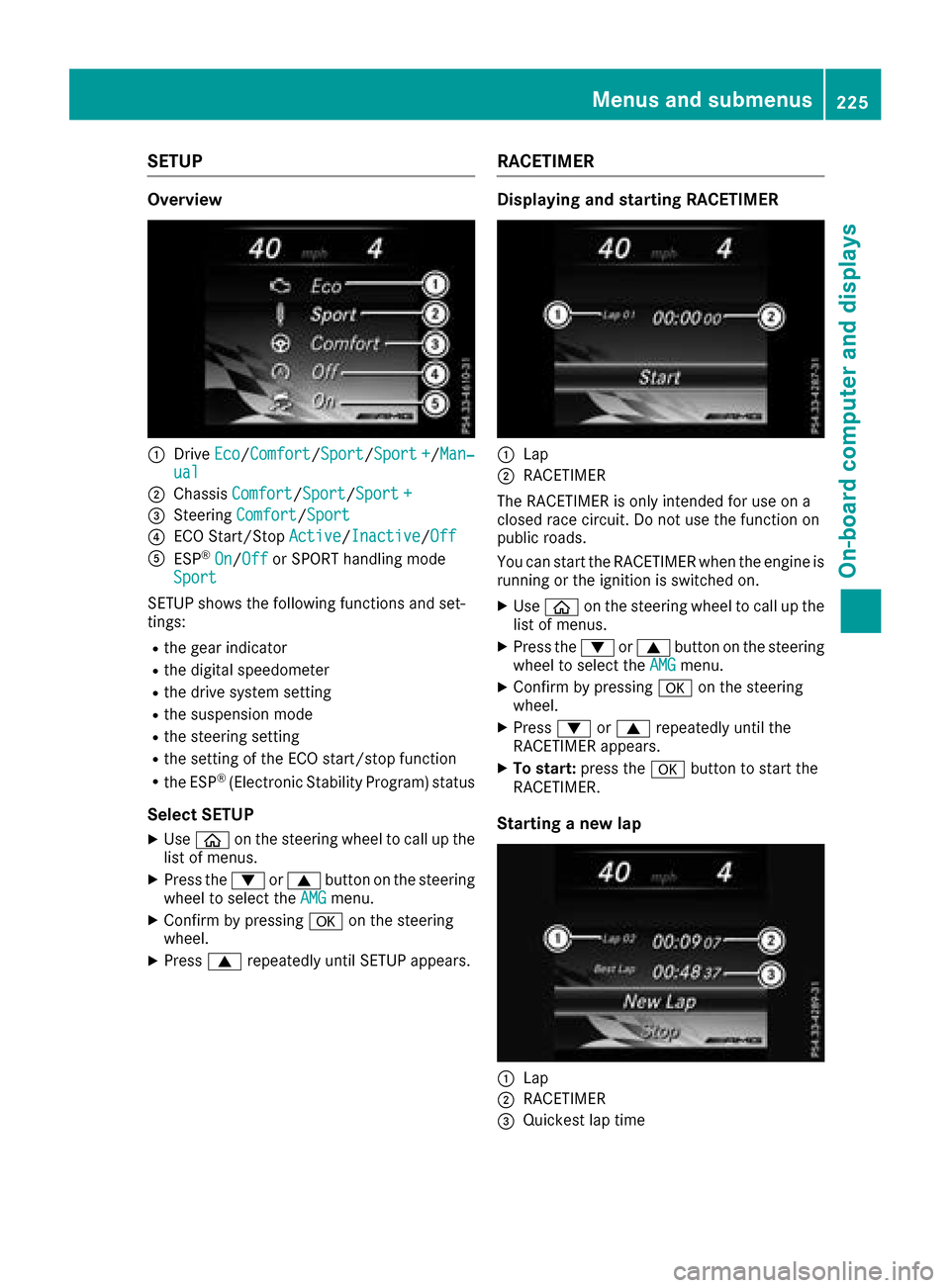
SETUP
Overview
:DriveEco/Comfort/Sport/Sport +/Man‐ual
;Chassis Comfort/Sport/Sport +
=Steering Comfort/Sport
?ECO Start/Stop Active/Inactive/Off
AESP®On/Offor SPORT handling mode
Sport
SETUP shows the following functions and set-
tings:
Rthe gear indicator
Rthe digital speedometer
Rthe drive system setting
Rthe suspension mode
Rthe steering setting
Rthe setting of the ECO start/stop function
Rthe ESP®(Electronic Stability Program) status
Select SETUP
XUse ò on the steering wheel to call up the
list of menus.
XPress the :or9 button on the steering
wheel to select the AMGmenu.
XConfirm by pressing aon the steering
wheel.
XPress 9repeatedly until SETUP appears.
RACETIMER
Displaying and starting RACETIMER
:Lap
;RACETIMER
The RACETIMER is only intended for use on a
closed race circuit. Do not use the function on
public roads.
You can start the RACETIMER when the engine is
running or the ignition is switched on.
XUse ò on the steering wheel to call up the
list of menus.
XPress the :or9 button on the steering
wheel to select the AMGmenu.
XConfirm by pressing aon the steering
wheel.
XPress :or9 repeatedly until the
RACETIMER appears.
XTo start: press the abutton to start the
RACETIMER.
Starting a new lap
:Lap
;RACETIMER
=Quickest lap time
Menus and submenus225
On-board computer and displays
Z
Page 271 of 374
Operating system
Overview
General notes
Wearing polarized sunglasses may impair your
ability to read the display.
The display has an automatic temperature-con-
trolled switch-off feature. The brightness is
automatically reduced if the temperature is too
high. The display may temporarily switch off
completely.
Cleaning instructions
!Do not touch the display. The display has a
very sensitive high-gloss surface; there is a
risk of scratching. If you have to clean the
screen, however, use a mild cleaning agent
and a soft, lint-free cloth.
The display must be switched off and have
cooled down before you start cleaning. Do not
apply pressure to the display surface when
cleaning it, as this could cause irreversible dam-
age to the display.
Switching the multimedia system
on/off
XPress the Übutton on the center console
to the right of the controller.
Adjusting the volume
XTurn the thumbwheel to the right of the con-
troller.
The volume is adjusted:
Rfor the currently selected media source
Rduring traffic or navigation announcements
Rin hands-free mode during a phone call
Switching the sound on or off
XPress the thumbwheel to the right of the con-
troller.
or
XPress the 8button on the multifunction
steering wheel.
If the audio output is switched off, the status
line will show the 8symbol. If you switch
the media source or change the volume, the
sound is automatically switched on.
iNavigation announcements will be heard
even if the sound is muted.
Functions
The multimedia system has the following func-
tions:
RRadio mode
RMedia mode with media search
RSound systems
RNavigation system
COMAND: navigation via the hard drive
Audio 20: navigation via SD card
RCommunication functions
RSIRIUS Weather (COMAND)
RVehicle functions with system settings
RFavorites functions
Controller
The controller in the center console lets you:
Rselect menu items on the display
Renter characters
Rselect a destination on the map
Rsave entries
The controller can be:
Rturned 3
Rslid left or right 1
Rslid forwards or back 4
Rslid diagonally2
Rpressed briefly or pressed and held 7
Back button
You can use the%button to exit a menu or to
call up the basic display of the current operating
mode.
XTo exit the menu: briefly press the%
button.
The multimedia system changes to the next
higher menu level in the current operating
mode.
XTo call up the basic display: press the%
button for longer than two seconds.
The multimedia system changes to the basic
display of the current operating mode.
Operating system269
Multimedia system
Z
Page 274 of 374
Adding your own favorite
XSelectVehicl eQClimate Contro l.
XPress and hold theg buttonuntil th e
favorite sare displayed.
XAd d a favorite at th edesired position.
If afavorite has already been added at this
position, it will be overwritten .
Climate control settings
General notes
You can adjust th eclimat econtrol settings
usin gth eclimat econtrol bar or th eclimat econ-
trol menu.
Importan tclimat econtrol function scan be set
in th eclimat econtrol bar:
RTemperatur e
RAirflow
RAir distribution
The climat econtrol bar is visible in mos tdis-
plays.
You can fin dall available climat econtrol func-
tions in th eclimat econtrol menu. You can use
th eclimat econtrol bar to switch to th eclimat e
control menu.
Overview
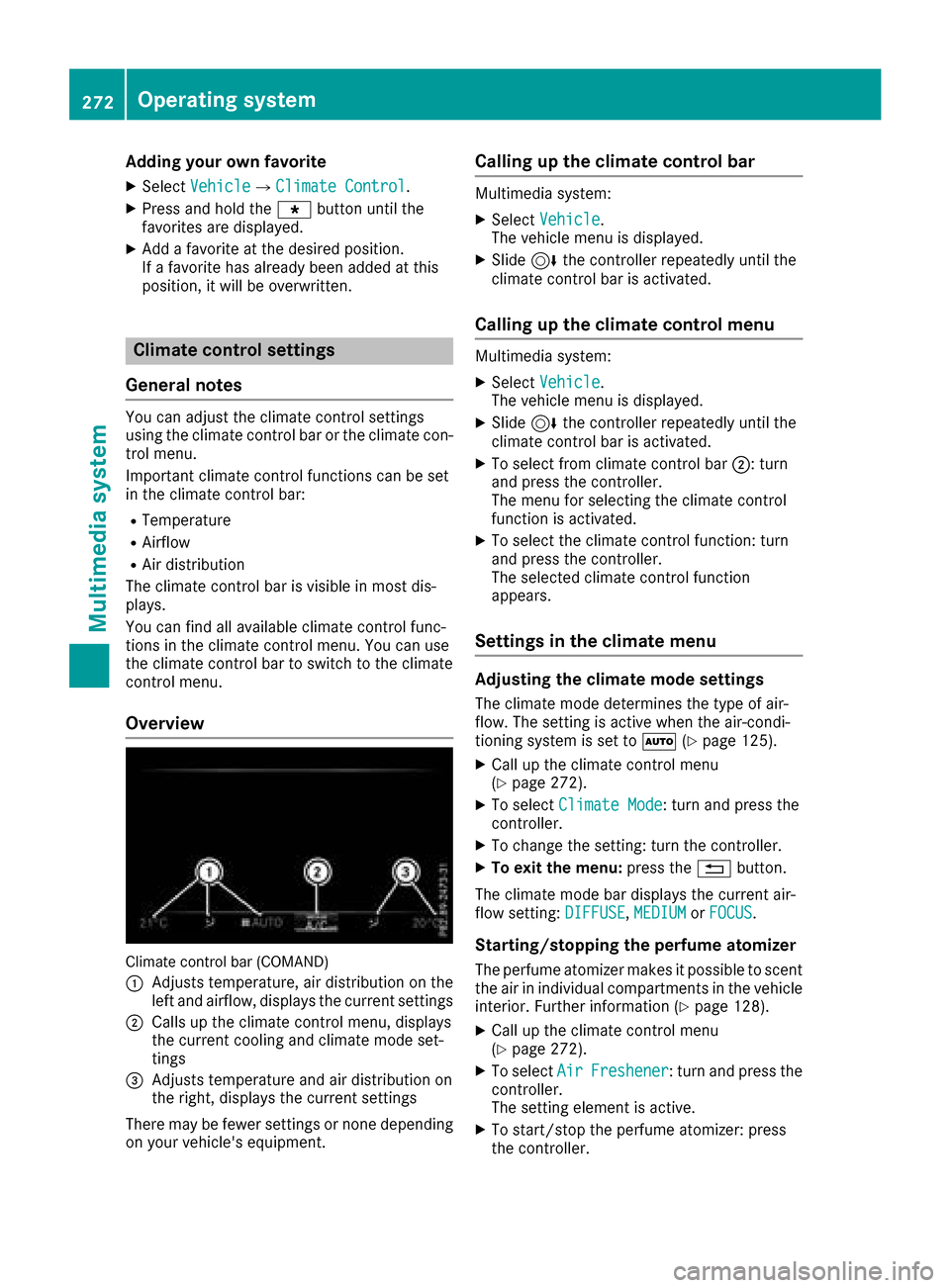
Climat econtrol bar (COMAND)
:
Adjusts temperature, air distribution on th e
left and airflow, displays th ecurren tsettings
;Calls up th eclimat econtrol menu, displays
th ecurren tcoolin gand climat emod eset -
tings
=Adjusts temperature and air distribution on
th eright ,displays th ecurren tsettings
Ther emay be fewe rsettings or none depending
on your vehicle's equipment.
Calling up the climate control bar
Multimedia system:
XSelec tVehicl e.
The vehicl emen uis displayed.
XSlide 6thecontroller repeatedly until th e
climat econtrol bar is activated.
Calling up the climate control menu
Multimedia system:
XSelec tVehicl e.
The vehicl emen uis displayed.
XSlide 6thecontroller repeatedly until th e
climat econtrol bar is activated.
XTo select from climat econtrol bar ;:turn
and press th econtroller.
The men ufor selecting th eclimat econtrol
function is activated.
XTo select th eclimat econtrol function :tur n
and press th econtroller.
The selected climat econtrol function
appears.
Settings in the climate menu
Adjusting the climate mode settings
The climat emod edetermine sth etyp eof air-
flow. The settin gis active when th eair-condi-
tionin gsystem is set to Ã(
Ypage 125).
XCall up th eclimat econtrol men u
(Ypage 272).
XTo select ClimateMod e:tur nand press th e
controller.
XTo chang eth esetting: tur nth econtroller.
XTo exit th emenu: press th e% button.
The climat emod ebar displays th ecurren tair-
flo wsetting: DIFFUSE
,MEDIUMor FOCUS.
Starting/stopping the perfu meatomi zer
The perfum eatomizer makes it possible to scen t
th eair in individual compartments in th evehicl e
interior. Further information (
Ypage 128).
XCall up theclimat econtrol men u
(Ypage 272).
XTo select AirFreshener:tur nand press th e
controller.
The settin gelemen tis active.
XTo start/sto pth eperfum eatomizer: press
th econtroller.
272Operating system
Multimedia system
Page 297 of 374
Problems with the 115 V power socket
ProblemPossible causes/consequences andMSolutions
The warning lamp on the
115 V power socket is
not lit.The on-board voltage is too low because the battery is too weak.
XStart the engine.
or
XCharge the battery (Ypage 327).
If the indicator lamp still does not light up:
XVisit a qualified specialist workshop.
The temperature of the DC/AC converter is temporarily too high.
XRemove the electronic device connector from the 115 V socket.
XLet the DC/AC converter cool down.
If the indicator lamp still does not light up after cooling down the
converter:
XVisit a qualified specialist workshop.
You have connected an electronic device that has a constant nominal
power of less than 150 watts, but has a very high switch-on current.
This device will not work. If you connect such a device, the 115 V
power socket will not supply it with power.
XConnect a suitable electronic device.
mbrace
General notes
The mbrace system is only available in the USA.
You must have a license agreement to activate
the mbrace service. Make sure that your system
is activated and operational. To register, press
the ï Info call button. If any of the steps
mentioned are not carried out, the system may
not be activated.
If you have questions about the activation, con-
tact one of the following telephone hotlines:
Mercedes-Benz Customer Assistance Center at 1-800-FOR-MERCedes (1-800-367-6372) or
1-866-990-9007
Shortly after successfully registering with the
mbrace service, a user ID and password will be
sent to you by mail. You can use this password
to log onto the mbrace area under "Owners
Online" at http://www.mbusa.com. The system is available if:
Rit has been activated and is operational
Rthe corresponding mobile phone network is
available for transmitting data to the Cus-
tomer Center
Ra service subscription is available
Determining the location of the vehicle on a map
is only possible if:
RGPS reception is available
Rthe vehicle position can be forwarded to the
Customer Assistance Center
The mbrace system
To adjust the volume during a call, proceed as
follows:
XPress the WorX button on the multi-
function steering wheel.
or
XUse the multimedia system volume control.
Features295
Stowage and features
Z
Page 301 of 374
The mobile phone is no longer connected to the
multimedia system.
However, if you want to use your mobile phone,
do so only when the vehicle is stationary and in
a safe location.
Downloading destinations
Downloading destinations
Downloading destinations gives you access to a
database with over 15 million points of interest
(POIs). These can be downloaded on the navi-
gation system in your vehicle. If you know the
destination, the address can be downloaded.
Alternatively, you can obtain the location of
Points of Interest (POIs)/important destinations
in the vicinity.
Furthermore, you can download routes with up
to four way points.
You are prompted to confirm route guidance to
the address entered.
XSelect Yesby turning 3or sliding 1
the controller and confirm with 7.
The system calculates the route and subse-
quently starts the route guidance with the
address entered.
If you select No
the address can be stored in
the address book.
The destination download function is available
if:
Rthe vehicle is equipped with a navigation sys-
tem.
Rthe relevant mobile phone network is availa-
ble and data transfer is possible.
Route Assistance
This service is part of the mbrace PLUS Package
and cannot be purchased separately.
You can use the Route Assistance function even
if the vehicle is not equipped with a navigation
system.
Within the framework of this service, you receive
a professional and reliable form of navigation
support without having to leave your vehicle.
The customer service representative finds a
suitable route depending on your vehicle's cur-
rent position and the desired destination. You
will then be guided live through the current route
section.
Search & Send
General notes
To use "Search & Send", your vehicle must be
equipped with mbrace and a navigation system.
Additionally, an mbrace service subscription
must be completed.
"Search & Send" is a destination entry service. A
destination address which is found on Google
Maps
®can be transferred via mbrace directly to
your vehicle's navigation system.
Specifying and sending the destination
address
XGo to the website http://maps.google.com
and enter a destination address into the entry
field.
XTo send the destination address to the e-
mail address of your mbrace account:
click on the corresponding button on the web-
site.
Example:
If you select 'Send to vehicle' and then
'Mercedes-Benz', the destination address will
be sent to your vehicle.
XWhen the "Send" dialog window appears:
Enter the e-mail address you specified when
setting up your mbrace account into the cor-
responding field.
XClick "Send".
Information on specific commands such as
"Address entry" or "Send" can be found on the
website.
Calling up a transmitted destination
address
XTurn the SmartKey to position 2in the ignition
lock (Ypage 132).
The transmitted destination address is loaded
into the vehicle's navigation system.
A display message appears, asking whether
navigation should be started.
XSelect Yesby turning 3or sliding 1
the controller and confirm with 7.
The system calculates the route and subse-
quently starts the route guidance with the
address entered.
If you select No
the address can be stored in
the address book.
Features299
Stowage and features
Z