2017 MERCEDES-BENZ GLC COUPE display
[x] Cancel search: displayPage 205 of 370

Important safety notes
GWARNING
If you operate information systems and com-
munication equipmen tintegrate din th evehi-
cle while driving ,you will be distracte dfrom
traffic conditions. You could also lose control
of th evehicle. Ther eis aris kof an accident.
Only operate th eequipmen twhen th etraffic
situation permits. If you are no tsur ethat this
is possible ,park th evehicl epayin gattention
to traffic condition sand operate th eequip-
men twhen th evehicl eis stationary.
You must observ eth elegal requirements for th e
country in whic hyou are currentl ydriving when
operating th eon-board computer.
GWARNIN G
If th einstrumen tcluste rhas faile dor mal-
functioned, you may no trecognize function
restriction sin systems relevan tto safety. The
operating safet yof your vehicl emay be
impaired .Ther eis aris kof an accident.
Drive on carefully. Hav eth evehicl echecke d
at aqualified specialist workshop immedi-
ately.
If th eoperating safet yof your vehicl eis
impaired ,pull ove ras soo nas it is saf eto do so.
Contac t aqualified specialist workshop.
The on-board computer only shows message sor
warning sfrom certain systems in th emultifunc-
tion display. You should therefor emak esur e
your vehicl eis operating safely at all times .
Fo ran overview, see th einstrumen tpanel illus-
tration (
Ypage 35).
Displays and operation
Instrument cluster lighting
The lighting in th einstrumen tcluster, in th edis-
plays and th econtrol sin th evehicl einterior can
be adjusted usin gbrightness control knob :.
XTurn brightness control knob :up or down .
If you tur nth eligh tswitch (Ypage 108) to th e
T, ÃorL position ,th ebrightness
will depend upon th ebrightness of th eambi -
en tlight.
iThe ligh tsensor in th einstrumen tcluste r
automatically control sth ebrightness of th e
multifunction display.
In daylight, th edisplays in th einstrumen t
cluste rare illuminated. Adimming function is
no tpossibl ein daylight.
Speedometer with segments
The speedometer is divided int osegments
depending on th eequipment.
The segments in th espeedometer indicat e
whic hspee drange is available.
RCruis econtrol activated (Ypage 157):
The segments ligh tup from th estore dspee d
to th een dof th escale.
RDISTRONI CPLU Sactivated (Ypage 159):
On eor two segments in th eset spee drange
ligh tup.
RDISTRONI CPLU Sdetects avehicl ein fron t
moving mor eslowly than th estore dspeed:
The segments between th espee dof th evehi-
cle in fron tand th estore dspee dligh tup.
Displays and operation203
On-board computer and displays
Z
Page 206 of 370

Tachometer
!
Do not drive in the overrevving range, as this
could damage the engine.
The red band in the tachometer indicates the
engine's overrevving range.
The fuel supply is interrupted to protect the
engine when the red band is reached.
Outside temperature display
You should pay special attention to road condi-
tions when temperatures are around freezing
point.
Bear in mind that the outside temperature dis-
play indicates the temperature measured and
does not record the road temperature.
The outside temperature display is in the multi-
function display (
Ypage 205).
Changes in the outside temperature are dis-
played after a short delay.
Coolant temperature gauge
GWARNING
Opening the hood when the engine is over-
heated or when there is a fire in the engine
compartment could expose you to hot gases
or other service products. There is a risk of
injury.
Let an overheated engine cool down before
opening the hood. If there is a fire in the
engine compartment, keep the hood closed
and contact the fire department.
!A display message is shown if the coolant
temperature is too high.
If the coolant temperature is over 248 ‡
(120 †), do not continue driving. The engine
will otherwise be damaged.
The coolant temperature gauge is in the lower
section of the tachometer (
Ypage 35).
Under normal operating conditions and with the
specified coolant level, the coolant temperature
may rise to 248 ‡ (120 †).
Operating the on-board computer
:Multifunction display
;Right control panel
=Left control panel
XTo activate the on-board computer: switch
on the power supply.
You can control the multifunction display and
the settings in the on-board computer using the
buttons on the multifunction steering wheel.
Left control panel
òROpens a menu list
9
:Press briefly:
RScrolls in lists
RSelects a menu or function
RIn the RadioorMediamenu:
opens a track or station list and
selects a station, an audio track or
a video scene.
RIn the Telephonemenu: switches
to the phone book and selects a
name or a telephone number
9
:Press and hold:
RScrolls quickly through all lists
RIn the RadioorMediamenu:
selects a station, audio track or
video scene using rapid scrolling
RIn the Telephonemenu: starts
rapid scrolling if the phone book is
open
204Displays an doperation
On-boa rd computer and displays
Page 207 of 370

aRIn all menus: confirms the selected
entry in the list
RIn theRadioorMediamenu:
opens the list of available radio
sources or media
RIn the Telephonemenu: switches
to the phone book and starts dial-
ing the selected number
ñRVehicles with multimedia system
Audio 20:
Switches off voice-operated con-
trol for navigation (see the manu-
facturer's operating instructions)
RVehicles with multimedia system
COMAND:
Switches off the Voice Control
System (see the separate operat-
ing instructions)
%Press briefly:
RBack
RIn the RadioorMediamenu: exits
the track or station list or list of
available radio sources or media
RHides display messages
RExits the phone book/redial mem-
ory
%Press and hold:
RCalls up the standard display in the
Tripmenu
Right control panel
~RRejects or ends a call
RExits the phone book/redial mem-
ory
6RMakes or accepts a call
RSwitches to the redial memory
W
XRAdjusts the volume
8RMute
óRVehicles with multimedia system
Audio 20:
Switches on voice-operated con-
trol for navigation (see the manu-
facturer's operating instructions)
RVehicles with multimedia system
COMAND:
Switches on the Voice Control Sys-
tem (see the separate operating
instructions)
Multifunction display
:Drive program (Ypage 137)
;Transmission position (Ypage 138)
=Additional speedometer
?Display
ATime
BOutside temperature (Ypage 204)
Display panel ?shows the selected menu or
submenu and display messages.
XTo open the menu list: press theòbut-
ton on the steering wheel.
Display panel ?appears in the menu list.
Possible displays in the multifunction dis-
play:
RZ Gearshift recommendation, when shifting
manually (Ypage 142)
Rj Active Parking Assist (Ypage 173)
R¯ Cruise control (Ypage 157)
Displays and operation205
On-board computer and displays
Z
Page 208 of 370

RaDISTRONIC PLUS Steering Assist and
Stop&Go Pilot (Ypage 164)
R_ Adaptive Highbeam Assist
(Ypage 110)
Rè ECO start/stop function (Ypage 131)
RëHOLD function (Ypage 166)
Head-up display
General notes
The head-up display projects information from
the navigation system and the driver assistance
system above the dashboard into the driver's
field of vision. The head-up display allows the
driver to see all of the information without hav-
ing to take their eyes off the road.
A requirement for the display of the contents is that the following functions are available in the
vehicle and are switched on:
RCruise control
RDISTRONIC PLUS
RTraffic Sign Assist
RNavigation
Important safety notes
The head-up display is only an aid and is not a
substitute for attentive driving.
The visibility of the head-up display is influencedby the following conditions:
Rthe driver's seat position
Rthe positioning of the display image
Rthe general ambient light
Rsunglasses with polarization filters
Rwet roads
Rblocking of sunlight by objects on the display
cover
In the event of extreme sunlight, sections of the
display may fade. This can be reversed by
switching the head-up display off and on again.
iVehicles with the head-up display are equip-
ped with a special windshield. Should repairs
be necessary, have the windshield replaced at
a qualified specialist workshop.
Displays and operation
Switching the head-up display on/off
XPress button :.
When the head-up display is switched on, the display appears in the driver's field of vision.
Standard displays in the head-up display
:Navigation messages
;Current speed
=Detected traffic signs
?Cruise control or DISTRONIC PLUS set
speed
206Displays an doperation
On-boa rd computer and displays
Page 209 of 370

AMG displays inthe head-up display
:Protection against reachin gth eoverrevving
range
;RACETIMER lap
=RACETIMER lap tim e
?Currentspee d
ACurrently selected gear ,gearshif toption s
when shiftin gmanually
BCurren tengin espee d
Setting options
You can adjust th efollowin gsettings in th e
head-up display submenu:
Radjust th epositio nof th ehead-up display on
th ewindshield (Ypage 217)
Radjust thebrightness of th edisplays in th e
head-up display (Ypage 217)
Rselect desired displays in th ehead-up display
(Ypage 216)
Usin gth eDispla yConten t
function ,you
can ,depending on your vehicle's equipment,
choos ebetween four standard displays. The
selected contents then appear in th ehead-up
display.
In Mercedes-AM Gvehicles, you can choos e
between further AM Gdisplays in addition to
th estandard displays, depending on your
vehicle's equipment.
If you select adisplay wit htraffic signs, detec-
te dtraffic sign sfrom Traffic Sig nAssist
appear in th ehead-up display.
Menus and submenus
Menu overview
Press th eò buttonon th esteering whee lto
open th emen ulist .
Operating th eon-board computer (
Ypage 204).Dependin
gon th evehicl eequipment, you can
select th efollowin gmenu:
RTri pmen u (Ypage 207)
RNavimen u(navigation instructions)
(Ypage 209)
RRadiomen u (Ypage 211)
RMediamenu (Ypage 211)
RTelephonemenu (Ypage 213)
RAssistanc eGraphi cmenu (Ypage 214)
RServic emenu (Ypage 214)
RSettingsmenu (Ypage 215)
RAMGmenuin Mercedes-AM Gvehicles
(Ypage 219)
Trip menu
Standard display
XPress and hold th e% buttonon th esteer -
ing whee luntil th eTri pmen uwit htrip odom -
eter :and odometer ;appears.
Menus and submenus207
On-board computer and displays
Z
Page 210 of 370
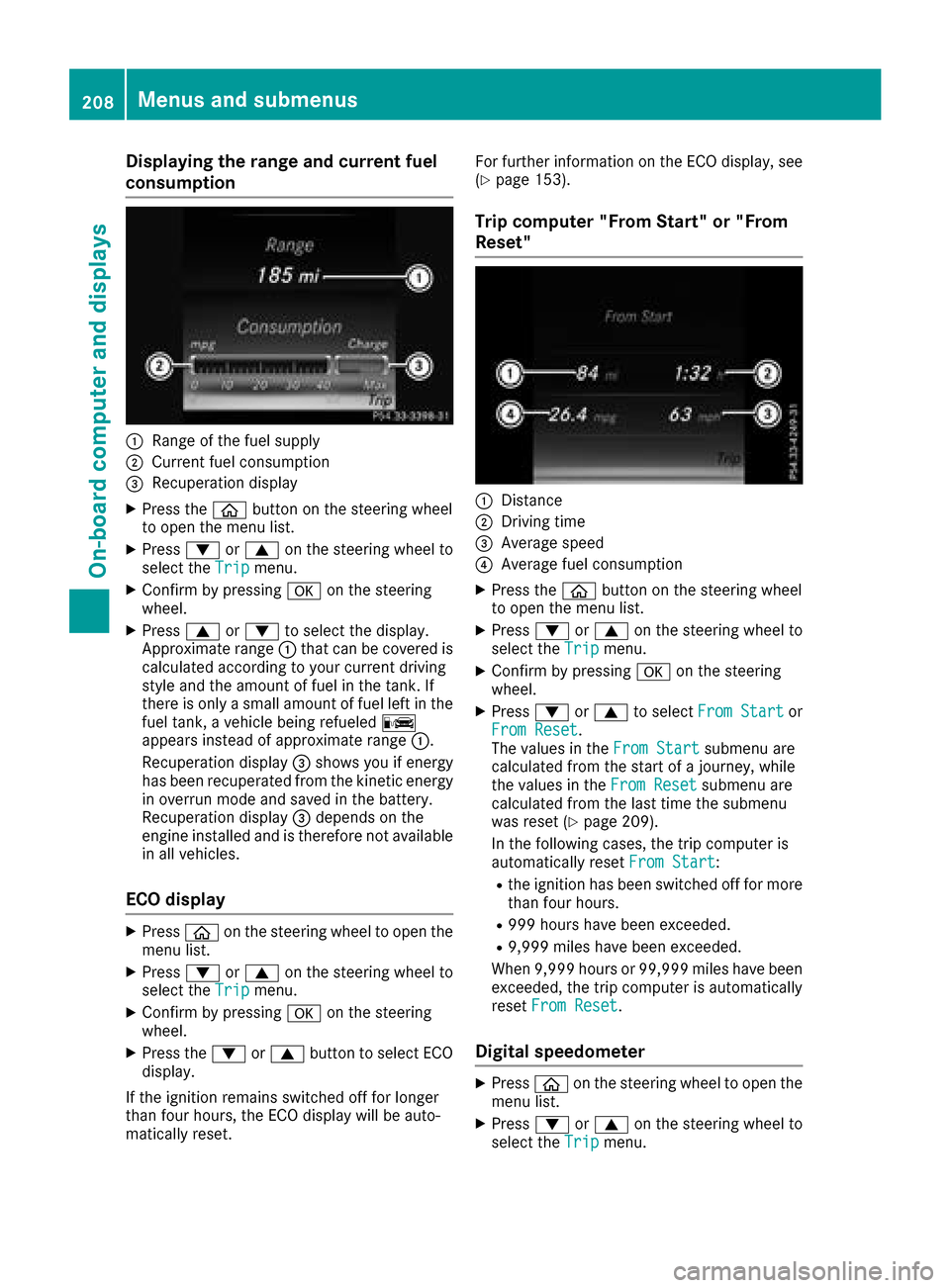
Displaying therange an dcurrent fuel
consumption
:Range of th efue lsupply
;Curren tfue lconsumption
=Recuperation display
XPress th eò buttonon th esteerin gwhee l
to ope nth emen ulist .
XPress :or9 on thesteerin gwhee lto
selec tth eTri pmenu.
XConfir mby pressing aon thesteerin g
wheel.
XPress 9or: to selec tth edisplay.
Approximat erange :that can be covered is
calculated accordin gto your curren tdrivin g
style and th eamount of fue lin th etank .If
there is only asmall amount of fue llef tin th e
fue ltank , avehicle bein grefuele dC
appears instead of approximat erange :.
Recuperation display =shows you if energ y
has bee nrecuperated from th ekineti cenerg y
in overrun mode and saved in th ebattery.
Recuperation display =depend son th e
engin einstalled and is therefore no tavailable
in all vehicles .
ECO display
XPressòon thesteerin gwhee lto ope nth e
men ulist .
XPress :or9 on thesteerin gwhee lto
selec tth eTri pmenu.
XConfir mby pressing aon thesteerin g
wheel.
XPress th e: or9 buttonto selec tEC O
display.
If th eignition remain sswitched of ffo rlonger
than four hours, th eEC Odisplay will be auto-
matically reset . Fo
rfurther information on th eEC Odisplay, see
(
Ypage 153).
Trip compute r"From Start" or "From
Reset "
:Distanc e
;Driving time
=Average speed
?Average fue lconsumption
XPress th eò buttonon th esteerin gwhee l
to ope nth emen ulist .
XPress :or9 on thesteerin gwhee lto
selec tth eTri pmenu.
XConfir mby pressing aon thesteerin g
wheel.
XPress :or9 to selec tFro mStartor
Fro mReset.
The values in th eFro mStartsubmen uare
calculated from th estart of ajourney, whil e
th evalues in th eFro mReset
submen uare
calculated from th elast time th esubmen u
was reset (
Ypage 209).
In th efollowin gcases, th etrip compute ris
automatically reset FromStart
:
Rtheignition has bee nswitched of ffo rmore
than four hours.
R99 9hour shav ebee nexceeded.
R9,999 miles hav ebee nexceeded.
Whe n9,999 hour sor 99,99 9miles hav ebee n
exceeded, th etrip compute ris automatically
reset FromReset
.
Digital speedometer
XPress òon thesteerin gwhee lto ope nth e
men ulist .
XPress :or9 on thesteerin gwhee lto
selec tth eTri pmenu.
208Menus and submenus
On-board computer and displays
Page 211 of 370

XConfirmbypressing aon the steering
wheel.
XPress the :or9 button to select the
digit al speedometer.
Resetting values
XPress the òbutton on the steering wheel
to open the menu list.
XPress :or9 on the steering wheel to
select the Tripmenu.
XConfirmbypressing aon the steering
wheel.
XPress the :or9 button to select the
function that you wishto reset.
XPress abriefly.
XPress :to select Yesand press ato
confirm.
You can reset the values of the foll owing func-
tions:
RTrip odometer
R"From Start" tr ipcomputer
R"From Reset" tr ipcomputer
RECO display
If you reset the values inthe ECO display, the
values inthe "From Start" tr ipcomputer are
also reset. Ifyou reset the values inthe "From
St art" tr ipcomputer, the values inthe ECO
displ ay are also reset.
Navigation system menu
Displaying navigation instructions
In the Navimenu, the multifunction display
shows navigation instructions. You can find fur-
ther information on navigation instructions in
the multimedia systeminthe Digital Operator's
Manual.
XSwit ch on the multimed iasystem.
XPress the òbutton on the steering wheel
to open the menu list.
XPress :or9 on the steering wheel to
select the Navimenu.
XConfirmbypressing aon the steering
wheel.
Route guidance not active
:Direction of travel
;Current road
Route guidance active
No change of direction announced
:Distance to the next destination
;Estimated arrival time
=Distance to the next change of direction
?Current road
Menus and submenus209
On-board computer and displays
Z
Page 212 of 370
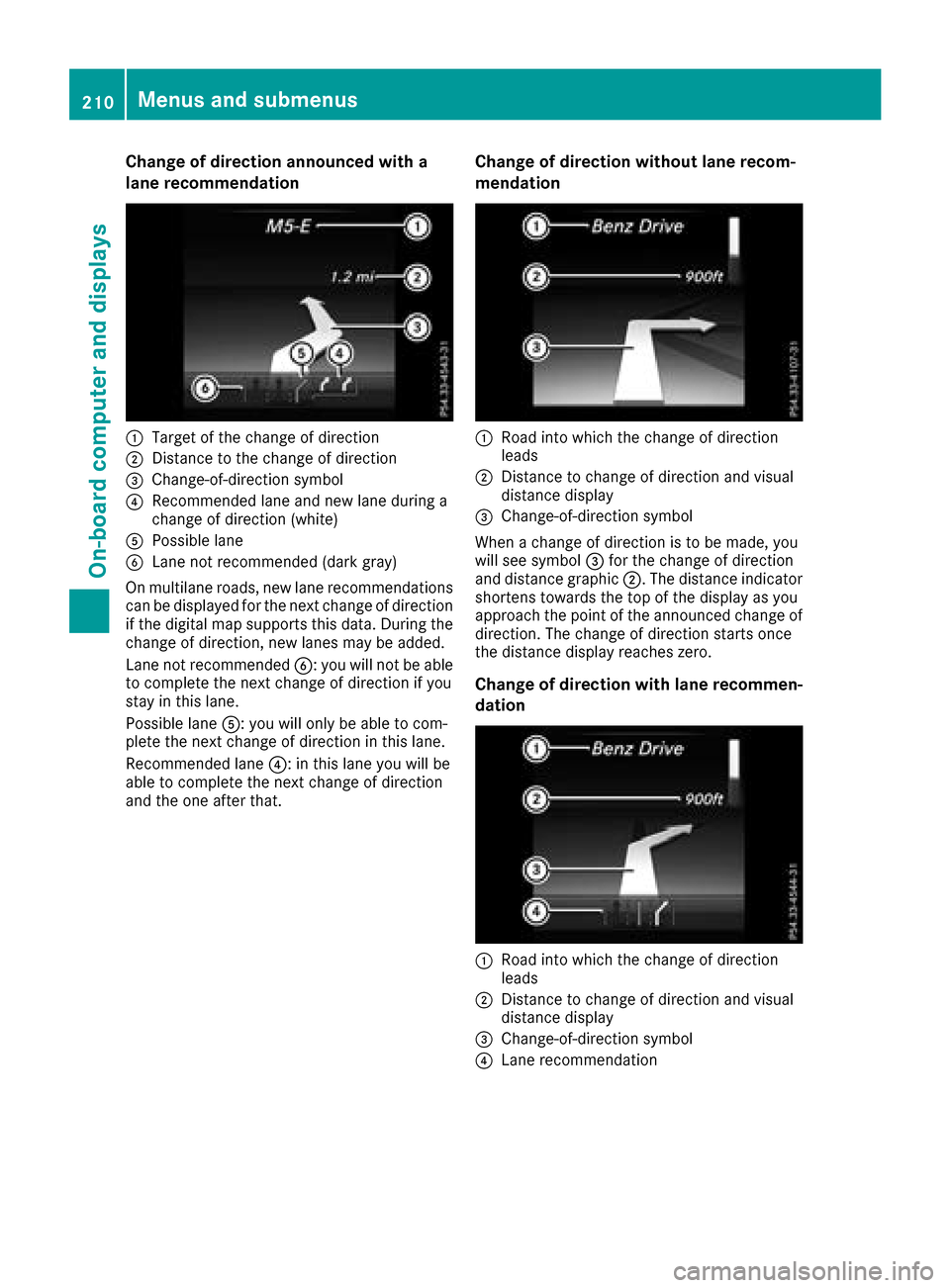
Change of direction announced with a
lane recommendation
:Target of the change of direction
;Distance to the change of direction
=Change-of-direction symbol
?Recommended lane and new lane during a
change of direction (white)
APossible lane
BLane not recommended (dark gray)
On multilane roads, new lane recommendations can be displayed for the next change of direction
if the digital map supports this data. During the
change of direction, new lanes may be added.
Lane not recommended B: you will not be able
to complete the next change of direction if you
stay in this lane.
Possible lane A: you will only be able to com-
plete the next change of direction in this lane.
Recommended lane ?: in this lane you will be
able to complete the next change of direction
and the one after that.
Change of direction without lane recom-
mendation
:Road into which the change of direction
leads
;Distance to change of direction and visual
distance display
=Change-of-direction symbol
When a change of direction is to be made, you
will see symbol =for the change of direction
and distance graphic ;. The distance indicator
shortens towards the top of the display as you
approach the point of the announced change of
direction. The change of direction starts once
the distance display reaches zero.
Change of direction with lane recommen-
dation
:Road into which the change of direction
leads
;Distance to change of direction and visual
distance display
=Change-of-direction symbol
?Lane recommendation
210Menus and submenus
On-board computer and displays