2017 MERCEDES-BENZ CLS-Class ad blue
[x] Cancel search: ad bluePage 8 of 334

BAS PLUS (Brake Assist System
PLUS) with Cross-Traffic AssistFunction/notes ................................ 65
BAS PLUS with Cross-Traffic Assist
(Brake Assist PLUS with Cross-
Traffic Assist)
Important safety notes .................... 65
Battery (SmartKey)
Checking .......................................... 79
Important safety notes .................... 78
Replacing ......................................... 79
Battery (vehicle)
Charging ........................................ 284
Display message ............................ 214
Important safety notes .................. 282
Jump starting ................................. 285
Belt
see Seat belts
Blind Spot Assist
Activating/deactivating (on-
board computer) ............................ 196
Display message ............................ 217
Notes/function .............................. 179
see Active Blind Spot Assist
Blootooth
®
Connecting a different mobile
phone ............................................ 241
Bluetooth
®
Searching for a mobile phone ........ 240
see also Digital Operator's Man-
ual .................................................. 236
Telephony ...................................... 239
Box (trunk) ......................................... 246
Brake Assist
see BAS (Brake Assist System)
Brake fluid
Display message ............................ 206
Notes ............................................. 326
Brake force distribution
see EBD (electronic brake force
distribution)
Brake lamps
Display message ............................ 212
Brakes
ABS .................................................. 64
Adaptive Brake Assist ...................... 68
BAS .................................................. 65 BAS PLUS with Cross-Traffic
Assist ............................................... 65
Brake fluid (notes) ......................... 326
Display message ............................ 204
High-performance brake system .... 146
HOLD function ............................... 157
Important safety notes .................. 145
Maintenance .................................. 145
Parking brake ................................ 142
Riding tips ...................................... 145
Warning lamp ................................. 228
Breakdown
Where will I find...? ........................ 277
see Flat tire
see Towing away
Brightness control (instrument
clus
ter lighting) ................................... 34
C
California
Important notice for retail cus-
tomers and lessees .......................... 26
Calling up a malfunction
see Display messages
Car
see Vehicle
Care
360° camera ................................. 274
Car wash ........................................ 270
Carpets .......................................... 276
Display ........................................... 274
Exhaust pipe .................................. 274
Exterior lights ................................ 273
Interior ........................................... 274
Matte finish ................................... 272
Notes ............................................. 270
Paint .............................................. 272
Plastic trim .................................... 275
Power washer ................................ 271
Rear view camera .......................... 274
Roof lining ...................................... 276
Seat belt ........................................ 276
Seat cover ..................................... 275
Selector lever ................................ 275
Sensors ......................................... 274
Steering wheel ............................... 275
Trim pieces .................................... 275
6Index
Page 16 of 334

Search & Send ............................... 258
Self-test ......................................... 254
Speed alert .................................... 260
System .......................................... 254
Triggering the vehicle alarm ........... 261
Vehicle remote unlocking .............. 259
Mechanical key
Function/notes ................................ 78
General notes .................................. 78
Inserting .......................................... 78
Locking vehicle ................................ 83
Removing ......................................... 78
Unlocking the driver's door .............. 83
Media Interface
USB port in the armrest of the
center console ............................... 244
see Digital Operator's Manual
Memory card (audio) ......................... 193
Memory function ............................... 103
Mercedes-Benz Intelligent Drive
360°camera .................................. 173
Active Blind Spot Assist ................. 182
Active Lane Keeping Assist ............ 184
Active Parking Assist ..................... 165
ATTENTION ASSIST ........................ 177
Blind Spot Assist ............................ 179
Cruise control ................................ 148
DISTRONIC PLUS ........................... 149
DISTRONIC PLUS with Steering
Assist and Stop&Go Pilot ............... 155
General notes ................................ 147
Lane Keeping Assist ...................... 181
PARKTRONIC ................................. 163
PRE-SAFE
®(anticipatory occu-
pant protection) ............................... 56
PRE-SAFE
®PLUS (anticipatory
occupant protection PLUS) .............. 57
Rear view camera .......................... 169
Traffic Sign Assist .......................... 178
Message memory (on-board com-
puter) .................................................. 203
Messages
see Display messages
Mirrors
see Exterior mirrors
see Vanity mirror (in the sun visor) Mobile phone
Connecting (Bluetooth
®inter-
face) .............................................. 239
Connecting another mobile
phone ............................................ 241
Frequencies ................................... 321
Installation ..................................... 321
Menu (on-board computer) ............ 194
Transmission output (maximum) .... 321
Modifying the programming
(SmartKey) ........................................... 77
MOExtended tires .............................. 278
Mo
unting wheels
Lowering the vehicle ...................... 316
Mounting a new wheel ................... 315
Preparing the vehicle ..................... 313
Raising the vehicle ......................... 313
Removing a wheel .......................... 315
Securing the vehicle against roll-
ing away ........................................ 313
MP3
Operation ....................................... 193
see also Digital Operator's Man-
ual .................................................. 236
Multicontour seat
Adjusting (on the seat) ..................... 96
Multifunction display
Function/notes ............................. 190
Permanent display ......................... 197
Multifunction steering wheel
Operating the on-board compute r..1 89
Overview .......................................... 35
Multimedia system
see Separate operating instructions
Music files
see also Digital Operator's Man-
ual ..................................................2 36
N
Navigation
Menu (on-board computer) ............ 192
see also Digital Operator's Man-
ual ..................................................2 36
NECK-PRO head restraints
Operation ......................................... 55
Resetting triggered .......................... 56
14Index
Page 100 of 334
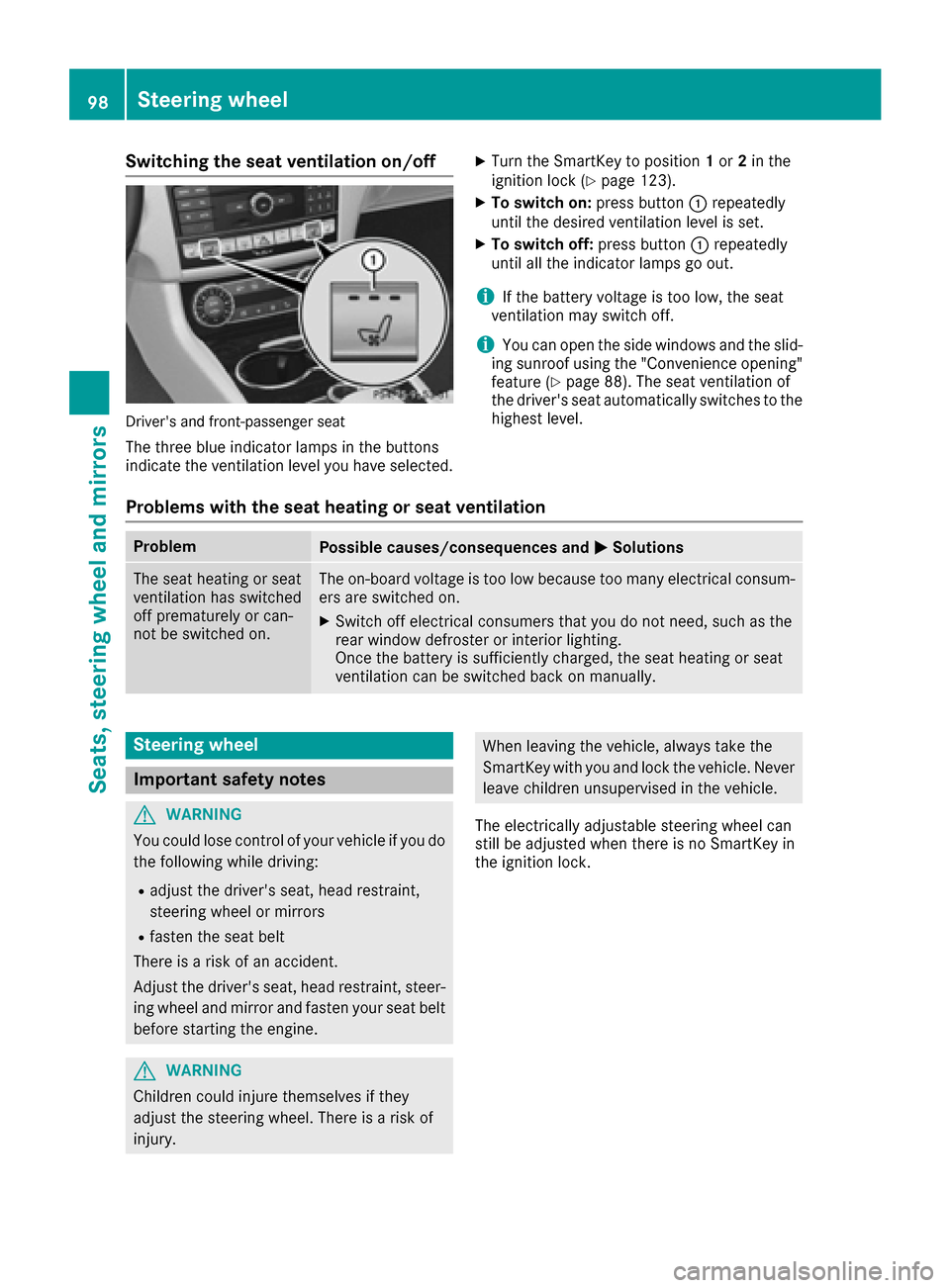
Switching the seat ventilation on/off
Driver's and front-passenger seat
The three blue indicator lamps in the buttons
indicate the ventilation level you have selected.
XTurn the SmartKey to position1or 2in the
ignition lock (Ypage 123).
XTo switch on: press button:repeatedly
until the desired ventilation level is set.
XTo switch off: press button:repeatedly
until all the indicator lamps go out.
iIf the battery voltage is too low, the seat
ventilation may switch off.
iYou can open the side windows and the slid-
ing sunroof using the "Convenience opening"
feature (
Ypage 88). The seat ventilation of
the driver's seat automatically switches to the
highest level.
Problems with the seat heating or seat ventilation
ProblemPossible causes/consequences and MSolutions
The seat heating or seat
ventilation has switched
off prematurely or can-
not be switched on.The on-board voltage is too low because too many electrical consum-
ers are switched on.
XSwitch off electrical consumers that you do not need, such as the
rear window defroster or interior lighting.
Once the battery is sufficiently charged, the seat heating or seat
ventilation can be switched back on manually.
Steering wheel
Important safety notes
GWARNING
You could lose control of your vehicle if you do the following while driving:
Radjust the driver's seat, head restraint,
steering wheel or mirrors
Rfasten the seat belt
There is a risk of an accident.
Adjust the driver's seat, head restraint, steer-
ing wheel and mirror and fasten your seat belt before starting the engine.
GWARNING
Children could injure themselves if they
adjust the steering wheel. There is a risk of
injury.
When leaving the vehicle, always take the
SmartKey with you and lock the vehicle. Never
leave children unsupervised in the vehicle.
The electrically adjustable steering wheel can
still be adjusted when there is no SmartKey in
the ignition lock.
98Steering wheel
Seats, steering wheel and mirrors
Page 109 of 334

The blueKindicator lamp on the instru-
ment cluster lights up when the high-beam
headlamps are switched on.
XTo switch off the high-beam headlamps:
move the combination switch back to its nor-
mal position.
The blue Kindicator lamp on the instru-
ment cluster goes out.
Vehicles with Adaptive Highbeam Assist: if
Adaptive Highbeam Assist is activated, it auto-
matically controls activation and deactivation of
the high-beam headlamps (
Ypage 107).
XHigh-beam flasher: pull the combination
switch in the direction of arrow =.
Hazard warning lamps
XTo switch the hazard warning lamps on or
off: press button :.
The turn signal lamps flash when the hazard
warning lamps are switched on. If you now
switch on a turn signal lamp using the com-
bination switch, only the turn signal lamp on
the corresponding side of the vehicle will
flash.
The hazard warning lamps switch on automati-
cally if an air bag is deployed.
The hazard warning lamps still operate if the
ignition is switched off.
Cornering light function
The cornering light function improves the illu-
mination of the road over a wide angle in the
direction you are turning, enabling better visi-
bility in tight bends, for example. It can only be
activated when the low-beam headlamps are
switched on. Active:
Rif you are driving at speeds below 25 mph
(40 km/h) and switch on the turn signal or
turn the steering wheel
Rif you are driving at speeds between 25 mph
(40 km/h) and 45 mph (70 km/h) and turn
the steering wheel
The cornering lamp may remain lit for a short
time, but is automatically switched off after no
more than three minutes.
Cornering light function with traffic circle
function:
The cornering light function is activated on both
sides before entering a traffic circle through an
evaluation of the current GPS position of the
vehicle. It remains active until after the vehicle
has left the traffic circle. In this way, pedestrians
crossing the road, for example, are illuminated
by your vehicle in good time.
Adaptive Highbeam Assist
General notes
You can use this function to set the headlamps
to change between low beam and high beam
automatically. The system recognizes vehicles
with their lights on, either approaching from the
opposite direction or traveling in front of your
vehicle, and consequently switches the head-
lamps from high beam to low beam.
The system automatically adapts the low-beam
headlamp range depending on the distance to
the other vehicle. Once the system no longer
detects any other vehicles, it reactivates the
high-beam headlamps.
The system's optical sensor is located behind
the windshield near the overhead control panel.
Important safety notes
GWARNING
Adaptive Highbeam Assist does not recognize
road users:
Rwho have no lights, e.g. pedestrians
Rwho have poor lighting, e.g. cyclists
Rwhose lighting is blocked, e.g. by a barrier
On very rare occasions, Adaptive Highbeam
Assist may fail to recognize other road users
that have lights, or may recognize them too
Exterior lighting107
Lights and windshield wipers
Z
Page 196 of 334

Only for vehicles with a COMAND multimedia
system: you can use theAudiomenu to play
video DVDs.
XSwitch on the multimedia system and select
video DVD.
XPress the =or; button on the steering
wheel to select the Audiomenu.
XTo select the next or previous scene:
briefly press the9or: button.
XTo select a scene from the scene list
(rapid scrolling): press and hold the 9
or : button until desired scene :
appears.
Telephone menu
Introduction
GWARNING
If you operate information systems and com-
munication equipment integrated in the vehi-
cle while driving, you will be distracted from
traffic conditions. You could also lose control
of the vehicle. There is a risk of an accident.
Only operate the equipment when the traffic
situation permits. If you are not sure that this
is possible, park the vehicle paying attention
to traffic conditions and operate the equip-
ment when the vehicle is stationary.
When telephoning, you must observe the legal
requirements for the country in which you are
currently driving.
XSwitch on the mobile phone (see the manu-
facturer’s operating instructions).
XSwitch on the multimedia system.
XEstablish a Bluetooth®connection to the mul-
timedia system (see Digital Operator's Man-
ual).
XPress the =or; button on the steering
wheel to select the Telmenu.
You will see one of the following display mes-
sages in the multifunction display:
RPhone READYor the name of the network
provider: the mobile phone has found a net-
work and is ready to receive.
RPhone No Service: there is no network
available or the mobile phone is searching for
a network.
Accepting a call
If someone calls you when you are in the Telmenu, a display message appears in the multi-
function display.
You can accept a call at any time regardless of
the menu selected.
XPress the6button on the steering wheel
to accept an incoming call.
Rejecting or ending a call
XPress the ~button on the steering wheel
to reject or end a call.
Selecting an entry in the phone book
XPress the =or; button on the steering
wheel to select the Telmenu.
XPress the9,:ora button to
switch to the phone book.
XAuthorize access to the phone book on the
phone.
XPress the 9or: button to select the
desired name.
or
XTo start rapid scrolling: press and hold:
or 9 for longer than one second.
The names in the phone book are displayed
quickly one after the other.
Rapid scrolling stops when you release the
button or reach the end of the list.
XIf only one telephone number is stored for
a name: press the 6ora button to
start dialing.
or
XIf there is more than one number for a
particular name: press the6ora
button to display the numbers.
XPress the 9or: button to select the
number you want to dial.
XPress the 6ora button to start dialing.
or
XTo exit the telephone book: press the~
or % button.
194Menus and submenus
On-board computer and displays
Page 203 of 334

AMG menu (Mercedes-AMG vehicles)
Warm -up
:Digital speedometer
;Gear indicator
=Upshiftindicator
?Engin eoil temperature
ACoolan ttemperature
BStatus indicator for ECO start/sto pfunction
(Ypage 126)
XPress =or; on thesteering whee lto
select th eAMGmenu.
Upshift indicator: upshift indicatorUP=
indicates that th eengin ehas reached th e
overrevving range when in th emanual drive
program .
Engin eoil temperature: if theengin eis at
normal operating temperature, th emultifunc-
tion display shows oil temperature ?in
white.
If th emultifunction display shows oil temper-
atur e? in blue, th eengin eis no tyet at nor-
mal operating temperature. Avoid drivin gat
full engin eoutput during this time.
If th econdition sfor th eECO start/sto pfunc-
tion are fulfilled and th evehicl eis stationary,
th emen ushows status indicator B.
SETUP
:Drive program(C/SS+orM)
;ESP®mod eON,OFFor SPORT handlin g
mod eSPORT
=Suspension setting COMFORT,SPORTor
SPORT +
SETUP shows th edrive program ,ES P®(Elec -
tronic Stabilit yProgram )mod eand th esuspen -
sion setting .
XPress=or; on thesteering whee lto
select th eAMGmenu.
XPress 9repeatedly until SETUP is shown.
or
XBriefly press th eAM Gbutto non th ecenter
console (Ypage 161).
RACETIMER
Displaying and starting RACETIMER
The RACETIMER is only intended for use on a
closed rac ecircuit .Do no tuse th efunction on
public roads.
:Lap
;RACETIMER
You can start th eRACETIMER when th eengin eis
runnin gor if th eSmartKey is in position 2in th e
ignition lock.
XPress =or; on thesteering whee lto
select th eAMGmenu.
XPress th e9 buttonrepeatedly until th e
RACETIMER appears.
XTo start: press thea buttonto start th e
RACETIMER.
Displaying th eintermediat etime
XPress th e= or; buttonto select
Interm .Tim e.
XPress ato confirm .
The intermediat etime is shown for fiv esec -
onds.
Menus and submenus20 1
On-board computer and displays
Z
Page 241 of 334

RDynamic TRF. Route After Request
You can decide whether or not current trafficreports should be included in the route cal-
culation (not available in all countries).
RCalculate Alternative Routes
Different routes are being calculated. In order
to do so, instead of Start, select the menu
item Continue.
XTo avoid/use route options: selectAvoid
Options.
XSelect a route option.
Notes for route options:
RUse Toll Roads
The route calculation includes roads which
require you to pay a usage fee (toll).
RNumber of Occupants in the Vehicle:(only available in the USA)
Prerequisite: your vehicle meets the access
conditions for carpool lanes.
Carpool lanes will be included if the carpool
lanes option is activated.
Entering an address
Multimedia system:
XSelect NaviQNavigation.
The map shows the vehicle's current position.
XSlide 6the controller.
XSelect DestinationQAddress Entry.
Enter an address, e.g. as follows:
Rcity or ZIP code, street, house number
Rstate/province, city or ZIP code
Rcity or ZIP code, center
Rstreet, city or ZIP code, intersection
XSelect City.
The city in which the vehicle is currently loca-
ted (current vehicle position) is at the top.
Below this, you will see locations for which
route guidance has already been carried out.
XEnter the city.
The Gsymbol: the location is contained on
the digital map multiple times.
XTo switch to the list: slide the5control-
ler.
XSelect the location.
If available, the ZIP code is shown. If there are
different ZIP codes available for the location, the corresponding digits are displayed with an
X
.
XEnter the street and house number.
The address is in the menu.
Further options for destination entry:
Rsearch for a keyword
The keyword search finds destinations using
fragments of words.
Rselect the last destination
Rselect a contact
Rselect a POI
You can search for a POI by location, name or
telephone number.
Rselect destination on the map
Renter intermediate destination
You can map the route to the destination
yourself with up to four intermediate destina-
tions.
Rselect destinations from Mercedes-Benz
Apps
Rselect geo-coordinates
Calculating the route
Prerequisite: the address has been entered and
is in the menu.
XSelect StartorContinue.
The route is calculated with the selected route
type and the selected route options.
If route guidance has already been activated,
a prompt will appear asking whether you wish
to end the current route guidance.
XSelect Cancel Active Route Guidanceor
Set as Intermediate Destination.
Cancel Active Route Guidancecancels
the current route guidance and starts route
calculation to the new destination.
Set as Intermediate Destination
adds
the new destination in addition to the existing
destination and opens the intermediate des-
tinations list.
Connecting a mobile phone
Prerequisites
For telephony via the Bluetooth®interface, you
require a Bluetooth®-capable mobile phone. The
mobile phone must support Hands-Free Profile
1.0 or above.
Operating system239
Multimedia system
Z
Page 242 of 334

Multimedia system:
XSelectVehicleQSystem Set‐tingsQActivate Bluetooth.
XActivate Bluetooth®O.
Mobile phone:
XActivate Bluetooth®and, if necessary, Blue-
tooth®visibility for other devices (see the
manufacturer's operating instructions).
The Bluetooth
®device names for all of one man-
ufacturer's products might be identical. To
make it possible to clearly identify your mobile
phone, change the device name (see the man-
ufacturer's operating instructions).
If the mobile phone supports the PBAP (Phone
Book Access Profile) and MAP (Message
Access Profile) Bluetooth
®profiles, the follow-
ing information will be transmitted after you
connect:
RPhone book
RCall lists
RText messages and e-mail
iFurther information on suitable mobile
phones can be found at: http://
www.mercedes-benz.com/connect
iIn the USA, you can get in touch with the
Mercedes-Benz Customer Assistance Center
on 1-800-FOR-MERCedes (1-800-367-6372).
In Canada, you can get in touch with the Cus-
tomer Relations Center on 1-800-387-0100.
Searching for and authorizing (connect-
ing) a mobile phone
Before using your mobile phone with the multi-
media system for the first time, you will need to
search for the phone and then authorize (con-
nect) it. Depending on the mobile phone, author- ization either takes place by means of Secure
Simple Pairing or by entering a passkey. The
multimedia system automatically makes the
procedure that is relevant for your mobile phone
available. The mobile phone is always connec-
ted automatically after authorization. Further
information on using a mobile phone with the
multimedia system (see the Digital Operator's
Manual).
If the multimedia system does not detect your
mobile phone, this may be due to particular
security settings on your mobile phone (see the
manufacturer's operating instructions). Only one mobile phone can be connected to the
multimedia system at any one time.
Searching for a mobile phone
Multimedia system:
XSelect
Tel/®QConnectDeviceQSearch for PhonesQStartSearch.
The available mobile phones are displayed.
Symbols in the device list
Sym-
bolExplanation
ÏNew mobile phone found, not yet
authorized.
ÑMobile phone is authorized, but is
not connected
#Mobile phone is authorized and
connected
Connecting a mobile phone
Authorization using Secure Simple Pairing:
XSelect mobile phone.
A code is displayed in the multimedia system
and on the mobile phone.
XIf codes match: selectYeson the multimedia
system.
XConfirm code on the mobile phone. Depend-
ing on the mobile phone used, confirm the
connection to the multimedia system and for
the PBAP and MAP Bluetooth
®profiles. The
prompt to confirm may take up to two
minutes to be displayed (see the manufactur-
er's operating instructions).
XIf the codes are different: selectNoon the
multimedia system.
The process is canceled.
Repeat authorization.
Authorization by entering a passkey (passcode):
XSelect the Bluetooth®name of the mobile
phone.
The input menu for the passkey is displayed.
XChoose a one to sixteen-digit number combi- nation as a passkey.
XEnter the passkey on the multimedia system.
XPress ¬to confirm.
XEnter and confirm the passkey on the mobile
phone. Depending on the mobile phone used,
confirm the connection to the multimedia sys-
240Operating system
Multimedia system