2017 MERCEDES-BENZ C-Class off
[x] Cancel search: offPage 85 of 178

The list shows all symbols that are contained
on the digital map across all countries. How-
ever, not all points of interest are available in
all countries. As a result, certain point of inter-est symbols may not be displayed on the map,
even if the symbol display is switched on.
Selecting text information on the map
At the bottom of the display, you can specify
whether to display geo-coordinates or not to
display text information for the street you are
currently on.
XTo switch to navigation mode: press the
Ø button.
XTo show the menu: slide6the controller.
XTo select: turn and press the control-
ler.
XSelect Map Content.
XSelectText Information On Map.
The #dot indicates the current setting.
XTurn and press the controller.
CurrentStreetshows the current street at
the bottom of the display.
Geo-coordinates
shows the longitude and
latitude, elevation and number of satellites
received.
The elevation shown may deviate from the
actual elevation.
XTurn and press the controller.
Switching highway information on/off
The following can be displayed when driving on
a highway:
Rthe nearest gas stations and rest stops
Rrest areas and highway exits
and their present distances from the vehicle's
current position (
Ypage 72)
XTo switch to navigation mode: press the
Ø button.
XTo show the menu: slide6the controller.
XTo select: turn and press the control-
ler.
XSelect Map Content.
XSelectHighway Information.
Switch the display in the map on Oor off ª.
Further information (
Ypage 72).
Displaying the next crossroads
If route guidance is not active, the next cross-
roads can be displayed at the upper edge of the
display.
XTo switch to navigation mode: press the
Ø button.
XTo show the menu: slide6the controller.
XTo select: turn and press the control-
ler.
XSelect Map Content.
XSelectNext Intersecting Street.
Switch the display in the map on Oor off ª.
Showing the map version
XTo switch to navigation mode: press the
Ø button.
XTo show the menu: slide6the controller.
XTo select: turn and press the control-
ler.
XSelect Map Content.
XSelectMap Version.
Information on the current map version is
shown. Information about new versions of the
digital map can be obtained from an author-
ized Mercedes-Benz Center.
Rotating the 3D map
You can use this function to explore the vicinity
of the destination in a 3D view. The function is
available in all map scales.
XTo switch to navigation mode: press the
Ø button.
XTo show the menu: slide6the controller.
XTo select Position: turn and press the con-
troller.
Map functions83
Navigation
Z
Page 87 of 178

XSelectAvoid New Area.
A menu appears.
XSelect MaporAddress Entry.
If you select Map, the map with crosshair
appears.
When you have selected Address Entry
the
address entry menu appears (Ypage 56). The
map appears with the crosshair after the
address is entered.
XTo select an area: when the map with cross-
hair appears, press the controller.
A red square appears on the map, symbolizing
the area to be blocked.
XTo change the size of the area, turn the con-
troller.
The map scale is shown at the bottom of the
display. The needle points to the map scale
currently selected.
XWhen the desired size is set, press the con-
troller.
The area is entered into the list.
Turning an area on/off and displaying/
changing the area
XTo switch to navigation mode: press the
Ø button.
XTo show the menu: slide6the controller.
XTo select: turn and press the control-
ler.
XSelect Route Settings.
XSelectAvoid Options.
XSelectAvoid Area.
A list appears.
XTo switch an area to avoid on/off: select an
area by turning and pressing the controller.
The area will be avoided Oor not ª.
XTo display/change an area: mark an area by
turning the controller.
XSlide 9the controller.
XTo select Display/Change: press the con-
troller.
The map with the crosshair appears.
The area currently blocked is displayed as a
red square.
XTo move the area to a new location: slide
1, 4,2the controller.
XTo change the size of the area: press the con-
troller.
XTurn the controller.
XTo accept changes: press the controller.
A message appears stating that the area has
been set.
Deleting one/all areas
XTo switch to navigation mode: press the
Ø button.
XTo show the menu: slide6the controller.
XTo select: turn and press the control-
ler.
XSelect Route Settings.
XSelectAvoid Options.
XSelectAvoid Area.
A list appears.
XTo delete an area: mark an area by turning
the controller.
XSlide 9the controller.
XSelect DeleteorDelete All.
A prompt appears asking whether you wish to
delete the area.
XSelect YesorNo.
After selecting Yes, the area is deleted.
XTo delete all areas: when the list appears,
slide 9 the controller.
Map functions85
Navigation
Z
Page 89 of 178

starter battery has insufficient power, the mul-
timedia system may switch off automatically.
This protects the battery. In order to prevent
this, a suitable power supply to the vehicle must
be maintained.
Navigation functions
Calling up the navigation system
menu
XTo switch to navigation mode:press the
ß button.
XTo show the menu: slide5the controller.
Navi
is highlighted in the main function bar.
XPress the controller.
The navigation menu appears.
XTurn the controller to display the navigation
functions one after another.
XTo change to the map: turn the controller until
Navigationis shown and then press the con-
troller.
Calling up the online map display
Requirement for online map display (USA):
mbrace must be activated for Internet access
(
Ypage 119).
Requirement for the online map display (Can-
ada): a mobile phone is connected to the multi-
media system via Bluetooth
®(Ypage 91) or
USB (Ypage 155).
XCall up the navigation menu (Ypage 87).
XTurn the controller until Online Map Dis‐playis brought to the front.
XPress the controller.
The online connection is established. Once
the connection is established, the Google
Maps™ map shows the vicinity of the current
vehicle position.
iAlternatively you can call up this function
using the touchpad (Ypage 23).
XTo exit the online map display: press the %
button.
Calling up the compass display
XCall up the navigation menu (Ypage 87).
XTurn the controller until Compassis brought to
the front.
XPress the controller.
The compass display provides the following
information:
RThe current direction of travel with bearing
(360 degree format) and compass direction
RLongitude and latitude coordinates in
degrees, minutes and seconds
RHeight (rounded off) above sea level
RNumber of GPS satellites from which a sig- nal can be received
iAlternatively you can call up this function
using the touchpad (Ypage 23).
XTo exit the compass display: press the %
button.
Drive information
XCall up the navigation menu (Ypage 87).
XTurn the controller until DriveInformationis brought to the front.
XPress the controller.
TheStarting Drive Information.
Please Wait...message appears.
Navigation functions87
Navigation
Z
Page 91 of 178

ProblemPossible causes/consequences andMSolutions
TheNavigationUnavailable Pleaserefer to the Opera‐tor's Manual.mes-
sage appears.
The multimedia system has an integrated hard drive on which the
digital map is stored.
To protect the integrated hard drive against damage, the multimedia
system deactivates it at very high and low temperatures. The naviga-
tion system will then be temporarily unavailable.
XLet the vehicle and the multimedia system heat up or cool down to a normal temperature.
XTo hide the message: switch the multimedia system off and then
on again.
ProblemPossible causes/consequences and MSolutions
A message informs you
that the data medium
containing the digital
map is incompatible with
the vehicle software.The data medium containing the digital map cannot be used for the
update.
XTo confirm the message: press the controller.
XRemove the data medium.
XHave the system database checked at an authorized Mercedes-
Benz Center.
ProblemPossible causes/consequences andMSolutions
The map software
update has failed.The data medium is dirty.
XClean the data medium.
XRestart the update.
The data medium is scratched.
XConsult an authorized Mercedes-Benz Center.
There is overheating due to excessive temperatures in the vehicle
interior.
XWait until the vehicle interior has cooled down.
XRestart the update.
The multimedia system's integral hard disk has been physically dam-
aged.
XConsult an authorized Mercedes-Benz Center.
ProblemPossible causes/consequences andMSolutions
The multimedia system
asks for an activation
code during the map
update.The digital map is secured with an activation code.
XConsult an authorized Mercedes-Benz Center.
Problems with the navigation system89
Navigation
Z
Page 93 of 178

Rusing the6or~ button on the mult i-
function steering wheel
Rusing the Voice Control System (see the sep-
arate operating instructions)
Function restrictions
You may have to waitto use telephony via the
multimedia systeminthe foll owing situations:
Rifthe mob ilephone is switched off
RifBluetooth®is swit ched off on the mob ile
phone
Rif the mob ilephone isnot (or not yet) logged
into a mob ilephone network
Rifthe Bluetooth®function is switched off in
the multimedia system
The telephone automatically tries to log on to a
network. Ifno network isavailable, you may not
be able to make a " 911" emergency call. Ifyou
attempt to make an outgoing call, the No Ser‐
vicemessagewillappear for a short while.
Telephone menu
:Mobilephone network pro vider
;Signal strength of the mob ilephone network
=Receiver icon ¢or¡
?Telephone menu character bar
ABluetooth®device name of the currently
connected mob ilephone
BEnters characters using the touchpad
CDisplays the phone book
Sym bols :to= and Aare not shown until
after a mob ilephone has been connected to the
multimedia system. The symbols depend on
your mob ilephone and your mob ilephone net-
work pro vider. Further information on connect-
ing a mob ilephone (
Ypage 91). Symbol
;shows the current signal strength of
the mobile phone network. If all bars are fille d,
you have optimum reception.
If the bars are not fille d,you have very poor
reception or no reception at all.
iReceiver icon showswhether a call is
active/being connected ¡or not ¢.
Calls up the telephone menu
XPress %.
Showing the menu bar
XSlid e6 the controller.
If the mobile phone connected supports the
MAP Bluetooth
®profile ( Message Access
Pro file), the 1menu item is available. Further
information on text messages and e-mail
(
Ypage 112).
If you have an unread text message or e-mail,
the 0 mail symbol is displayed at the top in
the status bar. The symbol disapp ears on
ce you
have read the text message or e-mail. The ú
symbol isdisplayed as soon as the message
memory on the mobile phone or SIM card is full.
The symbol disappears once you delete at least
one message.
Connecting/disconnecting a mobile
phone
Prerequisites
For telephony via the Bluetooth®interface, you
require a Bluetooth®-capable mobile phone. The
mobile phone must support Hands-Free Pro file
1.0 or above.
On th emu ltimedia system
XActivate Bluetooth®(Ypage 39 ).
On the mobile phone
XSwit ch on the mobile phone and enter the PIN
when prompted to do so (see the manufac-
turer's operating instructions).
XActivate Bluetooth®and, ifnecessary, Blue-
tooth®vis ibilit y for other devices (see the
manufacturer's operating instructions).
This vis ibility is for restricted periods of time
on some mobile phones (see the manufactur-
er's operating instructions).
XSet the Bluetooth®device name for the
mobile phone ifnecessary.
Connecting/disconnecting a mobile phone91
Telephone
Z
Page 99 of 178
XTo selectCallsReceivedorCallsDialed:
turn and press the controller.
The relevant list is displayed.
XTo select an entry and make a call: turn and
press the controller.
Selecting and placing a call using the multifunc- tion steering wheel; see vehicle Operator's Man-
ual
Further information about ending a call
(
Ypage 99).
Using the phone book
XTo call up the telephone menu: press the
% button.
XTo select Namein the telephone menu: turn
and press the controller.
XSearch for a contact (Ypage 100).
XTo make a call: press the controller.
Selecting and placing a call using the multifunc- tion steering wheel; see vehicle Operator's Man-
ual
Further information about ending a call
(
Ypage 99).
Using speed dial
XTo call up the telephone menu: press the
% button.
XTo highlight a number from the character bar:
turn the controller.
XPress the controller for longer than two sec-
onds.
The telephone menu displays the selected
entry. The number is dialed.
Further information on setting up speed dial
(
Ypage 111).
Further information about ending a call
(
Ypage 99).
Functions available during a call
Overview
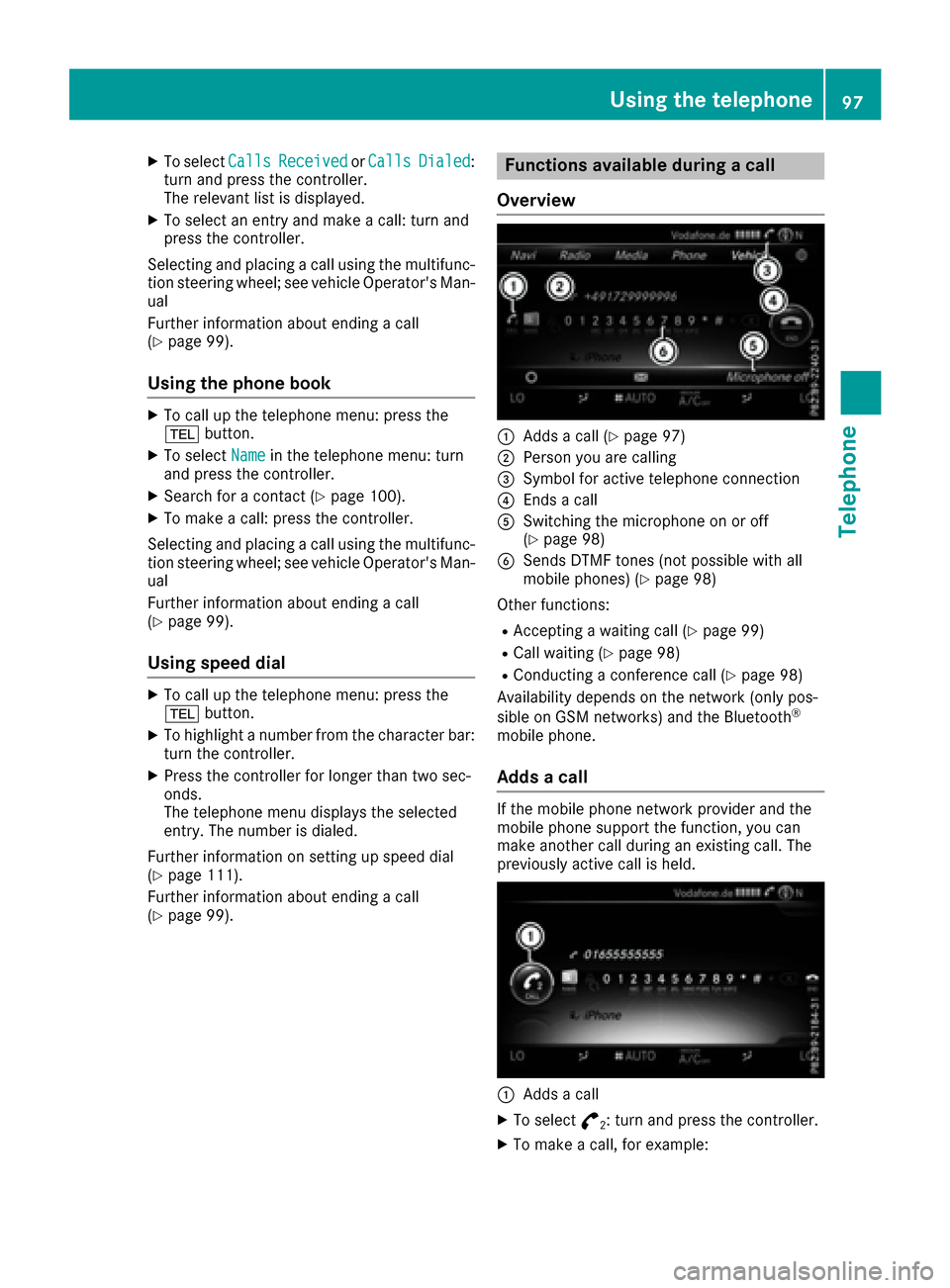
:Adds a call (Ypage 97)
;Person you are calling
=Symbol for active telephone connection
?Ends a call
ASwitching the microphone on or off
(Ypage 98)
BSends DTMF tones (not possible with all
mobile phones) (Ypage 98)
Other functions:
RAccepting a waiting call (Ypage 99)
RCall waiting (Ypage 98)
RConducting a conference call (Ypage 98)
Availability depends on the network (only pos-
sible on GSM networks) and the Bluetooth
®
mobile phone.
Adds a call
If the mobile phone network provider and the
mobile phone support the function, you can
make another call during an existing call. The
previously active call is held.
:Adds a call
XTo select °2: turn and press the controller.
XTo make a call, for example:
Using the telephone97
Telephone
Z
Page 100 of 178
RUsing the telephone menu (Ypage 96)
RUsing redial (Ypage 96)
RUsing the call lists (Ypage 96)
RUsing the phone book (Ypage 97)
Rvia speed dial (Ypage 97)
Switches the microphone on/off
This function is available in the telephone menu
during an active phone call.
Switching off the microphone:
XTo switch to the menu bar: slide6the con-
troller.
XTo select Microphone Off: turn and press
the controller.
If the microphone is switched off, the Q
symbol and the The microphone is off.
message are displayed.
Switching on the microphone:
XSelect Microphone On.
The Qsymbol disappears. The The micro‐
phone is on.message is shown.
Sending DTMF tones
This function is not supported by all mobile
phones.
Answering machines or other devices can be
controlled by DTMF tones, e.g. for remote query
functions.
XIf you would like to listen to the messages on
your answering machine, for example, dial the
corresponding number.
Transmitting individual characters
XOnce a connection has been established to
the answer phone, select the desired charac-
ters in the telephone menu: turn and press the
controller each time.
Every character selected will be transmitted
immediately.
Calls with several participants
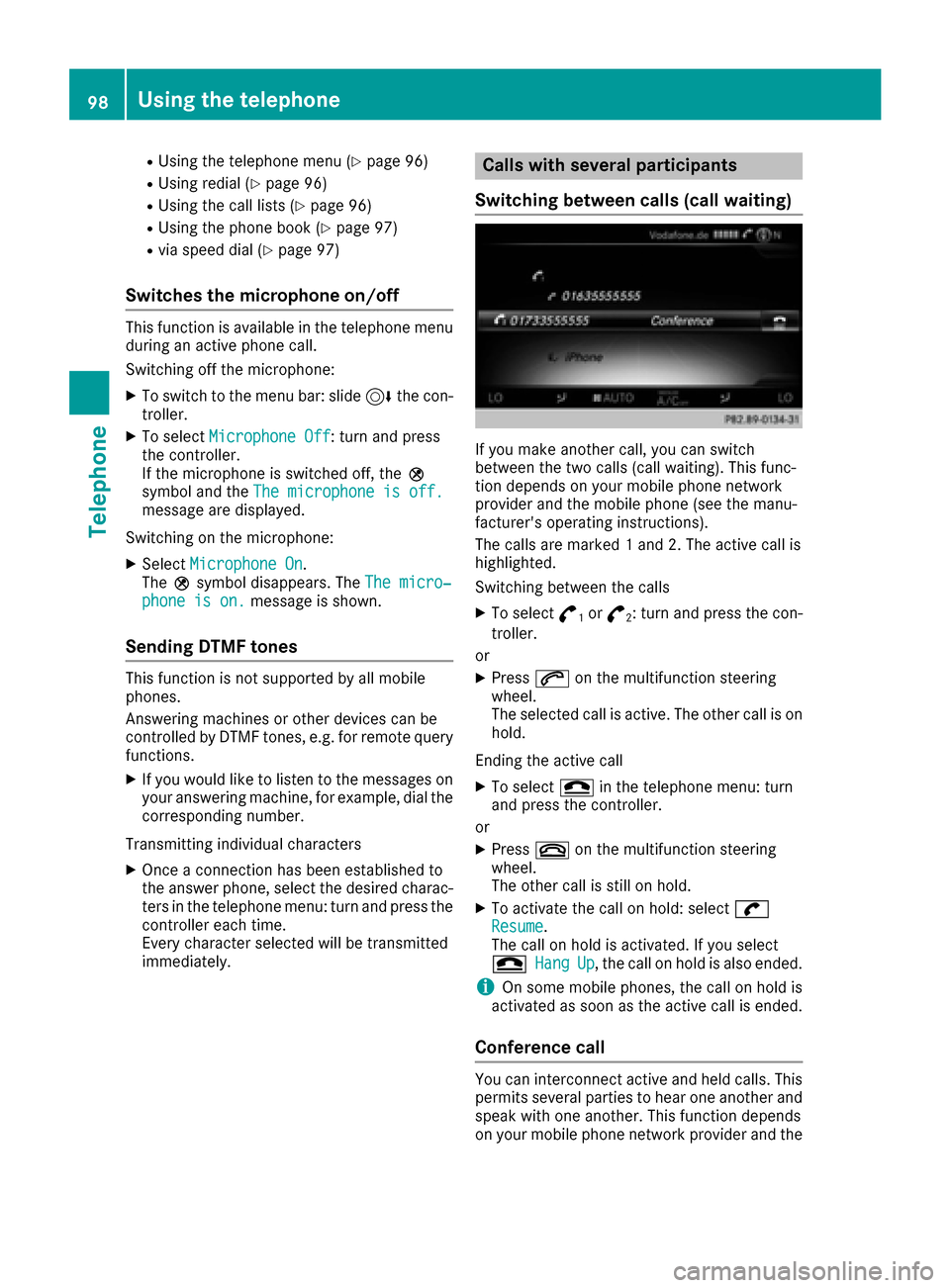
Switching between calls (call waiting)
If you make another call, you can switch
between the two calls (call waiting). This func-
tion depends on your mobile phone network
provider and the mobile phone (see the manu-
facturer's operating instructions).
The calls are marked 1 and 2. The active call is
highlighted.
Switching between the calls
XTo select °1or°2: turn and press the con-
troller.
or
XPress 6on the multifunction steering
wheel.
The selected call is active. The other call is on
hold.
Ending the active call
XTo select =in the telephone menu: turn
and press the controller.
or
XPress ~on the multifunction steering
wheel.
The other call is still on hold.
XTo activate the call on hold: select wResume.
The call on hold is activated. If you select
=
HangUp, the call on hold is also ended.
iOn some mobile phones, the call on hold is
activated as soon as the active call is ended.
Conference call
You can interconnect active and held calls. This
permits several parties to hear one another and
speak with one another. This function depends
on your mobile phone network provider and the
98Using the telephone
Telephone
Page 103 of 178
names are identical. The next different char-
acterAandOare offered for selection.
XSelect the characters of the contact you are
searching for one by one, pressing and con-
firming with the controller each time.
XTo select ¬: turn and press the controller.
The contacts in the phone book are displayed.
XTo select a contact: turn and press the con-
troller.
The Gsymbol indicates that a contact contains
more than one phone number.
XTo select a contact with the Gsymbol: turn
the controller and press to confirm.
The phone numbers are displayed. The G
symbol changes to I.
Back to the character bar
XPress the %button repeatedly until the
character bar is displayed.
Information about character entry (
Ypage 29).
Using the touchpad
You determine the first letter of the contact you
are looking for with the first character you enter.
XDraw the letter on the touchpad surface.
The first contact with the selected first char-
acter is highlighted in the phone book.
Further information on handwriting recogni-
tion on the touchpad (
Ypage 25).
XDraw additional letters on the touchpad sur-
face one after another.
XTo complete the search and return to the
phone book: press the touchpad.
XTo select and call the contact: glide up or
down and press.
Using the multifunction steering wheel
XDial a number from the phone book (see the
vehicle Operator's Manual).
Displaying the details of a contact
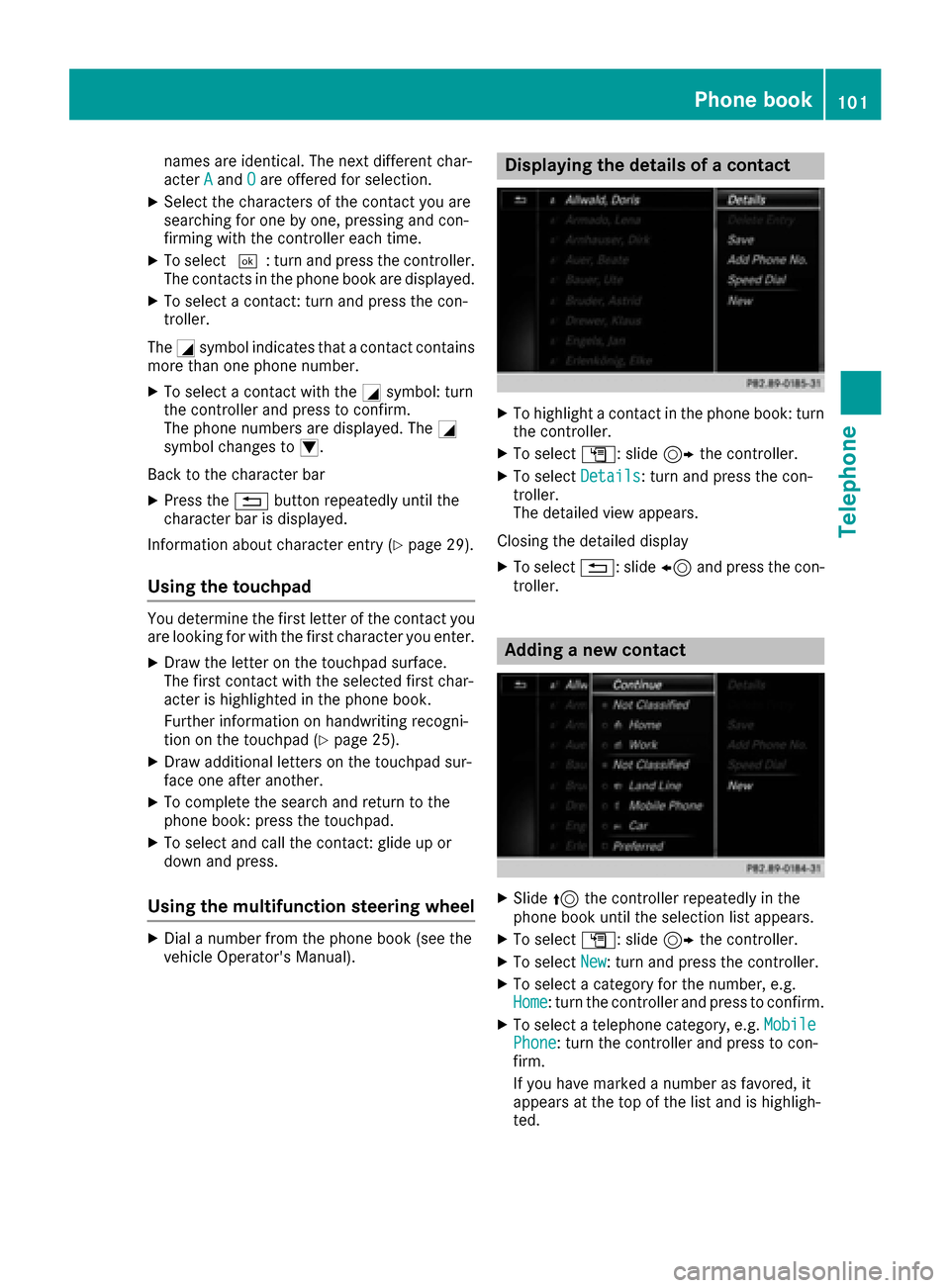
XTo highlight a contact in the phone book: turn
the controller.
XTo select G: slide 9the controller.
XTo select Details: turn and press the con-
troller.
The detailed view appears.
Closing the detailed display
XTo select %: slide 8and press the con-
troller.
Adding a new contact
XSlide 5the controller repeatedly in the
phone book until the selection list appears.
XTo select G: slide 9the controller.
XTo select New: turn and press the controller.
XTo select a category for the number, e.g.
Home: turn the controller and press to confirm.
XTo select a telephone category, e.g. MobilePhone: turn the controller and press to con-
firm.
If you have marked a number as favored, it
appears at the top of the list and is highligh-
ted.
Phone book101
Telephone
Z