2017 MERCEDES-BENZ C-Class off
[x] Cancel search: offPage 47 of 178

XCallupVehicle Settings(Ypage 43).
XTo select Automatic Locking: turn and
press the controller.
The function switches on or off, dependin g on
the previous setting.
You can find further information on the locking
feature inthe veh icleOperator's Manual.
Setting the switch-off delay time
Interior lighting switch-off delay time
The interior lighting isactivated for the duration
of the switch-off delay time when the SmartKey
is removed from the ignition lock.
XCall upVehicle Settings(Ypage 43).
XTo select Interior Lighting DelayedSwitch-off: turn and press the controller.
The setting element isactive.
XTo change the delayed switch-off time: turn
and press the controller.
You can find further information on the interior
lighting inthe veh icleOperator's Manual.
Exterior lighting switch-off delay time
Ifyou switch on the Exterior LightingDelayed Switch-offfunction, the exterior
lighting is switched on for a short time after the
engine is switched off. The light switch must be
set to Ã; see the veh icleOperator's Manual.
The exterior lighting remains on for 60 seconds
after the engine is switched off. Ifyou close all
the doors and the tailgate, the exterior lighting
swit ches off after the set time.
XCall upVehicle Settings(Ypage 43).
XTo select Exterior Lighting DelayedSwitch-off: turn and press the controller.
The setting element isactive.
XTo change the delayed switch-off time: turn
and press the controller.
Activating/deactivating the trunk lid
opening height restriction
Activating the Trunk Opening-heightRestrictionfunctionallowsyou to avoid
bumping the trunk lidon a low garage cei ling, for
example. Setting via the multimed iasystem is
availab lefor the Sedan and Coupe.
XCall up Vehicle Settings(Ypage 43 ).
XTo select Trunk Opening-heightRestriction: turn and press the controller.
The function switches on or off, depending on
the previous setting.
360° camera
General notes
The 360° camera covers the immediate sur-
roundings of the vehicle and assists you, for
instance when parking or at exits with reduced
visibility.
The 360° camera is only an aid. It is not a
replacement for your attention to your imm edi-
ate surroundings. You are always responsible
for safe maneuvering and parking. Make sure
that no persons or animals are inthe maneu-
vering range.
For more information on the 360° camera see
the vehicle Operator's Manual.
Displaying the 360° camera image
The 360° camera image can be displayed if:
Ryour vehicle isequipped with a 360° camera
Rthe 360°Camerafunction isswitched on; see
the vehicle Operator's Manual
XPress the Øbutton.
or
XPress Vehicleinthe main function bar.
The vehicle menu isdisplayed.
XTo select 360° Camera: turn and press the
controller.
The 360° camera image appears in split-
screen mode.
You willsee the previous view on the display if,
when the function is switched on:
Ryou turn the SmartKey to position 1in the
ignition lock
Ryou select transmission position P
Rwhen you are driving at moderate speeds
Switching the display off manually
XTo select &: slide 6and press the con-
troller.
360° camera45
Vehicle functions
Z
Page 48 of 178

Switching the display on automatically
XYou can automatically switch the 360° Cam-
era display using reverse gear (Ypage 46).
Switching automatic mode of the
360° camera on/off
This function activates the 360° camera when
reverse gear is engaged.
XPress theØbutton.
or
XPress Vehiclein the main function bar.
The vehicle menu is displayed.
XTo switch to the menu bar:slide 6the
controller.
XTo select System Settings: turn and press
the controller.
XTo select 360° Camera: turn and press the
controller.
The menu 360° Camera
appears.
XSelectActivation by R gear.
The function is switched on Oor off ª,
depending on the previous status.
Opening the camera cover for clean-
ing
XTo select Open Camera Coverin the 360°
camera menu: turn the controller and press to
confirm.
The Please Wait...
message appears for
approximately three seconds.
The camera cover opens.
The camera cover closes automatically if:
Rthe ignition is switched off
Rthe vehicle exceeds a moderate speed
Rear view camera
General notes
The rear view camera covers the immediate sur-
roundings behind the vehicle and assists you
when parking.
The rear view camera is only an aid. It is not a
replacement for your attention to your immedi-
ate surroundings. You are always responsible
for safe maneuvering and parking. When maneu- vering or parking, make sure that there are no
persons, animals or objects in the area in which
you are maneuvering.
You can find further information about the rear
view camera in the vehicle Operator's Manual.
Switching automatic mode of the rear
view camera on/off
This function activates the rear view camera
when reverse gear is engaged.
XPress the
Øbutton.
or
XPress Vehiclein the main function bar.
The vehicle menu is displayed.
XSlide 6the controller.
XTo select System Settings: turn and press
the controller.
XSelect Rear View Camera.
XSelectActivation by R gear.
The function is switched on Oor off ª,
depending on the previous status.
When you start the vehicle and engage
reverse gear, the camera cover opens auto-
matically if the function is activated. The area
behind the vehicle is shown with guide lines in
the display; see the vehicle Operator's Man-
ual.
For further information on the rear view camera;
see the vehicle Operator's Manual.
Object detection
The rear view camera can detect moving and
stationary objects. If, for example, a pedestrian
or another vehicle is detected, these objects are
marked with bars. The system is able to detect
and mark stationary objects when your vehicle
is moving. Moving objects will always be detec-
ted and marked.
Switching object detection on/off
XTo select ObjectDetectionin the rear view
camera menu: turn and press the controller.
The function is switched on Oor off ª,
depending on the previous status.
46Rear view camera
Vehicle functions
Page 49 of 178
Opening the camera cover for clean-
ing
XTo selectOpen Camera Coverin the rear
view camera menu: turn and press the con-
troller.
The Please Wait...
message appears for
approximately three seconds.
The camera cover opens.
The camera cover closes automatically if:
Rthe ignition is switched off
Rthe vehicle pulls away
Climate control settings
Overview
You can adjust the climate control settings
using the climate control bar (Ypage 47) or
the climate control menu (Ypage 48).
You can set the most important climate control
functions, such as temperature (
Ypage 47),
airflow (Ypage 47) and air distribution
(Ypage 47) using the climate control bar. The
climate control bar is visible in most displays.
You can find all available climate control func-
tions in the climate control menu. You can use
the climate control bar (
Ypage 47) to switch
to the climate control menu.
Settings in the climate control bar
Overview
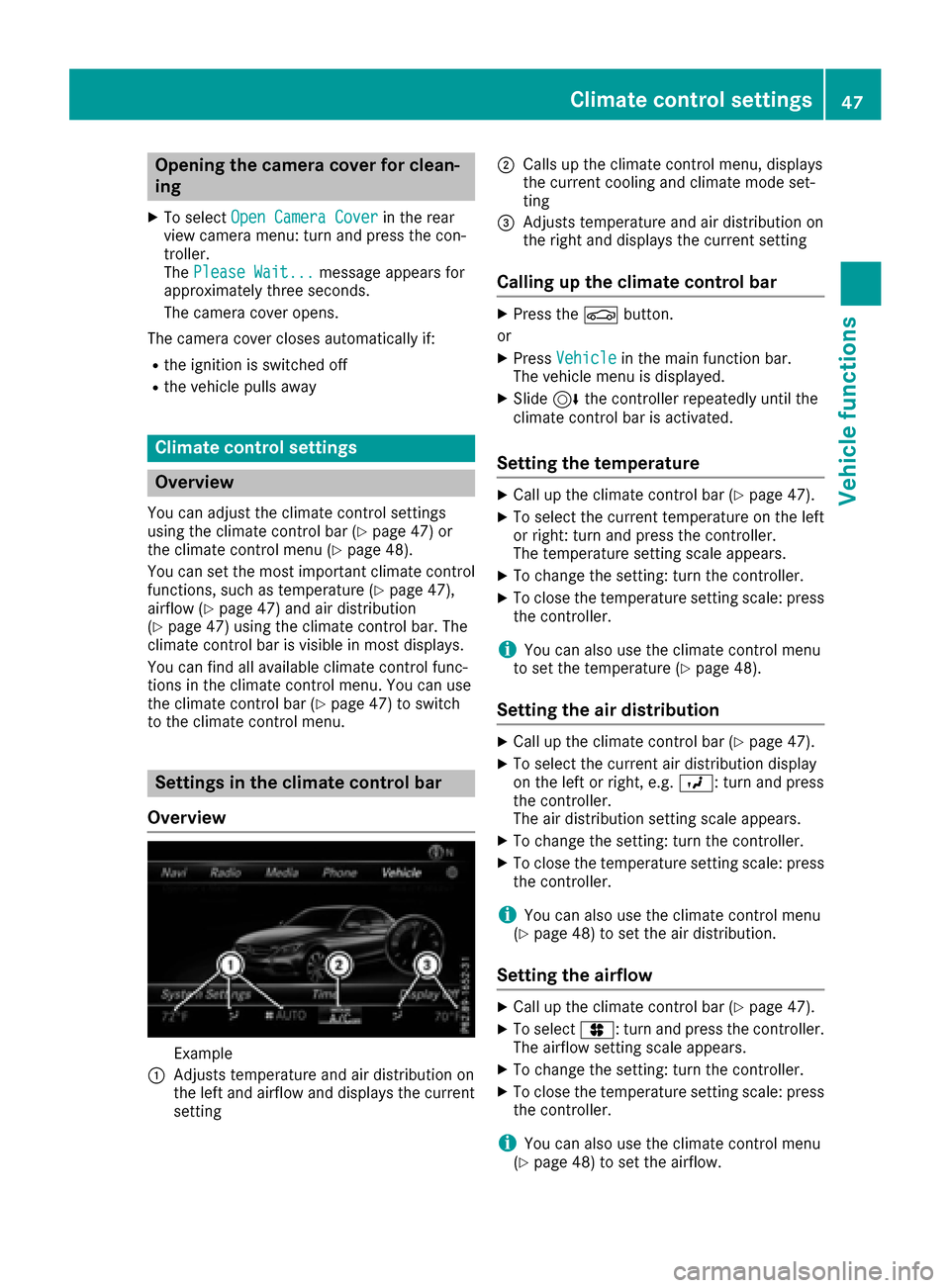
Example
:Adjusts temperature and air distribution on
the left and airflow and displays the current
setting
;Calls up the climate control menu, displays
the current cooling and climate mode set-
ting
=Adjusts temperature and air distribution on
the right and displays the current setting
Calling up the climate control bar
XPress the Øbutton.
or
XPress Vehiclein the main function bar.
The vehicle menu is displayed.
XSlide 6the controller repeatedly until the
climate control bar is activated.
Setting the temperature
XCall up the climate control bar (Ypage 47).
XTo select the current temperature on the left
or right: turn and press the controller.
The temperature setting scale appears.
XTo change the setting: turn the controller.
XTo close the temperature setting scale: press the controller.
iYou can also use the climate control menu
to set the temperature (Ypage 48).
Setting the air distribution
XCall up the climate control bar (Ypage 47).
XTo select the current air distribution display
on the left or right, e.g. O: turn and press
the controller.
The air distribution setting scale appears.
XTo change the setting: turn the controller.
XTo close the temperature setting scale: press
the controller.
iYou can also use the climate control menu
(Ypage 48) to set the air distribution.
Setting the airflow
XCall up the climate control bar (Ypage 47).
XTo select J: turn and press the controller.
The airflow setting scale appears.
XTo change the setting: turn the controller.
XTo close the temperature setting scale: press the controller.
iYou can also use the climate control menu
(Ypage 48) to set the airflow.
Climate control settings47
Vehicle functions
Z
Page 50 of 178
Calling up the climate control menu
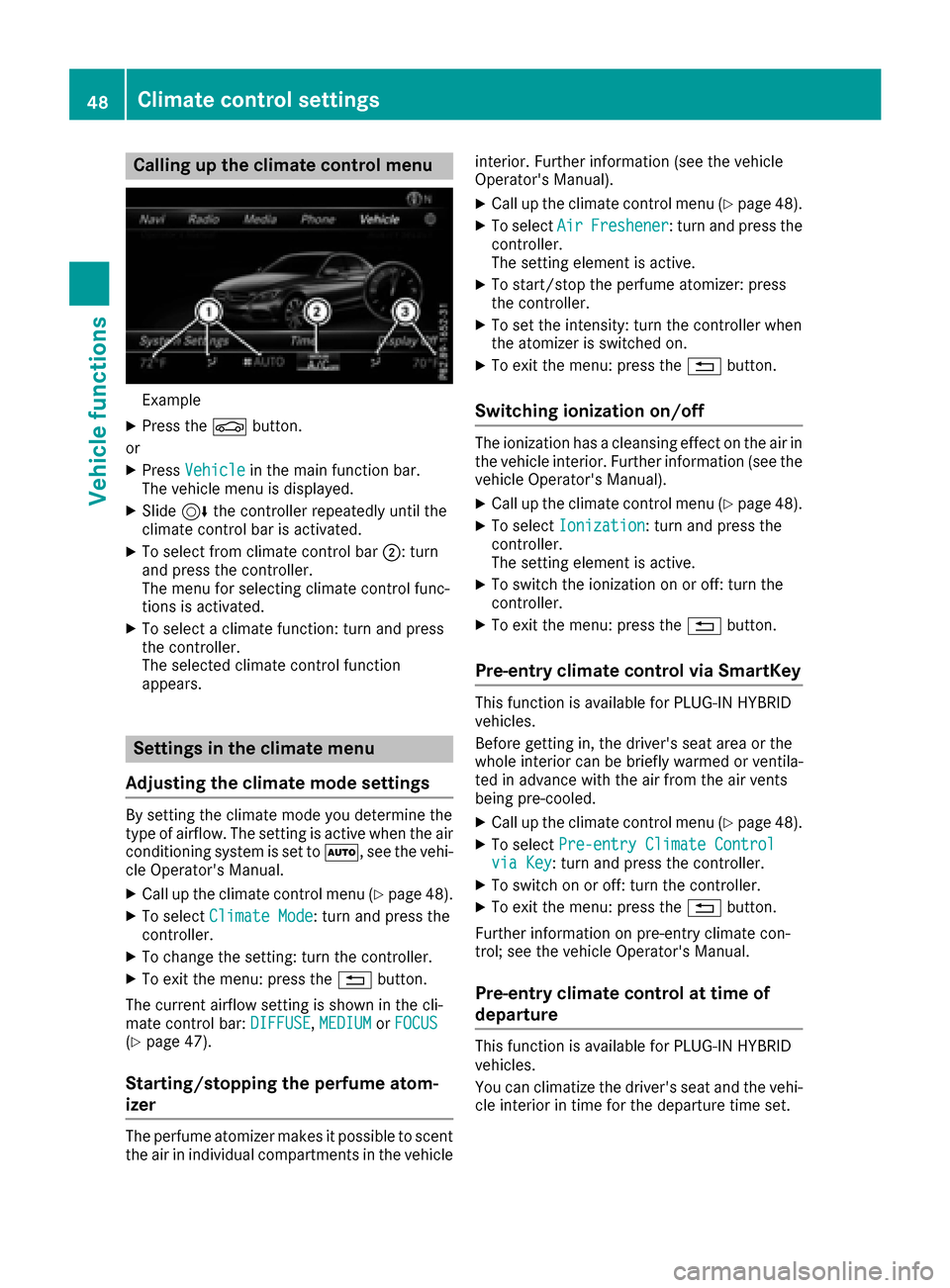
Example
XPress theØbutton.
or
XPress Vehiclein the main function bar.
The vehicle menu is displayed.
XSlide 6the controller repeatedly until the
climate control bar is activated.
XTo select from climate control bar ;: turn
and press the controller.
The menu for selecting climate control func-
tions is activated.
XTo select a climate function: turn and press
the controller.
The selected climate control function
appears.
Settings in the climate menu
Adjusting the climate mode settings
By setting the climate mode you determine the
type of airflow. The setting is active when the air
conditioning system is set to Ã, see the vehi-
cle Operator's Manual.
XCall up the climate control menu (Ypage 48).
XTo select Climate Mode: turn and press the
controller.
XTo change the setting: turn the controller.
XTo exit the menu: press the %button.
The current airflow setting is shown in the cli-
mate control bar: DIFFUSE
,MEDIUMor FOCUS(Ypage 47).
Starting/stopping the perfume atom-
izer
The perfume atomizer makes it possible to scent
the air in individual compartments in the vehicle interior. Further information (see the vehicle
Operator's Manual).
XCall up the climate control menu (Ypage 48).
XTo select
AirFreshener: turn and press the
controller.
The setting element is active.
XTo start/stop the perfume atomizer: press
the controller.
XTo set the intensity: turn the controller when
the atomizer is switched on.
XTo exit the menu: press the %button.
Switching ionization on/off
The ionization has a cleansing effect on the air in
the vehicle interior. Further information (see the
vehicle Operator's Manual).
XCall up the climate control menu (Ypage 48).
XTo select Ionization: turn and press the
controller.
The setting element is active.
XTo switch the ionization on or off: turn the
controller.
XTo exit the menu: press the %button.
Pre-entry climate control via SmartKey
This function is available for PLUG ‑IN HYBRID
vehicles.
Before getting in, the driver's seat area or the
whole interior can be briefly warmed or ventila-
ted in advance with the air from the air vents
being pre-cooled.
XCall up the climate control menu (Ypage 48).
XTo select Pre-entry Climate Controlvia Key: turn and press the controller.
XTo switch on or off: turn the controller.
XTo exit the menu: press the %button.
Further information on pre-entry climate con-
trol; see the vehicle Operator's Manual.
Pre-entry climate control at time of
departure
This function is available for PLUG ‑IN HYBRID
vehicles.
You can climatize the driver's seat and the vehi-
cle interior in time for the departure time set.
48Climate control settings
Vehicle functions
Page 51 of 178
XCallup the climate control menu (Ypage 48).
XTo select Pre-entry Climate Ctrl. atDepartureTime: turn and press the control-
ler.
A rotary menu appears.
XTo select the setting: turn the controller.
The menu symbol, text and image show the
selected setting.
XTo exit the menu: press the %button.
Settings in the bottom bar of the cli-
mate control menu
Activating/deactivating climate con-
trol
This setting ismade inthe bottom bar of the
clim ate control menu.
XCall up the climate control menu (Ypage 48).
XSlide6 the controller repeatedly untilthe
bottom bar is activated.
XTo select OClimate Ctrl On: turn and
press the controller.
The climate control is switched on Oor off
ª dependin g on the settings.
If the clim ate control is switched off:
Rtheclim ate control setting functions are
deactivate d.
Rtheblower is swit ched off.
Rthe air recirculation flaps are closed
Switching cooling with air dehumidifi-
cation on/off
This settingismade inthe bottom bar of the
clim ate control menu.
XCall up the climate control menu (Ypage 48).
XSlide6 the controller repeatedly untilthe
bottom bar isactivated.
XTo select OA/C: turn and press the control-
ler.
XSwit ch co olingwit h air dehumidif ication on
O or off ª.
iThe current status of the co oling function is
displ ayed inthe clim ate control bar: A/C ON
– activated, A/C OFF – deactivated
(
Ypage 47).
iDeactivating the cooling with air dehumidi-
fication function reduces fuel consumption.
Synchronizing the climate control set-
tings
Use OSync(synchronization) to select the cli-
mate control setting for all zones together Oor
separate lyª.
This setting is made in the bottom bar of the
clim ate control menu.
XCall up the climate control menu (Ypage 48).
XSlide 6the controller repeatedly until the
bottom bar is activated.
XTo select OSync: turn and press the con-
troller.
XSwit ch the synchronization function on Oor
off ª.
For further information on synchronizing climate
control settings (see the vehicle Operator's
Manual).
DYNAMIC SELECT
General notes
You can use DYNAMIC SELECTto configure the
foll owin g settings for the Individual drive pro-
gram:
RDrive system
RSuspension
RSt eering
RClimate control
RECO start/stop function
In addition, current vehicle and engine data is
visualized via the two further Vehicle
Dataand
Engine Datamenus.
iIn a few countries, the ECO start/stop func-
tion isdeactivated at the factory due to the
availab lefuel grade. In this case, the ECO
start /stop function is not availab leregardless
of the display in the multimedia system dis-
play.
The ECO Assist setting is availab leon
PLUG‑ IN HYBRID vehicles.
In Mercedes-AMG vehicles, you can use
DYNAMIC
SELECTto configure the foll owing set-
tings for the Individual drive program:
RDrive system
RSuspension
DYNAMIC SELECT49
Vehicle functions
Z
Page 53 of 178
You can make the following settings for the sus-
pension:
CComfort
SSport
S+Sport +
You can make the following settings for the
steering:
CComfort
SSport
You can choose from the following settings for
climate control:
EEco
CComfort
You can choose from the following settings for
the ECO start/stop function:
OnSwitches the ECO
start/stop function
on
OffSwitches the ECO
start/stop function
off
You can make the following settings for ECO
Assist (PLUG-IN HYBRID vehicles):
OnSwitches ECO Assist
on
OffSwitches ECO Assist
off
Setting options for Mercedes-AMG
vehicles
You can choose from the following settings for
the drive:
RRace
CComfort
SSport
S+Sport +
You can make the following settings for the sus-
pension:
CComfort
SSport
S+Sport +
You can choose from the following settings for
the transmission:
DAutomatic
MManual
You can make the following settings for the
sports exhaust system:
CComfort
SSport
S+Sport +
You can choose from the following settings for
the Electronic Stability Program ESP®:
SSport
OnActivates the Electronic Sta-
bility Program ESP®
For further information on the Individual drive
program; see the vehicle Operator's Manual.
DYNAMIC SELECT51
Vehicle functions
Z
Page 56 of 178
XTo switch to navigation mode:press the
Ø button.
XIf no route guidance is active, select.
iIf route guidance is active, first slide 6the
controller and show the menu.
XSelect Route Settings.
XSelect a route type.
A filled circle indicates the current selection.
RActive route guidance: the multimedia sys-
tem calculates a new route.
RInactive route guidance: the multimedia
system uses the selection as the new set-
ting.
iRoute guidance active: a destination has
been entered and the route has been calcu-
lated.
Route guidance inactive: no destination has
been entered yet and no route has been cal-
culated yet.
FastRouteThe multimedia system cal-
culates a route with a short
travel time.
DynamicTrafficRoute
Based on the Fast Routeroute type and includes traf-
fic reports on the route for the
route guidance.
Eco RouteThe multimedia system cal-
culates an economical route.
The journey may take slightly
longer compared to taking
the fast route.
ShortRouteThe multimedia system cal-
culates a short distance
route.
TheDynamic Traffic Routeroute type uses
real-time traffic reports from SIRIUS satellite
radio.
Further Information on real-time traffic reports
(
Ypage 76).
XTo calculate alternative routes: select
Calculate Alternative Routes
.
Switch the function on Oor off ª.
Function activated: after each route calcula-
tion, route alternatives are offered that cor-
respond to the local conditions (
Ypage 75). If desired, you can have the multimedia sys-
tem calculate alternative routes even during
route guidance (
Ypage 75).
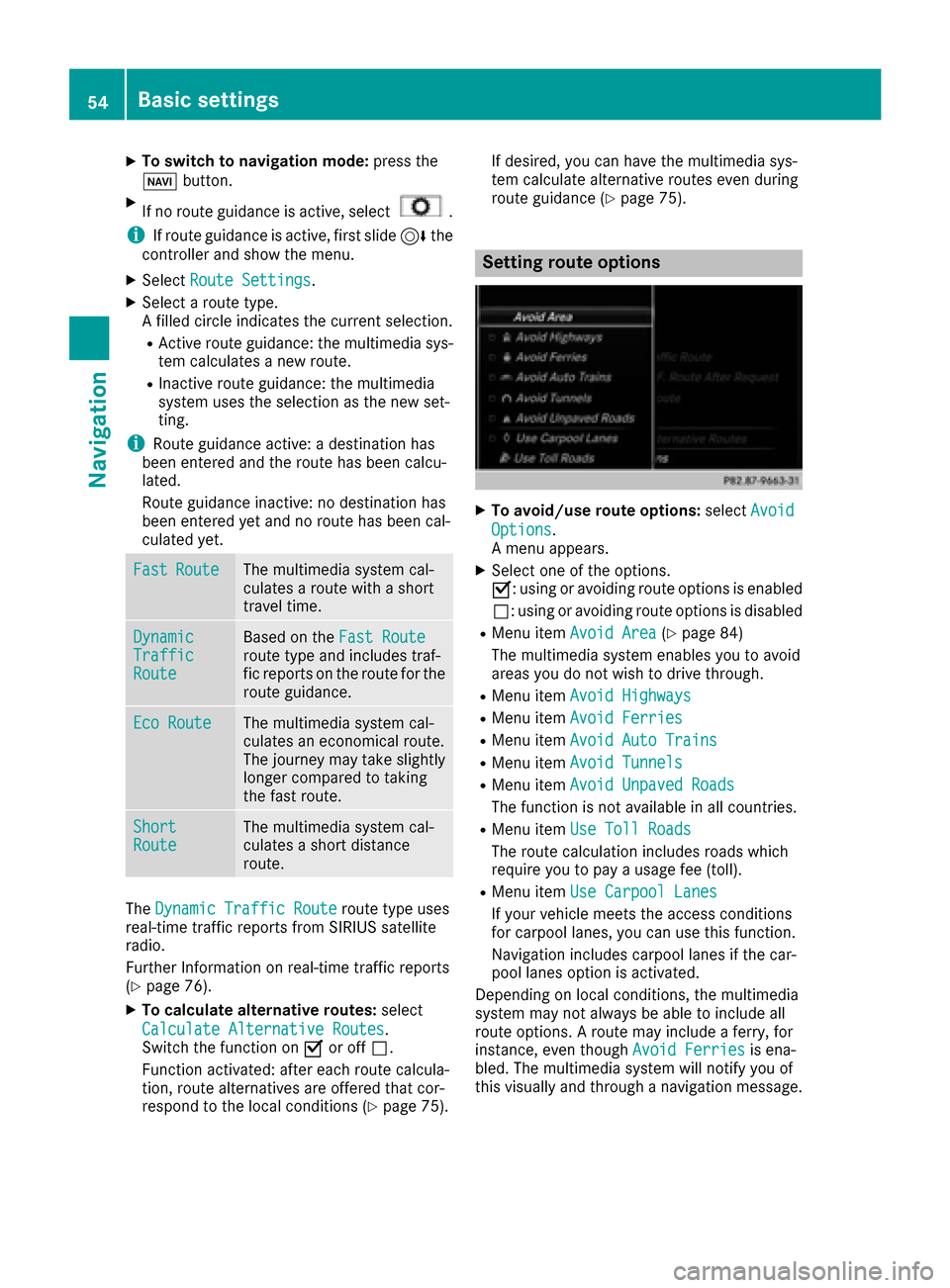
Setting route options
XTo avoid/use route options:
selectAvoid
Options.
A menu appears.
XSelect one of the options.
O: using or avoiding route options is enabled
ª: using or avoiding route options is disabled
RMenu item Avoid Area(Ypage 84)
The multimedia system enables you to avoid
areas you do not wish to drive through.
RMenu item Avoid Highways
RMenu itemAvoid Ferries
RMenu itemAvoid Auto Trains
RMenu itemAvoid Tunnels
RMenu itemAvoid Unpaved Roads
The function is not available in all countries.
RMenu itemUse Toll Roads
The route calculation includes roads which
require you to pay a usage fee (toll).
RMenu itemUse Carpool Lanes
If your vehicle meets the access conditions
for carpool lanes, you can use this function.
Navigation includes carpool lanes if the car-
pool lanes option is activated.
Depending on local conditions, the multimedia
system may not always be able to include all
route options. A route may include a ferry, for
instance, even though Avoid Ferries
is ena-
bled. The multimedia system will notify you of
this visually and through a navigation message.
54Basic settings
Navigation
Page 57 of 178
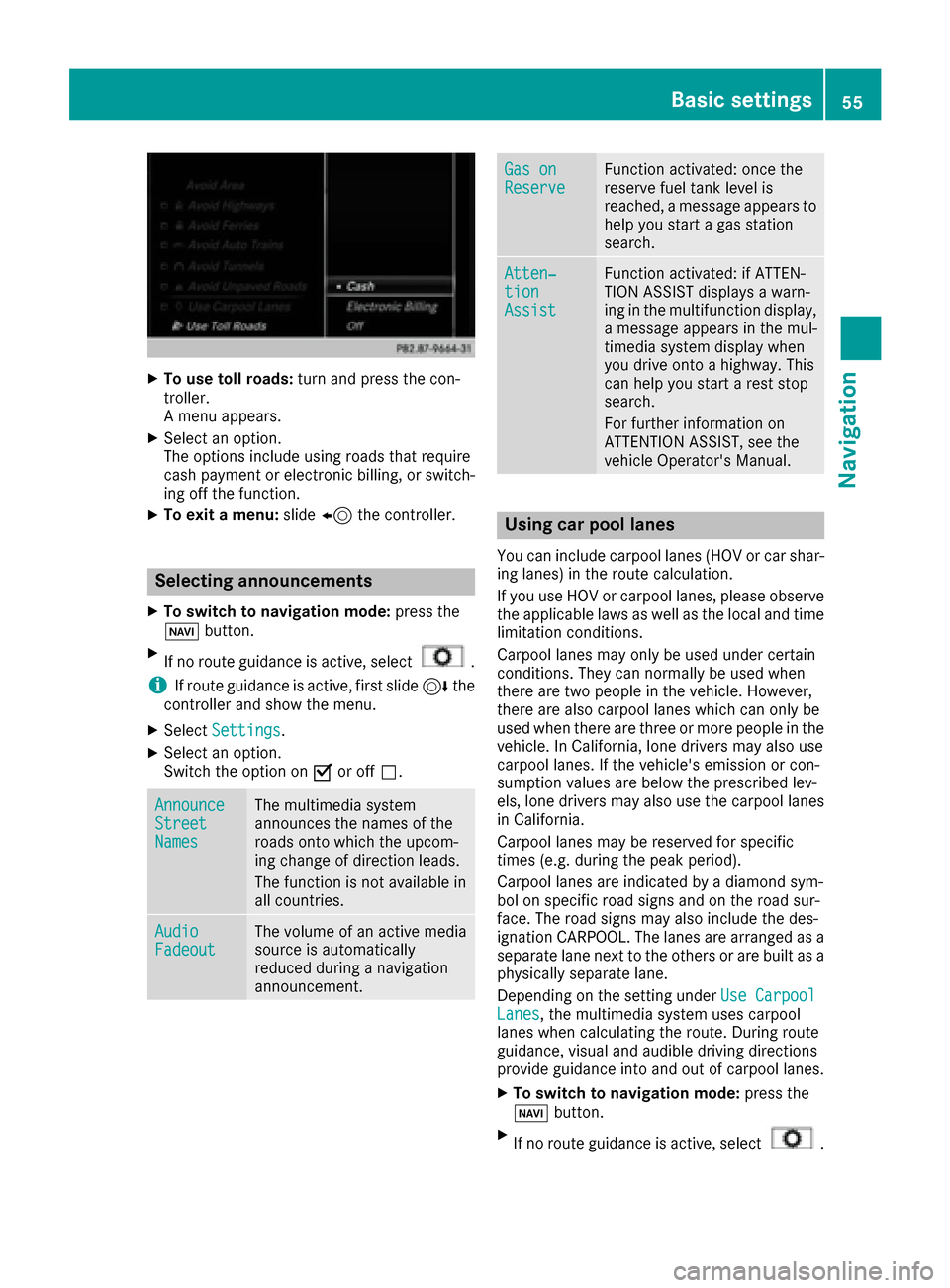
XTo use toll roads:turn and press the con-
troller.
A menu appears.
XSelect an option.
The options include using roads that require
cash payment or electronic billing, or switch-
ing off the function.
XTo exit a menu: slide8 the controller.
Selecting announcements
XTo switch to navigation mode: press the
Ø button.
XIf no route guidance is active, select.
iIf route guidance is active, first slide 6the
controller and show the menu.
XSelect Settings.
XSelect an option.
Switch the option on Oor off ª.
AnnounceStreetNames
The multimedia system
announces the names of the
roads onto which the upcom-
ing change of direction leads.
The function is not available in
all countries.
AudioFadeoutThe volume of an active media
source is automatically
reduced during a navigation
announcement.
Gas onReserveFunction activated: once the
reserve fuel tank level is
reached, a message appears to
help you start a gas station
search.
Atten‐tionAssist
Function activated: if ATTEN-
TION ASSIST displays a warn-
ing in the multifunction display,
a message appears in the mul-
timedia system display when
you drive onto a highway. This
can help you start a rest stop
search.
For further information on
ATTENTION ASSIST, see the
vehicle Operator's Manual.
Using car pool lanes
You can include carpool lanes (HOV or car shar-
ing lanes) in the route calculation.
If you use HOV or carpool lanes, please observe
the applicable laws as well as the local and time
limitation conditions.
Carpool lanes may only be used under certain
conditions. They can normally be used when
there are two people in the vehicle. However,
there are also carpool lanes which can only be
used when there are three or more people in the
vehicle. In California, lone drivers may also use
carpool lanes. If the vehicle's emission or con-
sumption values are below the prescribed lev-
els, lone drivers may also use the carpool lanes
in California.
Carpool lanes may be reserved for specific
times (e.g. during the peak period).
Carpool lanes are indicated by a diamond sym-
bol on specific road signs and on the road sur-
face. The road signs may also include the des-
ignation CARPOOL. The lanes are arranged as a
separate lane next to the others or are built as a
physically separate lane.
Depending on the setting under Use Carpool
Lanes, the multimedia system uses carpool
lanes when calculating the route. During route
guidance, visual and audible driving directions
provide guidance into and out of carpool lanes.
XTo switch to navigation mode: press the
Ø button.
XIf no route guidance is active, select.
Basic settings55
Navigation
Z