2017 MERCEDES-BENZ B-Class radio
[x] Cancel search: radioPage 111 of 290
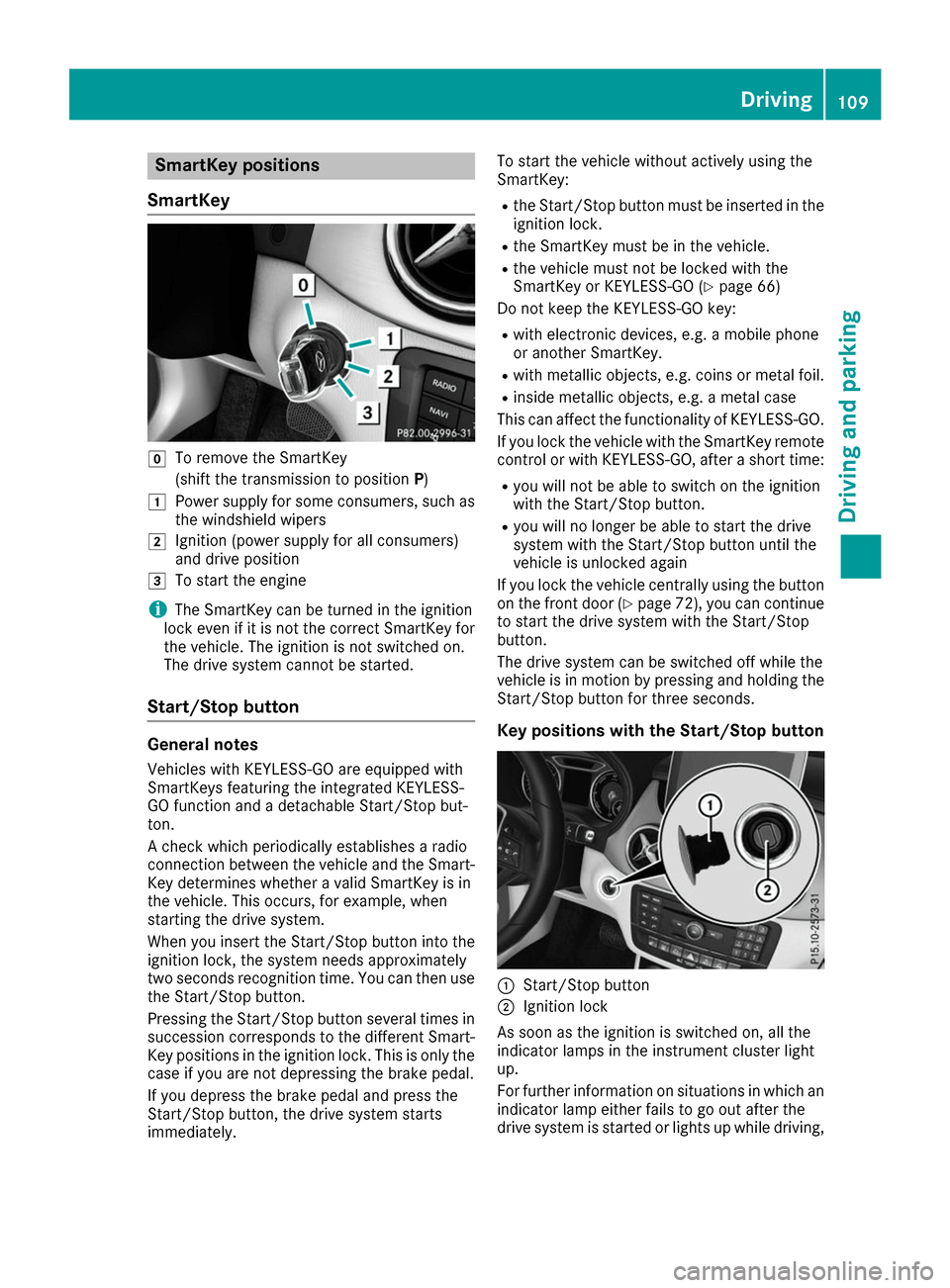
SmartKey positions
SmartKey 005A
To remove the SmartKey
(shift the transmission to position P)
0047 Power supply for some consumers, such as
the windshield wipers
0048 Ignition (power supply for all consumers)
and drive position
0049 To start the engine
i The SmartKey can be turned in the ignition
lock even if it is not the correct SmartKey for
the vehicle. The ignition is not switched on.
The drive system cannot be started.
Start/Stop button General notes
Vehicles with KEYLESS-GO are equipped with
SmartKeys featuring the integrated KEYLESS-
GO function and a detachable Start/Stop but-
ton.
A check which periodically establishes a radio
connection between the vehicle and the Smart-
Key determines whether a valid SmartKey is in
the vehicle. This occurs, for example, when
starting the drive system.
When you insert the Start/Stop button into the
ignition lock, the system needs approximately
two seconds recognition time. You can then use the Start/Stop button.
Pressing the Start/Stop button several times in
succession corresponds to the different Smart- Key positions in the ignition lock. This is only the
case if you are not depressing the brake pedal.
If you depress the brake pedal and press the
Start/Stop button, the drive system starts
immediately. To start the vehicle without actively using the
SmartKey:
R
the Start/Stop button must be inserted in the
ignition lock.
R the SmartKey must be in the vehicle.
R the vehicle must not be locked with the
SmartKey or KEYLESS-GO (Y page 66)
Do not keep the KEYLESS-GO key:
R with electronic devices, e.g. a mobile phone
or another SmartKey.
R with metallic objects, e.g. coins or metal foil.
R inside metallic objects, e.g. a metal case
This can affect the functionality of KEYLESS-GO.
If you lock the vehicle with the SmartKey remote
control or with KEYLESS-GO, after a short time:
R you will not be able to switch on the ignition
with the Start/Stop button.
R you will no longer be able to start the drive
system with the Start/Stop button until the
vehicle is unlocked again
If you lock the vehicle centrally using the button
on the front door (Y page 72), you can continue
to start the drive system with the Start/Stop
button.
The drive system can be switched off while the
vehicle is in motion by pressing and holding the Start/Stop button for three seconds.
Key positions with the Start/Stop button 0043
Start/Stop button
0044 Ignition lock
As soon as the ignition is switched on, all the
indicator lamps in the instrument cluster light
up.
For further information on situations in which an indicator lamp either fails to go out after the
drive system is started or lights up while driving, Driving
109Driving and parking Z
Page 124 of 290

Displaying the range and destination acces-
sibility via navigation mode:
X To switch to navigation mode: press the
00CB button.
The map shows the vehicle's current position.
or
X From one of the other main functions: slide
5 the controller (e. g. in radio mode).
The main function bar is displayed.
X To select Navi
Navi from the main function bar:
turn and press the controller.
The map shows the vehicle's current position.
X To call up e-Navigator: press the00CBbut-
ton.
X To select Range on Map
Range on Map in the navigation
menu: turn and press the controller.
The range and destination accessibility are
displayed on the navigation map.
Displaying the range and destination acces- sibility via Mercedes-Benz Apps:
X Switch on the multimedia system (see sepa-
rate operating instructions).
X Set access data and connect to the Internet
(see separate operating instructions)
X To call up the telephone menu: press the
002B button.
X To switch to the main function bar: slide 5
the controller.
X To select Tel/
Tel/00A7: press the controller.
X To select Internet
Internet: turn and press the con-
troller.
The menu with the Internet functions is dis-
played.
X To select Mercedes-Benz Apps
Mercedes-Benz Apps: turn and
press the controller.
The available Mercedes-Benz Apps
Mercedes-Benz Apps are dis-
played.
X To call up the e-Navigator App: turn and
press the controller.
The navigation map is displayed showing the
range and destination accessibility
Showing the view levels on the map:
X To display the menu: slide6and press
the controller when the map appears.
The menu of the view levels opens. You may
choose from the following view levels: R
available charging stations
R current route
R current vehicle position with vehicle direc-
tion
Exiting the map display:
X Press the 0038button on the controller.
or
X To select 0038: slide 6and press the con-
troller. Charging the high-voltage battery via
the electrical outlet
Charging cable Important safety notes
! Only use the charging cable to charge the
high-voltage battery. Do not use the charging
cable for other purposes. It may otherwise be damaged.
The vehicle is supplied with a single-phase 12 A charging cable. Only use the charging cable
included with the vehicle, which has been
approved for vehicle use.
Pay attention to the "Important safety notes"
(Y page 117).
If you use the supplied 12 A charging cable to
charge a high-voltage battery:
R the charge time increases considerably
R electrical consumption increases considera-
bly
Where possible, charge the high-voltage battery at a charging station (Y page 125). Only then
can certified electrical energy consumption lev- els be reached.
i The charging process can vary depending on
the charging station. Therefore, always
observe the local information.
Stowing the charging cable
The charging cable can be stowed in a bag in the trunk of the vehicle. To do so, the bag must be
secured to the cargo tie-down rings using the
retaining strap provided. 122
High-voltage batteryDriving and pa
rking
Page 129 of 290

Problem
Possible causes/consequences and
0050
0050Solutions The charging cable con-
nector cannot be
removed from the vehi-
cle socket. The snap fastener on the charging cable connector is locked.
X Press and hold the button on the charging cable connector. The
snap fastener on the vehicle socket is unlocked.
X Remove the charging cable connector from the vehicle socket. The snap fastener on the charging cable connector is blocked.
X Press and hold the button on the charging cable connector.
X Try to remove the blockage. Online access to the vehicle
General notes G
WARNING
If you operate information systems and com-
munication equipment integrated in the vehi- cle while driving, you will be distracted from
traffic conditions. You could also lose control of the vehicle. There is a risk of an accident.
Only operate the equipment when the traffic
situation permits. If you are not sure that this
is possible, park the vehicle paying attention
to traffic conditions and operate the equip-
ment when the vehicle is stationary.
You must observe the legal requirements for the country in which you are currently driving whenoperating integrated information systems and
communications equipment.
Only use information systems and communica-
tions devices if this is permitted while driving
and if the traffic situation permits. You may oth-
erwise be distracted from the traffic conditions,
cause an accident and injure yourself and oth-
ers.
From the "My Mercedes Electric - Vehicle Home-
page", you can call up remote query and remote
configuration functions for your vehicle. This is
possible from an Internet-enabled computer, as well as many modern smartphones.
You can access the "Vehicle Homepage" via
your web browser.
Please call the Mercedes-Benz Customer Assis-
tance Center (USA) at the hotline number
1-800-FOR-MERCedes (1-800-367-6372) to
obtain the relevant Internet address. In order to use the "Vehicle Homepage", you
must agree to the applicable terms of use.
The contractual periods of mbrace apply to the
"Vehicle Homepage". To use the "Vehicle Home-
page", you require an activated mbrace access
and a separate activation or registration for the "Vehicle Homepage".
Further information about the supported end
devices, available languages and contractual
periods is available at an authorized Mercedes-
Benz Center.
In order to call up the "Vehicle Homepage", the
vehicle must be connected to the Internet.
This is possible via the radio module
(Y page 128).
Notes on data protection Bear in mind that the "Vehicle Homepage" offers
access to your data. Therefore, look after the
vehicle verification code (VVC) and your user
details carefully.
The vehicle verification code (VVC) is required
when you register for the first time on the "Vehi- cle Homepage". Using this code, the vehicle andthe user access are linked to each other on the
"Vehicle Homepage", enabling the intended
usage. You can obtain further information from
an authorized Mercedes-Benz Center.
Prevent unauthorized persons from access- ing this data.
Every person who has access to the informationstated can use the functions on the "Vehicle
Homepage".
R If you sell your vehicle, you are obliged to
delete the vehicle from your personal area on
the "Vehicle Homepage". Additionally, you High-voltage battery
127Driving and parking Z
Page 130 of 290

must destroy documents containing the vehi-
cle verification code (VVC).
R If you have bought a used vehicle, it is possi-
ble that the previous owner still has access to
the "Vehicle Homepage". If in doubt, have a
new vehicle verification code (VVC) issued by
the Mercedes-Benz Center after purchase.
With the code you can set up access to your
vehicle, as described in the section "Setting
up a personal area" on the Vehicle Home-
page". There, you may also deactivate the
existing access of the previous owner.
Calling up functions in the "My
Mercedes Electric - Vehicle Homepage" The "My Mercedes Electric - Vehicle Homepage"
allows you access to information about your
vehicle and its functions using remote query and
remote configuration. For example, climate con- trol can be activated using remote configuration
which means that it need not be set in the vehi- cle. Power for the climate control is primarily
supplied via the charging cable connected to the mains supply. In most cases, this does not
reduce the range. If climate control is activated,the condition of charge and thus the range may
be reduced. The "Vehicle Homepage" provides
you with information all about how to use your
vehicle.
If the vehicle is entered in your personal area of
the "Vehicle Homepage", you can also access
the following functions:
R request the current condition of charge of the
high-voltage battery
R program the departure time (Y page 163)
R order and activate the "Pre-entry climate con-
trol at departure time" function
If the vehicle is charging, the predicted charging
time and the predicted range will also be shown.
This data is estimated and may be influenced by
the following factors:
R outside temperature
R switched on consumers, e.g. climate control
and seat heating
R personal driving style
R road and traffic conditions
R route characteristics
Therefore, allow for a sufficient reserve. i
Information on additional functions and
operating instructions can be found on the
"Vehicle Homepage".
Connecting the vehicle to the Internet Via a radio module
This function is not available in all countries and requires an activated mbrace access.
You can use the "Vehicle Homepage" if the vehi-
cle has a connection to the Internet via a mobile phone. The radio module uses a mobile phone
connection and transmits the necessary data by
radio. The vehicle automatically recognizes
whether a connection to the Internet via the
radio module is possible or not. No presets are
necessary.
To enable the transfer of data via the mobile
communications module, you do not need a SIM
card.
i Restrictions in reception are possible if the
vehicle is in an underground car park, for
example. Restrictions may also occur in areas with poor mobile network coverage. Parking
Important safety notes
G
WARNING
If you release the parking brake on uphill or
downhill gradients, the vehicle can begin to
move when in park position P. There is a risk
of an accident.
To avoid hazardous situations:
R prevent the parked vehicle from rolling on
uphill or downhill gradients by always
applying the parking brake.
R do not park the vehicle on uphill or downhill
gradients if the parking brake is malfunc-
tioning. 128
ParkingDriving and parking
Page 143 of 290

This indicates that you have now reached the
minimum distance.
Deactivating or activating Parking
Assist PARKTRONIC 0043
Indicator lamp
0044 Deactivates or activates Parking Assist
PARKTRONIC If indicator lamp
0043is lit, Parking Assist
PARKTRONIC is deactivated.
i Parking Assist PARKTRONIC is automati-
cally activated when you turn the SmartKey to
position 2in the ignition lock.
Problems with Parking Assist PARKTRONIC Problem
Possible causes/consequences and
0050 0050Solutions Only the red segments in
the Parking Assist
PARKTRONIC warning
displays are lit. You also
hear a warning tone for
approximately two sec-
onds.
Parking Assist
PARKTRONIC is then
deactivated and the indi-
cator lamp on the
PARKTRONIC button
lights up. Parking Assist PARKTRONIC has malfunctioned and has been deacti-
vated.
X If problems persist, have Parking Assist PARKTRONIC checked at a
qualified specialist workshop. Only the red segments in
the Parking Assist
PARKTRONIC warning
displays are lit. Parking
Assist PARKTRONIC is
then deactivated. The Parking Assist PARKTRONIC sensors are dirty or there is inter-
ference.
X Clean the Parking Assist PARKTRONIC sensors (Y page 237).
X Switch the ignition back on. The problem may be caused by an external source of radio or ultra-
sound waves.
X Check to see if Parking Assist PARKTRONIC works at a different
location. Driving systems
141Driving and parking Z
Page 162 of 290

Audio menu
Selecting a radio station 0043
Active station list
0044 Station frequency with memory position
The multifunction display shows station 0044with
station frequency or station name. The preset
position is only displayed along with station 0044if
this has been stored.
X Switch on the multimedia system and select
Radio (see the separate operating instruc-
tions).
X Press the 0059or0065 button on the steering
wheel to select the Audio
Audio menu.
X To select a preset list or station list: press
and briefly hold the 0063or0064 button until
the preset list or station list in the desired
frequency range is shown.
X To select a station: briefly press0063
or 0064.
i SIRIUS XM satellite radio functions like a
normal radio.
You can find further information on operation in the "Satellite radio" section of the separate
multimedia system operating instructions.
Operating an audio player or audio
media 0043
Current title Audio data from various audio devices or media
can be played, depending on the equipment
installed in the vehicle.
X Switch on the multimedia system and then
audio CD or MP3 mode (see the separate
operating instructions).
X Press the 0059or0065 button on the steering
wheel to select the Audio Audiomenu.
X To select the next/previous track: briefly
press the 0063or0064 button.
X To select a track from the track list (rapid
scrolling): press and hold the 0063or0064
button until desired track appears.
If you press and hold 0063or0064, the rapid
scrolling speed is increased. Not all audio
drives or data carriers support this function.
If track information is stored on the audio device or medium, the multifunction display will show
the number and title of the track.
Video DVD operation You can only operate DVD videos in the
Audio Audio
menu in vehicles with COMAND.
X Switch on COMAND and select video DVD
(see the separate operating instructions).
X Press the 0059or0065 button on the steering
wheel to select the Audio
Audiomenu.
X To select the next or previous scene:
briefly press the
0063or0064 button.
X To select a scene from the scene list
(rapid scrolling): press and hold the 0063
or 0064 button until desired scene 0043
appears. Telephone menu
Introduction G
WARNING
If you operate information systems and com-
munication equipment integrated in the vehi- 160
Menus and sub
menusOn-board computer and displays
Page 176 of 290

Display messages
Possible causes/consequences and
0050
0050Solutions Active
Active
Brake
Brake Assist
Assist
Functions
Functions Currently
Currently
Limited See Opera‐
Limited See Opera‐
tor's Manual tor's Manual Active Brake Assist is temporarily inoperative.
Possible causes are:
R the radar sensor system is temporarily inoperative, e.g. due to elec-
tromagnetic radiation emitted by nearby TV or radio stations or
other sources of electromagnetic radiation
R the system is outside the operating temperature range
R the on-board voltage is too low
When the causes stated above no longer apply, the display message
disappears.
Active Brake Assist is operational again.
If the display message does not disappear:
X Pull over and stop the vehicle safely as soon as possible, paying
attention to road and traffic conditions.
X Secure the vehicle against rolling away (Y page 128).
X Start the drive system again. Active Brake Active Brake
Assist: Assist:
System
SystemInop‐
Inop‐
erative
erative Active Brake Assist is unavailable due to a malfunction. Situation-
dependent parking assistance may also have failed.
X Visit a qualified specialist workshop immediately. Radar
Radar
Sensors
Sensors Dirty
Dirty
See Operator's Man‐
See Operator's Man‐
ual ual The radar sensor system is malfunctioning.
Possible causes are:
R Dirt on sensors
R Heavy rain or snow
R When driving on inter-urban roads without traffic or infrastructure,
e.g. in desert-like areas
Active Brake Assist is malfunctioning or is temporarily unavailable.
A warning tone also sounds.
Active Brake Assist is available again once the cause of the problem is
no longer present. The display message disappears.
If the display message does not disappear:
X Pull over and stop the vehicle safely as soon as possible, paying
attention to road and traffic conditions.
X Secure the vehicle against rolling away (Y page 128).
X Switch off the drive system.
X Clean all sensors (Y page 237).
X Start the drive system again.
The display message disappears. ã
Acoustic Vehicle Acoustic Vehicle
Indication Inopera‐ Indication Inopera‐
tive tive The sound generator is not working. The vehicle can still be driven;
however, no vehicle sounds can be generated. As a result, your vehicle
may not be heard by other road users until it is very close to them, or
it may not be heard at all.
X Drive with particular care, allowing for the possibility that other road
users may behave unpredictably.
X Visit a qualified specialist workshop. 174
Display
messagesOn-board computer and displays
Page 185 of 290

Display messages
Possible causes/consequences and
0050
0050Solutions Blind Spot Assist
Blind Spot Assist
Currently Unavaila‐ Currently Unavaila‐
ble See Operator's ble See Operator's
Manual Manual Blind Spot Assist is temporarily inoperative.
Possible causes are:
R the radar sensor system is temporarily inoperative, e.g. due to elec-
tromagnetic radiation emitted by nearby TV or radio stations or
other sources of electromagnetic radiation
R the radar sensor system is outside the operating temperature range
The yellow 0063indicator lamps also light up in the exterior mirrors.
When the causes stated above no longer apply, the display message
disappears.
Blind Spot Assist is operational again.
If the display message does not disappear:
X Pull over and stop the vehicle safely as soon as possible, paying
attention to road and traffic conditions.
X Secure the vehicle against rolling away (Y page 128).
X Start the drive system again. Blind Spot Assist Blind Spot Assist
Inoperative Inoperative Blind Spot Assist is faulty.
The yellow
0063indicator lamps also light up in the exterior mirrors.
X Visit a qualified specialist workshop. Parking Pilot Can‐ Parking Pilot Can‐
celed celed The driver's door is open and the driver's seat belt has not been fas-
tened.
X Repeat the parking process with the seat belt fastened and the
driver's door closed. You have inadvertently touched the multifunction steering wheel while
steering intervention was active.
X While steering intervention is active, make sure that the multifunc-
tion steering wheel is not touched unintentionally. The vehicle has started to skid and ESP
®
has intervened.
X Use Parking Pilot again later (Y page 142).Parking Pilot Inop‐
Parking Pilot Inop‐
erative erative You have just carried out a large number of turning or parking maneu-
vers.
Parking Pilot will become available again after approximately ten
minutes (Y page 142).
X Pull over and stop the vehicle safely as soon as possible, paying
attention to road and traffic conditions.
X Switch off the drive system and start it again.
If the multifunction display still shows the display message: X Visit a qualified specialist workshop. Parking Assist PARKTRONIC is malfunctioning.
X Visit a qualified specialist workshop. Display
messages
183On-board computer and displays Z