Page 433 of 587
There are also voice commands that you can use when app(s) are connect\
ed to SYNC 3:
Description
Voice command
At any time, you can say the name of a mobile app to start the mobile app on SYNC 3.
Say the name of an app
SYNC 3 will list the available voice commands for the specified app if th\
e app is running on SYNC 3.
Say the name of an app, followed
by help
SiriusXM Traffic and Travel Link Voice
Commands (If Equipped)
SiriusXM Traffic and Travel Link may not be
available in all markets. Activation and a
subscription are required.
You can say the following commands to access SiriusXM Traffic and Travel Link: Description
Voice command
Displays a list of traffic incidents.
Show Traffic
Displays the current weather map.
Show Weather Map
Displays a list of fuel prices.
Show Fuel Prices
Displays the 5 day weather forecast.
Show 5 Day Forecast
Help
430
MKX (CD9) Canada/United States of America, enUSA, First Printing SYNC™ 3
Page 434 of 587
Voice Settings Commands
You can say the following commands to access the voice settings:
Description
Voice command
Allows you to enter the voice settings functionality.
Voice Settings
Sets standard prompting with longer prompts.
Interaction Mode Standard
Sets advanced prompting with shorter prompts.
Interaction Mode Advanced
Allows the system to confirm before making a phone call.
Phone Confirmation On
The system does not confirm before placing a call.
Phone Confirmation Off
The system displays a short list of available commands.
Voice Command Lists On
The system does not display the list of commands.
Voice Command Lists Off
You can use the volume control to adjust the
volume of the system voice prompts. While
prompt is active, adjust the volume control
up or down to your desired setting.
431
MKX (CD9) Canada/United States of America, enUSA, First Printing SYNC™ 3
Page 438 of 587

Menu item
Bluetooth Stereo If you have SYNC 3 compatible apps on your connected smart phone, they display here as individual source selections.
Apps
1 This feature may not be available in all markets and requires an active subscription.
AM/FM Radio
Tuning a Station
You can use the tune or seek controls on the
radio bezel to select a station.
To tune a station using the touchscreen,
select: Menu item
Direct Tune
A pop up appears, allowing you to type in
the frequency of a station. You can only enter
a valid station for the source you are
currently listening to.
You can press the backspace button to
delete the previously entered number. Once you have entered the station's call
numbers, you can select: Action and description
Menu item
Press to begin
playing the station
you have entered.
Enter
Press to exit without
changing the station.
Cancel
Presets
To set a new preset, tune to the station and
then press and hold one of the memory
preset buttons. The audio mutes briefly while
the system saves the station and then
returns. There are two preset banks available for AM
and three banks for FM. To access additional
presets, tap the preset button. The indicator
on the preset button shows which bank of
presets you are currently viewing.
SIRIUS® Satellite Radio (If Activated)
Note:
This feature may not be available in
all markets and requires an active
subscription. 435
MKX (CD9) Canada/United States of America, enUSA, First Printing SYNC™ 3E234451
Page 439 of 587
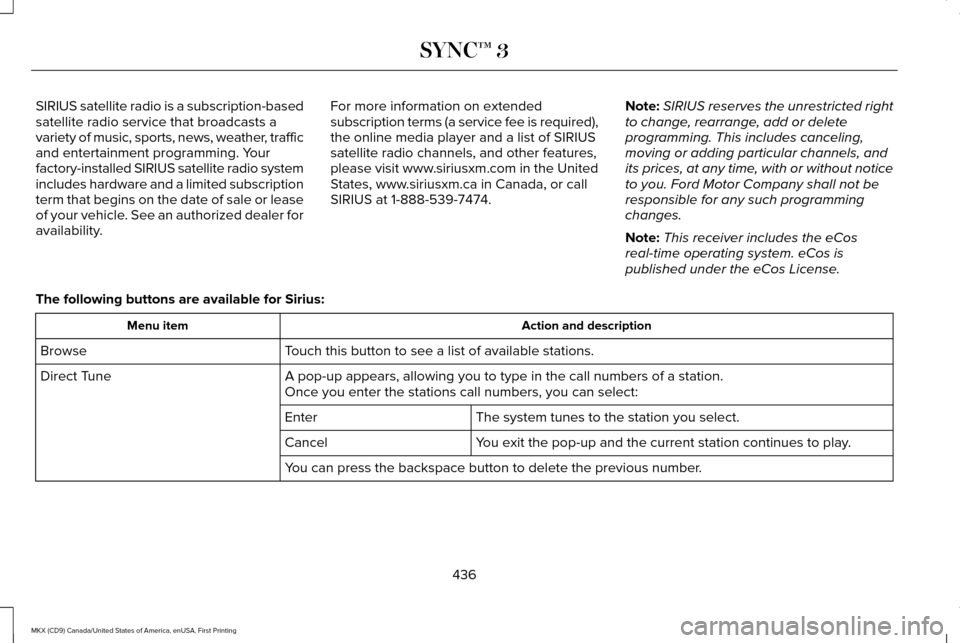
SIRIUS satellite radio is a subscription-based
satellite radio service that broadcasts a
variety of music, sports, news, weather, traffic
and entertainment programming. Your
factory-installed SIRIUS satellite radio system
includes hardware and a limited subscription
term that begins on the date of sale or lease
of your vehicle. See an authorized dealer for
availability.
For more information on extended
subscription terms (a service fee is required),
the online media player and a list of SIRIUS
satellite radio channels, and other features,
please visit www.siriusxm.com in the United
States, www.siriusxm.ca in Canada, or call
SIRIUS at 1-888-539-7474.
Note:
SIRIUS reserves the unrestricted right
to change, rearrange, add or delete
programming. This includes canceling,
moving or adding particular channels, and
its prices, at any time, with or without notice
to you. Ford Motor Company shall not be
responsible for any such programming
changes.
Note: This receiver includes the eCos
real-time operating system. eCos is
published under the eCos License.
The following buttons are available for Sirius: Action and description
Menu item
Touch this button to see a list of available stations.
Browse
A pop-up appears, allowing you to type in the call numbers of a station.\
Direct Tune
Once you enter the stations call numbers, you can select:
The system tunes to the station you select.
Enter
You exit the pop-up and the current station continues to play.
Cancel
You can press the backspace button to delete the previous number.
436
MKX (CD9) Canada/United States of America, enUSA, First Printing SYNC™ 3
Page 440 of 587
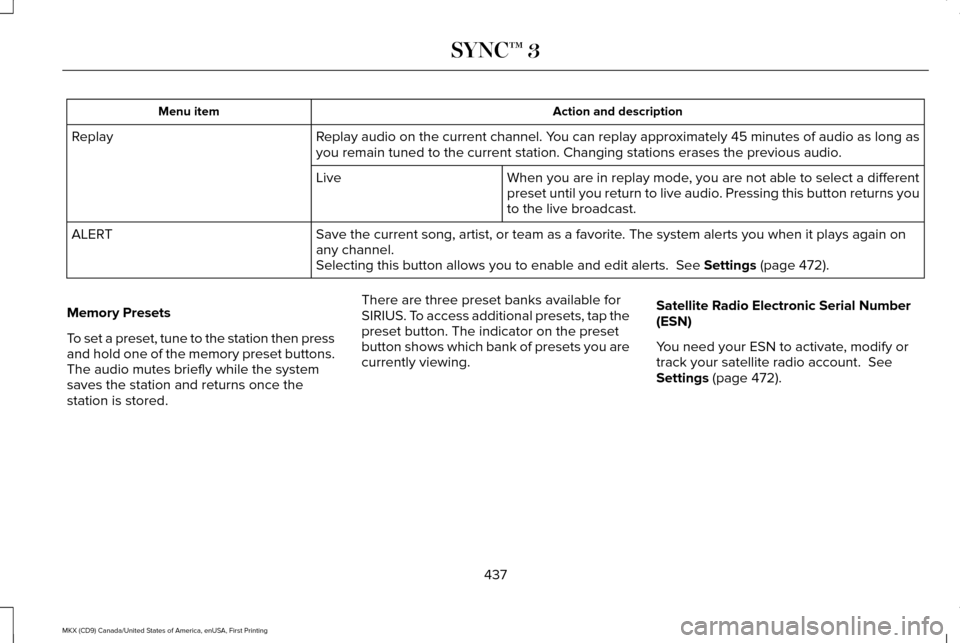
Action and description
Menu item
Replay audio on the current channel. You can replay approximately 45 minutes of audio as long as
you remain tuned to the current station. Changing stations erases the pr\
evious audio.
Replay
When you are in replay mode, you are not able to select a different
preset until you return to live audio. Pressing this button returns you
to the live broadcast.
Live
Save the current song, artist, or team as a favorite. The system alerts you when it plays again on
any channel.
ALERT
Selecting this button allows you to enable and edit alerts. See Settings (page 472).
Memory Presets
To set a preset, tune to the station then press
and hold one of the memory preset buttons.
The audio mutes briefly while the system
saves the station and returns once the
station is stored. There are three preset banks available for
SIRIUS. To access additional presets, tap the
preset button. The indicator on the preset
button shows which bank of presets you are
currently viewing.
Satellite Radio Electronic Serial Number
(ESN)
You need your ESN to activate, modify or
track your satellite radio account.
See
Settings (page 472).
437
MKX (CD9) Canada/United States of America, enUSA, First Printing SYNC™ 3
Page 443 of 587

HD Radio technology is the digital evolution
of analog AM/FM radio. Your system has a
special receiver that allows it to receive
digital broadcasts (where available) in
addition to the analog broadcasts, it already
receives. Digital broadcasts provide a better
sound quality than analog broadcasts with
free, crystal-clear audio and no static or
distortion. For more information, and a guide
to available stations and programming,
please visit:
Website
www.hdradio.com
When HD Radio is on and you tune to a
station broadcasting HD Radio technology,
you may notice the following indicators on
your screen: The HD logo is grey when acquiring a digital
station, and then changes to orange when
digital audio is playing. When this logo is
available, you may also see Title and Artist
fields on-screen.
The multicast indicator appears in FM mode
(only) if the current station is broadcasting
multiple digital broadcasts. The highlighted
numbers signify available digital channels
where new or different content is available.
HD1 signifies the main programming status
and is available in analog and digital
broadcasts. Other multicast stations (HD2
through HD7) are only available digitally.
Note:
There is also an additional feature for
stations that have more than 1 HD multicast
(For example, HD1 or HD2). The HD logo and
Radio text appears as a button. Pressing this
button allows you cycle through all of the
HD stations on that specific frequency. For
example, if you are on 101.1 and it has HD1,
HD2, HD3, pressing the button repeatedly
causes the radio to cycle through the HD
stations in a cyclic increasing order.
440
MKX (CD9) Canada/United States of America, enUSA, First Printing SYNC™ 3E142616
Page 444 of 587

When HD Radio broadcasts are active, you can access the following functions:
Action and description
Message
Allows you to save an active channel as a memory preset. Touch and hold a memory preset slot
until the sound returns. There is a brief mute while the radio saves the\
station. Sound returns
when the channel saves. When switching to an HD2 or HD3 memory preset, t\
he sound mutes
before the digital audio plays, because the system has to reacquire the \
digital signal.
Presets
Note: As with any station you save, you cannot access the saved station if your vehicle is outside the sta\
tion’ s reception area.
HD Radio Reception and Station Troubleshooting Potential reception issues
If you are listening to a multicast station and you are on the fringe of\
the reception area, the station
may mute due to weak signal strength.
Reception area
If you are listening to HD1, the system changes back to the analog broad\
cast until the digital
broadcast is available again. However, if you are listening to any of the possible HD2-HD7 multicast
channels, the station mutes and stays muted unless it is able to connect\
to the digital signal again.
When the system first receives a station (aside from HD2-HD7 multicast \
stations), it first plays the
station in the analog version. Once the receiver verifies the station is\
an HD Radio station, it shifts
to the digital version. Depending on the station quality, you may hear a slight sound change when
the station changes from analog to digital. Blending is the shift from a\
nalog to digital sound or
digital back to analog sound.
Station blending
441
MKX (CD9) Canada/United States of America, enUSA, First Printing SYNC™ 3
Page 446 of 587

Website
http://www.ibiquity.com/automotive/report_radio_station_experiences
HD Radio Technology manufactured under
license from iBiquity Digital Corp. U.S. and
foreign patents. HD Radio and the HD and
HD Radio logos are proprietary trademarks
of iBiquity Digital Corp. Ford Motor Company
and iBiquity Digital Corp. are not responsible
for the content sent using HD Radio
technology. Content may be changed, added
or deleted at any time at the station owner's
discretion. CD (If equipped)
Once you select this option, the system
returns you to the main audio screen.
The current audio information appears on
the screen.
The following buttons are also available: Function
Button
You can use the browse button to select a track.
Browse
Select this button and a small number one displays to indicate the track\
is set to repeat.
Repeat
For MP3 CDs, this button allows you to toggle through repeat off, repeat one track (a small number
one displays), and repeat current folder (a small folder displays).
Select the shuffle symbol to have the audio on the disk play in random o\
rder.
Shuffle
443
MKX (CD9) Canada/United States of America, enUSA, First Printing SYNC™ 3
 are connect\
ed to SYNC 3:
Description
Voice command
At any time, you can say the name of a mobile app to start the mobile app on SYNC 3.
Say")
