Page 447 of 776
4475-1. Basic Operations
5
Lexus Display Audio system
RX350/RX200t_EE_OM48F32E
■When using a 4-pole AUX cable
If a 4-pole AUX cable with a different layout is used, audio and/or video may not be out- put properly.
■When using the USB/AUX port
There is clearance between the lid and console box to allow the cable routed to outside the con-
sole box.
WARNING
■While driving
Do not connect a device or operate the device controls.
NOTICE
■To prevent damage to the device or its terminals
Depending on the size and shape of the device that is connected to the system, the console box/auxiliary box may not close fully. In this case, do not forcibly close the con-
sole box/auxiliary box as this may damage the device or the terminal, etc.
Page 451 of 776

4515-2. Setup
5
Lexus Display Audio system
RX350/RX200t_EE_OM48F32E
■USB memory
When saving the images to a USB memory device, name the folder that the images are saved to “Image”.
●Compatible device formats
The following device format can be used:
• The image’s file format must be JPEG • USB communication format: USB2.0 FS (480 Mbps)
• File system format: FAT16/32 (Windows) • Correspondence class: Mass storage class
●JPEG file compatibility
Compatible image size: Maximum 10 MB
Go to “Delete personal data”: “MENU” button “Setup” “General”
“Delete personal data”
Select “Delete”.
Check carefully beforehand, as data cannot be retrieved once deleted.
The following personal data will be deleted or changed to its default settings.
• Phonebook data •Voice tag
• Call history data •Favorite data
• Bluetooth® devices data
• Phone sound settings
• Detailed Bluetooth® settings • Audio/video setting
• Customized image data •FM info setting• Software update history
• Software update detail information • Phone display setting• Contact/call history setting
• Messaging setting
NOTICE
■To prevent damage to the USB memory device or its terminals
P. 480
Deleting personal data
1
2
Page 458 of 776
4585-3. Using the audio system
RX350/RX200t_EE_OM48F32E
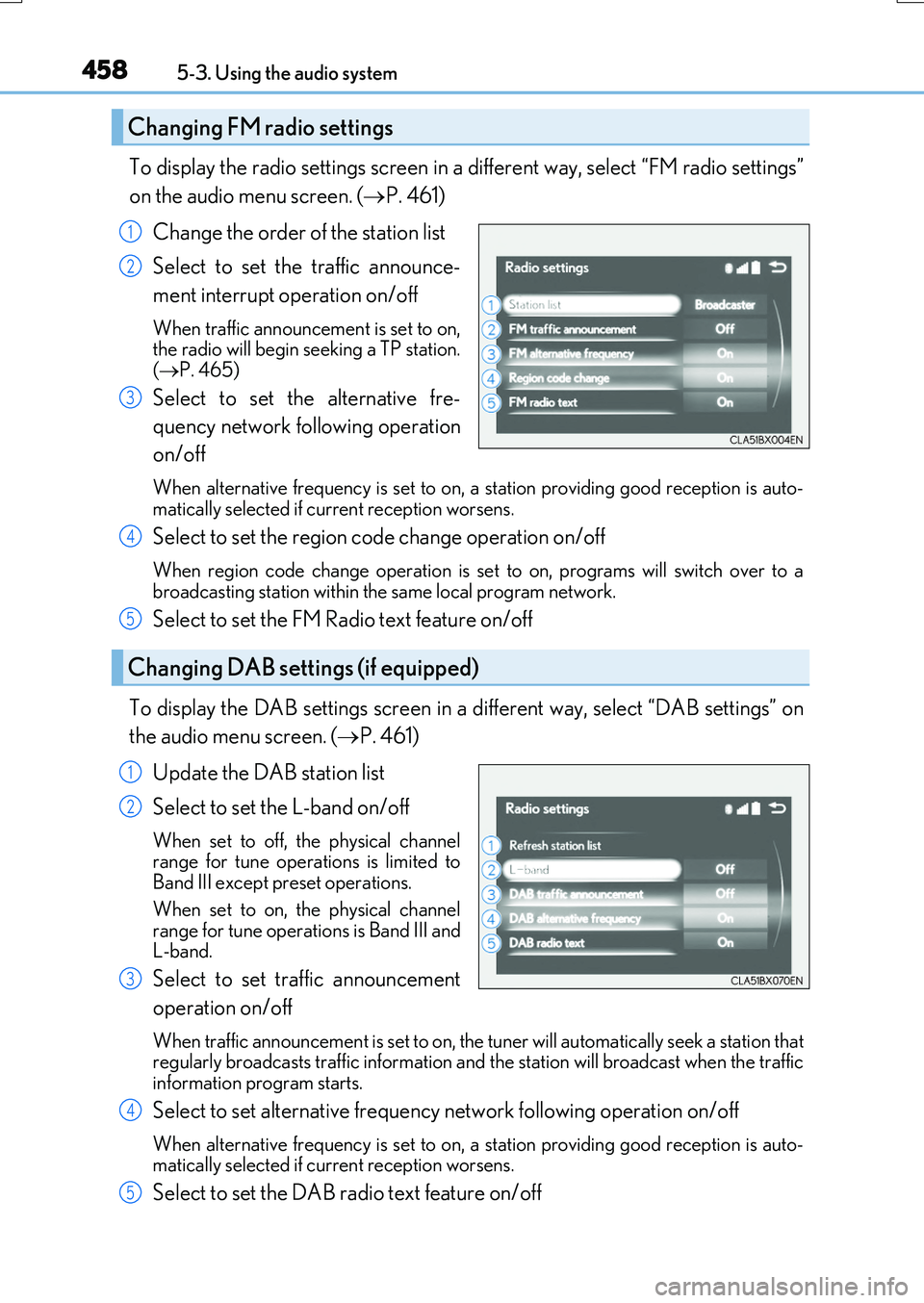
To display the radio settings screen in a different way, select “FM radio settings”
on the audio menu screen. ( P. 461)
Change the order of the station list
Select to set the traffic announce-
ment interrupt operation on/off
When traffic announcement is set to on, the radio will begin seeking a TP station.( P. 465)
Select to set the alternative fre-
quency network following operation
on/off
When alternative frequency is set to on, a station providing good reception is auto- matically selected if current reception worsens.
Select to set the region code change operation on/off
When region code change operation is se t to on, programs will switch over to a
broadcasting station within th e same local program network.
Select to set the FM Radio text feature on/off
To display the DAB settings screen in a different way, select “DAB settings” on
the audio menu screen. ( P. 461)
Update the DAB station list
Select to set the L-band on/off
When set to off, the physical channel range for tune operations is limited toBand III except preset operations.
When set to on, the physical channel range for tune operations is Band III andL-band.
Select to set traffic announcement
operation on/off
When traffic announcement is set to on, the tuner will automatically seek a station that regularly broadcasts traffic information and the station will broadcast when the traffic information program starts.
Select to set alternative frequency network following operation on/off
When alternative frequency is set to on, a station providing good reception is auto-matically selected if current reception worsens.
Select to set the DAB radio text feature on/off
Changing FM radio settings
1
2
3
Changing DAB settings (if equipped)
4
5
1
2
3
4
5
Page 464 of 776

464
RX350/RX200t_EE_OM48F32E
5-4. Using the radio
Pressing the “RADIO” button displays the radio top screen from any screen of
the selected source.
■Menu screen
P. 461
Move the controller to the right to display the right menu screen.
Change the radio top screen to the
preset selection screen.
Change the radio top screen to the
station list selection screen. (FM and
DAB)
Change the radio top screen to the
manual selection screen.
Change the radio top screen to the
time shift operation screen. (DAB)
( P. 465)
Tune in to the desired station using one of the following methods.
■Seek tuning
Manual screen: Press or press and hold the “ ” or “” button.
Seek tuning can also be operated on the menu screen. ( P. 461)
The radio will begin seeking up or down for a station of the nearest frequency
and will stop when a station is found.
Radio operation
Select “AM”, “FM” or “DAB” on the “Source” screen to begin listening to the
radio.
Radio top screen
Changing the top screen mode
1
2
3
4
Selecting a station
Page 467 of 776

4675-5. Playing an audio CD and MP3/WMA/AAC discs
5
Lexus Display Audio system
RX350/RX200t_EE_OM48F32E
■Error messages
If the following error messages appear on the screen, refer to the table and take the appropriate measures. If the problem is not rectified, take the vehicle to any authorizedLexus dealer or repairer, or another duly qualified and equipped professional.
■Discs that can be used
Discs with the marks shown below can be used. Playback may not be possible depending on re cording format or disc features, or due to scratches, dirt or deterioration.
CDs with copy-protection features may not play correctly.
■Music disc player protection feature
To protect the internal components, playback is automatically stopped when a problem is detected.
■If a disc is left inside the Music disc player or in the ejected position for extended peri-ods
Disc may be damaged and may not play properly.
■Lens cleaners
Do not use lens cleaners. Doing so may damage the Music disc player.
■MP3, WMA and AAC files
MP3 (MPEG Audio LAYER3) is a standard audio compression format.
Files can be compressed to approximately 1/10 of their original size by using MP3 com- pression.
WMA (Windows Media Audio) is a Mi crosoft audio compression format.
This format compresses audio data to a size smaller than that of the MP3 format.
AAC is short for Advanced Audio Coding an d refers to an audio compression technol-
ogy standard used with MPEG2 and MPEG4.
MP3, WMA and AAC file and media/ formats compatibility are limited.
MessageCauseCorrection procedures
“Check disc”
• The disc is dirty or dam- aged.
• The disc is inserted upside down.• The disc is not playable
with the player.
•Clean the disc.
• Insert the disc correctly. • Confirm the disc is play-able with the player.
“DISC error”There is a malfunctionwithin the system.Eject the disc.
“No music files found.”No playable data isincluded on the disc.Eject the disc.
Page 468 of 776

4685-5. Playing an audio CD and MP3/WMA/AAC discs
RX350/RX200t_EE_OM48F32E
●MP3 file compatibility
• Compatible standards MP3 (MPEG1 LAYER3, MPEG2 LSF LAYER3)
• Compatible sampling frequencies MPEG1 LAYER3: 32, 44.1, 48 (kHz) MPEG2 LSF LAYER3: 16, 22.05, 24 (kHz)
• Compatible bit rates (c ompatible with VBR) MPEG1 LAYER3: 32-320 (kbps) MPEG2 LSF LAYER3: 8-160 (kbps)
• Compatible channel modes: stereo, joint stereo, dual channel and monaural
●WMA file compatibility
• Compatible standards WMA Ver. 7, 8, 9 (only compatible with Windows Media Audio Standard)• Compatible sampling frequencies
32, 44.1, 48 (kHz) • Compatible bit rates (only compatible with 2-channel playback) Ver. 7, 8: CBR 48-192 (kbps)
Ver. 9: CBR 48-320 (kbps)
●AAC file compatibility
• Compatible standards MPEG4/AAC-LC• Compatible sampling frequencies
11.025/12/16/22.05/24/32/44.1/48 (kHz) • Compatible bit rates 16-320 (kbps)
• Compatible channel modes: 1 ch and 2 ch
●Compatible media
Media that can be used for MP3, WMA and AAC playback are CD-Rs and CD- RWs.
Playback in some instances may not be poss ible if the CD-R or CD-RW is not final- ized. Playback may not be possible or the au dio may jump if the disc is scratched or marked with fingerprints.
●Compatible disc formats
The following disc formats can be used.
• Disc formats: CD-ROM Mode 1 and Mode 2
CD-ROM XA Mode 2, Form 1 and Form 2 • File formats: ISO9660 Level 1, Level 2, (Romeo, Joliet) UDF (2.01 or lower)
MP3, WMA and AAC files written in any format other than those listed above may not play correctly, and their file names and folder names may not be displayed cor-rectly.
Items related to standards and limitations are as follows.
• Maximum directory hierarchy: 8 levels (including the root) • Maximum length of folder names/file names: 32 characters
• Maximum number of folders: 192 (including the root) • Maximum number of files per disc: 255
Page 471 of 776
4715-5. Playing an audio CD and MP3/WMA/AAC discs
5
Lexus Display Audio system
RX350/RX200t_EE_OM48F32E
NOTICE
■Discs and adapters that cannot be used
Do not use the following types of discs. Also, do not use 8 cm (3 in.) disc adapters, DualDiscs or printable discs.
Doing so may damage the player and/or disc insert/eject function.
●Discs that have a diameter that is not 12 cm (4.7 in.).
●Low-quality or deformed discs.
●Discs with a transparent or translucent recording area.
●Discs that have tape, stickers or labels attached to them, or that have had the label peeled off.
■Player precautions
Failure to follow the precautions below may re sult in damage to the discs or the player itself.
●Do not insert anything other than discs into the disc slot.
●Do not apply oil to the player.
●Store discs away from direct sunlight.
●Never try to disassemble any part of the player.
Page 473 of 776

4735-6. Using an external device
5
Lexus Display Audio system
RX350/RX200t_EE_OM48F32E
■About iPod
●“Made for iPod” and “Made for iPhone” mean that an electronic accessory has been designed to connect specifically to an iPod , or iPhone, respectively, and has been certi-
fied by the developer to meet Apple performance standards.
●Apple is not responsible for the operation of this device or its compliance with safety and regulatory standards. Please note that th e use of this accessory with iPod or iPhone
may affect wireless performance.
●iPhone, iPod, iPod classic, iPod nano and iPod touch are trademarks of Apple Inc., reg- istered in the U.S. and other countries.
■iPod cover art
●Depending on the iPod and songs in the iPod, iPod cover art may be displayed.
●This function can be changed to on/off. (P. 460)
●It may take time to display iPod cover art, and the iPod may not be operated while the cover art display is in process.
■iPod functions
●When an iPod is connected and the audio sour ce is changed to iPod mode, the iPod will resume play from the same poin t in which it was last used.
●Depending on the iPod that is connected to the system, certain functions may not be
available. If a function is unavailable due to a malfunction (as opposed to a system spec- ification), disconnecting the device and reconnecting it may resolve the problem.
●Depending on the iPod, while connected to the system, the iPod cannot be operated
with its own controls. It is necessary to use the controls of the vehicle’s audio system instead.
●When the battery level of an iPod is very low, the iPod may not operate. If so, charge the
iPod before use.
●Compatible models ( P. 475)

