Page 457 of 776
4575-3. Using the audio system
5
Lexus Display Audio system
RX350/RX200t_EE_OM48F32E
Go to “Audio settings”: “MENU” button “Setup” “Audio”
Change sound settings ( P. 456)
Change FM radio settings
( P. 458)
Change DAB settings (if equipped)
( P. 458)
Change iPod settings ( P. 459)
Change USB settings ( P. 459)
Change A/V settings ( P. 460)
Change the cover art settings
( P. 460)
Audio settings
Screen for audio settings
1
2
3
4
5
6
7
Page 458 of 776
4585-3. Using the audio system
RX350/RX200t_EE_OM48F32E
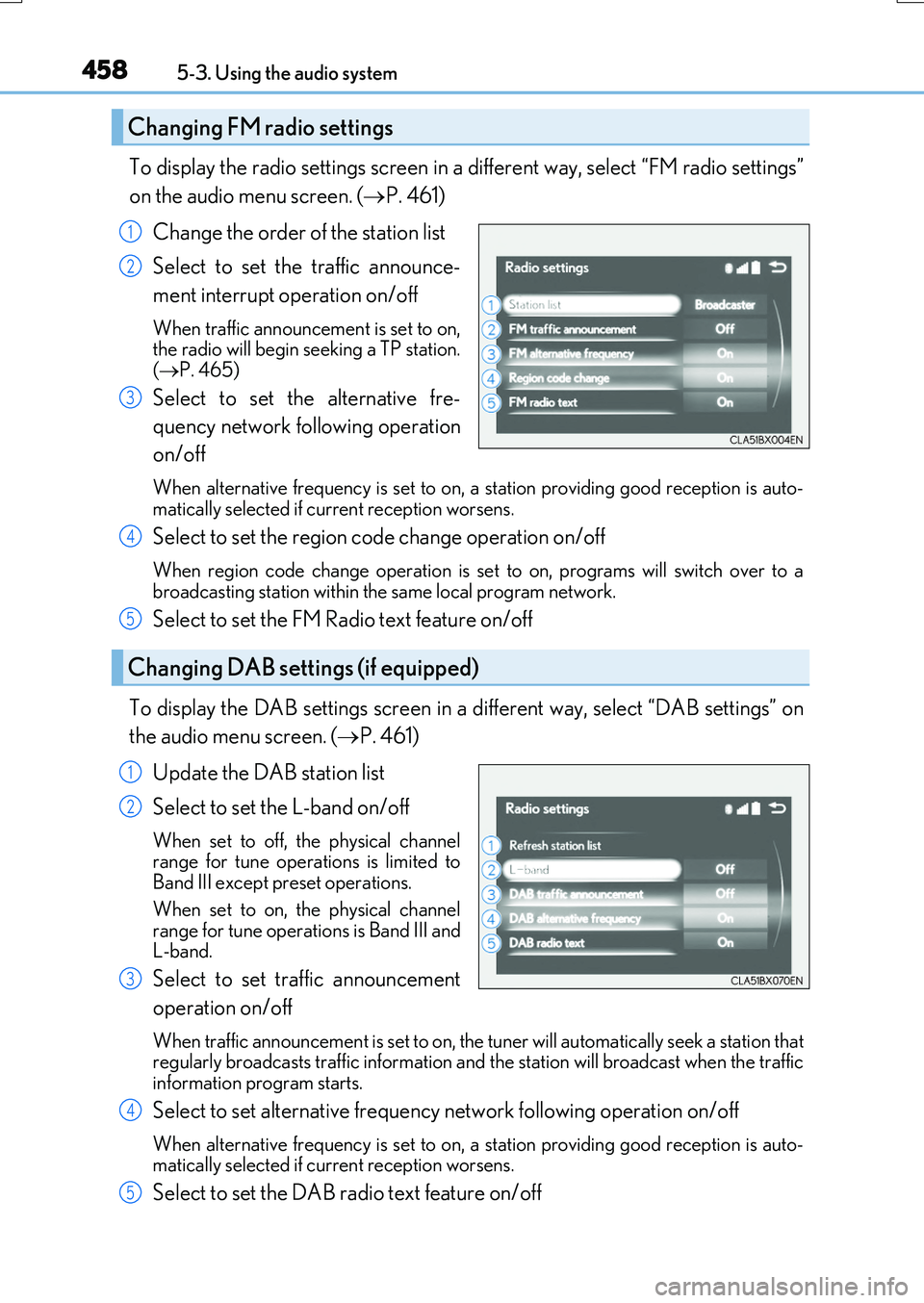
To display the radio settings screen in a different way, select “FM radio settings”
on the audio menu screen. ( P. 461)
Change the order of the station list
Select to set the traffic announce-
ment interrupt operation on/off
When traffic announcement is set to on, the radio will begin seeking a TP station.( P. 465)
Select to set the alternative fre-
quency network following operation
on/off
When alternative frequency is set to on, a station providing good reception is auto- matically selected if current reception worsens.
Select to set the region code change operation on/off
When region code change operation is se t to on, programs will switch over to a
broadcasting station within th e same local program network.
Select to set the FM Radio text feature on/off
To display the DAB settings screen in a different way, select “DAB settings” on
the audio menu screen. ( P. 461)
Update the DAB station list
Select to set the L-band on/off
When set to off, the physical channel range for tune operations is limited toBand III except preset operations.
When set to on, the physical channel range for tune operations is Band III andL-band.
Select to set traffic announcement
operation on/off
When traffic announcement is set to on, the tuner will automatically seek a station that regularly broadcasts traffic information and the station will broadcast when the traffic information program starts.
Select to set alternative frequency network following operation on/off
When alternative frequency is set to on, a station providing good reception is auto-matically selected if current reception worsens.
Select to set the DAB radio text feature on/off
Changing FM radio settings
1
2
3
Changing DAB settings (if equipped)
4
5
1
2
3
4
5
Page 461 of 776
4615-3. Using the audio system
5
Lexus Display Audio system
RX350/RX200t_EE_OM48F32E
Go to audio menu screen: Move the controller to the left on the audio top screen
Radio mode
Audio menu screen operation
You can change the settings and control functions for each audio source.
Audio menu screen
ButtonFunctionTarget radio mode
“Seek up”Seeks a station of the nearest frequency (stopswhen a station is found) (manual mode)AM, FM“Seek down”
“Rewind”Adjusts the playback offset time on time shift modeDAB“Forward”
“Time shift off”Cancels time shift operationDAB
“Next ensemble”Selects an ensemble (manual mode)DAB“Prev. ensemble”
“Next station”Selects a service (manual mode)DAB“Prev. station”
“FM radio settings”Changes FM radio settings ( P. 458)All mode
“DAB settings”Changes DAB settings (P. 458)All mode
Page 464 of 776

464
RX350/RX200t_EE_OM48F32E
5-4. Using the radio
Pressing the “RADIO” button displays the radio top screen from any screen of
the selected source.
■Menu screen
P. 461
Move the controller to the right to display the right menu screen.
Change the radio top screen to the
preset selection screen.
Change the radio top screen to the
station list selection screen. (FM and
DAB)
Change the radio top screen to the
manual selection screen.
Change the radio top screen to the
time shift operation screen. (DAB)
( P. 465)
Tune in to the desired station using one of the following methods.
■Seek tuning
Manual screen: Press or press and hold the “ ” or “” button.
Seek tuning can also be operated on the menu screen. ( P. 461)
The radio will begin seeking up or down for a station of the nearest frequency
and will stop when a station is found.
Radio operation
Select “AM”, “FM” or “DAB” on the “Source” screen to begin listening to the
radio.
Radio top screen
Changing the top screen mode
1
2
3
4
Selecting a station
Page 465 of 776

4655-4. Using the radio
5
Lexus Display Audio system
RX350/RX200t_EE_OM48F32E
■Manual tuning (manual screen)
Turn the “TUNE•SCROLL” knob or turn the controller.
■Station list (preset or station list screen)
Select the desired station by pressi ng the “<” or “>” button, turn the
“TUNE•SCROLL” knob, or turning and pressing the controller.
Radio stations can be preset.
Search for desired stations.
Turn the controller to select one of the stations and then press the controller
until you hear a beep while on the preset selection screen.
The broadcast you are currently listening to can be re-listened to at any time.
Move the controller to the right and then select “Time shift”.
Turn the “TUNE•SCROLL” knob to set the desired offset.
An offset playback time can also be set on the menu screen. ( P. 461)
To cancel the time shift operation while in time shift mode, move the controller to the
left and select “Time shift off”. If the time shift display is left showing “-0’ 00”” for 6 seconds without any operation, the time shift operation will be canceled.
■Reception sensitivity
●Maintaining perfect radio recept ion at all times is difficult due to the continually chang- ing position of the antenna, differences in signal strength and surrounding objects, such
as trains, transmitters, etc.
●The radio antenna is mounted inside the rear window. To maintain clear radio reception, do not attach metallic window tinting or other metallic objects to the antenna wire
mounted inside the rear window.
■Traffic announcement operation
When traffic announcement is set to on, “TP” will appear on the screen and the radio will
begin seeking a TP station. If the radio seeks out a TP station, a pop-up massage is dis- played. To listen the program, select “Continue”. When the program ends, the initial
operation will resume.
Setting station presets (preset screen)
Time shift operation (DAB) (if equipped)
1
2
1
2
Page 518 of 776

5185-11. Bluetooth®
RX350/RX200t_EE_OM48F32E
WARNING
■While driving
Do not operate the portable audio player, cellular phone or connect a device to the Bluetooth® system.
■Caution regarding interference with electronic devices
●Your audio unit is fitted with Bluetooth® antennas. People with implantable cardiacpacemakers, cardiac resynchronization therapy-pacemakers or implantable
cardioverter defibrillators should maintain a reasonable distance between them- selves and the Bluetooth® antennas. The radio waves may affect the operation ofsuch devices.
●Before using Bluetooth® devices, users of any electrical medical device other thanimplantable cardiac pacemakers, cardiac resynchronization therapy-pacemakers orimplantable cardioverter defibrillators should consult the manufacturer of the device
for information about its operation under th e influence of radio waves. Radio waves could have unexpected effects on the operation of such medical devices.
NOTICE
■When leaving the vehicle
Do not leave your portable audio player or cellular phone in the vehicle. The inside of
the vehicle may become hot, causing damage to the portable audio player or cellular phone.
Page 521 of 776

5215-12. Other function
5
Lexus Display Audio system
RX350/RX200t_EE_OM48F32E
Go to “MirrorLink”: “MENU” button “Info” “MirrorLink”
Select the desired application on the application list screen.
■MirrorLink™ screen
Follow the specific operation procedures for the smartphone application.
Control area
Press the back button on the
Lexus Display Audio controller to
turn the control area display on/
off.
Return application list screen
If you select the other application,
the new application screen will
displayed.
Displays software buttons that function as the buttons on the smartphone.
Change the other audio source (Radio, Disc, etc.).
To display the left menu screen, turn the
controller to the left while the
MirrorLink™ screen is being displayed.
Select a device
Change the screen size
Adjust the display settings.
■Selecting a MirrorLink™ device
If more than one MirrorLink™ device is available, select the desired device.
Select “Select MirrorLink™ device” on the left menu screen.
Select “MirrorLink™ 1” or “MirrorLink™ 2”.
Using MirrorLink™ function
1
2
1
2
Menu screen
3
4
1
2
3
1
2
Page 532 of 776
5326-1. Basic operation of the Remote Touch screen
RX350/RX200t_EE_OM48F32E
Press the “MENU” button on the Remote Touch to display the “Menu” screen.
When the split-screen display is selected, the “Menu” screen will be displayed on the
main display. ( P. 533)
*: Refer to the “NAVIGATION SYSTEM OWNER’S MANUAL”.
“Menu” screen
SwitchFunction
Select to display the map screen or the navigation menu screen.*
Select to display the radio control screen.*
Select to display the media control screen.*
Select to display the hands-free operation screen.*
Select to display the fuel consumption screen. (P. 128)
Select to display the “Information” screen.*
Select to display the air conditioning control screen. (P. 536)
Select to display the “Setup” screen.*
“Display”Select to adjust the contrast and brightness of the screens, turn the
screen off, etc.*


