2017 KIA Soul EV vin
[x] Cancel search: vinPage 205 of 470
4135
Features of your vehicle
(Continued)
Some iPod
®devices, such as the
iPhone®, can be connected
through the
Bluetooth®Wireless
Technology interface. The device
must have audio
Bluetooth®
Wireless Technology capability
(such as for stereo headphone
Bluetooth®Wireless Technology ).
The device can play, but it will not
be controlled by the audio system.
To use iPod
®features within the
audio, use the cable provided upon
purchasing an iPod
®device.
Skipping or improper operation may occur depending on the char-
acteristics of your iPod
®/iPhone®
device.
If your iPhone
®is connected to
both the
Bluetooth®Wireless
Technology and USB, only support
iPod
®mode because the sound
may not be properly played in
Bluetooth®Audio Streaming. To
use
Bluetooth®Audio Streaming,
disconnect iPod®cable with
iPhone®.
(Continued)(Continued)
When connecting iPod
®with the
iPod®Power Cable, insert the con-
nector to the multimedia socket
completely. If not inserted com-
pletely, communications between
iPod
®and audio may be interrupt-
ed.
When adjusting the sound effects of the iPod
®and the audio system,
the sound effects of both devices
will overlap and might reduce or
distort the quality of the sound.
Deactivate (turn off) the equalizer function of an iPod
®when adjust-
ing the audio system’s volume, and
turn off the equalizer of the audio
system when using the equalizer of
an iPod
®.
When not using iPod
®with car
audio, detach the iPod®cable from
iPod®. Otherwise, iPod®may
remain in accessory mode, and
may not work properly.
Beside support 1M cable when purchasing iPod
®/iPhone®prod-
ucts, Long Cable cannot be recog-
nized.
Bluetooth®Wireless
Technology (if equipped)
Bluetooth®Wireless Technology
The Bluetooth®word mark and logos
are registered trademarks owned by
Bluetooth SIG, lnc. and any use of
such marks by Kia is under license.
A
Bluetooth®enabled call phone is
required to use
Bluetooth®wireless
technology.
WARNING
Driving while distracted can
result in a loss of vehicle control
that may lead to an accident,
severe personal injury, and
death. The driver’s primary
responsibility is in the safe and
legal operation of a vehicle, and
use of any handheld devices,
other equipment, or vehicle sys-
tems which take the driver’s
eyes, attention and focus away
from the safe operation of a vehi-
cle or which are not permissible
by law should never be used dur-
ing operation of the vehicle.
Page 206 of 470

Features of your vehicle
136
4
Before Using the Bluetooth®
Wireless Technology
Handsfree
What is Bluetooth®?
Bluetooth®refers to a short-distance
wireless networking technology
which uses a 2.4GHz ~ 2.48GHz
frequency to connect various
devices within a certain distance.
Supported within PCs, external devices,
Bluetooth®phones, PDAs,
various electronic devices, and
automotive environments,
Bluetooth®allows data to be trans-
mitted at high speeds without hav-
ing to use a connector cable.
Bluetooth®Handsfree refers to a
device which allows the user to
conveniently make phone calls with
Bluetooth®mobile phones through
the audio system.
Bluetooth®Handsfree may not be
supported in some mobile phones.
To learn more about mobile device
compatibility, visit http://www
.kia.
com/us/en/content/owners/blue-
tooth
Precautions for Safe Driving
Bluetooth®Handsfree is a feature
that enables drivers to practice
safe driving. Connecting the head
unit with a
Bluetooth®phone allows
the user to conveniently make and
receive calls and use contacts.
Before using
Bluetooth®, carefully
read the contents of this user’s
manual.
Excessive use or operations while driving may lead to negligent driv-
ing practices and result in acci-
dents. Refrain from excessive
operations while driving.
Viewing the screen for prolonged periods of time is dangerous and
may lead to accidents. When driv-
ing, view the screen only for short
periods of time.
When connecting aBluetooth®
Phone
Before connecting the head unitwith the mobile phone, check to
see that the mobile phone sup-
ports
Bluetooth®features.
Even if the phone supports
Bluetooth®, the phone will not be
found during device searches if the
phone has been set to hidden state
or the
Bluetooth®power is turned
off. Disable the hidden state or turn
on the
Bluetooth®power prior to
searching/connecting with the
Head unit.
If you do not want automatic con- nection with your
Bluetooth®
device, turn off the Bluetooth®fea-
ture within your mobile phone.
The Handsfree call volume and quality may differ depending on the
mobile phone.
Page 212 of 470
Features of your vehicle
142
4
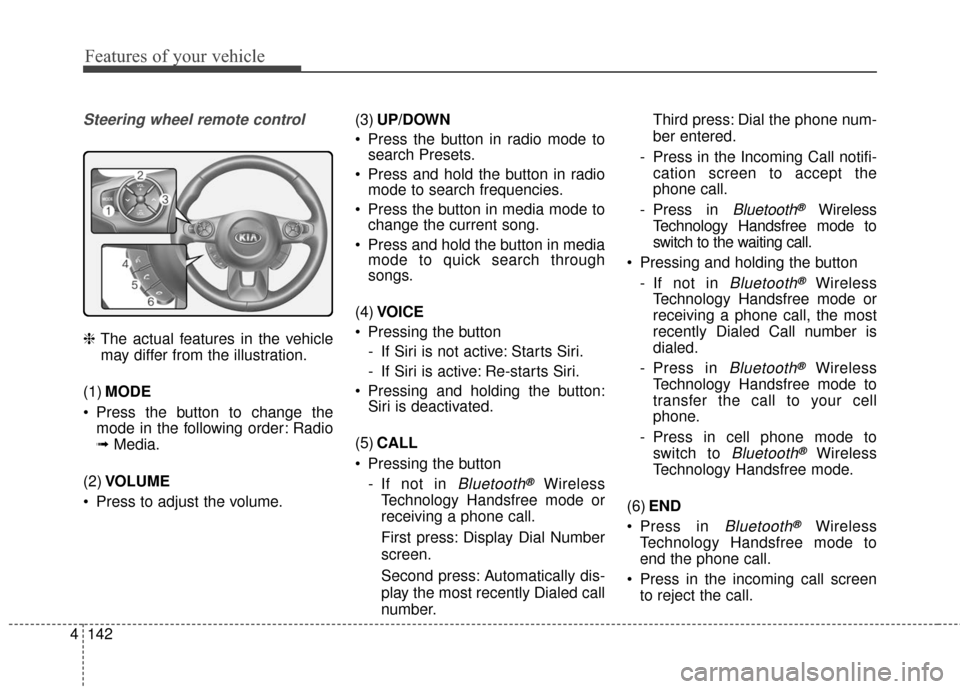
Steering wheel remote control
❈ The actual features in the vehicle
may differ from the illustration.
(1) MODE
Press the button to change the mode in the following order: Radio
➟ Media.
(2) VOLUME
Press to adjust the volume. (3)
UP/DOWN
Press the button in radio mode to search Presets.
Press and hold the button in radio mode to search frequencies.
Press the button in media mode to change the current song.
Press and hold the button in media mode to quick search through
songs.
(4) VOICE
Pressing the button - If Siri is not active: Starts Siri.
- If Siri is active: Re-starts Siri.
Pressing and holding the button: Siri is deactivated.
(5) CALL
Pressing the button - If not in
Bluetooth®Wireless
Technology Handsfree mode or
receiving a phone call.
First press: Display Dial Number
screen.
Second press: Automatically dis-
play the most recently Dialed call
number. Third press: Dial the phone num-
ber entered.
- Press in the Incoming Call notifi- cation screen to accept the
phone call.
- Press in
Bluetooth®Wireless
Technology Handsfree mode to
switch to the waiting call.
Pressing and holding the button - If not in
Bluetooth®Wireless
Technology Handsfree mode or
receiving a phone call, the most
recently Dialed Call number is
dialed.
- Press in
Bluetooth®Wireless
Technology Handsfree mode to
transfer the call to your cell
phone.
- Press in cell phone mode to switch to
Bluetooth®Wireless
Technology Handsfree mode.
(6) END
Press in
Bluetooth®Wireless
Technology Handsfree mode to
end the phone call.
Press in the incoming call screen to reject the call.
Page 213 of 470
Features of your vehicle
4143
WARNING
-
Audio System Safety
Warning
Do not disassemble, assem- ble, or modify the audio sys-
tem. if such acts are done
improperly, they could result
in accidental fires or electric
shock.
Refrain from using the audio system if the screen is blank
or no sound can be heard.
These are signs that may indi-
cate a product malfunction.
Continued use under such
conditions could lead to acci-
dental fires or electric shock.
WARNING - Distracted
Driving
Driving while distracted can
result in a loss of vehicle con-
trol that may lead to an acci-
dent, severe personal injury,
and death. The driver’s primary
responsibility is in the safe and
legal operation of a vehicle, and
use of any handheld devices,
other equipment, or vehicle sys-
tems which take the driver’s
eyes, attention and focus away
from the safe operation of a
vehicle or which are not permis-
sible by law should never be
used during operation of the
vehicle.CAUTION
Operating the device while driving could lead to acci-dents due to a lack of atten-tion to external surroundings.First park the vehicle beforeoperating the device.
Adjust the volume to levels that allow the driver to hearsounds from outside of thevehicle. Driving in a statewhere external sounds cannotbe heard may lead to acci-dents.
Pay attention to the volume setting when turning thedevice on. A sudden output ofextreme volume upon turningthe device on could lead tohearing impairment. (Adjustthe volume to a suitable levelsbefore turning off the device.)
(Continued)
Page 225 of 470
![KIA Soul EV 2017 2.G Owners Manual Features of your vehicle
4155
✽ ✽NOTICE
The repeat folder function is avail-
able only when songs are playing
from the [File] category under
[List].
Shuffle play
Press the [Shuffle] to enable/disa](/manual-img/2/2984/w960_2984-224.png "KIA Soul EV 2017 2.G Owners Manual Features of your vehicle
4155
✽ ✽NOTICE
The repeat folder function is avail-
able only when songs are playing
from the [File] category under
[List].
Shuffle play
Press the [Shuffle] to enable/disa")
Features of your vehicle
4155
✽ ✽NOTICE
The repeat folder function is avail-
able only when songs are playing
from the [File] category under
[List].
Shuffle play
Press the [Shuffle] to enable/disable
‘Shuffle’, ‘Shuffle folder’ or ‘Shuffle
category’ play.
Shuffle: Songs are played in
random order.
Shuffle folder: Songs within the current folder are played in ran-
dom order.
Shuffle category: Songs within the current category are played in
random order. Menu
Press the [Menu], and select the
desired function.
Save to My Music: Songs on your
USB device can be saved to My
Music.
(1) File: Select a file to save
.
(2) Mark All: Select all files.
(3) Unmark All: Deselect all files.
(4) Save: Save the selected files.
- Select the files you want to save, and press the [Save]. This saves
the selected files to My Music.
- If Siri is activated, phone calls are received or made while sav-
ing, saving will be canceled.
- Up to 6,000 files can be saved. - The currently playing file on the
USB device cannot be changed
while saving.
- My Music cannot be used while saving.
- Up to 700 MB can be saved.
Information: Detailed information on the currently playing song is dis-
played.
Sound Settings: Audio sound set- tings can be changed.
Page 229 of 470
Features of your vehicle
4159
✽ ✽NOTICE - Using Bluetooth®
Wireless Technology
Audio
•Bluetooth®Wireless Technology
Audio mode can only be used if a
Bluetooth
®Wireless Technology-
enabled phone is connected. Only
devices that support Bluetooth
®
Wireless Technology audio can be
used.
• If the Bluetooth
®Wireless
Technology-enabled phone is dis-
connected during play, the music
stops.
• When the TRACK UP/DOWN buttons are used during
Bluetooth
®Wireless Technology
audio streaming, a popping noise
or sound interruptions may occur,
depending on the cell phone
device.
• Depending on the cell phone model, the audio streaming func-
tion may not be supported. (Continued)(Continued)
• If a phone call is made or received
when music is playing in
Bluetooth
®Wireless Technology
Audio mode, the call may mix with
the music.
• When returning to Bluetooth
®
Wireless Technology Audio mode
after ending a call, play might not
resume automatically for some cell
phone models.
Bluetooth®Wireless Technology
Handsfree is a feature that enables
drivers to practice safe driving.
Connecting the car audio system
with a
Bluetooth®Wireless
Technology phone allows the user
to conveniently make calls, receive
calls, and manage the phone book.
Before using the
Bluetooth®
Wireless Technology, carefully
read the contents of this user’s
manual.
Excessive use or operations while driving may lead to negligent driv-
ing practices and be the cause of
accidents.
Do not operate the device exces- sively while driving.
Viewing the screen for prolonged periods of time is dangerous and
may lead to accidents.
When driving, view the screen only for short periods of time.
Page 232 of 470
![KIA Soul EV 2017 2.G Owners Manual Features of your vehicle
162
4 (6) Pause
Pause or play music.
(7) Playback progress
Press to skip to the desired location.
Playback
Press the [MEDIA]
button, and
select [My Music].
My Music cannot be](/manual-img/2/2984/w960_2984-231.png "KIA Soul EV 2017 2.G Owners Manual Features of your vehicle
162
4 (6) Pause
Pause or play music.
(7) Playback progress
Press to skip to the desired location.
Playback
Press the [MEDIA]
button, and
select [My Music].
My Music cannot be")
Features of your vehicle
162
4 (6) Pause
Pause or play music.
(7) Playback progress
Press to skip to the desired location.
Playback
Press the [MEDIA]
button, and
select [My Music].
My Music cannot be selected if it does not contain music.
Check the content of your USB drive before saving music to My
Music.
Changing songs
Press the [SEEK/TRACK] button to
play the previous or next song.
Press and hold the [SEEK/TRACK] button to rewind or fast forward the
currently playing song.
Search songs by turning the TUNE knob and press the knob to play. Selecting songs from a list
Press the [List] to see a list of songs
available for play.
Select and play the desired song.
Repeat play
Press the [Repeat] to enable or dis-
able ‘Repeat all’, ‘Repeat current
song’ or ‘Repeat category’.
Repeat all: All songs in the
playlist are repeated.
Repeat current song: The cur- rently playing song is repeated.
Repeat category: Repeat all songs in the current category. Shuffle play
Press the [Shuffle] to enable/disable
‘Shuffle’, ‘Shuffle category’ play.
Shuffle: Songs are played in
random order.
Shuffle category: Songs within the current category are played in
random order.
Menu
Press the [Menu], and select the
desired function.
Delete Files: You can delete files from My Music.
(1) File: Select saved file
.
(2) Mark All: Select all Files.
(3) Unmark All: Deselect all files.
(4) Delete: Delete the selected file(s).
Page 234 of 470
Features of your vehicle
164
4
Phone
✽ ✽
NOTICE - Using
Bluetooth®Wireless
Technology Phone
• Bluetooth®Wireless Technology is
a near-field wireless networking
technology that uses the 2.4 GHz
frequency to connect various
devices within a certain distance
wirelessly.
• The technology is used in PCs, peripherals, Bluetooth
®Wireless
Technology phones, tablet PCs,
household appliances and automo-
biles. Devices supporting
Bluetooth
®Wireless Technology
can exchange data at high speeds
without physical cable connec-
tions.
• Bluetooth
®Wireless Technology
Handsfree devices enable conven-
ient access to phone functions
through cell phones equipped with
Bluetooth
®Wireless Technology. (Continued) (Continued)
• Some
Bluetooth
®Wireless Technology
devices may not be supported by
the Bluetooth
®Wireless Technology
Handsfree function.
• When Bluetooth
®Wireless
Technology is connected and calls
are attempted through a connect-
ed cell phone from outside the
vehicle, the call is connected
through the Bluetooth
®Wireless
Technology Handsfree function of
the vehicle.
• Please be sure to disconnect the Bluetooth
®Wireless Technology
Handsfree function through your
Bluetooth
®Wireless Technology
device or the audio screen.
• The Bluetooth
®Wireless
Technology Handsfree function
helps drivers to drive safely. By
connecting a Bluetooth
®Wireless
Technology-enabled phone to the
vehicle’s audio system, phone calls
can be made and received through
the audio system and contacts can
be managed. Consult the user
manual before use. (Continued)(Continued)
• Excessive manipulation of con-
trols while driving, making it diffi-
cult to pay attention to the road
ahead, can lead to accidents. Do
not operate the device excessively
while driving.
• Looking at the screen for a pro- longed time increases the risk of
accidents. Keep time spent looking
at the screen to a minimum.