Page 286 of 642
4-23
Multimedia System
4
Searching Radio Frequencies
Using Seek
Press the , key to
play the previous/next frequency.
Using TUNE
Turn the TUNE knob to select the
desired frequency.
Using Radio Mode
Selecting Presets/Saving
Presets
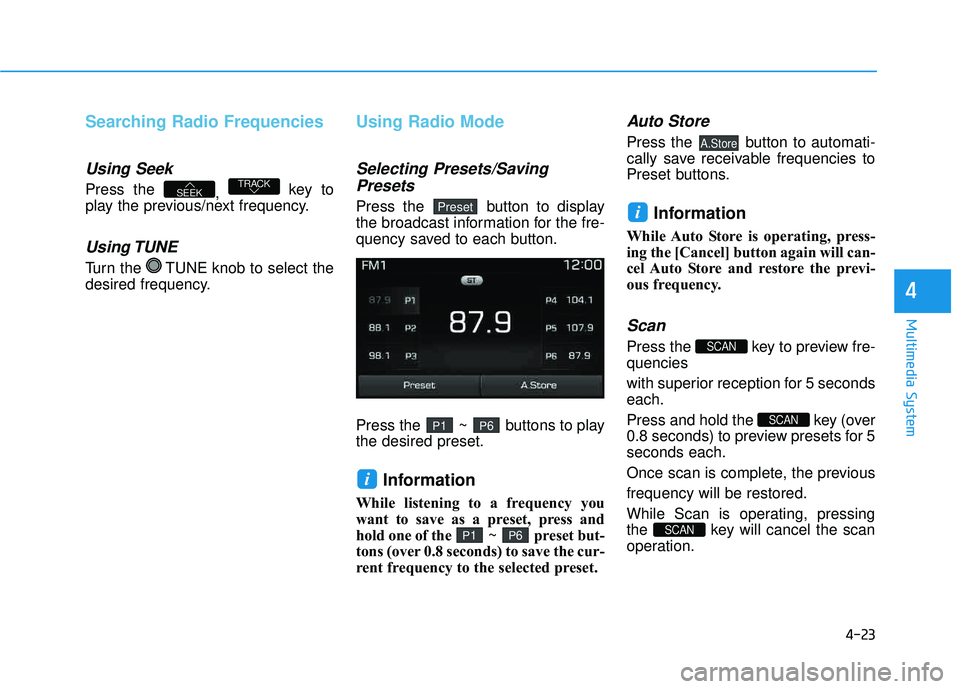
Press the button to display
the broadcast information for the fre-
quency saved to each button.
Press the ~ buttons to play the desired preset.
Information
While listening to a frequency you
want to save as a preset, press and
hold one of the ~ preset but-
tons (over 0.8 seconds) to save the cur-
rent frequency to the selected preset.
Auto Store
Press the button to automati-
cally save receivable frequencies to
Preset buttons.
Information
While Auto Store is operating, press-
ing the [Cancel] button again will can-
cel Auto Store and restore the previ-
ous frequency.
Scan
Press the key to preview fre-quencies
with superior reception for 5 seconds each.
Press and hold the key (over
0.8 seconds) to preview presets for 5seconds each.
Once scan is complete, the previous frequency will be restored.
While Scan is operating, pressing
the key will cancel the scan
operation.
SCAN
SCAN
SCAN
i
A.Store
P6P1
i
P6P1
Preset
TRACKSEEK
Page 287 of 642
4-24
Multimedia System
SiriusXM®Satellite Radio
information
Satellite Radio channels:
Enjoy SiriusXM Satellite Radio with a
3-month trial subscription to the
Sirius Select package. You’ll get over
140 channels, including commercial-
free music, plus all your favorite
sports, exclusive talk, entertainment,
and a selection of premium program-
ming. For more information and a
complete list of SiriusXM channels,
visit siriusxm.com in the United
States, siriusxm.ca in Canada, or call
SiriusXM at 1-888-539-7474.
Satellite Radio reception fac-
tors:
To receive the satellite signal, your
vehicle has been equipped with a
satellite radio antenna located on the
roof of your vehicle. The vehicle roof
provides the best location for an
unobstructed, open view of the sky, a
requirement of a satellite radio sys-
tem. Like AM/FM, there are several
factors that can affect satellite radio
reception performance:
Antenna obstructions: For optimal reception performance, keep the
antenna clear of snow and ice
build-up and keep luggage and
other material as far away from the
antenna as possible.
Terrain: Hills, mountains, tall build- ings, bridges, tunnels, freeway
overpasses, parking garages,
dense tree foliage and thunder-
storms can interfere with your reception.
SiriusXM Satellite Radio serv-
ice:
SiriusXM is a subscription-based
satellite radio service that broad-
casts music, sports, news and enter-
tainment programming to radio
receivers, which are available for
installation in motor vehicles or facto-
ry installed, as well as for the home,
portable and wireless devices, and
through an Internet connection on
personal computer.
Vehicles that are equipped with a
factory installed SiriusXM SatelliteRadio system include:
Hardware and an introductory trial subscription term, which begins on the date of sale or lease of the
vehicle.
For a small upgrade fee, access to SiriusXM music channels, and
other select channels over the
Internet using any computer con-
nected to the Internet (U.S. cus- tomers only).
For information on extended sub-
scription terms, contact SiriusXMat 1-888-539-7474.
Page 288 of 642
4-25
Multimedia System
4
NOTE:
SiriusXM services require a sub-
scription sold separately, or as a
package, by Sirius XM Radio Inc. If
you decide to continue service
after your trial, the subscription
plan you choose will automatical-
ly renew thereafter and you will be
charged according to your chosen
payment method at then-current
rates. Fees and taxes apply. To
cancel you must call SiriusXM at
1-866-635-2349. See SiriusXM
Customer Agreement for com-
plete terms at www.siriusxm.com.
SiriusXM U.S. satellite and data
services are available only in the
48 contiguous USA, DC and PR
(with coverage limitations).
SiriusXM satellite service is also
available in Canada; see www.sir-
iusxm. ca. All fees and program-
ming subject to change. Sirius,XM and all related marks andlogos are trademarks of Sirius XMRadio Inc.
Page 289 of 642
4-26
Multimedia System
SSiirr iiuu ssXX MM RR aadd iioo MM ooddee
Basic Mode Screen
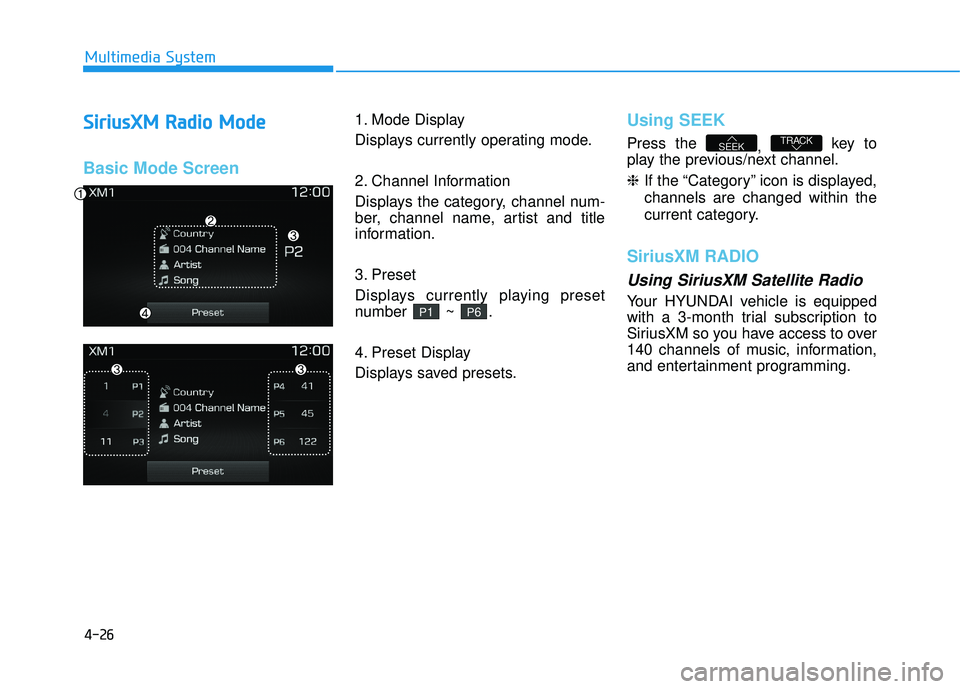
1. Mode Display
Displays currently operating mode.
2. Channel Information
Displays the category, channel num-
ber, channel name, artist and title
information.
3. Preset
Displays currently playing preset
number ~ .
4. Preset Display
Displays saved presets.Using SEEK
Press the
, key to
play the previous/next channel. ❈ If the “Category” icon is displayed,
channels are changed within the
current category.
SiriusXM RADIO
Using SiriusXM Satellite Radio
Your HYUNDAI vehicle is equipped
with a 3-month trial subscription to
SiriusXM so you have access to over
140 channels of music, information,
and entertainment programming.
TRACKSEEK
P6P1
Page 290 of 642
4-27
Multimedia System
4
Activation
In order to extend or reactivate your
Sirius Select subscription, you will
need to contact SiriusXM Customer
Care at 1-800-643-2112. Have your12-digit RID (Radio Identification
Number) / ESN (Electronic Serial
Number) ready. To retrieve the RID /
ESN, turn on the radio, press thekey, and tune to channel
zero.
Please note that the vehicle will need
to be turned on, in Sirius mode, and
have an unobstructed view of the sky
in order for the radio to receive the
activation signal.
SCAN
Press the key to scan all
channels with superior reception for5 seconds each.
Once scan is complete, the previous-
ly played channel will be restored.
During Scan, pressing the
key again will cancel the scan opera-
tion and restore the previously
played channel.
If the “Category” icon is displayed, channels are changed within the cur-
rent category.
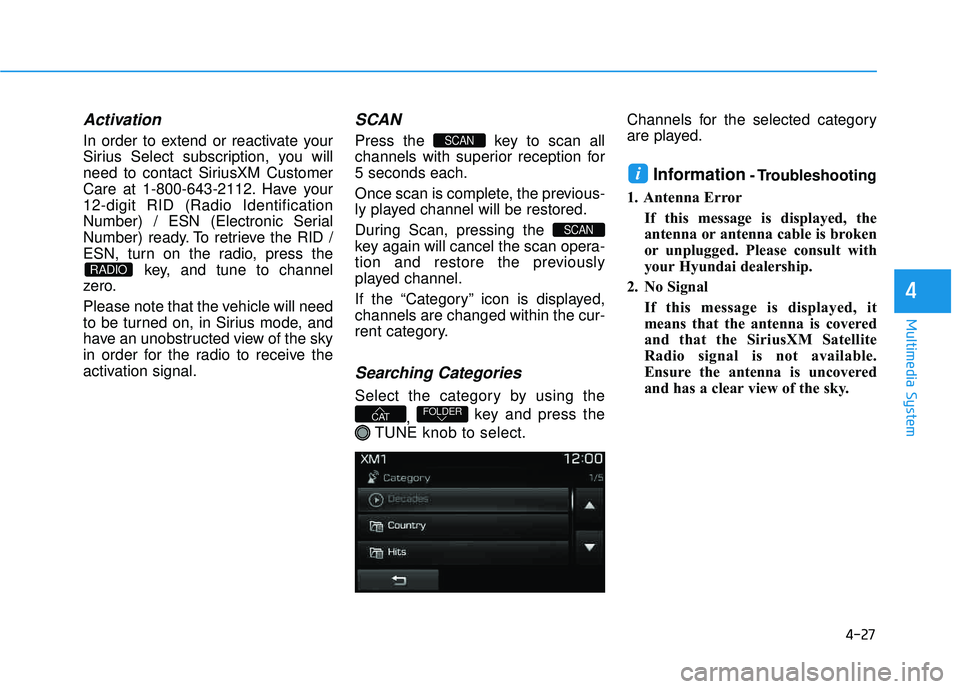
Searching Categories
Select the category by using the
, key and press the
TUNE knob to select. Channels for the selected category
are played.
Information - Troubleshooting
1. Antenna Error If this message is displayed, the
antenna or antenna cable is broken
or unplugged. Please consult with
your Hyundai dealership.
2. No Signal If this message is displayed, it
means that the antenna is covered
and that the SiriusXM Satellite
Radio signal is not available.
Ensure the antenna is uncovered
and has a clear view of the sky.i
FOLDERCAT
SCAN
SCAN
RADIO
Page 291 of 642
4-28
Multimedia System
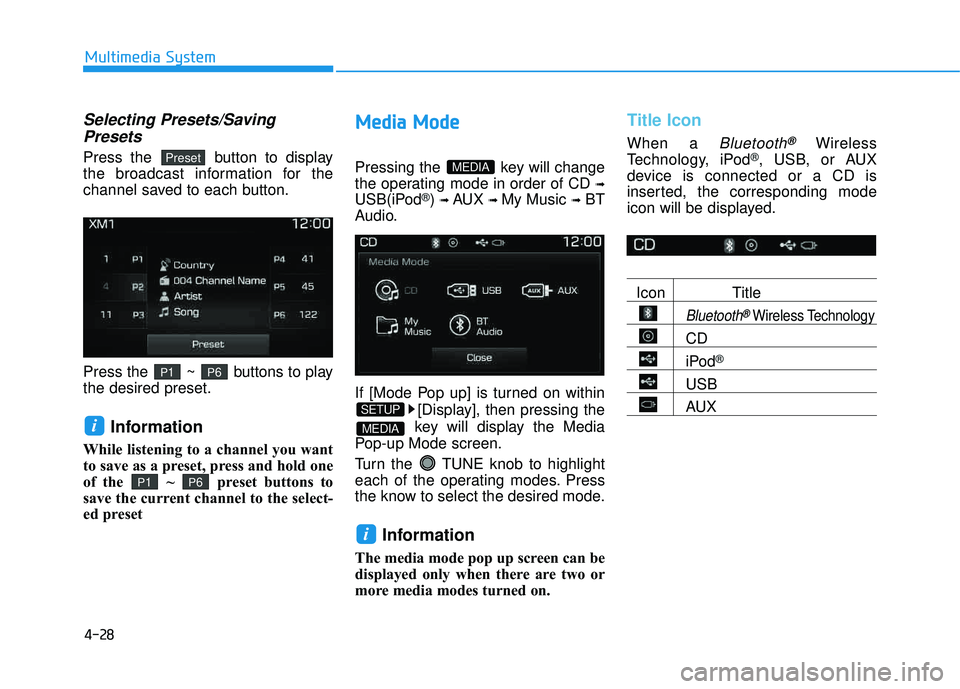
Selecting Presets/SavingPresets
Press the button to display
the broadcast information for the
channel saved to each button.
Press the ~ buttons to play the desired preset.
Information
While listening to a channel you want
to save as a preset, press and hold one
of the ~ preset buttons to
save the current channel to the select-
ed preset
MM eedd iiaa MM ooddee
Pressing the key will change
the operating mode in order of CD
➟
USB(iPod®) ➟ AUX ➟ My Music ➟BT
Audio.
If [Mode Pop up] is turned on within
[Display], then pressing the
key will display the Media
Pop-up Mode screen.
Turn the TUNE knob to highlight
each of the operating modes. Press
the know to select the desired mode.
Information
The media mode pop up screen can be
displayed only when there are two or
more media modes turned on.
Title Icon
When a Bluetooth®Wireless
Technology, iPod®, USB, or AUX
device is connected or a CD is
inserted, the corresponding mode
icon will be displayed.
Icon Title
Bluetooth®Wireless Technology
CD
iPod®
USB
AUX
i
MEDIA
SETUP
MEDIA
P6P1
i
P6P1
Preset
Page 292 of 642
4-29
Multimedia System
4
AAuuddiioo CC DD MM ooddee
Using Audio CD Mode
Playing/Pausing CD Tracks
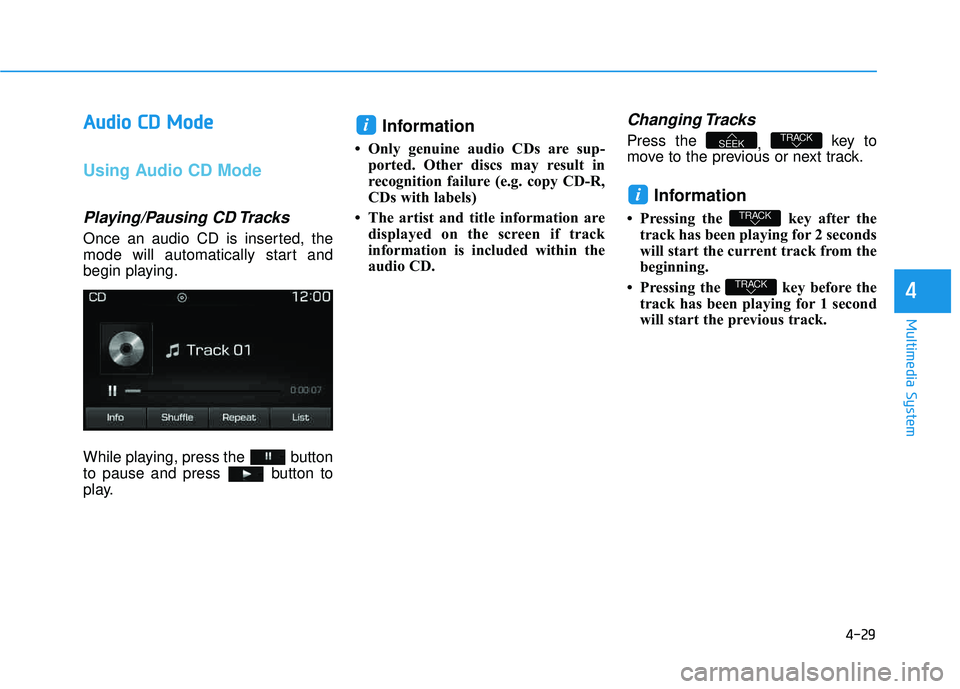
Once an audio CD is inserted, the
mode will automatically start and
begin playing.
While playing, press the button
to pause and press button to
play.
Information
Only genuine audio CDs are sup-
ported. Other discs may result in
recognition failure (e.g. copy CD-R,
CDs with labels)
The artist and title information are displayed on the screen if track
information is included within the
audio CD.
Changing Tracks
Press the , key to
move to the previous or next track.
Information
Pressing the key after the track has been playing for 2 seconds
will start the current track from the
beginning.
Pressing the key before the track has been playing for 1 second
will start the previous track.
TRACK
TRACK
i
TRACKSEEK
i
Page 293 of 642
4-30
Multimedia System
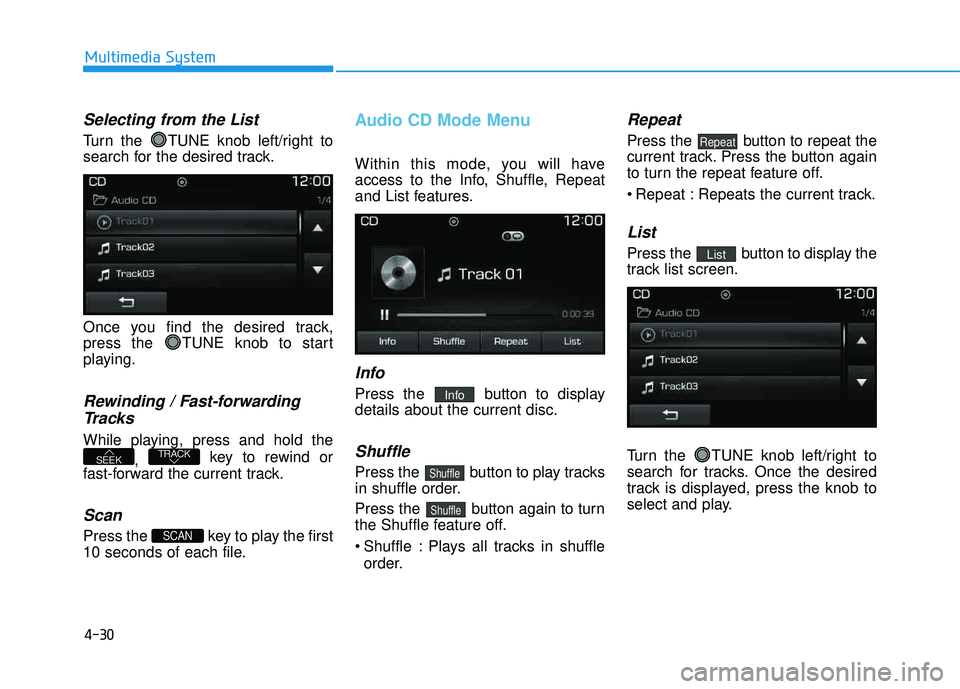
Selecting from the List
Turn the TUNE knob left/right to
search for the desired track.
Once you find the desired track,
press the TUNE knob to start
playing.
Rewinding / Fast-forwardingTracks
While playing, press and hold the
, key to rewind or
fast-forward the current track.
Scan
Press the key to play the first
10 seconds of each file.
Audio CD Mode Menu
Within this mode, you will have
access to the Info, Shuffle, Repeat
and List features.
Info
Press the button to displaydetails about the current disc.
Shuffle
Press the button to play tracks
in shuffle order.
Press the button again to turn
the Shuffle feature off.
Shuffle : Plays all tracks in shuffle order.
Repeat
Press the button to repeat the
current track. Press the button again
to turn the repeat feature off.
Repeat : Repeats the current track.
List
Press the button to display the
track list screen.
Turn the TUNE knob left/right to
search for tracks. Once the desired
track is displayed, press the knob to
select and play.List
Repeat
Shuffle
Shuffle
Info
SCAN
TRACKSEEK