2017 HONDA RIDGELINE ad blue
[x] Cancel search: ad bluePage 38 of 85

AUDIO AND CONNECTIVITY
68 || 69
A
UDIO AND CONNECTIVITY
Models with touchscreen
Wi-Fi Connection
You can connect the audio system to the internet using Wi-Fi and use onli\
ne services
through the touchscreen. If your compatible phone has hotspot capabiliti\
es, the system
can be tethered to the phone. Follow the steps below to set up Wi-Fi whe\
n the vehicle is
stopped. Standard data rates apply with your phone service provider.
1.
From the Home screen, select Settings.
2.
Select Bluetooth/Wi-Fi. Select the Wi-Fi tab.
3.
Select Wi-Fi On/Off Status, and select On.
4.
Select Wi-Fi Network List. Make sure your phone’s
Wi-Fi setting is in access point (tethering) mode.
5.
Select the network you want to connect to the system.
If the phone you want to connect does not appear,
select Scan.
6.
Select Connect.
7.
Enter a password for your phone. Select OK.
The Wi-Fi symbol is displayed on the list when
connection is successful.
Models with touchscreen
Apple CarPlay®
Connect an Apple CarPlay-compatible iPhone to the system. You can use the
touchscreen to make a phone call, listen to music, and more. Visit the A\
pple CarPlay
website for more information.
Park in a safe place before connecting your iPhone and launching any com\
patible apps.
1.
Connect the iPhone to the USB port (see page
56).
2.
Apple CarPlay requires you to send vehicle
information to Honda. Select Enable Once, Always
Enable, or Cancel. Your phone may prompt you to
allow access for CarPlay to be launched.
3.
From the HOME screen, select Apple CarPlay.
HOME screen
Apple CarPlay
4. Select a menu option.
Phone: Access your contacts, make phone calls,
or listen to voicemail. While connected to Apple
CarPlay, calls can only be made through Apple
CarPlay, not through Bluetooth
HandsFreeLink.
Music: Play music stored on your iPhone.
Maps: View a map and operate navigation. You
can only use Apple CarPlay or the pre-installed
navigation system to set a destination with routing
guidance.
Messages: View and reply to text messages, or
have messages read to you aloud by the system. Apple CarPlay menu
Return
to HOME
screen
Return to Apple CarPlay menu screen
Once connected, press and hold the Talk button on the steering wheel to operate the
system using voice commands with Siri® Eyes Free (see page 89).
Depending on use, Apple CarPlay can share certain vehicle information (\
e.g., vehicle location,
speed, and other operating conditions) with the connected iPhone. See A\
pple’s privacy policy for
details regarding Apple’s use and handling of data uploaded by CarPlay. Use of CarPlay is at user’s
own risk, and is subject to agreement to the CarPlay terms of use, which\
are included as part of
the Apple iOS terms of use. CarPlay vehicle integration is provided “\
as is,” and Honda cannot
guarantee CarPlay operability or functionality now or in the future due \
to, among other conditions,
changes in CarPlay software/Apple iOS, service interruptions, or incompa\
tibility or obsolesce of
vehicle-integrated hardware or software. See dealer for details. Only us\
e CarPlay when conditions
allow you to do so safely. See your Owner’s Manual on the Owner Information CD or at owners.
honda.com (U.S.) or myhonda.ca (Canada) for further license and warr\
anty terms.
Page 39 of 85
AUDIO AND CONNECTIVITY
70 || 71
A
UDIO AND CONNECTIVITY
Models with touchcreen
Android Auto™
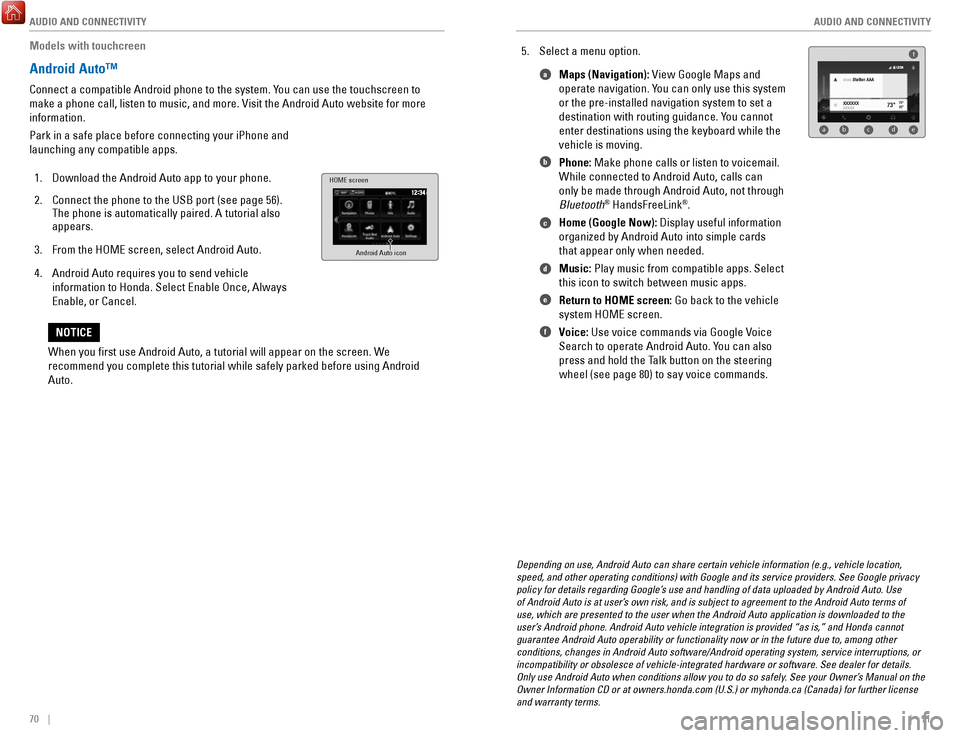
Connect a compatible Android phone to the system. You can use the touchscreen to
make a phone call, listen to music, and more. Visit the Android Auto web\
site for more
information.
Park in a safe place before connecting your iPhone and
launching any compatible apps.
1.
Download the Android Auto app to your phone.
2.
Connect the phone to the USB port (see page 56).
The phone is automatically paired. A tutorial also
appears.
3.
From the HOME screen, select Android Auto.
4.
Android Auto requires you to send vehicle
information to Honda. Select Enable Once, Always
Enable, or Cancel.
HOME screen
Android Auto icon
5. Select a menu option. Maps (Navigation): View Google Maps and
operate navigation. You can only use this system
or the pre-installed navigation system to set a
destination with routing guidance. You cannot
enter destinations using the keyboard while the
vehicle is moving.
Phone: Make phone calls or listen to voicemail.
While connected to Android Auto, calls can
only be made through Android Auto, not through
Bluetooth
® HandsFreeLink®.
Home (Google Now): Display useful information
organized by Android Auto into simple cards
that appear only when needed.
Music: Play music from compatible apps. Select
this icon to switch between music apps.
Return to HOME screen: Go back to the vehicle
system HOME screen.
Voice: Use voice commands via Google Voice
Search to operate Android Auto. You can also
press and hold the Talk button on the steering
wheel (see page 80) to say voice commands.
f
ab cde
a
b
c
d
e
f
Depending on use, Android Auto can share certain vehicle information (e\
.g., vehicle location,
speed, and other operating conditions) with Google and its service prov\
iders. See Google privacy
policy for details regarding Google’s use and handling of data uploaded by Android Auto. Use
of Android Auto is at user’s own risk, and is subject to agreement to the Android Auto terms of
use, which are presented to the user when the Android Auto application i\
s downloaded to the
user’s Android phone. Android Auto vehicle integration is provided “as is,\
” and Honda cannot
guarantee Android Auto operability or functionality now or in the future\
due to, among other
conditions, changes in Android Auto software/Android operating system, s\
ervice interruptions, or
incompatibility or obsolesce of vehicle-integrated hardware or software.\
See dealer for details.
Only use Android Auto when conditions allow you to do so safely. See your Owner’s Manual on the
Owner Information CD or at owners.honda.com (U.S.) or myhonda.ca (Can\
ada) for further license
and warranty terms.
When you first use Android Auto, a tutorial will appear on the screen.\
We
recommend you complete this tutorial while safely parked before using An\
droid
Auto.
NOTICE
Page 42 of 85
AUDIO AND CONNECTIVITY
76 || 77
A
UDIO AND CONNECTIVITY
Models with touchscreen
USB Flash Drive
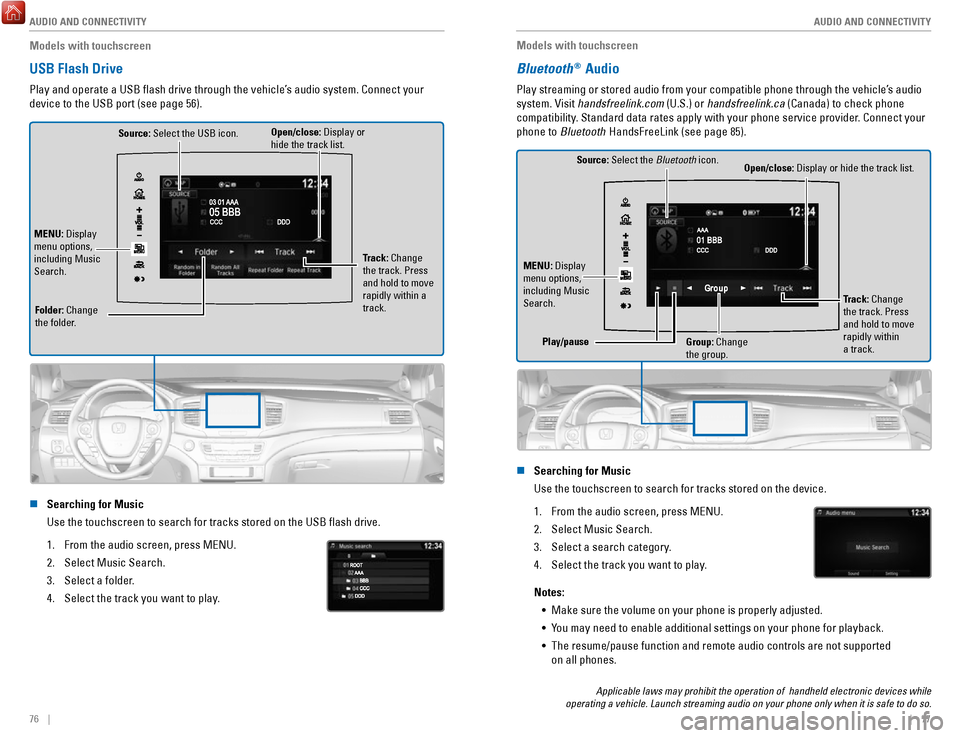
Play and operate a USB flash drive through the vehicle’s audio system. Connect your
device to the USB port (see page 56).
Source: Select the USB icon.
Folder: Change
the folder. Open/close: Display or
hide the track list.
MENU: Display
menu options,
including Music
Search. Track: Change
the track. Press
and hold to move
rapidly within a
track.
n Searching for Music
Use the touchscreen to search for tracks stored on the USB flash drive\
.
1.
From the audio screen, press MENU.
2.
Select Music Search.
3.
Select a folder.
4.
Select the track you want to play.
Models with touchscreen
Bluetooth® Audio
Play streaming or stored audio from your compatible phone through the ve\
hicle’s audio
system. Visit handsfreelink.com (U.S.) or handsfreelink.ca (Canada) to check phone
compatibility. Standard data rates apply with your phone service provider. Connect your
phone to Bluetooth HandsFreeLink (see page 85).
Source: Select the Bluetooth icon.
Open/close: Display or hide the track list.
MENU: Display
menu options,
including Music
Search. Track: Change
the track. Press
and hold to move
rapidly within
a track.
Play/pause
Group: Change
the group.
n Searching for Music
Use the touchscreen to search for tracks stored on the device.
1.
From the audio screen, press MENU.
2.
Select Music Search.
3.
Select a search category.
4.
Select the track you want to play.
Notes: •
Make sure the volume on your phone is properly adjusted.
•
You may need to enable additional settings on your phone for playback.
•
The resume/pause function and remote audio controls are not supported
on all phones.
Applicable laws may prohibit the operation of handheld electronic devic\
es while
operating a vehicle. Launch streaming audio on your phone only when it i\
s safe to do so.
Page 43 of 85

AUDIO AND CONNECTIVITY
78 || 79
A
UDIO AND CONNECTIVITY
Models with touchscreen
Pandora®*
Play and operate Pandora from your compatible phone through the vehicle’\
s audio
system. Visit handsfreelink.com to check phone compatibility. Standard data rates apply
with your phone service provider. Available in the U.S. only.
Connect your phone when the vehicle is stopped.
For iPhone:
•
Connect via Bluetooth HandsFreeLink (see page 85) or USB port
(see page 56).
•
A pop-up may appear on your phone requesting you to allow access for Pan\
dora
to be launched.
•
If you cannot operate Pandora through the audio system, it may be stream\
ing
through Bluetooth Audio. Make sure Pandora is selected on the audio system.
•
If Pandora still does not operate, try rebooting the phone and reconnect\
ing the
cable if necessary.
For other compatible smartphones: •
Connect via Bluetooth HandsFreeLink (see page 85).
Source: Select the Pandora icon.
Station: Change
the station. Skip: Go to the
next song.
MENU: Display
menu options,
including the
Station List.
Dislike/Like song
Play/Pause
*If equipped. Applicable laws may prohibit the operation of handheld ele\
ctronic devices while operating a vehicle. Launch streaming audio on your phone only when it i\
s safe to do so.
Models with touchscreen
Truck Bed Audio System*
Send audio system content to outside the vehicle by using the truck bed \
liner as a
speaker.
From the Home screen, select Truck Bed Audio.
Select On or Off.
n Using Truck Bed Audio
•
To start Truck Bed Audio:
à the vehicle must be in Park.
àthe ignition must be in Accessory or ON.
•
Once started, the system will work in any power mode.
•
The display screen will sleep to preserve power.
•
The system will cancel:
à if the vehicle moves at 10 mph (16 km/h) or faster.
àif the battery charge drops below the needs of the engine starter.
*if equipped
Page 44 of 85
80 || 81
BLUETOOTH® HANDSFREELINK® (HFL)
Learn how to operate the vehicle’s hands-free calling system.
Color Audio System
Basic HFL Operation
Make and receive phone calls using the vehicle’s audio system, without handling your
phone. Visit handsfreelink.com (U.S.) or handsfreelink.ca (Canada) to check phone
compatibility.
To reduce the potential for driver distraction, certain manual functions \
may be
inoperable or grayed out while the vehicle is moving. Stop or pull over \
to perform
the function.
n
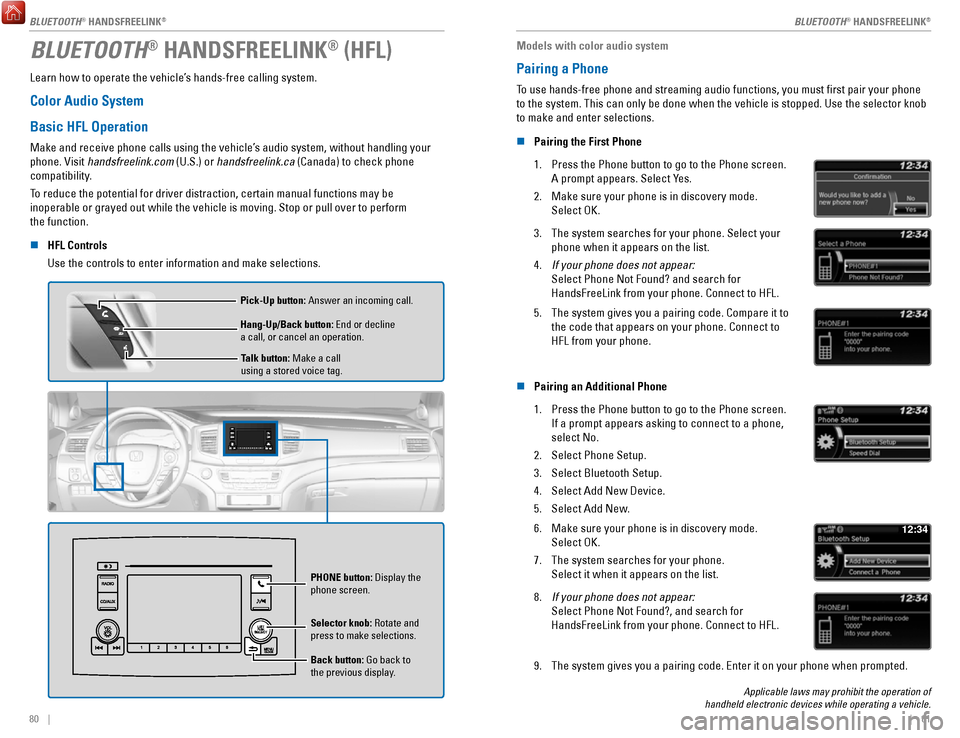
HFL Controls
Use the controls to enter information and make selections.
Talk button: Make a call
using a stored voice tag.
Hang-Up/Back button: End or decline
a call, or cancel an operation. Pick-Up button: Answer an incoming call.
Selector knob: Rotate and
press to make selections.
Back button: Go back to
the previous display. PHONE
button: Display the
phone screen.
Models with color audio system
Pairing a Phone
To use hands-free phone and streaming audio functions, you must first p\
air your phone
to the system. This can only be done when the vehicle is stopped. Use th\
e selector knob
to make and enter selections.
n
Pairing the First Phone
1.
Press the Phone button to go to the Phone screen.
A prompt appears. Select Yes.
2.
Make sure your phone is in discovery mode.
Select OK.
3. The system searches for your phone. Select your
phone when it appears on the list.
4.
If your phone does not appear:
Select Phone Not Found? and search for
HandsFreeLink from your phone. Connect to HFL.
5. The system gives you a pairing code. Compare it to
the code that appears on your phone. Connect to
HFL from your phone.
n Pairing an Additional Phone
1.
Press the Phone button to go to the Phone screen.
If a prompt appears asking to connect to a phone,
select No.
2.
Select Phone Setup.
3.
Select Bluetooth Setup.
4.
Select Add New Device.
5.
Select Add New.
6. Make sure your phone is in discovery mode.
Select OK.
7.
The system searches for your phone.
Select it when it appears on the list.
12:34
8. If your phone does not appear:
Select Phone Not Found?, and search for
HandsFreeLink from your phone. Connect to HFL.
9. The system gives you a pairing code. Enter it on your phone when prompte\
d.
Applicable laws may prohibit the operation of
handheld electronic devices while operating a vehicle.
BLUETOOTH® HANDSFREELINK®
BLUETOOTH® HANDSFREELINK®
BLUETOOTH® HANDSFREELINK®
Page 45 of 85

82 || 83
Models with color audio system
Making a Call
You can make a call using several methods.
n
Dialing a Number
Enter a 10-digit phone number to call. Use the selector knob to make and\
enter
selections. This method is inoperable while the vehicle is moving.
1.
Press the Phone button.
2.
Select Dial.
3.
Enter the phone number. Select the green phone
icon to call.
n Using the Phonebook
When your phone is paired, its phonebook is automatically imported to th\
e system.
Use the selector knob to make and enter selections. This method is inope\
rable while the vehicle is moving.
1.
Press the Phone button.
2.
Select Phonebook.
3.
Scroll through the list to find the name and number
you want to call, and select it to call.
n Storing Speed Dial Entries
Store up to 20 numbers for quick dialing. Use the selector knob to make \
and enter selections.
1.
Press the Phone button.
2.
Select Phone Setup.
3.
Select Speed Dial, then select Add New.
4.
Select an entry method.
5.
If desired, you can create a voice tag for the
number. Follow the prompts.
n Using Speed Dial
Make calls quickly using stored speed dial entries. Use the selector kno\
b to make
and enter selections.
1.
Press the Phone button.
2.
Select Speed Dial.
3.
Scroll through the list to find the entry you want to
call, and select it to call.
Speed dial entries with stored voice tags can be called using the Talk button.
Press the Talk button and follow the prompts.
Touchscreen
Basic HFL Operation
Make and receive phone calls using the vehicle’s audio system, without handling your
phone. Visit handsfreelink.com (U.S.) or handsfreelink.ca (Canada) to check phone
compatibility.
To reduce the potential for driver distraction, certain manual functions \
may be
inoperable or grayed out while the vehicle is moving. Stop or pull over \
to perform the
function. Voice commands are also available.
n
HFL Controls
Use the controls to enter information and make selections.
Pick-Up button: Answer an incoming call.
+ / - buttons: Scroll the list after pressing the Menu button. Hang-Up/Back button: End or decline a call, or
cancel an operation.
SOURCE button: Press to enter a selection after pressing
the Menu button. Talk button: Make a call using a stored voice tag,
or say voice commands*.
Menu button: From the phone screen, press to display
speed dial, call history, or redial.
*models with navigation
BLUETOOTH® HANDSFREELINK
Page 46 of 85
84 || 85
n Talk Button Tips
For a list of available phone commands, see page 159.
•
When using the Talk button, wait until you hear a beep before speaking.
•
To bypass the system prompts, simply press the Talk button again to say
your command.
•
When the Talk button is pressed, all available voice commands are highlighted in yellow.
•
Speak in a clear, natural voice.
•
Reduce all background noise.
•
Adjust the dashboard vents away from the microphone on the ceiling.
•
Close the windows and moonroof*.
AAAAA012-3456789AAAAA
012-3456789
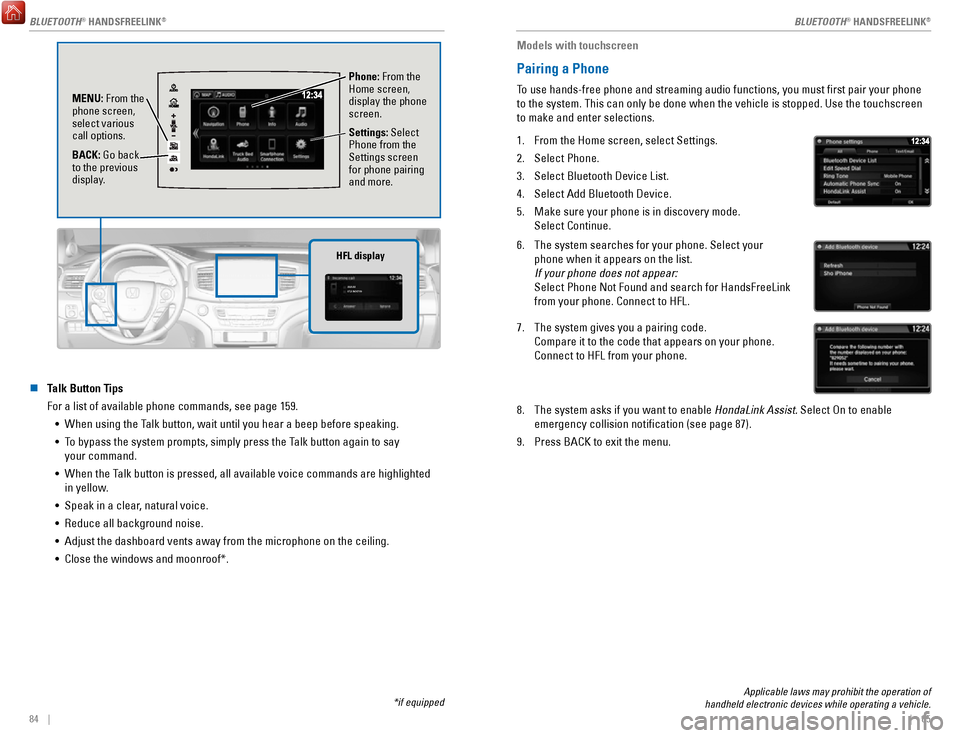
HFL display
Phone: From the
Home screen,
display the phone
screen.
MENU: From the
phone screen,
select various
call options.
BACK: Go back
to the previous
display. Settings: Select
Phone from the
Settings screen
for phone pairing
and more.
*if equipped
Applicable laws may prohibit the operation of
handheld electronic devices while operating a vehicle.
Models with touchscreen
Pairing a Phone
To use hands-free phone and streaming audio functions, you must first p\
air your phone
to the system. This can only be done when the vehicle is stopped. Use th\
e touchscreen
to make and enter selections.
1.
From the Home screen, select Settings.
2.
Select Phone.
3.
Select Bluetooth Device List.
4.
Select Add Bluetooth Device.
5.
Make sure your phone is in discovery mode.
Select Continue.
6. The system searches for your phone. Select your
phone when it appears on the list.
If your phone does not appear:
Select Phone Not Found and search for HandsFreeLink
from your phone. Connect to HFL.
7. The system gives you a pairing code.
Compare it to the code that appears on your phone.
Connect to HFL from your phone.
8. The system asks if you want to enable HondaLink Assist. Select On to enable
emergency collision notification (see page 87).
9.
Press BACK to exit the menu.
BLUETOOTH® HANDSFREELINK®
BLUETOOTH® HANDSFREELINK®
BLUETOOTH® HANDSFREELINK®
Page 47 of 85
86 || 87
Models with touchscreen
Making a Call
You can make a call using several methods.
n
Dialing a Number
Enter a 10-digit phone number to call.
Using voice commands
1.
Press the Talk button before you say each
command.
2.
Say “Dial by number.”
3.
Say the phone number: For example,
“3-1-0-5-5-5-1-2-3-4.”
4.
The system begins to dial.
Using the touchscreen
Manual operation is limited while the vehicle is moving.
Voice commands are always available.
1.
From the Home screen, select Phone.
2.
Select MENU.
3.
Select Dial.
4.
Enter the phone number. Select the green phone
icon to call.
n Using the Phonebook
When your phone is paired, its entire phonebook can be automatically imp\
orted to
the system. Phone synchronization must be turned on.
Using voice commands
1.
Press the Talk button before you say each
command.
2.
Say “Dial by name.”
3.
Say the phonebook name and phone type.
For example, “John Smith mobile.”
Using the touchscreen
Manual operation is limited while the vehicle is moving.
Voice commands are always available.
1.
From the Home screen, select Phone.
2.
Select MENU.
3.
Select Phonebook.
4.
Scroll through the list to find the name and number
you want to call, and select it to call.
AAAAAABBBBBBCCCCCC
n Storing Speed Dial Entries
Store up to 20 numbers for quick dialing.
1.
From the Home screen, select Phone.
2.
Select MENU.
3.
Select Speed Dial, then select New Entry.
4.
Select an entry method.
5.
If desired, you can create a voice tag for the
number. Follow the prompts.
n Using Speed Dial
Make calls quickly using stored speed dial entries.
Using voice commands
1.
Press the Talk button before you say each
command.
2.
Say “Dial by name.”
3.
Say the stored voice tag name.
For example, “John Smith.”
Using the touchscreen
1.
From the Home screen, select Phone.
2.
Scroll through the list to find the entry you want to
call, and select it to call.
HondaLink Assist
If your vehicle’s airbags deploy or if the unit detects that the vehicle is severely
impacted, your vehicle automatically attempts to connect to an operator.
Your phone must be paired to the system and have good cellular connection\
.
Visit www.hondalink.com (U.S.) or honda.ca/hondalinkassist (Canada) for more
information.
1.
Make sure your phone is on and paired to Bluetooth
HandsFreeLink (see page 85).
2.
Select Call Now, or the system automatically connects
after 10 seconds. The vehicle information and its
position are sent to the operator.
3.
Select Talk Now to immediately talk to the operator.
4.
When the call is complete, select Hang Up or press the
Hang-Up/Back button on the steering wheel.
*if equipped
BLUETOOTH® HANDSFREELINK