Page 261 of 565
uuAudio System Basic Operation uPlaying Internet Radio
260
Features
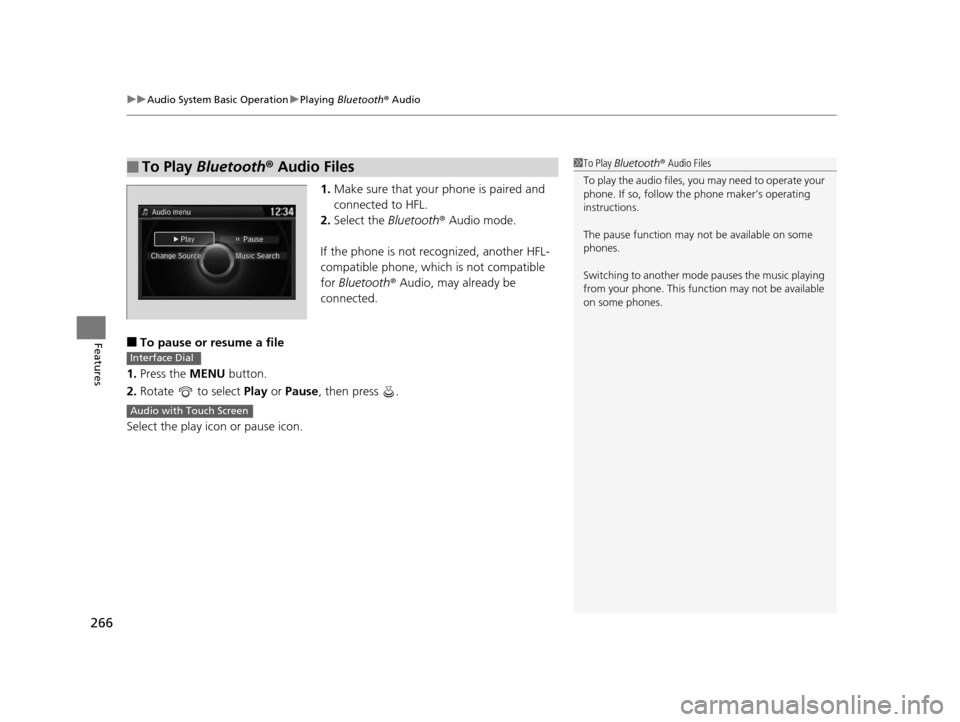
You can operate some of the Pandora® menu items from your vehicle’s audio
system. The available items are:
■Operating a menu item The menu items are shown in the lower half of
the audio/information screen.
Rotate to select an item and press .
To select Change Source, press the MENU
button, then press .
■Pandora® Menu*
•Skip Forward •Dislike
• Play/Pause •Bookmark Track
• Station List •Bookmark Artist
• Like •Change Source
1Playing Internet Radio
To find out if your phone is compatible with this
feature, visit www.handsfreelink.honda.com , or call
1-888-528-7876.
Pandora ® is a personalized Internet radio service that
selects music based on an artist, song, or genre a user
enters, and streams what is likely to be of interest.
To use this service in your vehicle, the Pandora ® app
must first be installed on your phone. Visit
www.pandora.com . for more information.
If you cannot operate Pandora® through the audio system,
it may be streaming through Bluetooth® Audio. Make sure
Pandora® mode on your audio system is selected.
1 Pandora ® Menu*
Available operating functi ons vary on software
versions. Some functions ma y not be available on the
vehicle’s audio system.
If there is a problem, you may see an error message
on the audio/information screen.
2 Pandora ® P. 269
There are restrictions on the number of songs you
can skip or dislike in a given hour.
* Not available on all models
17 US ODYSSEY (KA KC)-31TK86600.book 260 ページ 2016年10月24日 月曜日 午後4時2分
Page 262 of 565
261
uuAudio System Basic Operation uPlaying Internet Radio
Features
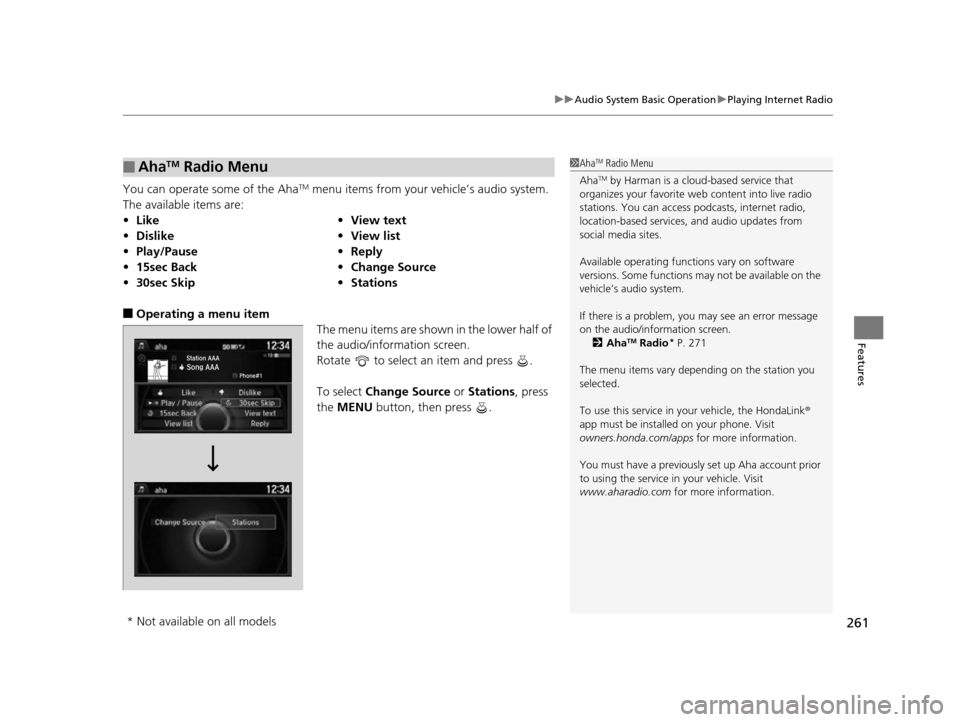
You can operate some of the AhaTM menu items from your vehicle’s audio system.
The available items are:
■Operating a menu item The menu items are shown in the lower half of
the audio/information screen.
Rotate to select an item and press .
To select Change Source or Stations , press
the MENU button, then press .
■AhaTM Radio Menu
•Like •View text
• Dislike •View list
• Play/Pause •Reply
• 15sec Back •Change Source
• 30sec Skip •Stations
1AhaTM Radio Menu
Aha
TM by Harman is a clou d-based service that
organizes your favorite we b content into live radio
stations. You can access podcasts, internet radio,
location-based services , and audio updates from
social media sites.
Available operating functi ons vary on software
versions. Some functions ma y not be available on the
vehicle’s audio system.
If there is a problem, you may see an error message
on the audio/information screen. 2 Aha
TM Radio* P. 271
The menu items vary depending on the station you
selected.
To use this service in y our vehicle, the HondaLink ®
app must be installed on your phone. Visit
owners.honda.com/apps for more information.
You must have a previously set up Aha account prior
to using the service in your vehicle. Visit
www.aharadio.com for more information.
* Not available on all models
17 US ODYSSEY (KA KC)-31TK86600.book 261 ページ 2016年10月24日 月曜日 午後4時2分
Page 266 of 565
265
uuAudio System Basic Operation uPlaying Bluetooth ® Audio
Continued
Features
Playing Bluetooth ® Audio
Your audio system allows you to listen to music from your Bluetooth-compatible
phone.
This function is available when the phone is paired an d connected to the vehicle’s
Bluetooth ® HandsFreeLink ® (HFL) system.
2Phone Setup P. 366
1Playing Bluetooth ® Audio
Not all Bluetooth -enabled phones with streaming
audio capabilities are compatible with the system.
For a list of compatible phones:
•U.S.: Visit www.handsfreelink.honda.com , or call
1-888-528-7876.
•Canada: Visit www.handsfreelink.ca , or call 1-888-
528-7876.
In some states, it may be il legal to perform some data
device functions while driving.
If more than one phone is paired to the HFL system,
there will be a delay before the system begins to play.
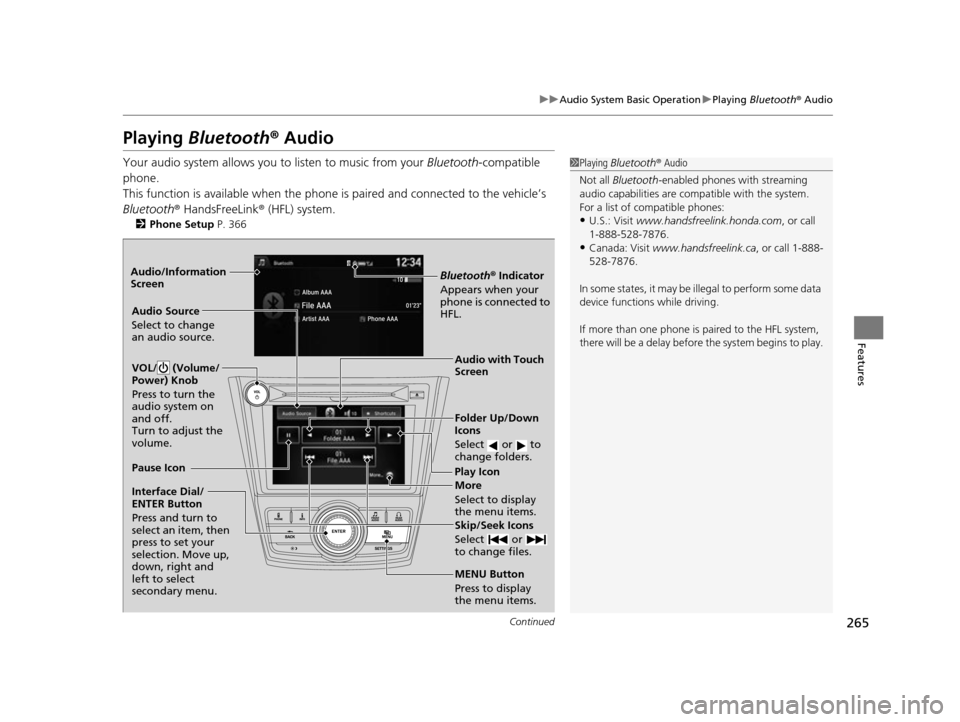
Bluetooth® Indicator
Appears when your
phone is connected to
HFL.
Play Icon
Pause Icon
More
Select to display
the menu items.
Audio Source
Select to change
an audio source.
VOL/ (Volume/
Power) Knob
Press to turn the
audio system on
and off.
Turn to adjust the
volume.
Interface Dial/
ENTER Button
Press and turn to
select an item, then
press to set your
selection. Move up,
down, right and
left to select
secondary menu.
Skip/Seek Icons
Select or
to change files.
MENU Button
Press to display
the menu items. Folder Up/Down
Icons
Select or to
change folders.
Audio with Touch
Screen
Audio/Information
Screen
17 US ODYSSEY (KA KC)-31TK86600.book 265 ページ 2016年10月24日 月曜日
午後4時2分
Page 267 of 565
uuAudio System Basic Operation uPlaying Bluetooth ® Audio
266
Features
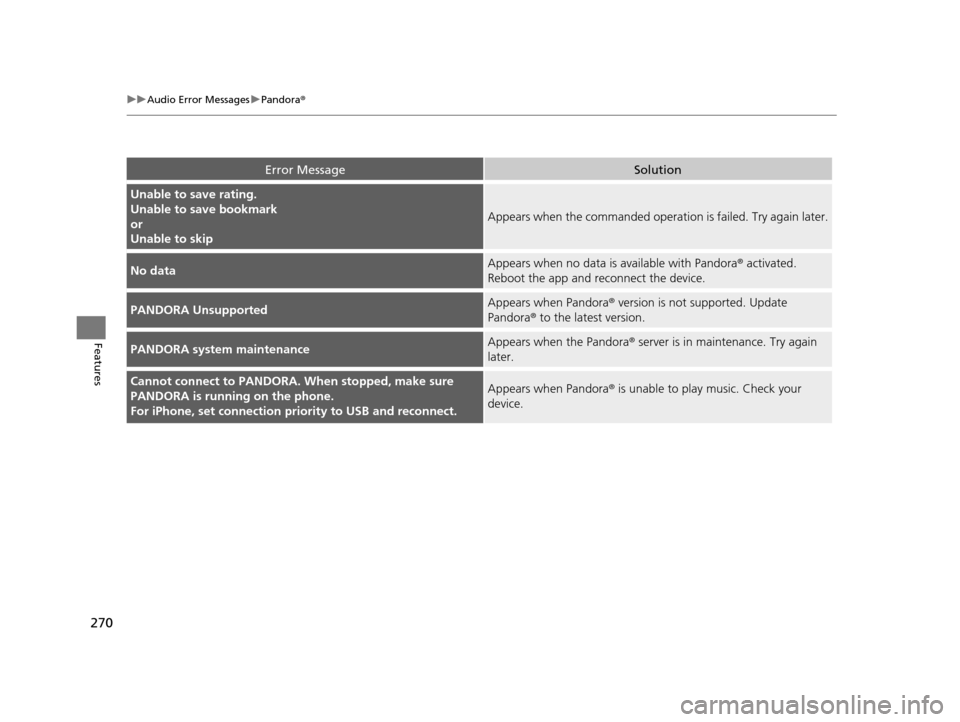
1. Make sure that your phone is paired and
connected to HFL.
2. Select the Bluetooth® Audio mode.
If the phone is not recognized, another HFL-
compatible phone, which is not compatible
for Bluetooth ® Audio, may already be
connected.
■To pause or resume a file
1. Press the MENU button.
2. Rotate to select Play or Pause , then press .
Select the play icon or pause icon.
■To Play Bluetooth® Audio Files1To Play Bluetooth ® Audio Files
To play the audio files, y ou may need to operate your
phone. If so, follow the phone maker’s operating
instructions.
The pause function may no t be available on some
phones.
Switching to another mode pauses the music playing
from your phone. This functi on may not be available
on some phones.
Interface Dial
Audio with Touch Screen
17 US ODYSSEY (KA KC)-31TK86600.book 266 ページ 2016年10月24日 月曜日 午後4時2分
Page 271 of 565
270
uuAudio Error Messages uPandora®
Features
Error MessageSolution
Unable to save rating.
Unable to save bookmark
or
Unable to skip
Appears when the commanded operation is failed. Try again later.
No dataAppears when no data is available with Pandora® activated.
Reboot the app and reconnect the device.
PANDORA UnsupportedAppears when Pandora ® version is not supported. Update
Pandora® to the latest version.
PANDORA system maintenanceAppears when the Pandora ® server is in maintenance. Try again
later.
Cannot connect to PANDORA. When stopped, make sure
PANDORA is running on the phone.
For iPhone, set connection pr iority to USB and reconnect.Appears when Pandora ® is unable to play music. Check your
device.
17 US ODYSSEY (KA KC)-31TK86600.book 270 ページ 2016年10月24日 月曜日 午後4時2分
Page 272 of 565
271
uuAudio Error Messages uAhaTM Radio*
Features
AhaTM Radio*
If an error occurs while playing AhaTM Radio, you may see the following error
messages.
If you cannot clear the error message, contact a dealer.
Error MessageSolution
Cannot connect to aha. When stopped, make sure aha is
running on the phone.
For iPhone, set connection pr iority to USB and reconnect.
Appears when the AhaTM app is not activated. Check your device.
Incompatible USB Device
Please Check Owner’s ManualAppears when an incompatible de vice is connected. Disconnect
the device. Then turn th e audio system off, and turn it on again.
Do not reconnect the device that caused the error.
* Not available on all models
17 US ODYSSEY (KA KC)-31TK86600.book 271 ページ 2016年10月24日 月曜日 午後4時2分
Page 276 of 565
275
uuGeneral Information on the Audio System uCompatible iPod and USB Flash Drives
Features
Compatible iPod and USB Flash Drives
• Use a recommended USB flash drive of 256 MB or higher.
• Some digital audio players may not be compatible.
• Some USB flash drives (e.g., a device with security lockout) may not work.
• Some software files may not allow for audio play or text data display.
• Some versions of MP3, WMA, or AAC formats may be unsupported.
■iPod Model Compatibility
Model
iPod (5th generation)
iPod classic 80GB/160GB (launch in 2007)
iPod classic 120G (launch in 2008)
iPod classic 160G (launch in 2009)
iPod nano (1st to 7th generation) launch in 2012
iPod touch (1st to 5th generation) launch in 2012
iPhone 3G/iPhone 3GS/iPhone 4/iPhone 4S/iPhone 5
■USB Flash Drives
1iPod Model Compatibility
This system may not work with all software versions
of these devices.
1USB Flash Drives
Files on the USB flash drive are played in their stored
order. This order may be different from the order
displayed on your PC or device.
17 US ODYSSEY (KA KC)-31TK86600.book 275 ページ 2016年10月24日 月曜日 午後4時2分
Page 277 of 565
276
Features
Rear Entertainment System*
See the Navigation System Manual for how to operate the rear entertainment
system.
Allows the rear passengers to enjoy a diffe rent entertainment source, such as DVD,
CD, and radio, than the front passengers.
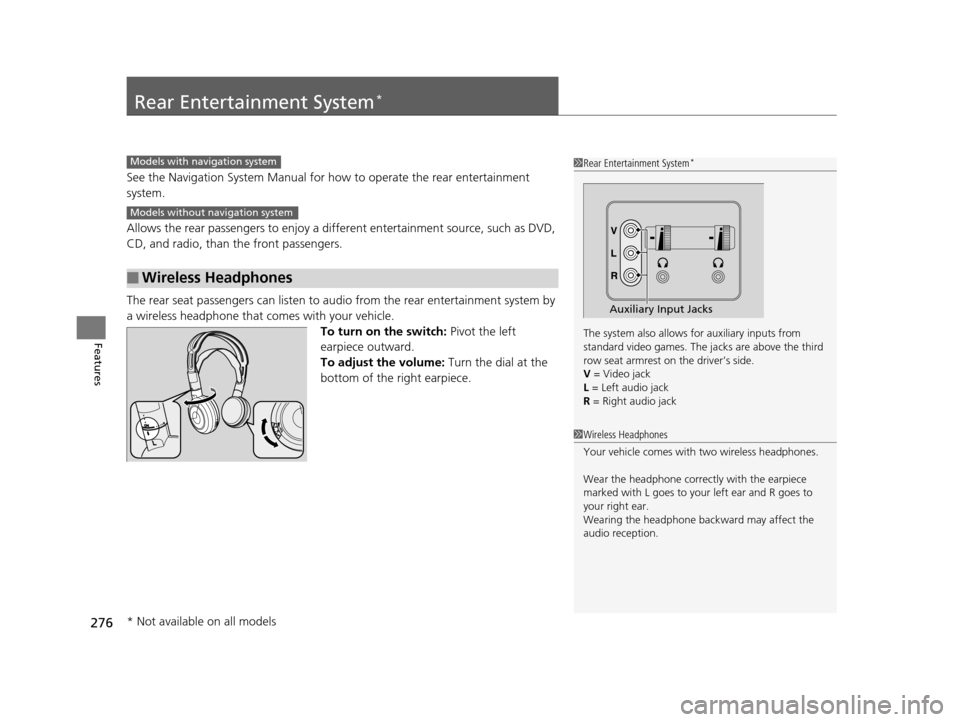
The rear seat passengers can listen to au dio from the rear entertainment system by
a wireless headphone that comes with your vehicle. To turn on the switch: Pivot the left
earpiece outward.
To adjust the volume: Turn the dial at the
bottom of the right earpiece.
■Wireless Headphones
1 Rear Entertainment System*
The system also allows for auxiliary inputs from
standard video games. The jacks are above the third
row seat armrest on the driver’s side.
V = Video jack
L = Left audio jack
R = Right audio jack
Auxiliary Input Jacks
Models with navigation system
Models without navigation system
1 Wireless Headphones
Your vehicle comes with two wireless headphones.
Wear the headphone correc tly with the earpiece
marked with L goes to y our left ear and R goes to
your right ear.
Wearing the headphone back ward may affect the
audio reception.
* Not available on all models
17 US ODYSSEY (KA KC)-31TK86600.book 276 ページ 2016年10月24日 月曜日 午後4時2分