Page 188 of 613

187
uuAudio System uUSB Port(s*)
Features
USB Port(s*)
1. Open the cover.
2. Install the iPod USB connector or the USB
flash drive to the USB port.
u The USB port (1.0 A) is for playing audio
files on a USB flash drive and connecting
a cellular phone and charging device.
u The USB port (1.5 A) is for charging
devices, playing audio files and
connecting compatib le phones with
Apple CarPlay
TM or Android AutoTM.
■In the consol e compartment*
The USB port (1.0 A) is for playing audio files
on the USB flash drive and connecting a
cellular phone and charging device.
*1: Models with the smart entry system have an ENGINE START/STOP button instead of an
ignition switch.
1 USB Port(s*)
•Do not leave the iPod or USB flash drive in the
vehicle. Direct sunlight and high temperatures may
damage it.
•We recommend using an extension cable with the
USB port.
•Do not connect the iPod or USB flash drive using a
hub.
•Do not use a device such as a card reader or hard
disk drive, as the device or your files may be
damaged.
•We recommend backing up yo ur data before using
the device in your vehicle.
•Displayed messages may vary depending on the
device model and software version.
If the audio system does not recognize the iPod, try
reconnecting it a few times or reboot the device. To
reboot, follow the manufac turer’s instructions
provided with the iPod or visit www.apple.com/ipod.
The USB port can supply up to 1.0 A/1.5 A of power.
It does not output 1.0 A/1. 5 A unless requested by
the device. For amperage de tails, read the operating
manual of the device that needs to be charged.
Turn the ignition switch to ACCESSORY
( q or ON
(w*1 first.
Under certain condi tions, a device connected to the
port may generate noise in the radio you are listening
to.
USB charge
In Center Pocket
Models with one display
Models with two displays
In Console Compartment*
* Not available on all models
17 ACCORD 4D GAS-31T2A6400.book 187 ページ 2016年6月7日 火曜日 午後5時6分
Page 190 of 613
189
uuAudio System uAudio System Theft Protection*
Features
Audio System Theft Protection*
The audio system is disabled when it is disconnected from the power source, such as
when the battery is disconnected or goes dead. In certain conditions, the system
may display a code entry screen. If this occurs, reactivate the audio system.
■Reactivating the audio system
1. Turn the ignition switch to ON
(w*1.
2. Turn on the audio system.
3. Press and hold the audio system powe r button for more than two seconds.
u The audio system is reac tivated when the audio co ntrol unit establishes a
connection with the vehicl e control unit. If the control unit fails to recognize
the audio unit, you must go to a deal er and have the audio unit checked.
*1: Models with the smart entry system have an ENGINE START/STOP button instead of an
ignition switch.
* Not available on all models
17 ACCORD 4D GAS-31T2A6400.book 189 ページ 2016年6月7日 火曜日 午後5時6分
Page 201 of 613

uuAudio System Basic Operation uPlaying AM/FM Radio
200
Features
Provides text data information related to your selected RDS-capable FM station.
■To find an RDS station from Station List
1. Press while listening to an FM station.
2. Rotate to select the station, then press .
■Manual update
Updates your available station list at any time.
1. Press while listening to an FM station.
2. Rotate to select Refresh, then press .
■Radio text
Displays the radio text informat ion of the selected RDS station.
1. Press the MENU button.
2. Rotate to select Radio Text, then press .
■Scan
Samples each of the strongest stations on the selected band for 10 seconds.
1. Press the MENU button.
2. Rotate to select Scan, then press .
To turn off scan, press to select Stop, or press the BACK button.
■Radio Data System (RDS)1Playing AM/FM Radio
The ST indicator appears on the display indicating
stereo FM broadcasts.
Stereo reproduction in AM is not available.
Switching the Audio Mode
Press the SOURCE button on the steering wheel.
2 Audio Remote Controls P. 190
You can also switch the mode by pressing the MENU
button and selecting Change Source on the MENU
screen.
You can store 6 AM stations and 12 FM stations into
the preset memory.
1 Radio Data System (RDS)
When you select an RDS-capable FM station, the RDS
automatically turns on, and the frequency display
changes to the station name. However, when the
signals of that station become weak, the display
changes from the statio n name to the frequency.
17 ACCORD 4D GAS-31T2A6400.book 200 ページ 2016年6月7日 火曜日 午後5時6分
Page 203 of 613
uuAudio System Basic Operation uPlaying a CD
202
Features
1. Press the MENU button.
2. Rotate to select Music Search, then
press .
3. Rotate to select a folder.
4. Press to change the display to a list of
files in that folder.
5. Rotate to select a file, then press .
■How to Select a File from the Music Search List
(MP3/WMA/AAC)1Playing a CD
NOTICE
Do not use CDs with adhesive labels. The label can
cause the CD to jam in the unit.
WMA files protected by di gital rights management
(DRM) cannot be played.
The audio system displays Unplayable File, then
skips to the next file.
Text data appears on the di splay under the following
circumstances:
•When you select a new folder, file, or track.
•When you change the audio mode to CD.
•When you insert a CD.
If you eject the CD but do not remove it from the slot,
the system reloads the CD automatically after several
seconds.
File Selection Folder Selection
17 ACCORD 4D GAS-31T2A6400.book 202 ページ 2016年6月7日 火曜日 午後5時6分
Page 204 of 613

203
uuAudio System Basic Operation uPlaying a CD
Features
You can select scan, repeat, and random modes when playing a track or file.
1.Press the MENU button.
2. Rotate to select Scan or Random/
Repeat , then press .
3. Rotate to select a mode, then press .
■To turn off a play mode
1. Press the MENU button.
2. Rotate to select the mode you want to turn off, then press .
■How to Select a Play Mode1How to Select a Play Mode
Play Mode Menu Items
Scan
Scan Folders (MP3/WMA/AAC): Provides 10-second
sampling of the first file in each of the main folders.
Scan Tracks: Provides 10-second sampling of all
tracks on the CD (all files in the current folder in MP3,
WMA, or AAC).
Random/Repeat
Repeat Folder (MP3/WMA/AAC): Repeats all files in
the current folder.
Repeat Track: Repeats the current track/file.
Random in Folder (MP3/WMA/AAC): Plays all files
in the current folder in random order.
Random All Tracks : Plays all tracks/files in random
order.
Random/Repeat
is selected.
17 ACCORD 4D GAS-31T2A6400.book 203 ページ 2016年6月7日 火曜日 午後5時6分
Page 211 of 613

210
uuAudio System Basic Operation uPlaying a USB Flash Drive
Features
Playing a USB Flash Drive
Your audio system reads and plays sound fi les on a USB flash drive in either MP3,
WMA or AAC*1 format.
Connect your USB flash drive to the USB port, then press the AUX button.
2USB Port(s*) P. 187
*1:Only AAC format files recorded with iTunes are playable on this unit.
Audio/Information Screen
AUX Button
Press to select USB flash drive
(if connected). Seek/Skip Buttons
Press or to change files.
Press and hold to move rapidly
within a file.
MENU Button
Press to display the menu items.
Selector Knob
Turn to change folders.
Press and turn to select an item,
then press to set your selection.
VOL/ (Power/volume)
Knob
Press to turn the audio system
on and off.
Turn to adjust the volume.
BACK Button
Press to go back to the
previous display.
USB Indicator
Appears when a USB flash drive is
connected.
* Not available on all models
17 ACCORD 4D GAS-31T2A6400.book 210 ページ 2016年6月7日 火曜日 午後5時6分
Page 213 of 613
uuAudio System Basic Operation uPlaying a USB Flash Drive
212
Features
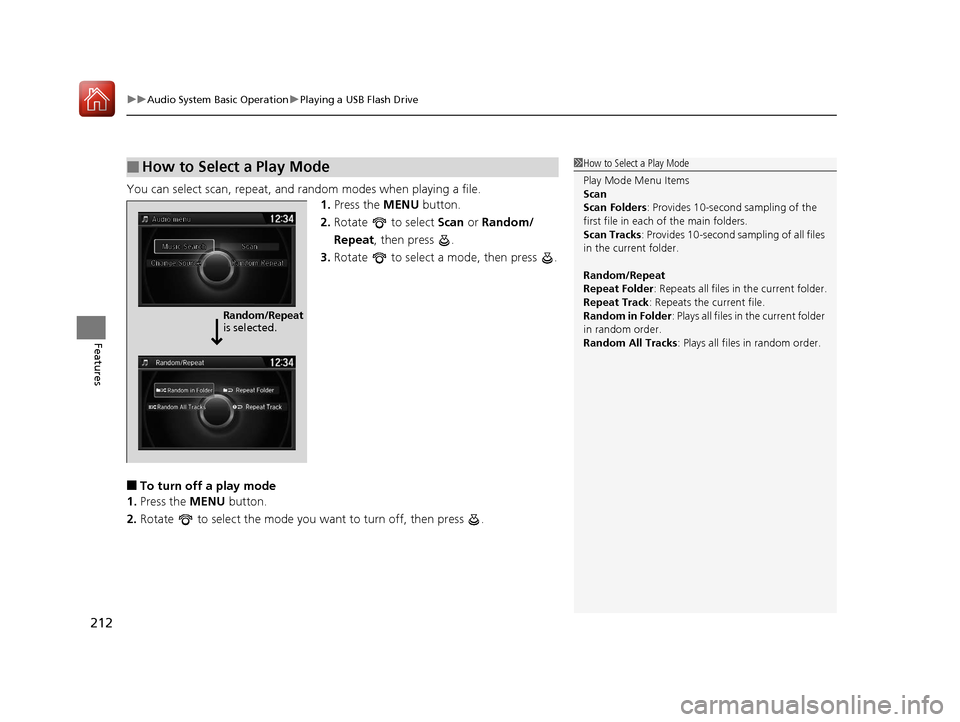
You can select scan, repeat, and random modes when playing a file.
1.Press the MENU button.
2. Rotate to select Scan or Random/
Repeat, then press .
3. Rotate to select a mode, then press .
■To turn off a play mode
1. Press the MENU button.
2. Rotate to select the mode you want to turn off, then press .
■How to Select a Play Mode1How to Select a Play Mode
Play Mode Menu Items
Scan
Scan Folders : Provides 10-second sampling of the
first file in each of the main folders.
Scan Tracks : Provides 10-second sa mpling of all files
in the current folder.
Random/Repeat
Repeat Folder : Repeats all files in the current folder.
Repeat Track: Repeats the current file.
Random in Folder : Plays all files in the current folder
in random order.
Random All Tracks : Plays all files in random order.
Random/Repeat
is selected.
17 ACCORD 4D GAS-31T2A6400.book 212 ページ 2016年6月7日 火曜日 午後5時6分
Page 215 of 613
uuAudio System Basic Operation uPlaying Bluetooth ® Audio
214
Features
1. Make sure that your phone is paired and
connected to HFL.
2. Press the AUX button.
If the phone is not recognized, another HFL-
compatible phone, which is not compatible
for Bluetooth ® Audio, may already be
connected.
■To pause or resume a file
1. Press the MENU button.
2. Rotate to select Play or Pause , then press .
■To Play Bluetooth® Audio Files1To Play Bluetooth ® Audio Files
To play the audio files, y ou may need to operate your
phone. If so, follow the phone maker's operating
instructions.
The pause function may no t be available on some
phones.
If any audio device is conne cted to the auxiliary input
jack, you may need to press the AUX button
repeatedly to select the Bluetooth® Audio system.
Switching to another mode pauses the music playing
from your phone.
17 ACCORD 4D GAS-31T2A6400.book 214 ページ 2016年6月7日 火曜日 午後5時6分