2017 GMC SIERRA 1500 steering wheel
[x] Cancel search: steering wheelPage 109 of 494
GMC Sierra/Sierra Denali Owner Manual (GMNA-Localizing-U.S./Canada/
Mexico-9955992) - 2017 - crc - 5/3/16
108 Storage
Storage
Storage Compartments
Storage Compartments . . . . . . . 108
Instrument Panel Storage . . . . 108
Glove Box . . . . . . . . . . . . . . . . . . . . 108
Cupholders . . . . . . . . . . . . . . . . . . . 108
Sunglasses Storage . . . . . . . . . . 109
Center Console Storage . . . . . . 109
Floor Console Storage . . . . . . . . 110
Additional Storage Features
Cargo Tie-Downs . . . . . . . . . . . . . 110
Storage
Compartments
{Warning
Do not store heavy or sharp
objects in storage compartments.
In a crash, these objects may
cause the cover to open and
could result in injury.
Instrument Panel Storage
Card Holder
If equipped, there is a card holder
on the front instrument panel to the
left of the steering wheel.
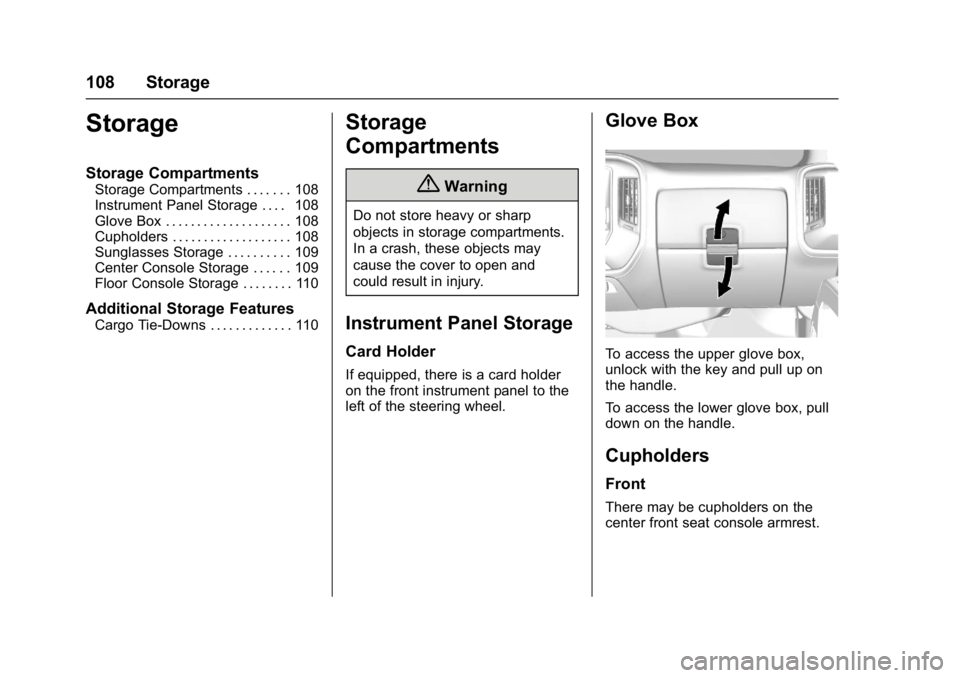
Glove Box
To access the upper glove box,
unlock with the key and pull up on
the handle.
To access the lower glove box, pull
down on the handle.
Cupholders
Front
There may be cupholders on the
center front seat console armrest.
Page 113 of 494

GMC Sierra/Sierra Denali Owner Manual (GMNA-Localizing-U.S./Canada/
Mexico-9955992) - 2017 - crc - 5/3/16
112 Instruments and Controls
Instruments and
Controls
Controls
Steering Wheel Adjustment . . . 113
Steering Wheel Controls . . . . . . 113
Heated Steering Wheel . . . . . . . 114
Horn . . . . . . . . . . . . . . . . . . . . . . . . . . 114
Windshield Wiper/Washer . . . . 114
Compass . . . . . . . . . . . . . . . . . . . . . 115
Clock . . . . . . . . . . . . . . . . . . . . . . . . . 115
Power Outlets . . . . . . . . . . . . . . . . 117
Wireless Charging . . . . . . . . . . . . 118
Warning Lights, Gauges, and
Indicators
Warning Lights, Gauges, andIndicators . . . . . . . . . . . . . . . . . . . 120
Instrument Cluster . . . . . . . . . . . . 121
Speedometer . . . . . . . . . . . . . . . . . 125
Odometer . . . . . . . . . . . . . . . . . . . . . 125
Trip Odometer . . . . . . . . . . . . . . . . 125
Tachometer . . . . . . . . . . . . . . . . . . . 125
Fuel Gauge . . . . . . . . . . . . . . . . . . . 125
Engine Oil Pressure Gauge . . . . . . . . . . . . . . . . . . . . . . 126
Engine Coolant Temperature Gauge . . . . . . . . . . . . . . . . . . . . . . 127 Transmission Temperature
Gauge . . . . . . . . . . . . . . . . . . . . . . 128
Voltmeter Gauge . . . . . . . . . . . . . 128
Safety Belt Reminders . . . . . . . . 129
Airbag Readiness Light . . . . . . . 130
Airbag On-Off Light . . . . . . . . . . . 130
Passenger Airbag Status Indicator . . . . . . . . . . . . . . . . . . . . 132
Charging System Light . . . . . . . 132
Malfunction Indicator Lamp (Check Engine Light) . . . . . . . . 133
Brake System Warning Light . . . . . . . . . . . . . . . . . . . . . . . . 134
Antilock Brake System (ABS) Warning Light . . . . . . . . . . . . . . . 135
Four-Wheel-Drive Light . . . . . . . 136
Tow/Haul Mode Light . . . . . . . . . 136
Hill Descent Control Light . . . . 136
Lane Departure Warning (LDW) Light (2500/3500
Series) . . . . . . . . . . . . . . . . . . . . . . 136
Lane Keep Assist (LKA) Light (1500 Series) . . . . . . . . . . . . . . . 136
Vehicle Ahead Indicator . . . . . . 137
Traction Off Light . . . . . . . . . . . . . 137
StabiliTrak
®OFF Light . . . . . . . . 137
Traction Control System (TCS)/ StabiliTrak
®Light . . . . . . . . . . . 138
Engine Coolant Temperature Warning Light . . . . . . . . . . . . . . . 138
Tire Pressure Light . . . . . . . . . . . 138 Engine Oil Pressure Light . . . . 139
Low Fuel Warning Light . . . . . . 139
Security Light . . . . . . . . . . . . . . . . . 140
High-Beam On Light . . . . . . . . . . 140
Front Fog Lamp Light . . . . . . . . . 140
Lamps On Reminder . . . . . . . . . 140
Cruise Control Light . . . . . . . . . . 140
Door Ajar Light . . . . . . . . . . . . . . . 141
Information Displays
Driver Information
Center (DIC) . . . . . . . . . . . . . . . . 141
Vehicle Messages
Vehicle Messages . . . . . . . . . . . . 144
Battery Voltage and ChargingMessages . . . . . . . . . . . . . . . . . . . 145
Brake System Messages . . . . . 145
Compass Messages . . . . . . . . . . 146
Door Ajar Messages . . . . . . . . . . 146
Engine Cooling System Messages . . . . . . . . . . . . . . . . . . . 146
Engine Oil Messages . . . . . . . . . 147
Engine Power Messages . . . . . 147
Fuel System Messages . . . . . . . 147
Key and Lock Messages . . . . . 148
Lamp Messages . . . . . . . . . . . . . . 148
Object Detection System Messages . . . . . . . . . . . . . . . . . . . 148
Ride Control System Messages . . . . . . . . . . . . . . . . . . . 149
Page 114 of 494
GMC Sierra/Sierra Denali Owner Manual (GMNA-Localizing-U.S./Canada/
Mexico-9955992) - 2017 - crc - 5/3/16
Instruments and Controls 113
Airbag System Messages . . . . 150
Safety Belt Messages . . . . . . . . 150
Security Messages . . . . . . . . . . . 150
Steering SystemMessages . . . . . . . . . . . . . . . . . . . 151
Tire Messages . . . . . . . . . . . . . . . . 151
Transmission Messages . . . . . . 152
Vehicle Reminder Messages . . . . . . . . . . . . . . . . . . . 153
Vehicle Speed Messages . . . . . 154
Washer Fluid Messages . . . . . . 154
Vehicle Personalization
Vehicle Personalization . . . . . . . 155
Universal Remote System
Universal Remote System . . . . 162
Universal Remote System Programming . . . . . . . . . . . . . . . 162
Universal Remote System Operation . . . . . . . . . . . . . . . . . . . 164
Controls
Steering Wheel
Adjustment
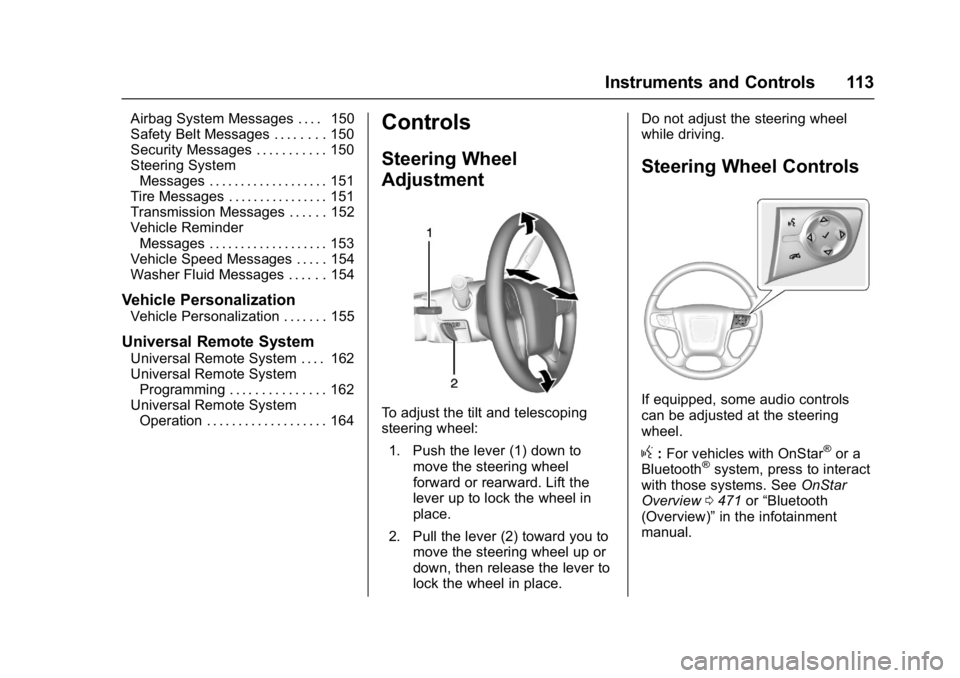
To adjust the tilt and telescoping
steering wheel:
1. Push the lever (1) down to move the steering wheel
forward or rearward. Lift the
lever up to lock the wheel in
place.
2. Pull the lever (2) toward you to move the steering wheel up or
down, then release the lever to
lock the wheel in place. Do not adjust the steering wheel
while driving.
Steering Wheel Controls
If equipped, some audio controls
can be adjusted at the steering
wheel.
g:
For vehicles with OnStar®or a
Bluetooth®system, press to interact
with those systems. See OnStar
Overview 0471 or“Bluetooth
(Overview)” in the infotainment
manual.
Page 115 of 494
GMC Sierra/Sierra Denali Owner Manual (GMNA-Localizing-U.S./Canada/
Mexico-9955992) - 2017 - crc - 5/3/16
114 Instruments and Controls
i:Press to reject an incoming
call or end a current call. Press to
mute or unmute the infotainment
system when not on a call.
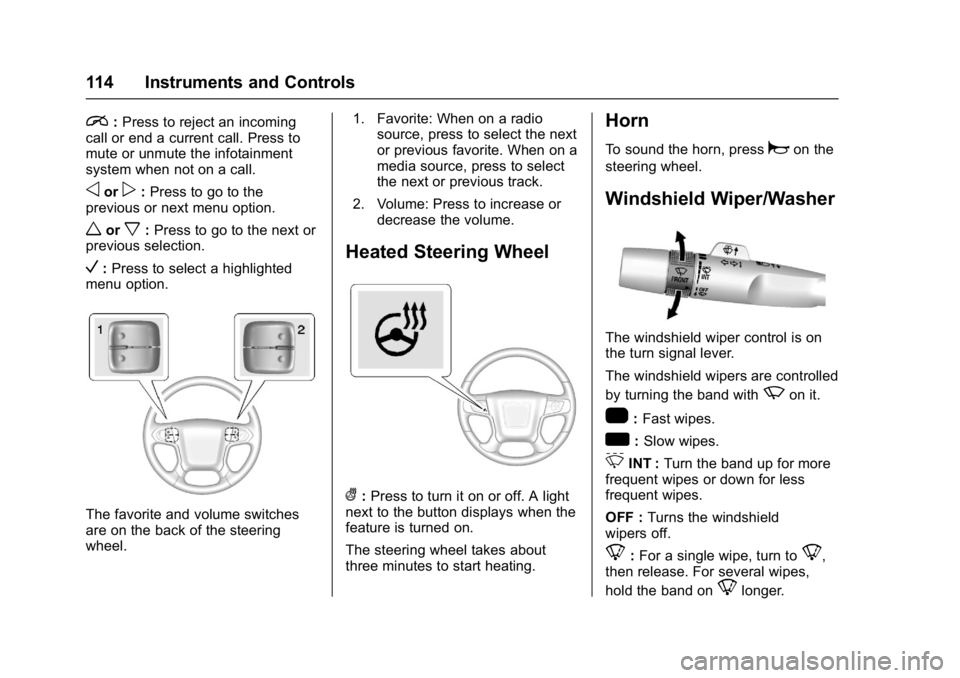
oorp: Press to go to the
previous or next menu option.
worx: Press to go to the next or
previous selection.
V: Press to select a highlighted
menu option.
The favorite and volume switches
are on the back of the steering
wheel. 1. Favorite: When on a radio
source, press to select the next
or previous favorite. When on a
media source, press to select
the next or previous track.
2. Volume: Press to increase or decrease the volume.
Heated Steering Wheel
(:Press to turn it on or off. A light
next to the button displays when the
feature is turned on.
The steering wheel takes about
three minutes to start heating.
Horn
To sound the horn, pressaon the
steering wheel.
Windshield Wiper/Washer
The windshield wiper control is on
the turn signal lever.
The windshield wipers are controlled
by turning the band with
zon it.
1: Fast wipes.
w:Slow wipes.
3INT : Turn the band up for more
frequent wipes or down for less
frequent wipes.
OFF : Turns the windshield
wipers off.
8: For a single wipe, turn to8,
then release. For several wipes,
hold the band on
8longer.
Page 125 of 494
GMC Sierra/Sierra Denali Owner Manual (GMNA-Localizing-U.S./Canada/
Mexico-9955992) - 2017 - crc - 5/3/16
124 Instruments and Controls
Cluster Menu
There is an interactive display area
in the center of the instrument
cluster.
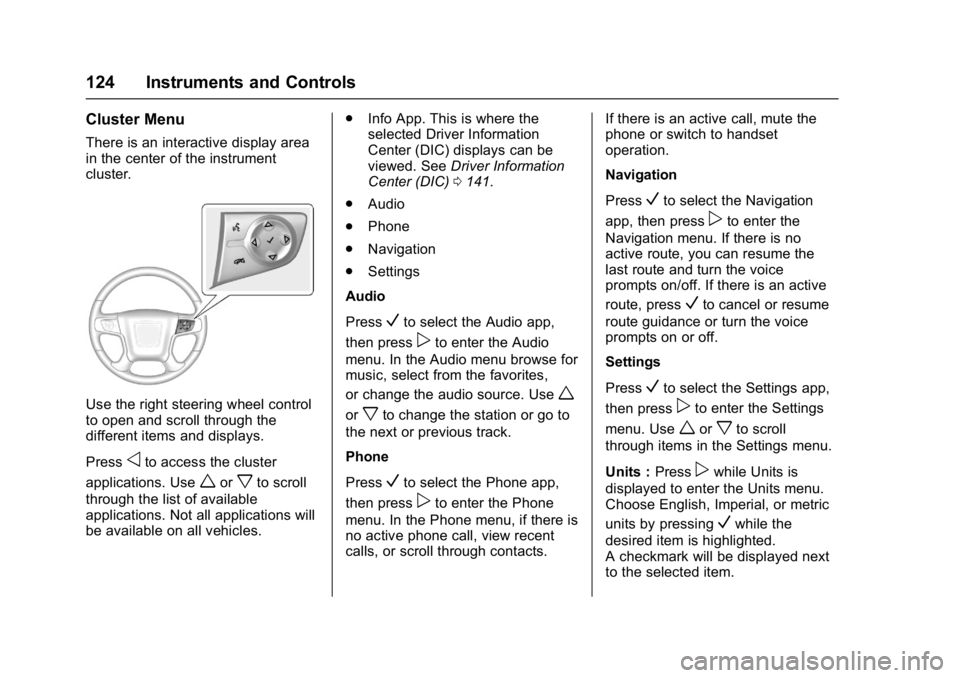
Use the right steering wheel control
to open and scroll through the
different items and displays.
Press
oto access the cluster
applications. Use
worxto scroll
through the list of available
applications. Not all applications will
be available on all vehicles. .
Info App. This is where the
selected Driver Information
Center (DIC) displays can be
viewed. See Driver Information
Center (DIC) 0141.
. Audio
. Phone
. Navigation
. Settings
Audio
Press
Vto select the Audio app,
then press
pto enter the Audio
menu. In the Audio menu browse for
music, select from the favorites,
or change the audio source. Use
w
orxto change the station or go to
the next or previous track.
Phone
Press
Vto select the Phone app,
then press
pto enter the Phone
menu. In the Phone menu, if there is
no active phone call, view recent
calls, or scroll through contacts. If there is an active call, mute the
phone or switch to handset
operation.
Navigation
Press
Vto select the Navigation
app, then press
pto enter the
Navigation menu. If there is no
active route, you can resume the
last route and turn the voice
prompts on/off. If there is an active
route, press
Vto cancel or resume
route guidance or turn the voice
prompts on or off.
Settings
Press
Vto select the Settings app,
then press
pto enter the Settings
menu. Use
worxto scroll
through items in the Settings menu.
Units : Press
pwhile Units is
displayed to enter the Units menu.
Choose English, Imperial, or metric
units by pressing
Vwhile the
desired item is highlighted.
A checkmark will be displayed next
to the selected item.
Page 135 of 494

GMC Sierra/Sierra Denali Owner Manual (GMNA-Localizing-U.S./Canada/
Mexico-9955992) - 2017 - crc - 5/3/16
134 Instruments and Controls
If towing a trailer, reduce the
amount of cargo being hauled as
soon as possible.
If the light continues to flash, find a
safe place to park. Turn the vehicle
off and wait at least 10 seconds
before restarting the engine. If the
light is still flashing, follow the
previous guidelines and see your
dealer for service as soon as
possible.
If the light is on steady :A
malfunction has been detected.
Diagnosis and service may be
required.
Check the following:
. A loose or missing fuel cap may
cause the light to come on. See
Filling the Tank 0302. A few
driving trips with the cap
properly installed may turn the
light off.
. Poor fuel quality can cause
inefficient engine operation and
poor driveability, which may go
away once the engine is warmed
up. If this occurs, change the
fuel brand. It may require at least one full tank of the proper
fuel to turn the light off. See
Fuel
0300.
If the light remains on, see your
dealer.
Emissions Inspection and
Maintenance Programs
If the vehicle requires an Emissions
Inspection/Maintenance test, the
test equipment will likely connect to
the vehicle's Data Link
Connector (DLC).
The DLC is under the instrument
panel to the left of the steering
wheel. Connecting devices that are
not used to perform an Emissions
Inspection/Maintenance test or to
service the vehicle may affect
vehicle operation. See Add-On
Electrical Equipment 0334. See
your dealer if assistance is needed. The vehicle may not pass
inspection if:
.
The light is on when the engine
is running.
. The light does not come on
when the ignition is in ON/RUN
while the engine is off.
. Critical emission control systems
have not been completely
diagnosed. If this happens, the
vehicle would not be ready for
inspection and might require
several days of routine driving
before the system is ready for
inspection. This can happen if
the 12-volt battery has recently
been replaced or run down, or if
the vehicle has been recently
serviced.
See your dealer if the vehicle will
not pass or cannot be made ready
for the test.
Brake System Warning
Light
The vehicle brake system consists
of two hydraulic circuits. If one
circuit is not working, the remaining
Page 138 of 494
GMC Sierra/Sierra Denali Owner Manual (GMNA-Localizing-U.S./Canada/
Mexico-9955992) - 2017 - crc - 5/3/16
Instruments and Controls 137
This light is green if LKA is available
to assist.
LKA may assist by gently turning
the steering wheel if the vehicle
approaches a detected lane marking
without using the turn signal in that
direction. The LKA light will turn
amber.
This light is amber and flashes as a
Lane Departure Warning (LDW)
alert, to indicate that the lane
marking has been crossed.
SeeLane Keep Assist (LKA) (1500
Series) 0298.
Vehicle Ahead Indicator
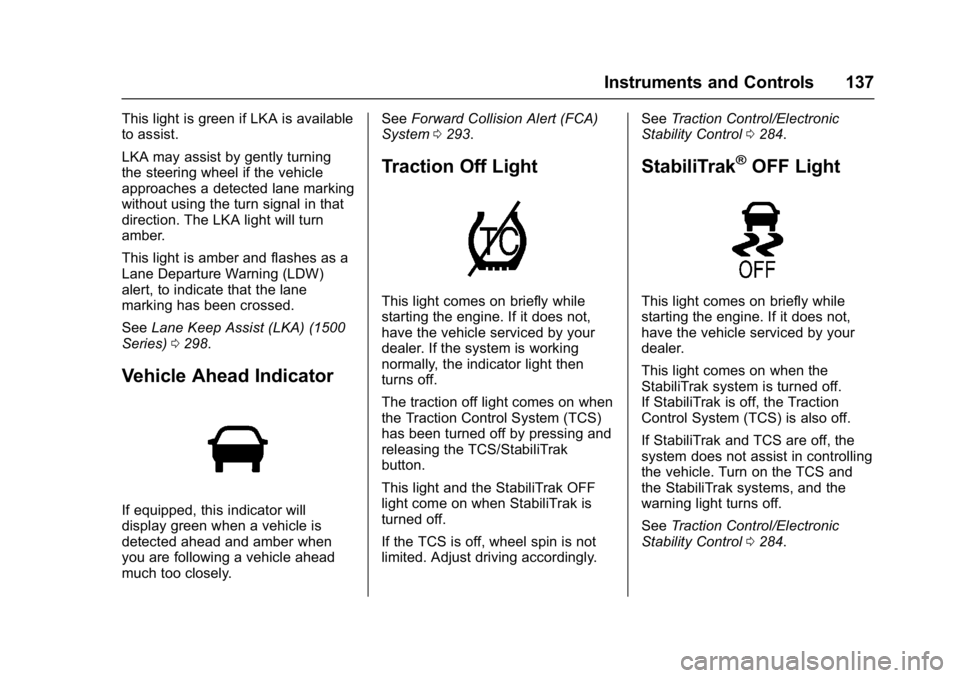
If equipped, this indicator will
display green when a vehicle is
detected ahead and amber when
you are following a vehicle ahead
much too closely. See
Forward Collision Alert (FCA)
System 0293.
Traction Off Light
This light comes on briefly while
starting the engine. If it does not,
have the vehicle serviced by your
dealer. If the system is working
normally, the indicator light then
turns off.
The traction off light comes on when
the Traction Control System (TCS)
has been turned off by pressing and
releasing the TCS/StabiliTrak
button.
This light and the StabiliTrak OFF
light come on when StabiliTrak is
turned off.
If the TCS is off, wheel spin is not
limited. Adjust driving accordingly. See
Traction Control/Electronic
Stability Control 0284.
StabiliTrak®OFF Light
This light comes on briefly while
starting the engine. If it does not,
have the vehicle serviced by your
dealer.
This light comes on when the
StabiliTrak system is turned off.
If StabiliTrak is off, the Traction
Control System (TCS) is also off.
If StabiliTrak and TCS are off, the
system does not assist in controlling
the vehicle. Turn on the TCS and
the StabiliTrak systems, and the
warning light turns off.
See Traction Control/Electronic
Stability Control 0284.
Page 142 of 494
GMC Sierra/Sierra Denali Owner Manual (GMNA-Localizing-U.S./Canada/
Mexico-9955992) - 2017 - crc - 5/3/16
Instruments and Controls 141
The light turns off when the cruise
control is turned off. SeeCruise
Control 0287.
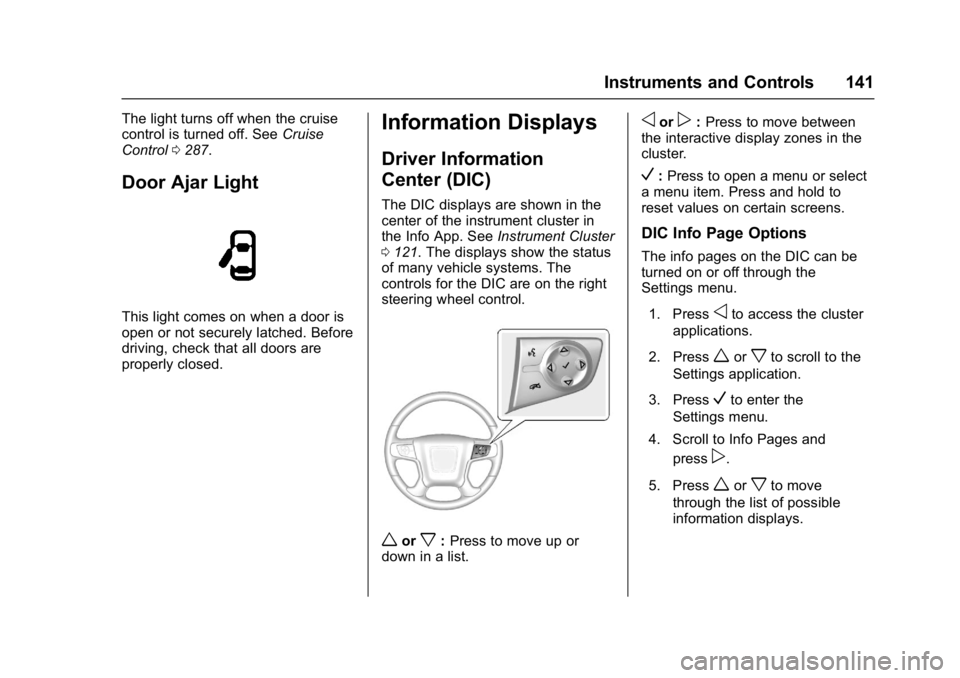
Door Ajar Light
This light comes on when a door is
open or not securely latched. Before
driving, check that all doors are
properly closed.
Information Displays
Driver Information
Center (DIC)
The DIC displays are shown in the
center of the instrument cluster in
the Info App. See Instrument Cluster
0 121. The displays show the status
of many vehicle systems. The
controls for the DIC are on the right
steering wheel control.
worx: Press to move up or
down in a list.
oorp: Press to move between
the interactive display zones in the
cluster.
V: Press to open a menu or select
a menu item. Press and hold to
reset values on certain screens.
DIC Info Page Options
The info pages on the DIC can be
turned on or off through the
Settings menu.
1. Press
oto access the cluster
applications.
2. Press
worxto scroll to the
Settings application.
3. Press
Vto enter the
Settings menu.
4. Scroll to Info Pages and press
p.
5. Press
worxto move
through the list of possible
information displays.