2017 GMC SIERRA 1500 AUX
[x] Cancel search: AUXPage 184 of 494
GMC Sierra/Sierra Denali Owner Manual (GMNA-Localizing-U.S./Canada/
Mexico-9955992) - 2017 - crc - 5/3/16
Infotainment System 183
Audible Touch Feedback (If
Equipped) :Select Audible Touch
Feedback to turn feedback off or on.
Auto Volume (If Equipped) : This
feature adjusts the volume based on
vehicle speed. The options are Off,
Low, Medium-Low, Medium,
Medium-High, or High. Select the
desired volume.
Maximum Startup Volume : This
feature sets the maximum startup
volume. If the vehicle is started and
the volume is greater than this level,
the volume is adjusted to this level.
To set the maximum startup volume,
Turn the MENU knob to increase or
decrease startup volume.
Rear Camera (If Equipped)
From the Rear Camera screen
button, the following may display:
Return to Factory Settings
Select Return to Factory Settings
and the following may display:
Restore Vehicle Settings : This
option will restore factory vehicle
personalization settings. Select
Restore Vehicle Settings. A screen displays stating all vehicle
customization settings will be
restored to the factory settings.
Select Cancel or Confirm.
Clear All Private Data (If
Equipped) :
This option clears all
private information from the vehicle.
Select Clear All Private Data. Select
Cancel or Confirm.
Restore Radio Settings : This
option will restore factory radio
settings. Select Restore Radio
Settings. A screen displays stating
all personalized radio settings will
be restored back to the factory
settings. Select Cancel or Confirm.
English and Metric Unit
Conversion
To change the display units between
English and metric units, see Driver
Information Center (DIC) 0141 or
Instrument Cluster 0121.
Home Page (Base Radio
with Touchscreen)
Touchscreen Buttons
Touchscreen buttons show on the
screen when available. When a
function is unavailable, the button
may gray out. When a function is
selected, the button may highlight.
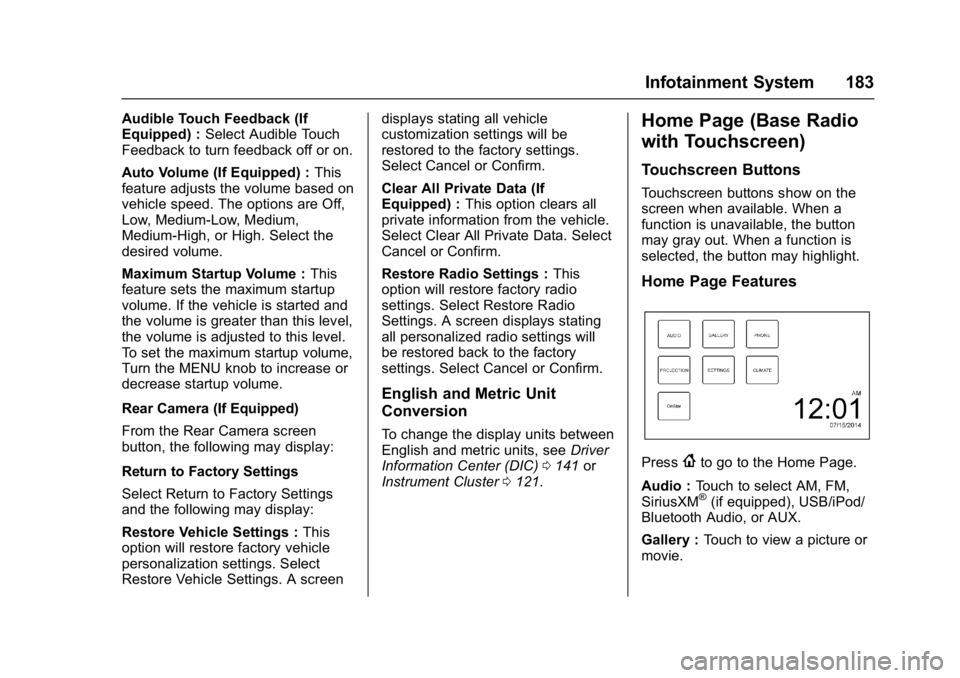
Home Page Features
Press{to go to the Home Page.
Audio : Touch to select AM, FM,
SiriusXM
®(if equipped), USB/iPod/
Bluetooth Audio, or AUX.
Gallery : Touch to view a picture or
movie.
Page 185 of 494
GMC Sierra/Sierra Denali Owner Manual (GMNA-Localizing-U.S./Canada/
Mexico-9955992) - 2017 - crc - 5/3/16
184 Infotainment System
Phone :Touch to activate the
phone features (if equipped). See
Bluetooth (Voice Recognition - Base
Radio) 0216 orBluetooth
(Infotainment Controls - Base
Radio) 0212 orBluetooth
(Overview) 0210 orBluetooth
(Infotainment Controls - Base Radio
with Touchscreen) 0220.
Projection : Touch to access
supported devices when connected.
See USB Port (Base Radio) 0193
or USB Port (Base Radio with
Touchscreen) 0196.
Settings : Touch to access the
Personalization menu. See Vehicle
Personalization 0155.
Climate : Touch to access the
Climate menu. See Dual Automatic
Climate Control System 0231.
OnStar : If equipped, touch to
access the OnStar menu. See
OnStar Overview 0471.Software Updates
See the websites for more
information.
Website Information
In the U.S., see www.gmc.com
In Canada, see www.gmc.gm.ca
In Mexico, www.gmc.com.mx
Radio
AM-FM Radio (Base
Radio)
Playing the Radio
While on the audio main page,
press the RADIO button repeatedly
to cycle through the available
sources AM, FM, and SiriusXM
®(if
equipped) or press the MEDIA
button repeatedly to cycle through
the available sources Bluetooth
®
Audio (if equipped), USB, and AUX.
The steering wheel controls can
also be used to adjust the volume.
See Steering Wheel Controls 0113.
AM, FM, or SiriusXM (If Equipped)
To select AM, FM, or SiriusXM (if
equipped), press the RADIO button
to toggle to the desired broadcast
source.
Page 188 of 494
GMC Sierra/Sierra Denali Owner Manual (GMNA-Localizing-U.S./Canada/
Mexico-9955992) - 2017 - crc - 5/3/16
Infotainment System 187
Custom Tone Settings
.Touch MENU.
. Touch Tone Settings.
. Touch Custom.
. Bass, Midrange, or Treble:
Touch −or +.
. Fader or Balance: Adjust the
front/rear or left/right speakers
by dragging the dot in the
vehicle image on the screen.
Touch
3to go back to the source
screen.
Selecting an Auxiliary Device
Connect the auxiliary device to the
AUX input terminal. Play will begin
when the system has finished
reading the information on the
device.
If the AUX device is already
connected, press
{, AUDIO,
Source, then select the device.
Selecting a Station
Seek Tuning
If the radio station is not known:
Press
7or6to automatically
search for available radio stations.
Manual Tuning
Continue touching
toruto
manually change the radio station.
Direct Tune
From the AM or FM menu:
. Touch Tune.
. Enter the station number.
. Touch Go or
toruto go to
the pervious or next station.
Favorite
. Touch
SorTto scroll through
the favorites.
. Touch on the station to select it.
Station List
. From the AM or FM menu,
touch MENU.
. Select Station List. .
Touch
QorRto scroll through
the list. Touch the station to
select it.
Update Station List
. From the AM or FM menu, touch
MENU, then touch Update
Station List. The broadcasting
list updating will begin.
. During the AM or FM
broadcasting list update, touch
Cancel to stop the updates.
Storing a Station as a Favorite
Stations from all bands can be
stored in any order in the favorite
pages.
Up to 25 stations can be stored.
Storing Stations
To store the station to a position in
the list, touch the corresponding
button 1−5 until a beep is heard.
1. Select the desired station.
2. Touch
SorTto select the
desired page of saved
favorites.
Page 196 of 494

GMC Sierra/Sierra Denali Owner Manual (GMNA-Localizing-U.S./Canada/
Mexico-9955992) - 2017 - crc - 5/3/16
Infotainment System 195
To connect and control a device:1. Connect one end of the standard USB cable to the
device's dock connector.
2. Connect the other end to a USB port in the center console.
See Center Console
Storage 0109.
3. Press MEDIA to select the source.
The music information displays on
the radio’s display and begins
playing through the vehicle’s audio
system.
The device battery recharges
automatically while the vehicle is on.
When the vehicle is off while a
device is connected using the USB
cable, the device battery stops
charging and the device will
automatically turn off.
If the device is an unsupported
model, it can still be listened to in
the vehicle by connecting to the
auxiliary input jack using a standard
3.5 mm (1/8 in) stereo cable. Menu
Press MENU to display the device
Menu and the following may display:
Browse :
Select to display the files
or songs on the device. See
“Browse Device Media” later in this
section.
Tone Settings : Select to adjust
Bass, Midrange, Treble, Balance,
Fade, and EQ (Equalizer). See
“Tone Settings” inAM-FM Radio
(Base Radio with Touchscreen)
0 186 orAM-FM Radio (Base
Radio) 0184.
Auto Volume : If equipped, see
“Auto Volume ”in AM-FM Radio
(Base Radio with Touchscreen)
0 186 orAM-FM Radio (Base
Radio) 0184.
EQ (Equalizer) : If equipped, this
feature adjusts the Equalizer
settings. See “EQ (Equalizer)” in
AM-FM Radio (Base Radio with
Touchscreen) 0186 orAM-FM
Radio (Base Radio) 0184. Browse Device Media
Use the following to browse:
Playlists:
1. Turn MENU to highlight and press to view the playlists
stored on the device.
2. Turn MENU to highlight and press to select a playlist name
to view a list of all songs in the
playlist.
3. Turn MENU to highlight and press to select the song from
the list to begin playback.
Artists: 1. Turn MENU to highlight and press to view the artists stored
on the device.
2. Turn MENU to highlight and press to select an artist name
to view a list of all albums by
the artist.
3. Turn MENU to highlight and press to select an album name
to view a list of all songs on the
album.
Page 197 of 494
GMC Sierra/Sierra Denali Owner Manual (GMNA-Localizing-U.S./Canada/
Mexico-9955992) - 2017 - crc - 5/3/16
196 Infotainment System
4. Turn MENU to highlight andpress to select the song from
the list to begin playback.
Albums: 1. Turn MENU to highlight and press to view the albums
stored on the device.
2. Turn MENU to highlight and press to select an album name
to view a list of all songs on the
album.
3. Turn MENU to highlight and press to select the song from
the list to begin playback.
Genres: 1. Turn MENU to highlight and press to view the genres stored
on the device.
2. Turn MENU to highlight and press to select a genre name
to view a list of artists of that
genre.
3. Turn MENU to highlight and press to select to view albums
by that artist. 4. Turn MENU to highlight and
press to select an album to
view songs.
5. Turn MENU to highlight and press to select the song from
the list to begin playback.
Songs: 1. Turn MENU to highlight and press to view a list of all songs
stored on the device.
2. Turn MENU to highlight and press to select the song from
the list to begin playback.
USB Port (Base Radio
with Touchscreen)
Using the USB Port
The infotainment system can play
music by connecting an auxiliary
device to the USB port.
USB Support
If equipped, the USB connector is in
the center stack below the climate
controls, and uses the USB 2.0
standard. USB Supported Devices
.
USB Flash Drives
. Portable USB Hard Drives
Not all iPods and USB drives are
compatible with the USB port.
Make sure the iPod has the latest
firmware from Apple
®for proper
operation. iPod firmware can be
updated using the latest iTunes
®
application. See www.apple.com/
itunes.
For help with identifying your iPod,
go to www.apple.com/support.
The USB port can play both lower
and upper case .mp3, .wma, .ogg,
and .wav files stored on a USB
storage device.
Supported Apple
®Devices
To view supported devices in U.S.,
see www.my.gmc.com\learn.
To view supported devices in
Canada, see www.gmcowner.ca.
To view supported devices in
Mexico, see your dealer for details.
Page 203 of 494
GMC Sierra/Sierra Denali Owner Manual (GMNA-Localizing-U.S./Canada/
Mexico-9955992) - 2017 - crc - 5/3/16
202 Infotainment System
Viewing a Previous or Next
Picture
Touch
SorTfrom the picture
screen.
Rotating a Picture
Touch
wfrom the picture screen.
Enlarging a Picture
Touch
xfrom the picture screen.
Using the USB Picture Menu 1. Touch MENU from the picture screen.
2. Touch the appropriate menu: .Slide Show Time: Allows
selection of the slide show
interval.
. Clock, Temp. Display:
Allows selection of On or
Off to show the clock and
temperature on the full
screen.
. Display Settings: Adjusts
for Brightness and Contrast.
3. Touch
0to exit.
Auxiliary Jack
This vehicle may have an AUX jack
in the center console or armrest.
See Center Console Storage 0109.
Possible auxiliary audio sources
include:
. Laptop computer
. Audio music player
This jack is not an audio output. Do
not plug headphones into the
auxiliary input jack. Auxiliary
devices should be set up while the
vehicle is in P (Park).
Connect a 3.5 mm (1/8 in) cable
from the auxiliary device to the
auxiliary input jack.
If an auxiliary device has already
been connected, but a different
source is currently active, press the
MEDIA faceplate button repeatedly
to scroll through all of the available
audio source screens, until the AUX
source screen is shown.
Base Radio
Playing from the AUX Jack
An auxiliary device is played
through the audio system and
controlled through the device itself.
AUX Menu
Press the MENU knob to display the
AUX menu and the following may
display:
Tone Settings : Select to adjust
Bass, Midrange, Treble, Balance,
Fade, and EQ (Equalizer). See
“Tone Settings” inAM-FM Radio
(Base Radio with Touchscreen)
0 186 orAM-FM Radio (Base
Radio) 0184.
Auto Volume : If equipped, see
“Playing an Audio CD.”
DSP : If equipped, this feature
adjusts the pre-defined settings.
See “DSP” inAM-FM Radio (Base
Radio with Touchscreen) 0186 or
AM-FM Radio (Base Radio) 0184.
Page 204 of 494
GMC Sierra/Sierra Denali Owner Manual (GMNA-Localizing-U.S./Canada/
Mexico-9955992) - 2017 - crc - 5/3/16
Infotainment System 203
EQ (Equalizer) :If equipped, this
feature adjusts the pre-defined
equalizer settings. See “EQ
(Equalizer)” inAM-FM Radio (Base
Radio with Touchscreen) 0186 or
AM-FM Radio (Base Radio) 0184.
Base Radio with Touchscreen
Play will begin when the system has
finished reading the information on
the device.
Playing Music
To play the music from the device,
if the device is already connected:
1. Press
{.
2. Touch AUDIO.
3. Touch Source.
4. Touch AUX.
To adjust the tone settings. See
“Audio Settings” in“System
Settings” underAM-FM Radio (Base
Radio with Touchscreen) 0186 or
AM-FM Radio (Base Radio) 0184.
Bluetooth Audio
If equipped, music may be played
from a paired Bluetooth device. See
“Pairing” underBluetooth (Voice
Recognition - Base Radio) 0216 or
Bluetooth (Infotainment Controls -
Base Radio) 0212 orBluetooth
(Overview) 0210 orBluetooth
(Infotainment Controls - Base Radio
with Touchscreen) 0220 for help
pairing a device.
Volume and song selection may be
controlled by using the infotainment
controls or the phone/device.
If Bluetooth Audio is selected and
nothing is heard, check the volume
setting on both the phone/device
and the infotainment system.
Launch music by pressing the
MEDIA screen button on the
Home Page.
To play music via Bluetooth:
1. Power on the device, and pair to connect the device. 2. Once paired, go into the audio
application from the Home
Page or via the application tray.
Select MEDIA until Bluetooth
displays.
Bluetooth Audio Menu
Press the MENU screen button to
display the Bluetooth Audio menu.
The following may be available:
Tone: Turn the MENU knob to
adjust the tone settings.
Press
oBACK to go back to the
previous menu.
Manage Bluetooth Devices: Select
to go to the Bluetooth page to add
or delete devices.
When selecting Bluetooth Audio, the
radio may not be able to launch the
audio player on the connected
device to start playing. When the
vehicle is not moving, use the
phone to begin playback.
All devices launch audio differently.
When selecting Bluetooth Audio as
a source, the radio may show as
Page 327 of 494
GMC Sierra/Sierra Denali Owner Manual (GMNA-Localizing-U.S./Canada/
Mexico-9955992) - 2017 - crc - 5/6/16
326 Driving and Operating
pickups. Trailer pin box extensions
and sliding fifth-wheel hitch
assemblies can help this condition.
There should be at least 15 cm (6 in)
of clearance between the top of the
pickup box and the bottom of the
trailer shelf that extends over
the box.
Safety Chains
Always attach chains between the
vehicle and the trailer. Cross the
safety chains under the tongue of
the trailer to help prevent the tongue
from contacting the road if it
becomes separated from the hitch.
Instructions about safety chains
may be provided by the hitch
manufacturer or by the trailer
manufacturer. If the trailer being
towed weighs up to 2 271 kg
(5,000 lb) with a factory-installed
step bumper, safety chains may be
attached to the attaching points on
the bumper; otherwise, safety
chains should be attached to holes
on the trailer hitch platform. Always
leave just enough slack so the
combination can turn. Never allow
safety chains to drag on the ground.
Trailer Brakes
A loaded trailer that weighs more
than 900 kg (2,000 lb) must be
equipped with its own brake system,
with brakes working on all axles.
Trailer braking equipment
conforming to Canadian Standards
Association (CSA) requirement
CAN3-D313, or its equivalent, is
recommended.
State and local regulations may also
require the trailer to have its own
braking system if loaded above a
certain threshold.
Be sure to read and follow the
instructions for the trailer brakes so
they are installed, adjusted, and
maintained properly.
Do not tap into the vehicle's
hydraulic brake system.
Auxiliary Battery
The auxiliary battery provision can
be used to supply electrical power
to additional equipment that may be
added, such as a slide-in camper.
If equipped, this relay will be on the
driver side of the vehicle, next to the
underhood electrical center.Be sure to follow the proper
installation instructions included with
any electrical equipment that is
installed.
Caution
Leaving electrical equipment on
for extended periods will drain the
battery. Always turn off electrical
equipment when not in use and
do not use equipment that
exceeds the maximum amperage
rating of 30 amps for the auxiliary
battery provision.
Trailer Wiring Harness
The vehicle is equipped with one of
the following wiring harnesses for
towing a trailer or hauling a slide-in
camper.
Basic Trailer Wiring
All regular, double cab, and crew
cab pickups have a seven-wire
trailer towing harness.