2017 FORD TAURUS ESP
[x] Cancel search: ESPPage 399 of 504
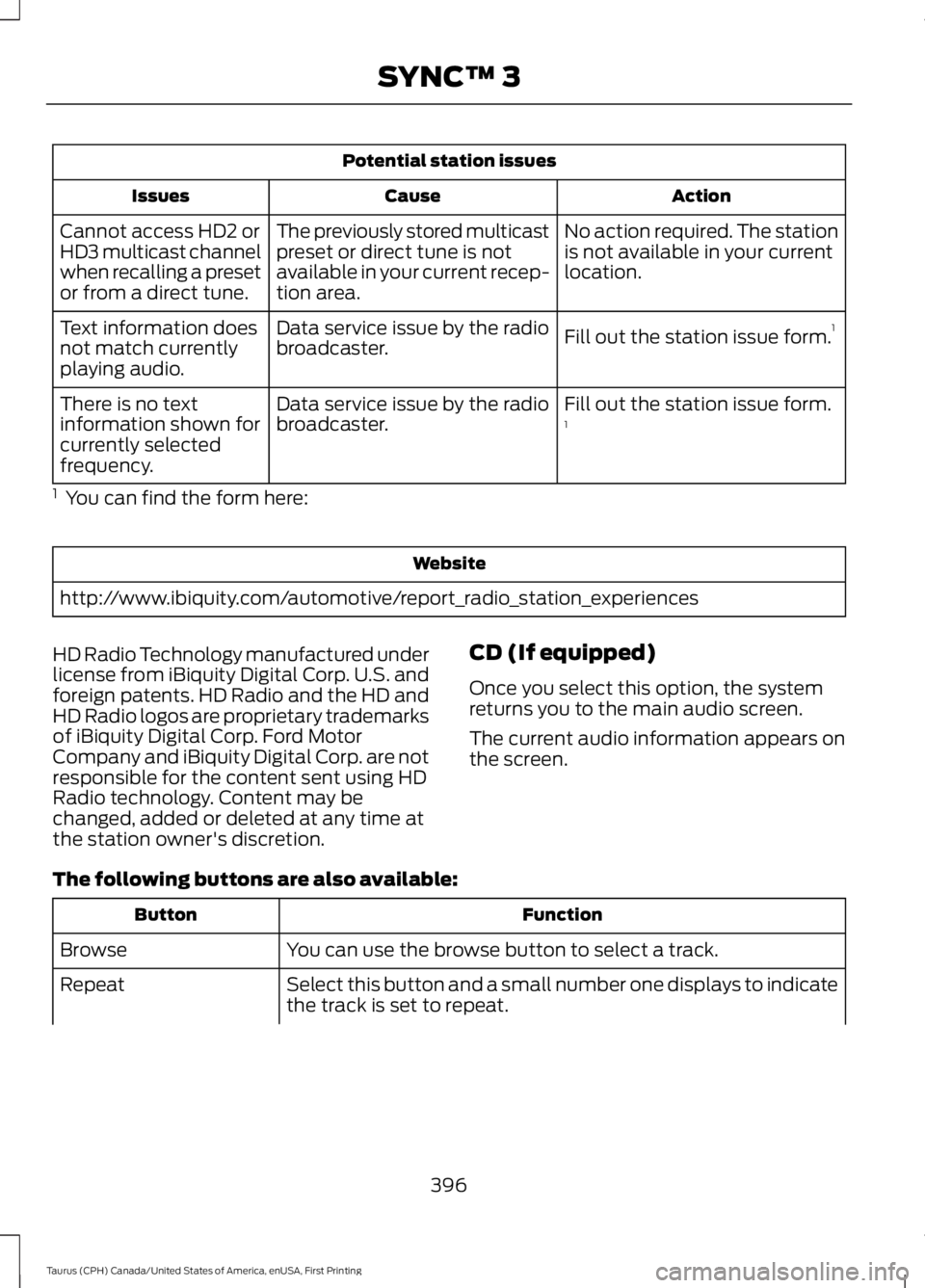
Potential station issues
ActionCauseIssues
No action required. The stationis not available in your currentlocation.
The previously stored multicastpreset or direct tune is notavailable in your current recep-tion area.
Cannot access HD2 orHD3 multicast channelwhen recalling a presetor from a direct tune.
Fill out the station issue form.1Data service issue by the radiobroadcaster.Text information doesnot match currentlyplaying audio.
Fill out the station issue form.1Data service issue by the radiobroadcaster.There is no textinformation shown forcurrently selectedfrequency.
1 You can find the form here:
Website
http://www.ibiquity.com/automotive/report_radio_station_experiences
HD Radio Technology manufactured underlicense from iBiquity Digital Corp. U.S. andforeign patents. HD Radio and the HD andHD Radio logos are proprietary trademarksof iBiquity Digital Corp. Ford MotorCompany and iBiquity Digital Corp. are notresponsible for the content sent using HDRadio technology. Content may bechanged, added or deleted at any time atthe station owner's discretion.
CD (If equipped)
Once you select this option, the systemreturns you to the main audio screen.
The current audio information appears onthe screen.
The following buttons are also available:
FunctionButton
You can use the browse button to select a track.Browse
Select this button and a small number one displays to indicatethe track is set to repeat.Repeat
396
Taurus (CPH) Canada/United States of America, enUSA, First Printing
SYNC™ 3
Page 405 of 504
PHONE
WARNING
Driving while distracted can result inloss of vehicle control, crash andinjury. We strongly recommend thatyou use extreme caution when using anydevice that may take your focus off theroad. Your primary responsibility is the safeoperation of your vehicle. We recommendagainst the use of any hand-held devicewhile driving and encourage the use ofvoice-operated systems when possible.Make sure you are aware of all applicablelocal laws that may affect the use ofelectronic devices while driving.
Hands-free calling is one of the mainfeatures of the system. Once you pair yourcell phone, you can access many optionsusing the touchscreen or voice commands.While the system supports a variety offeatures, many are dependent on your cellphone’s functionality.
Pairing Your Cell Phone for theFirst Time
Pair your Bluetooth-enabled phone withthe system before using the functions inhands-free mode.
Switch on Bluetooth on your device tobegin pairing. See your phone’s manual ifnecessary.
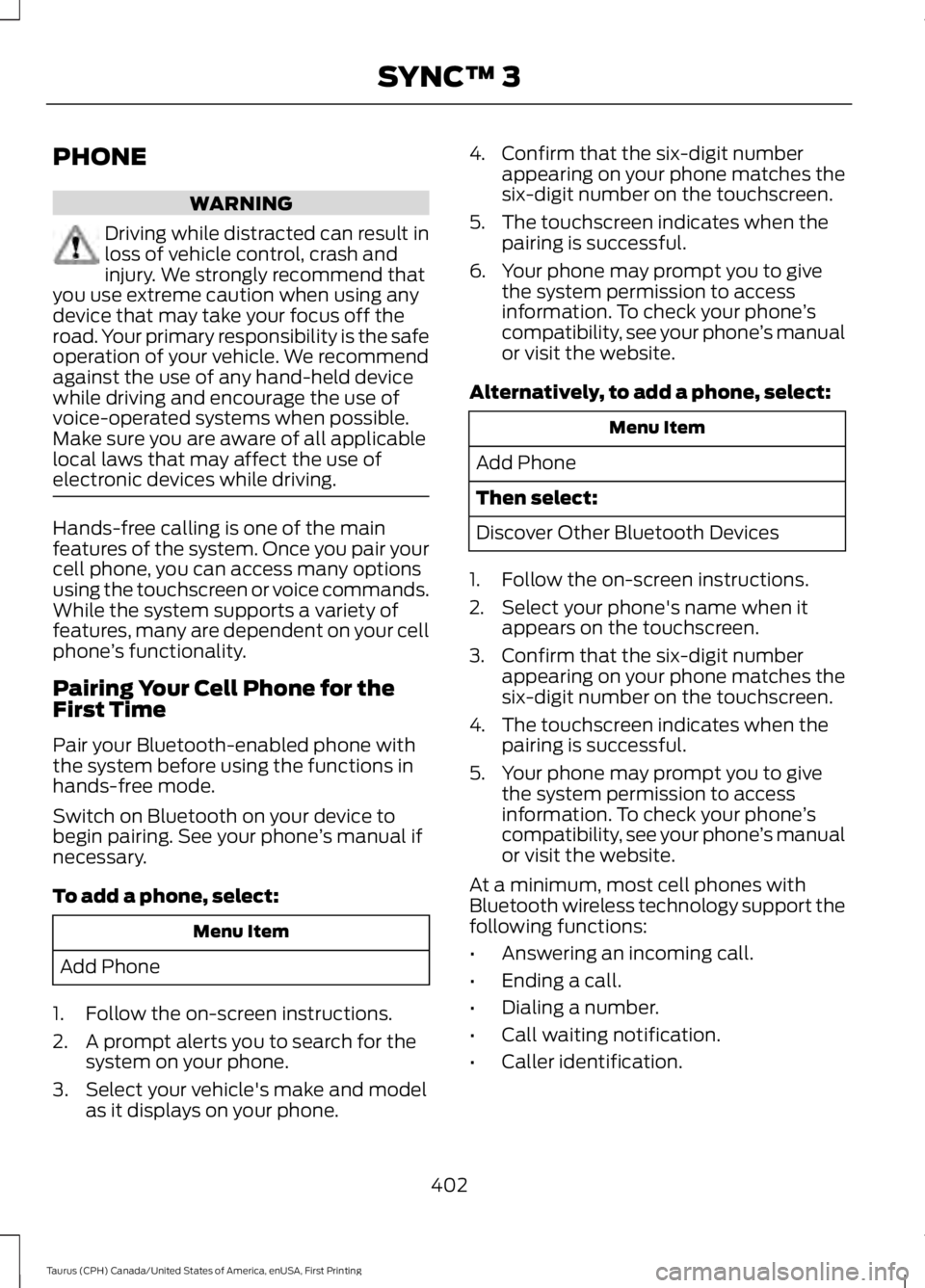
To add a phone, select:
Menu Item
Add Phone
1. Follow the on-screen instructions.
2. A prompt alerts you to search for thesystem on your phone.
3. Select your vehicle's make and modelas it displays on your phone.
4. Confirm that the six-digit numberappearing on your phone matches thesix-digit number on the touchscreen.
5. The touchscreen indicates when thepairing is successful.
6. Your phone may prompt you to givethe system permission to accessinformation. To check your phone’scompatibility, see your phone’s manualor visit the website.
Alternatively, to add a phone, select:
Menu Item
Add Phone
Then select:
Discover Other Bluetooth Devices
1. Follow the on-screen instructions.
2. Select your phone's name when itappears on the touchscreen.
3. Confirm that the six-digit numberappearing on your phone matches thesix-digit number on the touchscreen.
4. The touchscreen indicates when thepairing is successful.
5. Your phone may prompt you to givethe system permission to accessinformation. To check your phone’scompatibility, see your phone’s manualor visit the website.
At a minimum, most cell phones withBluetooth wireless technology support thefollowing functions:
•Answering an incoming call.
•Ending a call.
•Dialing a number.
•Call waiting notification.
•Caller identification.
402
Taurus (CPH) Canada/United States of America, enUSA, First Printing
SYNC™ 3
Page 410 of 504
2. Select Apple CarPlay on thetouchscreen.
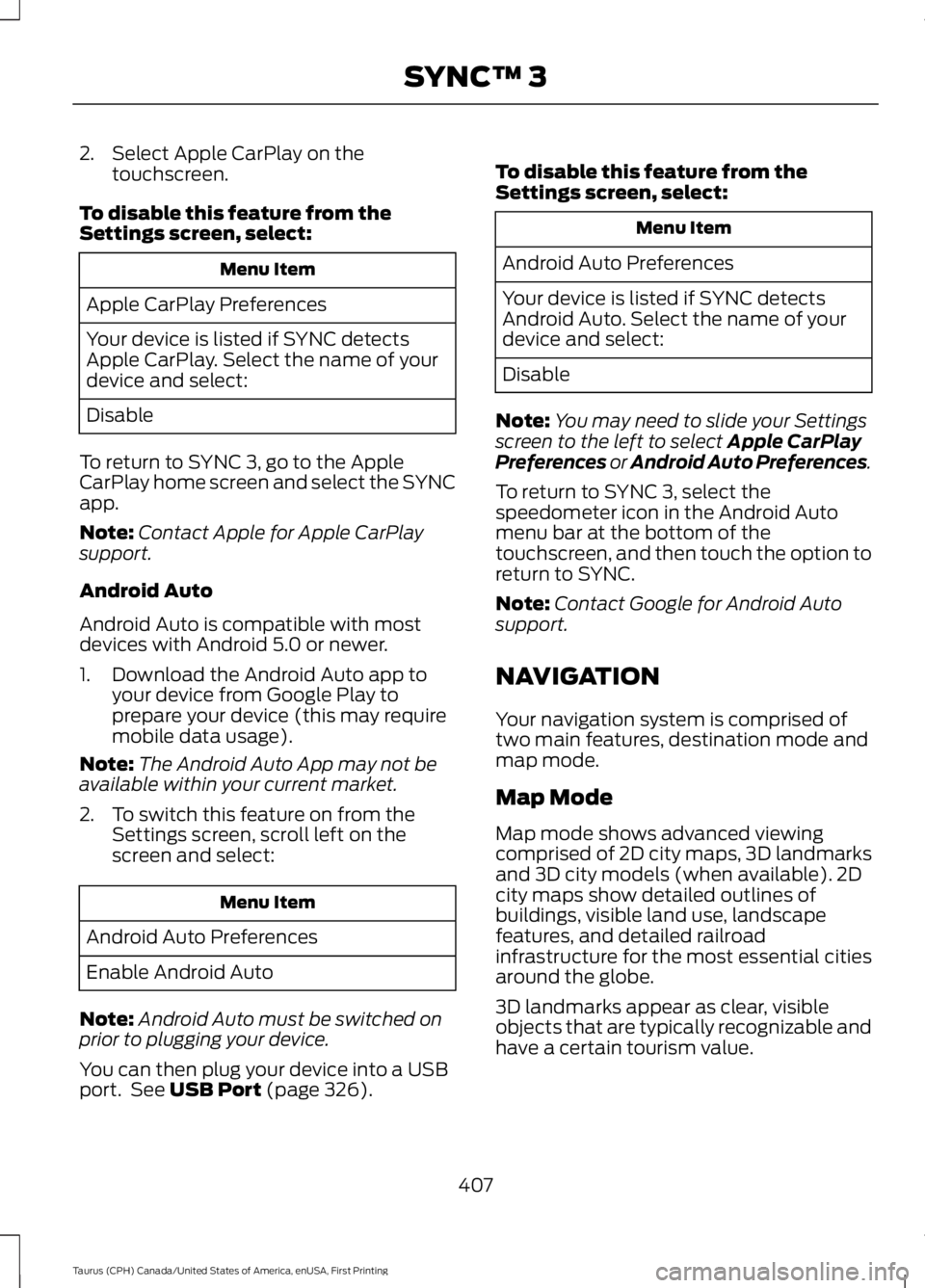
To disable this feature from theSettings screen, select:
Menu Item
Apple CarPlay Preferences
Your device is listed if SYNC detectsApple CarPlay. Select the name of yourdevice and select:
Disable
To return to SYNC 3, go to the AppleCarPlay home screen and select the SYNCapp.
Note:Contact Apple for Apple CarPlaysupport.
Android Auto
Android Auto is compatible with mostdevices with Android 5.0 or newer.
1. Download the Android Auto app toyour device from Google Play toprepare your device (this may requiremobile data usage).
Note:The Android Auto App may not beavailable within your current market.
2. To switch this feature on from theSettings screen, scroll left on thescreen and select:
Menu Item
Android Auto Preferences
Enable Android Auto
Note:Android Auto must be switched onprior to plugging your device.
You can then plug your device into a USBport. See USB Port (page 326).
To disable this feature from theSettings screen, select:
Menu Item
Android Auto Preferences
Your device is listed if SYNC detectsAndroid Auto. Select the name of yourdevice and select:
Disable
Note:You may need to slide your Settingsscreen to the left to select Apple CarPlayPreferences or Android Auto Preferences.
To return to SYNC 3, select thespeedometer icon in the Android Automenu bar at the bottom of thetouchscreen, and then touch the option toreturn to SYNC.
Note:Contact Google for Android Autosupport.
NAVIGATION
Your navigation system is comprised oftwo main features, destination mode andmap mode.
Map Mode
Map mode shows advanced viewingcomprised of 2D city maps, 3D landmarksand 3D city models (when available). 2Dcity maps show detailed outlines ofbuildings, visible land use, landscapefeatures, and detailed railroadinfrastructure for the most essential citiesaround the globe.
3D landmarks appear as clear, visibleobjects that are typically recognizable andhave a certain tourism value.
407
Taurus (CPH) Canada/United States of America, enUSA, First Printing
SYNC™ 3
Page 418 of 504
SiriusXM Traffic and Travel Link
SiriusXM Traffic and Travel Link is availableon vehicles equipped with navigation andonly in select markets. You must activateand subscribe to receive SiriusXM Trafficand Travel Link information. It helps youlocate the best gas prices, find movielistings, get current traffic alerts, view theweather map, get accurate ski conditionsand see current sports scores. See Apps(page 415).
The system calculates a reasonableefficient route based on available speedlimits, traffic, and road conditions. You mayknow a local short cut that is more efficientat a given time than the route provided bySYNC 3, but you should expect a slightdifference in minutes or miles with theSYNC 3 route.
Navigation Map Updates
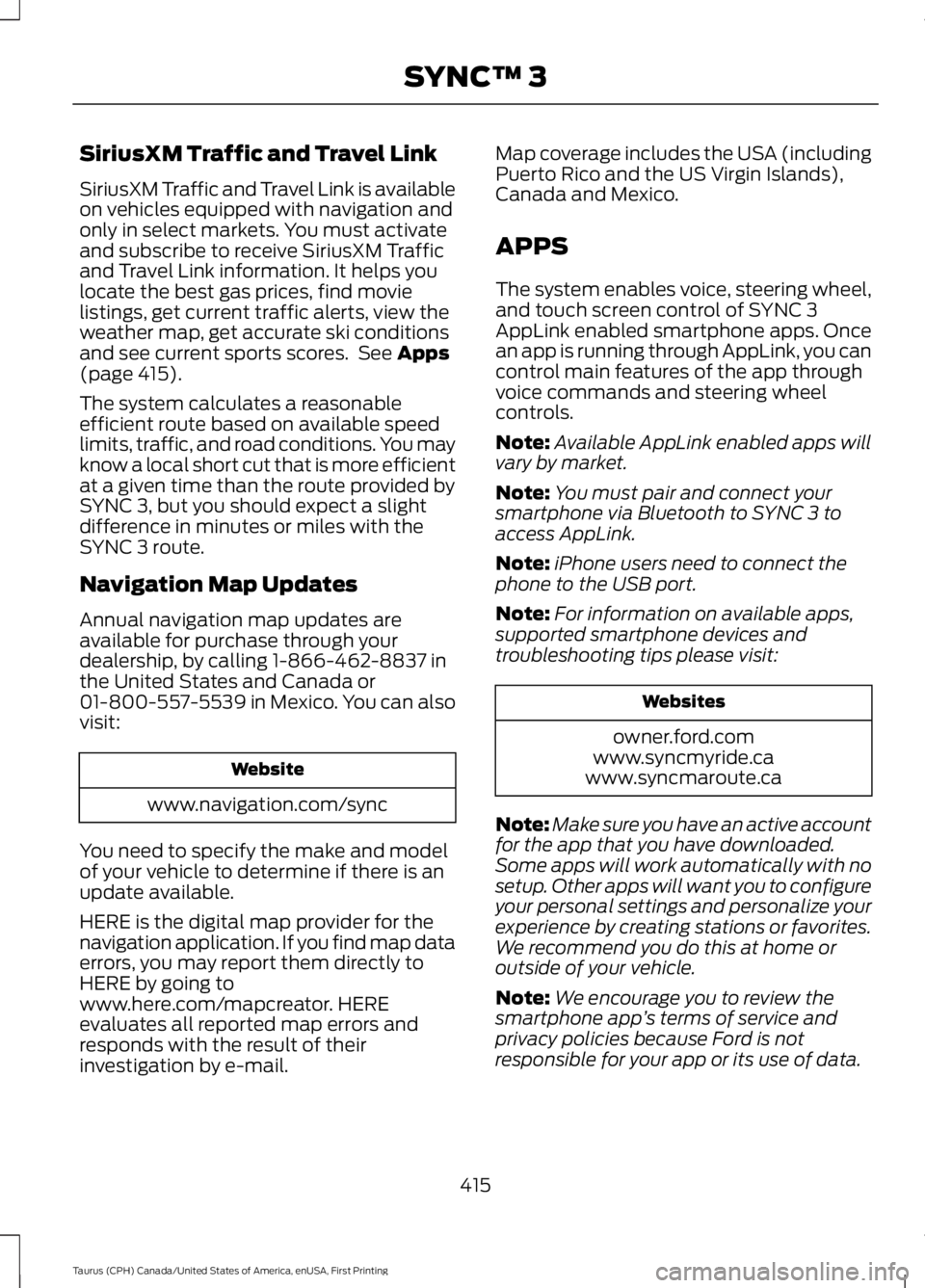
Annual navigation map updates areavailable for purchase through yourdealership, by calling 1-866-462-8837 inthe United States and Canada or01-800-557-5539 in Mexico. You can alsovisit:
Website
www.navigation.com/sync
You need to specify the make and modelof your vehicle to determine if there is anupdate available.
HERE is the digital map provider for thenavigation application. If you find map dataerrors, you may report them directly toHERE by going towww.here.com/mapcreator. HEREevaluates all reported map errors andresponds with the result of theirinvestigation by e-mail.
Map coverage includes the USA (includingPuerto Rico and the US Virgin Islands),Canada and Mexico.
APPS
The system enables voice, steering wheel,and touch screen control of SYNC 3AppLink enabled smartphone apps. Oncean app is running through AppLink, you cancontrol main features of the app throughvoice commands and steering wheelcontrols.
Note:Available AppLink enabled apps willvary by market.
Note:You must pair and connect yoursmartphone via Bluetooth to SYNC 3 toaccess AppLink.
Note:iPhone users need to connect thephone to the USB port.
Note:For information on available apps,supported smartphone devices andtroubleshooting tips please visit:
Websites
owner.ford.comwww.syncmyride.cawww.syncmaroute.ca
Note:Make sure you have an active accountfor the app that you have downloaded.Some apps will work automatically with nosetup. Other apps will want you to configureyour personal settings and personalize yourexperience by creating stations or favorites.We recommend you do this at home oroutside of your vehicle.
Note:We encourage you to review thesmartphone app’s terms of service andprivacy policies because Ford is notresponsible for your app or its use of data.
415
Taurus (CPH) Canada/United States of America, enUSA, First Printing
SYNC™ 3
Page 419 of 504
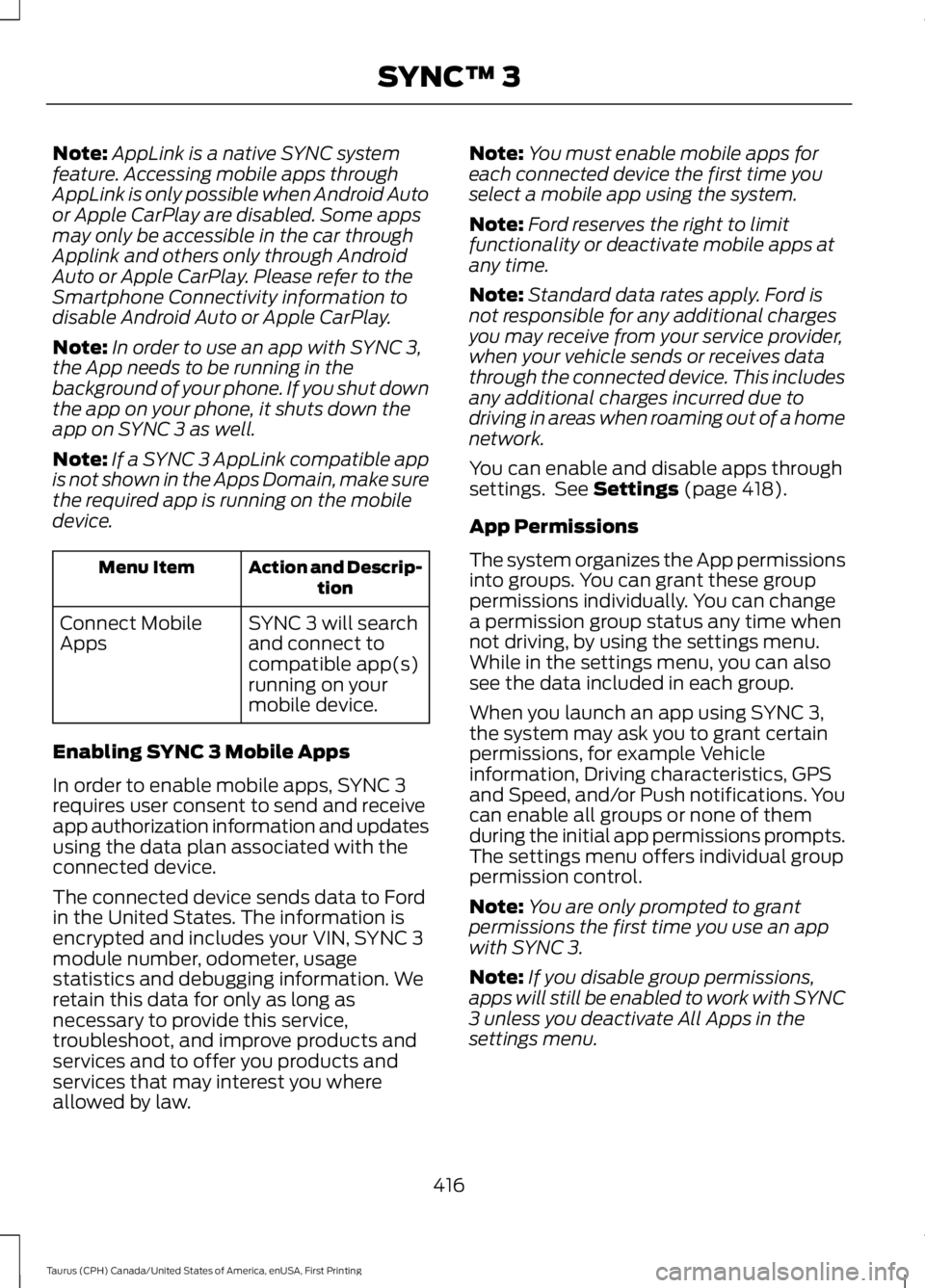
Note:AppLink is a native SYNC systemfeature. Accessing mobile apps throughAppLink is only possible when Android Autoor Apple CarPlay are disabled. Some appsmay only be accessible in the car throughApplink and others only through AndroidAuto or Apple CarPlay. Please refer to theSmartphone Connectivity information todisable Android Auto or Apple CarPlay.
Note:In order to use an app with SYNC 3,the App needs to be running in thebackground of your phone. If you shut downthe app on your phone, it shuts down theapp on SYNC 3 as well.
Note:If a SYNC 3 AppLink compatible appis not shown in the Apps Domain, make surethe required app is running on the mobiledevice.
Action and Descrip-tionMenu Item
SYNC 3 will searchand connect tocompatible app(s)running on yourmobile device.
Connect MobileApps
Enabling SYNC 3 Mobile Apps
In order to enable mobile apps, SYNC 3requires user consent to send and receiveapp authorization information and updatesusing the data plan associated with theconnected device.
The connected device sends data to Fordin the United States. The information isencrypted and includes your VIN, SYNC 3module number, odometer, usagestatistics and debugging information. Weretain this data for only as long asnecessary to provide this service,troubleshoot, and improve products andservices and to offer you products andservices that may interest you whereallowed by law.
Note:You must enable mobile apps foreach connected device the first time youselect a mobile app using the system.
Note:Ford reserves the right to limitfunctionality or deactivate mobile apps atany time.
Note:Standard data rates apply. Ford isnot responsible for any additional chargesyou may receive from your service provider,when your vehicle sends or receives datathrough the connected device. This includesany additional charges incurred due todriving in areas when roaming out of a homenetwork.
You can enable and disable apps throughsettings. See Settings (page 418).
App Permissions
The system organizes the App permissionsinto groups. You can grant these grouppermissions individually. You can changea permission group status any time whennot driving, by using the settings menu.While in the settings menu, you can alsosee the data included in each group.
When you launch an app using SYNC 3,the system may ask you to grant certainpermissions, for example Vehicleinformation, Driving characteristics, GPSand Speed, and/or Push notifications. Youcan enable all groups or none of themduring the initial app permissions prompts.The settings menu offers individual grouppermission control.
Note:You are only prompted to grantpermissions the first time you use an appwith SYNC 3.
Note:If you disable group permissions,apps will still be enabled to work with SYNC3 unless you deactivate All Apps in thesettings menu.
416
Taurus (CPH) Canada/United States of America, enUSA, First Printing
SYNC™ 3
Page 420 of 504
SiriusXM Traffic and Travel Link (If
Equipped)
WARNING
Driving while distracted can result inloss of vehicle control, crash andinjury. We strongly recommend thatyou use extreme caution when using anydevice that may take your focus off theroad. Your primary responsibility is the safeoperation of your vehicle. We recommendagainst the use of any hand-held devicewhile driving and encourage the use ofvoice-operated systems when possible.Make sure you are aware of all applicablelocal laws that may affect the use ofelectronic devices while driving.
Note:SiriusXM Traffic and Travel Link maynot be available in all markets.
Note:In order to use SiriusXM Traffic andTravel Link, your vehicle must havenavigation.
Note:A paid subscription is required toaccess and use these features. Go towww.siriusxm.com/travellink for moreinformation.
Note:Visit www.siriusxm.com/traffic andclick on Coverage map and details for acomplete listing of all traffic areas coveredby SiriusXM Traffic and Travel Link.
Note:Neither Sirius nor Ford is responsiblefor any errors or inaccuracies in the SiriusXMTraffic and Travel Link services or its use invehicles.
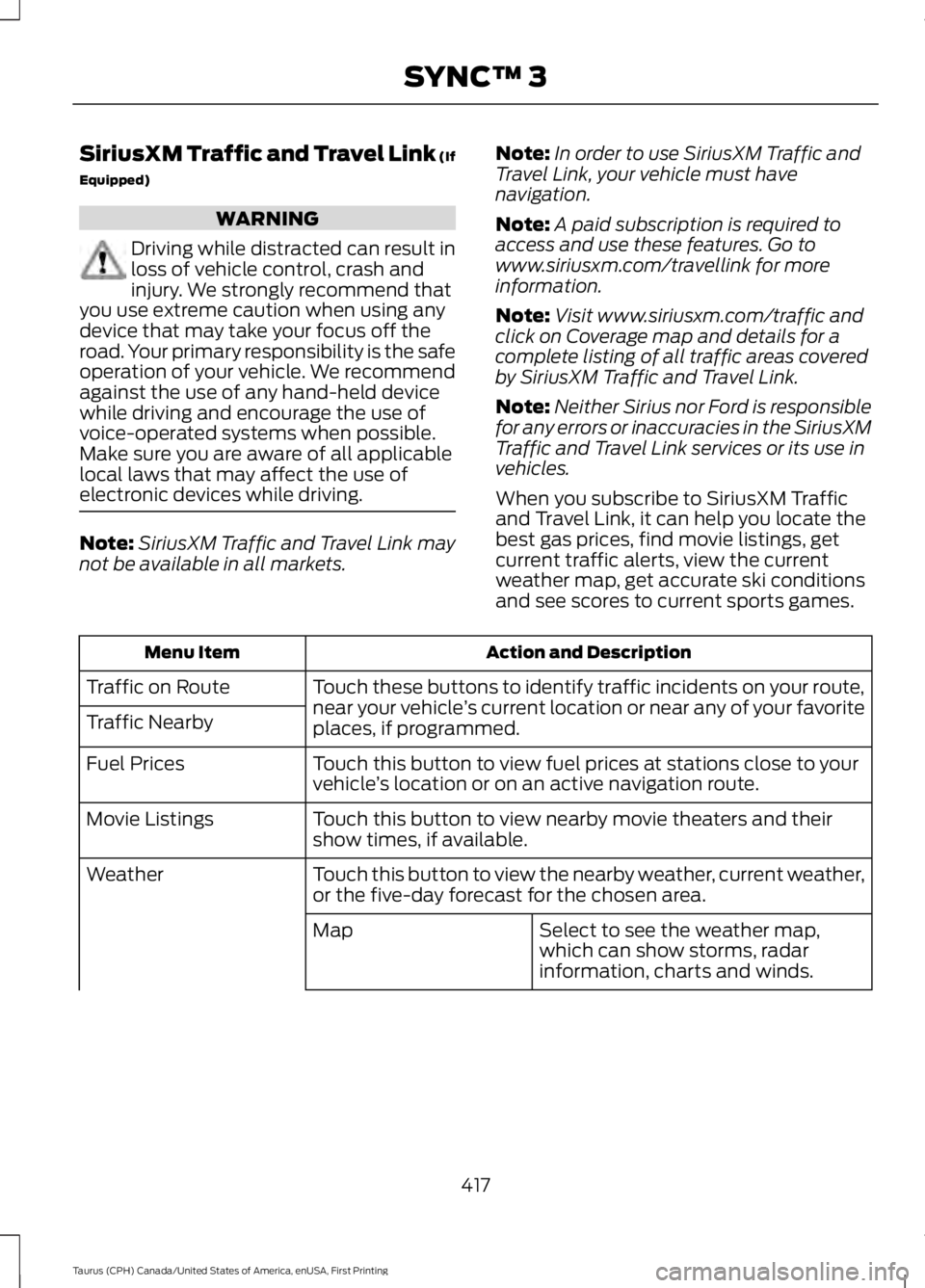
When you subscribe to SiriusXM Trafficand Travel Link, it can help you locate thebest gas prices, find movie listings, getcurrent traffic alerts, view the currentweather map, get accurate ski conditionsand see scores to current sports games.
Action and DescriptionMenu Item
Touch these buttons to identify traffic incidents on your route,near your vehicle’s current location or near any of your favoriteplaces, if programmed.
Traffic on Route
Traffic Nearby
Touch this button to view fuel prices at stations close to yourvehicle’s location or on an active navigation route.Fuel Prices
Touch this button to view nearby movie theaters and theirshow times, if available.Movie Listings
Touch this button to view the nearby weather, current weather,or the five-day forecast for the chosen area.Weather
Select to see the weather map,which can show storms, radarinformation, charts and winds.
Map
417
Taurus (CPH) Canada/United States of America, enUSA, First Printing
SYNC™ 3
Page 429 of 504
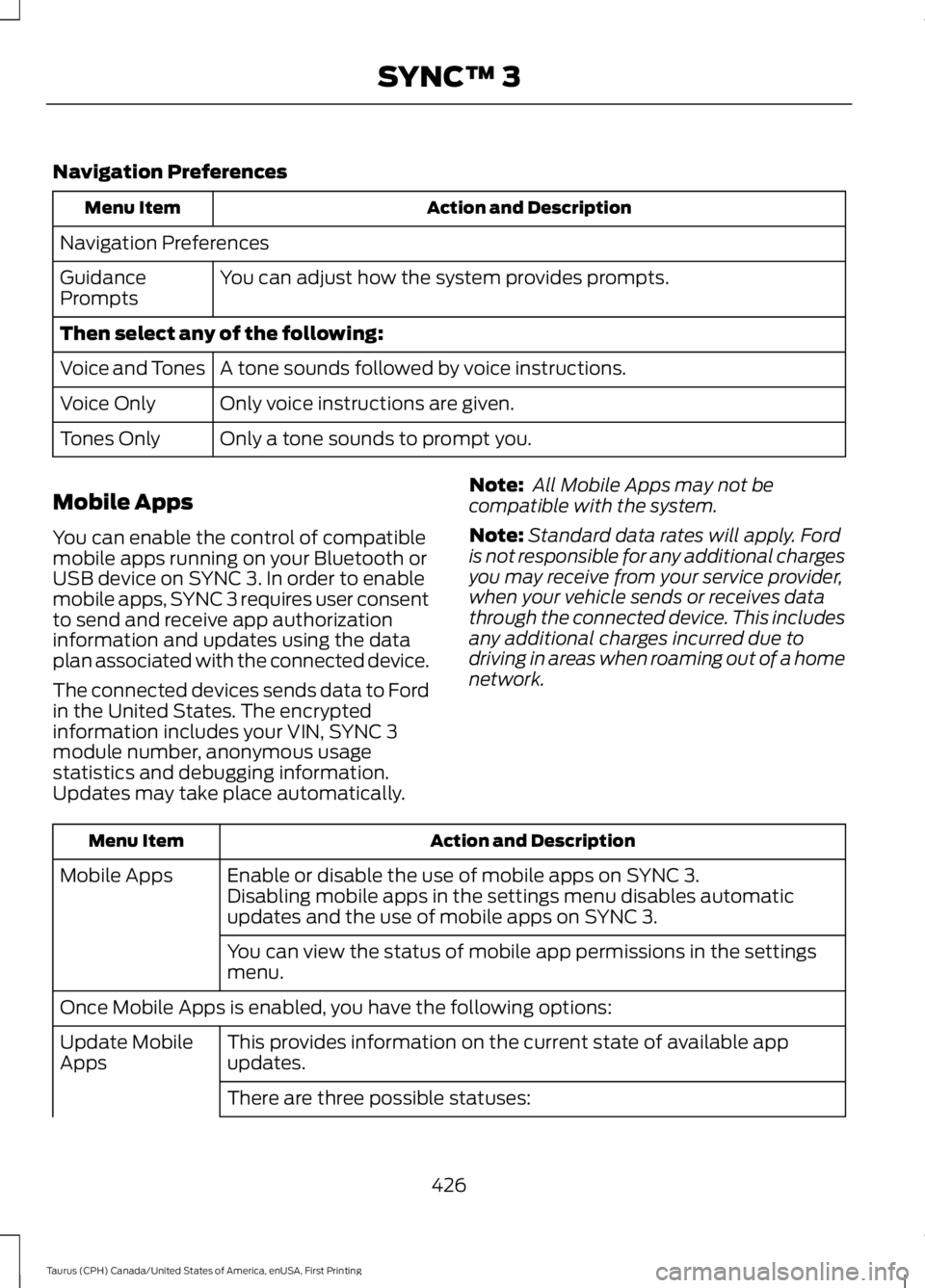
Navigation Preferences
Action and DescriptionMenu Item
Navigation Preferences
You can adjust how the system provides prompts.GuidancePrompts
Then select any of the following:
A tone sounds followed by voice instructions.Voice and Tones
Only voice instructions are given.Voice Only
Only a tone sounds to prompt you.Tones Only
Mobile Apps
You can enable the control of compatiblemobile apps running on your Bluetooth orUSB device on SYNC 3. In order to enablemobile apps, SYNC 3 requires user consentto send and receive app authorizationinformation and updates using the dataplan associated with the connected device.
The connected devices sends data to Fordin the United States. The encryptedinformation includes your VIN, SYNC 3module number, anonymous usagestatistics and debugging information.Updates may take place automatically.
Note: All Mobile Apps may not becompatible with the system.
Note:Standard data rates will apply. Fordis not responsible for any additional chargesyou may receive from your service provider,when your vehicle sends or receives datathrough the connected device. This includesany additional charges incurred due todriving in areas when roaming out of a homenetwork.
Action and DescriptionMenu Item
Enable or disable the use of mobile apps on SYNC 3.Mobile AppsDisabling mobile apps in the settings menu disables automaticupdates and the use of mobile apps on SYNC 3.
You can view the status of mobile app permissions in the settingsmenu.
Once Mobile Apps is enabled, you have the following options:
This provides information on the current state of available appupdates.Update MobileApps
There are three possible statuses:
426
Taurus (CPH) Canada/United States of America, enUSA, First Printing
SYNC™ 3
Page 430 of 504
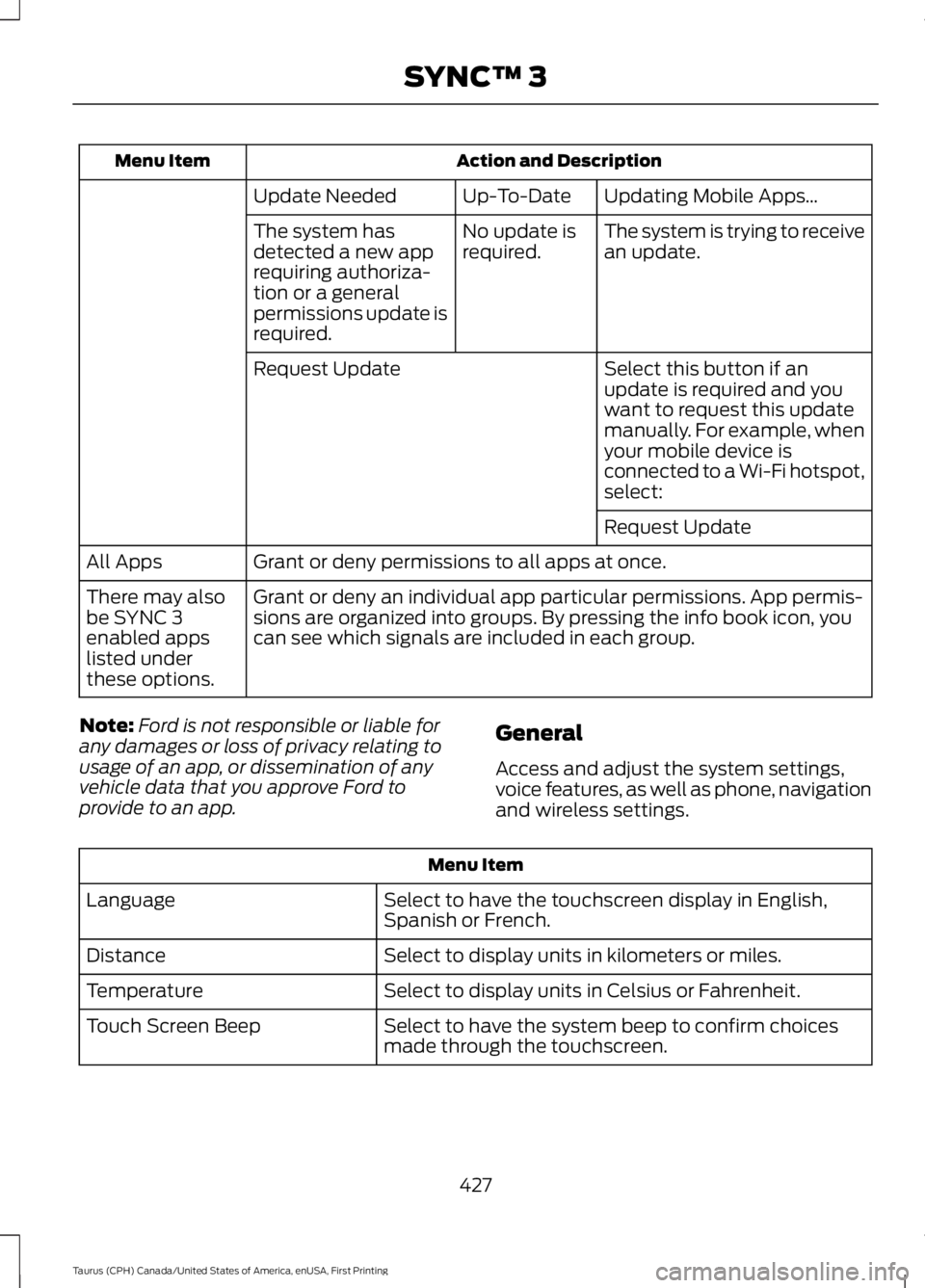
Action and DescriptionMenu Item
Updating Mobile Apps…Up-To-DateUpdate Needed
The system is trying to receivean update.No update isrequired.The system hasdetected a new apprequiring authoriza-tion or a generalpermissions update isrequired.
Select this button if anupdate is required and youwant to request this updatemanually. For example, whenyour mobile device isconnected to a Wi-Fi hotspot,select:
Request Update
Request Update
Grant or deny permissions to all apps at once.All Apps
Grant or deny an individual app particular permissions. App permis-sions are organized into groups. By pressing the info book icon, youcan see which signals are included in each group.
There may alsobe SYNC 3enabled appslisted underthese options.
Note:Ford is not responsible or liable forany damages or loss of privacy relating tousage of an app, or dissemination of anyvehicle data that you approve Ford toprovide to an app.
General
Access and adjust the system settings,voice features, as well as phone, navigationand wireless settings.
Menu Item
Select to have the touchscreen display in English,Spanish or French.Language
Select to display units in kilometers or miles.Distance
Select to display units in Celsius or Fahrenheit.Temperature
Select to have the system beep to confirm choicesmade through the touchscreen.Touch Screen Beep
427
Taurus (CPH) Canada/United States of America, enUSA, First Printing
SYNC™ 3