2017 FORD SUPER DUTY key
[x] Cancel search: keyPage 249 of 636
Due to the nature of radar technology, it is
possible to get a blockage warning and not
have a blockage. This can happen, for
example, when driving in sparse rural or
desert environments. A false blocked
condition either self clears or clears after
a key cycle.
Switching to Normal Cruise
Control
WARNING
Normal cruise control will not brake
when your vehicle is approaching
slower vehicles. Always be aware of
which mode you have selected and apply
the brakes when necessary. You can manually change from adaptive
cruise control to normal cruise control
through the information display. See
Information Messages (page 128).
The cruise control indicator light
replaces the adaptive cruise
control indicator light if you
select normal cruise control. The gap
setting does not display, the system does
not automatically respond to lead vehicles
and automatic braking remains active to
maintain set speed. The system recalls its
last setting when you start your vehicle.
246
Super Duty (TFE) Canada/United States of America, enUSA, First Printing Cruise Control
(If Equipped)E71340
Page 250 of 636
LANE KEEPING SYSTEM (If
Equipped) WARNING
The system is designed to aid the
driver. It is not intended to replace
your attention and judgment. You are
still responsible to drive with due care and
attention. Note:
The system works as long as the
camera can detect one lane marking at a
speed above
40 mph (64 km/h).
Note: The system may not function if the
camera is blocked or there is damage to the
windshield.
The Lane Keeping System automatically
detects and tracks the road lane markings
using a camera mounted behind the
interior review view mirror. The system
notifies you to stay in your lane when the
front camera detects an unintentional lane
change is likely to occur.
Switching the System On and Off
Note: The system on or off setting is stored
until it is manually changed, unless a MyKey
is detected. If the system detects a MyKey,
it defaults to on and the mode is set to alert.
Note: If a MyKey is detected, pressing the
button will not affect the on or off status of
the system. You can only change the mode
and intensity settings. Press the button located on the
center console to switch the
system on or off. System Settings
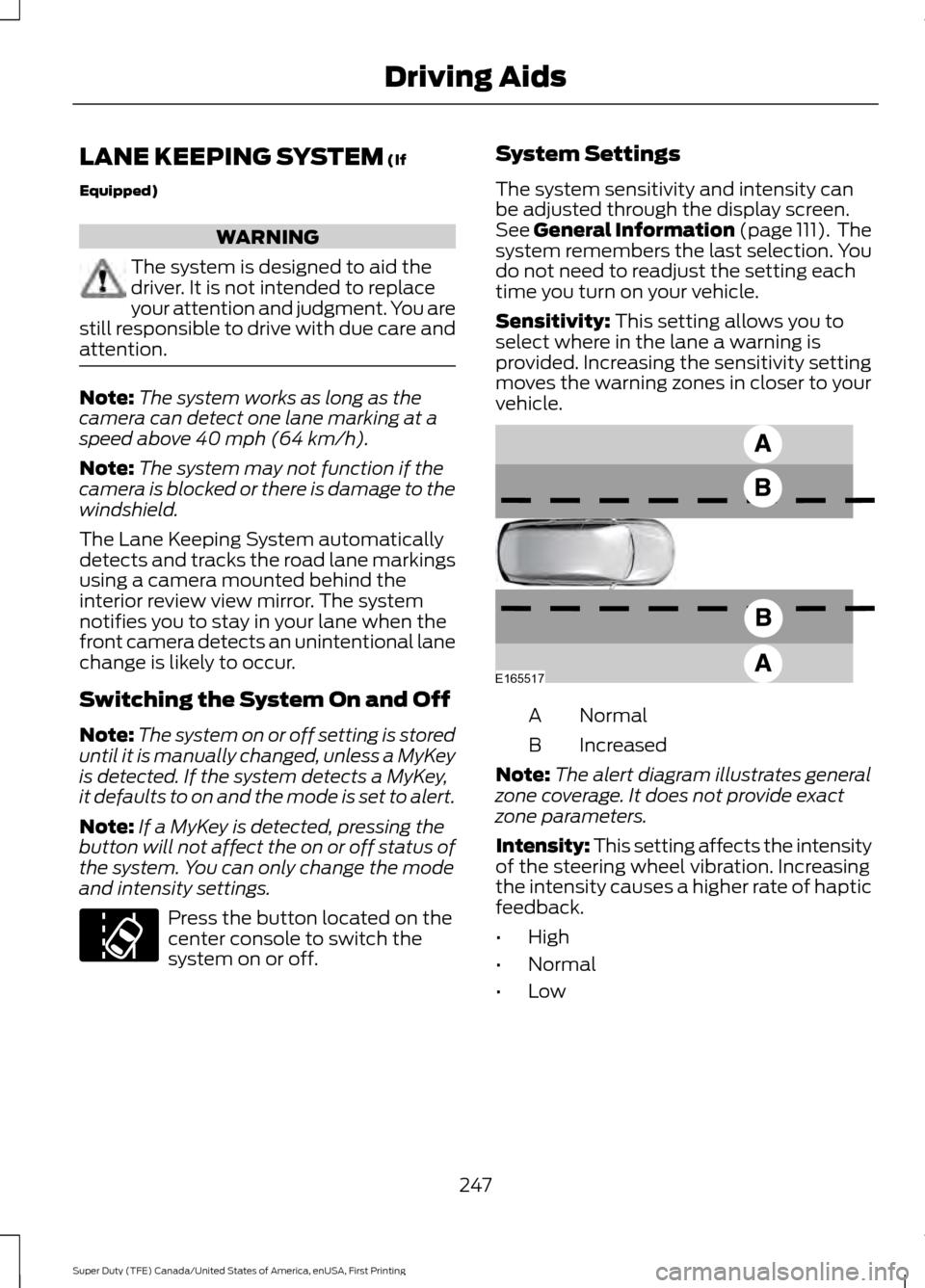
The system sensitivity and intensity can
be adjusted through the display screen.
See
General Information (page 111). The
system remembers the last selection. You
do not need to readjust the setting each
time you turn on your vehicle.
Sensitivity:
This setting allows you to
select where in the lane a warning is
provided. Increasing the sensitivity setting
moves the warning zones in closer to your
vehicle. Normal
A
Increased
B
Note: The alert diagram illustrates general
zone coverage. It does not provide exact
zone parameters.
Intensity: This setting affects the intensity
of the steering wheel vibration. Increasing
the intensity causes a higher rate of haptic
feedback.
• High
• Normal
• Low
247
Super Duty (TFE) Canada/United States of America, enUSA, First Printing Driving AidsE173233 E165517
Page 261 of 636
COLLISION WARNING SYSTEM
(If Equipped)
Principle Of Operation (If Equipped)
WARNINGS
This system is an extra driving aid. It
does not replace your attention and
judgment, or the need to apply the
brakes. This system does NOT
automatically brake your vehicle. If you fail
to press the brake pedal when necessary,
you may collide with another vehicle. The collision warning system with
brake support cannot help prevent
all collisions. Do not rely on this
system to replace your judgment and the
need to maintain correct distance and
speed. Note:
The system does not detect, warn or
respond to potential collisions with vehicles
to the rear or sides of your vehicle.
Note: The collision warning system is active
at speeds above approximately
5 mph
(8 km/h).
Note: The collision warning system will be
unavailable if you disable the electronic
stability control. See
Using Stability
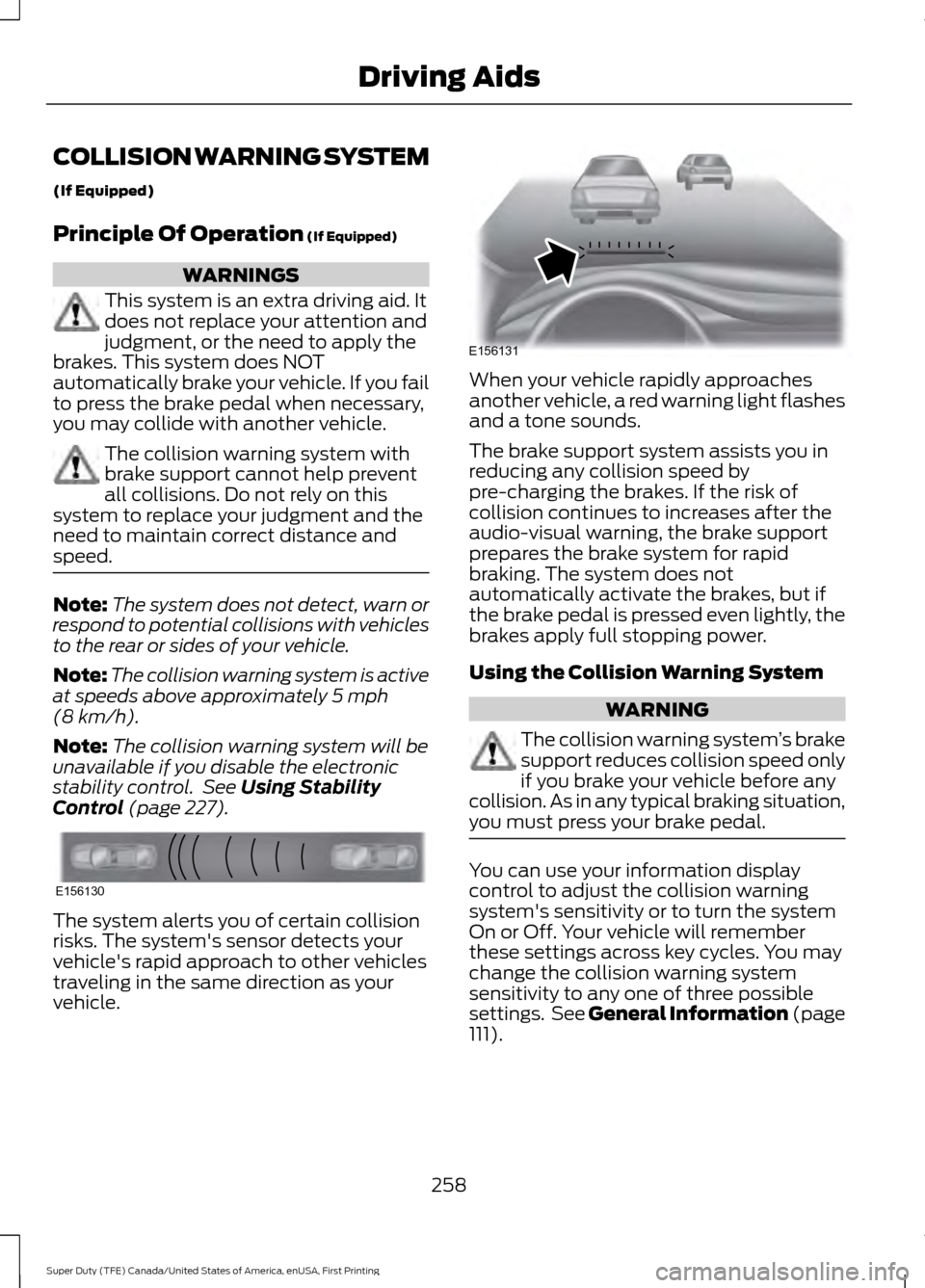
Control (page 227). The system alerts you of certain collision
risks. The system's sensor detects your
vehicle's rapid approach to other vehicles
traveling in the same direction as your
vehicle. When your vehicle rapidly approaches
another vehicle, a red warning light flashes
and a tone sounds.
The brake support system assists you in
reducing any collision speed by
pre-charging the brakes. If the risk of
collision continues to increases after the
audio-visual warning, the brake support
prepares the brake system for rapid
braking. The system does not
automatically activate the brakes, but if
the brake pedal is pressed even lightly, the
brakes apply full stopping power.
Using the Collision Warning System
WARNING
The collision warning system
’s brake
support reduces collision speed only
if you brake your vehicle before any
collision. As in any typical braking situation,
you must press your brake pedal. You can use your information display
control to adjust the collision warning
system's sensitivity or to turn the system
On or Off. Your vehicle will remember
these settings across key cycles. You may
change the collision warning system
sensitivity to any one of three possible
settings. See General Information (page
111
).
258
Super Duty (TFE) Canada/United States of America, enUSA, First Printing Driving AidsE156130 E156131
Page 262 of 636
Note:
It is recommended that you turn the
collision warning system off if a snow plow
or similar object is installed in such a way
that it may block the radar sensor. Your
vehicle will remember the selected setting
across key cycles.
Note: When possible, the manufacturer
recommends using the highest sensitivity
setting. If warnings are too frequent, you can
reduce your system's sensitivity. Reduced
sensitivity causes fewer and later system
warnings. See General Information (page
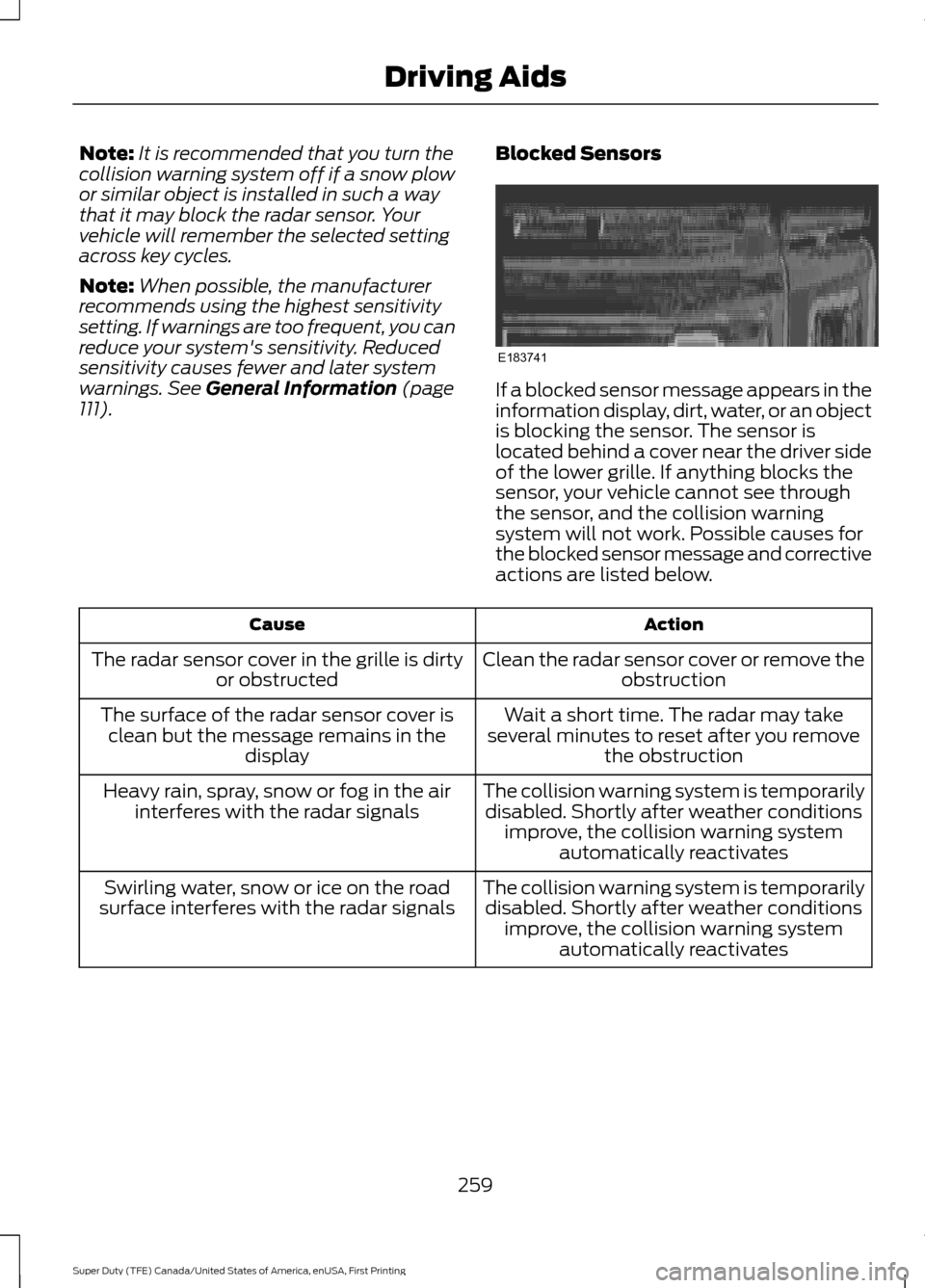
111). Blocked Sensors If a blocked sensor message appears in the
information display, dirt, water, or an object
is blocking the sensor. The sensor is
located behind a cover near the driver side
of the lower grille. If anything blocks the
sensor, your vehicle cannot see through
the sensor, and the collision warning
system will not work. Possible causes for
the blocked sensor message and corrective
actions are listed below.
Action
Cause
Clean the radar sensor cover or remove theobstruction
The radar sensor cover in the grille is dirty
or obstructed
Wait a short time. The radar may take
several minutes to reset after you remove the obstruction
The surface of the radar sensor cover is
clean but the message remains in the display
The collision warning system is temporarilydisabled. Shortly after weather conditions improve, the collision warning system automatically reactivates
Heavy rain, spray, snow or fog in the air
interferes with the radar signals
The collision warning system is temporarilydisabled. Shortly after weather conditions improve, the collision warning system automatically reactivates
Swirling water, snow or ice on the road
surface interferes with the radar signals
259
Super Duty (TFE) Canada/United States of America, enUSA, First Printing Driving AidsE183741
Page 272 of 636
RV & Trailer Towing Guide Online
http://www.fleet.ford.com/towing-guides/
Website
TRAILER REVERSING AIDS
Trailer Reverse Guidance WARNING
Driving while distracted can result in
loss of vehicle control, crash and
injury. We strongly recommend that
you use extreme caution when using any
device that may take your focus off the
road. Your primary responsibility is the safe
operation of your vehicle. We recommend
against the use of any hand-held device
while driving and encourage the use of
voice-operated systems when possible.
Make sure you are aware of all applicable
local laws that may affect the use of
electronic devices while driving. Note:
The system is not a substitute for
safe driving practices.
Note: You must always be aware of the
vehicle and trailer combination and the
surrounding environment.
Note: The system does not detect or
prevent the vehicle or trailer from making
contact with obstacles in the surrounding
environment.
Note: Keep in mind that the front end of
the vehicle swings out when changing the
direction of the trailer. Note:
The system relies on user
measurements to determine sticker
placement and system limits. It is critical to
take the key measurements correctly.
Incorrect measurements can result in the
improper function of the system up to and
including contact between the vehicle and
trailer.
Note: The system limits vehicle speed when
backing up. The system is not a replacement
for proper use of the throttle and brake
pedals.
Principle of Operation
Trailer Reverse Guidance (TRG) is a driver
assistance feature that helps take the
guesswork out of getting your trailer
positioned where you want it, quickly and
easily, while you're driving in reverse.
Each trailer you use with your vehicle has
to be setup once.
Sticker placement is extremely important
and there are specific placement rules.
Setting Up Trailer Reverse
Guidance
Note: Once you have entered a trailer's
information into the system, it is stored for
easy recall. A maximum of 10 trailers can be
added to the system.
Step 1: Position your Vehicle and Trailer
Hitch your trailer to the truck and connect
the electrical wiring harness. Check to
make sure that the wiring is working See
Essential Towing Checks (page 281).
Park your vehicle and hitched trailer on a
level surface.
269
Super Duty (TFE) Canada/United States of America, enUSA, First Printing Towing
Page 274 of 636
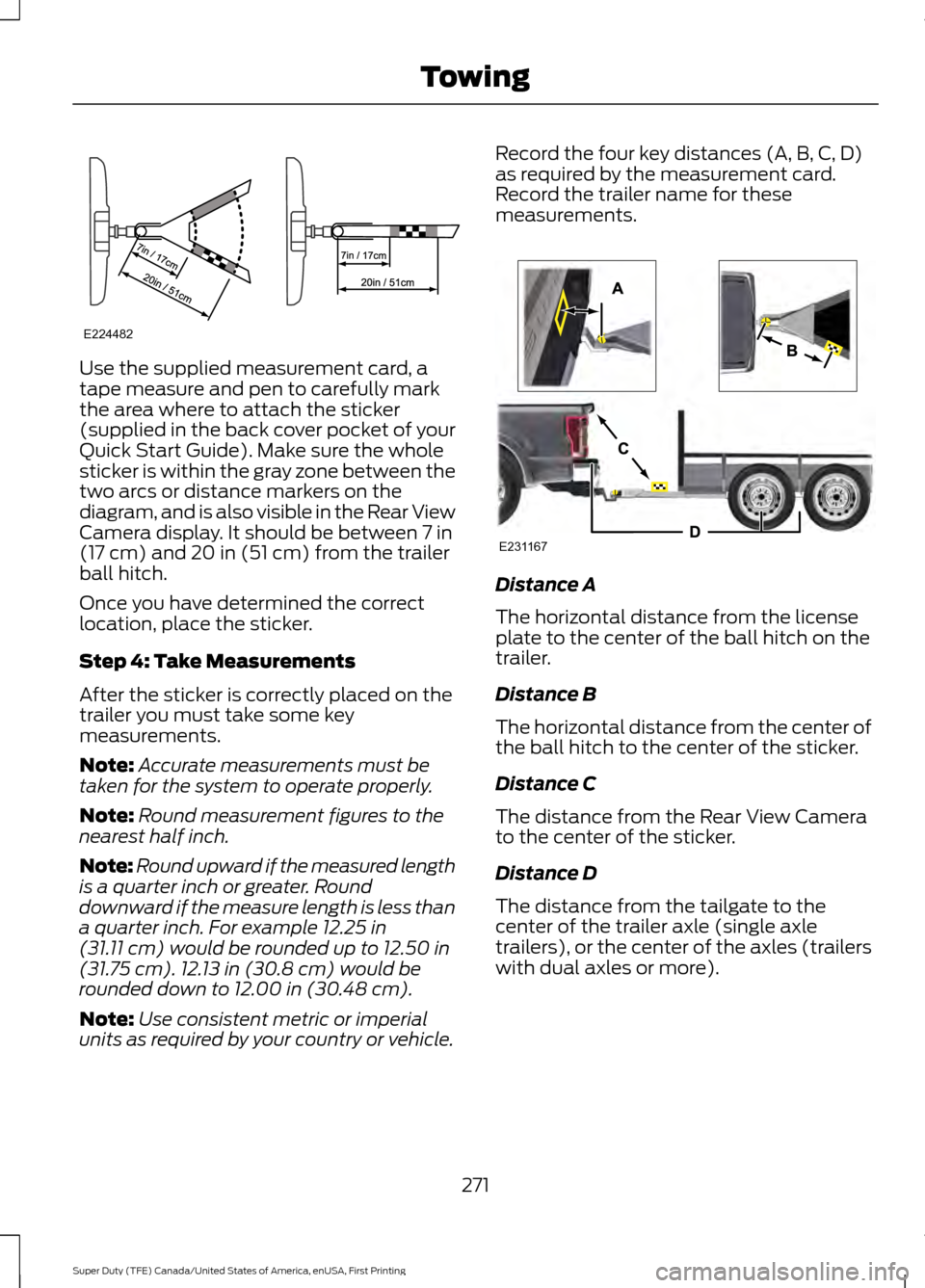
Use the supplied measurement card, a
tape measure and pen to carefully mark
the area where to attach the sticker
(supplied in the back cover pocket of your
Quick Start Guide). Make sure the whole
sticker is within the gray zone between the
two arcs or distance markers on the
diagram, and is also visible in the Rear View
Camera display. It should be between 7 in
(17 cm) and 20 in (51 cm) from the trailer
ball hitch.
Once you have determined the correct
location, place the sticker.
Step 4: Take Measurements
After the sticker is correctly placed on the
trailer you must take some key
measurements.
Note: Accurate measurements must be
taken for the system to operate properly.
Note: Round measurement figures to the
nearest half inch.
Note: Round upward if the measured length
is a quarter inch or greater. Round
downward if the measure length is less than
a quarter inch. For example
12.25 in
(31.11 cm) would be rounded up to 12.50 in
(31.75 cm). 12.13 in (30.8 cm) would be
rounded down to 12.00 in (30.48 cm).
Note: Use consistent metric or imperial
units as required by your country or vehicle. Record the four key distances (A, B, C, D)
as required by the measurement card.
Record the trailer name for these
measurements.
Distance A
The horizontal distance from the license
plate to the center of the ball hitch on the
trailer.
Distance B
The horizontal distance from the center of
the ball hitch to the center of the sticker.
Distance C
The distance from the Rear View Camera
to the center of the sticker.
Distance D
The distance from the tailgate to the
center of the trailer axle (single axle
trailers), or the center of the axles (trailers
with dual axles or more).
271
Super Duty (TFE) Canada/United States of America, enUSA, First Printing TowingE224482 E231167
Page 275 of 636
Step 5: Enter Measurements Using the
Information Display
Using the recorded measurements, enter
the required data into the system. Follow
the on screen prompts to enter each of the
measurements taken in step 4. Use the
up/down arrows to increase or decrease
the numbers as needed. Press OK to
confirm each measurement. The screen
prompts you to add the next
measurement. Once you add your last
measurement, the information display
shows you all of your entered
measurements. You can choose to confirm
or change the measurements.
Step 6: Confirming the Sticker Location
Check the Rear View Camera display to
see if the sticker is identified by the system
and marked with a red circle.
Confirm that the red circle is correctly
located over the sticker image in the
display. The on screen prompt will ask you
to confirm this.
Note:
If the system cannot locate the
sticker try cleaning the camera lens, and
also make sure the sticker is within the zone
as indicated in step 3.
The information display shows a
confirmation message when you
successfully confirm the target.
Calibrating the System
To complete setup, drive your vehicle
straight forward between 4 mph (6 km/h)
and 24 mph (39 km/h) as directed by the
information display.
Note: Keep the steering wheel straight
during the calibration process. If the steering
wheel is in a turned position, then the
calibration pauses. The information display
prompts you to drive straight forward to
complete the calibration. The information display shows a message
during calibration and after calibration is
complete
Note:
For best results, we do not
recommend that you calibrate the system
at night.
Using Trailer Reverse Guidance
1. Shift into reverse (R) if you are not already in reverse. Press the rear
camera button to expand the menu.
2. Press the trailer icon .
3. Select your trailer on your information display.
4. While in TRG mode, you can see the camera view on the side where your
trailer is moving, or both sides when
the trailer is straight behind you. When
the views change with the trailer
direction, it's called Auto Mode. For
example, If you turn the trailer to the
right, then you see the right side of your
vehicle and trailer. You can switch this
view manually at any time by using the
arrow keys. To return to Auto Mode,
press the Auto button.
Note: Auto Mode is your default setting.
Use the view that helps you the most while
backing up your vehicle and trailer. Normal rear view camera view.
Use this feature when you want
to see your trailer hitch or what
is directly behind your vehicle. Straight back-up mode. Use this
feature when you want to keep
your trailer completely in line
with your truck. In this mode, a steering
wheel graphic shows you which way to turn
your steering wheel to keep your trailer
straight.
272
Super Duty (TFE) Canada/United States of America, enUSA, First Printing TowingE224483 E224484
Page 298 of 636
ROADSIDE ASSISTANCE
Vehicles Sold in the United States:
Getting Roadside Assistance
To fully assist you should you have a
vehicle concern, Ford Motor Company
offers a complimentary roadside
assistance program. This program is
separate from the New Vehicle Limited
Warranty. The service is available:
•
24 hours a day, seven days a week.
• For the coverage period listed on the
Roadside Assistance Card included in
your Owner's Manual portfolio.
Roadside Assistance covers:
• A flat tire change with a good spare, if
provided with the vehicle (except
vehicles supplied with a tire inflation
kit).
• Battery jump start.
• Lock-out assistance (key replacement
cost is the customer's responsibility).
• Fuel delivery — independent service
contractors, if not prohibited by state,
local or municipal law, shall deliver up
to 2 gal (7.6 L) of gasoline or 5 gal
(18.9 L) of diesel fuel to a disabled
vehicle. Roadside Assistance limits fuel
delivery service to two no-charge
occurrences within a 12-month period.
• Winch out — available within
100 ft
(30.5 m) of a paved or county
maintained road, no recoveries.
• Towing — independent service
contractors, if not prohibited by state,
local or municipal law, shall tow Ford
eligible vehicles to an authorized dealer
within
35 mi (56 km) of the
disablement location or to the nearest authorized dealer. If a member
requests a tow to an authorized dealer
that is more than
35 mi (56 km) from
the disablement location, the member
shall be responsible for any mileage
costs in excess of
35 mi (56 km).
Roadside Assistance includes up to $200
for a towed trailer if the disabled eligible
vehicle requires service at the nearest
authorized dealer. If the towing vehicle is
operational but the trailer is not, then the
trailer does not qualify for any roadside
services.
Vehicles Sold in the United States:
Using Roadside Assistance
Complete the roadside assistance
identification card and place it in your
wallet for quick reference. This card is in
the owner's information portfolio in the
glove compartment.
United States Ford vehicle customers who
require Roadside Assistance, call
1-800-241-3673.
If you need to arrange roadside assistance
for yourself, Ford Motor Company
reimburses a reasonable amount for
towing to the nearest dealership within
35 mi (56 km)
. To obtain reimbursement
information, United States Ford vehicle
customers call 1-800-241-3673.
Customers need to submit their original
receipts.
Vehicles Sold in Canada: Getting
Roadside Assistance
To fully assist you should you have a
vehicle concern, Ford Motor Company of
Canada, Limited offers a complimentary
roadside assistance program. This program
is eligible within Canada or the continental
United States.
295
Super Duty (TFE) Canada/United States of America, enUSA, First Printing Roadside Emergencies