2017 FORD FUSION ENERGI ECO mode
[x] Cancel search: ECO modePage 402 of 526

PHONE
WARNING
Driving while distracted can result inloss of vehicle control, crash andinjury. We strongly recommend thatyou use extreme caution when using anydevice that may take your focus off theroad. Your primary responsibility is the safeoperation of your vehicle. We recommendagainst the use of any hand-held devicewhile driving and encourage the use ofvoice-operated systems when possible.Make sure you are aware of all applicablelocal laws that may affect the use ofelectronic devices while driving.
Hands-free calling is one of the mainfeatures of the system. Once you pair yourcell phone, you can access many optionsusing the touchscreen or voice commands.While the system supports a variety offeatures, many are dependent on your cellphone’s functionality.
Pairing Your Cell Phone for theFirst Time
Pair your Bluetooth-enabled phone withthe system before using the functions inhands-free mode.
Switch on Bluetooth on your device tobegin pairing. See your phone’s manual ifnecessary.
To add a phone, select:
Menu Item
Add Phone
1. Follow the on-screen instructions.
2. A prompt alerts you to search for thesystem on your phone.
3. Select your vehicle's make and modelas it displays on your phone.
4. Confirm that the six-digit numberappearing on your phone matches thesix-digit number on the touchscreen.
5. The touchscreen indicates when thepairing is successful.
6. Your phone may prompt you to givethe system permission to accessinformation. To check your phone’scompatibility, see your phone’s manualor visit the website.
Alternatively, to add a phone, select:
Menu Item
Add Phone
Then select:
Discover Other Bluetooth Devices
1. Follow the on-screen instructions.
2. Select your phone's name when itappears on the touchscreen.
3. Confirm that the six-digit numberappearing on your phone matches thesix-digit number on the touchscreen.
4. The touchscreen indicates when thepairing is successful.
5. Your phone may prompt you to givethe system permission to accessinformation. To check your phone’scompatibility, see your phone’s manualor visit the website.
At a minimum, most cell phones withBluetooth wireless technology support thefollowing functions:
•Answering an incoming call.
•Ending a call.
•Dialing a number.
•Call waiting notification.
•Caller identification.
399
Fusion Energi / Fusion Hybrid (CC7) Hybrid Electric Vehicle (HEV)/Plug-In Hybrid Electric Vehicle (PHEV), Canada/United States of America, enUSA, Edition date: 201602, Second Printing
SYNC™ 3
Page 407 of 526

2. Select Apple CarPlay on thetouchscreen.
To disable this feature from theSettings screen, select:
Menu Item
Apple CarPlay Preferences
Your device is listed if SYNC detectsApple CarPlay. Select the name of yourdevice and select:
Disable
To return to SYNC 3, go to the AppleCarPlay home screen and select the SYNCapp.
Note:Contact Apple for Apple CarPlaysupport.
Android Auto
Android Auto is compatible with mostdevices with Android 5.0 or newer.
1. Download the Android Auto app toyour device from Google Play toprepare your device (this may requiremobile data usage).
Note:The Android Auto App may not beavailable within your current market.
2. To switch this feature on from theSettings screen, scroll left on thescreen and select:
Menu Item
Android Auto Preferences
Enable Android Auto
Note:Android Auto must be switched onprior to plugging your device.
You can then plug your device into a USBport. See USB Port (page 326).
To disable this feature from theSettings screen, select:
Menu Item
Android Auto Preferences
Your device is listed if SYNC detectsAndroid Auto. Select the name of yourdevice and select:
Disable
Note:You may need to slide your Settingsscreen to the left to select Apple CarPlayPreferences or Android Auto Preferences.
To return to SYNC 3, select thespeedometer icon in the Android Automenu bar at the bottom of thetouchscreen, and then touch the option toreturn to SYNC.
Note:Contact Google for Android Autosupport.
NAVIGATION (If Equipped)
Your navigation system is comprised oftwo main features, destination mode andmap mode.
Map Mode
Map mode shows advanced viewingcomprised of 2D city maps, 3D landmarksand 3D city models (when available). 2Dcity maps show detailed outlines ofbuildings, visible land use, landscapefeatures, and detailed railroadinfrastructure for the most essential citiesaround the globe.
3D landmarks appear as clear, visibleobjects that are typically recognizable andhave a certain tourism value.
404
Fusion Energi / Fusion Hybrid (CC7) Hybrid Electric Vehicle (HEV)/Plug-In Hybrid Electric Vehicle (PHEV), Canada/United States of America, enUSA, Edition date: 201602, Second Printing
SYNC™ 3
Page 408 of 526

3D city models are complete 3D modelsof entire city areas including navigableroads, parks, rivers and rendered buildings.3D landmarks and city models appear in3D map mode only. Coverage of thesevaries and improves with updated mapreleases.
Select the zoom in icon to see acloser view of the map.
Select the zoom out icon to seea farther away view of the map.
You can adjust the view in presetincrements. You can also pinch to zoom inor out of the map.
The information bar tells you the namesof streets, cities or landmarks as you hoverover them with the crosshair curser.
You can change your view of the map bytapping on the location indicator icon onthe right hand side of the screen. You canchoose from the following options:
Heading up (2D map) Thisalways shows the direction offorward travel to be upward onthe screen. This view is availablefor map scales up to 3 mi (5 km).
North up (2D map) alwaysshows the northern direction tobe upward on the screen.
3D map mode provides anelevated perspective of the map.Adjust this viewing angle androtate the map 180 degrees bytouching the map twice, andthen dragging your finger along the shadedbar with arrows at the bottom of the map.
Re-center the map by pressingthis icon whenever you scroll themap away from your vehicle’scurrent location.
Points of Interest (POI)grouping icon: You can chooseup to three POI icons to displayon the map. If the chosen POIsare located close together or areat the same location a box is used todisplay a single category icon instead ofrepeating the same icon, in order to reduceclutter. When you select the box on themap, a pop-up appears indicating howmany POIs are in this location. Select thepop up to see a list of the available POIs.You can scroll through and select POIsfrom this list.
If your vehicle is low on charge or fuel,station icons automatically display on themap.
If you have subscribed to SiriusXM Trafficand Travel Link (where available), trafficflow will be indicated on the map by green(clear), yellow (slowing), and red(stopped) road highlights. Traffic flow isindicated where the information isavailable and varies across the US.
You can choose to display traffic icons onthe map representing twelve differenttypes of incidents. See Settings (page436).
You can set a destination by hoveringabove a location and selecting:
405
Fusion Energi / Fusion Hybrid (CC7) Hybrid Electric Vehicle (HEV)/Plug-In Hybrid Electric Vehicle (PHEV), Canada/United States of America, enUSA, Edition date: 201602, Second Printing
SYNC™ 3E207752 E207753 E207750 E207749 E207748 E207751 E207754
Page 409 of 526
Button
Start
Range Rings and Charge Points (EnergiOnly)
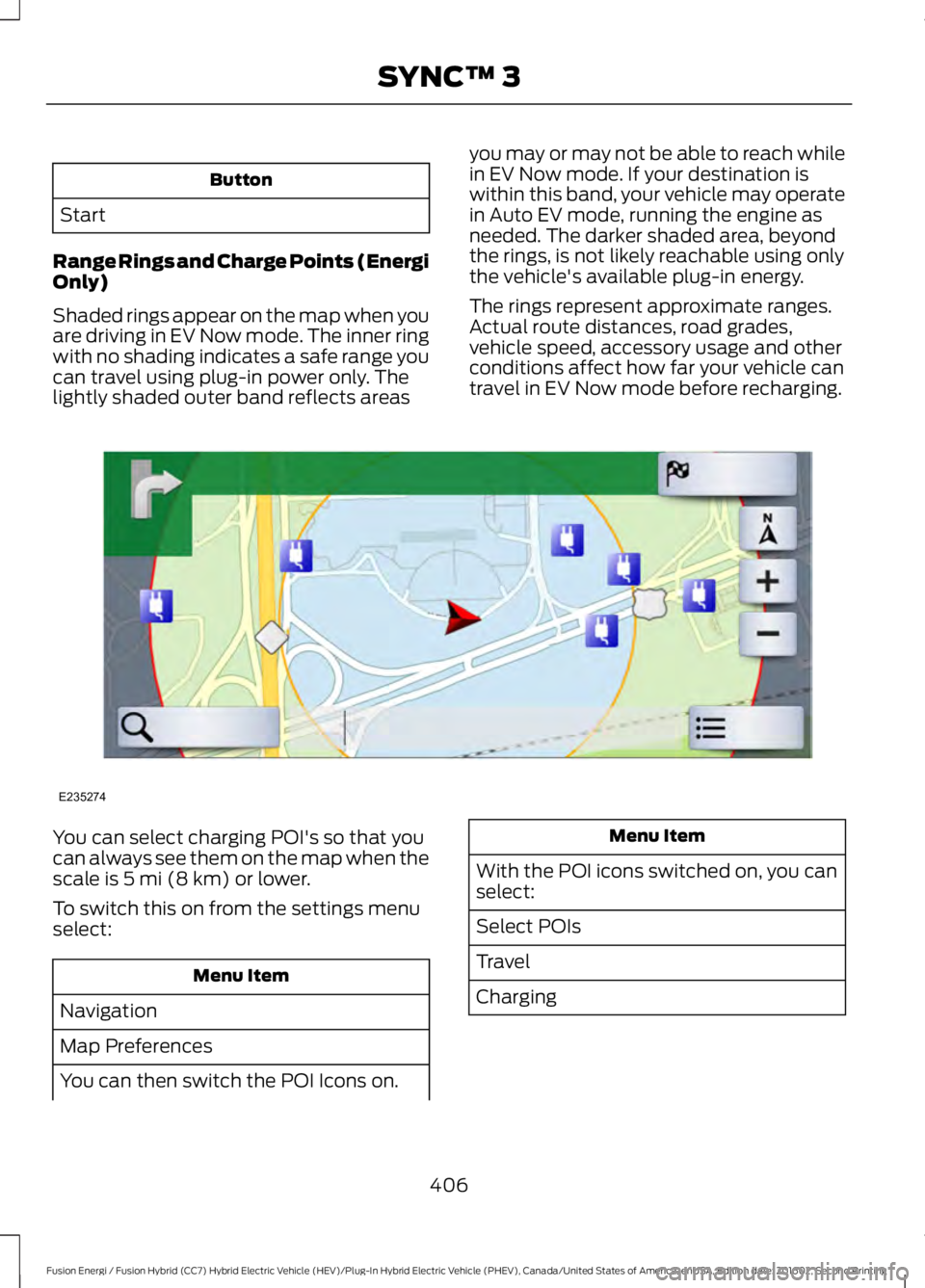
Shaded rings appear on the map when youare driving in EV Now mode. The inner ringwith no shading indicates a safe range youcan travel using plug-in power only. Thelightly shaded outer band reflects areas
you may or may not be able to reach whilein EV Now mode. If your destination iswithin this band, your vehicle may operatein Auto EV mode, running the engine asneeded. The darker shaded area, beyondthe rings, is not likely reachable using onlythe vehicle's available plug-in energy.
The rings represent approximate ranges.Actual route distances, road grades,vehicle speed, accessory usage and otherconditions affect how far your vehicle cantravel in EV Now mode before recharging.
You can select charging POI's so that youcan always see them on the map when thescale is 5 mi (8 km) or lower.
To switch this on from the settings menuselect:
Menu Item
Navigation
Map Preferences
You can then switch the POI Icons on.
Menu Item
With the POI icons switched on, you canselect:
Select POIs
Travel
Charging
406
Fusion Energi / Fusion Hybrid (CC7) Hybrid Electric Vehicle (HEV)/Plug-In Hybrid Electric Vehicle (PHEV), Canada/United States of America, enUSA, Edition date: 201602, Second Printing
SYNC™ 3E235274
Page 410 of 526

Destination Mode
To set a destination, press:
DescriptionMenu Item
Destination
Enter a navigation destination in any of the following formats:
Street AddressSearch
(number, street, city, state)
For example "12 Mainstreet Dearborn MI"
Partial Address(number, street) if searching in current state(number, street and zip code (or postal code in Canada)) if searchingout of stateYou can enter unique addresses that contain door number prefixeswith or without the prefix. For example, you could enter "6N340Fairway Lane" or "340 Fairway Lane".
City
(name or zip code)
Point of Interest
(name or category)
Intersection
(street 1 / street 2)(street 1 and street 2)(street 1 & street 2)(street 1 @ street 2)(street 1 at street 2)
Latitude and Longitude
(##.###### , ##.######)This is in a decimal degrees format, one to six decimal places areaccepted.
You are given autocomplete options below the address bar to selectas you type.If you do not give an exact destination, a menu displays with yourpossible selections.
Collections of your last 40 navigation destinations display here.Previous Destina-tionsYou can select any option from the list to select it as your destination.
407
Fusion Energi / Fusion Hybrid (CC7) Hybrid Electric Vehicle (HEV)/Plug-In Hybrid Electric Vehicle (PHEV), Canada/United States of America, enUSA, Edition date: 201602, Second Printing
SYNC™ 3
Page 412 of 526

DescriptionMenu Item
Press to view additional categories. Once you have selecteda category, follow the menus to find what you are lookingfor.
See All
Inside of these categories you can search by:
Nearby
Along Route
Near Destination
In a City
Once you have chosen your destination, press:
Action and DescriptionMenu Item
This saves the destination to your favorites.Save
This shows you a map of your entire route. You can then choose yourroute from three different options.Start
Uses the fastest moving roadspossible.Fastest
Uses the shortest distance possible.Shortest
Uses the most fuel-efficient route.Economical Route
The time and distance for each route also displays.
On the route screen, you can choose to cancel the current navigation.The system asks for confirmation then returns you to the map modescreen.
Cancel
Once you have chosen you destination, press:
Action and DescriptionMenu Item
The system uses a variety of screens and prompts to guide you to yourdestination.Start
During Route guidance, you can press the maneuver arrow icon on themap if you want the system to repeat route guidance instructions.When the system repeats the last guidance instruction, it updates thedistance to the next guidance instruction, since it detects that thevehicle is moving.
409
Fusion Energi / Fusion Hybrid (CC7) Hybrid Electric Vehicle (HEV)/Plug-In Hybrid Electric Vehicle (PHEV), Canada/United States of America, enUSA, Edition date: 201602, Second Printing
SYNC™ 3
Page 413 of 526

Action and DescriptionMenu Item
The navigation map shows your estimated time of arrival, remainingtravel time and the distance to your destination.SYNC 3 may not always announce vehicle arrival at the exact pointof your destination and you may have to cancel a route manually.
Navigation Menu
In map mode and during active navigationyou can access the navigation menu.
During active navigation, touch the bottomof the screen to view the menu and otherbuttons.
To access the Navigation menu, press:
Button
Menu
You can then select:
A full screen map displays during navigation.Full MapScreen View
Highway exit information displays on the right hand sideof the screen during navigation.HighwayExit InfoPoints of interest icons display for restaurants, hotels,fuel stations and ATMs when they are present at theexit. You can select the POI icons to receive a listing ofspecific locations. You can select the POI location as awaypoint or destination if desired.
Only available during an active route. Displays all of theturns on the current route.Turn List
You can choose to avoid any road on the turn list byselecting the road from the list. A screen then appearsand you can press:
Avoid
The system calculates a new route and displays a newturn list.
You can find the SiriusXM Traffic and Travel Link information bypressing this button. This information requires an active subscriptionto SiriusXM Traffic and Travel Link.
Traffic List
When a route is not active, a list of nearby traffic incidents displays(if any are present).When a route is active, you can choose to display a list of traffic nearbyor on the route.
410
Fusion Energi / Fusion Hybrid (CC7) Hybrid Electric Vehicle (HEV)/Plug-In Hybrid Electric Vehicle (PHEV), Canada/United States of America, enUSA, Edition date: 201602, Second Printing
SYNC™ 3
Page 414 of 526

Button
Press this button to adjust your preferences. See Settings (page 436).NavigationSettings
Provides your current location city and the nearest road.Where Am I?
The following are only available on the menu during an active navigation route:
The system asks for confirmation and then returns you to the mapmode screen.Cancel Route
Selecting this option switches off the audio navigation guidance. Pressthe button again to un-mute guidance.Mute Guidance
Press this to see a map of the full route.View Route
An alternate route displays in comparison with the current route.Detour
Only available if you have an active waypoint on your route. SeeWaypoints later in this section for information on how to setwaypoints.
Edit Waypoints
Use this button to re-order or remove your waypoints.
Optimize OrderYou canalso havethe systemset theorder foryou bypressing:
GoTo return toyour routepress:
Waypoints
You can add a waypoint to a navigationroute as a destination along your route.
To add a waypoint:
1. Select the search icon (magnifyingglass) while on an active route. Thisbrings up the destination menu.
2. Set your destination using any of thegiven methods. Once the destinationhas been selected, the screen allowsyou to set the destination as awaypoint by selecting:
411
Fusion Energi / Fusion Hybrid (CC7) Hybrid Electric Vehicle (HEV)/Plug-In Hybrid Electric Vehicle (PHEV), Canada/United States of America, enUSA, Edition date: 201602, Second Printing
SYNC™ 3