2017 FORD FOCUS ELECTRIC battery location
[x] Cancel search: battery locationPage 243 of 367
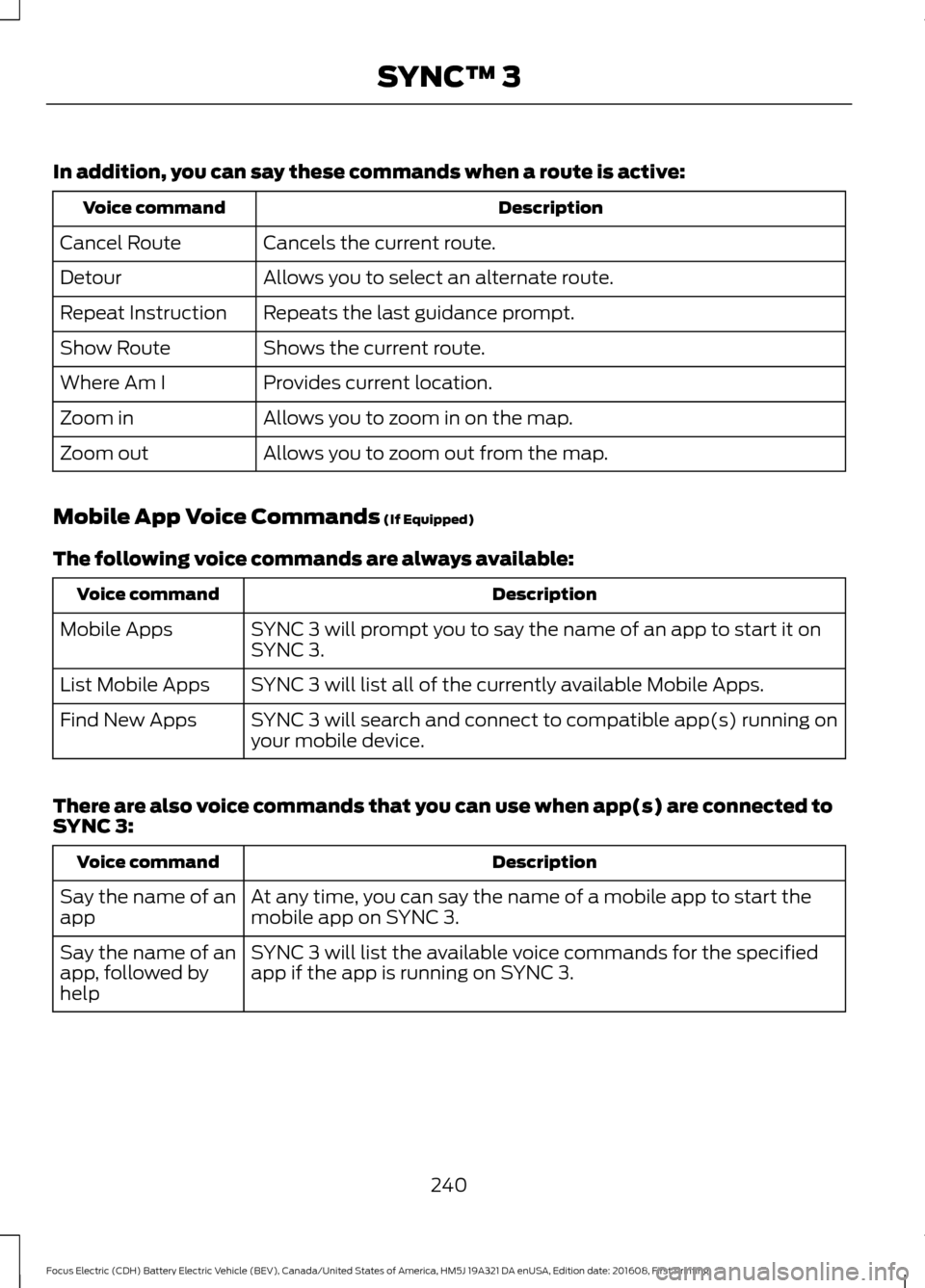
In addition, you can say these commands when a route is active:
Description
Voice command
Cancels the current route.
Cancel Route
Allows you to select an alternate route.
Detour
Repeats the last guidance prompt.
Repeat Instruction
Shows the current route.
Show Route
Provides current location.
Where Am I
Allows you to zoom in on the map.
Zoom in
Allows you to zoom out from the map.
Zoom out
Mobile App Voice Commands (If Equipped)
The following voice commands are always available: Description
Voice command
SYNC 3 will prompt you to say the name of an app to start it on
SYNC 3.
Mobile Apps
SYNC 3 will list all of the currently available Mobile Apps.
List Mobile Apps
SYNC 3 will search and connect to compatible app(s) running on
your mobile device.
Find New Apps
There are also voice commands that you can use when app(s) are connected to
SYNC 3: Description
Voice command
At any time, you can say the name of a mobile app to start the
mobile app on SYNC 3.
Say the name of an
app
SYNC 3 will list the available voice commands for the specified
app if the app is running on SYNC 3.
Say the name of an
app, followed by
help
240
Focus Electric (CDH) Battery Electric Vehicle (BEV), Canada/United States of America, HM5J 19A321 DA enUSA, Edition date: 201608, First Printing SYNC™ 3
Page 252 of 367
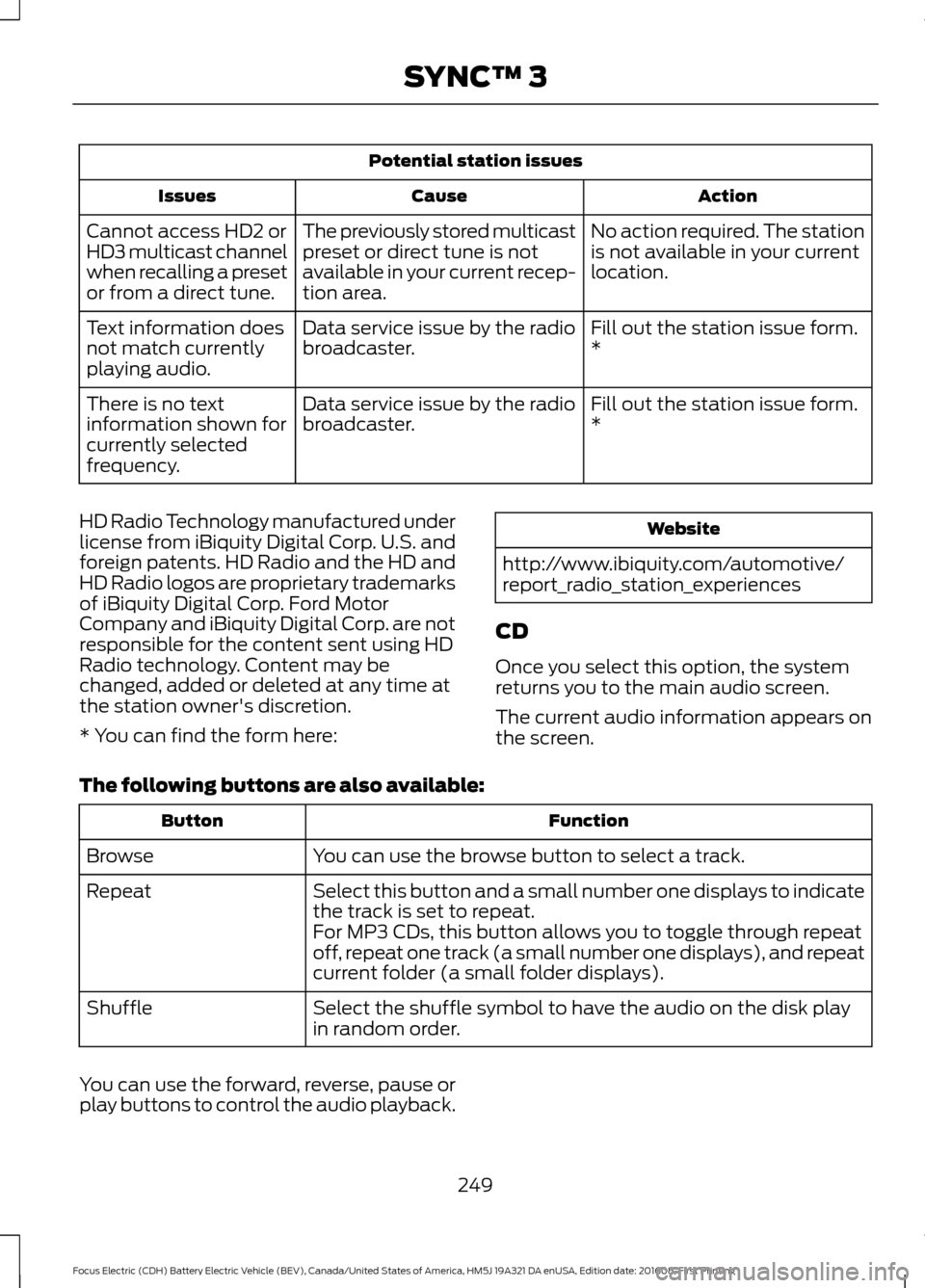
Potential station issues
Action
Cause
Issues
No action required. The station
is not available in your current
location.
The previously stored multicast
preset or direct tune is not
available in your current recep-
tion area.
Cannot access HD2 or
HD3 multicast channel
when recalling a preset
or from a direct tune.
Fill out the station issue form.
*
Data service issue by the radio
broadcaster.
Text information does
not match currently
playing audio.
Fill out the station issue form.
*
Data service issue by the radio
broadcaster.
There is no text
information shown for
currently selected
frequency.
HD Radio Technology manufactured under
license from iBiquity Digital Corp. U.S. and
foreign patents. HD Radio and the HD and
HD Radio logos are proprietary trademarks
of iBiquity Digital Corp. Ford Motor
Company and iBiquity Digital Corp. are not
responsible for the content sent using HD
Radio technology. Content may be
changed, added or deleted at any time at
the station owner's discretion.
* You can find the form here: Website
http://www.ibiquity.com/automotive/
report_radio_station_experiences
CD
Once you select this option, the system
returns you to the main audio screen.
The current audio information appears on
the screen.
The following buttons are also available: Function
Button
You can use the browse button to select a track.
Browse
Select this button and a small number one displays to indicate
the track is set to repeat.
Repeat
For MP3 CDs, this button allows you to toggle through repeat
off, repeat one track (a small number one displays), and repeat
current folder (a small folder displays).
Select the shuffle symbol to have the audio on the disk play
in random order.
Shuffle
You can use the forward, reverse, pause or
play buttons to control the audio playback.
249
Focus Electric (CDH) Battery Electric Vehicle (BEV), Canada/United States of America, HM5J 19A321 DA enUSA, Edition date: 201608, First Printing SYNC™ 3
Page 261 of 367
3D city models are complete 3D models
of entire city areas including navigable
roads, parks, rivers and rendered buildings.
3D landmarks and city models appear in
3D map mode only. Coverage of these
varies and improves with updated map
releases.
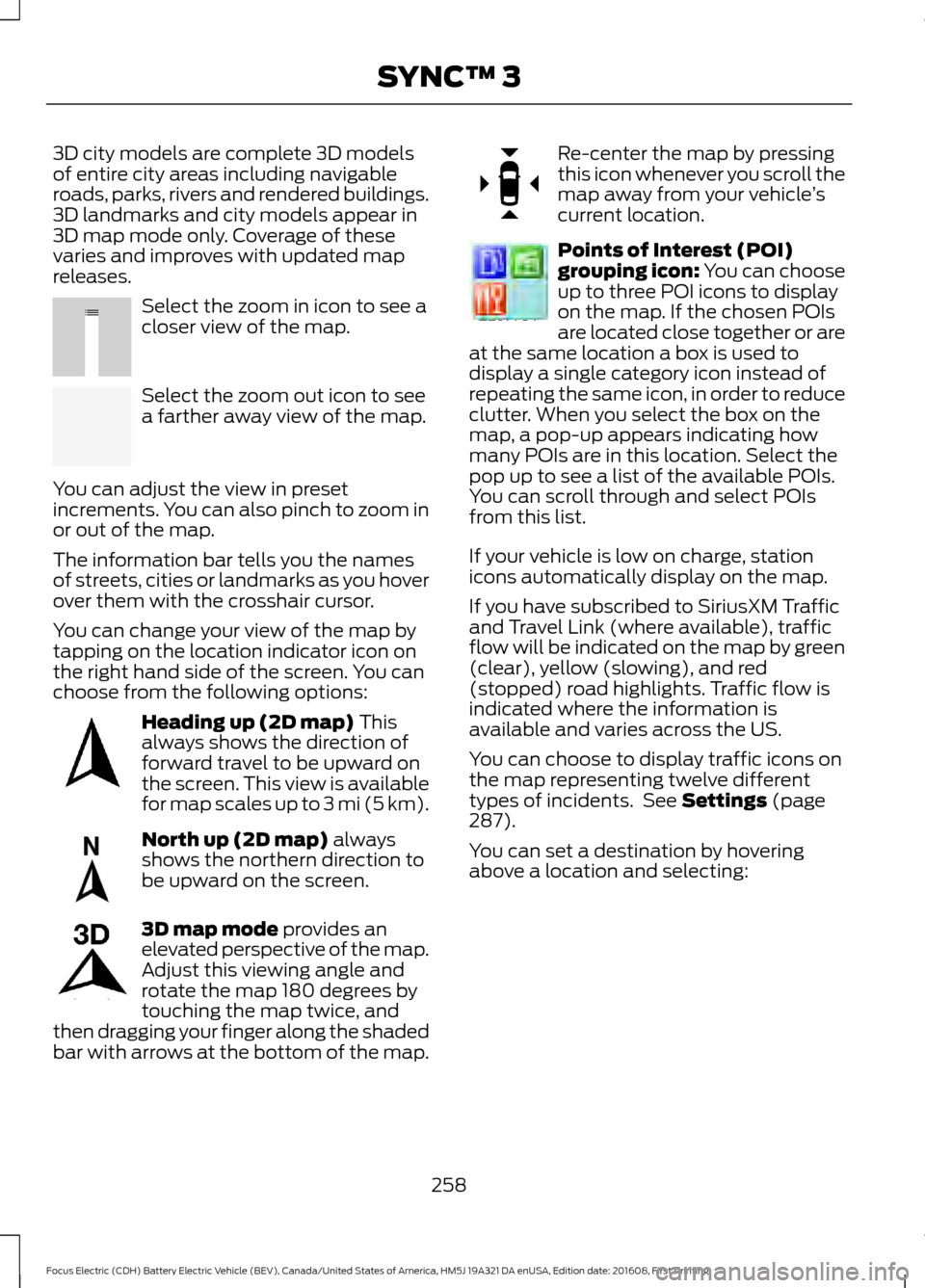
Select the zoom in icon to see a
closer view of the map.
Select the zoom out icon to see
a farther away view of the map.
You can adjust the view in preset
increments. You can also pinch to zoom in
or out of the map.
The information bar tells you the names
of streets, cities or landmarks as you hover
over them with the crosshair cursor.
You can change your view of the map by
tapping on the location indicator icon on
the right hand side of the screen. You can
choose from the following options: Heading up (2D map) This
always shows the direction of
forward travel to be upward on
the screen. This view is available
for map scales up to
3 mi (5 km). North up (2D map)
always
shows the northern direction to
be upward on the screen. 3D map mode
provides an
elevated perspective of the map.
Adjust this viewing angle and
rotate the map 180 degrees by
touching the map twice, and
then dragging your finger along the shaded
bar with arrows at the bottom of the map. Re-center the map by pressing
this icon whenever you scroll the
map away from your vehicle
’s
current location. Points of Interest (POI)
grouping icon: You can choose
up to three POI icons to display
on the map. If the chosen POIs
are located close together or are
at the same location a box is used to
display a single category icon instead of
repeating the same icon, in order to reduce
clutter. When you select the box on the
map, a pop-up appears indicating how
many POIs are in this location. Select the
pop up to see a list of the available POIs.
You can scroll through and select POIs
from this list.
If your vehicle is low on charge, station
icons automatically display on the map.
If you have subscribed to SiriusXM Traffic
and Travel Link (where available), traffic
flow will be indicated on the map by green
(clear), yellow (slowing), and red
(stopped) road highlights. Traffic flow is
indicated where the information is
available and varies across the US.
You can choose to display traffic icons on
the map representing twelve different
types of incidents. See
Settings (page
287).
You can set a destination by hovering
above a location and selecting:
258
Focus Electric (CDH) Battery Electric Vehicle (BEV), Canada/United States of America, HM5J 19A321 DA enUSA, Edition date: 201608, First Printing SYNC™ 3E207752 E207753 E207750 E207749 E207748 E207751 E207754
Page 264 of 367
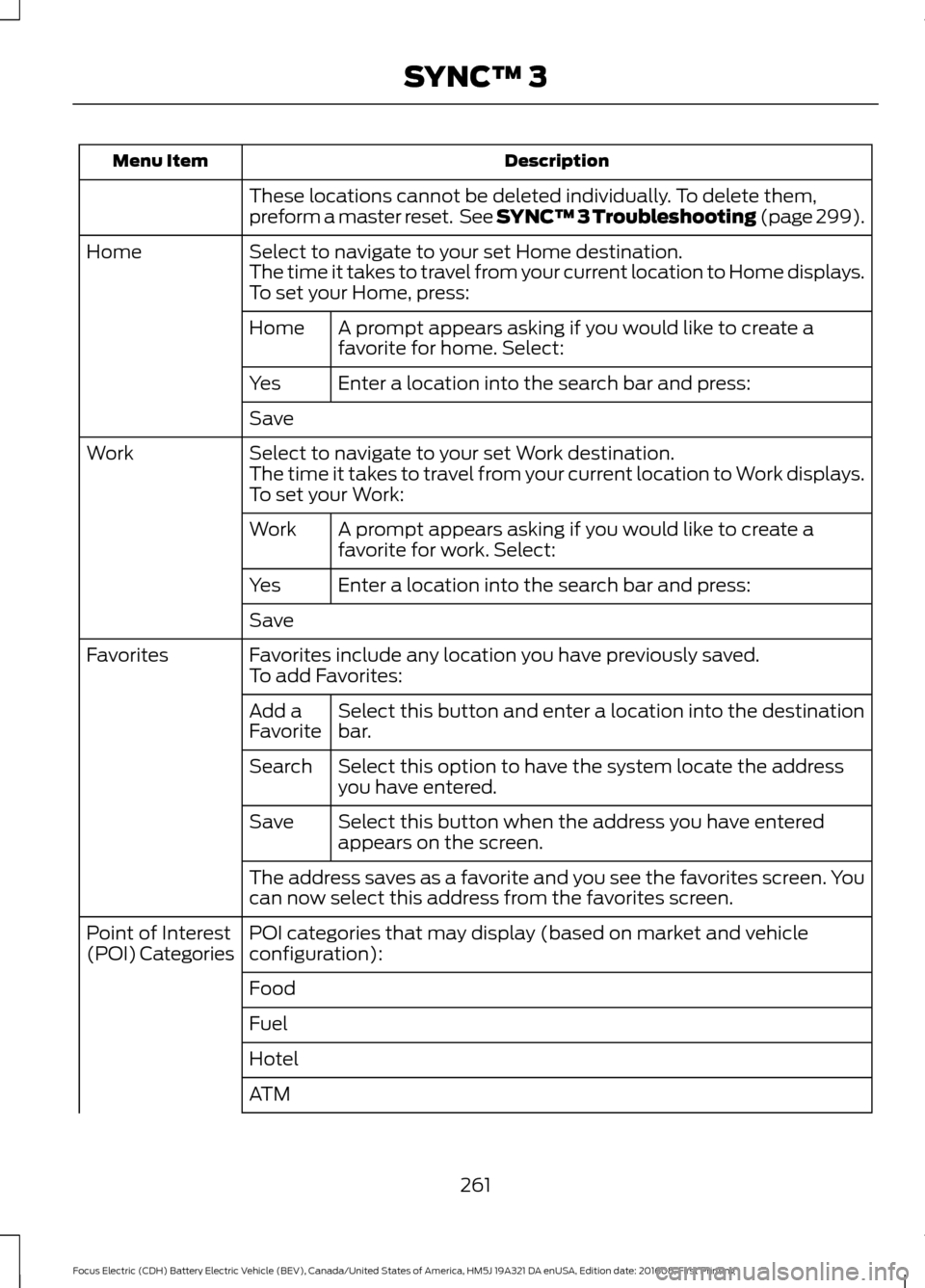
Description
Menu Item
These locations cannot be deleted individually. To delete them,
preform a master reset. See SYNC™ 3 Troubleshooting (page 299).
Select to navigate to your set Home destination.
Home
The time it takes to travel from your current location to Home displays.
To set your Home, press:
A prompt appears asking if you would like to create a
favorite for home. Select:
Home
Enter a location into the search bar and press:
Yes
Save
Select to navigate to your set Work destination.
Work
The time it takes to travel from your current location to Work displays.
To set your Work:
A prompt appears asking if you would like to create a
favorite for work. Select:
Work
Enter a location into the search bar and press:
Yes
Save
Favorites include any location you have previously saved.
Favorites
To add Favorites:
Select this button and enter a location into the destination
bar.
Add a
Favorite
Select this option to have the system locate the address
you have entered.
Search
Select this button when the address you have entered
appears on the screen.
Save
The address saves as a favorite and you see the favorites screen. You
can now select this address from the favorites screen.
POI categories that may display (based on market and vehicle
configuration):
Point of Interest
(POI) Categories
Food
Fuel
Hotel
ATM
261
Focus Electric (CDH) Battery Electric Vehicle (BEV), Canada/United States of America, HM5J 19A321 DA enUSA, Edition date: 201608, First Printing SYNC™ 3
Page 266 of 367
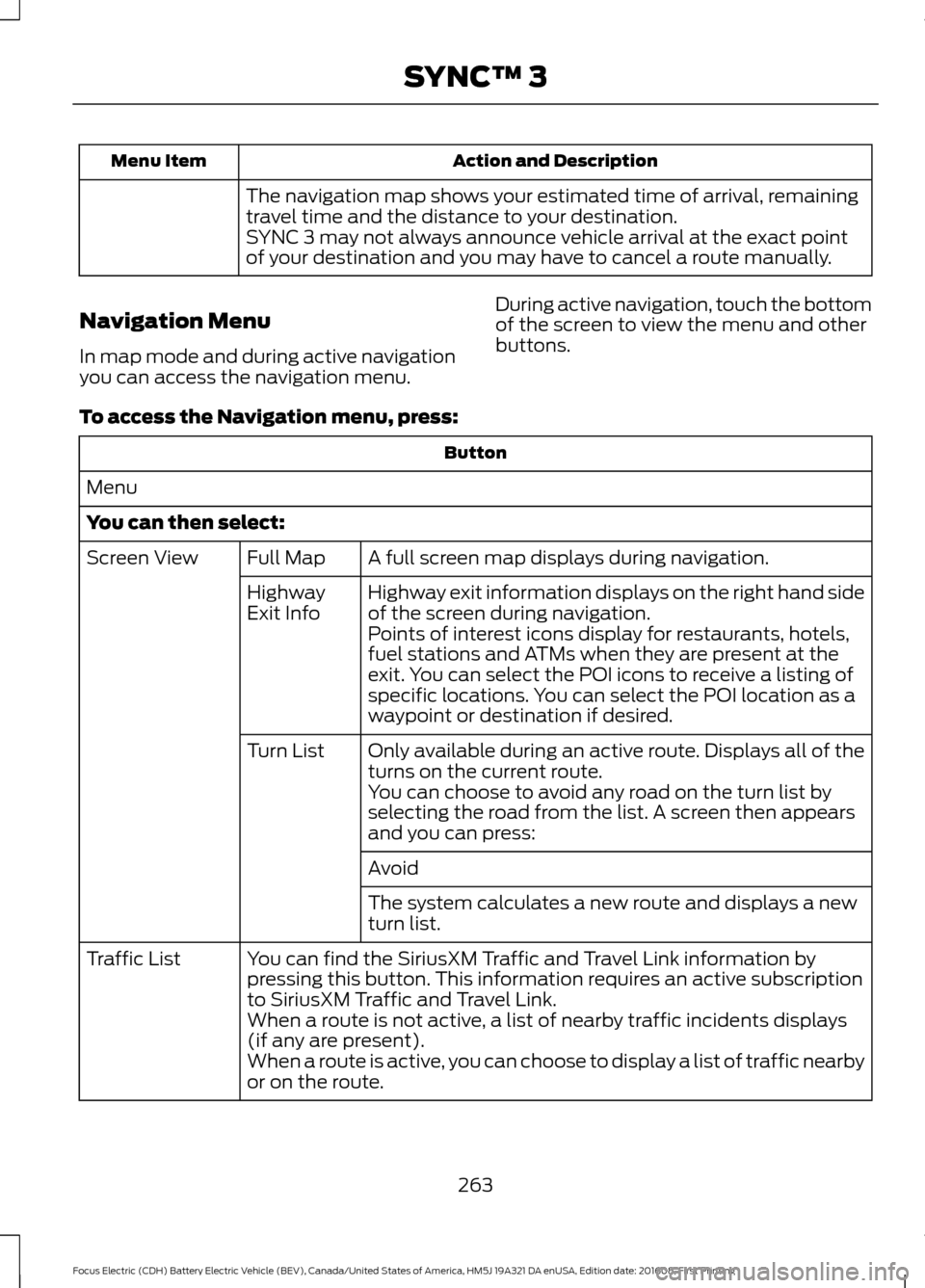
Action and Description
Menu Item
The navigation map shows your estimated time of arrival, remaining
travel time and the distance to your destination.
SYNC 3 may not always announce vehicle arrival at the exact point
of your destination and you may have to cancel a route manually.
Navigation Menu
In map mode and during active navigation
you can access the navigation menu. During active navigation, touch the bottom
of the screen to view the menu and other
buttons.
To access the Navigation menu, press: Button
Menu
You can then select: A full screen map displays during navigation.
Full Map
Screen View
Highway exit information displays on the right hand side
of the screen during navigation.
Highway
Exit Info
Points of interest icons display for restaurants, hotels,
fuel stations and ATMs when they are present at the
exit. You can select the POI icons to receive a listing of
specific locations. You can select the POI location as a
waypoint or destination if desired.
Only available during an active route. Displays all of the
turns on the current route.
Turn List
You can choose to avoid any road on the turn list by
selecting the road from the list. A screen then appears
and you can press:
Avoid
The system calculates a new route and displays a new
turn list.
You can find the SiriusXM Traffic and Travel Link information by
pressing this button. This information requires an active subscription
to SiriusXM Traffic and Travel Link.
Traffic List
When a route is not active, a list of nearby traffic incidents displays
(if any are present).
When a route is active, you can choose to display a list of traffic nearby
or on the route.
263
Focus Electric (CDH) Battery Electric Vehicle (BEV), Canada/United States of America, HM5J 19A321 DA enUSA, Edition date: 201608, First Printing SYNC™ 3
Page 267 of 367
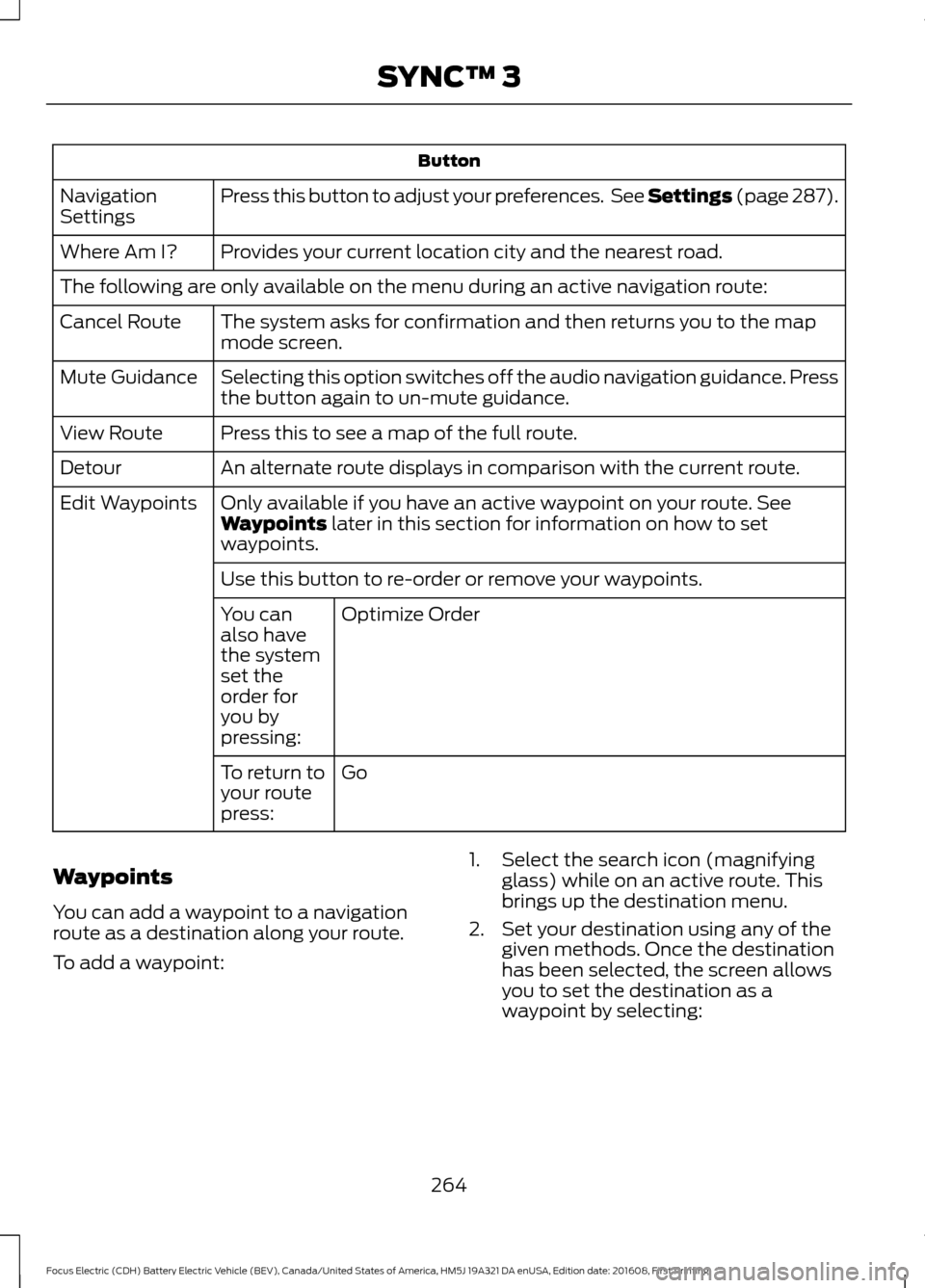
Button
Press this button to adjust your preferences. See Settings (page 287).
Navigation
Settings
Provides your current location city and the nearest road.
Where Am I?
The following are only available on the menu during an active navigation route:
The system asks for confirmation and then returns you to the map
mode screen.
Cancel Route
Selecting this option switches off the audio navigation guidance. Press
the button again to un-mute guidance.
Mute Guidance
Press this to see a map of the full route.
View Route
An alternate route displays in comparison with the current route.
Detour
Only available if you have an active waypoint on your route. See
Waypoints
later in this section for information on how to set
waypoints.
Edit Waypoints
Use this button to re-order or remove your waypoints.Optimize Order
You can
also have
the system
set the
order for
you by
pressing:
Go
To return to
your route
press:
Waypoints
You can add a waypoint to a navigation
route as a destination along your route.
To add a waypoint: 1. Select the search icon (magnifying
glass) while on an active route. This
brings up the destination menu.
2. Set your destination using any of the given methods. Once the destination
has been selected, the screen allows
you to set the destination as a
waypoint by selecting:
264
Focus Electric (CDH) Battery Electric Vehicle (BEV), Canada/United States of America, HM5J 19A321 DA enUSA, Edition date: 201608, First Printing SYNC™ 3
Page 268 of 367
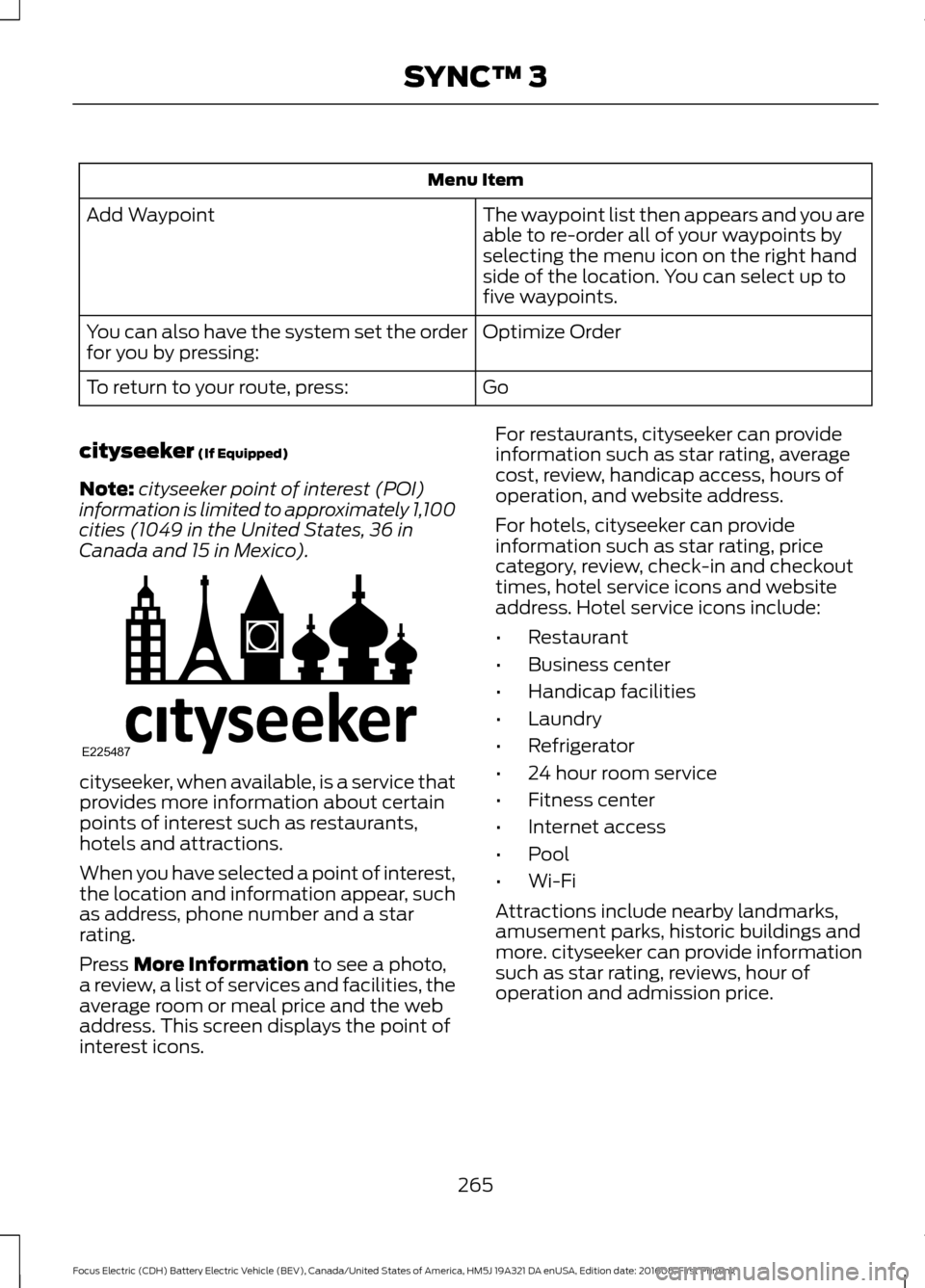
Menu Item
The waypoint list then appears and you are
able to re-order all of your waypoints by
selecting the menu icon on the right hand
side of the location. You can select up to
five waypoints.
Add Waypoint
Optimize Order
You can also have the system set the order
for you by pressing:
Go
To return to your route, press:
cityseeker (If Equipped)
Note: cityseeker point of interest (POI)
information is limited to approximately 1,100
cities (1049 in the United States, 36 in
Canada and 15 in Mexico). cityseeker, when available, is a service that
provides more information about certain
points of interest such as restaurants,
hotels and attractions.
When you have selected a point of interest,
the location and information appear, such
as address, phone number and a star
rating.
Press
More Information to see a photo,
a review, a list of services and facilities, the
average room or meal price and the web
address. This screen displays the point of
interest icons. For restaurants, cityseeker can provide
information such as star rating, average
cost, review, handicap access, hours of
operation, and website address.
For hotels, cityseeker can provide
information such as star rating, price
category, review, check-in and checkout
times, hotel service icons and website
address. Hotel service icons include:
•
Restaurant
• Business center
• Handicap facilities
• Laundry
• Refrigerator
• 24 hour room service
• Fitness center
• Internet access
• Pool
• Wi-Fi
Attractions include nearby landmarks,
amusement parks, historic buildings and
more. cityseeker can provide information
such as star rating, reviews, hour of
operation and admission price.
265
Focus Electric (CDH) Battery Electric Vehicle (BEV), Canada/United States of America, HM5J 19A321 DA enUSA, Edition date: 201608, First Printing SYNC™ 3E225487
Page 273 of 367
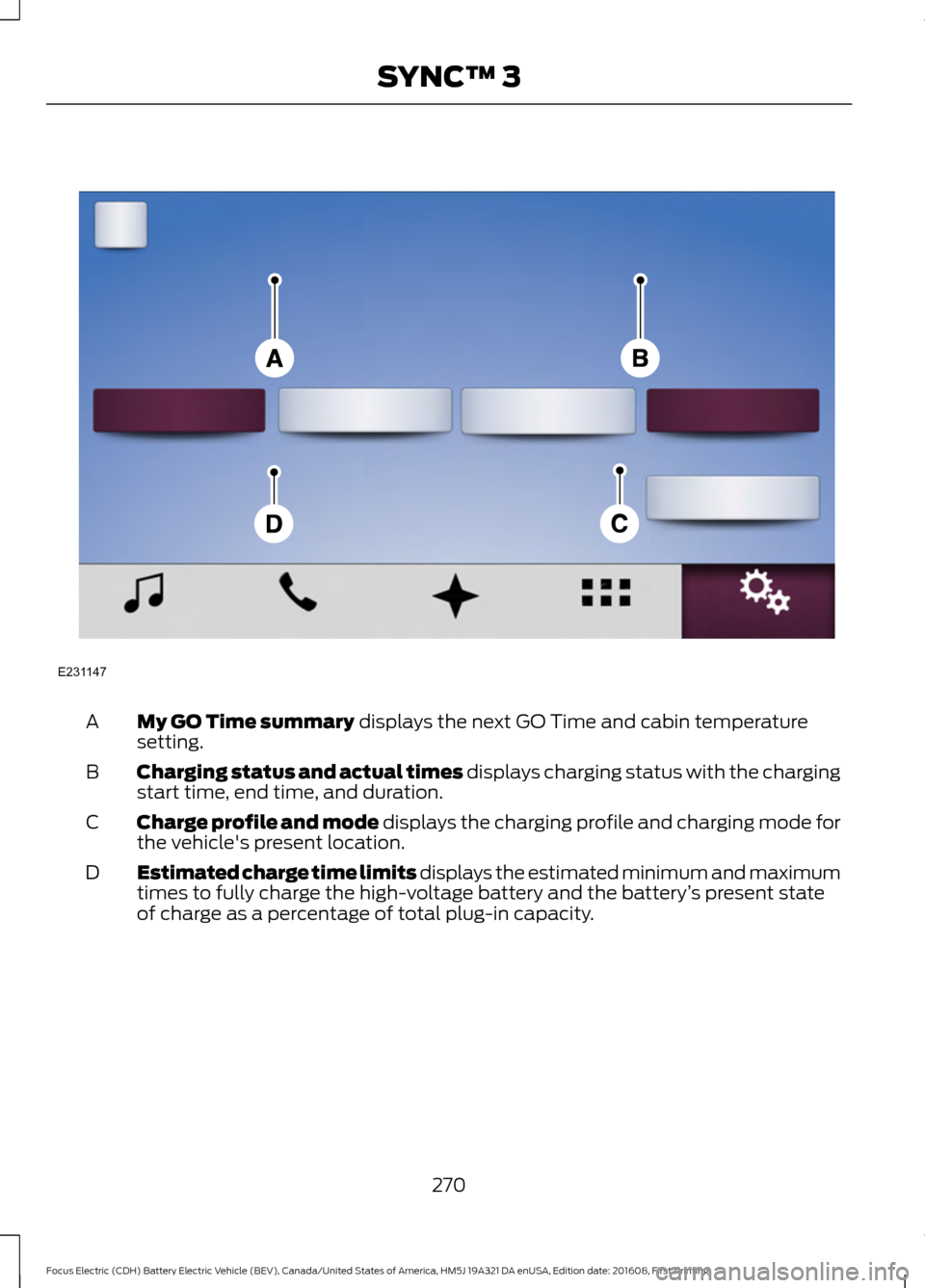
My GO Time summary displays the next GO Time and cabin temperature
setting.
A
Charging status and actual times displays charging status with the charging
start time, end time, and duration.
B
Charge profile and mode displays the charging profile and charging mode for
the vehicle's present location.
C
Estimated charge time limits displays the estimated minimum and maximum
times to fully charge the high-voltage battery and the battery ’s present state
of charge as a percentage of total plug-in capacity.
D
270
Focus Electric (CDH) Battery Electric Vehicle (BEV), Canada/United States of America, HM5J 19A321 DA enUSA, Edition date: 201608, First Printing SYNC™ 3E231147