2017 FORD F450 SUPER DUTY navigation
[x] Cancel search: navigationPage 500 of 642

FunctionsFeature Bar Item
Allows you to see your vehicle's location ona virtual road map, get driving directions toyour destination and find points of interestalong your route.
Navigation
(If equipped)
Connect and control SYNC 3 compatibleapps running on your iphone or androiddevice. Also, access built-in additionalfeatures such as SiriusXM Traffic and TravelLink (if equipped).
Apps
You can customize your system withvarious settings for the touchscreen display,feature preferences, and how you want tointeract with your vehicle.
Settings
Cleaning the Touchscreen
You can remove fingerprints with a dry,clean, soft cloth.
If dirt or fingerprints are still on the screen,apply a small amount of alcohol to thecloth and try to clean it again.
Note: Do not use detergent or any type ofsolvent to clean the touchscreen.
Note:Do not pour or spray alcohol onto thetouchscreen.
Using Voice Recognition
Using voice commands allows you to keepyour hands on the wheel and focus onwhat is in front of you. The system providesfeedback through audible tones, prompts,questions and spoken confirmationsdepending on the situation and the chosenlevel of interaction (voice settings).
The system also asks short questions(confirmation prompts) when it is not sureof your request or when there are multiplepossible responses to your request.
When using voice commands, words andicons may appear in the status barindicating the status of the voice commandsession. See Using Voice Recognition(page 505).
Using the Steering Wheel Controls
Depending on your vehicle and optionpackage, you can use different controls onyour steering wheel to interact with thetouchscreen system in different ways.
VOL: Control the volume of audio output.
Mute: Mute the audio output.
Voice: Press to start a voice session. Pressagain to stop the voice prompt andimmediately begin speaking. Press andhold to end a voice session.
SEEK NEXT:
•While in radio mode, press to seekbetween memory presets.
•While in USB, Bluetooth Audio or CDmode, press to seek between songs orpress and hold to fast seek.
497
Super Duty (TFE) Canada/United States of America, enUSA, Edition date: 201710, Second Printing
SYNC™ 3 (If Equipped)
Page 503 of 642

911 Assist May Not Work If
•Your cellular phone or 911 Assisthardware sustains damage in a crash.
•The vehicle's battery or the SYNCsystem has no power.
•The phone(s) thrown from your vehicleare the ones paired and connected tothe system.
911 Assist Privacy Notice
When you switch on 911 Assist, it maydisclose to emergency services that yourvehicle has been in a crash involving thedeployment of an airbag or activation ofthe fuel pump shut-off. Certain versions orupdates to 911 Assist may also be capableof electronically or verbally disclosing to911 operators your vehicle location or otherdetails about your vehicle or crash to assist911 operators to provide the mostappropriate emergency services. If you donot want to disclose this information, donot switch the feature on.
Safety Information
WARNING
Driving while distracted can result inloss of vehicle control, crash andinjury. We strongly recommend thatyou use extreme caution when using anydevice that may take your focus off theroad. Your primary responsibility is the safeoperation of your vehicle. We recommendagainst the use of any hand-held devicewhile driving and encourage the use ofvoice-operated systems when possible.Make sure you are aware of all applicablelocal laws that may affect the use ofelectronic devices while driving.
•Do not attempt to service or repair thesystem. Have an authorized dealercheck your vehicle.
•Do not operate playing devices if thepower cords or cables are broken, splitor damaged. Place cords and cablesout of the way, so they do not interferewith the operation of pedals, seats,compartments or safe driving abilities.
•Do not leave playing devices in yourvehicle during extreme conditions as itcould cause them damage. See yourdevice's user guide for furtherinformation.
•For your safety, some SYNC 3 functionsare speed-dependent. Their use islimited to when your vehicle is travelingat speeds under 3 mph (5 km/h). Makesure that you review your device'smanual before using it with SYNC 3.
Speed-restricted Features
Some features of this system may be toodifficult to use while your vehicle is movingso they are restricted from use unless yourvehicle is stationary.
•Screens crowded with information,such as Point of Interest reviews andratings, SiriusXM Traffic and Travel Linksports scores, movie times or skiconditions.
•Any action that requires you to use akeyboard is restricted, such as enteringa navigation destination or editinginformation.
•All lists are limited so the user can viewfewer entries (such as phone contactsor recent phone call entries).
See the following chart for more specificexamples.
500
Super Duty (TFE) Canada/United States of America, enUSA, Edition date: 201710, Second Printing
SYNC™ 3 (If Equipped)
Page 504 of 642
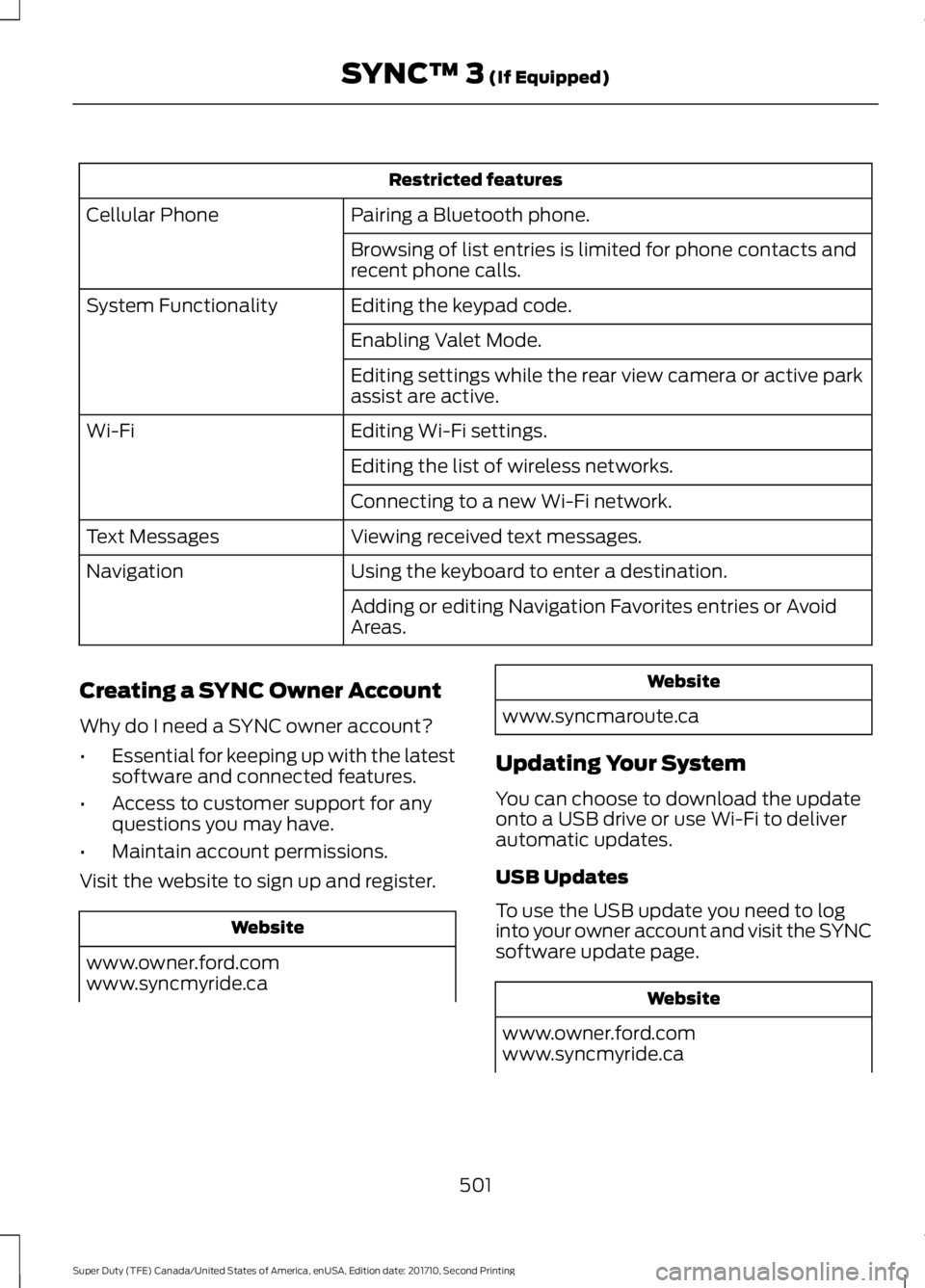
Restricted features
Pairing a Bluetooth phone.Cellular Phone
Browsing of list entries is limited for phone contacts andrecent phone calls.
Editing the keypad code.System Functionality
Enabling Valet Mode.
Editing settings while the rear view camera or active parkassist are active.
Editing Wi-Fi settings.Wi-Fi
Editing the list of wireless networks.
Connecting to a new Wi-Fi network.
Viewing received text messages.Text Messages
Using the keyboard to enter a destination.Navigation
Adding or editing Navigation Favorites entries or AvoidAreas.
Creating a SYNC Owner Account
Why do I need a SYNC owner account?
•Essential for keeping up with the latestsoftware and connected features.
•Access to customer support for anyquestions you may have.
•Maintain account permissions.
Visit the website to sign up and register.
Website
www.owner.ford.comwww.syncmyride.ca
Website
www.syncmaroute.ca
Updating Your System
You can choose to download the updateonto a USB drive or use Wi-Fi to deliverautomatic updates.
USB Updates
To use the USB update you need to loginto your owner account and visit the SYNCsoftware update page.
Website
www.owner.ford.comwww.syncmyride.ca
501
Super Duty (TFE) Canada/United States of America, enUSA, Edition date: 201710, Second Printing
SYNC™ 3 (If Equipped)
Page 505 of 642
Website
www.syncmaroute.ca
The website notifies you if an update isavailable. You can then select to downloadthe update.
You will need an empty USB drive. Pleasecheck the website for minimumrequirements. Once you have inserted theUSB drive into your computer, choose tostart the download. Follow the instructionsprovided to download the files to the USBdrive.
The installation of most files occurs in thebackground, and does not interrupt youruse of the system. Navigation updatescannot be installed in the background,because the files are too large.
To install the update in your vehicle,remove anything that is plugged in the USBports on the media hub and plug in theUSB drive containing the update. Whenthe USB drive is plugged in, the installationshould begin immediately. After asuccessful installation, the update isavailable the next time the vehicle isstarted.
Please refer to the website for any furtheractions.
Updating Over Wi-Fi
To update your System over Wi-Fi yourvehicle must be within the range of a Wi-Fiaccess point. Data rates may apply.
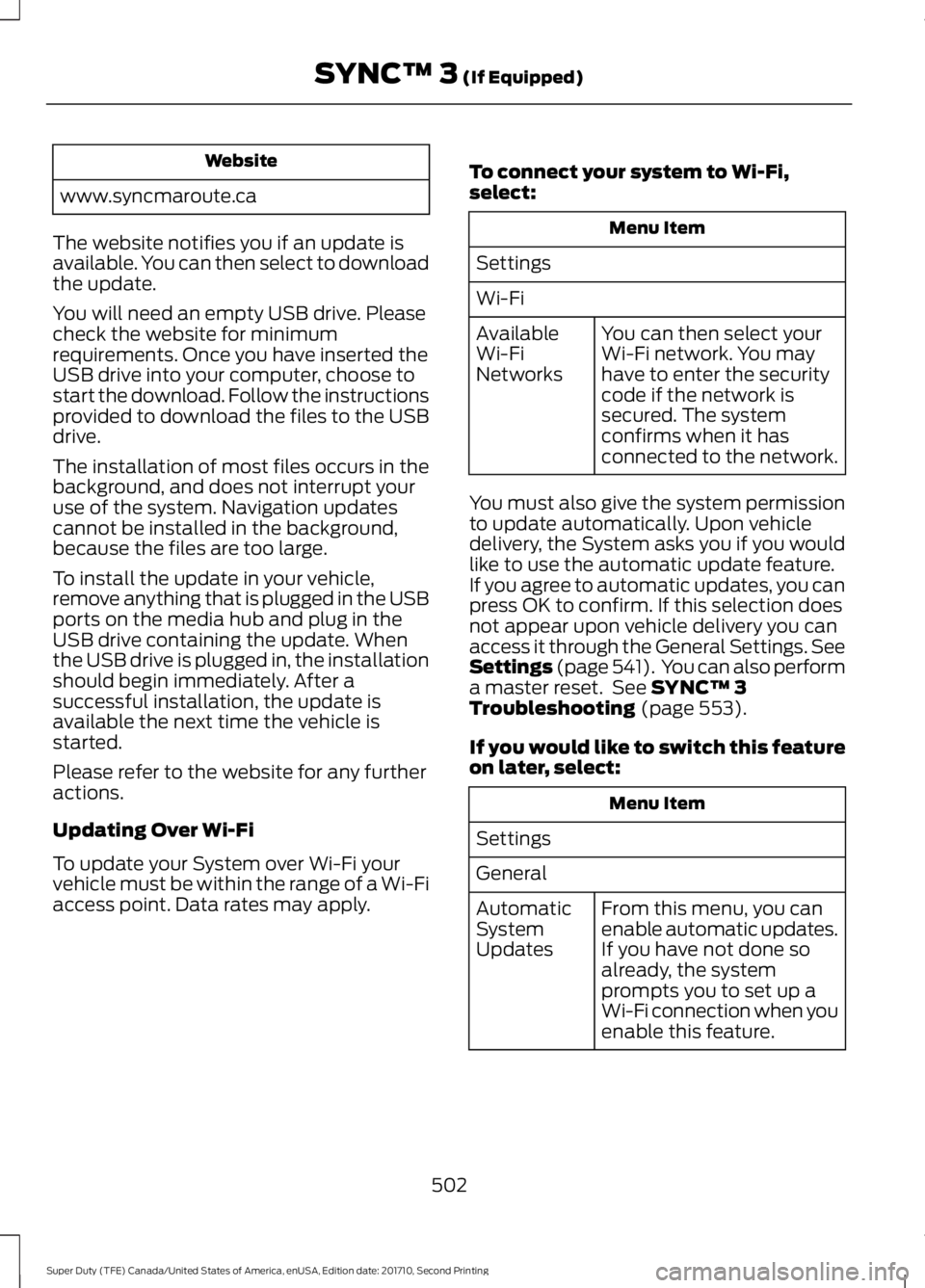
To connect your system to Wi-Fi,select:
Menu Item
Settings
Wi-Fi
You can then select yourWi-Fi network. You mayhave to enter the securitycode if the network issecured. The systemconfirms when it hasconnected to the network.
AvailableWi-FiNetworks
You must also give the system permissionto update automatically. Upon vehicledelivery, the System asks you if you wouldlike to use the automatic update feature.If you agree to automatic updates, you canpress OK to confirm. If this selection doesnot appear upon vehicle delivery you canaccess it through the General Settings. SeeSettings (page 541). You can also performa master reset. See SYNC™ 3Troubleshooting (page 553).
If you would like to switch this featureon later, select:
Menu Item
Settings
General
From this menu, you canenable automatic updates.If you have not done soalready, the systemprompts you to set up aWi-Fi connection when youenable this feature.
AutomaticSystemUpdates
502
Super Duty (TFE) Canada/United States of America, enUSA, Edition date: 201710, Second Printing
SYNC™ 3 (If Equipped)
Page 507 of 642
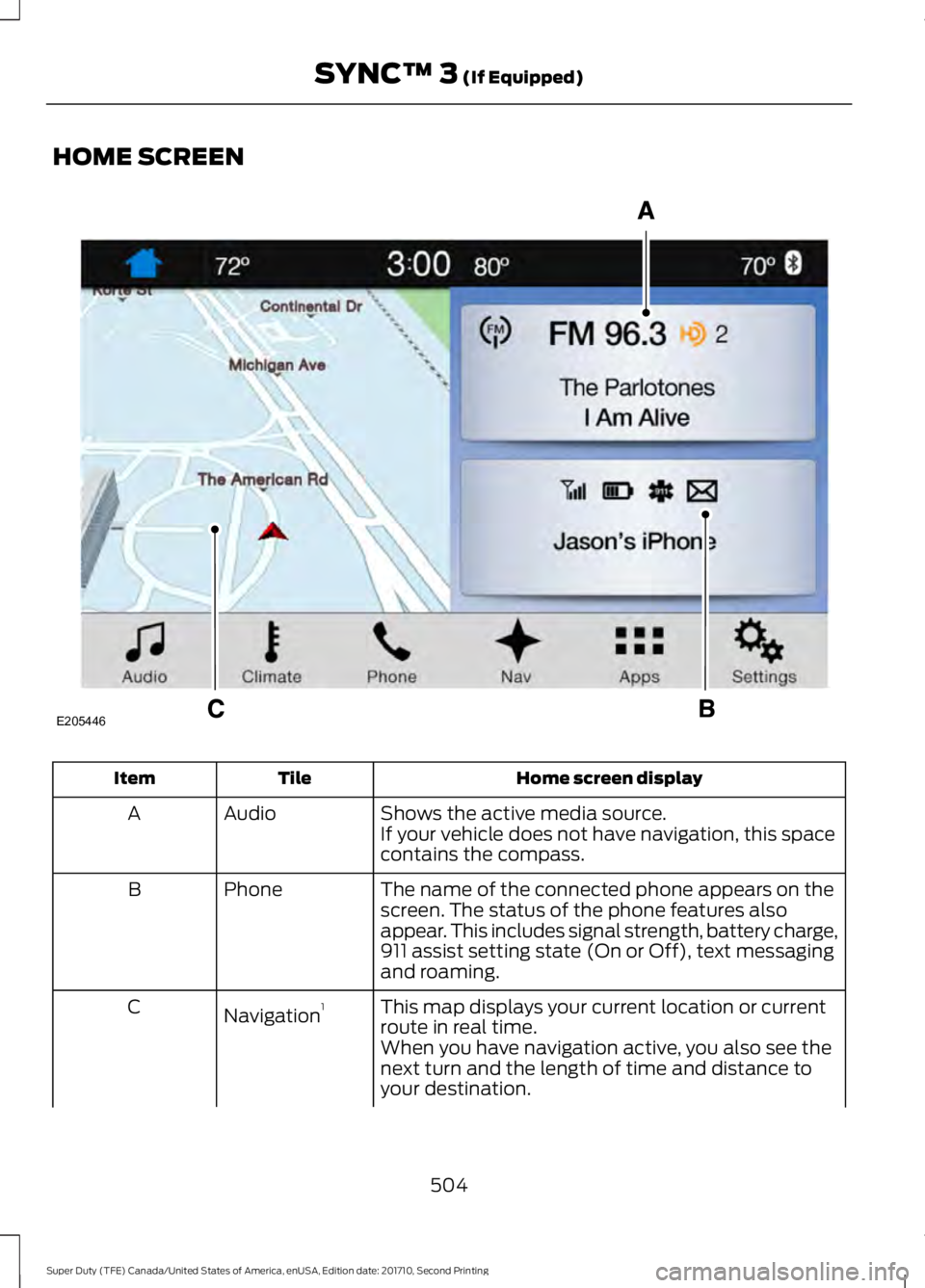
HOME SCREEN
Home screen displayTileItem
Shows the active media source.AudioAIf your vehicle does not have navigation, this spacecontains the compass.
The name of the connected phone appears on thescreen. The status of the phone features alsoappear. This includes signal strength, battery charge,911 assist setting state (On or Off), text messagingand roaming.
PhoneB
This map displays your current location or currentroute in real time.Navigation1C
When you have navigation active, you also see thenext turn and the length of time and distance toyour destination.
504
Super Duty (TFE) Canada/United States of America, enUSA, Edition date: 201710, Second Printing
SYNC™ 3 (If Equipped)E205446
Page 508 of 642
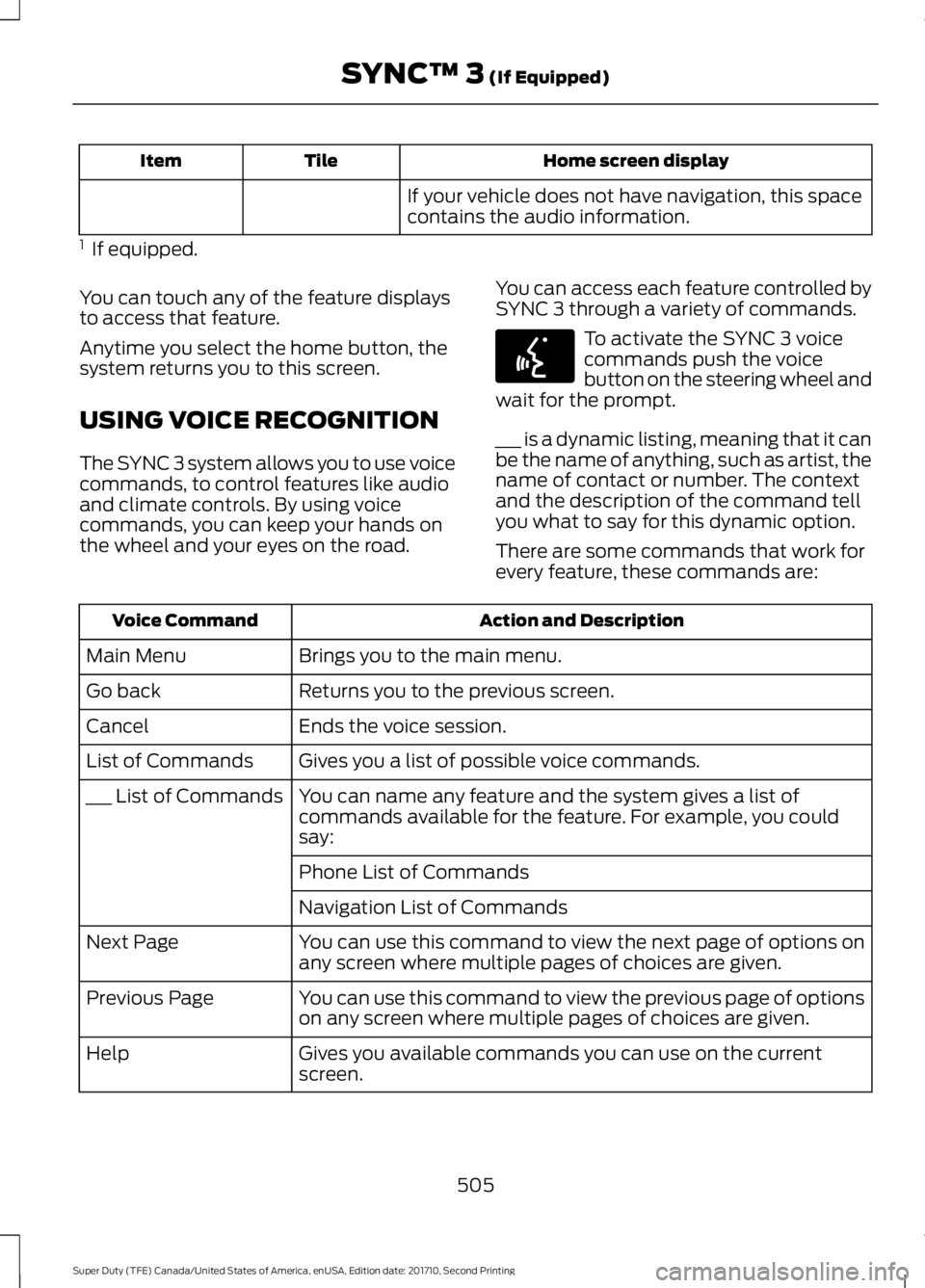
Home screen displayTileItem
If your vehicle does not have navigation, this spacecontains the audio information.
1 If equipped.
You can touch any of the feature displaysto access that feature.
Anytime you select the home button, thesystem returns you to this screen.
USING VOICE RECOGNITION
The SYNC 3 system allows you to use voicecommands, to control features like audioand climate controls. By using voicecommands, you can keep your hands onthe wheel and your eyes on the road.
You can access each feature controlled bySYNC 3 through a variety of commands.
To activate the SYNC 3 voicecommands push the voicebutton on the steering wheel andwait for the prompt.
___ is a dynamic listing, meaning that it canbe the name of anything, such as artist, thename of contact or number. The contextand the description of the command tellyou what to say for this dynamic option.
There are some commands that work forevery feature, these commands are:
Action and DescriptionVoice Command
Brings you to the main menu.Main Menu
Returns you to the previous screen.Go back
Ends the voice session.Cancel
Gives you a list of possible voice commands.List of Commands
You can name any feature and the system gives a list ofcommands available for the feature. For example, you couldsay:
___ List of Commands
Phone List of Commands
Navigation List of Commands
You can use this command to view the next page of options onany screen where multiple pages of choices are given.Next Page
You can use this command to view the previous page of optionson any screen where multiple pages of choices are given.Previous Page
Gives you available commands you can use on the currentscreen.Help
505
Super Duty (TFE) Canada/United States of America, enUSA, Edition date: 201710, Second Printing
SYNC™ 3 (If Equipped)E142599
Page 511 of 642
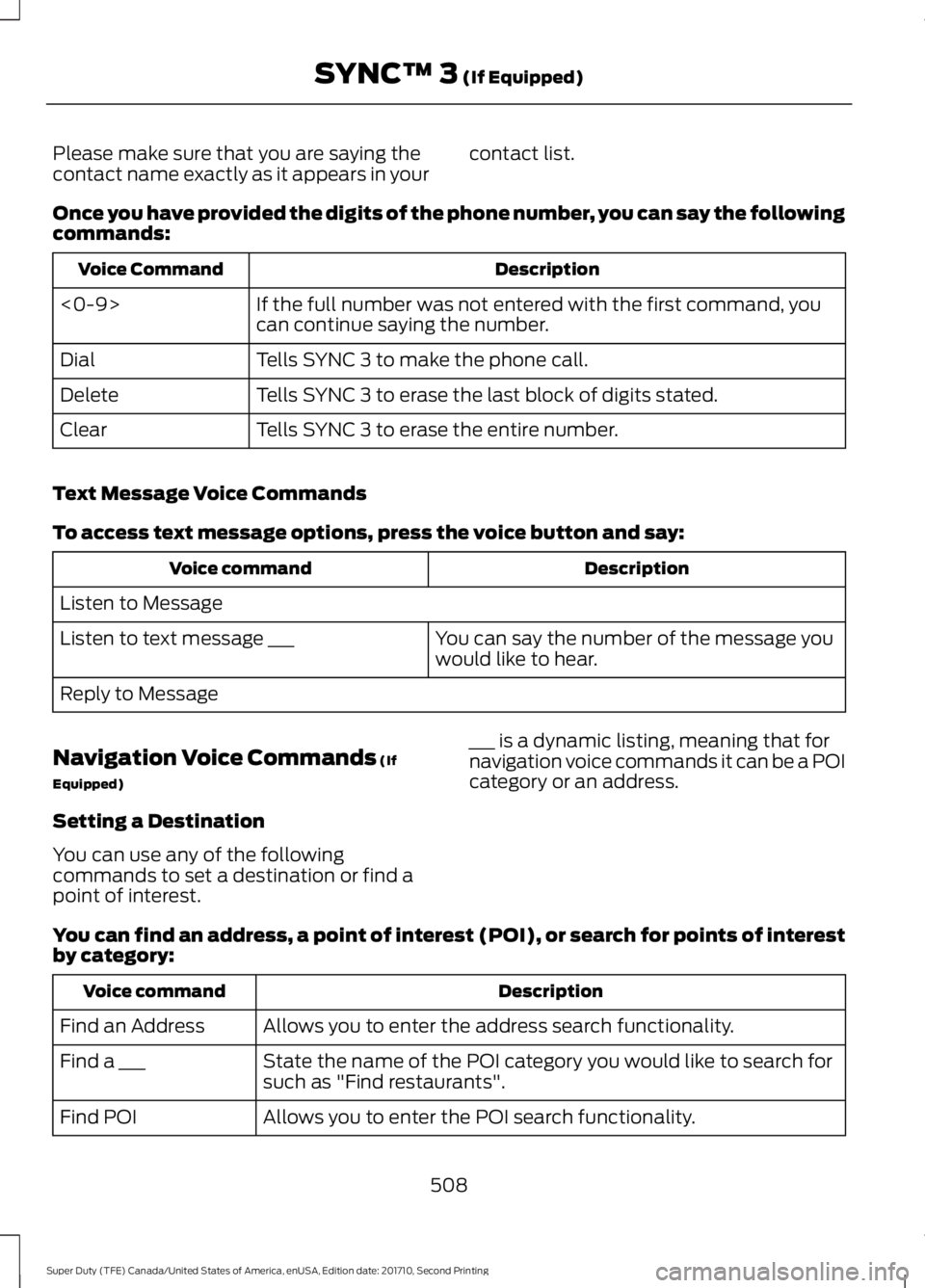
Please make sure that you are saying thecontact name exactly as it appears in yourcontact list.
Once you have provided the digits of the phone number, you can say the followingcommands:
DescriptionVoice Command
If the full number was not entered with the first command, youcan continue saying the number.<0-9>
Tells SYNC 3 to make the phone call.Dial
Tells SYNC 3 to erase the last block of digits stated.Delete
Tells SYNC 3 to erase the entire number.Clear
Text Message Voice Commands
To access text message options, press the voice button and say:
DescriptionVoice command
Listen to Message
You can say the number of the message youwould like to hear.Listen to text message ___
Reply to Message
Navigation Voice Commands (If
Equipped)
Setting a Destination
You can use any of the followingcommands to set a destination or find apoint of interest.
___ is a dynamic listing, meaning that fornavigation voice commands it can be a POIcategory or an address.
You can find an address, a point of interest (POI), or search for points of interestby category:
DescriptionVoice command
Allows you to enter the address search functionality.Find an Address
State the name of the POI category you would like to search forsuch as "Find restaurants".Find a ___
Allows you to enter the POI search functionality.Find POI
508
Super Duty (TFE) Canada/United States of America, enUSA, Edition date: 201710, Second Printing
SYNC™ 3 (If Equipped)
Page 533 of 642
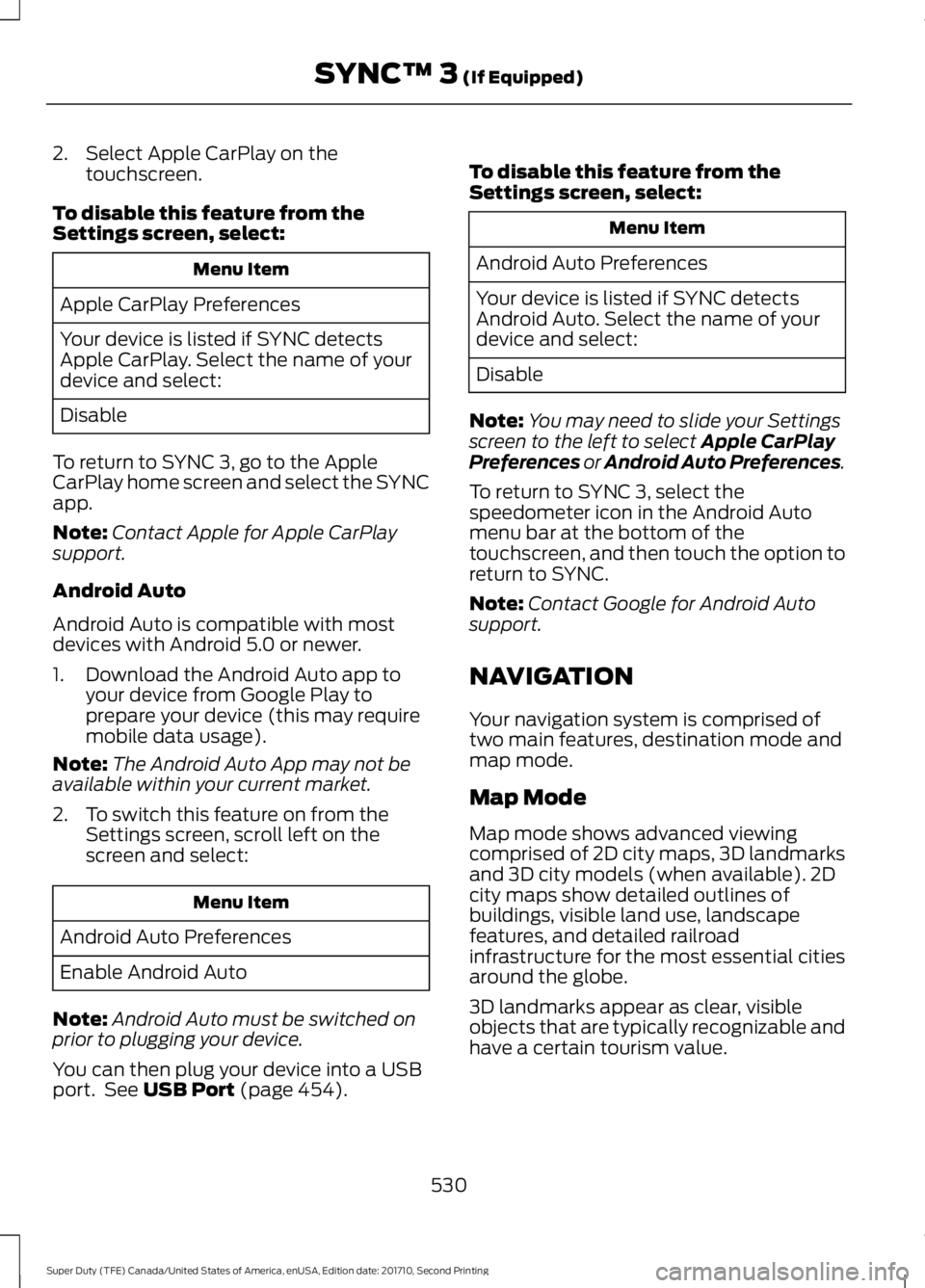
2. Select Apple CarPlay on thetouchscreen.
To disable this feature from theSettings screen, select:
Menu Item
Apple CarPlay Preferences
Your device is listed if SYNC detectsApple CarPlay. Select the name of yourdevice and select:
Disable
To return to SYNC 3, go to the AppleCarPlay home screen and select the SYNCapp.
Note:Contact Apple for Apple CarPlaysupport.
Android Auto
Android Auto is compatible with mostdevices with Android 5.0 or newer.
1. Download the Android Auto app toyour device from Google Play toprepare your device (this may requiremobile data usage).
Note:The Android Auto App may not beavailable within your current market.
2. To switch this feature on from theSettings screen, scroll left on thescreen and select:
Menu Item
Android Auto Preferences
Enable Android Auto
Note:Android Auto must be switched onprior to plugging your device.
You can then plug your device into a USBport. See USB Port (page 454).
To disable this feature from theSettings screen, select:
Menu Item
Android Auto Preferences
Your device is listed if SYNC detectsAndroid Auto. Select the name of yourdevice and select:
Disable
Note:You may need to slide your Settingsscreen to the left to select Apple CarPlayPreferences or Android Auto Preferences.
To return to SYNC 3, select thespeedometer icon in the Android Automenu bar at the bottom of thetouchscreen, and then touch the option toreturn to SYNC.
Note:Contact Google for Android Autosupport.
NAVIGATION
Your navigation system is comprised oftwo main features, destination mode andmap mode.
Map Mode
Map mode shows advanced viewingcomprised of 2D city maps, 3D landmarksand 3D city models (when available). 2Dcity maps show detailed outlines ofbuildings, visible land use, landscapefeatures, and detailed railroadinfrastructure for the most essential citiesaround the globe.
3D landmarks appear as clear, visibleobjects that are typically recognizable andhave a certain tourism value.
530
Super Duty (TFE) Canada/United States of America, enUSA, Edition date: 201710, Second Printing
SYNC™ 3 (If Equipped)