2017 FORD F150 audio
[x] Cancel search: audioPage 492 of 599
Function
Button
Playlists
Artists
Albums
Songs
Genres
Podcasts
Audio books
Composers
This button allows you to choose a specific
letter to view within the category you are
browsing.
A-Z Jump
If available, this allows you to browse the
folders and files on your USB device.
Explore Device
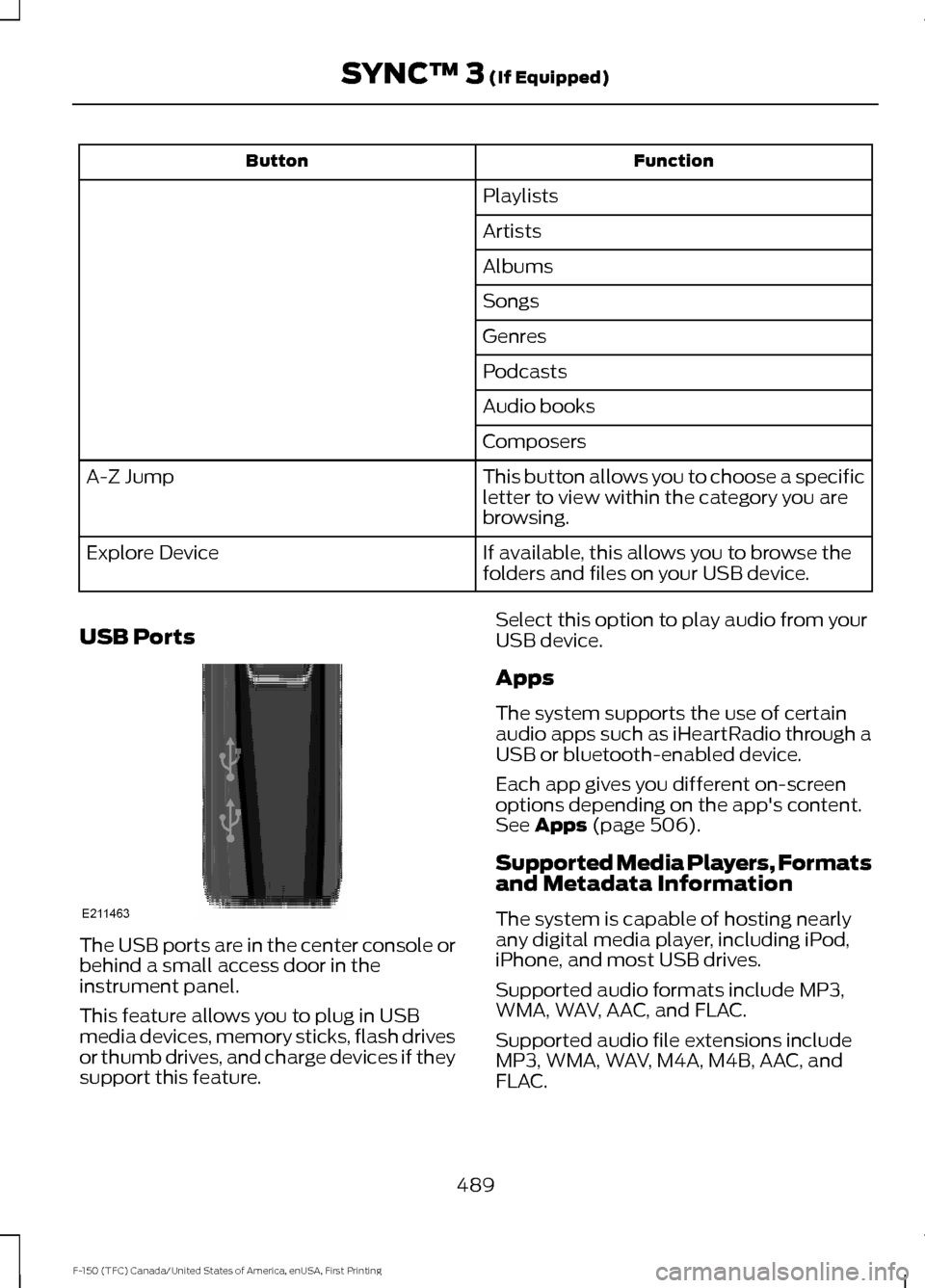
USB Ports The USB ports are in the center console or
behind a small access door in the
instrument panel.
This feature allows you to plug in USB
media devices, memory sticks, flash drives
or thumb drives, and charge devices if they
support this feature. Select this option to play audio from your
USB device.
Apps
The system supports the use of certain
audio apps such as iHeartRadio through a
USB or bluetooth-enabled device.
Each app gives you different on-screen
options depending on the app's content.
See Apps (page 506).
Supported Media Players, Formats
and Metadata Information
The system is capable of hosting nearly
any digital media player, including iPod,
iPhone, and most USB drives.
Supported audio formats include MP3,
WMA, WAV, AAC, and FLAC.
Supported audio file extensions include
MP3, WMA, WAV, M4A, M4B, AAC, and
FLAC.
489
F-150 (TFC) Canada/United States of America, enUSA, First Printing SYNC™ 3
(If Equipped)E211463
Page 507 of 599
Button
Press this button to adjust your preferences. See Settings (page 509).
Navigation
Settings
Provides your current location city and the nearest road.
Where Am I?
The following are only available on the menu during an active navigation route:
The system asks for confirmation and then returns you to the map
mode screen.
Cancel Route
Selecting this option switches off the audio navigation guidance. Press
the button again to un-mute guidance.
Mute Guidance
Press this to see a map of the full route.
View Route
An alternate route displays in comparison with the current route.
Detour
Only available if you have an active waypoint on your route. See
Waypoints
later in this section for information on how to set
waypoints.
Edit Waypoints
Use this button to re-order or remove your waypoints.Optimize Order
You can
also have
the system
set the
order for
you by
pressing:
Go
To return to
your route
press:
Waypoints
You can add a waypoint to a navigation
route as a destination along your route.
To add a waypoint: 1. Select the search icon (magnifying
glass) while on an active route. This
brings up the destination menu.
2. Set your destination using any of the given methods. Once the destination
has been selected, the screen allows
you to set the destination as a
waypoint by selecting:
504
F-150 (TFC) Canada/United States of America, enUSA, First Printing SYNC™ 3
(If Equipped)
Page 512 of 599
Action and Description
Menu Item
Select to choose from a listing of
weather locations.
Area
Touch this button to view scores and schedules from a variety
of sports. You can also save up to 10 favorite teams for easier
access. The score automatically refreshes when a game is in
progress.
Sports Info
Touch this button to view ski conditions for a specific area.
Ski Conditions
SETTINGS
Under this menu, you can access and
adjust the settings for many of the system
features. To access additional settings,
swipe the screen left or right. Sound
Pressing this button allows you to adjust
the following:Sound Settings
Returns Treble, Midrange, and Bass sound settings to factory levels.
Reset All
Adjusts the high frequency level.
Treble
Adjusts the middle frequency level.
Midrange
Adjusts the low frequency level.
Bass
Adjusts the sound ratio from side to side or front to back.
Balance / Fade
Adjusts the amount the audio system volume increases with speed,
or turns the feature off.
Speed
Compensated
Vol.
Optimizes the sound based on the location of the listeners.
Occupancy Mode
Stereo
Sound Settings
Surround
Your vehicle might not have all of these features.
509
F-150 (TFC) Canada/United States of America, enUSA, First Printing SYNC™ 3 (If Equipped)
Page 513 of 599
Media Player
This button is available when a media
device such as a Bluetooth Stereo or USB
device is the active audio source. Pressing
the button allows you to access the
following options for active devices only.Action and Description
Menu Item
For some Apple devices, SYNC 3 can adjust the playback speed of
podcasts. When a podcast is playing, you can choose:
Podcast Speed
Faster
Normal
Slower
For some Apple devices, SYNC 3 can adjust the playback speed of
audiobooks. When an audiobook is playing, you can choose:
Audiobook Speed
Faster
Normal
Slower
Cover art displays from your device ’s music
files. If no cover art for the files exists on the
device, then the Gracenote Database provides
cover art.
Media Player
Cover Art Priority
The Gracenote Database supplied cover art is
used for your music files. This overrides any
cover art from your device.
Gracenote®
Switches on and off Gracenote® to provide metadata information
such as genre, artist, album.
Gracenote®
Management
This allows you to view the version level of the Gracenote Database.
Gracenote® Data-
base Info
This allows you to view the manufacturer and model number of your
media device.
Device Informa-
tion
Erase the stored in media information in order to re-index.
Update Media
Index
Clock
To adjust the time, select the up and down
arrows on either side of the screen. The
arrows on the left adjust the hour and
arrows on the right adjust the minute. You
can then select AM or PM. You can adjust the following features:
510
F-150 (TFC) Canada/United States of America, enUSA, First Printing SYNC™ 3 (If Equipped)
Page 517 of 599
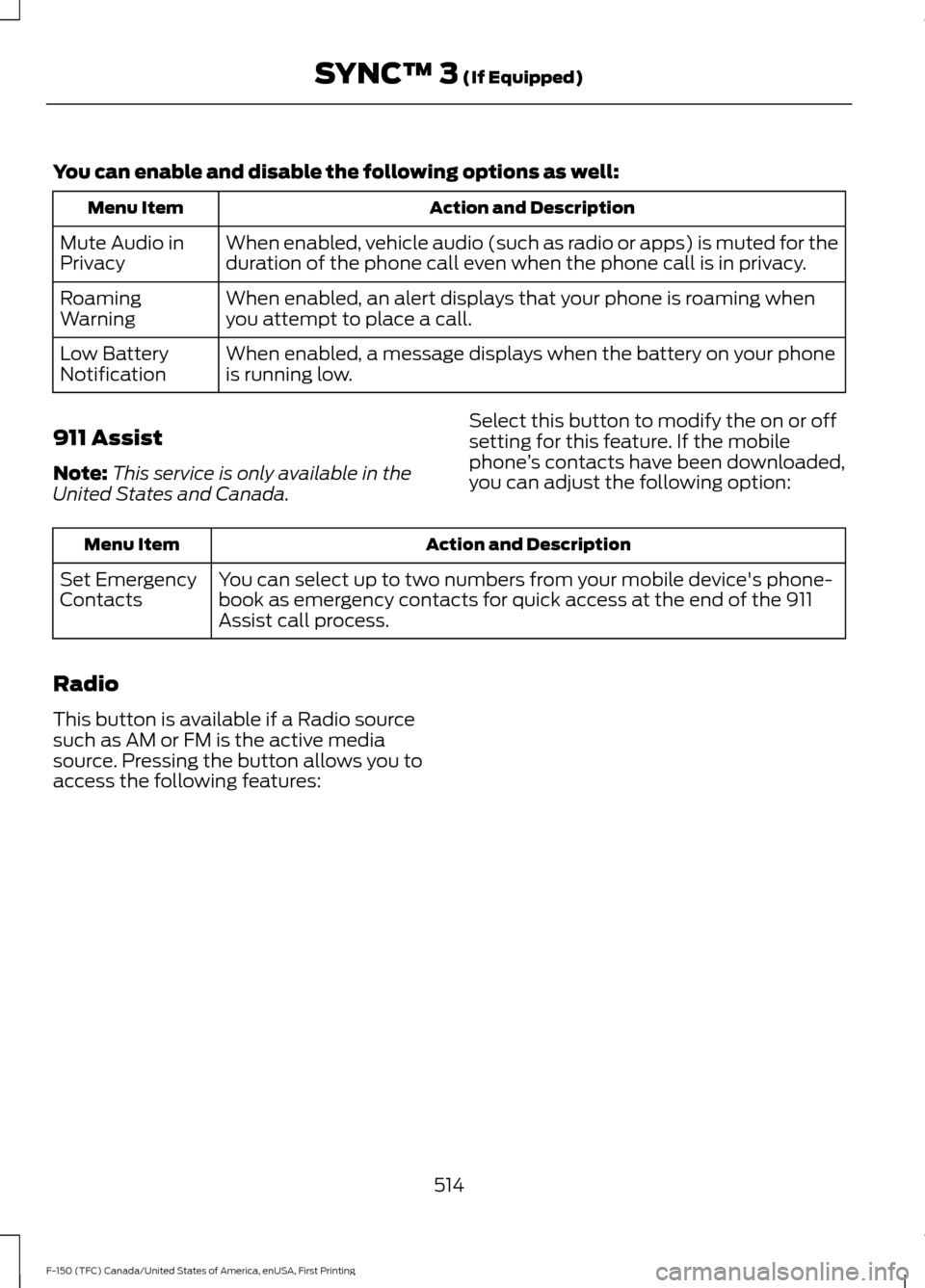
You can enable and disable the following options as well:
Action and Description
Menu Item
When enabled, vehicle audio (such as radio or apps) is muted for the
duration of the phone call even when the phone call is in privacy.
Mute Audio in
Privacy
When enabled, an alert displays that your phone is roaming when
you attempt to place a call.
Roaming
Warning
When enabled, a message displays when the battery on your phone
is running low.
Low Battery
Notification
911 Assist
Note: This service is only available in the
United States and Canada. Select this button to modify the on or off
setting for this feature. If the mobile
phone
’s contacts have been downloaded,
you can adjust the following option: Action and Description
Menu Item
You can select up to two numbers from your mobile device's phone-
book as emergency contacts for quick access at the end of the 911
Assist call process.
Set Emergency
Contacts
Radio
This button is available if a Radio source
such as AM or FM is the active media
source. Pressing the button allows you to
access the following features:
514
F-150 (TFC) Canada/United States of America, enUSA, First Printing SYNC™ 3 (If Equipped)
Page 525 of 599

Website
owner.ford.com Website
www.syncmyride.ca
www.syncmaroute.ca Cell phone issues
Possible solution
Possible cause
Issue
Refer to your device's manual about audio
adjustments.
The audio control
settings on your cell
phone may be affecting
SYNC 3 performance.
There is back-
ground noise
during a phone
call.
Try switching your cell phone off, resetting
it or removing the battery, then try again.
Possible cell phone
malfunction.
During a call, I
can hear the
other person
but they cannot
hear me.
Make sure that the microphone for SYNC
3 is not set to off. Look for the microphone
icon on the phone screen.
To restart your system, shut down the
engine, open and close the door, and then
lock the door and wait for 2-3 minutes.
Make sure that your SYNC 3 screen is black
and the lighted USB port is off.
The system may need to
be restarted.
During a call, I
cannot hear the
other person
and they cannot
hear me.
Check your cell phone's compatibility.
This is a cell phone-
dependent feature.
SYNC 3 is not
able to down-
load my phone-
book. Make sure you allow SYNC 3 to retrieve
contacts from your phone. Refer to your
cell manual.
Possible cell phone
malfunction. You must switch on your cell phone and
the automatic phonebook download
feature on SYNC 3.
Try switching your cell phone off, resetting
it or removing the battery, then try again.
Make sure you allow SYNC 3 to retrieve
contacts from your phone. Refer to your
cell manual.
Limitations on your cell
phone's capability.
The system
says "Phone-
book down-
loaded" but my
SYNC 3 phone-
book is empty or
is missing
contacts.
If the missing contacts are stored on your
SIM card, move them to your cell phone's
memory.
522
F-150 (TFC) Canada/United States of America, enUSA, First Printing SYNC™ 3 (If Equipped)
Page 528 of 599
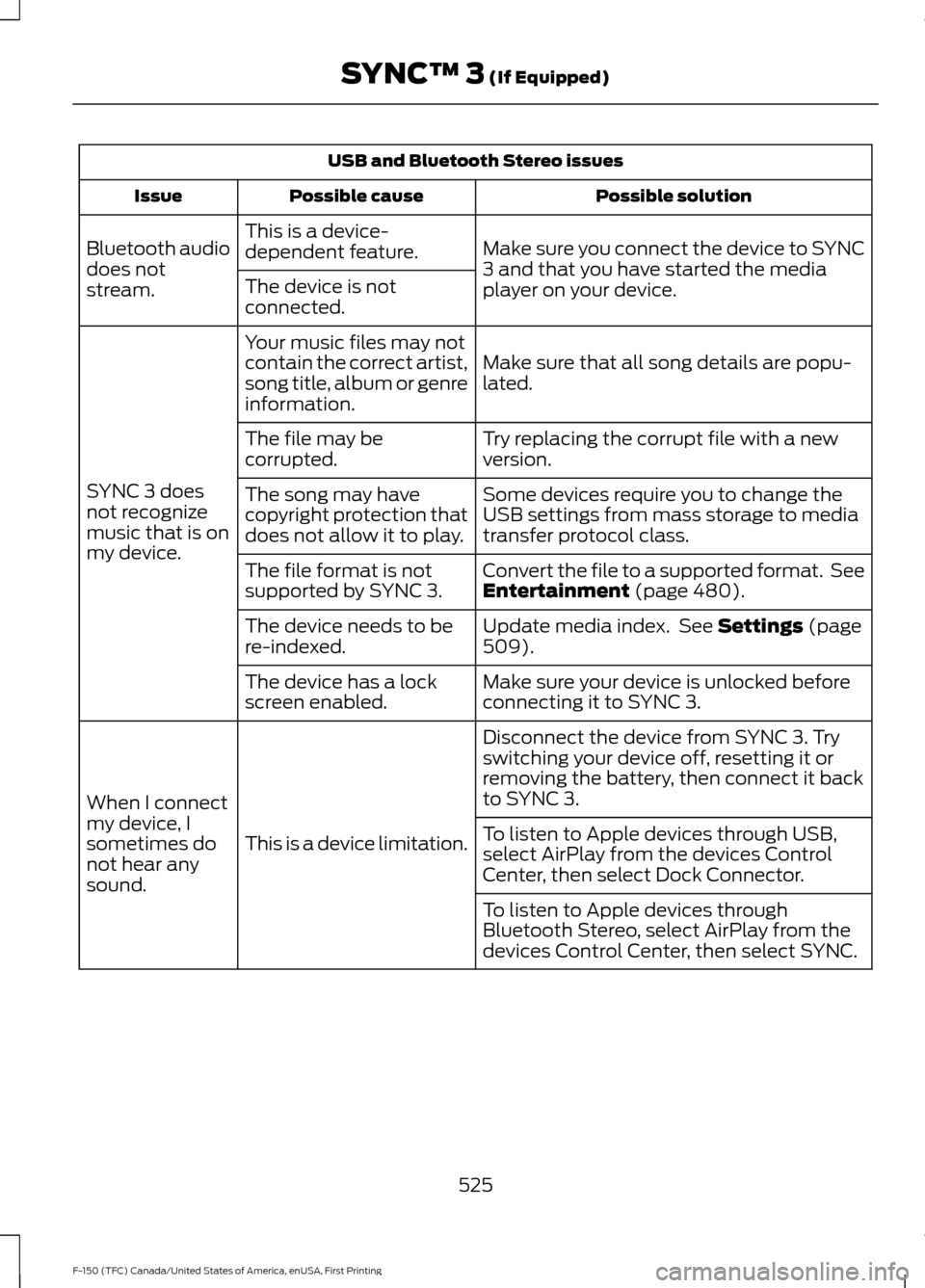
USB and Bluetooth Stereo issues
Possible solution
Possible cause
Issue
Make sure you connect the device to SYNC
3 and that you have started the media
player on your device.
This is a device-
dependent feature.
Bluetooth audio
does not
stream. The device is not
connected.
Make sure that all song details are popu-
lated.
Your music files may not
contain the correct artist,
song title, album or genre
information.
SYNC 3 does
not recognize
music that is on
my device. Try replacing the corrupt file with a new
version.
The file may be
corrupted.
Some devices require you to change the
USB settings from mass storage to media
transfer protocol class.
The song may have
copyright protection that
does not allow it to play.
Convert the file to a supported format. See
Entertainment (page 480).
The file format is not
supported by SYNC 3.
Update media index. See
Settings (page
509).
The device needs to be
re-indexed.
Make sure your device is unlocked before
connecting it to SYNC 3.
The device has a lock
screen enabled.
Disconnect the device from SYNC 3. Try
switching your device off, resetting it or
removing the battery, then connect it back
to SYNC 3.
This is a device limitation.
When I connect
my device, I
sometimes do
not hear any
sound. To listen to Apple devices through USB,
select AirPlay from the devices Control
Center, then select Dock Connector.
To listen to Apple devices through
Bluetooth Stereo, select AirPlay from the
devices Control Center, then select SYNC.
525
F-150 (TFC) Canada/United States of America, enUSA, First Printing SYNC™ 3
(If Equipped)
Page 533 of 599
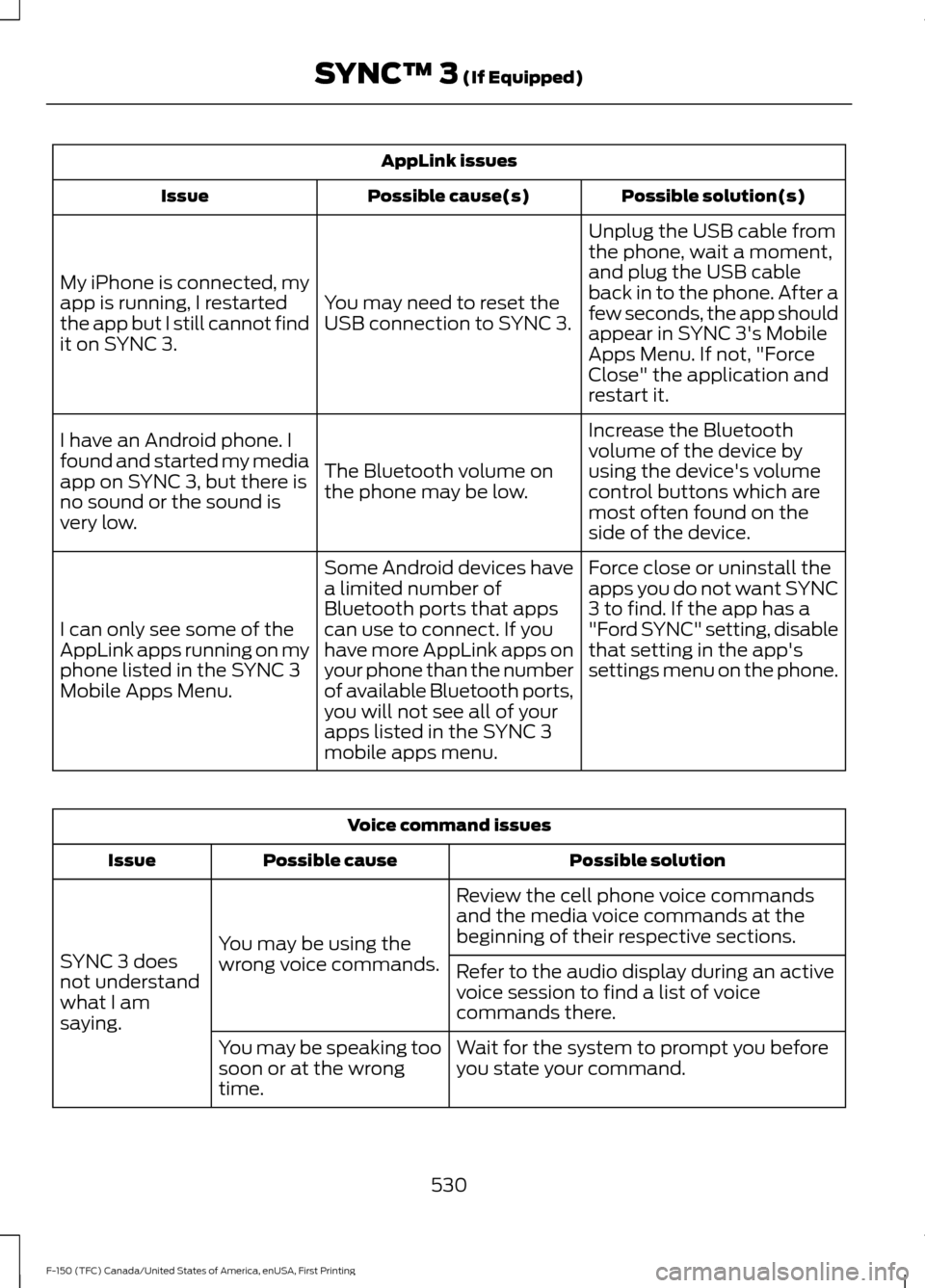
AppLink issues
Possible solution(s)
Possible cause(s)
Issue
Unplug the USB cable from
the phone, wait a moment,
and plug the USB cable
back in to the phone. After a
few seconds, the app should
appear in SYNC 3's Mobile
Apps Menu. If not, "Force
Close" the application and
restart it.
You may need to reset the
USB connection to SYNC 3.
My iPhone is connected, my
app is running, I restarted
the app but I still cannot find
it on SYNC 3.
Increase the Bluetooth
volume of the device by
using the device's volume
control buttons which are
most often found on the
side of the device.
The Bluetooth volume on
the phone may be low.
I have an Android phone. I
found and started my media
app on SYNC 3, but there is
no sound or the sound is
very low.
Force close or uninstall the
apps you do not want SYNC
3 to find. If the app has a
"Ford SYNC" setting, disable
that setting in the app's
settings menu on the phone.
Some Android devices have
a limited number of
Bluetooth ports that apps
can use to connect. If you
have more AppLink apps on
your phone than the number
of available Bluetooth ports,
you will not see all of your
apps listed in the SYNC 3
mobile apps menu.
I can only see some of the
AppLink apps running on my
phone listed in the SYNC 3
Mobile Apps Menu. Voice command issues
Possible solution
Possible cause
Issue
Review the cell phone voice commands
and the media voice commands at the
beginning of their respective sections.
You may be using the
wrong voice commands.
SYNC 3 does
not understand
what I am
saying. Refer to the audio display during an active
voice session to find a list of voice
commands there.
Wait for the system to prompt you before
you state your command.
You may be speaking too
soon or at the wrong
time.
530
F-150 (TFC) Canada/United States of America, enUSA, First Printing SYNC™ 3 (If Equipped)