2017 FORD EXPEDITION EL ECO mode
[x] Cancel search: ECO modePage 375 of 500
•Power: Switch the audio system onand off.
•VOL: Control the volume of playingaudio.
•Seek and Tune: Use as you normallywould in audio modes.
•Eject: Eject a CD from the audiosystem.
•SOURCE or MEDIA: Press repeatedlyto advance through available mediamodes.
•SOUND: Press to access the Soundmenu where you can adjust sound andother audio settings.
•1-6: Press and hold to store or press toselect an AM, FM or SIRIUS memorypreset. See Audio System (page 313).
•DISP: Switch the display on or off. Youcan also touch the screen to switch thedisplay back on.
•Temperature, fan and climatecontrol buttons: Control thetemperature, fan speed or settings ofthe climate control system. SeeClimate Control (page 112).
911 Assist
WARNINGS
Unless the 911 Assist setting is set onbefore a crash, the system will notdial for help which could delayresponse time, potentially increasing therisk of serious injury or death after a crash.setting is set on before a crash, the systemwill not dial for help which could delayresponse time, potentially increasing therisk of serious injury or death after a crash.
WARNINGS
Do not wait for 911 Assist to make anemergency call if you can do ityourself. Dial emergency servicesimmediately to avoid delayed responsetime which could increase the risk ofserious injury or death after a crash. If youdo not hear 911 Assist within five secondsof the crash, the system or phone may bedamaged or non-functional.
Always place your phone in a securelocation in your vehicle so it does notbecome a projectile or get damagedin a crash. Failure to do so may causeserious injury to someone or damage thephone which could prevent 911 Assist fromworking properly.
Note:The SYNC 911 Assist feature must beset on before the incident.
Note:The SYNC 911 Assist feature onlyoperates in the U.S., Canada or in a territoryin which 911 is the emergency number.
Note:Before setting this feature on, makesure that you read the 911 Assist PrivacyNotice later in this section for importantinformation.
Note:If any user sets 911 Assist to on or off,that setting applies for all paired phones. If911 Assist is switched off and the phone isconnected to SYNC, an icon displays on thestatus bar.
Note:Every phone operates differently.While SYNC 911 Assist works with mostcellular phones, some may have troubleusing this feature.
372
Expedition (TB7) Canada/United States of America, enUSA, Edition date: 03/2016, First Printing
SYNC™ 3 (If Equipped)
Page 397 of 500
Bluetooth Stereo or USB
Bluetooth Stereo and USB allow you to
access media that you store on yourBluetooth device or USB device such asmusic, audio books or podcasts.
The following buttons are available for Bluetooth and USB:
FunctionButton
Pressing the repeat button toggles the repeat setting throughthree modes: repeat off (button not highlighted), repeat all(button highlighted) and repeat track (button highlighted witha small number one).
Repeat
Play the tracks in random order.Shuffle
You can use the forward, reverse, pause orplay buttons to control the audio playback.
To get more information about thecurrently playing track, press the cover artor Info button.
For some devices, SYNC 3 is able toprovide 30-second skip buttons when youlisten to audio books or podcasts. Thesebuttons allow you to skip forward orbackward within a track.
While playing audio from a USB device youcan look for certain music by selecting thefollowing:
FunctionButton
If available, displays the list of tracks in theNow Playing playlist.Browse
This option, which is available underbrowse, allows you to play all tracks or tofilter the available media into one of thebelow categories.
New Search
Play All
Playlists
Artists
Albums
Songs
Genres
Podcasts
Audio books
394
Expedition (TB7) Canada/United States of America, enUSA, Edition date: 03/2016, First Printing
SYNC™ 3 (If Equipped)
Page 402 of 500
PHONE
WARNING
Driving while distracted can result inloss of vehicle control, crash andinjury. We strongly recommend thatyou use extreme caution when using anydevice that may take your focus off theroad. Your primary responsibility is the safeoperation of your vehicle. We recommendagainst the use of any hand-held devicewhile driving and encourage the use ofvoice-operated systems when possible.Make sure you are aware of all applicablelocal laws that may affect the use ofelectronic devices while driving.
Hands-free calling is one of the mainfeatures of the system. Once you pair yourcell phone, you can access many optionsusing the touchscreen or voice commands.While the system supports a variety offeatures, many are dependent on your cellphone’s functionality.
Pairing Your Cell Phone for theFirst Time
Pair your Bluetooth-enabled phone withthe system before using the functions inhands-free mode.
Switch on Bluetooth on your device tobegin pairing. See your phone’s manual ifnecessary.
To add a phone, select:
Menu Item
Add Phone
1. Follow the on-screen instructions.
2. A prompt alerts you to search for thesystem on your phone.
3. Select your vehicle's make and modelas it displays on your phone.
4. Confirm that the six-digit numberappearing on your phone matches thesix-digit number on the touchscreen.
5. The touchscreen indicates when thepairing is successful.
6. Your phone may prompt you to givethe system permission to accessinformation. To check your phone’scompatibility, see your phone’s manualor visit the website.
Alternatively, to add a phone, select:
Menu Item
Add Phone
Then select:
Discover Other Bluetooth Devices
1. Follow the on-screen instructions.
2. Select your phone's name when itappears on the touchscreen.
3. Confirm that the six-digit numberappearing on your phone matches thesix-digit number on the touchscreen.
4. The touchscreen indicates when thepairing is successful.
5. Your phone may prompt you to givethe system permission to accessinformation. To check your phone’scompatibility, see your phone’s manualor visit the website.
At a minimum, most cell phones withBluetooth wireless technology support thefollowing functions:
•Answering an incoming call.
•Ending a call.
•Dialing a number.
•Call waiting notification.
•Caller identification.
399
Expedition (TB7) Canada/United States of America, enUSA, Edition date: 03/2016, First Printing
SYNC™ 3 (If Equipped)
Page 407 of 500
2. Select Apple CarPlay on thetouchscreen.
To disable this feature from theSettings screen, select:
Menu Item
Apple CarPlay Preferences
Your device is listed if SYNC detectsApple CarPlay. Select the name of yourdevice and select:
Disable
To return to SYNC 3, go to the AppleCarPlay home screen and select the SYNCapp.
Note:Contact Apple for Apple CarPlaysupport.
Android Auto
Android Auto is compatible with mostdevices with Android 5.0 or newer.
1. Download the Android Auto app toyour device from Google Play toprepare your device (this may requiremobile data usage).
2. Plug your device into a USB port. SeeUSB Port (page 323).
Note:Android Auto may default to off, soyou may need to enable it from the Settingsscreen.
To disable this feature from theSettings screen, select:
Menu Item
Android Auto Preferences
Your device is listed if SYNC detectsAndroid Auto. Select the name of yourdevice and select:
Disable
Note:You may need to slide your Settingsscreen to the left to select Apple CarPlayPreferences or Android Auto Preferences.
To return to SYNC 3, select thespeedometer icon in the Android Automenu bar at the bottom of thetouchscreen, and then touch the option toreturn to SYNC.
Note:Contact Google for Android Autosupport.
NAVIGATION (If Equipped)
Your navigation system is comprised oftwo main features, destination mode andmap mode.
Map Mode
Map mode shows advanced viewingcomprised of 2D city maps, 3D landmarksand 3D city models (when available). 2Dcity maps show detailed outlines ofbuildings, visible land use, landscapefeatures, and detailed railroadinfrastructure for the most essential citiesaround the globe.
3D landmarks appear as clear, visibleobjects that are typically recognizable andhave a certain tourism value.
3D city models are complete 3D modelsof entire city areas including navigableroads, parks, rivers and rendered buildings.3D landmarks and city models appear in3D map mode only. Coverage of thesevaries and improves with updated mapreleases.
Select the zoom in icon to see acloser view of the map.
Select the zoom out icon to seea farther away view of the map.
404
Expedition (TB7) Canada/United States of America, enUSA, Edition date: 03/2016, First Printing
SYNC™ 3 (If Equipped)E207752 E207753
Page 411 of 500
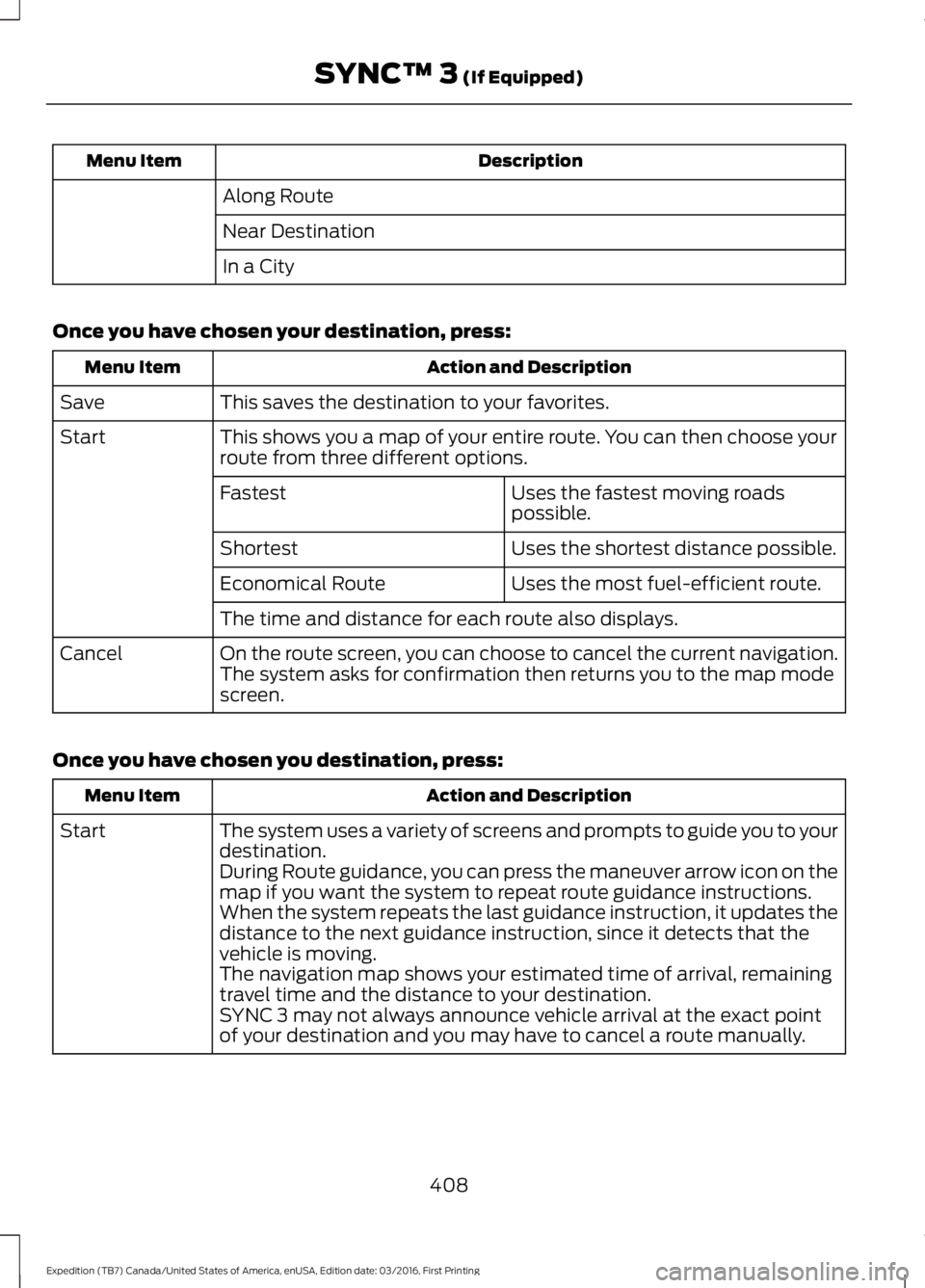
DescriptionMenu Item
Along Route
Near Destination
In a City
Once you have chosen your destination, press:
Action and DescriptionMenu Item
This saves the destination to your favorites.Save
This shows you a map of your entire route. You can then choose yourroute from three different options.Start
Uses the fastest moving roadspossible.Fastest
Uses the shortest distance possible.Shortest
Uses the most fuel-efficient route.Economical Route
The time and distance for each route also displays.
On the route screen, you can choose to cancel the current navigation.The system asks for confirmation then returns you to the map modescreen.
Cancel
Once you have chosen you destination, press:
Action and DescriptionMenu Item
The system uses a variety of screens and prompts to guide you to yourdestination.Start
During Route guidance, you can press the maneuver arrow icon on themap if you want the system to repeat route guidance instructions.When the system repeats the last guidance instruction, it updates thedistance to the next guidance instruction, since it detects that thevehicle is moving.The navigation map shows your estimated time of arrival, remainingtravel time and the distance to your destination.SYNC 3 may not always announce vehicle arrival at the exact pointof your destination and you may have to cancel a route manually.
408
Expedition (TB7) Canada/United States of America, enUSA, Edition date: 03/2016, First Printing
SYNC™ 3 (If Equipped)
Page 414 of 500
cityseeker (If Equipped)
Note:cityseeker point of interest (POI)information is limited to approximately 1110cities (1049 in the United States, 36 inCanada and 15 in Mexico).
cityseeker, when available, is a service thatprovides more information about certainpoints of interest such as restaurants,hotels and attractions.
When you have selected a point of interest,the location and information appear, suchas address, phone number and a starrating.
Press More Information to see a photo,a review, a list of services and facilities, theaverage room or meal price and the webaddress. This screen displays the point ofinterest icons.
For restaurants, cityseeker can provideinformation such as star rating, averagecost, review, handicap access, hours ofoperation, and website address.
For hotels, cityseeker can provideinformation such as star rating, pricecategory, review, check-in and checkouttimes, hotel service icons and websiteaddress. Hotel service icons include:
•Restaurant
•Business center
•Handicap facilities
•Laundry
•Refrigerator
•24 hour room service
•Fitness center
•Internet access
•Pool
•Wi-Fi
Attractions include nearby landmarks,amusement parks, historic buildings andmore. cityseeker can provide informationsuch as star rating, reviews, hour ofoperation and admission price.
SiriusXM Traffic and Travel Link
SiriusXM Traffic and Travel Link is availableon vehicles equipped with navigation andonly in select markets. You must activateand subscribe to receive SiriusXM Trafficand Travel Link information. It helps youlocate the best gas prices, find movielistings, get current traffic alerts, view theweather map, get accurate ski conditionsand see current sports scores. See Apps(page 412).
The system calculates a reasonableefficient route based on available speedlimits, traffic, and road conditions. You mayknow a local short cut that is more efficientat a given time than the route provided bySYNC 3, but you should expect a slightdifference in minutes or miles with theSYNC 3 route.
Navigation Map Updates
Annual navigation map updates areavailable for purchase through yourdealership, by calling 1-866-462-8837 inthe United States and Canada or01-800-557-5539 in Mexico. You can alsovisit:
Website
www.navigation.com/sync
You need to specify the make and modelof your vehicle to determine if there is anupdate available.
411
Expedition (TB7) Canada/United States of America, enUSA, Edition date: 03/2016, First Printing
SYNC™ 3 (If Equipped)E225487
Page 429 of 500
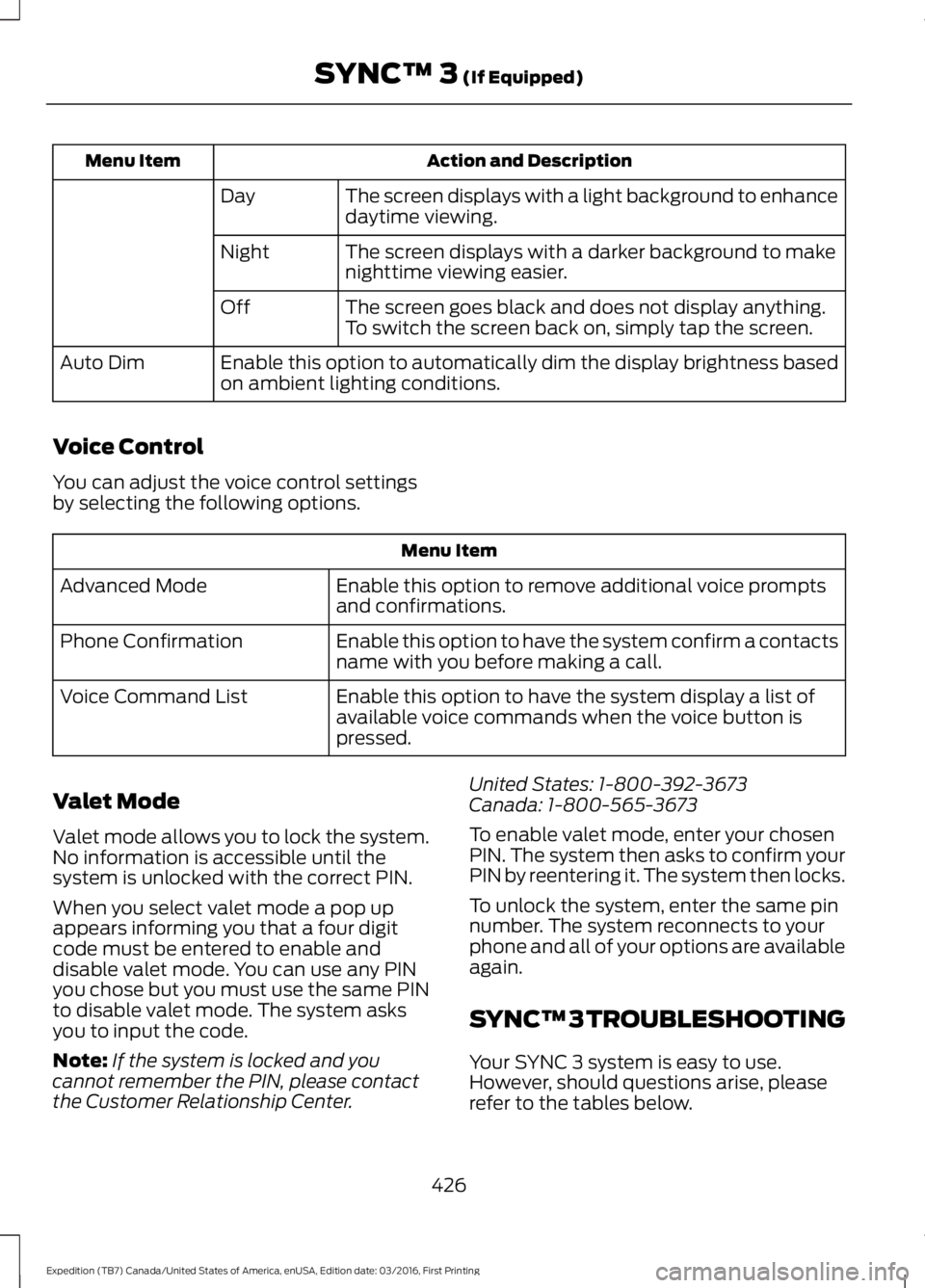
Action and DescriptionMenu Item
The screen displays with a light background to enhancedaytime viewing.Day
The screen displays with a darker background to makenighttime viewing easier.Night
The screen goes black and does not display anything.To switch the screen back on, simply tap the screen.Off
Enable this option to automatically dim the display brightness basedon ambient lighting conditions.Auto Dim
Voice Control
You can adjust the voice control settingsby selecting the following options.
Menu Item
Enable this option to remove additional voice promptsand confirmations.Advanced Mode
Enable this option to have the system confirm a contactsname with you before making a call.Phone Confirmation
Enable this option to have the system display a list ofavailable voice commands when the voice button ispressed.
Voice Command List
Valet Mode
Valet mode allows you to lock the system.No information is accessible until thesystem is unlocked with the correct PIN.
When you select valet mode a pop upappears informing you that a four digitcode must be entered to enable anddisable valet mode. You can use any PINyou chose but you must use the same PINto disable valet mode. The system asksyou to input the code.
Note:If the system is locked and youcannot remember the PIN, please contactthe Customer Relationship Center.
United States: 1-800-392-3673Canada: 1-800-565-3673
To enable valet mode, enter your chosenPIN. The system then asks to confirm yourPIN by reentering it. The system then locks.
To unlock the system, enter the same pinnumber. The system reconnects to yourphone and all of your options are availableagain.
SYNC™ 3 TROUBLESHOOTING
Your SYNC 3 system is easy to use.However, should questions arise, pleaserefer to the tables below.
426
Expedition (TB7) Canada/United States of America, enUSA, Edition date: 03/2016, First Printing
SYNC™ 3 (If Equipped)
Page 432 of 500
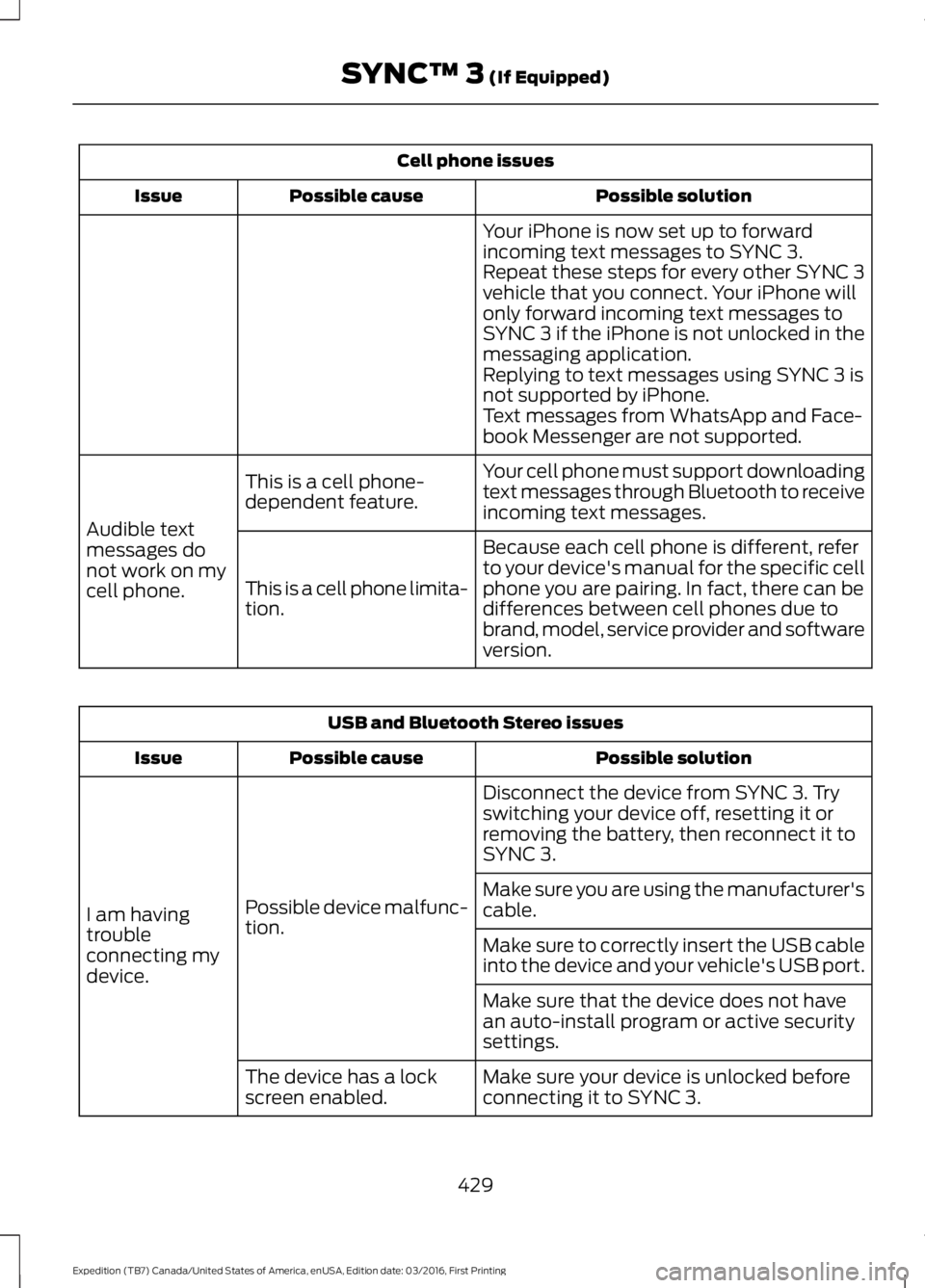
Cell phone issues
Possible solutionPossible causeIssue
Your iPhone is now set up to forwardincoming text messages to SYNC 3.Repeat these steps for every other SYNC 3vehicle that you connect. Your iPhone willonly forward incoming text messages toSYNC 3 if the iPhone is not unlocked in themessaging application.Replying to text messages using SYNC 3 isnot supported by iPhone.Text messages from WhatsApp and Face-book Messenger are not supported.
Your cell phone must support downloadingtext messages through Bluetooth to receiveincoming text messages.
This is a cell phone-dependent feature.
Audible textmessages donot work on mycell phone.
Because each cell phone is different, referto your device's manual for the specific cellphone you are pairing. In fact, there can bedifferences between cell phones due tobrand, model, service provider and softwareversion.
This is a cell phone limita-tion.
USB and Bluetooth Stereo issues
Possible solutionPossible causeIssue
Disconnect the device from SYNC 3. Tryswitching your device off, resetting it orremoving the battery, then reconnect it toSYNC 3.
Possible device malfunc-tion.I am havingtroubleconnecting mydevice.
Make sure you are using the manufacturer'scable.
Make sure to correctly insert the USB cableinto the device and your vehicle's USB port.
Make sure that the device does not havean auto-install program or active securitysettings.
Make sure your device is unlocked beforeconnecting it to SYNC 3.The device has a lockscreen enabled.
429
Expedition (TB7) Canada/United States of America, enUSA, Edition date: 03/2016, First Printing
SYNC™ 3 (If Equipped)