2017 FORD EXPEDITION EL USB
[x] Cancel search: USBPage 383 of 500
Included here are some of the mostpopular commands for each SYNC 3feature.
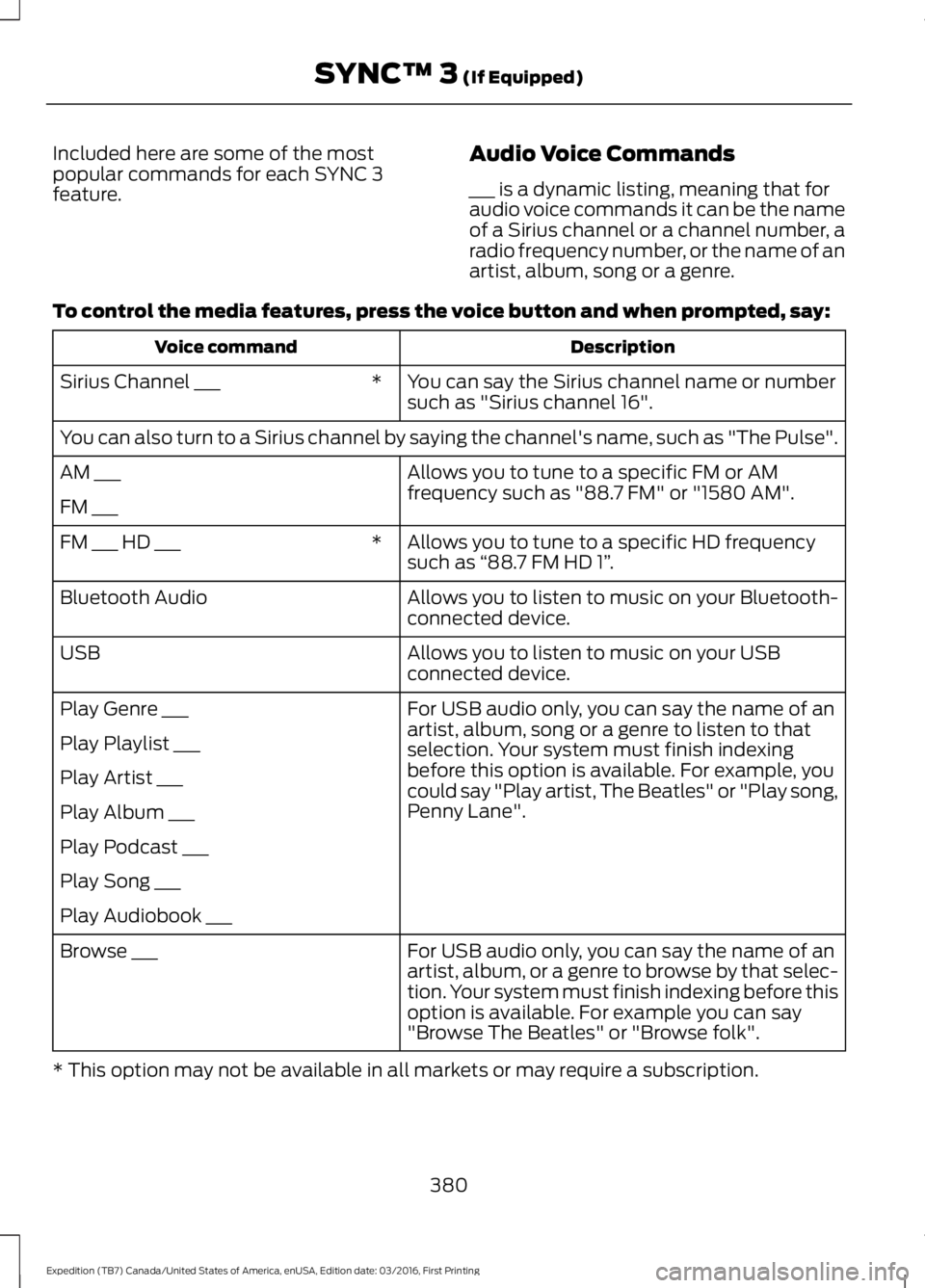
Audio Voice Commands
___ is a dynamic listing, meaning that foraudio voice commands it can be the nameof a Sirius channel or a channel number, aradio frequency number, or the name of anartist, album, song or a genre.
To control the media features, press the voice button and when prompted, say:
DescriptionVoice command
You can say the Sirius channel name or numbersuch as "Sirius channel 16".*Sirius Channel ___
You can also turn to a Sirius channel by saying the channel's name, such as "The Pulse".
Allows you to tune to a specific FM or AMfrequency such as "88.7 FM" or "1580 AM".AM ___
FM ___
Allows you to tune to a specific HD frequencysuch as “88.7 FM HD 1”.*FM ___ HD ___
Allows you to listen to music on your Bluetooth-connected device.Bluetooth Audio
Allows you to listen to music on your USBconnected device.USB
For USB audio only, you can say the name of anartist, album, song or a genre to listen to thatselection. Your system must finish indexingbefore this option is available. For example, youcould say "Play artist, The Beatles" or "Play song,Penny Lane".
Play Genre ___
Play Playlist ___
Play Artist ___
Play Album ___
Play Podcast ___
Play Song ___
Play Audiobook ___
For USB audio only, you can say the name of anartist, album, or a genre to browse by that selec-tion. Your system must finish indexing before thisoption is available. For example you can say"Browse The Beatles" or "Browse folk".
Browse ___
* This option may not be available in all markets or may require a subscription.
380
Expedition (TB7) Canada/United States of America, enUSA, Edition date: 03/2016, First Printing
SYNC™ 3 (If Equipped)
Page 390 of 500
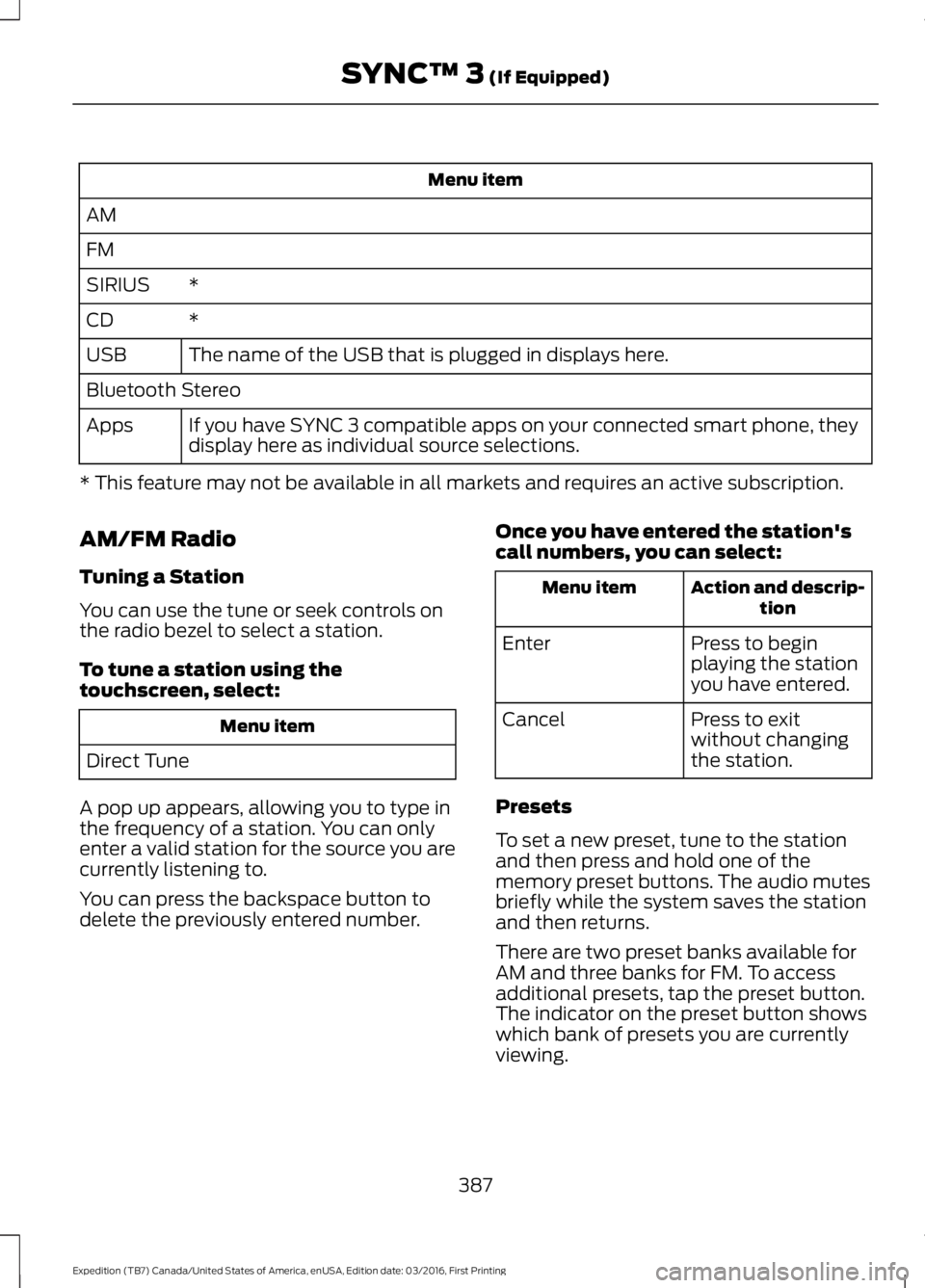
Menu item
AM
FM
*SIRIUS
*CD
The name of the USB that is plugged in displays here.USB
Bluetooth Stereo
If you have SYNC 3 compatible apps on your connected smart phone, theydisplay here as individual source selections.Apps
* This feature may not be available in all markets and requires an active subscription.
AM/FM Radio
Tuning a Station
You can use the tune or seek controls onthe radio bezel to select a station.
To tune a station using thetouchscreen, select:
Menu item
Direct Tune
A pop up appears, allowing you to type inthe frequency of a station. You can onlyenter a valid station for the source you arecurrently listening to.
You can press the backspace button todelete the previously entered number.
Once you have entered the station'scall numbers, you can select:
Action and descrip-tionMenu item
Press to beginplaying the stationyou have entered.
Enter
Press to exitwithout changingthe station.
Cancel
Presets
To set a new preset, tune to the stationand then press and hold one of thememory preset buttons. The audio mutesbriefly while the system saves the stationand then returns.
There are two preset banks available forAM and three banks for FM. To accessadditional presets, tap the preset button.The indicator on the preset button showswhich bank of presets you are currentlyviewing.
387
Expedition (TB7) Canada/United States of America, enUSA, Edition date: 03/2016, First Printing
SYNC™ 3 (If Equipped)
Page 397 of 500
Bluetooth Stereo or USB
Bluetooth Stereo and USB allow you to
access media that you store on yourBluetooth device or USB device such asmusic, audio books or podcasts.
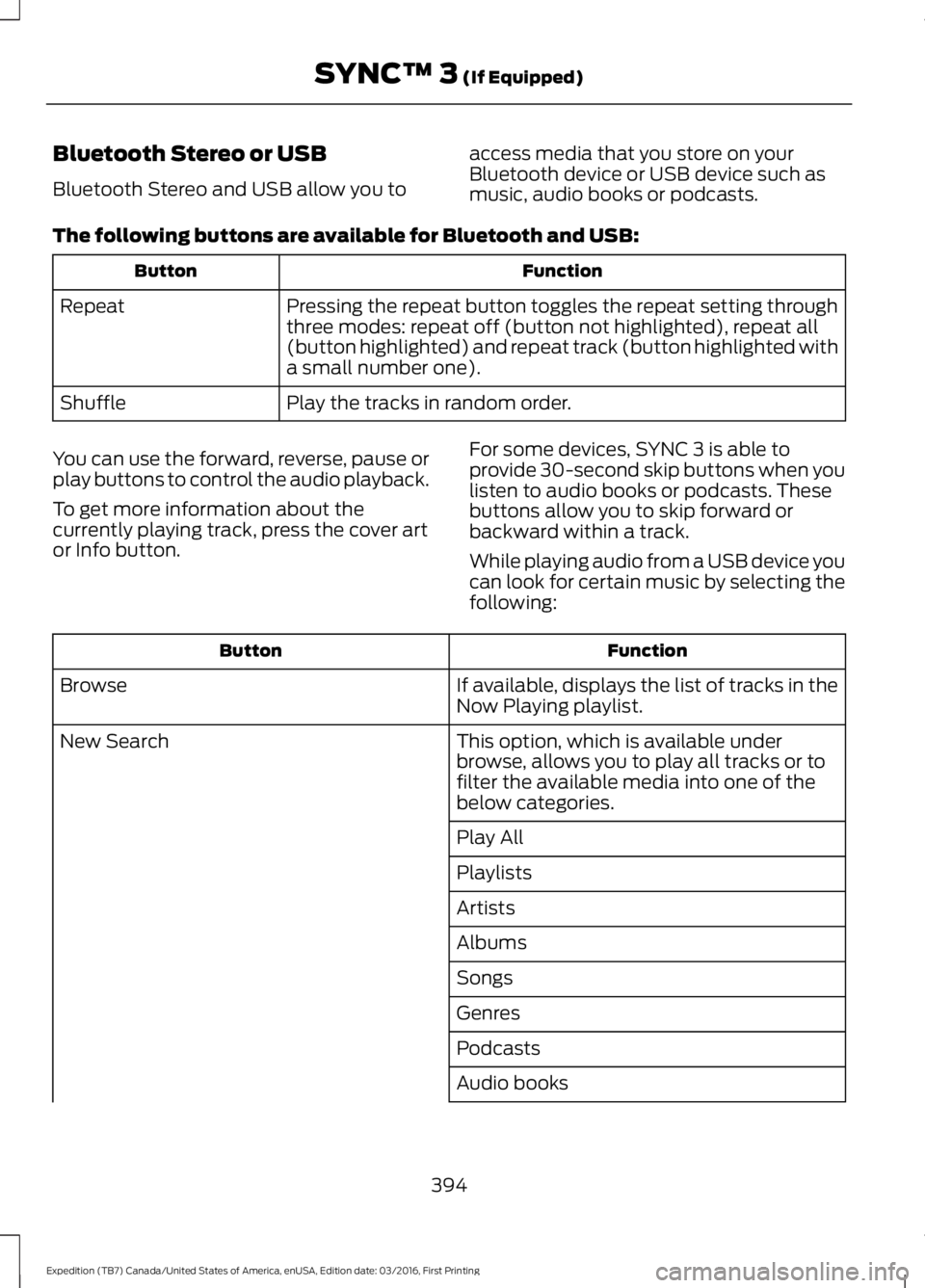
The following buttons are available for Bluetooth and USB:
FunctionButton
Pressing the repeat button toggles the repeat setting throughthree modes: repeat off (button not highlighted), repeat all(button highlighted) and repeat track (button highlighted witha small number one).
Repeat
Play the tracks in random order.Shuffle
You can use the forward, reverse, pause orplay buttons to control the audio playback.
To get more information about thecurrently playing track, press the cover artor Info button.
For some devices, SYNC 3 is able toprovide 30-second skip buttons when youlisten to audio books or podcasts. Thesebuttons allow you to skip forward orbackward within a track.
While playing audio from a USB device youcan look for certain music by selecting thefollowing:
FunctionButton
If available, displays the list of tracks in theNow Playing playlist.Browse
This option, which is available underbrowse, allows you to play all tracks or tofilter the available media into one of thebelow categories.
New Search
Play All
Playlists
Artists
Albums
Songs
Genres
Podcasts
Audio books
394
Expedition (TB7) Canada/United States of America, enUSA, Edition date: 03/2016, First Printing
SYNC™ 3 (If Equipped)
Page 398 of 500
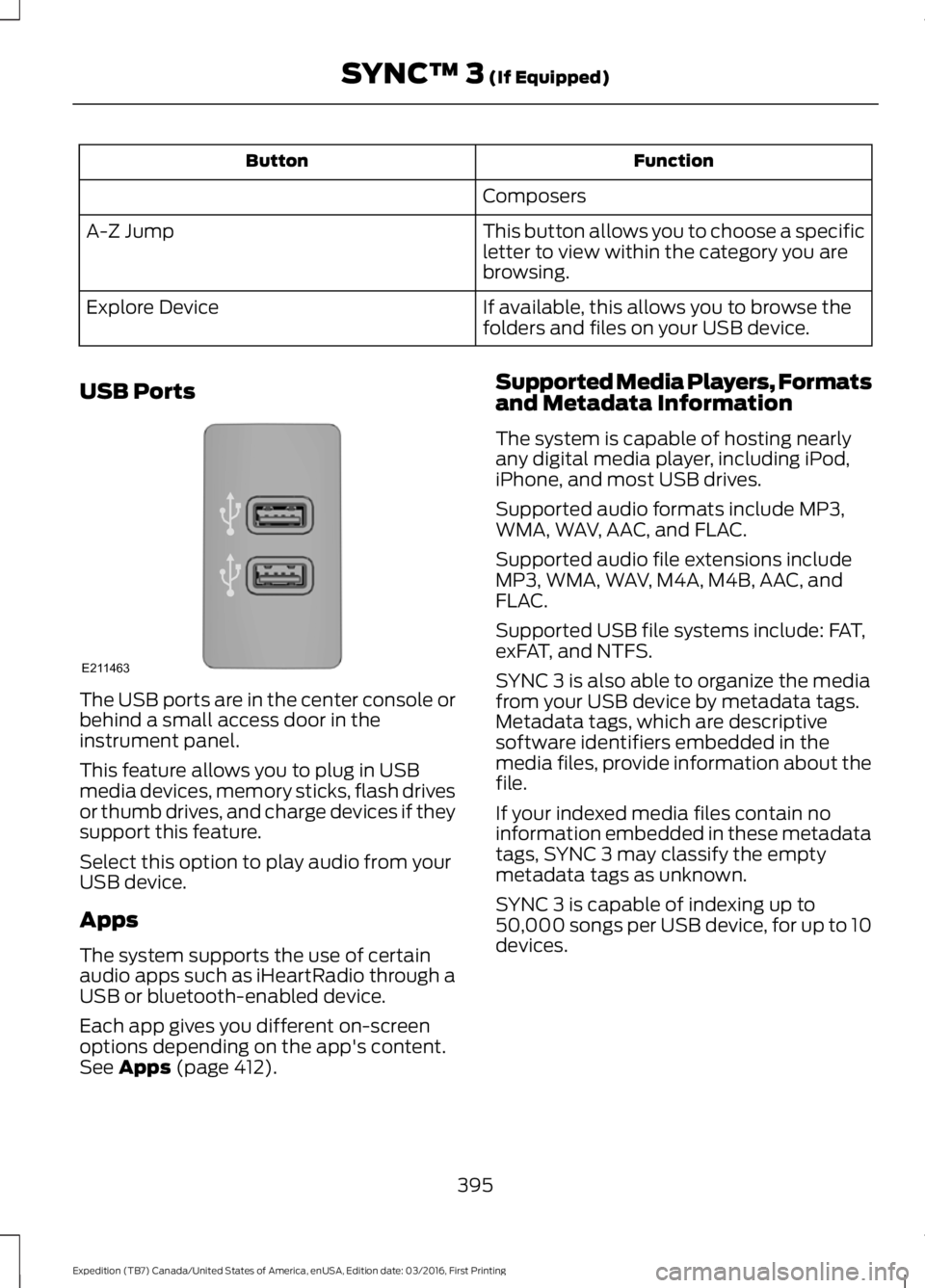
FunctionButton
Composers
This button allows you to choose a specificletter to view within the category you arebrowsing.
A-Z Jump
If available, this allows you to browse thefolders and files on your USB device.Explore Device
USB Ports
The USB ports are in the center console orbehind a small access door in theinstrument panel.
This feature allows you to plug in USBmedia devices, memory sticks, flash drivesor thumb drives, and charge devices if theysupport this feature.
Select this option to play audio from yourUSB device.
Apps
The system supports the use of certainaudio apps such as iHeartRadio through aUSB or bluetooth-enabled device.
Each app gives you different on-screenoptions depending on the app's content.See Apps (page 412).
Supported Media Players, Formatsand Metadata Information
The system is capable of hosting nearlyany digital media player, including iPod,iPhone, and most USB drives.
Supported audio formats include MP3,WMA, WAV, AAC, and FLAC.
Supported audio file extensions includeMP3, WMA, WAV, M4A, M4B, AAC, andFLAC.
Supported USB file systems include: FAT,exFAT, and NTFS.
SYNC 3 is also able to organize the mediafrom your USB device by metadata tags.Metadata tags, which are descriptivesoftware identifiers embedded in themedia files, provide information about thefile.
If your indexed media files contain noinformation embedded in these metadatatags, SYNC 3 may classify the emptymetadata tags as unknown.
SYNC 3 is capable of indexing up to50,000 songs per USB device, for up to 10devices.
395
Expedition (TB7) Canada/United States of America, enUSA, Edition date: 03/2016, First Printing
SYNC™ 3 (If Equipped)E211463
Page 406 of 500

Item
Immediately end aphone call. You canalso press thebutton on thesteering wheel.
End Call
Press this to accessthe phone keypad.Keypad
You can switch themicrophone off sothe caller does nothear you.
Mute
Item
PrivacyTransfer the call tothe cell phone orback to SYNC 3.
Text Messaging
Note:Downloading and sending textmessages using Bluetooth are cellphone-dependent features.
Note:Certain features in text messagingare speed-dependent and not availablewhen your vehicle is traveling at speeds over3 mph (5 km/h).
Receiving a Text Message
When a new message arrives, an audible tone sounds and the screen displays apop-up with the caller name and ID, if supported by your cell phone. You can select:
Action and DescriptionMenu Item
Have SYNC 3 read the message to you.Hear It
View the text on the touchscreen.View
To call the sender.Call
You can select from 15 preset messages. Press the messagethat you would like to use and confirm to send the message.SYNC 3 confirms when the message is sent successfully.
Reply
To exit the screen.Close
Smartphone Connectivity (If Equipped)
SYNC 3 allows you to use Apple CarPlayand Android Auto to access your phone.
When you use Apple CarPlay or AndroidAuto, you can:
•Make calls.
•Send and receive messages.
•Listen to music.
•Use your phone's voice assistant.
Apple CarPlay and Android Auto disablesome SYNC 3 features.
Most Apple CarPlay and Android Autofeatures use mobile data.
Apple CarPlay
Apple CarPlay requires an iPhone 5 ornewer with iOS 7.1 or newer. Updating tothe latest iOS version is recommended.
1. Plug your phone into a USB port. SeeUSB Port (page 323).
403
Expedition (TB7) Canada/United States of America, enUSA, Edition date: 03/2016, First Printing
SYNC™ 3 (If Equipped)
Page 407 of 500
2. Select Apple CarPlay on thetouchscreen.
To disable this feature from theSettings screen, select:
Menu Item
Apple CarPlay Preferences
Your device is listed if SYNC detectsApple CarPlay. Select the name of yourdevice and select:
Disable
To return to SYNC 3, go to the AppleCarPlay home screen and select the SYNCapp.
Note:Contact Apple for Apple CarPlaysupport.
Android Auto
Android Auto is compatible with mostdevices with Android 5.0 or newer.
1. Download the Android Auto app toyour device from Google Play toprepare your device (this may requiremobile data usage).
2. Plug your device into a USB port. SeeUSB Port (page 323).
Note:Android Auto may default to off, soyou may need to enable it from the Settingsscreen.
To disable this feature from theSettings screen, select:
Menu Item
Android Auto Preferences
Your device is listed if SYNC detectsAndroid Auto. Select the name of yourdevice and select:
Disable
Note:You may need to slide your Settingsscreen to the left to select Apple CarPlayPreferences or Android Auto Preferences.
To return to SYNC 3, select thespeedometer icon in the Android Automenu bar at the bottom of thetouchscreen, and then touch the option toreturn to SYNC.
Note:Contact Google for Android Autosupport.
NAVIGATION (If Equipped)
Your navigation system is comprised oftwo main features, destination mode andmap mode.
Map Mode
Map mode shows advanced viewingcomprised of 2D city maps, 3D landmarksand 3D city models (when available). 2Dcity maps show detailed outlines ofbuildings, visible land use, landscapefeatures, and detailed railroadinfrastructure for the most essential citiesaround the globe.
3D landmarks appear as clear, visibleobjects that are typically recognizable andhave a certain tourism value.
3D city models are complete 3D modelsof entire city areas including navigableroads, parks, rivers and rendered buildings.3D landmarks and city models appear in3D map mode only. Coverage of thesevaries and improves with updated mapreleases.
Select the zoom in icon to see acloser view of the map.
Select the zoom out icon to seea farther away view of the map.
404
Expedition (TB7) Canada/United States of America, enUSA, Edition date: 03/2016, First Printing
SYNC™ 3 (If Equipped)E207752 E207753
Page 415 of 500

HERE is the digital map provider for thenavigation application. If you find map dataerrors, you may report them directly toHERE by going towww.here.com/mapcreator. HEREevaluates all reported map errors andresponds with the result of theirinvestigation by e-mail.
Map coverage includes the USA (includingPuerto Rico and the US Virgin Islands),Canada and Mexico.
APPS
The system enables voice, steering wheel,and touch screen control of SYNC 3AppLink enabled smartphone apps. Oncean app is running through AppLink, you cancontrol main features of the app throughvoice commands and steering wheelcontrols.
Note:Available AppLink enabled apps willvary by market.
Note:You must pair and connect yoursmartphone via Bluetooth to SYNC 3 toaccess AppLink.
Note:iPhone users need to connect thephone to the USB port.
Note:For information on available apps,supported smartphone devices andtroubleshooting tips please visit:
Websites
owner.ford.comwww.syncmyride.ca
Websites
www.syncmaroute.ca
Note:Make sure you have an active accountfor the app that you have downloaded.Some apps will work automatically with nosetup. Other apps will want you to configureyour personal settings and personalize yourexperience by creating stations or favorites.We recommend you do this at home oroutside of your vehicle.
Note:We encourage you to review thesmartphone app’s terms of service andprivacy policies because Ford is notresponsible for your app or its use of data.
Note:AppLink is a native SYNC systemfeature. Accessing mobile apps throughAppLink is only possible when Android Autoor Apple CarPlay are disabled. Some appsmay only be accessible in the car throughApplink and others only through AndroidAuto or Apple CarPlay. Please refer to theSmartphone Connectivity information todisable Android Auto or Apple CarPlay.
Note:In order to use an app with SYNC 3,the App needs to be running in thebackground of your phone. If you shut downthe app on your phone, it shuts down theapp on SYNC 3 as well.
Note:If a SYNC 3 AppLink compatible appis not shown in the Apps Domain, make surethe required app is running on the mobiledevice.
412
Expedition (TB7) Canada/United States of America, enUSA, Edition date: 03/2016, First Printing
SYNC™ 3 (If Equipped)
Page 418 of 500
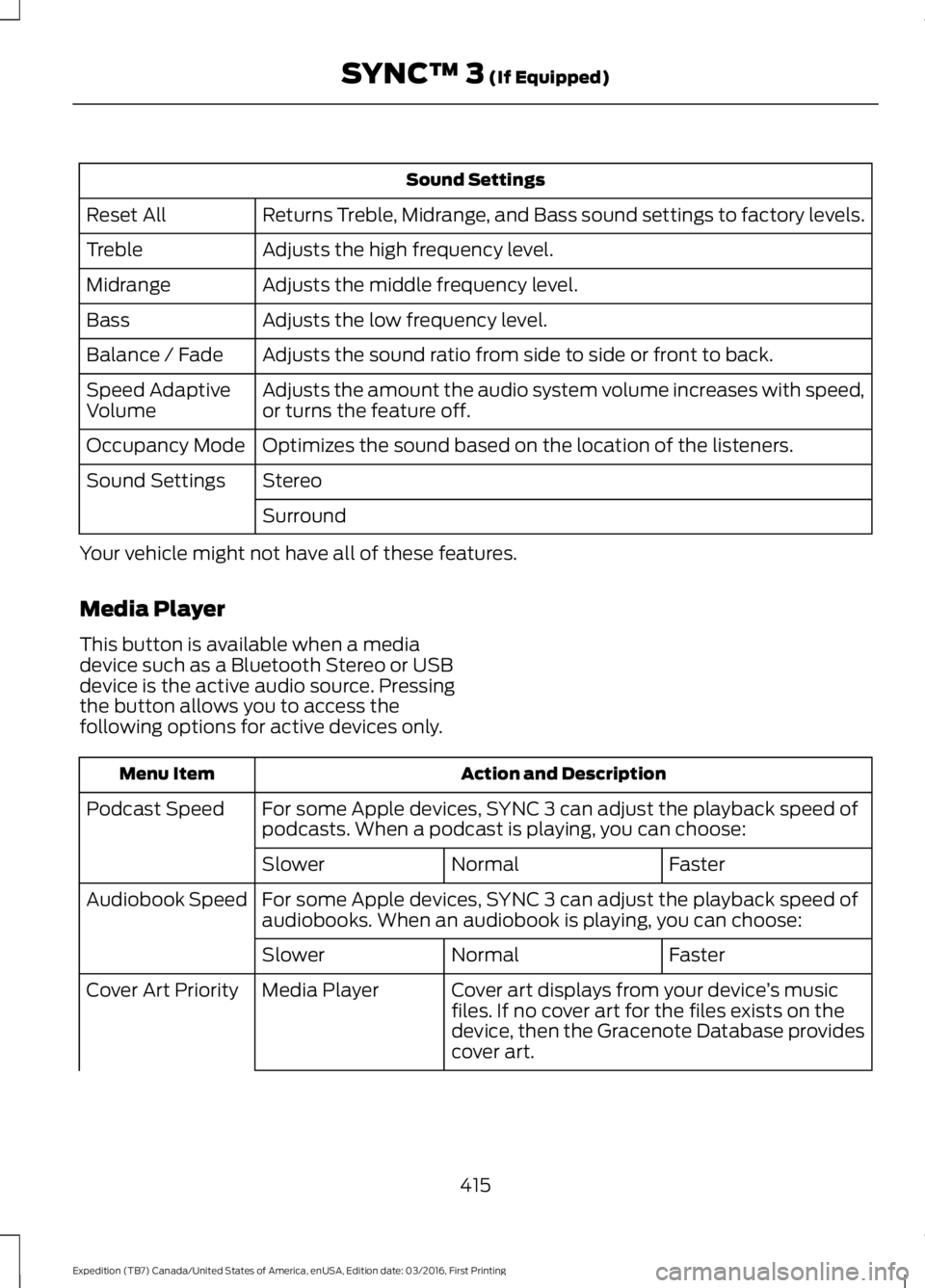
Sound Settings
Returns Treble, Midrange, and Bass sound settings to factory levels.Reset All
Adjusts the high frequency level.Treble
Adjusts the middle frequency level.Midrange
Adjusts the low frequency level.Bass
Adjusts the sound ratio from side to side or front to back.Balance / Fade
Adjusts the amount the audio system volume increases with speed,or turns the feature off.Speed AdaptiveVolume
Optimizes the sound based on the location of the listeners.Occupancy Mode
StereoSound Settings
Surround
Your vehicle might not have all of these features.
Media Player
This button is available when a mediadevice such as a Bluetooth Stereo or USBdevice is the active audio source. Pressingthe button allows you to access thefollowing options for active devices only.
Action and DescriptionMenu Item
For some Apple devices, SYNC 3 can adjust the playback speed ofpodcasts. When a podcast is playing, you can choose:Podcast Speed
FasterNormalSlower
For some Apple devices, SYNC 3 can adjust the playback speed ofaudiobooks. When an audiobook is playing, you can choose:Audiobook Speed
FasterNormalSlower
Cover art displays from your device’s musicfiles. If no cover art for the files exists on thedevice, then the Gracenote Database providescover art.
Media PlayerCover Art Priority
415
Expedition (TB7) Canada/United States of America, enUSA, Edition date: 03/2016, First Printing
SYNC™ 3 (If Equipped)