Page 264 of 510
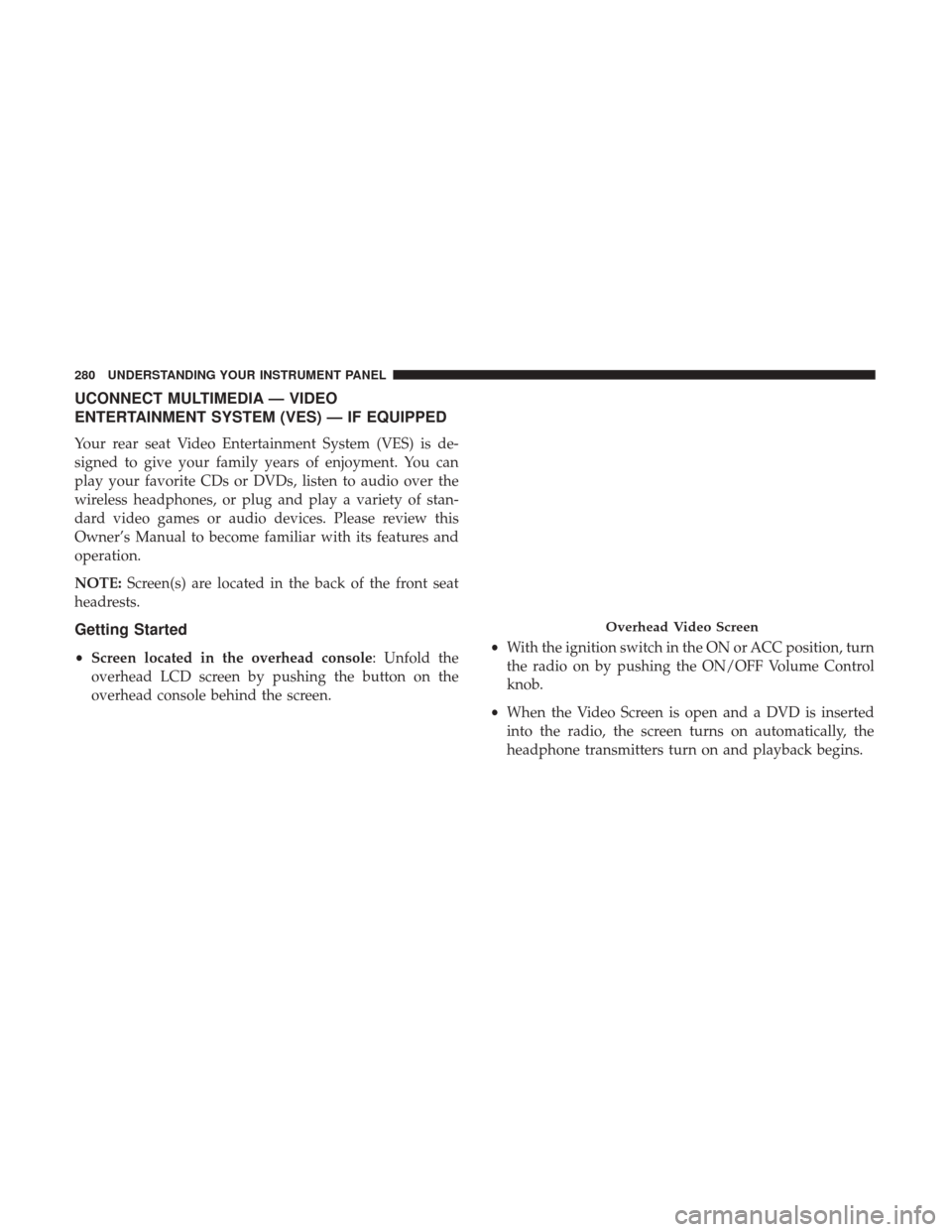
Audio
After pressing the “Audio” button on the touchscreen the
following settings will be available:
Setting NameAdjustable Options
Equalizer BassMidTreble
NOTE:
When in this display you may adjust the “Bass”, “Mid” and “Treble” settings. Adjust the settings with the “+” and
“–” setting buttons on the touchscreen or by selecting any point on the scale between the “+” and “–” buttons on the
touchscreen. Bass/Mid/Treble also allow you to simply slide your finger up or down to change the setting as well as
press directly on the desired setting.
Compass Variance Zone Map
262 UNDERSTANDING YOUR INSTRUMENT PANEL
Page 265 of 510
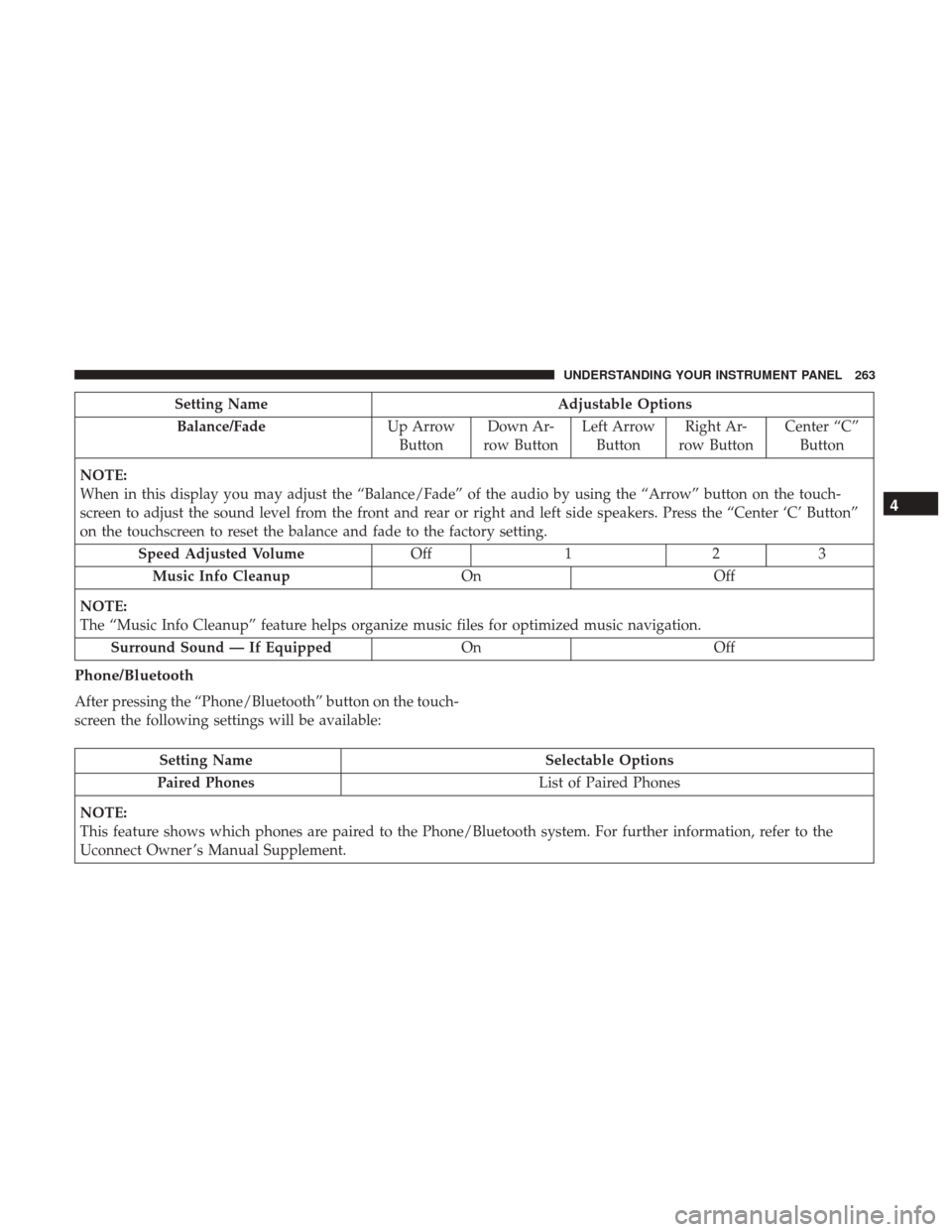
Setting NameAdjustable Options
Balance/Fade Up Arrow
Button Down Ar-
row Button Left Arrow
Button Right Ar-
row Button Center “C”
Button
NOTE:
When in this display you may adjust the “Balance/Fade” of the audio by using the “Arrow” button on the touch-
screen to adjust the sound level from the front and rear or right and left side speakers. Press the “Center ‘C’ Button”
on the touchscreen to reset the balance and fade to the factory setting. Speed Adjusted Volume Off123
Music Info Cleanup OnOff
NOTE:
The “Music Info Cleanup” feature helps organize music files for optimized music navigation. Surround Sound — If Equipped OnOff
Phone/Bluetooth
After pressing the “Phone/Bluetooth” button on the touch-
screen the following settings will be available:
Setting Name Selectable Options
Paired Phones List of Paired Phones
NOTE:
This feature shows which phones are paired to the Phone/Bluetooth system. For further information, refer to the
Uconnect Owner ’s Manual Supplement.
4
UNDERSTANDING YOUR INSTRUMENT PANEL 263
Page 267 of 510
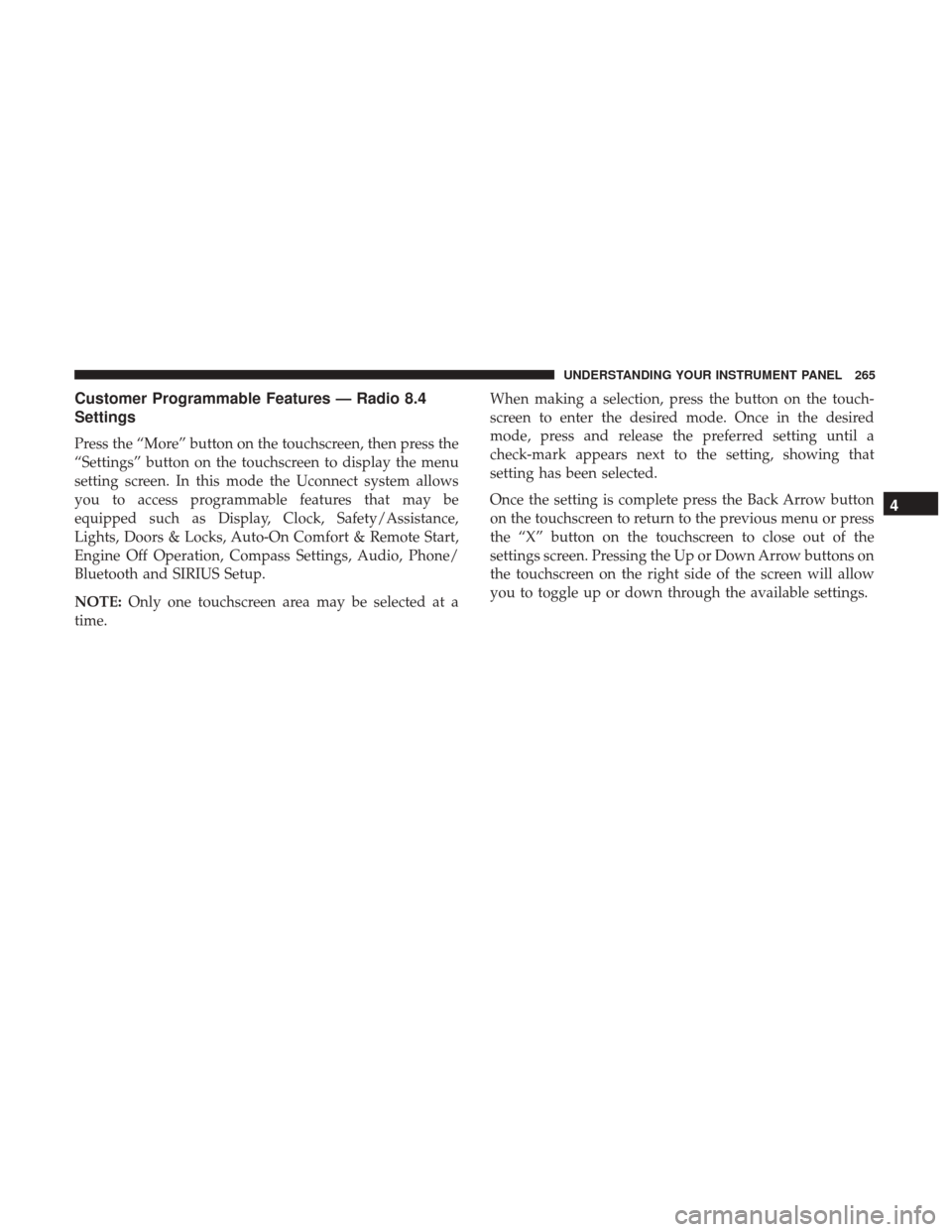
Customer Programmable Features — Radio 8.4
Settings
Press the “More” button on the touchscreen, then press the
“Settings” button on the touchscreen to display the menu
setting screen. In this mode the Uconnect system allows
you to access programmable features that may be
equipped such as Display, Clock, Safety/Assistance,
Lights, Doors & Locks, Auto-On Comfort & Remote Start,
Engine Off Operation, Compass Settings, Audio, Phone/
Bluetooth and SIRIUS Setup.
NOTE:Only one touchscreen area may be selected at a
time. When making a selection, press the button on the touch-
screen to enter the desired mode. Once in the desired
mode, press and release the preferred setting until a
check-mark appears next to the setting, showing that
setting has been selected.
Once the setting is complete press the Back Arrow button
on the touchscreen to return to the previous menu or press
the “X” button on the touchscreen to close out of the
settings screen. Pressing the Up or Down Arrow buttons on
the touchscreen on the right side of the screen will allow
you to toggle up or down through the available settings.
4
UNDERSTANDING YOUR INSTRUMENT PANEL 265
Page 279 of 510
Audio
After pressing the Audio button on the touchscreen the
following settings will be available.
Setting NameAdjustable Options
Equalizer BassMidTreble
NOTE:
When in this display you may adjust the “Bass”, “Mid” and “Treble” settings. Adjust the settings with the “+” and
“–” setting buttons on the touchscreen or by selecting any point on the scale between the “+” and “–” buttons on the
touchscreen. Bass/Mid/Treble also allow you to simply slide your finger up or down to change the setting as well as
press directly on the desired setting.
Compass Variance Zone Map
4
UNDERSTANDING YOUR INSTRUMENT PANEL 277
Page 280 of 510
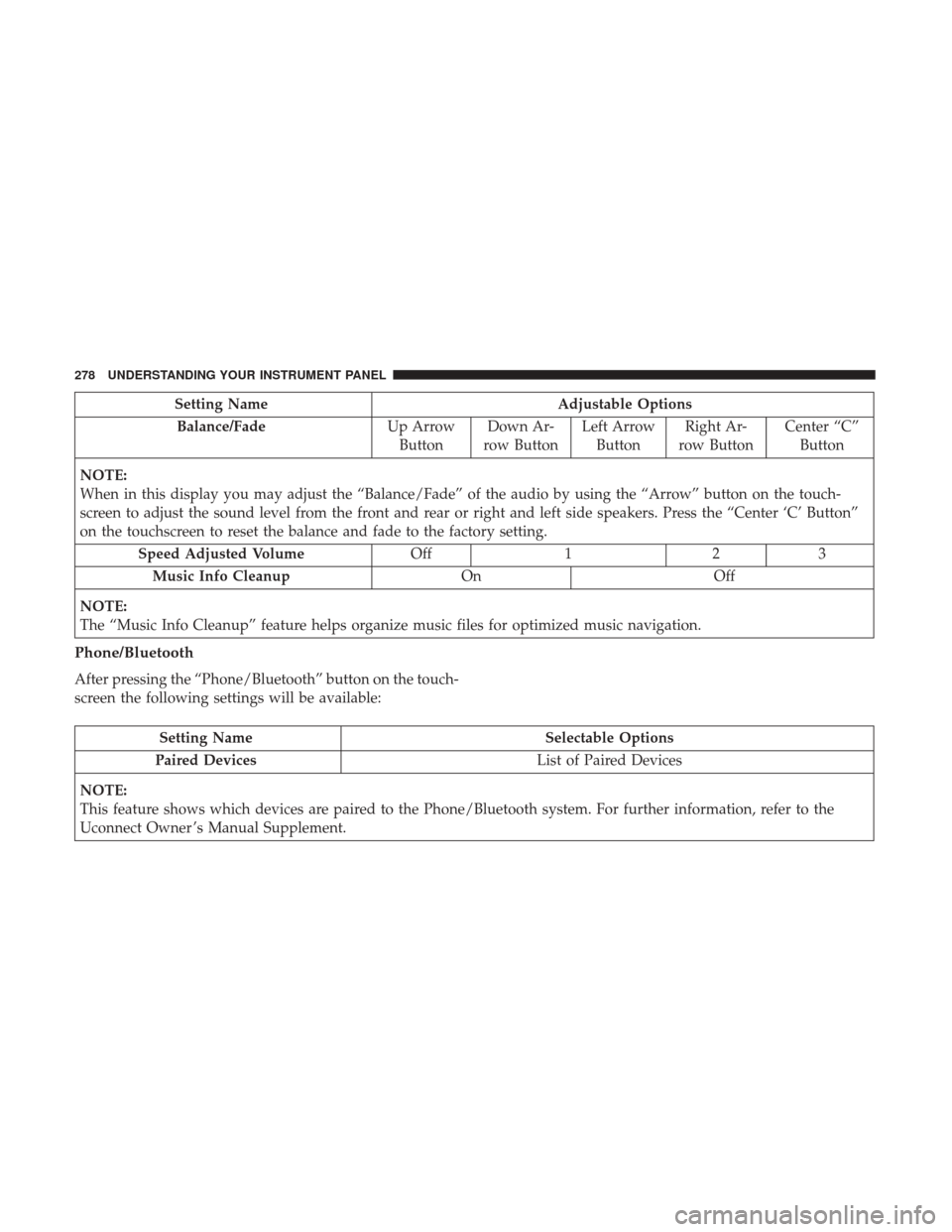
Setting NameAdjustable Options
Balance/Fade Up Arrow
Button Down Ar-
row Button Left Arrow
Button Right Ar-
row Button Center “C”
Button
NOTE:
When in this display you may adjust the “Balance/Fade” of the audio by using the “Arrow” button on the touch-
screen to adjust the sound level from the front and rear or right and left side speakers. Press the “Center ‘C’ Button”
on the touchscreen to reset the balance and fade to the factory setting. Speed Adjusted Volume Off123
Music Info Cleanup OnOff
NOTE:
The “Music Info Cleanup” feature helps organize music files for optimized music navigation.
Phone/Bluetooth
After pressing the “Phone/Bluetooth” button on the touch-
screen the following settings will be available:
Setting Name Selectable Options
Paired Devices List of Paired Devices
NOTE:
This feature shows which devices are paired to the Phone/Bluetooth system. For further information, refer to the
Uconnect Owner ’s Manual Supplement.
278 UNDERSTANDING YOUR INSTRUMENT PANEL
Page 282 of 510
UCONNECT MULTIMEDIA — VIDEO
ENTERTAINMENT SYSTEM (VES) — IF EQUIPPED
Your rear seat Video Entertainment System (VES) is de-
signed to give your family years of enjoyment. You can
play your favorite CDs or DVDs, listen to audio over the
wireless headphones, or plug and play a variety of stan-
dard video games or audio devices. Please review this
Owner’s Manual to become familiar with its features and
operation.
NOTE:Screen(s) are located in the back of the front seat
headrests.
Getting Started
• Screen located in the overhead console: Unfold the
overhead LCD screen by pushing the button on the
overhead console behind the screen. •
With the ignition switch in the ON or ACC position, turn
the radio on by pushing the ON/OFF Volume Control
knob.
• When the Video Screen is open and a DVD is inserted
into the radio, the screen turns on automatically, the
headphone transmitters turn on and playback begins.
Overhead Video Screen
280 UNDERSTANDING YOUR INSTRUMENT PANEL
Page 283 of 510
Single Video Screen
NOTE:Typically there are two different ways to operate
the features of the Video Entertainment System (VES).
• The Remote Control
• The Touchscreen Radio (If Equipped)
Play A DVD
1. Press the EJECT button on the radio faceplate (Touch-
screen).
2. Insert the DVD with the label facing up. The radio automatically selects the appropriate mode after the disc
is recognized and displays the menu screen or starts
playing the first track.
3. Ensure the VES Remote Control and the Headphone switch is on Channel 1.
Using The Remote Control
1. Push the MODE button on the Remote Control.
2. While looking at the video screen, highlight DISC byeither pushing Up/Down/Left/Right buttons or by
repeatedly pushing the MODE button, then push EN-
TER on the Remote Control. NOTE:
The VES system will retain the last setting when
turned off.
Play Video Games
Connect the video game console to the Auxiliary RCA
input jacks located on the back of the center console.
Audio/Video RCA Jacks (AUX Jacks) on
the rear of the center console enable the
monitor to display video directly from a
video camera, connect video games for
display on the screen, or play music
directly from an MP3 player.
1. Video in (yellow).
2. Left audio in (white).
3. Right audio in (red).
When connecting an external source to the AUX input, be
sure to follow the standard color coding for the VES jacks:
NOTE: Certain high-end video games consoles will ex-
ceed the power limit of the vehicle’s Power Inverter. Refer
to the Power Inverter section in your vehicle’s Owner’s
Manual for more information.
4
UNDERSTANDING YOUR INSTRUMENT PANEL 281
Page 284 of 510
Ensure the remote control channel selector switch and
Headphone switch (IR channel) are the same number.
Using The Remote Control
1. Push the MODE button on the Remote Control.
2. While looking at the video screen, highlight VES AUX 2,by either pushing Up/Down/Left/Right buttons or by
repeatedly pushing the MODE button, then push EN-
TER on the Remote Control.
Using The Touchscreen Radio Controls
1. Press the “MORE” button on the touchscreen.
2. Press the “Rear Entertainment” button on the touch-screen to display the Rear Entertainment Controls.
3. If the Rear Entertainment is turned off, press the “Power” button on the touchscreen.
4. Press the “1” or “2” button on the touchscreen for the channel desired and press the “Source” button on the
touchscreen to select the desired mode.
Listen To An Audio Source On Channel 2 While A
Video Is Playing On Channel 1
Ensure the Remote Control and Headphone switch is on
Channel 2.
Using The Remote Control
1. Push the MODE button on the Remote Control and theMode Select Screen will display, unless a video is
playing then only a small banner will appear on the
bottom of the screen.
2. While looking at the video screen, either press Up/ Down/Left/Right on the Remote Control to highlight
the desired audio source or repeatedly push the MODE
button on the remote until the desired audio source
appears on the screen.
Using The Touchscreen Radio Controls
1. Press the “MORE” button on the touchscreen.
2. Press the “Rear Entertainment” button on the touch-screen to display the Rear Entertainment Controls.
3. If the Rear Entertainment is turned off, press the “Power” button on the touchscreen.
4. Press the “1” or “2” button on the touchscreen for the channel desired and press the “Source” button on the
touchscreen to select the desired mode.
282 UNDERSTANDING YOUR INSTRUMENT PANEL