Page 261 of 510
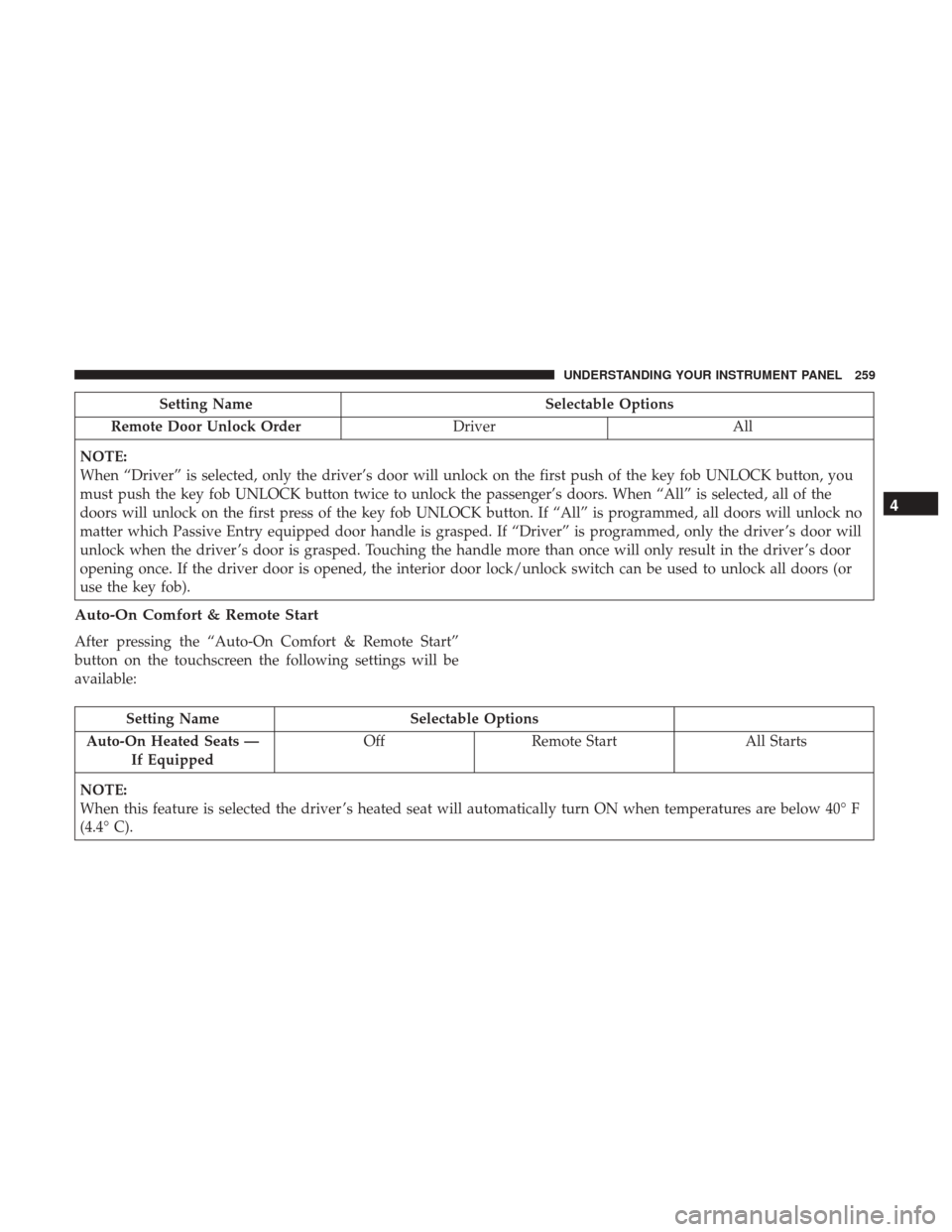
Setting NameSelectable Options
Remote Door Unlock Order DriverAll
NOTE:
When “Driver” is selected, only the driver’s door will unlock on the first push of the key fob UNLOCK button, you
must push the key fob UNLOCK button twice to unlock the passenger’s doors. When “All” is selected, all of the
doors will unlock on the first press of the key fob UNLOCK button. If “All” is programmed, all doors will unlock no
matter which Passive Entry equipped door handle is grasped. If “Driver” is programmed, only the driver ’s door will
unlock when the driver ’s door is grasped. Touching the handle more than once will only result in the driver ’s door
opening once. If the driver door is opened, the interior door lock/unlock switch can be used to unlock all doors (or
use the key fob).
Auto-On Comfort & Remote Start
After pressing the “Auto-On Comfort & Remote Start”
button on the touchscreen the following settings will be
available:
Setting Name Selectable Options
Auto-On Heated Seats — If Equipped Off
Remote Start All Starts
NOTE:
When this feature is selected the driver ’s heated seat will automatically turn ON when temperatures are below 40° F
(4.4° C).
4
UNDERSTANDING YOUR INSTRUMENT PANEL 259
Page 267 of 510
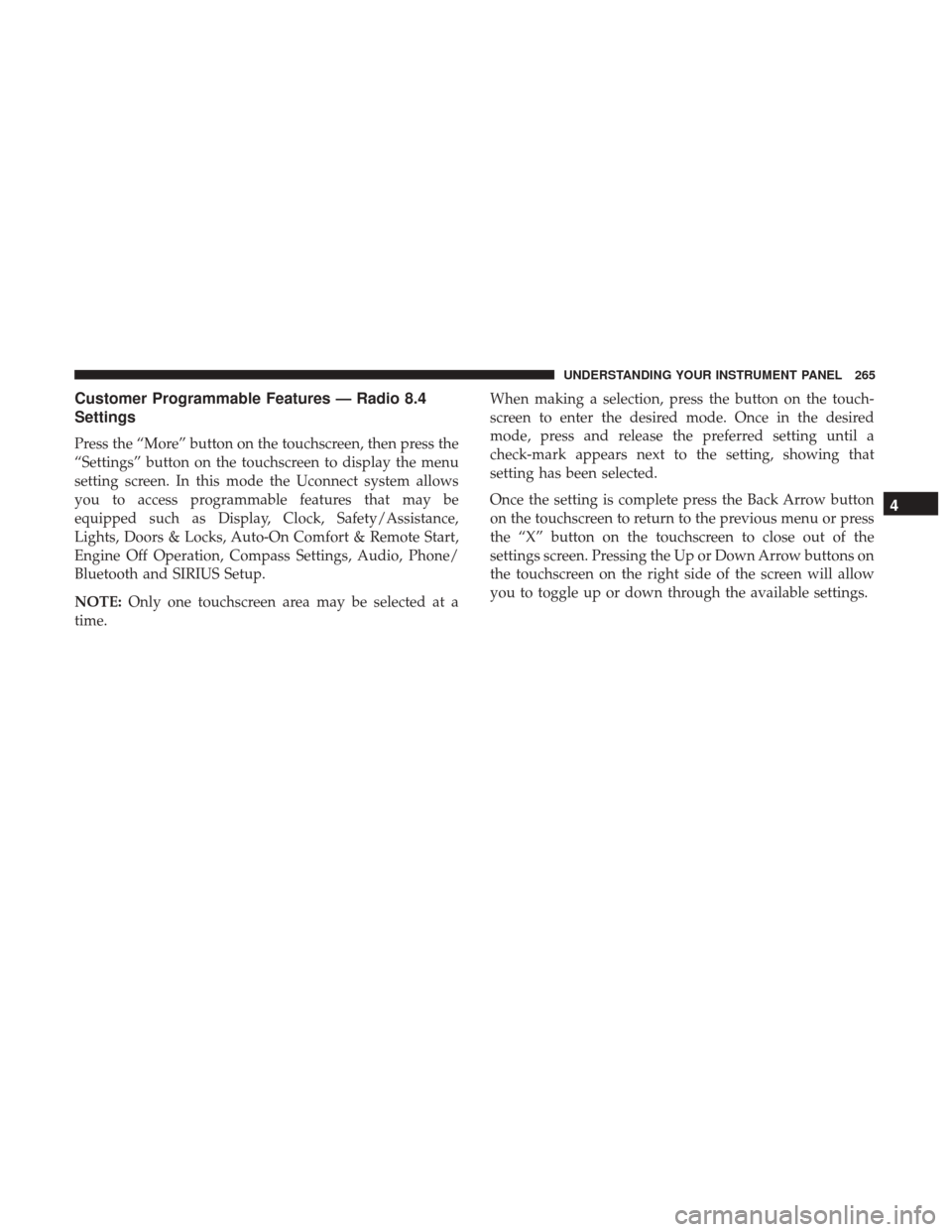
Customer Programmable Features — Radio 8.4
Settings
Press the “More” button on the touchscreen, then press the
“Settings” button on the touchscreen to display the menu
setting screen. In this mode the Uconnect system allows
you to access programmable features that may be
equipped such as Display, Clock, Safety/Assistance,
Lights, Doors & Locks, Auto-On Comfort & Remote Start,
Engine Off Operation, Compass Settings, Audio, Phone/
Bluetooth and SIRIUS Setup.
NOTE:Only one touchscreen area may be selected at a
time. When making a selection, press the button on the touch-
screen to enter the desired mode. Once in the desired
mode, press and release the preferred setting until a
check-mark appears next to the setting, showing that
setting has been selected.
Once the setting is complete press the Back Arrow button
on the touchscreen to return to the previous menu or press
the “X” button on the touchscreen to close out of the
settings screen. Pressing the Up or Down Arrow buttons on
the touchscreen on the right side of the screen will allow
you to toggle up or down through the available settings.
4
UNDERSTANDING YOUR INSTRUMENT PANEL 265
Page 270 of 510
Clock
After pressing the Clock button on the touchscreen the
following settings will be available.
Setting NameSelectable Options
Sync Time With GPS — If Equipped Set Time Hours +-
NOTE:
This feature will allow you to adjust the hours. The “Sync time with GPS” button on the touchscreen must be un-
checked. Set Time Minutes +-
NOTE:
This feature will allow you to adjust the minutes. The “Sync time with GPS” button on the touchscreen must be un-
checked. Time Format 12hrs24hrs
Show Time in Status Bar — If Equipped
268 UNDERSTANDING YOUR INSTRUMENT PANEL
Page 272 of 510
Lights
After pressing the Lights button on the touchscreen the
following settings will be available:
Setting NameSelectable Options
Headlight Off Delay 0 sec30 sec 60 sec 90 sec
NOTE:
When the “Headlight Off Delay” feature is selected, it allows the adjustment of the amount of time the headlights
remain on after the engine is shut off. Headlights WithWipers — IfEquipped
Headlight Illumi-
nated On Approach 0 sec
30 sec 60 sec 90 sec
NOTE:
When the “Headlight Illumination On Approach” feature is selected, it allows the adjustment of the amount of time
the headlights remain on after the doors are unlocked with the key fob. Auto Dim HighBeams— IfEquipped
270 UNDERSTANDING YOUR INSTRUMENT PANEL
Page 273 of 510
Setting NameSelectable Options
NOTE:
When the “Auto Dim High Beams” feature is selected, the high beam headlights will activate/deactivate automati-
cally under certain conditions. Daytime Running Lights — IfEquipped
Steering Directed Headlights — If Equipped
NOTE:
The “Steering Directed Headlights” feature causes the headlights to turn relative to a change in direction of the steer-
ing wheel. Flash Lights With Lock
4
UNDERSTANDING YOUR INSTRUMENT PANEL 271
Page 274 of 510
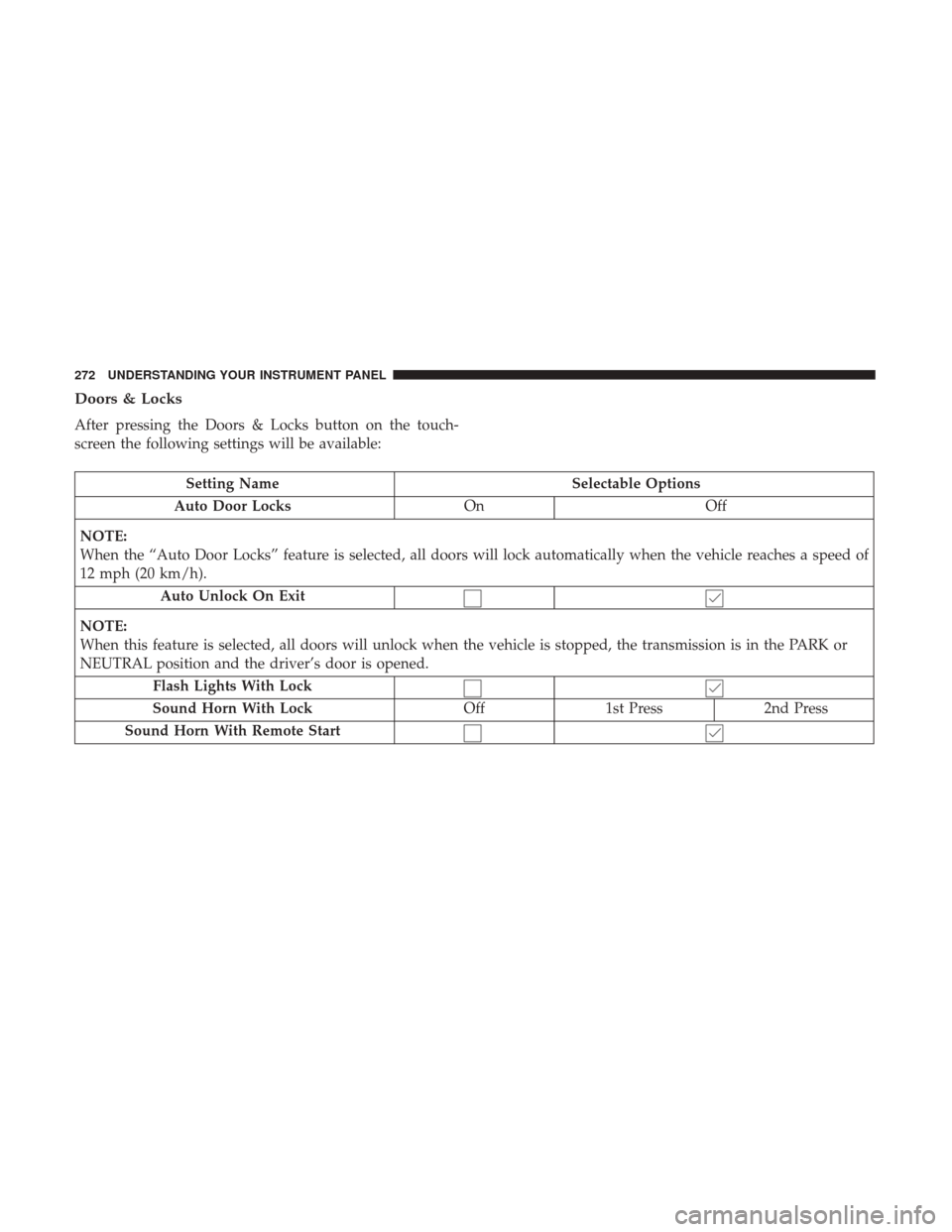
Doors & Locks
After pressing the Doors & Locks button on the touch-
screen the following settings will be available:
Setting NameSelectable Options
Auto Door Locks OnOff
NOTE:
When the “Auto Door Locks” feature is selected, all doors will lock automatically when the vehicle reaches a speed of
12 mph (20 km/h). Auto Unlock On Exit
NOTE:
When this feature is selected, all doors will unlock when the vehicle is stopped, the transmission is in the PARK or
NEUTRAL position and the driver’s door is opened. Flash Lights With Lock
Sound Horn With Lock Off1st Press 2nd Press
Sound Horn With Remote Start
272 UNDERSTANDING YOUR INSTRUMENT PANEL
Page 275 of 510
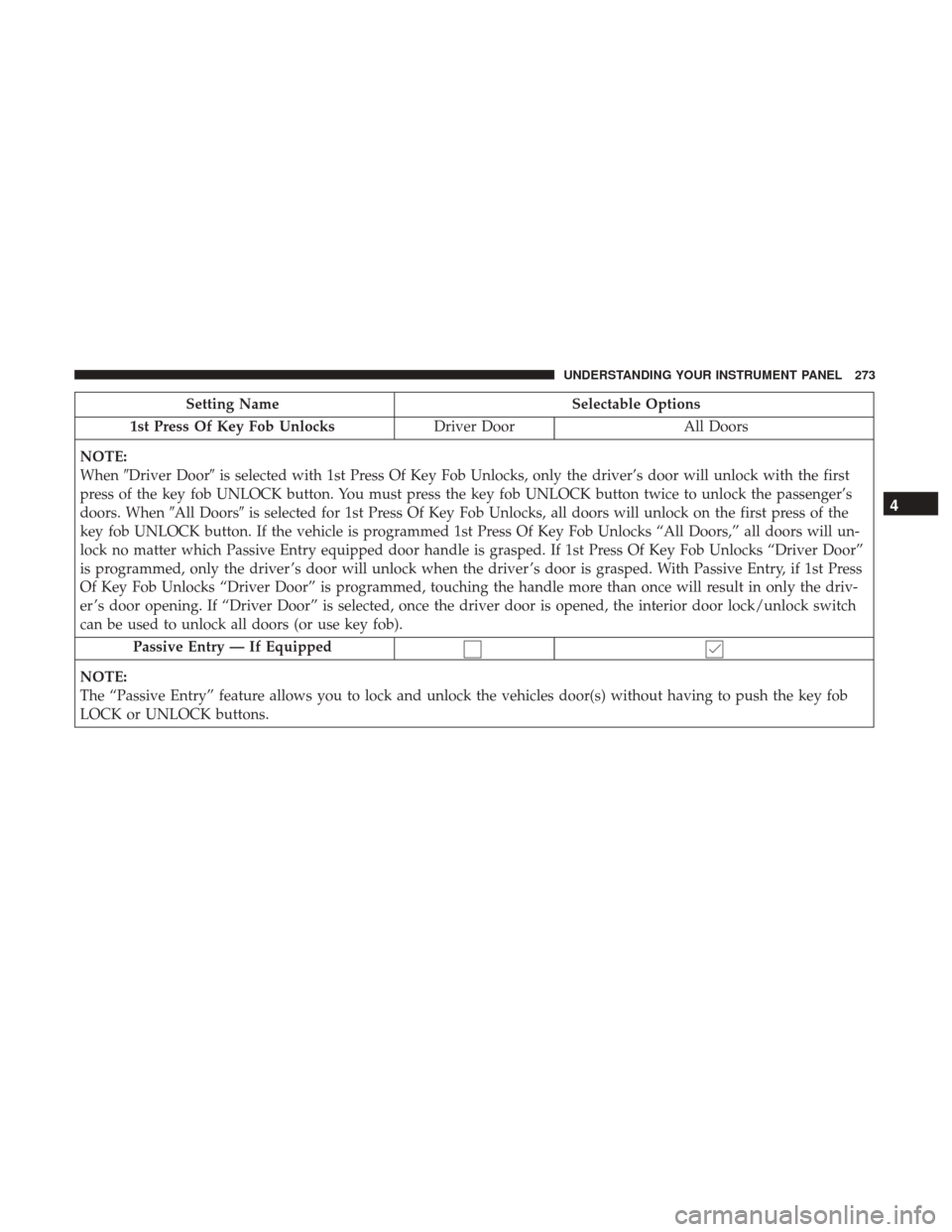
Setting NameSelectable Options
1st Press Of Key Fob Unlocks Driver DoorAll Doors
NOTE:
When �Driver Door� is selected with 1st Press Of Key Fob Unlocks, only the driver’s door will unlock with the first
press of the key fob UNLOCK button. You must press the key fob UNLOCK button twice to unlock the passenger’s
doors. When �All Doors�is selected for 1st Press Of Key Fob Unlocks, all doors will unlock on the first press of the
key fob UNLOCK button. If the vehicle is programmed 1st Press Of Key Fob Unlocks “All Doors,” all doors will un-
lock no matter which Passive Entry equipped door handle is grasped. If 1st Press Of Key Fob Unlocks “Driver Door”
is programmed, only the driver ’s door will unlock when the driver ’s door is grasped. With Passive Entry, if 1st Press
Of Key Fob Unlocks “Driver Door” is programmed, touching the handle more than once will result in only the driv-
er ’s door opening. If “Driver Door” is selected, once the driver door is opened, the interior door lock/unlock switch
can be used to unlock all doors (or use key fob).
Passive Entry — If Equipped
NOTE:
The “Passive Entry” feature allows you to lock and unlock the vehicles door(s) without having to push the key fob
LOCK or UNLOCK buttons.
4
UNDERSTANDING YOUR INSTRUMENT PANEL 273
Page 288 of 510

clips first, and then rotate the remote back up into the other
two retaining clips until it snaps back into position.
Locking The Remote Control
All remote control functionality can be disabled as a
parental control feature.
1. Press the “MORE” button on the touchscreen.
2. Press the “Rear Entertainment” button on the touch-screen to display the Rear Entertainment Controls. 3. Press the “Lock-out” button on the touchscreen to lock
the remote control. Pressing the “Lock-out” button on
the touchscreen a second time will unlock the remote
control.
NOTE: Remote control lock-out will only apply to the
current ignition cycle. The VES will automatically remove
the lock-out if the ignition is cycled to “OFF”.
Replacing The Remote Control Batteries
The remote control requires two AAA batteries for opera-
tion. To replace the batteries:
1. Locate the battery compartment on the back of the remote, then slide the battery cover downward.
2. Replace the batteries, making sure to orient them ac- cording to the polarity diagram shown.
3. Replace the battery compartment cover.
VES Headphones Operation
The headphones receive two separate channels of audio
using an infrared transmitter from the video screen.
If no audio is heard after increasing the volume control,
verify that the screen is turned on and in the down position
and that the channel is not muted and the headphone
VES Remote Control Storage
286 UNDERSTANDING YOUR INSTRUMENT PANEL