Page 229 of 530

Push and release theupordown arrow button until the
Driver Assist menu is displayed in the instrument cluster
display.
Adaptive Cruise Control (ACC) Feature
The instrument cluster display displays the current ACC
system settings. The information displayed depends on
ACC system status.
Push the Adaptive Cruise Control (ACC) on/off button
(located on the steering wheel) until one of the following
displays in the instrument cluster display:
Adaptive Cruise Control Off
When ACC is deactivated, the display will read “Adaptive
Cruise Control Off.”
Adaptive Cruise Control Ready
When ACC is activated but the vehicle speed setting has
not been selected, the display will read “Adaptive Cruise
Control Ready.”
Push the SET + or the SET- button (located on the steering
wheel) and the following will display in the instrument
cluster display: ACC SET
When ACC is set, the set speed will display in the
instrument cluster.
The ACC screen may display once again if any ACC
activity occurs, which may include any of the following:
•
Distance Setting Change
• System Cancel
• Driver Override
• System Off
• ACC Proximity Warning
• ACC Unavailable Warning
For further information, refer to “Adaptive Cruise Control
(ACC) — If Equipped” in “Understanding The Features Of
Your Vehicle.”
LaneSense — If Equipped
The instrument cluster display displays the current La-
neSense system settings. The information displayed de-
pends on LaneSense system status and the conditions that
need to be met. For further information, refer to “La-
neSense — If Equipped” in “Understanding The Features
Of Your Vehicle.”
4
UNDERSTANDING YOUR INSTRUMENT PANEL 227
Page 230 of 530

Fuel Economy
Two submenu pages one with Current Value (instanta-
neous calculation of the fuel economy) displayed and one
without the Current Value displayed (toggle theleftor
right arrow button to select one):
• Current Fuel Economy (MPG, L/100 km, or km/l).
• Range To Empty (miles or km).
• Average Fuel Economy (MPG, L/100 km, or km/l).
• The Max and Min values will correspond to the particu-
lar engine requirements.
• Lower end of gauge will be displayed in an amber color
and turn green as Fuel Economy improves.
• Hold the OKbutton to reset average fuel economy
information.
Trip Info
Push and release the upordown arrow button until the
Trip Menu item is displayed in the instrument cluster
display. Toggle the leftorright arrow button to select Trip
A or Trip B. The Trip information will display the follow-
ing: •
Distance – Shows the total distance (mi or km) traveled
for Trip A or Trip B since the last reset.
• Average Fuel Economy – Shows the average fuel
economy (MPG, L/100 or km/l) of Trip A or Trip B since
the last reset.
• Elapsed Time – Shows the total elapsed time of travel
since the last reset.
Hold the OKbutton to reset feature information.
Audio
This feature shows the audio information.
Stored Messages
This feature shows the number of stored warning mes-
sages, if any. Pushing the rightorleft arrow button will
allow you to scroll through the stored messages.
Screen Setup
Push and release the upordown arrow button until the
Screen Setup Menu displays in the instrument cluster
display. Push and release the OKbutton to enter the
submenus. The Screen Setup feature allows you to change
what information is displayed in the instrument cluster as
well as the location that information is displayed.
228 UNDERSTANDING YOUR INSTRUMENT PANEL
Page 231 of 530
1. Upper Left•Compass
• Outside Temp.
• Time
• Range to Empty (default)
• Average (MPG, L/100 km, or km/l)
• Current (MPG, L/100 km, or km/l)
• Trip A Distance
• Trip B Distance
• None
2. Upper Right •Compass
• Outside Temp (default)
• Time
• Range to Empty
• Average (MPG, L/100 km, or km/l)
• Current (MPG, L/100 km, or km/l)
• Trip A Distance
• Trip B Distance
• None
3. Center •Menu Title (default) •
Compass
• Outside Temp.
• Time
• Range to Empty
• Average (MPG, L/100 km, or km/l)
• Current (MPG, L/100 km, or km/l)
• Trip A Distance
• Trip B Distance
• Audio Information
• Digital Speed
• None
4. Current Gear •On
• Off (default)
5. Odometer •Show (default)
• Hide
6. Gear Display •Full (default)
• Single
7. Restore Default •Ok
• Cancel
4
UNDERSTANDING YOUR INSTRUMENT PANEL 229
Page 232 of 530

Battery Saver On/Battery Saver Mode Message —
Electrical Load Reduction Actions — If Equipped
This vehicle is equipped with an Intelligent Battery Sensor
(IBS) to perform additional monitoring of the electrical
system and status of the vehicle battery.
In cases when the IBS detects charging system failure, or
the vehicle battery conditions are deteriorating, electrical
load reduction actions will take place to extend the driving
time and distance of the vehicle. This is done by reducing
power to or turning off non-essential electrical loads.
Load reduction is only active when the engine is running.
It will display a message if there is a risk of battery
depletion to the point where the vehicle may stall due to
lack of electrical supply, or will not restart after the current
drive cycle.
When load reduction is activated, the message “Battery
Saver On” or “Battery Saver Mode” will appear in the
instrument cluster.
These messages indicate the vehicle battery has a low state
of charge and continues to lose electrical charge at a rate
that the charging system cannot sustain.NOTE:
•
The charging system is independent from load reduc-
tion. The charging system performs a diagnostic on the
charging system continuously.
• If the Battery Charge Warning Light is on it may indicate
a problem with the charging system. Refer to “Battery
Charge Warning Light” in “Understanding Your Instru-
ment Panel” for further information.
The electrical loads that may be switched off (if equipped),
and vehicle functions which can be affected by load
reduction:
• Heated Seat/Vented Seats/Heated Wheel
• Heated/Cooled Cup Holders — If Equipped
• Rear Defroster And Heated Mirrors
• HVAC System
• 115V AC Power Inverter System
• Audio and Telematics System
Loss of the battery charge may indicate one or more of the
following conditions:
• The charging system cannot deliver enough electrical
power to the vehicle system because the electrical loads
230 UNDERSTANDING YOUR INSTRUMENT PANEL
Page 236 of 530

Buttons On The Faceplate
Buttons on the faceplate are located below the Uconnect
system in the center of the instrument panel. In addition,
there is a Scroll/Enter control knob located on the right
side. Turn the control knob to scroll through menus and
change settings (i.e., 30, 60, 90), push the center of the
control knob one or more times to select or change a setting
(i.e., ON, OFF).Your Uconnect system may also have a power and back
buttons on the faceplate.
Push the power button on the faceplate to turn off the
Uconnect screen. Push the power button on the faceplate a
second time to turn the screen on.
Push the back button on the faceplate to exit out of a menu
or certain option on the Uconnect system.
Buttons On The Touchscreen
Buttons on the touchscreen are accessible on the Uconnect
touchscreen.
Customer Programmable Features — Uconnect 5.0
Settings
Push the MORE button on the faceplate and then press the
“Settings” button on the touchscreen to display the menu
setting screen. In this mode the Uconnect system allows
you to access programmable features that may be
equipped such as Display, Units, Voice, Clock, Safety/
Assistance, Lights, Doors & Locks, Auto-On Comfort,
Engine Off Options, Compass Settings, Audio, Phone/
Bluetooth, Restore Settings, Clear Personal Data and Sys-
tem Information.
Uconnect 8.4/8.4 NAV Buttons On Touchscreen And
Buttons On Faceplate
1 — Uconnect Buttons On The Touchscreen
2 — Uconnect Buttons On The Faceplate 234 UNDERSTANDING YOUR INSTRUMENT PANEL
Page 237 of 530
NOTE:Only one touchscreen area may be selected at a
time.
When making a selection, press the button on the touch-
screen to enter the desired mode. Once in the desired
mode, select the preferred setting option. Once the setting
is complete, either press the Back Arrow/Done button on
the touchscreen or the Back button on the faceplate to
return to the previous menu or press the “X” button on the
touchscreen to close out of the settings screen. Pressing the
Up or Down Arrow buttons on the right side of the screen
will allow you to toggle up or down through the available
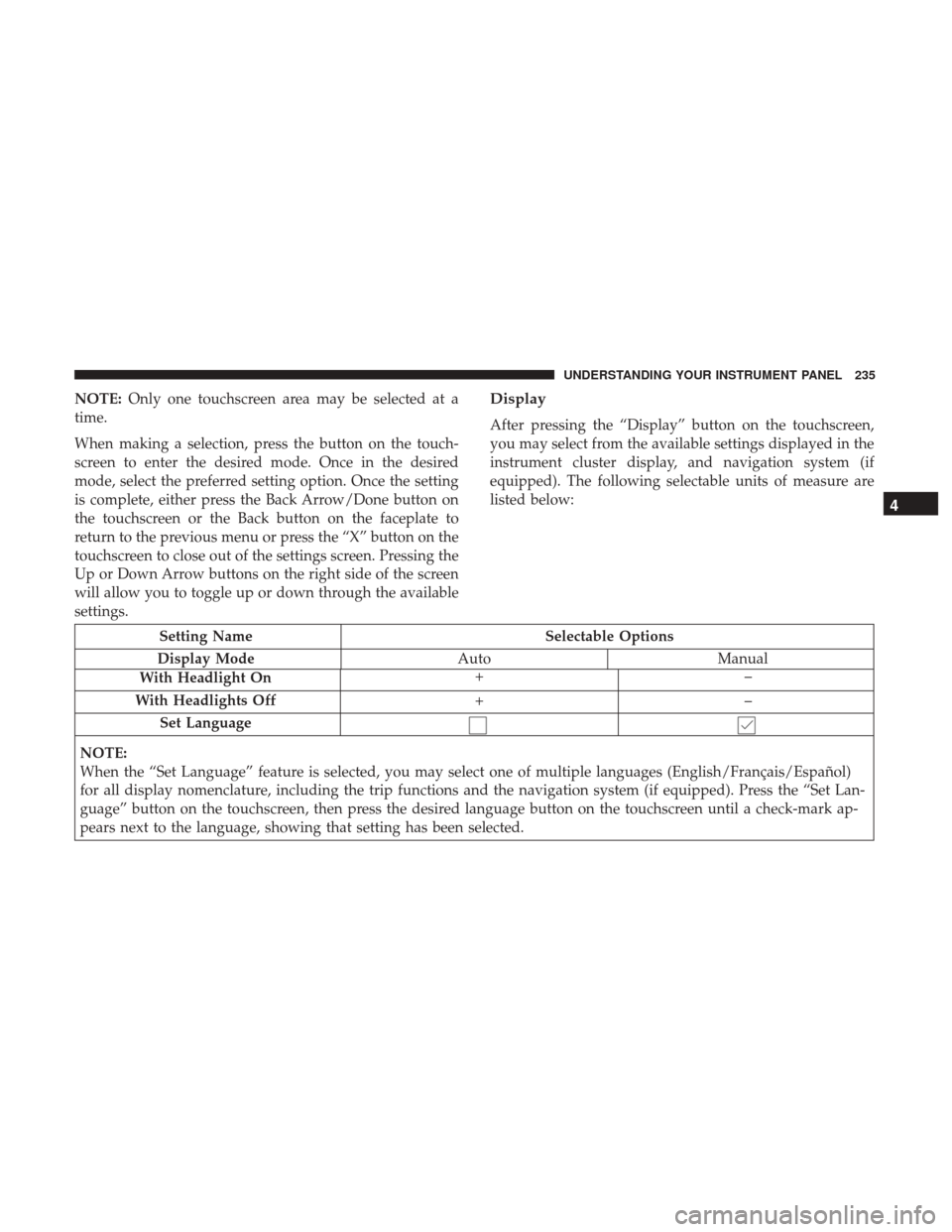
settings.Display
After pressing the “Display” button on the touchscreen,
you may select from the available settings displayed in the
instrument cluster display, and navigation system (if
equipped). The following selectable units of measure are
listed below:
Setting Name Selectable Options
Display Mode AutoManual
With Headlight On +–
With Headlights Off +–
Set Language
NOTE:
When the “Set Language” feature is selected, you may select one of multiple languages (English/Français/Español)
for all display nomenclature, including the trip functions and the navigation system (if equipped). Press the “Set Lan-
guage” button on the touchscreen, then press the desired language button on the touchscreen until a check-mark ap-
pears next to the language, showing that setting has been selected.
4
UNDERSTANDING YOUR INSTRUMENT PANEL 235
Page 238 of 530
Touchscreen BeepOn Off
Units
After pressing the “Units” button on the touchscreen you
may select each unit of measure independently displayed
in the instrument cluster display, and navigation system (if equipped). The following selectable units of measure are
listed below:
Setting Name
Selectable Options
Units US Metric
Speed MPH km/h
Distance mi km
Fuel Consumption MPG (US)MPG (UK) L/100 km km/L
Pressure psikPabar
Temperature °C °F
Power — If Equipped HP (US)
HP (UK)kW
Torque — If Equipped lb-ft
Nm
236 UNDERSTANDING YOUR INSTRUMENT PANEL
Page 239 of 530
Voice
After pressing the “Voice” button on the touchscreen, the
following settings will be available:
Setting NameSelectable Options
Voice Response Length BriefLong
Show Command List Always With Help Never
Clock & Date
After pressing the “Clock & Date” button on the touch-
screen the following settings will be available:
Setting Name Selectable Options
Set Time and Format 12 hour24 hour AMPM
Set Date Up Arrow Down Arrow
NOTE:
When in this display, you may set the date manually. Press the “Set Date” button on the touchscreen then press the
corresponding arrows above and below the current date to adjust.
4
UNDERSTANDING YOUR INSTRUMENT PANEL 237


