Page 257 of 530
Setting NameSelectable Options
Navigation Turn-By-Turn
Displayed In Cluster — If Equipped
NOTE:
When the “Navigation Turn-By-Turn In Cluster” feature is selected, the turn-by-turn directions will appear in the in-
strument cluster display as the vehicle approaches a designated turn within a programmed route.
Language
After pressing the “Language” button on the touchscreen,
the following settings will be available:
Setting Name Selectable Options
Set Lan- guage English Français Español
4
UNDERSTANDING YOUR INSTRUMENT PANEL 255
Page 258 of 530
Units
After pressing the “Units” button on the touchscreen, you
may select each unit of measure independently displayed
in the instrument cluster display, and navigation system (ifequipped). The following selectable units of measure are
listed below:
Setting Name
Selectable Options
Units USMetric Custom
Speed MPH km/h
Distance mi km
Fuel Consumption MPG (US)MPG (UK) L/100 km km/L
Pressure psikPa bar
Power — If Equipped HP (US)
HP (UK)kW
Temperature °C °F
Torque — If Equipped lb-ft
Nm
256 UNDERSTANDING YOUR INSTRUMENT PANEL
Page 262 of 530
Setting NameSelectable Options
LaneSense Warning — If Equipped Early
MediumLate
NOTE:
When the “LanseSense Warning” feature is selected, it sets the distance at which the steering wheel will provide feed-
back for potential lane departures. The LDW sensitivity can be set to provide either an “Early,” “Medium,” or “Late”
warning zone start point. LaneSense Strength — If Equipped Low
MediumHigh
NOTE:
When the “LaneSense Strength” feature is selected, it sets the strength of the steering wheel feedback for potential
lane departures. ParkSense — If Equipped Sound Only
Sound and Display
NOTE:
The ParkSense system will scan for objects behind the vehicle when the transmission gear selector is in REVERSE and
the vehicle speed is less than 11 mph (18 km/h). It will provide an alert (audible and/or visual) to indicate the prox-
imity to other objects. The system can be enabled with Sound Only, or Sound and Display.
260 UNDERSTANDING YOUR INSTRUMENT PANEL
Page 263 of 530
Setting NameSelectable Options
Rear ParkSense Vol- ume Low
Medium High
NOTE:
The Rear ParkSense Chime Volume settings can be selected from the Instrument Cluster Display or Uconnect System.
The chime volume settings include LOW, MEDIUM, and HIGH. The factory default volume setting is MEDIUM.
ParkSense will retain its last known configuration state through ignition cycles. Tilt Side Mirrors In Reverse
NOTE:
When the “Tilt Side Mirror In Reverse” feature is selected, the exterior sideview mirrors will tilt downward when the
ignition is in the RUN position and the transmission gear selector is in the REVERSE position. The mirrors will move
back to their previous position when the transmission is shifted out of REVERSE.
4
UNDERSTANDING YOUR INSTRUMENT PANEL 261
Page 265 of 530
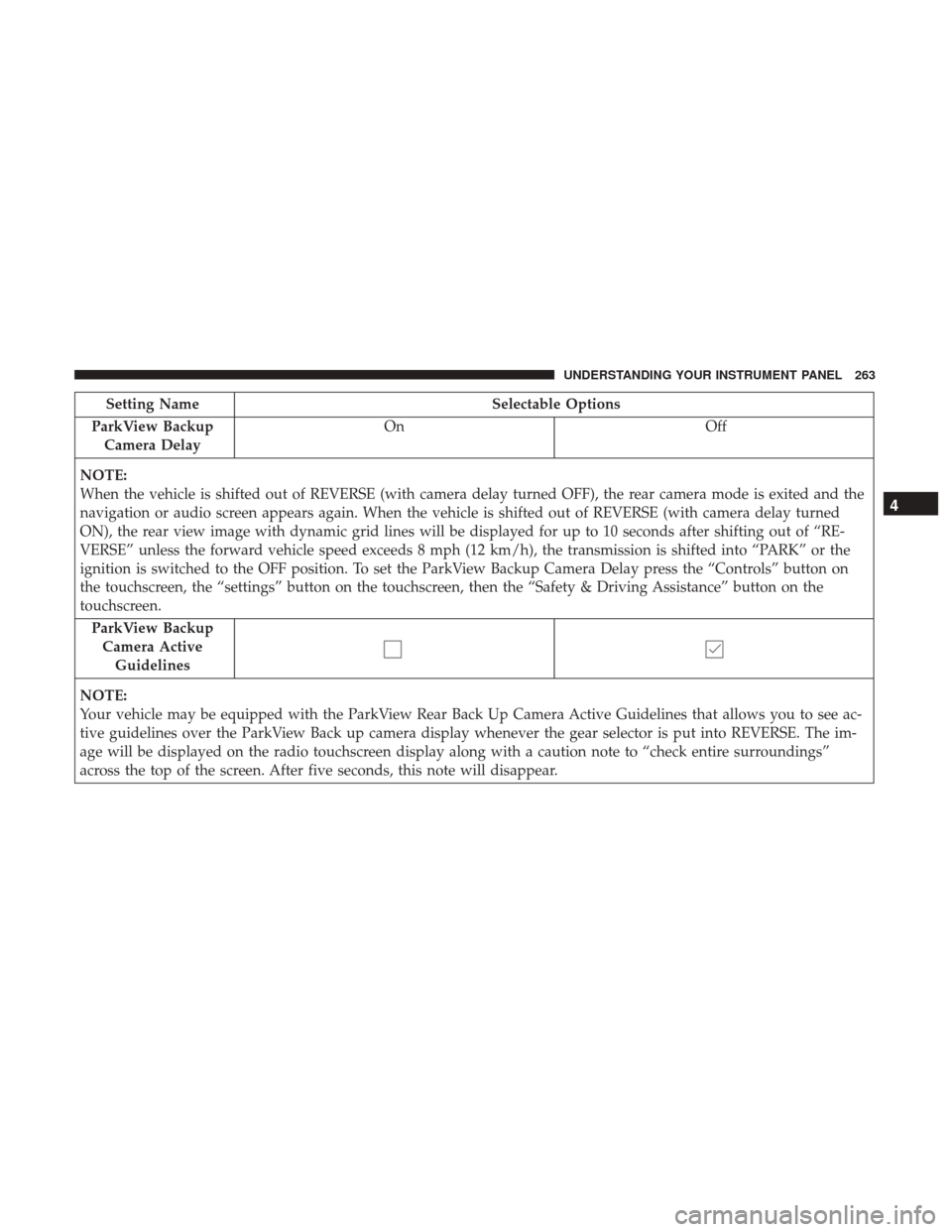
Setting NameSelectable Options
ParkView Backup Camera Delay On
Off
NOTE:
When the vehicle is shifted out of REVERSE (with camera delay turned OFF), the rear camera mode is exited and the
navigation or audio screen appears again. When the vehicle is shifted out of REVERSE (with camera delay turned
ON), the rear view image with dynamic grid lines will be displayed for up to 10 seconds after shifting out of “RE-
VERSE” unless the forward vehicle speed exceeds 8 mph (12 km/h), the transmission is shifted into “PARK” or the
ignition is switched to the OFF position. To set the ParkView Backup Camera Delay press the “Controls” button on
the touchscreen, the “settings” button on the touchscreen, then the “Safety & Driving Assistance” button on the
touchscreen. ParkView BackupCamera Active Guidelines
NOTE:
Your vehicle may be equipped with the ParkView Rear Back Up Camera Active Guidelines that allows you to see ac-
tive guidelines over the ParkView Back up camera display whenever the gear selector is put into REVERSE. The im-
age will be displayed on the radio touchscreen display along with a caution note to “check entire surroundings”
across the top of the screen. After five seconds, this note will disappear.
4
UNDERSTANDING YOUR INSTRUMENT PANEL 263
Page 276 of 530
Clear Personal Data
After pressing the “Clear Personal Data” button on the
touchscreen, the following settings will be available:
Setting NameSelectable Options
Clear Personal Data OKCancel X
NOTE:
When this feature is selected, it will remove all personal data including Bluetooth devices and presets. To remove per-
sonal information, press the “Clear Personal Data” button and a pop-up will appear asking �Are you sure you want
to clear all personal data?”
System Information
After pressing the “System Information” button on the
touchscreen, the following settings will be available:
Setting Name Selectable Options
System Information System Software Information Screen
NOTE:
When the “System Information” feature is selected, a “System Software Information” screen will appear, displaying
the system software version. You can also update your maps with a USB device. Please see your Authorized Dealer
for further information.
274 UNDERSTANDING YOUR INSTRUMENT PANEL
Page 279 of 530
When the Timers Page is selected, you will be able to select
from following “Tickets”:
•Current
Pressing the “Current” button displays a “real time” sum-
mary of performance timers.
• Last
Pressing the “Last” button displays the last recorded run of
performance timers.
• Best
Pressing the “Best” button displays the best recorded run
of performance timers, except for braking data.
• Save
Pressing the “Save” button will let you save the last run.
Any saved run over 10 will overwrite the last saved run for
Uconnect System storage. The operation of the Save feature
is listed below: •
With a USB jump drive installed, press the “USB” button
to save to the jump drive.
• Press the “Uconnect” button to save the runs to the
Owner web page.
• Press the “Cancel” button to view the last timer “Ticket”.
Performance Pages — Save
4
UNDERSTANDING YOUR INSTRUMENT PANEL 277
Page 280 of 530

The “Tickets” contain the timers listed below:
•Reaction Time
Measures the driver’s reaction time for launching the
vehicle against a simulated drag strip timing light (behav-
ior modeled after 500 Sportsman Tree) displayed in the
instrument cluster display.
NOTE: The Reaction Time, MPH, ⅛and ¼ Mile timers will
be “ready” when the vehicle is at 0 MPH (0 km/h).
• 0-60 MPH (0-100 km/h)
Displays the time it takes for the vehicle to go from 0 to
60 mph (0 to 100 km/h).
• 0-100 MPH (0-160 km/h)
Displays the time it takes for the vehicle to go from 0 to
100 mph (0 to 160 km/h).
• ⅛ Mile (200 meter) ET
Displays the time it takes for the vehicle to go an ⅛mile
(200 meters).
• ⅛ Mile (200 meter) MPH
Displays the vehicle speed at the time ⅛Mile was reached. •
¼ Mile (400 meter) ET
Displays the time it takes for the vehicle to go an ¼ mile
(400 meters).
• ¼ Mile (400 meter) MPH
Displays the speed the vehicle was at when ¼ Mile was
reached.
• Brake Distance
Displays the distance it takes the vehicle to make a full
stop.
NOTE: The distance measurement will be aborted if the
brake pedal is released or the parking brake is engaged,
before the vehicle comes to a complete stop.
• Brake Speed
Displays the speed the vehicle is traveling when the brake
pedal is pressed.
NOTE: Brake Distance and Speed timers will only display
�ready� when vehicle is traveling at greater than 30 MPH
(48 km/h).
278 UNDERSTANDING YOUR INSTRUMENT PANEL


