Page 237 of 530
NOTE:Only one touchscreen area may be selected at a
time.
When making a selection, press the button on the touch-
screen to enter the desired mode. Once in the desired
mode, select the preferred setting option. Once the setting
is complete, either press the Back Arrow/Done button on
the touchscreen or the Back button on the faceplate to
return to the previous menu or press the “X” button on the
touchscreen to close out of the settings screen. Pressing the
Up or Down Arrow buttons on the right side of the screen
will allow you to toggle up or down through the available
settings.Display
After pressing the “Display” button on the touchscreen,
you may select from the available settings displayed in the
instrument cluster display, and navigation system (if
equipped). The following selectable units of measure are
listed below:
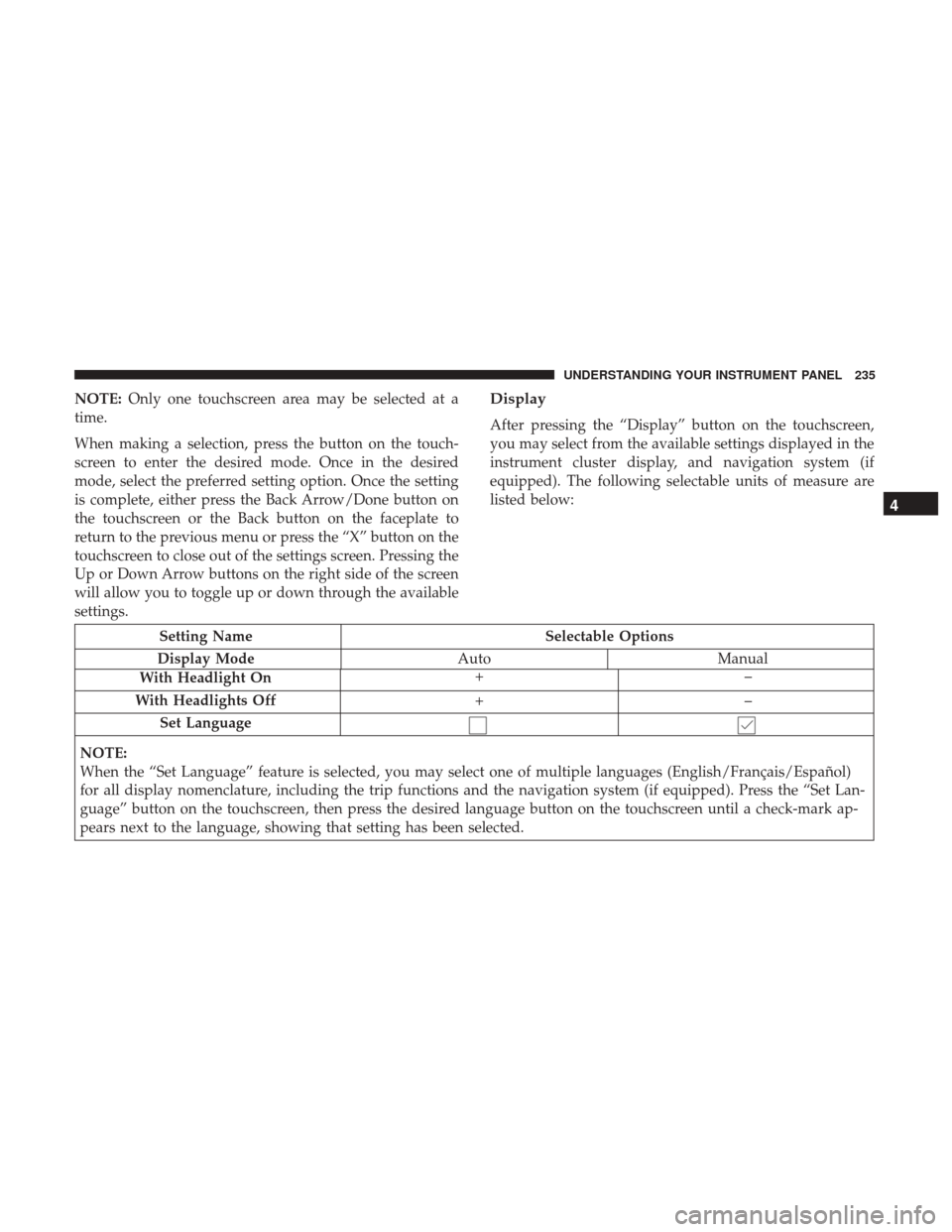
Setting Name Selectable Options
Display Mode AutoManual
With Headlight On +–
With Headlights Off +–
Set Language
NOTE:
When the “Set Language” feature is selected, you may select one of multiple languages (English/Français/Español)
for all display nomenclature, including the trip functions and the navigation system (if equipped). Press the “Set Lan-
guage” button on the touchscreen, then press the desired language button on the touchscreen until a check-mark ap-
pears next to the language, showing that setting has been selected.
4
UNDERSTANDING YOUR INSTRUMENT PANEL 235
Page 238 of 530
Touchscreen BeepOn Off
Units
After pressing the “Units” button on the touchscreen you
may select each unit of measure independently displayed
in the instrument cluster display, and navigation system (if equipped). The following selectable units of measure are
listed below:
Setting Name
Selectable Options
Units US Metric
Speed MPH km/h
Distance mi km
Fuel Consumption MPG (US)MPG (UK) L/100 km km/L
Pressure psikPabar
Temperature °C °F
Power — If Equipped HP (US)
HP (UK)kW
Torque — If Equipped lb-ft
Nm
236 UNDERSTANDING YOUR INSTRUMENT PANEL
Page 258 of 530
Units
After pressing the “Units” button on the touchscreen, you
may select each unit of measure independently displayed
in the instrument cluster display, and navigation system (ifequipped). The following selectable units of measure are
listed below:
Setting Name
Selectable Options
Units USMetric Custom
Speed MPH km/h
Distance mi km
Fuel Consumption MPG (US)MPG (UK) L/100 km km/L
Pressure psikPa bar
Power — If Equipped HP (US)
HP (UK)kW
Temperature °C °F
Torque — If Equipped lb-ft
Nm
256 UNDERSTANDING YOUR INSTRUMENT PANEL
Page 317 of 530

Get Started
All you need to control your Uconnect system with your
voice are the buttons on your steering wheel.
1. Visit UconnectPhone.com to check mobile device andfeature compatibility and to find phone pairing instruc-
tions.
2. Reduce background noise. Wind noise and passenger conversations are examples of noise that may impact
recognition.
3. Speak clearly at a normal pace and volume while facing straight ahead. The microphone is located in the head-
liner and aimed at the driver.
4. Each time you give a Voice Command, you must first push either the VR or Phone button, wait until afterthe
beep, then say your Voice Command.
5. You can interrupt the help message or system prompts by pushing the VR or Phone button and saying a Voice
Command from current category.
Basic Voice Commands
The basic Voice Commands below can be given at any
point while using your Uconnect system.
Uconnect Voice Command Buttons
1 — Push To Initiate Or To Answer A Phone Call, Send Or Receive
A Text
2 — For All Radios: Push To Begin Radio Or Media Functions. For
8.4/8.4 NAV Only: Push To Begin Navigation, Apps And Climate
Functions.
3 — Push To End Call
4
UNDERSTANDING YOUR INSTRUMENT PANEL 315
Page 322 of 530
•Set passenger temperature to 70degrees
TIP: Voice Command for Climate may only be used to
adjust the interior temperature of your vehicle. Voice
Command will not work to adjust the heated seats or
steering wheel if equipped.Navigation (8.4/8.4 NAV)
The Uconnect navigation feature helps you save time and
become more productive when you know exactly how to
get to where you want to go. (Navigation is optional on the
Uconnect 8.4 system.)
1. To enter a destination, push the VR button
. After the
beep, say:
• For the 8.4 Uconnect System, say: “Enter state.”
• For the 8.4 NAV Uconnect System, say: “Find address
800 Chrysler Drive Auburn Hills, Michigan.”
2. Then follow the system prompts.
TIP: To start a POI search, push the VR button
. After
the beep, say: “ Find nearestcoffee shop.”
Uconnect 8.4/8.4 NAV Climate
320 UNDERSTANDING YOUR INSTRUMENT PANEL
Page 325 of 530

•Press the Info button on the navigation bar at the bottom
of the app for Vehicle Info.
• Press the Remote button on the navigation bar at the
bottom of the app to Lock/Unlock, Remote Start, and
activate your horn and lights remotely.
• Press the Location button on the navigation bar at the
bottom of the app to bring up a map to locate your
vehicle or send a location to your vehicle’s navigation
system.
• Press the Settings button in the upper left corner of the
app to bring up app settings and access the Assist Call
Centers.
NOTE: For further information please visit
DriveUconnect.com.
SiriusXM Travel Link (8.4/8.4 NAV)
Need to find a gas station, view local movie listings, check
a sports score or the 5 - day weather forecast? SiriusXM
Travel Link is a suite of services that brings a wealth of
information right to your Uconnect 8.4 NAV system. (Not
available for 8.4 system or vehicles sold in the Canadian
market.) Push the VR button
. After the beep, say one of the
following commands:
• Show fuel prices
• Show 5 - day weather forecast
• Show extended weather
TIP: Traffic alerts are not accessible with Voice Command.
SiriusXM Travel Link
4
UNDERSTANDING YOUR INSTRUMENT PANEL 323


