Page 630 of 828

Exhaust System
The best protection against carbon monoxide entry into
the vehicle body is a properly maintained engine exhaust
system.
If you notice a change in the sound of the exhaust system;
or if the exhaust fumes can be detected inside the vehicle;
or when the underside or rear of the vehicle is damaged;
have an authorized technician inspect the complete ex-
haust system and adjacent body areas for broken, dam-
aged, deteriorated, or mispositioned parts. Open seams
or loose connections could permit exhaust fumes to seep
into the passenger compartment. In addition, have the
exhaust system inspected each time the vehicle is raised
for lubrication or oil change. Replace as required.
CAUTION!
•The catalytic converter requires the use of un-
leaded fuel only. Leaded gasoline will destroy the
effectiveness of the catalyst as an emissions control
device and may seriously reduce engine perfor-
mance and cause serious damage to the engine.
• Damage to the catalytic converter can result if your
vehicle is not kept in proper operating condition.
In the event of engine malfunction, particularly
involving engine misfire or other apparent loss of
performance, have your vehicle serviced promptly.
Continued operation of your vehicle with a severe
malfunction could cause the converter to overheat,
resulting in possible damage to the converter and
vehicle.
628 MAINTAINING AND CARING FOR YOUR VEHICLE
Page 696 of 828
UCONNECT RADIOS
For detailed information about your Uconnect radio,
refer to your Uconnect Supplement Manual.
PERSONALIZED MENU BAR
The Uconnect features and services in the main menu bar
are easily changed for your convenience. Simply follow
these steps:1. Press the “Apps
” button to open the App screen.
2. Press and hold, then drag the selected App to replacean existing shortcut in the main menu bar.
The replaced shortcut will now be an active App/
shortcut on the main menu bar.
Personalized Menu Bar
694 MULTIMEDIA
Page 698 of 828

WARNING!(Continued)
may increase the possibility for vehicle systems to
be breached.
• As always, if you experience unusual vehicle be-
havior, take your vehicle to your nearest authorized
dealer immediately.
NOTE:
• FCA or your dealer may contact you directly regarding
software updates.
• To help further improve vehicle security and minimize
the potential risk of a security breach, vehicle owners
should:
• Routinely check www.driveuconnect.com/software-
update to learn about available Uconnect software
updates.
• Only connect and use trusted media devices (e.g.
personal mobile phones, USBs, CDs). Privacy of any wireless and wired communications can-
not be assured. Third parties may unlawfully intercept
information and private communications without your
consent. For further information, refer to “Privacy Prac-
tices - If Equipped with Uconnect 8.4 Radio” in “Multi-
media” in your Owner ’s Manual Radio Supplement and
“Onboard Diagnostic System (OBD II) Cybersecurity” in
“Getting To Know Your Instrument Panel” in your Own-
er ’s Manual on the DVD.
UCONNECT SETTINGS
The Uconnect system uses a combination of buttons on
the touchscreen and/or buttons on the faceplate located
on the center of the instrument panel that allow you to
access and change the customer programmable features.
Many features can vary by vehicle.
Buttons on the touchscreen are accessible on the
Uconnect touchscreen.
696 MULTIMEDIA
Page 699 of 828
Buttons on the faceplate are located below, and beside the
Uconnect system in the center of the instrument panel. In
addition, there is a Scroll/Enter control knob located on
the right side. Turn the control knob to scroll through
menus and change settings (i.e., 30, 60, 90), push the
center of the control knob one or more times to select or
change a setting (i.e., ON, OFF).
Your Uconnect system may also have Display Off and
back arrow buttons on the faceplate.
Push the Display Off button on the faceplate to turn off
the Uconnect screen. Push the Display Off button on the
faceplate a second time to turn the screen on.
Push the Back Arrow button on the faceplate to exit out
of a Menu or certain option on the Uconnect system.Customer Programmable Features — Uconnect
5.0 Settings
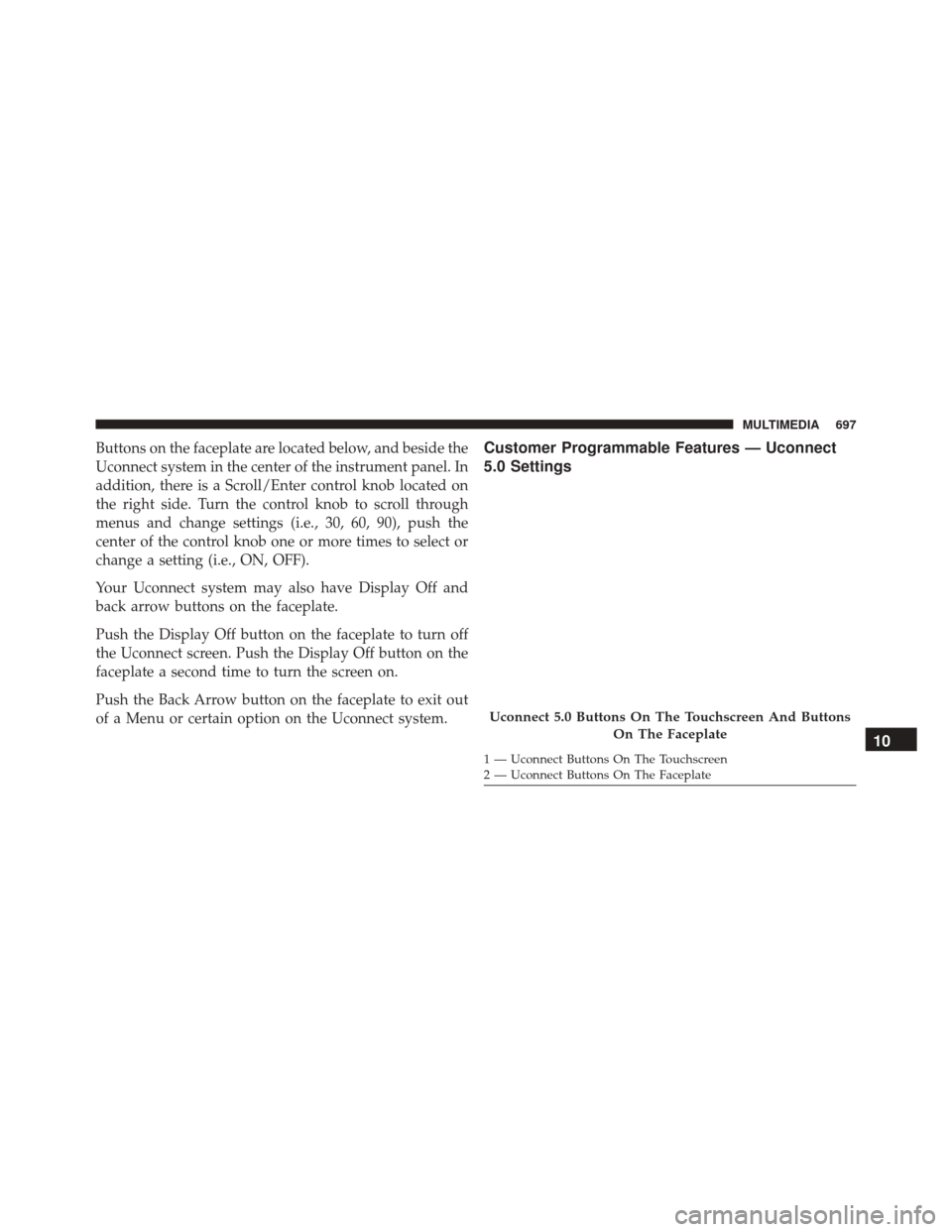
Uconnect 5.0 Buttons On The Touchscreen And ButtonsOn The Faceplate
1 — Uconnect Buttons On The Touchscreen
2 — Uconnect Buttons On The Faceplate
10
MULTIMEDIA 697
Page 700 of 828

Push the MOREbutton on the faceplate, then press
the “Settings
” button on the touchscreen to display
the settings menu screen. In this mode the Uconnect
system allows you to access all of the available pro-
grammable features.
NOTE: Only one touchscreen area may be selected at a
time.
When making a selection, press the button on the touch-
screen to enter the desired mode. Once in the desired
mode, press and release the preferred setting and make
your selection. Once the setting is complete, either press
the Back arrow/Done button on the touchscreen or the
Back button on the faceplate to return to the previous
menu. Pressing the Up or Down Arrow buttons on the
right side of the screen will allow you to toggle up or
down through the available settings.
NOTE: All settings should be changed with the ignition
in the “ON/RUN” position.
KeySense
The vehicle’s KeySense settings are protected by a unique
4-digit PIN, which the vehicle owner creates when ac-
cessing the specific settings for the first time. This 4-digit
PIN can only be rest by an authorized dealer.
After pressing the “KeySense” button on the touchscreen,
and entering the KeySense PIN, the following settings
will be available:
• Forward Collision Warning
The Front Collision Warning (FCW) feature provides an
audible and/or visual warning to potential forward
collisions. The feature can be can be set to Near, Medium,
or Far.
• Forward Collision Sensitivity
The Forward Collision Warning (FCW) system will warn
you of a possible collision with the vehicle in front of you.
The feature can be set to Near, Medium, or Far.
698 MULTIMEDIA
Page 702 of 828

•Rear ParkSense Braking Assist
When this feature is selected, the ParkSense system will
detect objects located behind the vehicle and utilize
autonomous braking to help stop the vehicle (only en-
abled when ParkSense is also on). The system can be
enabled or disabled by pressing the “Rear ParkSense
Braking Assist” button on the touchscreen, until a check-
mark appears next to setting, indicating that the setting
had been selected.
• Blind Spot Alert — If Equipped
When this feature is selected, the Blind Spot Alert feature
provides alerts, visual and/or audible, to indicate objects
in your blind spot. The Blind Spot Alert feature can be
activated in “Lights” mode. When this mode is selected,
the Blind Spot Monitor (BSM) system is activated and
will only show a visual alert in the exterior mirrors.
When “Lights & Chime” mode is activated, the Blind
Spot Monitor (BSM) will show a visual alert in the exterior mirrors as well as an audible alert when the turn
signal is on. The KeySense default is “Light & Chime”.
Press the “Lights” or “Lights & Chime” button on the
touchscreen to change the Blind Spot Alert status.
NOTE:
If your vehicle has experienced any damage in
the area where the sensor is located, even if the fascia is
not damaged, the sensor may have become misaligned.
Take your vehicle to an authorized dealer to verify sensor
alignment. Having a sensor that is misaligned will result
in the BSM not operating to specification.
• Maximum Vehicle Speed
To set the maximum vehicle speed, press the “+” or “-”
button to select from 65/70/75/80/85 MPH (90/95/100/
105/110 km/h).
700 MULTIMEDIA
Page 703 of 828

•SiriusXM Setup
After pressing the “SiriusXM Setup” button on the touch-
screen, the following settings will be available:
• Channel Skip
SiriusXM can be programmed to skip channels. To
make your selection, press the “Channel Skip” button
on the touchscreen, select the channels you would
like to skip.
• Subscription Information
New vehicle purchasers or lessees will receive a free
limited time subscription to SiriusXM Satellite Radio
with your radio. Following the expiration of the free
services, it will be necessary to access the information
on the Subscription Information screen to re-
subscribe.
Press the “Subscription Info” button on the touchscreen
to access the Subscription Information screen. Write down the SIRIUS ID numbers for your receiver. To
reactivate your service, either call the number listed on
the screen or visit the provider online.
NOTE:
SiriusXM Travel Link is a separate subscription
and is available for U.S. residents only.
Display
After pressing the “Display” button on the touchscreen
the following settings will be available.
• Display Mode
When in this display you may select the “Auto” or
“Manual” display settings. To change Mode status, press
and release the “Auto” or “Manual” button on the
touchscreen.
10
MULTIMEDIA 701
Page 705 of 828

•Pressure
Select from: “psi,” “kPa,” or “bar.”
• Temperature
Select from: “°C,” or “°F.”
Clock & Date
After pressing the “Clock & Date” button on the touch-
screen the following settings will be available:
• Set Time and Format
When in this display, you may set the time and format
manually. Press the “Set Time and Format” button then
choose from a 12 hour or 24 hour format. Press the
corresponding arrow above and below the current time
to adjust, then select “AM” or “PM.”
• Show Time Status — If Equipped
When in this display, you may turn on or shut off the
digital clock in the status bar. To change the Show Time Status setting press the “Show Time Status” button on the
touchscreen and select from “ON” or “OFF.”
•
Sync Time — If Equipped
When in this display, you may sync the time with GPS.
Press the “Sync Time” button on the touchscreen and
select from “ON” or “OFF.”
Safety/Assistance
After pressing the “Safety/Assistance” button on the
touchscreen the following settings will be available:
• ParkView Backup Camera — If Equipped
When the vehicle is shifted out of REVERSE (with camera
delay turned OFF), the rear camera mode is exited and
the navigation or audio screen appears again. When the
vehicle is shifted out of REVERSE (with camera delay
turned ON), the rear view image with dynamic grid lines
will be displayed for up to 10 seconds after shifting out of
“REVERSE” unless the forward vehicle speed exceeds
10
MULTIMEDIA 703