Page 301 of 539
Setting NameSelectable Options
Surround Sound — If Equipped OnOff
AUX Volume Offset — If Equipped +-
NOTE:
This feature provides the ability to tune the audio level for portable devices connected through the AUX input Loudness — If Equipped
Phone/Bluetooth
After pressing the “Phone/Bluetooth” button on the touch-
screen, the following settings will be available:
Setting Name Selectable Options
Paired Phones List Of Paired Phones
NOTE:
This feature shows which phones are paired to the Phone/Bluetooth system. For further information, refer to the
Uconnect Owner ’s Manual Supplement. Paired Audio Sources List Of Paired Audio Sources
NOTE:
This feature shows which Audio Sources are paired to the Phone/Bluetooth system. For further information, refer to
the Uconnect Owner ’s Manual Supplement.
4
UNDERSTANDING YOUR INSTRUMENT PANEL 299
Page 302 of 539
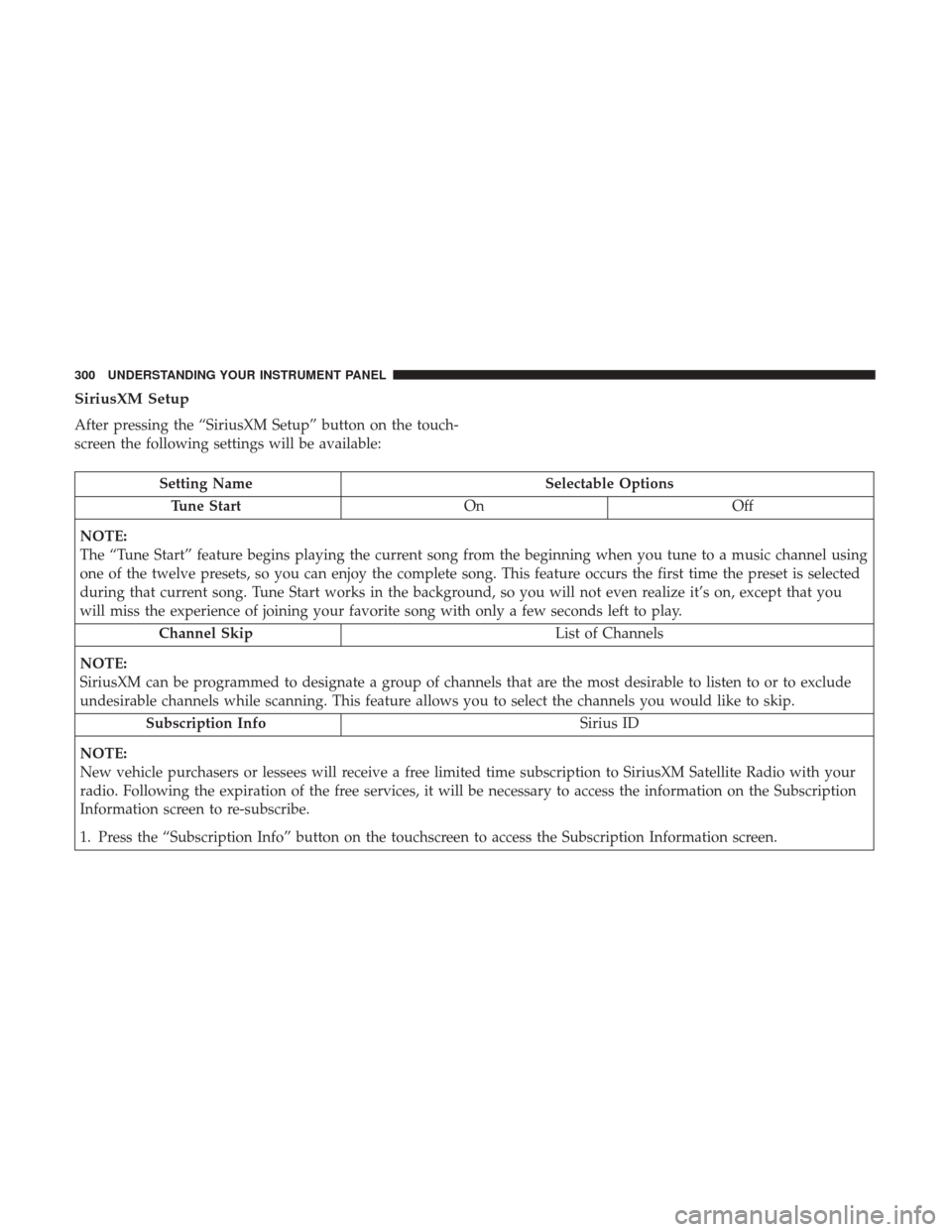
SiriusXM Setup
After pressing the “SiriusXM Setup” button on the touch-
screen the following settings will be available:
Setting NameSelectable Options
Tune Start OnOff
NOTE:
The “Tune Start” feature begins playing the current song from the beginning when you tune to a music channel using
one of the twelve presets, so you can enjoy the complete song. This feature occurs the first time the preset is selected
during that current song. Tune Start works in the background, so you will not even realize it’s on, except that you
will miss the experience of joining your favorite song with only a few seconds left to play. Channel Skip List of Channels
NOTE:
SiriusXM can be programmed to designate a group of channels that are the most desirable to listen to or to exclude
undesirable channels while scanning. This feature allows you to select the channels you would like to skip. Subscription Info Sirius ID
NOTE:
New vehicle purchasers or lessees will receive a free limited time subscription to SiriusXM Satellite Radio with your
radio. Following the expiration of the free services, it will be necessary to access the information on the Subscription
Information screen to re-subscribe.
1. Press the “Subscription Info” button on the touchscreen to access the Subscription Information screen.
300 UNDERSTANDING YOUR INSTRUMENT PANEL
Page 303 of 539
Setting NameSelectable Options
2. Write down the Sirius ID numbers for your receiver. To reactivate your service, either call the number listed on the screen or visit the provider online.
SiriusXM Travel Link is a separate subscription and is available for U.S. residents only.
Restore Settings
After pressing the “Restore Settings” button on the touch-
screen the following settings will be available:
Setting Name Selectable Options
Restore Settings OKCancel
NOTE:
When the “Restore Settings” feature is selected it will reset all settings to their default settings.
Clear Personal Data
After pressing the “Clear Personal Data” button on the
touchscreen the following settings will be available:
Setting Name Selectable Options
Clear Personal Data OKCancel
NOTE:
When the “Clear Personal Data” feature is selected it will remove all personal data including Bluetooth devices and presets.
4
UNDERSTANDING YOUR INSTRUMENT PANEL 301
Page 304 of 539
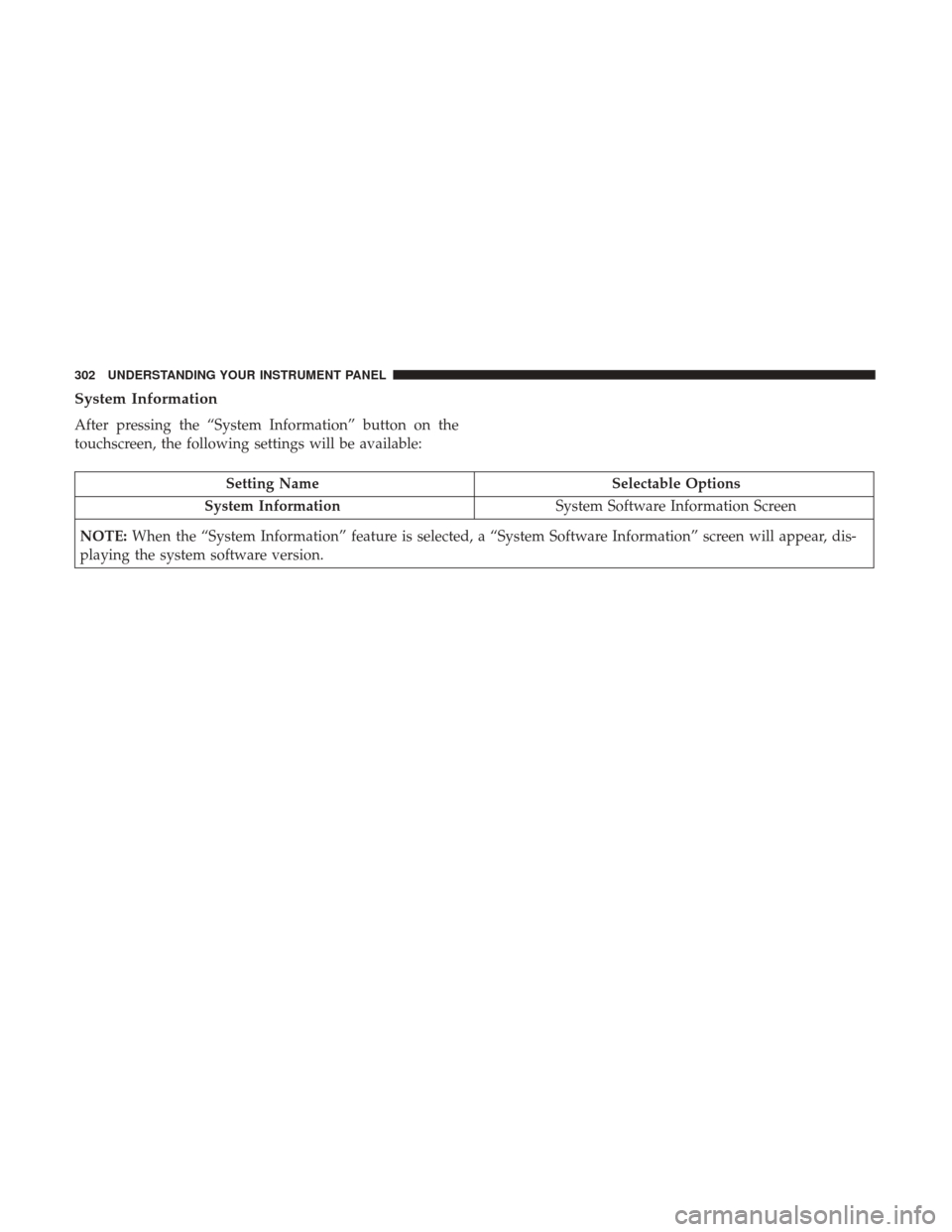
System Information
After pressing the “System Information” button on the
touchscreen, the following settings will be available:
Setting NameSelectable Options
System Information System Software Information Screen
NOTE: When the “System Information” feature is selected, a “System Software Information” screen will appear, dis-
playing the system software version.
302 UNDERSTANDING YOUR INSTRUMENT PANEL
Page 305 of 539
UCONNECT RADIOS — IF EQUIPPED
For detailed information about your Uconnect radio, refer
to your Uconnect Owner ’s Manual Supplement.
USB PORT AND AUX JACK — IF EQUIPPED
Located in the front storage area of the center console, this
feature allows an external device, to be connected to the
audio system.For further information, refer to the Uconnect Owner ’s
Manual Supplement.
Media Hub
1 — USB Port (Media and Charge)
2 — AUX Jack
3 — USB Port (Charge Only)
Uconnect 8.4/8.4 NAV Media Hub
1 — USB Port (Media and Charge)
2 — AUX Jack
3 — USB Port (Media and Charge)
4
UNDERSTANDING YOUR INSTRUMENT PANEL 303
Page 306 of 539

STEERING WHEEL AUDIO CONTROLS — IF
EQUIPPED
The remote sound system controls are located on the rear
surface of the steering wheel. Reach behind the wheel to
access the switches.
The right-hand control is a rocker-type switch with a
pushbutton in the center and controls the volume and
mode of the sound system. Pushing the top of the rocker
switch will increase the volume, and pushing the bottom of
the rocker switch will decrease the volume.Pushing the center button will make the radio switch
between the various audio modes available (AM/FM/
SXM/AUX, etc.).
The left-hand control is a rocker-type switch with a push-
button in the center. The function of the left-hand control is
different depending on which audio mode you are in.
The following describes the left-hand control operation
while in mode.
Radio Operation
Pushing the top of the switch will “Seek” up for the next
listenable station and pushing the bottom of the switch will
“Seek” down for the next listenable station.
The button located in the center of the left-hand control
will tune to the next preset station that you have pro-
grammed in the radio preset button.
Media Mode
Pushing the top of the switch once will go to the next track
on the selected media (Disc, AUX, Bluetooth). Pushing the
bottom of the switch once will go to the beginning of the
current track, or to the beginning of the previous track if it
is within eight seconds after the current track begins to
play.
Remote Sound System Controls (Back View Of Steering
Wheel)
304 UNDERSTANDING YOUR INSTRUMENT PANEL
Page 307 of 539
If you push the switch up or down twice, it plays the
second track; three times, it will play the third, etc.
RADIO OPERATION AND MOBILE DEVICES
Under certain conditions, an “on” mobile device in your
vehicle can cause erratic or noisy performance from your
radio. This condition may be lessened or eliminated by
relocating the mobile device antenna. This condition is not
harmful to the radio. If your radio performance does not
satisfactorily “clear” by the repositioning of the antenna, it
is recommended that the radio volume be turned down or
off during mobile device operation when not using
Uconnect (if equipped).
Regulatory And Safety Information
USA/CANADA
Exposure to Radio Frequency Radiation
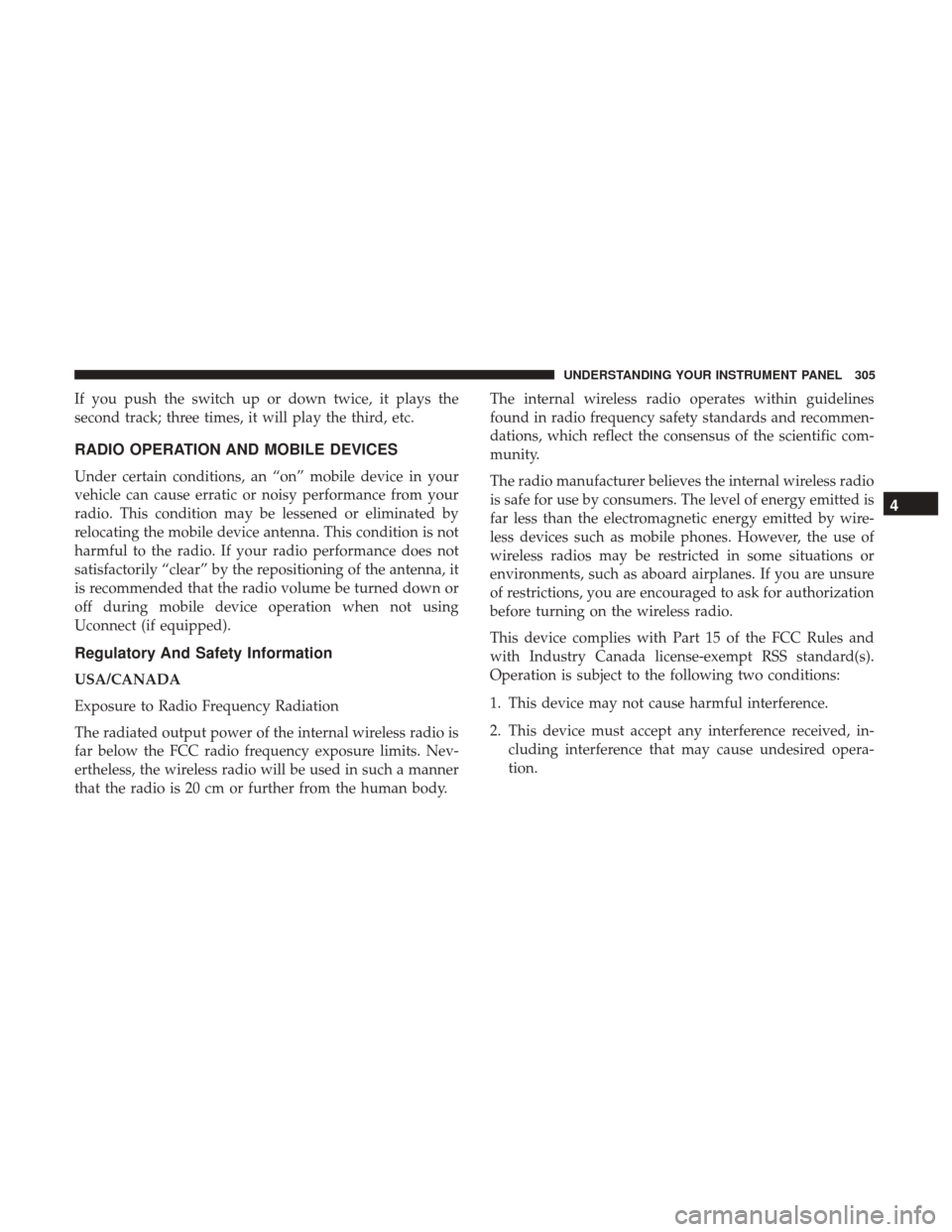
The radiated output power of the internal wireless radio is
far below the FCC radio frequency exposure limits. Nev-
ertheless, the wireless radio will be used in such a manner
that the radio is 20 cm or further from the human body.The internal wireless radio operates within guidelines
found in radio frequency safety standards and recommen-
dations, which reflect the consensus of the scientific com-
munity.
The radio manufacturer believes the internal wireless radio
is safe for use by consumers. The level of energy emitted is
far less than the electromagnetic energy emitted by wire-
less devices such as mobile phones. However, the use of
wireless radios may be restricted in some situations or
environments, such as aboard airplanes. If you are unsure
of restrictions, you are encouraged to ask for authorization
before turning on the wireless radio.
This device complies with Part 15 of the FCC Rules and
with Industry Canada license-exempt RSS standard(s).
Operation is subject to the following two conditions:
1. This device may not cause harmful interference.
2. This device must accept any interference received, in-
cluding interference that may cause undesired opera-
tion.
4
UNDERSTANDING YOUR INSTRUMENT PANEL 305
Page 308 of 539

NOTE:
•This equipment has been tested and found to comply
with the limits for a Class B digital device, pursuant to
Part 15 of the FCC Rules. These limits are designed to
provide reasonable protection against harmful interfer-
ence in a residential installation. This equipment gener-
ates, uses and can radiate radio frequency energy and, if
not installed and used in accordance with the instruc-
tions, may cause harmful interference to radio commu-
nications. However, there is no guarantee that interfer-
ence will not occur in a particular installation.
• If this equipment does cause harmful interference to
radio or television reception, which can be determined
by turning the equipment off and on, the user is encour-
aged to try to correct the interference by one or more of
the following measures:
• Increase the separation between the equipment and
receiver.
• Consult the dealer or an experienced radio technician for
help.CLIMATE CONTROLS
The Climate Control System allows you to regulate the
temperature, amount, and direction of air circulating
throughout the vehicle. The controls are located on the
instrument panel below the radio.
Climate Controls Without A Touchscreen Overview
306 UNDERSTANDING YOUR INSTRUMENT PANEL