Page 285 of 539

Your vehicle may be equipped with certain security fea-
tures to reduce the risk of unauthorized and unlawful
access to vehicle systems and wireless communications.
Vehicle software technology continues to evolve over time
and FCA US LLC, working with its suppliers, evaluates
and takes appropriate steps as needed. Similar to a com-
puter or other devices, your vehicle may require software
updates to improve the usability and performance of your
systems or to reduce the potential risk of unauthorized and
unlawful access to your vehicle systems.
The risk of unauthorized and unlawful access to your
vehicle systems may still exist, even if the most recent
version of vehicle software (such as Uconnect software) is
installed.
WARNING!
•It is not possible to know or to predict all of the
possible outcomes if your vehicle’s systems are
breached. It may be possible that vehicle systems,
including safety related systems, could be impaired or
a loss of vehicle control could occur that may result in
an accident involving serious injury or death.
(Continued)
WARNING! (Continued)
•ONLY insert media (e.g., USB, SD card, or CD) into
your vehicle if it came from a trusted source. Media
of unknown origin could possibly contain malicious
software, and if installed in your vehicle, it may
increase the possibility for vehicle systems to be
breached.
• As always, if you experience unusual vehicle behav-
ior, take your vehicle to your nearest Authorized
Dealer immediately.
NOTE:
• FCA or your dealer may contact you directly regarding
software updates.
• To help further improve vehicle security and minimize
the potential risk of a security breach, vehicle owners
should:
• Routinely check www.driveuconnect.com/software-
update to learn about available Uconnect software
updates.
• Only connect and use trusted media devices (e.g.
personal mobile phones, USBs, CDs).
4
UNDERSTANDING YOUR INSTRUMENT PANEL 283
Page 286 of 539
Privacy of any wireless and wired communications cannot
be assured. Third parties may unlawfully intercept infor-
mation and private communications without your consent.
For further information, refer to “Privacy Practices – If
Equipped with Uconnect 8.4 radio” in “All About
Uconnect Access” in your Uconnect Owner ’s Manual
Supplement and “Onboard Diagnostic System (OBD II)
Cybersecurity”.
UCONNECT SETTINGS
The Uconnect system uses a combination of buttons on the
touchscreen and buttons on the faceplate located on the
center of the instrument panel that allows you to access
and change the customer programmable features.
Uconnect 5.0 Buttons On Touchscreen And Buttons OnFaceplate
1 — Uconnect Buttons On The Touchscreen
2 — Uconnect Buttons On The Faceplate
284 UNDERSTANDING YOUR INSTRUMENT PANEL
Page 287 of 539

Buttons On The Faceplate
Buttons are located below the Uconnect system in the
center of the instrument panel. In addition, there is a
Scroll/Enter control knob located on the right side of the
Climate Controls in the center of the instrument panel.
Turn the control knob to scroll through menus and changesettings (i.e. 30, 60, 90) push the center of the control knob
one or more times to select or change a setting (i.e. ON,
OFF).
Your Uconnect system may also have a Screen Off and Back
buttons located below the system.
Push the Screen Off button to turn off the Uconnect screen.
Push the Screen Off button a second time to turn the screen
on.
Push the Back button to exit out of a Menu or certain
option on the Uconnect system.
Buttons On The Touchscreen
Buttons on the touchscreen are accessible on the Uconnect
display.
Customer Programmable Features/Personal
Settings — Uconnect 5.0/8.4/8.4 NAV Settings
Uconnect 5.0 — If a SETTINGS button on the faceplate
exists, push this button. If not, push the MORE button on
the faceplate and press the
�Settings�button on the touch-
screen. The remaining settings are defined for the Uconnect
8.4/8.4 NAV — Press the “Apps” button on the touch-
screen, then press the “Settings” button on the touchscreen
to display the menu setting screen. In this mode the
Uconnect 8.4 Buttons On Touchscreen And Buttons On
Faceplate
1 — Uconnect Buttons On The Touchscreen
2 — Uconnect Buttons On The Faceplate
4
UNDERSTANDING YOUR INSTRUMENT PANEL 285
Page 288 of 539

Uconnect system allows you to access programmable fea-
tures that may be equipped such as Display, Voice, Clock,
Safety & Driving Assistance (if equipped), Lights, Doors &
Locks, Auto-On Comfort (if equipped), Engine Off Op-
tions, Audio, Phone/Bluetooth, SiriusXM Setup, Restore
Settings, Clear Personal Data (if equipped).
NOTE:Only one category may be selected at a time.
To adjust the setting of a programmable feature, press the
desired setting option. Once in the desired setting option,
press and release the preferred setting until a check-mark
appears next to the setting, showing that the setting has been selected. Once the setting is complete, either press the
back arrow button on the touchscreen or the Back button
on the faceplate to return to the previous menu or press the
“X” button on the touchscreen to close out of the settings
screen. Pressing the Up or Down Arrow buttons on the
right side of the screen will allow you to toggle up or down
through the list of available settings.
Display
After pressing the “Display” button on the touchscreen, the
following settings will be available:
Setting Name
Selectable Options
Display Mode Manual Auto
Display Brightness With Headlights ON +-
NOTE:
To make changes to the �Display Brightness with Headlights ON� setting, the headlights must be on and the interior
dimmer switch must not be in the �party�or�parade� positions.
286 UNDERSTANDING YOUR INSTRUMENT PANEL
Page 289 of 539

Setting NameSelectable Options
Display Brightness With Headlights OFF +-
NOTE:
To make changes to the �Display Brightness with Headlights OFF� setting, the headlights must be off and the interior
dimmer switch must not be in the �party�or�parade� positions.
Set Language
NOTE:
When the “Set Language” feature is selected, you may select one of multiple languages (English/Français/Español)
for all display nomenclature, including the trip functions and the navigation system (if equipped). Press the “Set Lan-
guage” button on the touchscreen, then press the desired language button on the touchscreen until a check-mark ap-
pears next to the language, showing that setting has been selected. Units US Metric
Touchscreen Beep
Navigation Turn-By-Turn In Cluster — If Equipped
NOTE: When the “Navigation Turn-By-Turn In Cluster” feature is selected, the turn-by-turn directions will appear in
the Instrument Cluster Display as the vehicle approaches a designated turn within a programmed route.
Voice Brief Detailed
4
UNDERSTANDING YOUR INSTRUMENT PANEL 287
Page 290 of 539
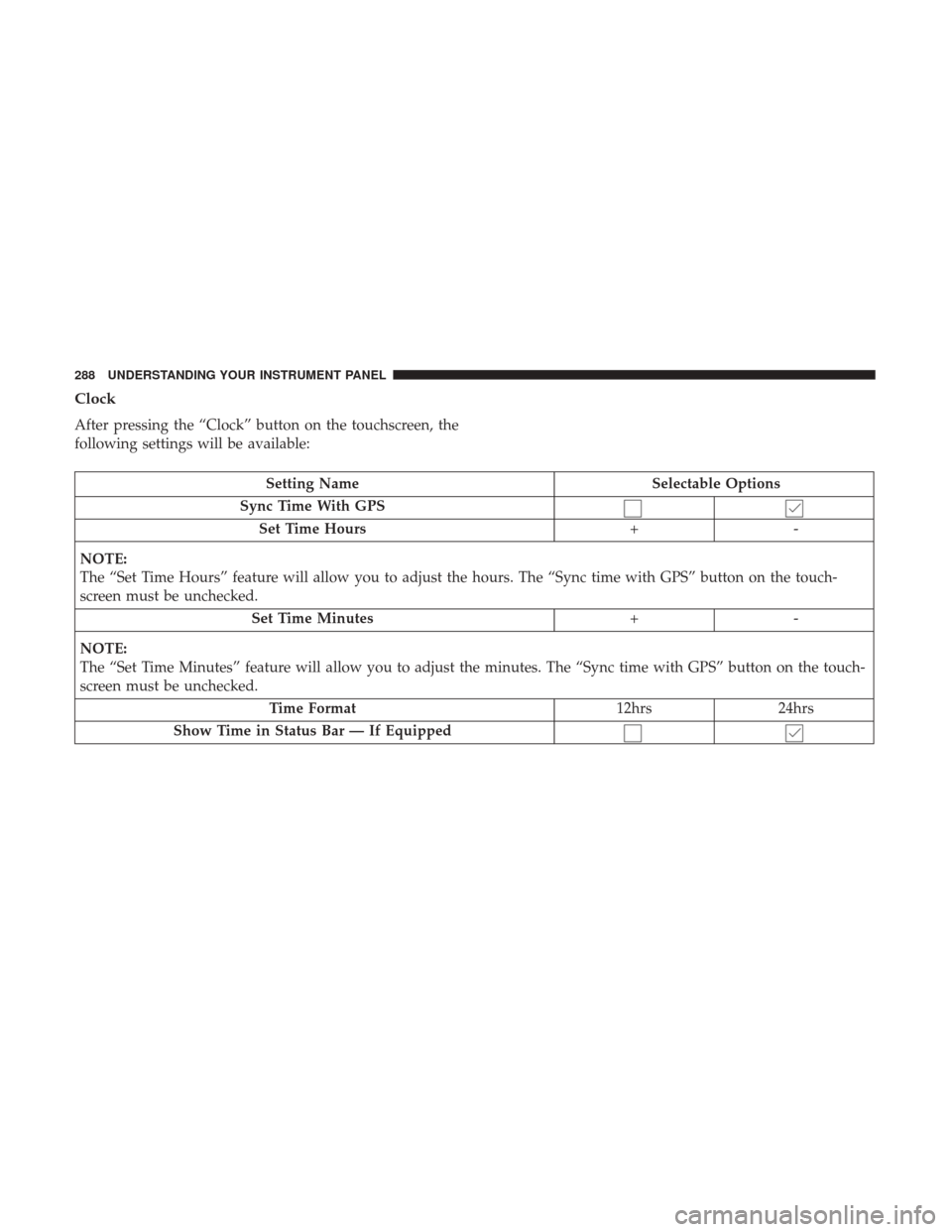
Clock
After pressing the “Clock” button on the touchscreen, the
following settings will be available:
Setting NameSelectable Options
Sync Time With GPS Set Time Hours +-
NOTE:
The “Set Time Hours” feature will allow you to adjust the hours. The “Sync time with GPS” button on the touch-
screen must be unchecked. Set Time Minutes +-
NOTE:
The “Set Time Minutes” feature will allow you to adjust the minutes. The “Sync time with GPS” button on the touch-
screen must be unchecked. Time Format 12hrs24hrs
Show Time in Status Bar — If Equipped
288 UNDERSTANDING YOUR INSTRUMENT PANEL
Page 291 of 539

Safety & Driving Assistance
After pressing the “Safety/Assistance” button on the
touchscreen the following settings will be available:
Setting NameSelectable Options
ParkView Backup Camera Delay — If Equipped On
Off
NOTE:
The “ParkView Backup Camera Delay” setting determines whether or not the screen will display the rear view image
with dynamic grid lines for up to 10 seconds after the vehicle is shifted out of REVERSE. This delay will be canceled
if the vehicle’s speed exceeds 8 mph (13 km/h), the transmission is shifted into PARK, or the ignition is switched to
the OFF position. ParkView Backup Camera Active Guidelines — If Equipped
NOTE:
The “ParkView Backup Camera Active Guide Lines” feature overlays the Rear Backup Camera image with active, or
dynamic, grid lines to help illustrate the width of the vehicle and its project back up path, based on the steering
wheel position when the option is checked. A dashed center line overlay indicates the center of the vehicle to assist
with parking or aligning to a hitch/receiver.
4
UNDERSTANDING YOUR INSTRUMENT PANEL 289
Page 292 of 539

Setting NameSelectable Options
ParkView Backup Camera Fixed Guidelines — If Equipped
NOTE: When the “ParkView Backup Camera Fixed Guidelines” feature is enabled, fixed (static) grid lines are over-
laid on the Rear Backup Camera image to illustrate the width of the vehicle.
Forward Collision Warn- ing On/Off — IfEquipped On
Off
NOTE:
Changing the FCW status to “Off” prevents the system from warning you of a possible collision with the vehicle in
front of you.
The FCW system state is kept in memory from one ignition cycle to the next. If the system is turned OFF, it will re-
main off when the vehicle is restarted. Forward Collision Warn- ing Sensitivity — If Equipped Far
Med Near
NOTE:
The “Forward Collision Warning Plus (FCW+) Sensitivity” setting determines at what relative distance the vehicle
directly in front of you needs to be at, before the system will warn you of a possible collision with the vehicle directly
in front of you, based on the option selected. “Far” will give you the most amount of reaction time, whereas “Near”
will give you the least amount of reaction time, based on the distance between the two vehicles.
290 UNDERSTANDING YOUR INSTRUMENT PANEL