2017 CHEVROLET MALIBU wheel
[x] Cancel search: wheelPage 194 of 419
Chevrolet Malibu Owner Manual (GMNA-Localizing-U.S./Canada/Mexico-10122664) - 2017 - crc - 5/23/16
Infotainment System 193
Pairing a Phone–No SSP and NoPaired Device
When there is no paired device onthe infotainment system and SSP isnot supported:
1. Press PHONE or pressgon
the steering wheel withoutOnStar.
2. Press Pair to search forBluetooth Devices.
3. Input the PersonalIdentification Number (PIN)code (default: 1234) to theBluetooth device. When theBluetooth device andinfotainment system aresuccessfully paired, thePHONE screen is displayed onthe infotainment system.
When the connection fails, a failuremessage is displayed on theinfotainment system.
If a Bluetooth device was previouslyconnected, the infotainment systemexecutes the auto connection.However, if the Bluetooth setting on
the Bluetooth device is turned off, afailure message is displayed on theinfotainment system.
Pairing a Phone–No SSP andPaired Device
When a paired device is on theinfotainment system and SSP is notsupported:
1. Press PHONE or pressgon
the steering wheel withoutOnStar.
2. Press MENU, then selectBluetooth Devices.
3. Turn MENU to the desireddevice to pair.
4. Press MENU to select thedesired device to pair.
5. Input the PersonalIdentification Number (PIN)code (default: 1234) to theBluetooth device. When theBluetooth device andinfotainment system are
successfully paired,Z/5is
displayed on the pair devicescreen. If no desired device isavailable go to Step 6.
6. Press Add to search for thedesired device.
.The connected phone is
highlighted by5.
.Z/5indicates the hands-free
and phone music functions areenabled.
.5indicates only the hands-free
function is enabled.
.Zindicates only Bluetooth
music is enabled.
Checking the BluetoothConnection
1. Press PHONE.
2. Turn MENU to highlightBluetooth Devices.
3. Press MENU to selectBluetooth Devices.
4. The paired device will show.
Disconnecting a Bluetooth Device
1. Press PHONE.
2. Turn MENU to highlightBluetooth Devices.
Page 197 of 419
Chevrolet Malibu Owner Manual (GMNA-Localizing-U.S./Canada/Mexico-10122664) - 2017 - crc - 5/23/16
196 Infotainment System
Pairing Information
.ABluetoothphonewithMP3capability cannot be paired tothe vehicle as a phone and anMP3 player at the same time.
.Up to 10 cell phones can bepaired to the Bluetooth system.
.The pairing process is disabledwhen the vehicle is moving.
.Pairing only needs to becompleted once, unless thepairing information on the cellphone changes or the cell phoneis deleted from the system.
.Only one paired cell phone canbe connected to the Bluetoothsystem at a time.
.If multiple paired cell phones arewithin range of the system, thesystem connects to the firstavailable paired cell phone in theorder that they were first paired.
When the Bluetooth device andinfotainment system aresuccessfully paired, the phone bookis downloaded automatically. This isdependent on the type of phonepaired. If the automatic download
does not occur, proceed with thephone book download on thephone.
Pairing a Phone–SSP and NoPaired Device
When there is no paired device onthe infotainment system and SimpleSecure Pairing (SSP) is supported:
1. Press{.
2. Touch PHONE, press5on the
faceplate, or pressgon the
steering wheel without OnStar.
3. Touch Search Device.
4. Touch the desired device topair on the searched listscreen.
5. Touch Yes on the pop-upscreen of the Bluetooth deviceand infotainment system.
6. When the Bluetooth device andinfotainment system aresuccessfully paired, the phonescreen is displayed on theinfotainment system.
Pairing a Phone–SSP and PairedDevice
When a paired device is on theinfotainment system and SSP issupported:
1. Press{.
2. Touch SETTINGS.
3. Touch Bluetooth, then DeviceManagement.
4. Touch the desired device topair. When the Bluetoothdevice and infotainment system
are successfully paired,Z/5
is displayed on the pair devicescreen. If no desired device isavailable go to Step 5.
5. Touch Search Device to searchfor the desired device.
6. Touch the desired device topair on the searched listscreen.
7. Touch Yes on the pop-upscreen of the Bluetooth deviceand infotainment system.
.The connected phone is
highlighted by5.
Page 198 of 419
Chevrolet Malibu Owner Manual (GMNA-Localizing-U.S./Canada/Mexico-10122664) - 2017 - crc - 5/23/16
Infotainment System 197
.Z/5indicates the hands-free
and phone music functions areenabled.
.5indicates only the hands-free
function is enabled.
.Zindicates only Bluetooth
music is enabled.
Pairing a Phone–No SSP and NoPaired Device
When there is no paired device onthe infotainment system and SSP isnot supported:
1. Press{.
2. Touch PHONE, press5on the
faceplate, or pressgon the
steering wheel without OnStar.
3. Touch Search Device.
4. Touch the desired device topair on the searched listscreen.
5. Input the PersonalIdentification Number (PIN)code (default: 1234) to theBluetooth device. When theBluetooth device and
infotainment system aresuccessfully paired, thePHONE screen is displayed onthe infotainment system.
When the connection fails, a failuremessage is displayed on theinfotainment system.
If a Bluetooth device was previouslyconnected, the infotainment systemexecutes the auto connection.However, if the Bluetooth setting onthe Bluetooth device is turned off, afailure message is displayed on theinfotainment system.
Pairing a Phone–No SSP andPaired Device
When a paired device is on theinfotainment system and SSP is notsupported:
1. Press{.
2. Touch SETTINGS.
3. Touch Bluetooth, then DeviceManagement.
4. Touch the desired device topair. When the Bluetoothdevice and infotainment system
are successfully paired,Z/5
is displayed on the pair devicescreen. If no desired device isavailable go to Step 5.
5. Touch Search Device to searchfor the desired device.
6. Touch the desired device topair on the searched listscreen.
7. Input the PersonalIdentification Number (PIN)code (default: 1234) to theBluetooth device. When theBluetooth device andinfotainment system are
successfully paired,Z/5is
displayed on the pair devicescreen.
.The connected phone is
highlighted by5.
.Z/5indicates the hands-free
and phone music functions areenabled.
.5indicates only the hands-free
function is enabled.
Page 201 of 419
Chevrolet Malibu Owner Manual (GMNA-Localizing-U.S./Canada/Mexico-10122664) - 2017 - crc - 5/23/16
200 Infotainment System
no app required for AppleCarPlay. Use the latestavailable operation system.
2. Connect your Android phone orApple iPhone by using thecompatible phone USB cableand plugging into a USB dataport. For best performance, usethe device’sfactory-providedUSB cable. Aftermarket orthird-party cables maynot work.
The PROJECTION icon on theHome Page will change to AndroidAuto or Apple CarPlay dependingon the phone. Android Auto and/orApple CarPlay may automaticallylaunch upon USB connection. If not,touch the ANDROID AUTO and/orAPPLE CARPLAY icon on theHome Page to launch.
For further information on how to setup Android Auto and Apple CarPlayin the vehicle, seewww.my.chevrolet.com for the U.S.and www.chevroletowner.ca forCanada only orCustomerAssistance Offices0385.
Android Auto is provided by Googleand is subject to Google’stermsand privacy policy. CarPlay isprovided by Apple and is subject toApple’stermsandprivacypolicy.For Android Auto support seehttps://support.google.com/androidauto or Apple CarPlaysupport at https://www.apple.com/ios/carplay/. Apple or Google maychange or suspend availability atany time. Android Auto is atrademark of Google Inc.; AppleCarPlay is a trademark of Apple Inc.
Hands-Free Phone
General Information without
Touchscreen
If equipped, pressg,selectOnStar
Hands-Free Calling, then say thedesired number.
General Information with
Touchscreen
If equipped, vehicles with aHands-Free Phone system can useaBluetooth-capablecellphonewithahands-freeprofiletomakeandreceive phone calls. The
infotainment system and voicecontrol are used to operate thesystem. Not all phones support allfunctions and not all phones workwith the Hands-Free Phone system.
Hands-Free Phone Controls
Use the buttons on the infotainmentsystem and the steering wheel tooperate the Hands-Free Phonesystem.
Steering Wheel Controls
Steering wheel controls can beused to:
.Answer incoming calls.
.Confirm system information.
.End a call.
.Decline a call.
.Cancel an operation.
.Make outgoing calls using thecall list.
g:Press to answer incoming calls.
c:Press to end a call, decline acall, or cancel an operation.
Page 202 of 419
Chevrolet Malibu Owner Manual (GMNA-Localizing-U.S./Canada/Mexico-10122664) - 2017 - crc - 5/23/16
Infotainment System 201
Making a Call by Entering a PhoneNumber
.Press5on the faceplate.
.Press{,thentouchPHONEon
the screen.
.Pressgon the steering wheel.
If a wrong number is entered, touch}to delete the number one digit at
atime,ortouchandhold}to
delete all digits of the number.
Switching a Call to the Cell Phone(Private Mode)
To s w i t c h t h e c a l l f r o m t h e c e l lphone to hands-free:
1. Touch0.
2. Touch0again to switch back
to hands-free.
Turning the Microphone Onand Off
To u c h3to turn the microphone on
or off.
Calling by Redial
To c a l l b y u s i n g r e d i a l :
.Pressgon the steering wheel
controls to display the redialguidance screen.
.To u c h5on the phone screen.
Redialing is not possible when thereis no call history.
Taking Calls
When a phone call comes throughthe connected Bluetooth cell phone,the audio system will be muted orpaused and the phone will ring withthe relevant information displayed.
To a c c e p t t h e c a l l , p r e s sgon the
steering wheel controls, touch5on
the screen, or press5on the
faceplate.
To d e c l i n e t h e c a l l , p r e s scon the
steering wheel controls or touchReject on the screen.
Using the Contacts Menu
1. Touch Contacts on the phonescreen.
2. TouchQorRto scroll through
the list.
3. Touch the phone book entryto call.
4. Touch the number to dial.
Searching for Contacts Entries
1. Touch Contacts on the phonescreen.
2. Touch9on the contacts
screen.
3. Use the keypad to input thename to search. See“Searching for a Name”following.
4. Touch the phone book entryto call.
5. If there is more than onenumber associated with thename, touch the numberto dial.
When the Bluetooth device andinfotainment system aresuccessfully paired, the phone bookmay download. Some phones maynot download automatically. If thishappens, connect it again orproceed with the phone bookdownload on the phone.
Page 216 of 419
Chevrolet Malibu Owner Manual (GMNA-Localizing-U.S./Canada/Mexico-10122664) - 2017 - crc - 5/23/16
Driving and Operating 215
Trailer Towing
General TowingInformation . . . . . . . . . . . . . . . . . . 272Driving Characteristics andTo w i n g T i p s . . . . . . . . . . . . . . . . . 2 7 2Trailer Towing . . . . . . . . . . . . . . . . 275To w i n g E q u i p m e n t . . . . . . . . . . . . 2 7 6
Conversions and Add-Ons
Add-On ElectricalEquipment . . . . . . . . . . . . . . . . . . 277
Driving Information
Distracted Driving
Distraction comes in many formsand can take your focus from thetask of driving. Exercise goodjudgment and do not let otheractivities divert your attention awayfrom the road. Many localgovernments have enacted lawsregarding driver distraction. Becomefamiliar with the local laws inyour area.
To a v o i d d i s t r a c t e d d r i v i n g , k e e pyour eyes on the road, keep yourhands on the steering wheel, andfocus your attention on driving.
.Do not use a phone indemanding driving situations.Use a hands-free method toplace or receive necessaryphone calls.
.Watch the road. Do not read,take notes, or look upinformation on phones or otherelectronic devices.
.Designate a front seatpassenger to handle potentialdistractions.
.Become familiar with vehiclefeatures before driving, such asprogramming favorite radiostations and adjusting climatecontrol and seat settings.Program all trip information intoany navigation device prior todriving.
.Wait until the vehicle is parkedto retrieve items that have fallento the floor.
.Stop or park the vehicle to tendto children.
.Keep pets in an appropriatecarrier or restraint.
.Avoid stressful conversationswhile driving, whether with apassenger or on a cell phone.
{Warning
Ta k i n g y o u r e y e s o f f t h e r o a d t o o
long or too often could cause a
crash resulting in injury or death.
Focus your attention on driving.
Page 218 of 419
Chevrolet Malibu Owner Manual (GMNA-Localizing-U.S./Canada/Mexico-10122664) - 2017 - crc - 5/23/16
Driving and Operating 217
Steering
Electric Power Steering
The vehicle has electric powersteering. It does not have powersteering fluid. Regular maintenanceis not required.
If power steering assist is lost dueto a system malfunction, the vehiclecan be steered, but may requireincreased effort.
See your dealer if there is aproblem.
If the steering wheel is turned until itreaches the end of its travel and isheld against that position for anextended period of time, powersteering assist may be reduced.
If the steering assist is used for anextended period of time, powerassist may be reduced.
Normal use of the power steeringassist should return when thesystem cools down.
See specific vehicle steeringmessages underService VehicleMessages0145.Seeyourdealerifthere is a problem.
Curve Tips
.Ta k e c u r v e s a t a r e a s o n a b l espeed.
.Reduce speed before entering acurve.
.Maintain a reasonable steadyspeed through the curve.
.Wait until the vehicle is out ofthe curve before acceleratinggently into the straightaway.
Steering in Emergencies
.There are some situations whensteering around a problem maybe more effective than braking.
.Holding both sides of thesteering wheel allows you to turn180 degrees without removingahand.
.The Antilock Brake System(ABS) allows steering whilebraking.
Off-Road Recovery
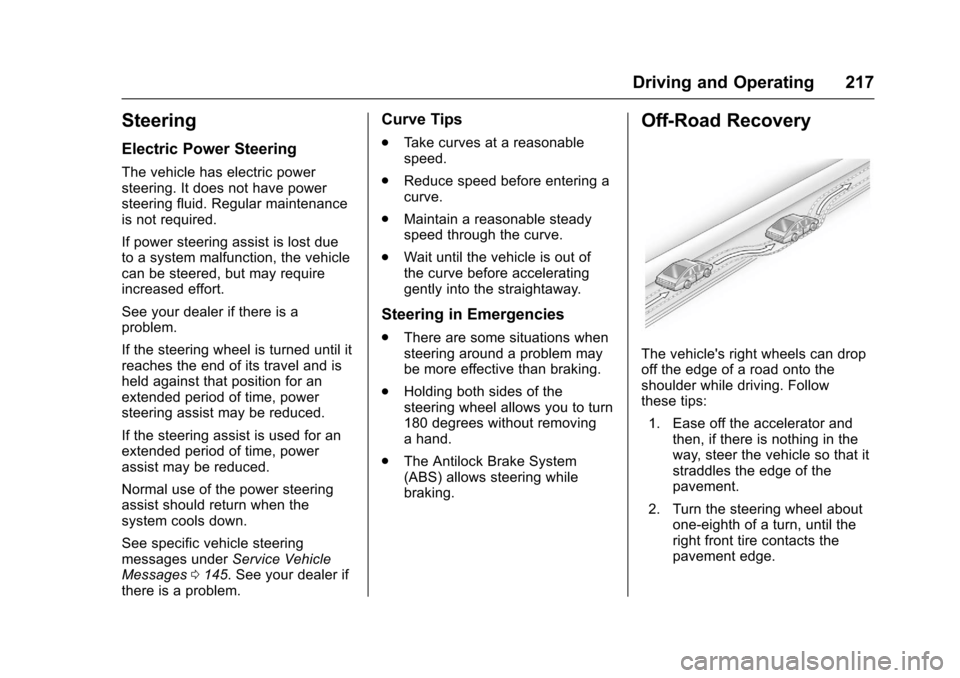
The vehicle's right wheels can dropoff the edge of a road onto theshoulder while driving. Followthese tips:
1. Ease off the accelerator andthen, if there is nothing in theway, steer the vehicle so that itstraddles the edge of thepavement.
2. Turn the steering wheel aboutone-eighth of a turn, until theright front tire contacts thepavement edge.
Page 219 of 419
Chevrolet Malibu Owner Manual (GMNA-Localizing-U.S./Canada/Mexico-10122664) - 2017 - crc - 5/23/16
218 Driving and Operating
3. Turn the steering wheel to gostraight down the roadway.
Loss of Control
Skidding
There are three types of skids thatcorrespond to the vehicle's threecontrol systems:
.Braking Skid—wheels are notrolling.
.Steering or Cornering Skid—too much speed or steering in acurve causes tires to slip andlose cornering force.
.Acceleration Skid—too muchthrottle causes the drivingwheels to spin.
Defensive drivers avoid most skidsby taking reasonable care suited toexisting conditions, and by notoverdriving those conditions. Butskids are always possible.
If the vehicle starts to slide, followthese suggestions:
.Ease your foot off theaccelerator pedal and steer theway you want the vehicle to go.
The vehicle may straighten out.Be ready for a second skid if itoccurs.
.Slow down and adjust yourdriving according to weatherconditions. Stopping distancecan be longer and vehiclecontrol can be affected whentraction is reduced by water,snow, ice, gravel, or othermaterial on the road. Learn torecognize warning clues—suchas enough water, ice, or packedsnow on the road to make amirrored surface—and slowdown when you have any doubt.
.Try to avoid sudden steering,acceleration, or braking,including reducing vehicle speedby shifting to a lower gear. Anysudden changes could causethe tires to slide.
Remember: Antilock brakes helpavoid only the braking skid.
Driving on Wet Roads
Rain and wet roads can reducevehicle traction and affect yourability to stop and accelerate.
Always drive slower in these typesof driving conditions and avoiddriving through large puddles anddeep-standing or flowing water.
{Warning
Wet brakes can cause crashes.
They might not work as well in a
quick stop and could cause
pulling to one side. You could
lose control of the vehicle.
After driving through a large
puddle of water or a car/vehicle
wash, lightly apply the brake
pedal until the brakes work
normally.
Flowing or rushing water creates
strong forces. Driving through
flowing water could cause the
vehicle to be carried away. If this
happens, you and other vehicle
occupants could drown. Do not
ignore police warnings and be
very cautious about trying to drive
through flowing water.