2017 CHEVROLET MALIBU buttons
[x] Cancel search: buttonsPage 169 of 419
Chevrolet Malibu Owner Manual (GMNA-Localizing-U.S./Canada/Mexico-10122664) - 2017 - crc - 5/23/16
168 Lighting
Courtesy Lamps
The courtesy lamps come on whenany door is opened unless the domelamp override is activated. Todeactivate the dome lamp override,
pressjOFF and the indicator
light on the button will turn off.
Dome Lamps
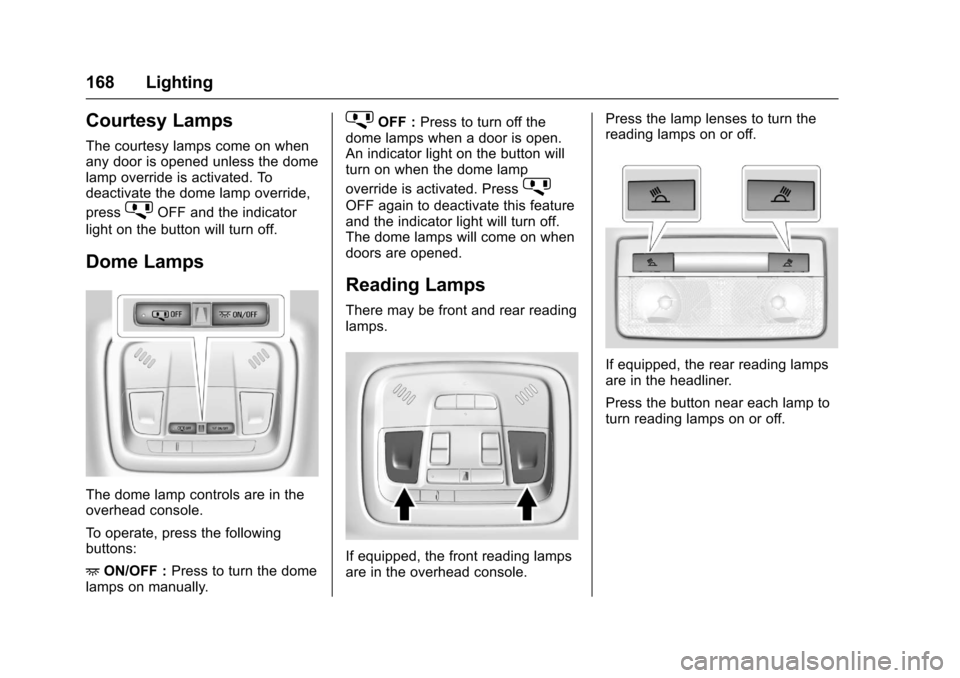
The dome lamp controls are in theoverhead console.
To o p e r a t e , p r e s s t h e f o l l o w i n gbuttons:
+ON/OFF :Press to turn the domelamps on manually.
jOFF :Press to turn off thedome lamps when a door is open.An indicator light on the button willturn on when the dome lamp
override is activated. Pressj
OFF again to deactivate this featureand the indicator light will turn off.The dome lamps will come on whendoors are opened.
Reading Lamps
There may be front and rear readinglamps.
If equipped, the front reading lampsare in the overhead console.
Press the lamp lenses to turn thereading lamps on or off.
If equipped, the rear reading lampsare in the headliner.
Press the button near each lamp toturn reading lamps on or off.
Page 173 of 419
Chevrolet Malibu Owner Manual (GMNA-Localizing-U.S./Canada/Mexico-10122664) - 2017 - crc - 5/23/16
172 Infotainment System
functions may gray out when theyare unavailable. Many infotainmentfeatures are also available throughthe instrument cluster and steeringwheel controls.
Before driving:
.Become familiar with theoperation, faceplate buttons, andscreen buttons.
.Set up the audio by presettingfavorite stations, setting thetone, and adjusting thespeakers.
.Set up phone numbers inadvance so they can be calledeasily by pressing a singlebutton or by using a single voicecommand if equipped withBluetooth phone capability.
SeeDefensive Driving0216.
To p l a y t h e i n f o t a i n m e n t s y s t e m w i t hthe ignition off, seeRetainedAccessory Power (RAP)0230.
Theft-Deterrent Feature
The infotainment system has anelectronic security system installedto prevent theft.
The infotainment system only worksin the vehicle in which it was firstinstalled, and cannot be used inanother vehicle.
Page 175 of 419
Chevrolet Malibu Owner Manual (GMNA-Localizing-U.S./Canada/Mexico-10122664) - 2017 - crc - 5/23/16
174 Infotainment System
.Turn to highlight menuitems or to set values whilein a menu.
.Turn to manually selectradio stations.
9. Preset Buttons 1✓4
.Press and hold to store astation.
.Press to go to a presetfavorite station.
10. FAV
.Press to go to afavorite page.
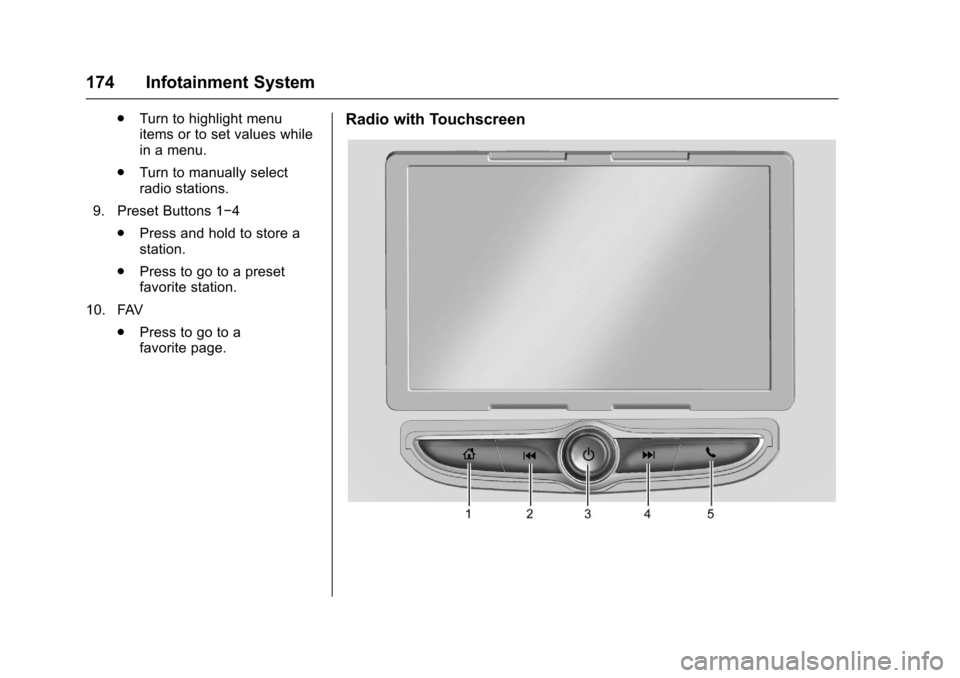
Radio with Touchscreen
Page 176 of 419
Chevrolet Malibu Owner Manual (GMNA-Localizing-U.S./Canada/Mexico-10122664) - 2017 - crc - 5/23/16
Infotainment System 175
1.{
.Press to go to the HomePage. SeeHome Page(Radio withTo u c h s c r e e n )0175.
2.g
.Radio: Press and release togo to the previous station orchannel. Press and hold tofast seek the previousstrongest station orchannel.
.USB/Bluetooth Music/Pictures: Press and releaseto go to the previous track.Press and hold to fastrewind.
3.O
.Press to turn the power on.
.Press and hold to turn thepower off.
.Press to mute the systemwhen on.
.Turn to decrease orincrease the volume.
4.d
.Radio: Press and release togo to the next station orchannel. Press and hold tofast seek the next strongeststation or channel.
.USB/Bluetooth Music/Pictures: Press and releaseto go to the next track.Press and hold to fastforward.
5.5
.Press and release toaccess the phone screen,answer an incoming call,or access the device homescreen.
Home Page (Radio with
Touchscreen)
Touchscreen Buttons
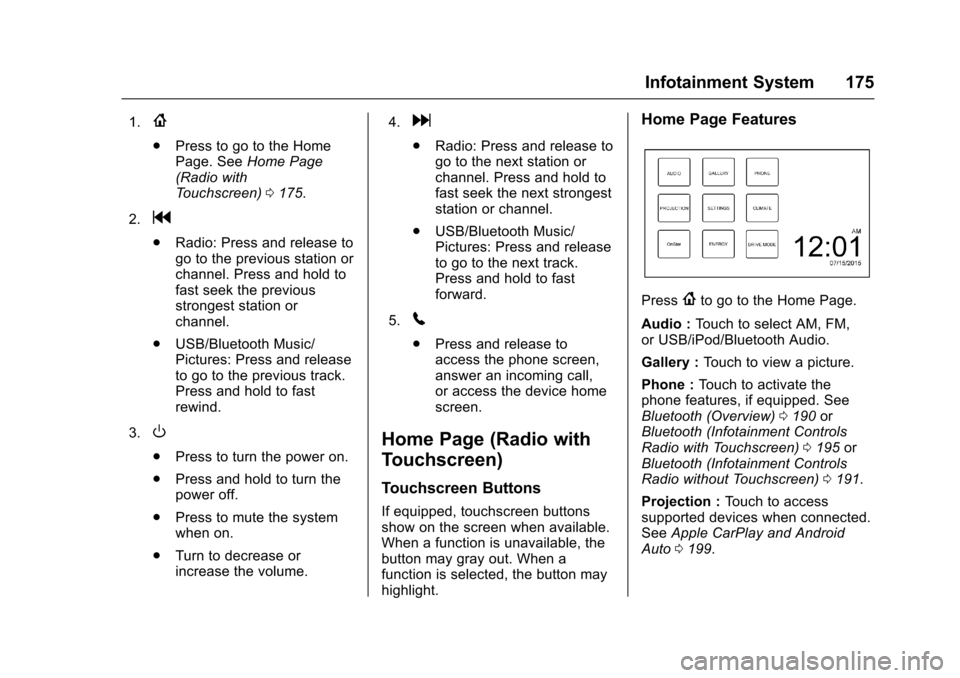
If equipped, touchscreen buttonsshow on the screen when available.When a function is unavailable, thebutton may gray out. When afunction is selected, the button mayhighlight.
Home Page Features
Press{to go to the Home Page.
Audio :To u c h t o s e l e c t A M , F M ,or USB/iPod/Bluetooth Audio.
Gallery :To u c h t o v i e w a p i c t u r e .
Phone :To u c h t o a c t i v a t e t h ephone features, if equipped. SeeBluetooth (Overview)0190orBluetooth (Infotainment ControlsRadio with Touchscreen)0195orBluetooth (Infotainment ControlsRadio without Touchscreen)0191.
Projection :To u c h t o a c c e s ssupported devices when connected.SeeApple CarPlay and AndroidAuto0199.
Page 177 of 419
Chevrolet Malibu Owner Manual (GMNA-Localizing-U.S./Canada/Mexico-10122664) - 2017 - crc - 5/23/16
176 Infotainment System
Settings :To u c h t o a c c e s s t h ePersonalization menu. SeeVehiclePersonalization0147.
Climate :If equipped, touch toaccess the Climate menu. SeeClimate Control Systems0205orDual Automatic Climate ControlSystem0208.
OnStar :If equipped, touch toaccess the OnStar menu. SeeOnStar Overview0397.
Energy :If equipped, touch toaccess the Energy menu.
Drive Mode :If equipped, touch toaccess the Drive Mode menu.
Operation
Radio Controls without
Touchscreen
The infotainment system is operatedby using the pushbuttons,multifunction knobs, and menusshown on the display.
Turning the System On or Off
O:Press and hold to turn thesystem on and off.
Automatic Switch-Off
If the infotainment system has beenturned on after the ignition is turnedoff, the system will turn offautomatically after 10 minutes.
Volume Control
O:Turn to adjust the volume or tocancel mute when the audio systemis muted.
PHONE :Press to activate OnStar.SeeOnStar Overview0397.
Press to mute the audio system.Press again to cancel mute.
Menu System
Controls
The MENU knob and BACK buttonare used to navigate the menusystem.
MENU Knob:
Turn to:
.Highlight a menu option.
.Select a value.
.Manually select radio stations.
Press to:
.Enter the menu system.
.Select or activate the highlightedmenu option.
.Confirm a set value.
.Turn a system setting on or off.
BACK:
Press to:
.Exit a menu.
.Go back to the previous menuscreen.
.Delete the last character in asequence.
.Press and hold to delete theentire character sequence.
Submenus
Abarontheright-handedgeofthemenu indicates that it has asubmenu with other options.
Tone Settings
The tone settings can be set foreach radio band and each audioplayer source.
Page 178 of 419
Chevrolet Malibu Owner Manual (GMNA-Localizing-U.S./Canada/Mexico-10122664) - 2017 - crc - 5/23/16
Infotainment System 177
Adjusting the Bass, Midrange,Treble, Fader, and Balance
1. Press MENU.
2. Turn MENU to Settings.
3. Press MENU.
4. Turn MENU to Tone Settings.
5. Press MENU.
6. Turn MENU to thedesired tone.
7. Press MENU to select thedesired tone.
8. Turn MENU to adjust thedesired tone.
9. Press MENU to save thesetting.
10. Press BACK to go back to theTo n e S e t t i n g s m e n u .
Adjusting the EQ (Equalizer)
1. Press MENU.
2. Turn MENU to Settings.
3. Press MENU.
4. Turn MENU to Tone Settings.
5. Press MENU.
6. Turn MENU to EQ.
7. Press MENU.
8. Turn MENU to the desiredsetting, then press MENU toselect it.
9. Continue pressing BACK to goback to the ToneSettings menu.
System Settings
Configuring the Number ofFavorite Pages
Up to six favorite pages can besaved, and each page can store upto four radio stations.
To c o n f i g u r e t h e n u m b e r o f a v a i l a b l efavorite pages:
1. Press MENU.
2. Turn MENU to Set Number ofFavorites Pages.
3. Press MENU.
4. Turn MENU to the desirednumber of pages.
5. Press MENU to select thedesired number of pages.
6. Press BACK to exit.
Auto Volume Control
This feature automatically adjuststhe radio volume to compensate forroad and wind noise.
The level of volume compensationcan be selected, or the feature canbe turned off.
1. Press MENU.
2. Turn MENU to Settings.
3. Press MENU.
4. Turn MENU to Auto VolumeControl.
5. Press MENU.
6. Select the desired setting.
7. Press BACK to exit.
Radio Controls with
Touchscreen
The infotainment system is operatedby using the pushbuttons, menusshown on the display, and steeringwheel controls.
Turning the System On or Off
O:Press to turn the radio on.Press and hold to turn the radio off.
Page 179 of 419
Chevrolet Malibu Owner Manual (GMNA-Localizing-U.S./Canada/Mexico-10122664) - 2017 - crc - 5/23/16
178 Infotainment System
Automatic Switch-Off
If the infotainment system has beenturned on after the ignition is turnedoff, the system will turn offautomatically after 10 minutes.
Volume Control
O:Turn to increase or decrease.
O:Press when the system is on tomute and unmute the system.
System Settings
Auto Volume
This feature automatically adjuststhe radio volume to compensate forroad and wind noise.
The level of volume compensationcan be selected, or the feature canbe turned off.
1. Touch MENU from a sourcescreen.
2. Select Auto Volume.
3. Select the desired setting.
4. Touch3to go back to the
source screen.
Tone Settings
The tone settings can be set foreach radio band and each audioplayer source.
Preset Tone Settings
1. Touch MENU.
2. Touch Tone Settings.
3. Select a preset tone setting.
Custom Tone Settings
1. Touch MENU.
2. Touch Tone Settings.
3. Touch Custom.
.Bass, Midrange, or Treble:To u c h✓or +.
.Fader or Balance: Adjustthe front/rear or left/rightspeakers by dragging thedot in the vehicle image onthe screen.
4. Touch3to go back to the
source screen.
Radio
AM-FM Radio
Playing the Radio without
Touchscreen
Audio Source Menu
O:Press and hold to turn thesystem on and off. Turn to increaseor decrease the volume or to cancelmute when the audio system ismuted.
MENU :Turn to change the radiostation.
RADIO :Press to select AMand FM.
7or6:Press to seek theprevious or next station.
Press and hold to quick seek astation.
FAV :Press to open the favoriteslist and select a favorite page orview the radio station and currentsong playing information.
Preset Buttons 1–4:Press toselect preset stations.
Page 182 of 419
Chevrolet Malibu Owner Manual (GMNA-Localizing-U.S./Canada/Mexico-10122664) - 2017 - crc - 5/23/16
Infotainment System 181
Storing a Station as a Favorite
Stations from all bands can bestored in any order in the favoritepages.
Up to 25 stations can be stored.
Storing Stations
To s t o r e t h e s t a t i o n t o a p o s i t i o n i nthe list, touch the correspondingbutton 1✓5untilabeepisheard.
1. Select the desired station.
2. TouchSorTto select the
desired page of savedfavorites.
3. Touch and hold any of thepreset buttons to save thecurrent radio station to thatbutton of the selectedfavorites page.
To c h a n g e a p r e s e t b u t t o n , t u n e t othe new desired radio station andtouch and hold the preset button.
Satellite Radio
If equipped, vehicles with anSiriusXM®Satellite Radio tuner andavalidSiriusXMSatelliteRadiosubscription can receive SiriusXMprogramming.
SiriusXM Satellite Radio
Service
SiriusXM is a satellite radio servicebased in the 48 contiguous UnitedStates and 10 Canadian provinces.SiriusXM Satellite Radio has a widevariety of programming andcommercial-free music, coast tocoast, and in digital-quality sound.During your trial or when yousubscribe, you will get unlimitedaccess to SiriusXM Radio Online forwhen you are not in the vehicle.Aservicefeeisrequiredtoreceivethe SiriusXM service. If SiriusXMservice needs to be reactivated, theradio will display "No SubscriptionPlease Renew" on channel SXM1.For more information, contactSiriusXM at www.siriusxm.com or1-888-601-6296 (U.S.), andwww.siriusxm.ca or 1-877-438-9677(Canada).
Listening to SiriusXM Radio
1. Press{.
2. Touch AUDIO.
3. Touch Source.
4. Touch SXM and the mostrecent listened to SiriusXMchannel will display.
Selecting a Category
From Menu, touch Categories, thentouch the desired category or from
Categories, touchQorRto find the
desired channel. Touch the channelto select it.
Selecting a Channel
Pressgordto seek the previous
or next channel.
Using the Preset Buttons
Up to five favorites pages can besaved, and each page can store upto five channels.
To c h a n g e a p r e s e t b u t t o n , t u n e t othe new desired channel and holdthe button.