2017 CHEVROLET COLORADO CD player
[x] Cancel search: CD playerPage 20 of 419

Chevrolet Colorado Owner Manual (GMNA-Localizing-U.S./Canada/Mexico-10122675) - 2017 - crc - 8/22/16
In Brief 19
Vehicle Features
Infotainment System
The base radio and base radio withtouchscreen information is includedin this manual. See the infotainmentmanual for information on theuplevel radios, audio players,phone, navigation system, RearSeat Entertainment (RSE), andvoice or speech recognition,if equipped.
Radio(s)
O:Press to turn the system on.Press and hold to turn it off. Whenon, press to mute; press again tounmute. Turn to increase ordecrease the volume.
RADIO :Press to choose betweenFM, AM, and SXM, if equipped.
MEDIA :Press to change the audiosource between USB, AUX, andBluetooth®Audio, if equipped.
{:Press to go to the Home Page.
MENU :Press to select a menu.
g:Press to seek the previousstation.
l:Press to seek the next station.
SeeOverview (Base Radio)0155orOverview (Base Radio withTo u c h s c r e e n )0157about theseand other radio features.
Storing Radio Station Presets
Up to 25 preset stations from allbands can be stored in the favoritelists in any order. Up to five stationscan be stored in each favorite pageand the number of favorite pagescan be set.
To s t o r e t h e s t a t i o n t o a p o s i t i o n i nthe list, while on the active sourcemain page, such as AM, FM,or SXM (if equipped), press andhold a favorites/soft key button onthe faceplate.
See“Storing Radio Station Presets”underAM-FM Radio (Base Radio)0161orAM-FM Radio (Base Radiowith Touchscreen)0163.
Setting the Clock
SeeClock0106.
Satellite Radio
Vehicles with a SiriusXM®satelliteradio tuner and a valid SiriusXMsatellite radio subscription canreceive SiriusXM programming.
SiriusXM Satellite Radio
Service
SiriusXM is a satellite radio servicebased in the 48 contiguous UnitedStates and 10 Canadian provinces.SiriusXM satellite radio has a widevariety of programming andcommercial-free music, coast tocoast, and in digital-quality sound.AfeeisrequiredtoreceivetheSiriusXM service.
For more information refer to:
.www.siriusxm.com or call1-888-601-6296 (U.S.).
.www.siriusxm.ca or call1-877-438-9677 (Canada).
SeeSatellite Radio (Base Radio)0164orSatellite Radio (BaseRadio with Touchscreen)0165.
Page 21 of 419
Chevrolet Colorado Owner Manual (GMNA-Localizing-U.S./Canada/Mexico-10122675) - 2017 - crc - 8/22/16
20 In Brief
Portable Audio Devices
There is a 3.5 mm (1/8 in) auxiliaryinput jack and USB port on thecenter stack. External devices suchas iPods®,laptopcomputers,MP3players, and USB storage devicesmay be connected, depending onthe audio system.
SeeUSB Port (Base Radio)0170orUSB Port (Base Radio withTo u c h s c r e e n )0173andAuxiliaryJack0179.
Bluetooth®
The Bluetooth®system allows userswith a Bluetooth-enabled cell phoneto make and receive hands-freecalls using the vehicle audio systemand controls.
The Bluetooth-enabled cell phonemust be paired with the in-vehicleBluetooth system before it can beused in the vehicle. Not all phoneswill support all functions.
SeeBluetooth (Overview)0187orBluetooth (Infotainment Controls -Base Radio)0188orBluetooth(Voice Recognition)0192orBluetooth (Infotainment Controls -Base Radio withTo u c h s c r e e n )0197.
Steering Wheel Controls
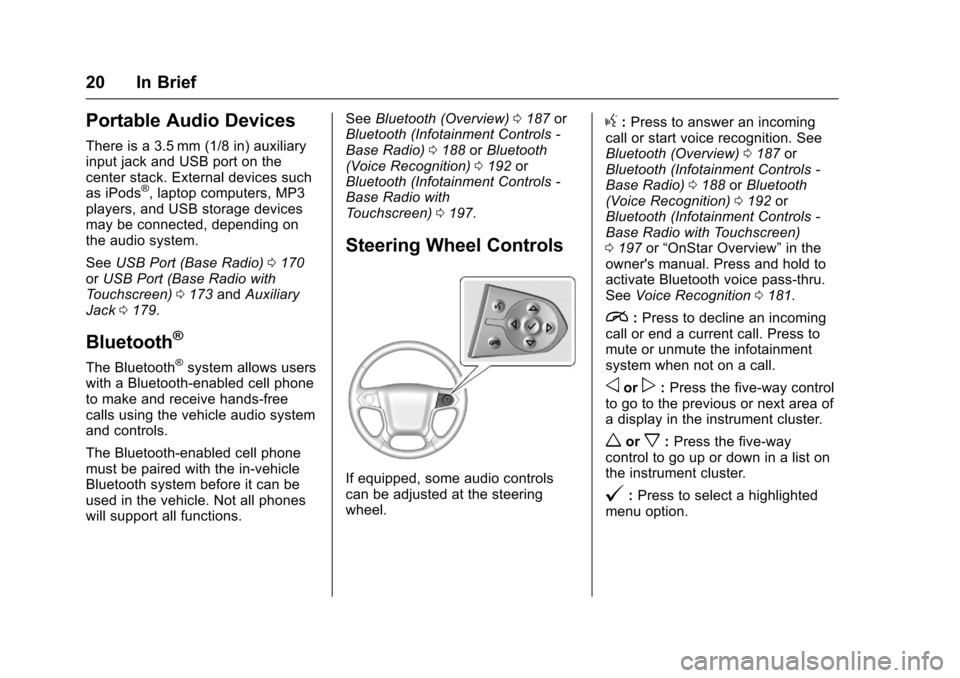
If equipped, some audio controlscan be adjusted at the steeringwheel.
g:Press to answer an incomingcall or start voice recognition. SeeBluetooth (Overview)0187orBluetooth (Infotainment Controls -Base Radio)0188orBluetooth(Voice Recognition)0192orBluetooth (Infotainment Controls -Base Radio with Touchscreen)0197or“OnStar Overview”in theowner's manual. Press and hold toactivate Bluetooth voice pass-thru.SeeVoice Recognition0181.
i:Press to decline an incomingcall or end a current call. Press tomute or unmute the infotainmentsystem when not on a call.
oorp:Press the five-way controlto go to the previous or next area ofadisplayintheinstrumentcluster.
worx:Press the five-waycontrol to go up or down in a list onthe instrument cluster.
@:Press to select a highlightedmenu option.
Page 24 of 419

Chevrolet Colorado Owner Manual (GMNA-Localizing-U.S./Canada/Mexico-10122675) - 2017 - crc - 8/22/16
In Brief 23
Lane Departure
Warning (LDW)
If equipped, LDW may help avoidunintentional lane departures atspeeds of 56 km/h (35 mph) orgreater. LDW uses a camera sensorto detect the lane markings. The
LDW light,@,isgreenifalane
marking is detected. If the vehicledeparts the lane without using a turnsignal in that direction, the light willchange to amber and flash. Inaddition, beeps will sound.
SeeLane Departure Warning(LDW)0264.
Rear Vision
Camera (RVC)
If equipped, RVC displays a view ofthe area behind the vehicle, on theinfotainment display, when thevehicle is shifted into R (Reverse).
SeeRear Vision Camera(RVC)0261.
Power Outlets
Accessory power outlets can beused to plug in electrical equipment,such as a cell phone, MP3player, etc.
The vehicle may have accessorypower outlets:
.On the center stack below theclimate control system,if equipped.
.On the center floor console,if equipped.
.On the rear of the center storageconsole.
Lift the cover to access and replacewhen not in use.
SeePower Outlets0107.
Performance and
Maintenance
Traction Control/
Electronic Stability
Control
The Traction Control System (TCS)limits wheel spin. The system is onwhen the vehicle is started.
The StabiliTrak system assists withdirectional control of the vehicle indifficult driving conditions. Thesystem is on when the vehicle isstarted.
.To t u r n o f f T C S , p r e s s a n drelease the TCS/StabiliTrak
buttongon the center stack.i
illuminates in the instrumentcluster.
.To t u r n o f f b o t h T C S a n d
StabiliTrak, press and holdgon
the center stack, untiliandg
illuminate in the instrumentcluster.
Page 108 of 419

Chevrolet Colorado Owner Manual (GMNA-Localizing-U.S./Canada/Mexico-10122675) - 2017 - crc - 8/22/16
Instruments and Controls 107
To s e t t h e c l o c k d i s p l a y :
1. Touch SETTINGS on the HomePage, then touch Timeand Date.
2. Touch Clock Display, thentouch Off or On to turn theclock display off or on.
3. TouchSto go back to the
previous menu.
Power Outlets
For USB charging port locations,seeUSB Port (Base Radio)0170orUSB Port (Base Radio withTo u c h s c r e e n )0173.
Accessory power outlets can beused to plug in electrical equipment,such as a cell phone, MP3player, etc.
The vehicle may have accessorypower outlets:
.On the center stack below theclimate control system,if equipped.
.On the center floor console,if equipped.
.On the rear of the center storageconsole.
Lift the cover to access and replacewhen not in use.
{Warning
Power is always supplied to the
outlets. Do not leave electrical
equipment plugged in when the
vehicle is not in use because the
vehicle could catch fire and cause
injury or death.
Caution
Leaving electrical equipment
plugged in for an extended period
of time while the vehicle is off will
drain the battery. Always unplug
electrical equipment when not in
use and do not plug in equipment
that exceeds the maximum
15 amp rating.
Certain power accessory plugs maynot be compatible with theaccessory power outlet and couldoverload vehicle or adapter fuses.If a problem is experienced, seeyour dealer.
When adding electrical equipment,be sure to follow the properinstallation instructions included withthe equipment. SeeAdd-OnElectrical Equipment0278.
Caution
Hanging heavy equipment from
the power outlet can cause
damage not covered by the
vehicle warranty. The power
outlets are designed for
accessory power plugs only, such
as mobile phone charge cords.
Wireless Charging
If equipped, the vehicle has wirelesscharging in front of the center floorconsole. The system wirelesslycharges one PMA or Qi compatiblemobile device.
Page 154 of 419
Chevrolet Colorado Owner Manual (GMNA-Localizing-U.S./Canada/Mexico-10122675) - 2017 - crc - 8/22/16
Infotainment System 153
Infotainment
System
Introduction
Infotainment . . . . . . . . . . . . . . . . . . 153Theft-Deterrent Feature . . . . . . 154Overview (Base Radio) . . . . . . . 155Overview (Base Radio withTo u c h s c r e e n ) . . . . . . . . . . . . . . . 1 5 7Home Page (Base Radio) . . . . 158Home Page (Base Radio withTo u c h s c r e e n ) . . . . . . . . . . . . . . . 1 6 0Software Updates . . . . . . . . . . . . 161
Radio
AM-FM Radio (BaseRadio) . . . . . . . . . . . . . . . . . . . . . . 161AM-FM Radio (Base Radiowith Touchscreen) . . . . . . . . . . . 163Satellite Radio (BaseRadio) . . . . . . . . . . . . . . . . . . . . . . 164Satellite Radio (Base Radiowith Touchscreen) . . . . . . . . . . . 165Radio Reception . . . . . . . . . . . . . . 166Multi-Band Antenna . . . . . . . . . . 167Pandora Internet Radio . . . . . . . 167
Audio Players
Avoiding Untrusted MediaDevices . . . . . . . . . . . . . . . . . . . . . 170USB Port (Base Radio) . . . . . . . 170USB Port (Base Radio withTo u c h s c r e e n ) . . . . . . . . . . . . . . . 1 7 3Auxiliary Jack . . . . . . . . . . . . . . . . 179Bluetooth Audio . . . . . . . . . . . . . . 180
Voice Recognition
Voice Recognition . . . . . . . . . . . . 181
Phone
Bluetooth (Overview) . . . . . . . . . 187Bluetooth (InfotainmentControls - Base Radio) . . . . . . 188Bluetooth (VoiceRecognition) . . . . . . . . . . . . . . . . 192Bluetooth (InfotainmentControls - Base Radio withTo u c h s c r e e n ) . . . . . . . . . . . . . . . 1 9 7Te x t M e s s a g i n g . . . . . . . . . . . . . . . 2 0 1
Trademarks and License
Agreements
Trademarks and LicenseAgreements . . . . . . . . . . . . . . . . . 202
Introduction
Infotainment
Base radio information is included inthis manual. See the infotainmentmanual for information on otheravailable infotainment systems.
Read the following pages tobecome familiar with the features.
{Warning
Ta k i n g y o u r e y e s o f f t h e r o a d f o r
too long or too often while using
any infotainment feature can
cause a crash. You or others
could be injured or killed. Do not
give extended attention to
infotainment tasks while driving.
Limit your glances at the vehicle
displays and focus your attention
on driving. Use voice commands
whenever possible.
Page 164 of 419
Chevrolet Colorado Owner Manual (GMNA-Localizing-U.S./Canada/Mexico-10122675) - 2017 - crc - 8/22/16
Infotainment System 163
To m a n a g e f a v o r i t e s , s e e“ManageFavorites”underHome Page (BaseRadio)0158orHome Page (BaseRadio with Touchscreen)0160.
AM-FM Radio (Base
Radio with Touchscreen)
Playing the Radio
Audio Source Menu
{:Press to go to the Home Page.
O:Press to turn on, mute,or unmute the system. Press andhold to turn off the system.
Selecting a Band
Press{,thentouchAUDIO,
Source, then select AM, FM,or SXM (if equipped). The laststation that was playing startsplaying again.
System Settings
Auto Volume
This feature automatically adjuststhe radio volume to compensate forroad and wind noise.
The level of volume compensationcan be selected, or the feature canbe turned off.
1. Touch MENU from a sourcescreen.
2. Select Auto Volume.
3. Select the desired setting.
4. Touch3to go back to the
source screen.
Tone Settings
The tone settings can be set foreach radio band and each audioplayer source.
Preset Tone Settings
1. Touch MENU.
2. Touch Tone Settings.
3. Select a preset tone setting.
.Bass, Midrange, or Treble:To u c h✓or +.
.Fader or Balance: Adjustthe front/rear or left/rightspeakers by dragging thedot in the vehicle image onthe screen.
Custom Tone Settings
1. Touch MENU.
2. Touch Tone Settings.
3. Touch Custom.
.Bass, Midrange, or Treble:To u c h✓or +.
.Fader or Balance: Adjustthe front/rear or left/rightspeakers by dragging thedot in the vehicle image onthe screen.
To u c h3to go back to the source
screen.
Selecting an Auxiliary Device
Connect the auxiliary device to theAUX input terminal. Play will beginwhen the system has finishedreading the information on thedevice.
If the AUX device is already
connected, press{,AUDIO,
Source, then select the device.
Page 167 of 419
Chevrolet Colorado Owner Manual (GMNA-Localizing-U.S./Canada/Mexico-10122675) - 2017 - crc - 8/22/16
166 Infotainment System
2. Touch the preset button tolisten to the channel saved tothat button.
Using the SiriusXM Menu
Operation
1. Touch MENU on the SXMinfotainment display.
2. Touch the menu to select thedesired item or to display thedetail menu item.
3. Touch0to return to the
previous menu.
Channel List
1. Touch SXM Channel List fromthe SXM menu. The channellist is displayed.
2. TouchQorRto find the
desired channel. Tune to thechannel by selecting it.
Tone Settings
From the tone settings menu, thesound features can be set up forSiriusXM audio and each audioplayer’sfunctions.
1. Touch Tone Settings. The tonesettings screen is displayed.See“To n e S e t t i n g s”under“Base Radio with Touchscreen”inAM-FM Radio (Base Radio)0161orAM-FM Radio (BaseRadio withTo u c h s c r e e n )0163.
2. Touch OK.
Auto Volume
1. Touch Auto Volume. See“AutoVolume”under“Base Radiowith Touchscreen”inAM-FMRadio (Base Radio)0161orAM-FM Radio (Base Radio withTo u c h s c r e e n )0163.
2. Touch OK.
Categories
1. Touch Categories.
2. TouchQorRto find the
desired category. Touch thecategory to select it.
Explicit Content Filter
When on, only a filtered list ofchannels will be received. When off,all regular SXM programmingsubscribed to will be received.
1. Touch SXM Explicit Filter.
2. Select On or Off.
Radio Reception
Frequency interference and staticcan occur during normal radioreception if items such as cell phonechargers, vehicle convenienceaccessories, and external electronicdevices are plugged into theaccessory power outlet. If there isinterference or static, unplug theitem from the accessory poweroutlet.
FM
FM signals only reach about 16 to65 km (10 to 40 mi). Although theradio has a built-in electronic circuitthat automatically works to reduceinterference, some static can occur,especially around tall buildings orhills, causing the sound to fade inand out.
Page 171 of 419

Chevrolet Colorado Owner Manual (GMNA-Localizing-U.S./Canada/Mexico-10122675) - 2017 - crc - 8/22/16
170 Infotainment System
Volume and song selection maybe controlled using theinfotainment controls or thephone/device. If Pandora isselected and nothing is heard,check the volume setting on thephone/device and theinfotainment system.
Common Pandora Messages
Pandora Error/Please CheckDevice :Not signed in or Pandorais down for maintenance.
No Stations Available :No stationsare available on the Pandora serverthrough the connected device.
Action Unavailable. Please CheckDevice Connection :Afewconditions for loss of Internetconnection are:
.The connected device loses itscellular connection.
.The device does not supportInternet connectivity.
.The device is not in the vehicle.
.The Bluetooth signal is lost.
No Skips Remaining For ThisStation or Permitted DuringAdvertisements :
.The maximum Pandora skip limithas been reached according tothe plan that was obtained.
.Skipping an advertisement wastried.
See www.pandora.com/help. If theservice will not work, see yourdealer for assistance.
Audio Players
Avoiding Untrusted Media
Devices
When using media devices such asCDs, DVDs, Blu-ray Discs®,SDcards, USB devices, and mobiledevices, consider the source.Untrusted media devices couldcontain files that affect systemoperation or performance. Avoid useif the content or origin cannot betrusted.
USB Port (Base Radio)
If equipped, there is a USB port fordata and charging in the centerstack, inside the center console,and/or at the rear of the centerconsole. For uplevel radios, see theinfotainment manual.
Playing from a USB
AUSBmassstoragedeviceorMedia Transfer Protocol (MTP)device can be connected to theUSB port.