2017 CHEVROLET COLORADO ECU
[x] Cancel search: ECUPage 165 of 419
Chevrolet Colorado Owner Manual (GMNA-Localizing-U.S./Canada/Mexico-10122675) - 2017 - crc - 8/22/16
164 Infotainment System
Selecting a Station
Seek Tuning
If the radio station is not known:
Press7or6to automatically
search for available radio stations.
Manual Tuning
Continue touchingtoruto
manually change the radio station.
Direct Tune
From the AM or FM menu:
1. Touch Tune.
2. Enter the station number.
3. Touch Go ortoruto go to
the previous or next station.
Favorite
1. TouchSorTto scroll through
the favorites.
2. Touch the station to select it.
Station List
1. From the AM or FM menu,touch MENU.
2. Select Station List.
3. TouchQorRto scroll through
the list. Touch the station toselect it.
Update Station List
1. From the AM or FM menu,touch MENU, then touchUpdate Station List. Thebroadcasting list updating willbegin.
2. During the AM or FMbroadcasting list update, touchCancel to stop the updates.
Storing a Station as a Favorite
Stations from all bands can bestored in any order in the favoritepages.
Up to 25 stations can be stored.
Storing Stations
To s t o r e t h e s t a t i o n t o a p o s i t i o n i nthe list, touch the correspondingbutton 1✓5untilabeepisheard.
1. Select the desired station.
2. TouchSorTto select the
desired page of savedfavorites.
3. Touch and hold any of thepreset buttons to save thecurrent radio station to thatbutton of the selectedfavorites page.
To c h a n g e a p r e s e t b u t t o n , t u n e t othe new desired radio station andtouch and hold the preset button.
Satellite Radio (Base
Radio)
SiriusXM®Satellite Radio
Service
Vehicles with a SiriusXM satelliteradio tuner and a valid SiriusXMsatellite radio subscription canreceive SiriusXM programming.
SiriusXM is a satellite radio servicebased in the 48 contiguous UnitedStates and 10 Canadian provinces.SiriusXM satellite radio has a widevariety of programming andcommercial-free music, coast tocoast, and in digital-quality sound.Aservicefeeisrequiredtoreceivethe SiriusXM service. Seewww.siriusxm.com or call
Page 177 of 419
Chevrolet Colorado Owner Manual (GMNA-Localizing-U.S./Canada/Mexico-10122675) - 2017 - crc - 8/22/16
176 Infotainment System
.If a non-readable USB device isconnected, an error messagedisplays and the system willswitch to the previous audiofunction.
If the USB device is alreadyconnected:
1. Press{.
2. Touch AUDIO.
3. Touch Source.
4. Touch USB.
To s t o p t h e U S B d e v i c e a n d s e l e c tanother media source, touchSource, then select the othersource.
To r e m o v e t h e U S B d e v i c e , s e l e c tanother function, then remove theUSB device.
Pause
.To u c hjto pause.
.To u c hrto resume.
Changing to Next/Previous Files
.To u c hlto change to the
next file.
.To u c hgwithin five seconds of
the playback time to play theprevious file.
Returning to the Beginning of theCurrent File
To u c hgafter five seconds of the
playback time.
Scanning Forward or Backward
To u c h a n d h o l dgorlduring
playback to rewind or fast forward.Release the button to resumeplayback at normal speed.
Playing a File Randomly
To u c hZduring playback.
.ON: Plays all files randomly.
.OFF: Returns to normalplayback.
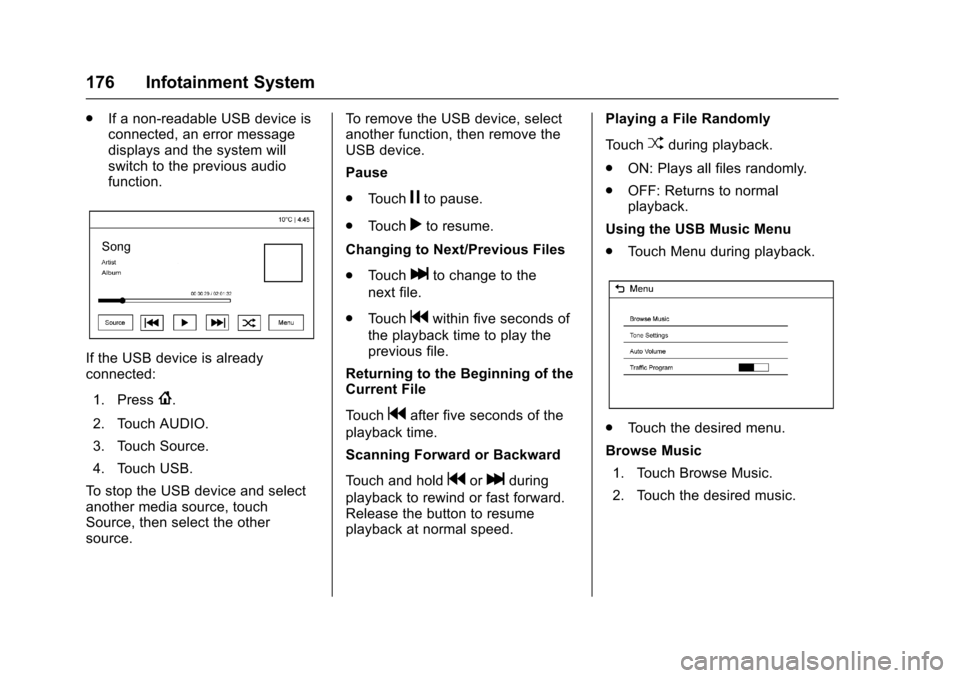
Using the USB Music Menu
.To u c h M e n u d u r i n g p l a y b a c k .
.To u c h t h e d e s i r e d m e n u .
Browse Music
1. Touch Browse Music.
2. Touch the desired music.
Page 178 of 419
Chevrolet Colorado Owner Manual (GMNA-Localizing-U.S./Canada/Mexico-10122675) - 2017 - crc - 8/22/16
Infotainment System 177
To n e S e t t i n g s
.To u c h To n e S e t t i n g s . T h e To n eSettings menu is displayed. See“To n e S e t t i n g s”inAM-FM Radio(Base Radio)0161orAM-FMRadio (Base Radio withTo u c h s c r e e n )0163.
Auto Volume
.To u c h A u t o V o l u m e . T h e A u t oVolume menu is displayed. See“Auto Volume”inAM-FM Radio(Base Radio)0161orAM-FMRadio (Base Radio withTo u c h s c r e e n )0163.
Tr a f f i c P r o g r a m(If Equipped)
.To u c h O n o r O f f .
MTP (Media Transfer Protocol)
.Connect a MTP supporteddevice.
.Play will start automatically afterthe system has finished readingthe MTP device.
.If a non-readable MTP device isconnected, an error messagedisplays and the system willswitch to the previous audiofunction.
iPod/iPhone Player
This feature is limited to modelssupporting the iPod/iPhoneconnection.
Playing Music Files
.Connect the iPod/iPhone to theUSB port.
.Play will start from the previouslyplayed point after the systemhas finished reading the USBdevice.
.If a non-readable USB device isconnected, an error messagedisplays and the system willswitch to the previous audiofunction.
If the iPod/iPhone is alreadyconnected:
1. Press{.
2. Touch AUDIO.
3. Touch Source.
4. Touch iPod.
To s t o p t h e d e v i c e a n d s e l e c tanother media source, touchSource, then select the othersource.
To r e m o v e t h e d e v i c e , s e l e c tanother function, then remove thedevice.
Pause
.To u c hjto pause.
.To u c hrto resume.
Changing to Next/Previous Song
.To u c hlto change to the
next song.
.To u c hgwithin two seconds of
the playback time to play theprevious file.
Returning to the Beginning of theCurrent File
To u c hgafter two seconds of the
playback time.
Scanning Forward or Backward
To u c h a n d h o l dgorlduring
playback to rewind or fast forward.Release the button to resumeplayback at normal speed.
Playing a File Randomly
To u c hZduring playback.
Page 184 of 419

Chevrolet Colorado Owner Manual (GMNA-Localizing-U.S./Canada/Mexico-10122675) - 2017 - crc - 8/22/16
Infotainment System 183
.Speak the command naturally,not too fast, not too slow. Usedirect commands without a lot ofextra words.
.Usually Phone and Audiocommands can be spoken in asingle command.
For example,“Call Dave Smithat work,”“Play”followed by theartist or song name, or“Tune”followed by the radio stationnumber.
There is no need to memorizespecific command words. Directcommands might be more clearlyunderstood by the system. Anexample of a direct command wouldbe“Call 555-1212.”Examples ofthese direct commands aredisplayed on most of the screenswhile a voice session is active.If“Phone”or“Phone Commands,”isstated, the system understands thataphonecallisrequestedandwillrespond with questions until enoughdetails are gathered.
If the phone number has beensaved with a name and a place, thedirect command should includeboth, for example“Call Dave Smithat work.”
Using Voice Recognition for
List Options
When a list is displayed, a voiceprompt will ask to confirm or selectan option from that list. A selectioncan be made by manually selectingthe item, or by speaking the linenumber for the item to select.
When a screen contains a list,options may be available but notdisplayed. The list on a voicerecognition screen functions thesame as a list on other screens.Scrolling can be used to helpdisplay other entries from the list.
Manually scrolling or paging the liston a screen during a voicerecognition session suspends thecurrent voice recognition event andplays the prompt“Make yourselection from the list using themanual controls or press the Backbutton to try again.”
If manual selection takes more than15 seconds, the session terminatesand prompts that it has timed out.The screen returns back to thescreen where voice recognition wasinitiated.
The Back Command
Say“Back”or press the Back buttonto go to the previous screen.
If in voice recognition, and“Back”isstated all the way through to theinitial screen, then“Back”is statedone more time, the voice recognitionsession will cancel.
Help
Say“Help”on any voice recognitionscreen and the help prompt for thescreen is played. Additionally, apop-up displays a text version of thehelp prompt. Depending on howvoice recognition was initiated, theHelp pop-up will appear either onthe instrument cluster or theinfotainment display. Press theDismiss button to make the pop-upgo away.
Page 198 of 419
Chevrolet Colorado Owner Manual (GMNA-Localizing-U.S./Canada/Mexico-10122675) - 2017 - crc - 8/22/16
Infotainment System 197
3. Say the number or name tagto send.
Clearing the System
Unless information is deleted out ofthe in-vehicle Bluetooth system, itwill be retained indefinitely. Thisincludes all phone pairinginformation. For information on howto delete this information, see“Deleting a Paired Phone.”
Bluetooth (Infotainment
Controls - Base Radio
with Touchscreen)
To u s e i n f o t a i n m e n t c o n t r o l s t oaccess the menu system, seeOverview (Base Radio)0155orOverview (Base Radio withTo u c h s c r e e n )0157.
Pairing
ABluetooth-enabledcellphonemust be paired to the Bluetoothsystem and then connected to thevehicle before it can be used. Seeyour cell phone manufacturer's userguide for Bluetooth functions beforepairing the cell phone. If a Bluetooth
phone is not connected, calls will bemade using OnStar Hands-FreeCalling, if available. SeeOnStarOverview0397.
Pairing Information
.ABluetoothphonewithMP3capability cannot be paired tothe vehicle as a phone and anMP3 player at the same time.
.Up to 10 cell phones can bepaired to the Bluetooth system.
.The pairing process is disabledwhen the vehicle is moving.
.Pairing only needs to becompleted once, unless thepairing information on the cellphone changes or the cell phoneis deleted from the system.
.Only one paired cell phone canbe connected to the Bluetoothsystem at a time.
.If multiple paired cell phones arewithin range of the system, thesystem connects to the firstavailable paired cell phone in theorder that they were first pairedto the system.
When the Bluetooth device andinfotainment system aresuccessfully paired, the phone bookis downloaded automatically. This isdependent on the type of the phonepaired. If the automatic downloaddoes not occur, proceed with thephone book download on thephone.
Pairing a Phone - SSP and NoPaired Device
When there is no paired device onthe infotainment system and SimpleSecure Pairing (SSP) is supported:
1. Press{.
2. Touch PHONE, press#on the
center stack, or pressgon the
steering wheel without OnStar.
3. Touch Search Device.
4. Touch the desired device topair on the searched listscreen.
5. Touch Yes on the pop-upscreen of the Bluetooth deviceand infotainment system.
Page 199 of 419

Chevrolet Colorado Owner Manual (GMNA-Localizing-U.S./Canada/Mexico-10122675) - 2017 - crc - 8/22/16
198 Infotainment System
6. When the Bluetooth device andinfotainment system aresuccessfully paired, the phonescreen is displayed on theinfotainment system.
Pairing a Phone - SSP and PairedDevice
When a paired device is on theinfotainment system and SSP issupported:
1. Press{.
2. Touch Settings.
3. Touch Bluetooth, then DeviceManagement.
4. Touch the desired device topair. When the Bluetoothdevice and infotainment system
are successfully paired,Z/5
is displayed on the pair devicescreen. If no desired device isavailable go to Step 5.
5. Touch Search Device to searchfor the desired device.
6. Touch the desired device topair on the searched listscreen.
7. Touch Yes on the pop-upscreen of the Bluetooth deviceand infotainment system.
.The connected phone is
highlighted by5.
.Z/5indicates the hands-free
and phone music functions areenabled.
.5indicates only the hands-free
function is enabled.
.Zindicates only Bluetooth
music is enabled.
Pairing a Phone - No SSP and NoPaired Device
When there is no paired device onthe infotainment system and SSP isnot supported:
1. Press{.
2. Touch PHONE, press#on the
center stack, or pressgon the
steering wheel without OnStar.
3. Touch Search Device.
4. Touch the desired device topair on the searched listscreen.
5. Input the PersonalIdentification Number (PIN)code (default: 1234) to theBluetooth device. When theBluetooth device andinfotainment system aresuccessfully paired, thePHONE screen is displayed onthe infotainment system.
When the connection fails, a failuremessage is displayed on theinfotainment system.
If a Bluetooth device was previouslyconnected, the infotainment systemexecutes the auto connection.However, if the Bluetooth setting onthe Bluetooth device is turned off, afailure message is displayed on theinfotainment system.
Pairing a Phone - No SSP andPaired Device
When a paired device is on theinfotainment system and SSP is notsupported:
1. Press{.
Page 201 of 419
Chevrolet Colorado Owner Manual (GMNA-Localizing-U.S./Canada/Mexico-10122675) - 2017 - crc - 8/22/16
200 Infotainment System
versions over 1.2 must beregistered and connected to theproduct.
.From the cell phone or Bluetoothdevice, find the Bluetooth devicetype to set/connect the item as astereo headset.
.ewill appear on the screen if
the stereo headset issuccessfully connected.
.The sound played by theBluetooth device is deliveredthrough the infotainment system.
.Bluetooth music can be playedonly when a Bluetooth devicehas been connected. To playBluetooth music, connect theBluetooth phone to theinfotainment system.
.If the Bluetooth device isdisconnected while playingphone music, the music isdiscontinued. The audiostreaming function may not besupported in some Bluetoothphones. Only one function canbe used at a time between theBluetooth hands-free or Phone
music function. For example,if you convert to Bluetoothhands-free while playing Phonemusic, the music isdiscontinued. Playing music fromthe car is not possible whenthere are no music files stored inthe cell phone.
Playing Bluetooth Music
1. Press{.
2. Touch AUDIO.
3. Touch Source.
4. Touch Bluetooth.
Pause
To u c hjto pause.
To u c hrto resume.
Playing the Next Song
To u c hl.
Playing the Previous Song
To u c hgwithin two seconds of
playback time to play theprevious song.
Returning to the Beginning of theCurrent Song
To u c hgafter two seconds of
playback time.
Search
To u c h a n d h o l dgorlto rewind
or fast forward.
Playing Music Randomly
To u c hZduring playback. Touch
again to return to normal play.
This function may not be supporteddepending on the Bluetooth device.
Do not change the track too quicklywhen playing Bluetooth music.
Conditions that may occur whenplaying Bluetooth music:
.It takes time to transmit datafrom the Bluetooth device to theinfotainment system.
.If the cell phone or Bluetoothdevice is not in the waitingscreen mode, it may notautomatically play.
Page 220 of 419
Chevrolet Colorado Owner Manual (GMNA-Localizing-U.S./Canada/Mexico-10122675) - 2017 - crc - 8/22/16
Driving and Operating 219
Loading the Vehicle for
Off-Road Driving
{Warning
.Unsecured cargo on theload floor can be tossedabout when driving overrough terrain. You or yourpassengers can be struckby flying objects. Secure thecargo properly.
.Keep cargo in the cargoarea as far forward and aslow as possible. Theheaviest things should beon the floor, forward of therear axle.
.Heavy loads on the roofraise the vehicle's center ofgravity, making it more likelyto roll over. You can beseriously or fatally injured ifthe vehicle rolls over. Putheavy loads inside thecargo area, not on the roof.
For more information about loadingthe vehicle, seeVehicle Load Limits0226andTires0316.
Environmental Concerns
.Always use established trails,roads, and areas that have beenset aside for public off-roadrecreational driving and obey allposted regulations.
.Do not damage shrubs, flowers,trees, or grasses or disturbwildlife.
.Do not park over things thatburn. SeeParking over ThingsThat Burn0240.
Driving on Hills
Driving safely on hills requires goodjudgment and an understanding ofwhat the vehicle can and cannot do.
{Warning
Many hills are simply too steep
for any vehicle. Driving up hills
can cause the vehicle to stall.
Driving down hills can cause loss
(Continued)
Warning (Continued)
of control. Driving across hills can
cause a rollover. You could be
injured or killed. Do not drive on
steep hills.
Before driving on a hill, assess thesteepness, traction, andobstructions. If the terrain aheadcannot be seen, get out of thevehicle and walk the hill beforedriving further.
When driving on hills:
.Use a low gear and keep a firmgrip on the steering wheel.
.Maintain a slow speed.
.When possible, drive straight upor down the hill.
.Slow down when approachingthe top of the hill.
.Use headlamps even during theday to make the vehicle morevisible.