2017 CHEVROLET COLORADO audio
[x] Cancel search: audioPage 145 of 419

Chevrolet Colorado Owner Manual (GMNA-Localizing-U.S./Canada/Mexico-10122675) - 2017 - crc - 8/22/16
144 Instruments and Controls
Android Auto
This feature allows Android devicesto be connected to the infotainmentsystem through a USB port. See“Apple CarPlay and Android Auto”under“Phone”in the infotainmentmanual.
Select Off or On.
Manage Android Auto Devices
Select to manage Android devices.Android Auto must be on for thisfeature to be accessed. See“AppleCarPlay and Android Auto”under“Phone”in the infotainment manual.
Voice
Select and the following maydisplay:
.Confidence Threshold
.Prompt Length
.Audio Feedback Speed
.Display“What Can I Say?”Tips
Confidence Threshold
This feature allows the adjustmentof the sensitivity of the speechrecognition system.
Select Confirm More orConfirm Less.
Prompt Length
This feature adjusts the voiceprompt length.
Select Short or Long.
Audio Feedback Speed
This feature adjusts the audiofeedback speed.
Select Slow, Medium, or Fast.
Display“What Can I Say?”Tips
This feature gives voicecommand tips.
Select Off or On.
Display
Select and the following maydisplay:
.Mode
.Calibrate Touchscreen
.Turn Display Off
Mode
Select to change the displayscreen mode.
Select Auto, Day, or Night.
Calibrate Touchscreen
Select to calibrate the touchscreen,then follow the prompts.
Turn Display Off
Select to turn the display off. Touchanywhere on the display area or anyfaceplate button to turn thedisplay on.
Rear Camera
Select and the following maydisplay:
.Guidance Lines
Guidance Lines
Select to turn Off or On. SeeRearVision Camera (RVC)0261.
Return to Factory Settings
Select and the following maydisplay:
.Restore Vehicle Settings
.Clear All Private Data
.Restore Radio Settings
Page 154 of 419
Chevrolet Colorado Owner Manual (GMNA-Localizing-U.S./Canada/Mexico-10122675) - 2017 - crc - 8/22/16
Infotainment System 153
Infotainment
System
Introduction
Infotainment . . . . . . . . . . . . . . . . . . 153Theft-Deterrent Feature . . . . . . 154Overview (Base Radio) . . . . . . . 155Overview (Base Radio withTo u c h s c r e e n ) . . . . . . . . . . . . . . . 1 5 7Home Page (Base Radio) . . . . 158Home Page (Base Radio withTo u c h s c r e e n ) . . . . . . . . . . . . . . . 1 6 0Software Updates . . . . . . . . . . . . 161
Radio
AM-FM Radio (BaseRadio) . . . . . . . . . . . . . . . . . . . . . . 161AM-FM Radio (Base Radiowith Touchscreen) . . . . . . . . . . . 163Satellite Radio (BaseRadio) . . . . . . . . . . . . . . . . . . . . . . 164Satellite Radio (Base Radiowith Touchscreen) . . . . . . . . . . . 165Radio Reception . . . . . . . . . . . . . . 166Multi-Band Antenna . . . . . . . . . . 167Pandora Internet Radio . . . . . . . 167
Audio Players
Avoiding Untrusted MediaDevices . . . . . . . . . . . . . . . . . . . . . 170USB Port (Base Radio) . . . . . . . 170USB Port (Base Radio withTo u c h s c r e e n ) . . . . . . . . . . . . . . . 1 7 3Auxiliary Jack . . . . . . . . . . . . . . . . 179Bluetooth Audio . . . . . . . . . . . . . . 180
Voice Recognition
Voice Recognition . . . . . . . . . . . . 181
Phone
Bluetooth (Overview) . . . . . . . . . 187Bluetooth (InfotainmentControls - Base Radio) . . . . . . 188Bluetooth (VoiceRecognition) . . . . . . . . . . . . . . . . 192Bluetooth (InfotainmentControls - Base Radio withTo u c h s c r e e n ) . . . . . . . . . . . . . . . 1 9 7Te x t M e s s a g i n g . . . . . . . . . . . . . . . 2 0 1
Trademarks and License
Agreements
Trademarks and LicenseAgreements . . . . . . . . . . . . . . . . . 202
Introduction
Infotainment
Base radio information is included inthis manual. See the infotainmentmanual for information on otheravailable infotainment systems.
Read the following pages tobecome familiar with the features.
{Warning
Ta k i n g y o u r e y e s o f f t h e r o a d f o r
too long or too often while using
any infotainment feature can
cause a crash. You or others
could be injured or killed. Do not
give extended attention to
infotainment tasks while driving.
Limit your glances at the vehicle
displays and focus your attention
on driving. Use voice commands
whenever possible.
Page 155 of 419
Chevrolet Colorado Owner Manual (GMNA-Localizing-U.S./Canada/Mexico-10122675) - 2017 - crc - 8/22/16
154 Infotainment System
The infotainment system has built-infeatures intended to help avoiddistraction by disabling somefunctions when driving. Thesefunctions may gray out when theyare unavailable. Many infotainmentfeatures are also available throughthe instrument cluster and steeringwheel controls.
Before driving:
.Become familiar with theoperation, faceplate buttons, andscreen buttons.
.Set up the audio by presettingfavorite stations, setting thetone, and adjusting thespeakers.
.Set up phone numbers inadvance so they can be calledeasily by pressing a singlebutton or by using a single voicecommand if equipped withBluetooth phone capability.
SeeDefensive Driving0215.
To p l a y t h e i n f o t a i n m e n t s y s t e m w i t hthe ignition off, seeRetainedAccessory Power (RAP)0237.
Theft-Deterrent Feature
TheftLock®is designed todiscourage theft of the vehicle'sradio by learning a portion of theVehicle Identification Number (VIN).The radio does not operate if it isstolen or moved to a differentvehicle.
Page 156 of 419
Chevrolet Colorado Owner Manual (GMNA-Localizing-U.S./Canada/Mexico-10122675) - 2017 - crc - 8/22/16
Infotainment System 155
Overview (Base Radio)
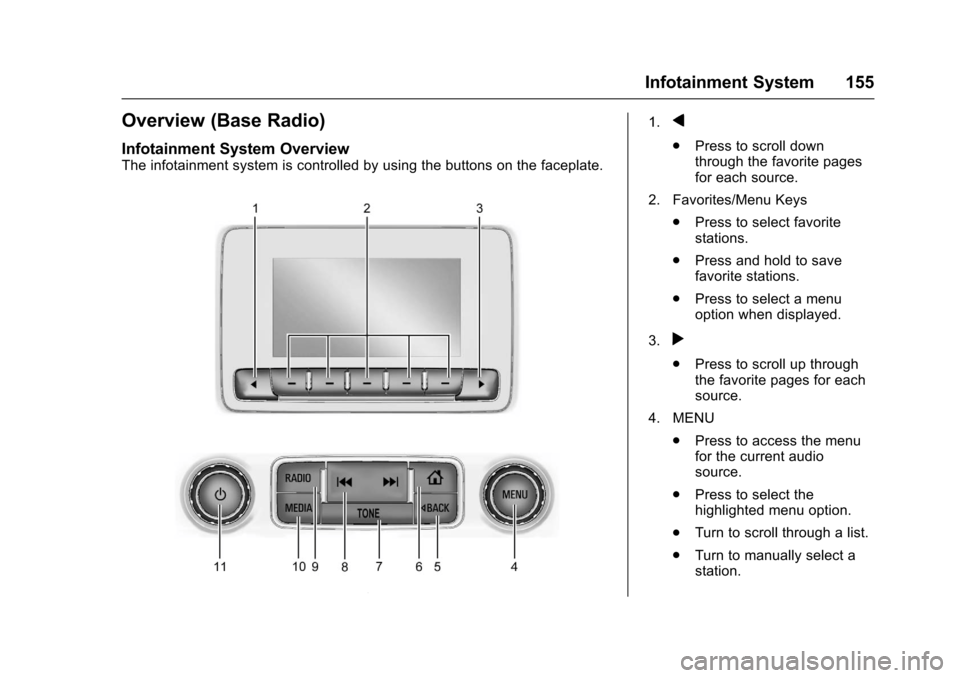
Infotainment System Overview
The infotainment system is controlled by using the buttons on the faceplate.
1.q
.Press to scroll downthrough the favorite pagesfor each source.
2. Favorites/Menu Keys
.Press to select favoritestations.
.Press and hold to savefavorite stations.
.Press to select a menuoption when displayed.
3.r
.Press to scroll up throughthe favorite pages for eachsource.
4. MENU
.Press to access the menufor the current audiosource.
.Press to select thehighlighted menu option.
.Turn to scroll through a list.
.Turn to manually select astation.
Page 157 of 419

Chevrolet Colorado Owner Manual (GMNA-Localizing-U.S./Canada/Mexico-10122675) - 2017 - crc - 8/22/16
156 Infotainment System
5.oBACK
.Press to return to theprevious screen in a menu.
6.{
.Press to go to the HomePage from any point in thesystem. See“Home Page”later in this section.
7. TONE
.Press to open the ToneSettings menu.
8.gorl
.AM, FM, or SXM (IfEquipped): Press to seek tothe previous or next strongstation.
9. RADIO
.Press to change the audiosource between AM, FM,or SXM, if equipped.
10. MEDIA
.Press to change the audiosource between USB, AUX,and Bluetooth Audio,if equipped.
11 .O
.Press to turn the audio on.
.Press and hold to turn it off.
.When on, press to mute thesystem. Press again tounmute.
.Turn to increase ordecrease the volume.
Page 159 of 419

Chevrolet Colorado Owner Manual (GMNA-Localizing-U.S./Canada/Mexico-10122675) - 2017 - crc - 8/22/16
158 Infotainment System
4.6
.Radio: Press and release togo to the next station orchannel. Press and hold tofast seek the next strongeststation or channel.
.USB/BT Music/Pictures:Press and hold to go to thenext content. Press andhold to fast forward.
5.#
.Press and release toaccess the phone screen,answer an incoming call,or access the device homescreen. Press and hold toaccess Press to Talk.
Home Page (Base Radio)
Home Page Features
The infotainment system displays aHome Page to access all of theapplications. Turn the MENU knobto highlight feature icons. Press theMENU knob to access the feature’soptions.
Va r i o u s f u n c t i o n s a r e d i s a b l e d w h e nthe vehicle is moving.
AUDIO :Select the AUDIO screenicon to display the active sourcepage. The sources available areAM, FM, SXM (if equipped), USB/iPod, AUX Input, and BluetoothAudio (if equipped). SeeAM-FMRadio (Base Radio)0161orAM-FM Radio (Base Radio withTo u c h s c r e e n )0163,Satellite Radio(Base Radio)0164orSatelliteRadio (Base Radio withTo u c h s c r e e n )0165,Auxiliary Jack0179,andBluetooth Audio0180.
PHONE :Select the PHONE screenicon to display the Phone mainpage. SeeBluetooth (Overview)0187orBluetooth (InfotainmentControls - Base Radio)0188orBluetooth (Voice Recognition)0192orBluetooth (Infotainment Controls -Base Radio withTo u c h s c r e e n )0197.
NAV (Navigation, If Equipped) :Select the NAV screen icon todisplay the OnStar Turn-by-TurnNavigation. SeeOnStar Overview0397,ifequipped.
SETTINGS :Select the SETTINGSscreen icon to display the Settingsmain page. See“Setting RadioPreferences”following.
Pandora (If Equipped)
Select the PANDORA icon to beginPandora. SeePandora InternetRadio0167.
Setting Radio Preferences
Select the SETTINGS screen iconto display the Settings menu andthe following may display:
Time and Date :SeeClock0106.
Language (Current Language) :This will set the display language inthe radio and instrument cluster.Select to display a list of languages.
SelectoBACK to go back to the
previous menu.
Valet Mode:
Using the circular numeric keypad,enter a four-digit code:
1. Turn the MENU knob tohighlight a number.
Page 161 of 419

Chevrolet Colorado Owner Manual (GMNA-Localizing-U.S./Canada/Mexico-10122675) - 2017 - crc - 8/22/16
160 Infotainment System
displays stating all vehiclecustomization settings will berestored to the factory settings.Select Cancel or Confirm.
Clear All Private Data (IfEquipped) :This option clears allprivate information from the vehicle.Select Clear All Private Data. SelectCancel or Confirm.
Restore Radio Settings :Thisoption will restore factory radiosettings. Select Restore RadioSettings. A screen displays statingall personalized radio settings willbe restored back to the factorysettings. Select Cancel or Confirm.
English and Metric Unit
Conversion
To c h a n g e t h e d i s p l a y u n i t s b e t w e e nEnglish and metric units, seeDriverInformation Center (DIC) (BaseLevel)0126orDriver InformationCenter (DIC) (Uplevel)0129orInstrument Cluster (Base Level)011 0orInstrument Cluster(Uplevel)011 2.
Home Page (Base Radio
with Touchscreen)
Touchscreen Buttons
To u c h s c r e e n b u t t o n s s h o w o n t h escreen when available. When afunction is unavailable, the buttonmay gray out. When a function isselected, the button may highlight.
Home Page Features
Press{to go to the Home Page.
Audio :To u c h t o s e l e c t A M , F M ,SXM (if equipped), USB/iPod/Bluetooth Audio, or AUX. SeeAM-FM Radio (Base Radio)0161orAM-FM Radio (Base Radio withTo u c h s c r e e n )0163,Satellite Radio(Base Radio)0164orSatelliteRadio (Base Radio withTo u c h s c r e e n )0165,USB Port(Base Radio)0170orUSB Port(Base Radio with Touchscreen)0173,Bluetooth Audio0180,orAuxiliary Jack0179.
Gallery :To u c h t o v i e w a p i c t u r e .SeeUSB Port (Base Radio)0170orUSB Port (Base Radio withTo u c h s c r e e n )0173.
Phone :To u c h t o a c t i v a t e t h ephone features (if equipped). SeeBluetooth (Overview)0187orBluetooth (Infotainment Controls -Base Radio)0188orBluetooth(Voice Recognition)0192orBluetooth (Infotainment Controls -Base Radio withTo u c h s c r e e n )0197.
Page 162 of 419
Chevrolet Colorado Owner Manual (GMNA-Localizing-U.S./Canada/Mexico-10122675) - 2017 - crc - 8/22/16
Infotainment System 161
Projection :To u c h t o a c c e s ssupported devices when connected.SeeUSB Port (Base Radio)0170orUSB Port (Base Radio withTo u c h s c r e e n )0173.
Settings :To u c h t o a c c e s s t h ePersonalization menu. SeeVehiclePersonalization0139.
Climate :To u c h t o a c c e s s t h eClimate menu. SeeClimate ControlSystems0208orAutomaticClimate Control System0210.
OnStar :If equipped, touch toaccess the OnStar menu. SeeOnStar Overview0397.
Software Updates
See the website for moreinformation.
Website Information
In the U.S., see www.chevrolet.com
In Canada, seewww.chevrolet.gm.ca
In Mexico, seewww.chevrolet.com.mx
Radio
AM-FM Radio (Base
Radio)
Playing the Radio
While on the audio main page,press the RADIO button repeatedlyto cycle through the availablesources AM, FM, and SXM (ifequipped) or press the MEDIAbutton repeatedly to cycle throughthe available sources Bluetooth®
Audio (if equipped), USB, and AUX.
The steering wheel controls canalso be used to adjust the volume.SeeSteering Wheel Controls0104.
AM, FM, or SXM (If Equipped)
To s e l e c t A M , F M , o r S X M ( i fequipped), press the RADIO buttonto toggle to the desired broadcastsource.
Press the MENU knob and thefollowing radio settings may display:
To n e S e t t i n g s :
.Bass, Midrange, and Treble:Turn the MENU knob andhighlight. Press the MENU knobto select. Turn the MENU knobto adjust.
.Balance:Turn the MENU knobto highlight. Press the MENUknob to select. Turn the MENUknob left for more sound fromthe left speakers or right formore sound from the rightspeakers. The middle positionbalances the sound between theleft and right speakers.
.Fade:Turn the MENU knob tohighlight. Press the MENU knobto select. Turn the MENU knobto the left for more sound fromthe front speakers and to theright for more sound from therear speakers. The middleposition balances the soundbetween the front and rearspeakers.