2017 AUDI S4 individual
[x] Cancel search: individualPage 146 of 386

Multi Media Interface
MMI touch
Entering letters, numbers and symbols
Applies to: ve hicles w ith MMI touch
The MMI touch allows you to enter data on the
MMI touch control pad using handwriting recog
nition.
F ig. 146 Display when MMI touch is active
Fig. 147 Entering navigation destination us ing MMI touch
The MMI touch control pad is located on the con
trol knob ¢
fig. 147 .
Requirement: it must be possible to enter text or
numbers and the symbol CD¢
fig. 146 must ap
pear in the Info tainment sys tem.
- Initial entry: write an individual upper case or
lower case letter or numbers/characters on the
MM I touch control pad using yo ur finger. A
character recognized by the system w ill appear
in the Infotainment system display @
144
¢ fig. 147 and it will confirm with an audio sig
nal, if necessary, and transfer the character to
the input field.
- Entering spaces: move your finger across the
MMI touch control pad from left to right.
-Deleting characters: move your finger across
the MMI touch contro l pad from right to left.
-Selecting the input suggestion: press the con
trol knob.
- Switching directly to the results list : turn the
control knob to the right
-Open speller: select the right control button>
Open speller. T ext or numbers are entered in
using the speller
¢page 148.
Moving the crosshairs
Applies to: vehicles wit h MMI touch
Sl-,guMoaSt
l
Fig. 148 Moving the crossha irs
Requirement: a map must be displayed
¢page 196.
-Showing/hiding the crosshairs: press the con
trol knob to show the crosshairs CD¢
fig. 148.
Press the I BACKI button (J) to hide the cross
hairs again
¢ page 141, fig. 139.
-Moving the crosshairs on a map: move the visi-
ble crosshairs in the desired direct ion using ..,.
Page 151 of 386
Multi Media Interface
Symbol/Description Description
® E
Open additional spe ller options, for example Close speller, Clear in-
put field
® 1 ,&71 Cha racter sets and special characters
(j) laou l Language-dependent special characters
® 1123!/ IABC! Switches from letter to number input or from number to letter in-
put.
® A space is added to the input field . ........
@ Character selection Highlights the selected character.
@
•
Inserts the input suggestion* when you push the control knob up .
@ ~ Deletes the characte r to the left of the cursor.
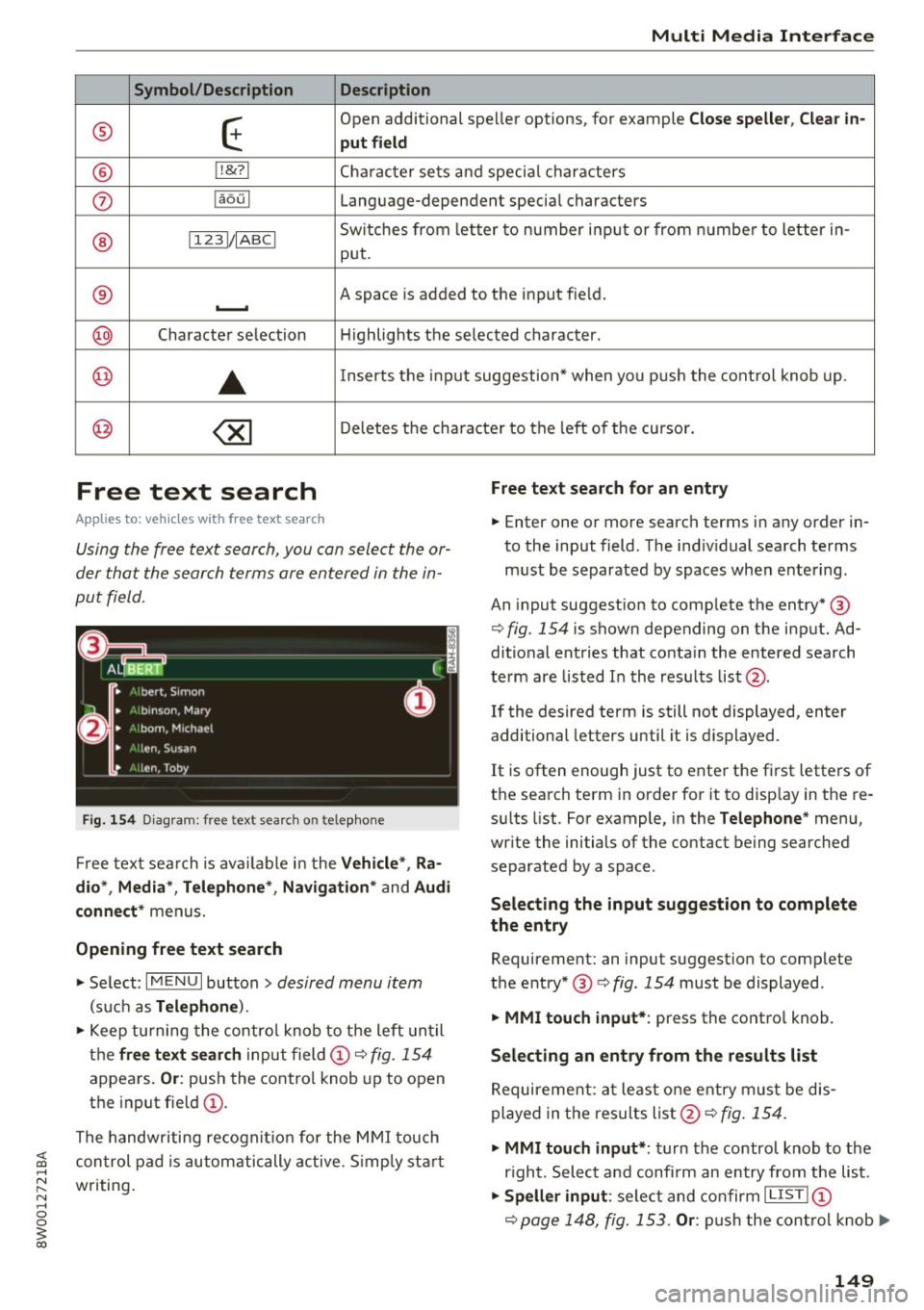
Free text search
Applies to: vehicles with free text search
Using the free text search, you can select the or
der that the search terms are entered in the in
put field.
Fig. 154 Diagram: free text sea rch on telep hone
Free text search is available in the Vehicle *, Ra
dio *, Media *, Telephone* , Navigation*
and Audi
connect*
menus.
Opening free text search
• Se lect: I MENU I button > desired menu item
(such as Telephone ).
• Keep turning the control knob to the left until
the
free text search input field@c::> fig. 154
appea rs. Or : push the control knob up to open
the input field@ .
The handwriting recognition for the MMI touch
Free text search for an entry
• Enter one or more search terms in any order in
to the input field . The individual search terms
must be separated by spaces when entering.
An input suggestion to comp lete the entry* @
c::>
fig. 154 is shown depending on the input. Ad
ditional entries that contain the entered search
term are listed In the results list@.
If the desired term is still not displayed, enter
additional letters until it is displayed .
It is often enough just to enter the first letters of
the search term in order for it to display in the re
sults list. For example, in the
Telephone* menu,
write the initials of the contact being searched
separated by a space.
Selecting the input suggestion to complete
the entry
Requirement: an input suggestion to complete
the entry* @ c::>
fig. 154 must be displayed .
• MMI touch input* : press the control knob.
Selecting an entry from the results list
Requirement: at least one entry must be dis
played in the results list@c::>
fig. 154.
;;!; control pad is automatically active. Simp ly start ....
• MMI touch input* : turn the control knob to the
r ight. Select and confi rm an entry from the list .
~ writing . N .... 0 0
3
c::> page 148, fig. 153. Or: push the control knob..,.
149
Page 157 of 386

<( a, .... N ,....
N .... 0 0
3 a,
Function
Call contact from directory
Selecting a specific contact numbe r
Selecting a phone number wit h an
address card open
C alling a contact from yo ur favor -
ites list
Displaying the ca ll list
Calling the last n umber dialed
Dialing a phone number
Correcting the phone number that
was entered
Showing con tact information
Liste ning to messages
Entering the PIN (SIM)
Corre cting the P IN entry
Correcting data input
Clos ing the full-sc reen command
list
(D Tips
Voice recognition system
Say :
Call (XV) ,
for example Call "John Smith "
Call (XV ) bu sine ss/ Private / Land lin e/ Cell phon e,
for example, Call "John Smith" privat e
Call / Call wo rk / Call private / Call land l ine / Call cell phone
work
Teleph one fa vo rites
> After being prompted, soy the desired
contact
> Dial
Call list
Redial
Enter number >
After being prompted, soy the telephone num-
ber in groups of individual numbers,
fo r example. 888 555
1212 > Dial
Correction / Delete number
Directory >
when prompted, soy the desired contact,
for example, "John Smith "
Call voice mail
Enter PIN
> · when prompted, soy the PIN in individual numbers
> Save
Correction / Delete PIN
No I meant ( XV)
Close
- Please note that commands can only be giv
en for the primary phone*¢
page 160.
-Con tacts in the directory can be sele cted us
i ng the f ull name ("first name las t name"
and "last name, first name") as well as with
on ly the first or last name . This applies to
cell phones that transmit names separated
i nto first and last names. -
For more informat io n on supported cell
phones, visit
www .audiusa .com /bluetooth
or contact you r authorized Audi dea le r or
au thorized Audi Service Fac ility.
Audi connect (Infotainment)
App lies to: vehicles with voice recognition system and Audi connect (Infotainment)
Requirement: the requirements for Audi connect
(Infotainment) must be met
¢ page 172.
Function Say:
Accessing Audi connect (Infotain-Audi connect > follow the system prompts
ment) serv ices
Audi connect (Infotainment) serv-
Weathe r/ Online news I Fuel price s/ Parking info rmation /
ices Travel infor mation / Twitte r/ Online t raffic info rmation / City
e v ents I Flight informat ion
155
Page 158 of 386

Voice recognition system Function Say:
Search areas for Aud i connect (Info- Near destination / Nea rby / In new city
ta inment) services
C orrecti ng data inp ut No I meant
(XV )
{l) Tips
Always read the chapter¢ page 178, Audi
c onnect (Infotainmen t) information.
Messages (Audi connect (Infotainment))
Applies to: vehicles with voice recognition system and Audi connect (Infotainment)
Requirement: a cell phone w ith an active MAP
(Message Access Profi le) must be connected to
the MMI
¢ page 165.
Function
T ext editing commands
Readi ng out a new message
Reading a message
Replying to the open tex t message
Forward ing the open text message
Co rrect ing data inp ut
(D Tips
Say:
Read out / Ad d / Delete / Reco rd e ver ything again / Replace
with (XV)/ Add recipient / Send
R ead out new text mes sag e/ Read out new e-mail
Read out te xt message / Read out e -mail
R eply
Forward
> Add recipient / Insert t emplat e/ Send
No I meant (XV)
or contact your a uthorized Aud i dea ler or
authori zed A udi Servi ce Fac ility.
- Fo r more inform ation on suppo rted ce ll
phones, v is it www .audiu sa .com /bluetooth -
Always read the chapter¢
page 178, Audi
connect (Infotainment) information.
Navigation
Applies to: vehicles with voice recognitio n system and navigation system
Req uiremen t: the Navigati on men u m ust be
open ¢
table on page 154 .
You can say the following commands for entering
a destination depending on the se lec ted men u
item:
Function Say:
Open ing the list of previous naviga -
La st destinations
t ion destinations
Access ing favorites Navigat ion favorites
Selecting the home address Home addre
ss or Drive home
Ente ring a n add ress with guidance Enter address
> follow the system prompts
from the system
Individual commands for entering a Enter country / Ente r city/ Ent er ZIP code / Enter street
I E n-
destination ter house n umber
156
Page 165 of 386

Dialing a telephone number
Appl ies to: ve hicles with tele phone
Fig. 161 Number speller
Fig. 162 Dialing a phone number fro m the call list
.,.. Select : I MENU I button> Telephone > left con-
trol button.
Call list
Requirement: the call list must contain a phone
number.
Turn the contro l knob to display the call list.
Select and confirm the desired telephone num
be r from the recent calls list.
Call list symbo ls
¢ fig . 162:
@ Missed calls
@ Dialed numbers
@ Accepted calls
Select:
a contact from the list> right contro l but
ton .
-Call : call the selected contact.
- Change primary and addit . phone *: switch the
Primary phone with the Additional phone .
- Send text message :
write a text message to
the selected contact.
- Delete call list : delete the entire call list.
~ -Store as favorite: store the selected contact as
;:::: a favorite .
" N ..... 0 0
~ co
Telephone
Favorites
Requirement: a phone number or contact must
be stored as a favorite
¢ page 165.
Select and confirm a favorite in the favor ites list.
Directory
Select and confirm a phone number from the di
rectory
¢ page 168.
Enter number
- Entering a phone number as a sequence of
numbers:
enter the number using the number
speller
¢ fig. 161 .
-Entering the phone number as a sequence of
letters :
select and confirm IABCI above the
number speller. Enter a sequence of letters us
ing the letter speller, for example
AUDISER
VICE .
-Dialing a phone number : select and confirm~
Or: push the control knob down . Se lect and
confirm
OK .
-Deleting individual characters: select and con
firm
the control knob with the character selection to
Clear input field .
Accepting/ending a call
Applies to : vehicles wit h telepho ne
-Accepting a call: select and confirm Answer .
- Ignoring a call :
select and conf irm Ignore.
- Muting the active call :
select and confirm
Mute .
- Ending a phone call/cancel dialing :
select and
confirm
End call .
Caller information :
the name, phone number or
Unknown appears in the Infotainment system
display depend ing on if the caller has been stored
in the directory and if the pho ne number has
been transmitted. A picture may also be dis
played, depending on whether you have assigned
a picture to a contact in your directory and if it
was transferred to your MMI. You can find out if
you r ce ll phone supports this function from your
ce ll phone network provider, your cell phone ..,..
163
Page 181 of 386

<( a, .... N ,....
N .... 0 0
3 a,
and rates. Additional information can be
found at
www. audiusa.co m /aud ic o nnect
- An initial registration/activation on the
myAudi platform at
m y.a udiusa.com is nec
essary to use individua l services. You can
contact an authorized Audi dealer or Audi
connect customer service at 877-505-AUDI
(2834) to receive information on options for
expanding your usage and any costs that may result .
- The Audi connect ( Infotainment) serv ices
are a Wi-Fi/Internet-based system.
If the
system does not function correctly even
though all of the requirements a re met,
please try again later or contact Audi con
nect customer serv ice at 877-505-AUDI
(2834) .
- Fo r detailed information on Audi connect
(Infotainment) and the Terms of Use, refer
to
ww w.audiu sa.com /audic onn ect .
Data protection
Applies to vehicles with Aud i connect (Infotainment)
{O) Tips
- Your privacy is important to us.
- AUDI AG collects , processes, shares and
transmits your personal information in ac
cordance with legal regulations in order to
ensure proper function and availability of
the individual Audi connect (Infota inment)
services . You can view the complete, current
and valid Audi connect data protection poli
cy in yo ur MMI. The myA udi website is av ail
able fo r to you to activate additional Audi
connect (Infotainment) services and to
transfer data w ith your vehicle, among oth
er services. A one-time registration is re
quired to establish a connection to your ve hicle. For this purpose, Audi AG collects,
processes, transmits and uses your required
personal information as required for you to
use the services provided by Audi AG . Your
Audi c onn ect ( Inf ota inm ent )
information is not distributed to third par
ties . Using your cell phone with the help of
your myAudi p latform, you can transfer in
formation for Audi connect (Infotainment) serv ices functions to your vehicle and a llow
specific information to be transmitted from
your vehicle.
- By activating special information services
that are part of your Aud i connect portfol io,
you can use these f unctions directly in your
vehicle by entering data to confirm yo ur
identity (to use social networks, fo r exam
ple) . To do this , the identification informa
tion you provided is forwarded with the re
quest to the respective service provider .
Then you can access your persona l content
using a secure connection. Th is content is
displayed in the vehicle for your use. Your
personal content is not stored w ith in Audi
AG . The necessary connection informat ion is
processed and used for prov iding serv ices
and the prope r funct ion of the se rvices in
ac co rdance w ith applicab le legal guide lines.
- You can find additional info rmation in your
MMI in the options menu for the sele cted
Audi connect (Info tainment) serv ice and al
so on line at
www.audiu sa.com /connect
- By p roviding Aud i connect (Infotainmen t)
serv ices, Audi o f America is authori zed to
co llec t, process, transmi t and trans fer infor
mation about you and your vehicle. Addi
t ional information can also be found in your
MMI in the options menu for the selected
Audi connect (Infotainment) serv ice.
- Informat ion on our data protection meas
ures in conjunct ion with the mob ile Audi
connect (Infotainment) app lication can be
found in the applicat ion's privacy policy . For
add itiona l information about the
m y. audiusa .com website or other applica
tions, websites or on line serv ices connected
t o Aud i, visi t
www.audiu sa .c om /privacy .
179
Page 182 of 386

Audi connect (Infotainment)
Troubleshooting
Applies to vehicles with Audi connect (Infotainment)
Problem Solution
Audi connect (Infotainment) se rv-
Some Audi conn,ect (Infotainment) serv ices must be activated/
ices : individual Aud i connect (Info- configured through your personal myAudi account before using
ta inment) serv ices are grayed out them for the first time. You can find deta iled informat ion on line
o r not avai lab le . at
my.audius a.com.
Wi-Fi hotspot:
it is not possib le to Delete all existing Wi -Fi connections on your mobi le device and
connect throug h W i-Fi. restart it .
180
Page 193 of 386

<( a, .... N ,....
N .... 0 0
3 a,
.,. Se lect: left control button > Online search . The
search area last set is displayed in the inp ut
field.
- Changing the search area: se lec t the r igh t con
tro l button
> Select search area.
- Sear ching for online de stination s in the se
lected search area :
enter a new city/sta te if
necessary. Enter the search term, such as hotel.
Press the control knob . Select an d confirm an
on line dest inat ion from the list .
-Searching fo r online destination s in a specific
category :
select and confirm Select category .
Select and confirm a category such as Restau
rants .
Find which search areas are available under
c::> page 190, Point of interest search.
You can search for on line dest inat ions using the
voice recognition system
c:::> table on page 156.
(D Tips
Always read t he ch apter c::>p age 178, Audi
connect (Infotainment) information .
Accessing destinations from myAudi
account
Applies to: veh icles with a navigation system and Audi con
nect (Infotainment)
I mport individual destina tions from your myAudi
account into the MMI.
Requirement:
The requ irements for Aud i connect (Infotain
ment) must be met
c::> page 172.
You must have a registered myAudi account at
my.audiusa.com . You must have a vehicle as
signed to your myAud i account and you must
h ave stored one o r more destinations .
.,. Press t he
I NAV /MAPI repeatedly unt il the Enter
destination
men u is displayed c:::> page 187,
fig. 169.
.,. Se lect : left cont rol button > myAudi contacts .
.,. If necessary, ente r you r myAud i user data o r
you r my Aud i PIN
c:::> page 173 . The contacts
stored in myAudi are d isp layed.
- Se lect and confirm a contact .
Navigation
-Sele ct an d confirm a private o r business dest i
nation.
- Sele ct and confirm
Start route guidance.
(D Tips
- Yo u on ly nee d to e nter the myAudi use r da ta
o ne tim e.
- Y ou ca n rece ive your myAudi PIN if yo u have
s e t up a myAu di account.
- Add itiona l information can b e foun d at
www.audiusa.com/audiconnect .
Entering a destination using geo
coordinates
Appl ies to: vehicles with navigation system
.,. Press the I NAV /MAP I repeated Ly until the Enter
destination
menu is disp layed c::> page 187,
fig . 169.
.,. Select: left control button > Geo coordinates .
-Select Latitude /Longitude .
-Press the co ntro l knob to set the individ ua l va l-
ues.
- Turn the control kno b to t he left/ right to
change the selected va lue .
- Sele ct and con firm
Start route guidance.
Adding a stopover
Applies to : vehicles with navigation system
You can en ter an additional destinati on when
route guidance is ac tive.
Fig. 172 Act ive ro u te gu idance w it h stopover
Requireme nt: a dest ina tion m us t alr eady be en
te red .
.,. Press th e
I NAV /MAP I repeated Ly until the Enter
destination
menu is disp layed c:::> page 187,
fig. 169 .
191