2017 AUDI S3 SEDAN button
[x] Cancel search: buttonPage 146 of 400
Assistance systems
Suspension control (Audi magnetic ride)*
Suspension cont rol uses senso rs to recor d info r
mat io n regarding steering moveme nts, br aking
an d accelerat ion operat ions by the drive r, road
surface, d riving speed, and load. With Audi drive
select you can adjust the s uspension contro l to
sporty (dynamic), comfortable (comfort) or bal
anced (auto) .
Steering
The stee ring adapts in te rms of stee ring assis
tance. The re are differe nt modes
c::> page 144.
Indirect steering that moves easily as in com fort
mode is especially su ited to long drives on a high
way . The dynamic mode p rovides sporty, d irect
s teer ing .
For ve hicles w ith progressive steering * the steer
ing performance is more agi le.
Audi adaptive light*
The illumination on curves in ada ptive lig ht is
a d apted to the selected mode.
Audi adaptive cruise control*
The behavior when a ccele ra ting can be adjus ted
fr om com fort able to sporty, depe nding on the
d rive select mode . Ad aptive cru ise cont rol a lso
res ponds to the driving behavior of the veh icle
ahead in a mo re conse rvative o r spo rty manner .
(D Tips
- In so me mode ls, t he maxim um vehicle
speed can on ly be reache d in the auto an d
d ynam ic modes .
- T he S selec to r l eve r posit ion autom atically
e n gages if t he dynam ic mode is selecte d.
Adjusting the Individual mode
· Selecting the driving mode
Applies to: vehicles wit h Audi drive select
You con choose between comfort, auto , dynamic
and individual* .
> a) m
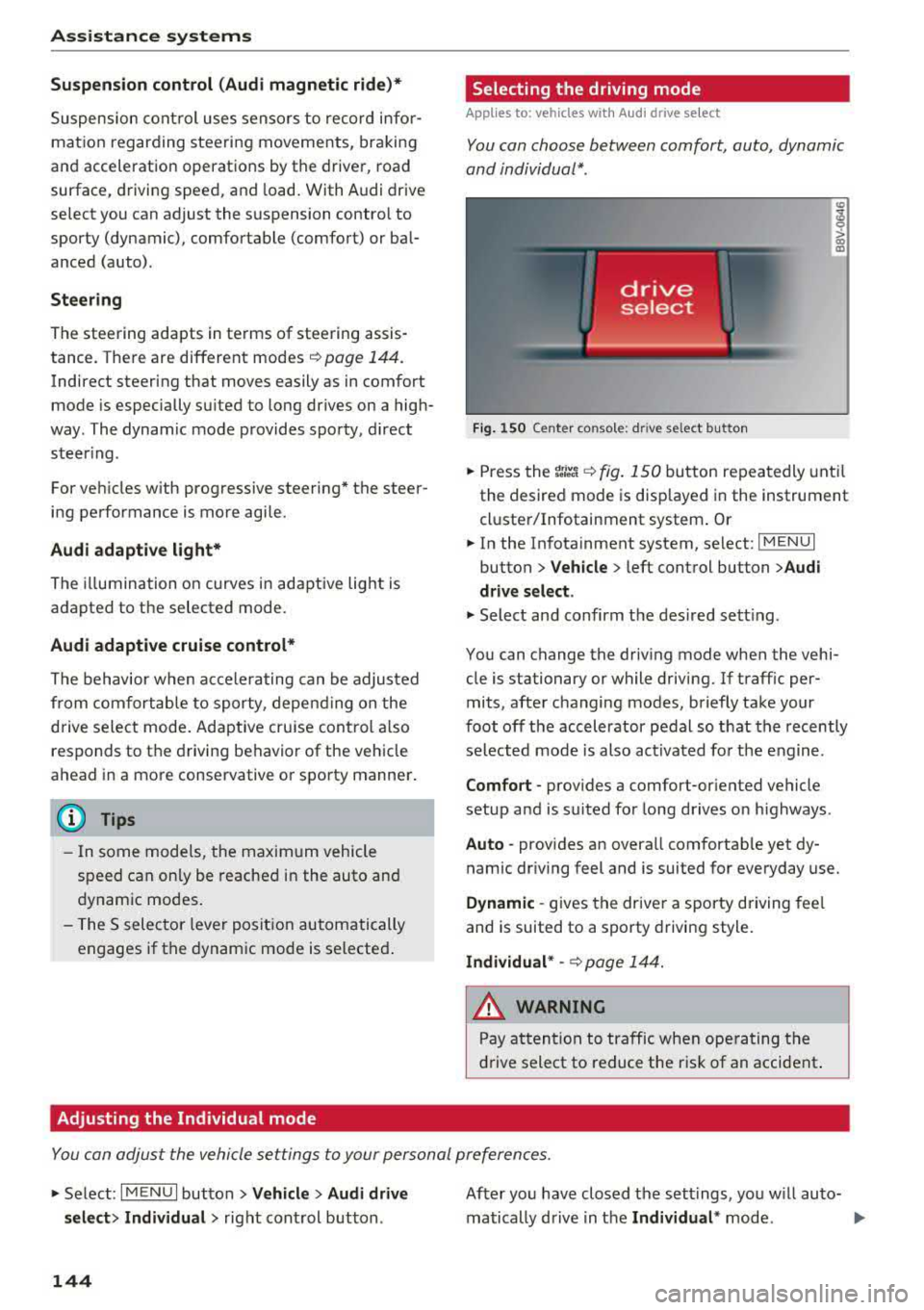
Fig. 150 Ce nte r co nsole: d rive se lect b utt on
.,. Press the tJi~a c::> fig . 150 button repea tedly unt il
the desired mode is disp layed in the instrument
cl uste r/Infotainment system . Or
.,. In the In fota inment system, se lect: I MEN U I
button > Vehicle > left cont rol button > Audi
drive select .
.,. Select and confirm t he des ired se tting.
You can c hange the driv ing mode whe n the vehi
cle is stationary or while driving. If traff ic per
mits, afte r changing modes, briefly take your
foot off t he acc elerator pedal so t hat the recently
se lected mo de is also act ivated fo r th e e ngine .
Comfort -prov ides a comfort-or iented vehicle
setup a nd is s uited fo r long drives o n highways .
Auto -provides an overa ll comfortab le yet dy
namic dr iv ing feel and is suited for everyday use.
Dynamic -gives the drive r a sporty driving fee l
and is suited to a spo rty driving style.
Individual * -c::> page 1 44.
_& WARNING ~
Pay att entio n to traffi c when ope rating t he
dr ive select to redu ce the r is k of an accident .
Yo u con adjust the vehicle settings to y our personal preferences .
.. Se lect: IM ENU I button> Vehicle > Audi drive
select > Individual >
right cont rol but ton .
144
After yo u have closed t he sett ings, yo u w ill auto
matically drive i n t he
Individual * mod e.
Page 149 of 400

Parking system plus
Description
Applies to: vehicles with parking system plus
Parking system plus provides audio and visual
signals when parking.
Fig. 151 Illustrat ion:
Sensors are located in the front and rear bump
e rs. If these detect an obstacle, audible and visu
al signa ls warn you.
Make sure the sensors are not covered by stick
ers, deposits or any other obstructions as it may
impair the function of the system. For informa
tion on cleaning, see
¢ page 347.
The display field begins approximately at:
® 4 ft (1.20 m)
® 3 ft (0.90 m)
© 5.2 ft (1.60 m)
® 3 ft (0.90 m)
The closer you get to the obstacle, the shorter
the interval between the audible signals. A con
tinuous tone sounds when the obstacle is less
than approximately 1 foot (0.30 meters) away.
Do not continue driving forward or in reverse
¢ & in General information on page 146, ¢0 in
General information on page 146!
If the distance to an obstacle remains constant,
the volume of the distance warning gradually
lo wers after a few seconds until it is muted (this
is not apply in the continuous tone range).
If the
obstacle becomes closer than it was before the
gi sound was muted, the tone will sound again. If
~ the obstacle is father away than it was before the
~ sound was muted, no tone will sound . Pay atten-o N > 00
Parking systems
tion to the vehicle's surroundings when you start
to drive.
Switching on/off
Applies to: vehicles with parking system plus
Fig. 152 Ce nter console: park ing aid b utton
Fig. 153 Infota inmen t system: visual distance display
Switching on
.,. Shift into reverse, or
.,. Press the P•1A button in the center console
¢ fig. 152 . A short confirmation tone sounds
and the LED in the button turns on.
Switching off
.,. Drive faster than 6 mph (10 km/h), or
.,. Press the Pwi button, or
.,. Switch the ignit ion off.
Activating automatically
The parking aid is activated automatically at
speeds less than 6 mph (10 km/h) and when ap
proaching an obstacle from approximately
3.1 feet (95 cm) away. There are audib le signa ls
when approximately 1.6 feet (50 cm) away from
the obstacle. If you press the
P wA button to switch
the parking aid off, it can only be react ivated
au
tomat ica lly when one of the following conditions
is met:
-The vehicle speed exceeds 6 mph (10 km/h).
147
Page 151 of 400

a, a, ..... N
" N ..... 0 N > 00
-Only use the rearview camera to assist you if
it shows a good, clear p icture. For examp le,
the image may be affected by the sun sh in
ing into the lens, dirt on the lens, or if there
is a malfunction.
- Use the rearview camera only if the luggage
compartment lid is completely closed . If the
luggage compartment l id is open the orien
tation lines and blue su rfaces are hidden .
Make su re any objects you may have mount
ed on the luggage compar tme nt lid do not
block the rearview camera.
- T he came ra lens enlarges and distorts the
field of v is ion. The object appea rs both al
tered and inaccurate on the screen.
- In cert ain situations, people or objec ts in
the display appear closer or farther away:
- For objects that do not touch the ground,
such as the bumper of a parked vehicle, a
tra iler hitch or the rear of a truck . Do not
use the orientation lines in this case.
- If driven from a level surface onto an in
cline , or a downward slope.
- If driven toward protrud ing objects .
- If the veh icle is carry ing too much load in
the rear.
(D Note
- Always read and follow the applicable warn
i ngs
<* 0 in General information on
page 146 .
-The orange-colored orientatio n lines in the
Infotainment display show the veh icle path
based on the steering wheel angle. The
front of the vehicle swings out more than
the rear of the veh icle. Ma inta in p lenty of
distance so that an exterio r mirror or a cor
ner of the veh icle does not co llide with any
obstacles.
Switching on /off
Appl ies to: ve hicles with rearv iew camera
Switching on
• S hift into reverse , or
• Press the P' 1! bu tton in the center console
~ page 147 , fig. 152 . A short confirmat ion
Parking systems
tone sounds and the LED in the button turns
on.
Switching off
• Dr ive faste r th an 6 mp h (10 km/h), o r
• Press the p, q! button, or
• Switch t he ignit ion off .
(0 Tips
- The visu al display in the righ t part of the
display sho uld help you de te ct the c riti cal
vehicle area .
- Yo u can ch ange the vol ume o f the signa ls
and the display ¢
page 150.
Perpendicular par king
Applies to: veh icles w ith rearv iew camera
This view may be used when parking in a garage
or in a parking space.
Fi g. 157 In fota inme nt sys tem: a im ing at a par king space
Fig . 1 58 In fotai nment syste m: alig ning t he vehicl e
.. Turn the Infotainment system on and shift into
reverse gear .
• The orange orientation lines (D show the direc
tion of travel of the vehicle . Turn the steering
wheel unti l the orange or ientation lines appea r
in the parking
space ~ fig. 157. Use the mar k
ings @to help you es timate the distance from
an obsta cle. Each marking represents approxi
mately 3 ft (1 m) . The b lue area represents an
.,..
149
Page 152 of 400
Parking sy stem s
extension of the vehicle's outline by approxi
mately 16 ft (5 meters) to the rear.
~ While driv ing in reverse gear, adjust the steer
ing wheel ang le to fit the parking space using
the orange orientation lines for ass istance
c> .&. in General information on page 148, c> (D
in General information on page 149. ® repre
sents the rear bumper . Stop the veh icle, at the
latest, when the red or ientat ion line
@ bo rders
an object.
Adjusting the parking aid
Applies to: vehicles with parking system plus/rearview cam
era
The functions are adjusted in the Infotainment
system.
~ Select in the Infotainment system: IM ENU I but
ton
> Vehicle > left contro l button > Driv er a s
sistan ce > Parking aid . Or
~ When the parki ng aid is act ive, se lect in the I n-
fot ainment system : rig ht cont ro l bu tton* .
End system * -stop the parking aid
Acti vate automatically -switch automatic act iva
tion on/off
Front volume * -vo lume for the front area
Rear volume -volume for the rear area
Entertainment f ader -the volume of the aud io/
video source is lowe red w hen t he pa rking system
is tu rned on .
The newly selected level is demonstrated br iefly
by the sound generator.
(D Tips
- Seve ral menus can be accessed w ith the
right contro l button only when the park ing
a id is act ive.
- The settings for volume and automatic act i
vation are automatically stored and as
signed to the remote co ntrol key being
used.
150
Error messages
Applies to: vehicles with parking system plus/rea rv iew cam
era
Ill Rear park assi st : malfun ction! Ob stacles
cannot be detect ed
Ill Front park a ssist : malfunct ion! Ob st a cles
cannot be detected
Ill Park assist: mal function! Obstacles cannot
b e detect ed
When one of these messages appears, there is a
system malfunction. The LED in the
P'#! button al
so blinks when sw itching it on. The relevant mes
sage on ly appea rs again when you manually acti
vate the park ing aid with the button .
[ill Rear parking aid : obstacle detection restr ict
ed
The rear c ross-traffic assist* c> page 142, Rear
cross-traffic assist
is not available. Either the ESC
i s sw itched off, or the radar sensors may be cov
ered by a bike rack, stickers, leaves, snow or oth
er objects. Switch the ESC on, or clean the area in
front of the sensors if necessary c> page 140,
fig . 147 . If this message cont inues to be d is
played, drive immed iate ly to an authori zed A udi
dealer or au thor ized A udi Servi ce Fac il ity to have
t h e mal funct ion repaired .
Parking system plus*
If a senso r or speaker is faulty, the J¼ symbo l
will appear i n front of/behind the vehicle in the
I nfotai nment system d isplay. If a rear sensor is
faulty, only obs tacles th at are in areas @and @
a re shown
c> page 147, fig . 151. If a front sensor
is fa ulty, only obstacles that are in areas © and
@ are shown.
Page 154 of 400

Intelligent Technology
- Press the accelerator pedal carefully when
acce le rating on even, slippery surfaces such
as ice and snow. The drive wheels can spin
even when these control systems are instal
led and th is can affect driving stability and
increase the risk of a co llision . condition
. Different tire sizes can lead to a
reduction in engine power.
- You may hear noises when the systems de
scribed are working .
@ Tips
-The ABS and ASR only function correctly
when all four whee ls have a s imilar wear
Switching on/off
ESC turns on automatically when you start the engine .
Fig . 1 59 Upper ce nter console: ESC butto n
function of the ESC is limited or switched off . The
amount of stabilization contro l will differ de
pending on the level.
The following examp les are unusua l situations
where it may make sense to switch sport mode
on in order to allow the wheels to sp in:
- Roc king the ve hicle to free it when it is stuck
- Dr iv ing in deep snow o r o n loose g round
- Dr iv ing with snow chains
The ESC is des igned to fu nction in levels. Depend
i n g on the level tha t is sele cted , the stabilization
Sport mode on
Behavior
The ESC and ASR stabiliza-
tion f unctions are limited
¢ .&. .
Op eration Press the l.$ ,., I button brief-
Ly .
Ind icator II turns on.
lights
Me ssage s Stabilizati
on cont rol (ESC ):
s port . Warning! Re st ric ted
s tability
A WARNING
You should only switch sport mode on or
switch ESC/ ASR
off if your driving abilities
and road conditions permit.
152
ESC /ASR off Sport mode off or
ESC /ASRon
The stabiliza tion f unct ion is The f ull stabiliza tion f unc-
not availab le
¢ .&. . ESC and
tion of the ESC and ASR is
ASR are switched
off . avai lab le again .
Press and hold the
1 .$ .. , I but- Press the l.$ ,., I button again .
ton longer than three sec-
onds.
fl and 14il•U~ turn on. II turns off or II and
1 4il•U~ turn off.
Stabi lization control (ESC): S tabilization control
off. Warning! Re stricted (
ESC ): on
stability
-
- The stabi lization function is limited when
sport mode is switched on. The driving
wheels could spin and the vehicle could
swerve, especially on slick or slippery road
surfaces.
Page 159 of 400

CXl CXl .... N r--N .... 0 N > 00
Some state laws restrict the retrieval or down
l oading of data stored by EDRs insta lled in a vehi
cle for the express purpose of retrieving data af
ter an accident or crash event without the own
er's consent.
Audi will not access the EDR and/or similar data
or give it to others -
- u nless the vehicle owner (or lessee if the vehi
cle has been leased) agrees; or
- u pon the off icia l request by the po lice; or
- upon the order of a court of law or a govern-
ment agency; o r
- for the defense of a laws uit through the judicial
dis cove ry process.
- Audi may also use the data for research about
vehicle ope ration and safety performance or
provide the data to a thi rd party for research
purposes without iden tifying the specific vehi
cl e or information about the identity of its own
er or lessee and on ly after the recorded vehicle
data has been accessed .
Vehicle control modules
Your vehicle is also equipped wi th a number of
e lec tronic contro l mod ules for vario us veh icle
systems, such as eng ine management, emission
control, airbags, and safety belts .
These electroni c con trol modules re co rd da ta
d ur ing normal vehi cle ope ra tion that may be
needed by trained technicians for diagnostic and
repair pu rposes. The recording capability of these
modules is limited to data (no sound is record
ed). On ly a small amount of data is actually re
corded over a very limited per iod of t ime, or stor
ed when a system fau lt is detected by a control
module . Some of the data stored may relate to
ve hicle speed, d irect ion, or brak ing, as well as re
stra int system use and perfo rma nce in the even t
of a c rash . Stored data can also only be read and
downloaded with special e quipment that is di
rect ly connected to the veh icle.
(D Tips
Your veh icle may be equ ipped with Audi con
nect. Your use of ce rtain Audi conne ct fea
tures req uires w ireless services that are pro
vided by a third pa rty wire less telecommuni-
Intellig ent Technology
cations provider. Fo r details regarding how in
fo rmation obtained through Audi connect is
collected, p rocessed, transmitted, used, and
shared, please see you r contract with the
wireless telecommun ications provider and the
"About Audi connect" tab in your vehicle's In
fota inment system:
I MENU I butto n> Audi
connect
> right contro l button > About Audi
connect .
157
Page 160 of 400

Multi Media Interface
Multi Media Interface
Traffic safety information
Aud i recommends performing certa in Infotain
ment system functions, such as entering a desti
nation, only when the vehicle is stationary . Al
ways be p repared to stop opera ting the Info tain
ment system i n the interest of your safety and
t he safe ty of other road users.
_& WARNING
Only use the In fotain ment sys tem w hen tra f
fic con ditions permit and always in a way that
allows you to ma inta in complete control ove r
your vehicle.
@ Tips
Cer tain functi ons are no t avail ab le wh ile driv
ing .
Introduction
The Multi Media Interface , or MMI for short,
combines various
systems for communication ,
navigation* and entertainment in your Audi . You
can operate the MMI using the MMI control pan
el, the multifunction steering wheel or the voice
recognition system* .
Fig. 16 0 MMI co ntro l panel
M MI cont rol panel overview
CD Contro l knob with joystick function"
. . . . . . . . . . . . . . . . . . . . . . . . . . . . 159, 163
@ MMI to uch con trol pad * . . . . . . . . 161
@ Left contro l button . . . . . . . . . . . . 160
@ R ight cont rol b utton . . . . . . . . . . . 160
158
® Buttons fo r opening men us
directly .... . .. .. .. .... .. .... .
@ IMENU I button
(J) I BACK I button . .. .. .... .. ... . .
MMI On/Off knob with
joystick function
Operating
Fig . 161 MM I On/Off k nob w ith joys tick f unctio n
Switching the MMI on /off : the MMI can be
swi tched on/off man ually. 160
160
159
- Switching on manually : press the On/Off knob
CD ¢ fig. 161 briefly. Or : press the I M ENU I but
ton @ ¢ page 1 58, fig. 160 or one of t he bu t
t ons to ope n the me nus d irectl y® ·
-Switch ing off manually : press and hold the
O n/Off knob
CD ¢ fig. 161 until t he M MI
sw itches off .
If the MM I has been swi tch ed off
m an ually, i t does
not swi tch on ag ai n au tomati
cally the ne xt time the ignition is sw itched on.
Additional function s:
- Adjusting the volume :
turn the On/Off knob CD
¢fig. 161 .
-Muting : press the On/Off knob CD¢ fig. 1 61
briefly.
- Selecting the previous/ne xt function (for ex
ample , a r adio station/t rack) :
press the On/Off
knob
CD ¢ fig. 161 briefly toward the left l
l>!>i .
-Fast forwarding /rewinding (fo r example
songs) :
press and hold the On/Off knob CD
¢ fig. 161 toward the left l
Page 161 of 400

a, a, ..... N
" N ..... 0 N > 00
A WARNING
Adjust the volume of the audio system so that signals from outside the vehicle, such as po
lice and fire sirens, can be heard easily at all
times.
@ Tips
The MMI switches off automatically if the en
gine is not running and the vehicle battery is
low.
Infotainment system
display
Extending/retracting
The Infotainment system d isplay automatically
extends and retracts when you switch the MMI
on and off.
- Manually extending/retracting : press the qi
button@) ¢page 8, fig. 2.
When the MMI is switched off and the display is
retracted, you can operate certain functions us
ing the MMI On/Off knob with the joystick func
tion
¢ page 158 .
{!) Tips
-If the vehicle has a cell phone prep", the In
fotainment system display will automatical ly extend whenever there is an incoming
phone call.
- There may be delays when extending or re
tracting the display.
Multi Media Interface
MMI operation
Selecting and confirming a function
Fig. 162 Operat ing the control knob
Selecting and confirming a function in a
menu /list
.,. Selecting a function: turn the control knob (D
¢ fig. 162 to the desired function (such as se
lecting a frequency) .
.,. Confirming a selection: press the control knob
@¢fig, 162.
Returning to functions at higher levels
.,. Press the !BACKI button (i) ¢page 158,
fig. 160 .
Opening the main menu/menu
Fig. 163 Illustration: Ma in menu
159