2017 AUDI S3 SEDAN service reset
[x] Cancel search: service resetPage 5 of 400
CXl CXl .... N ,.__
N .... 0 N > 00
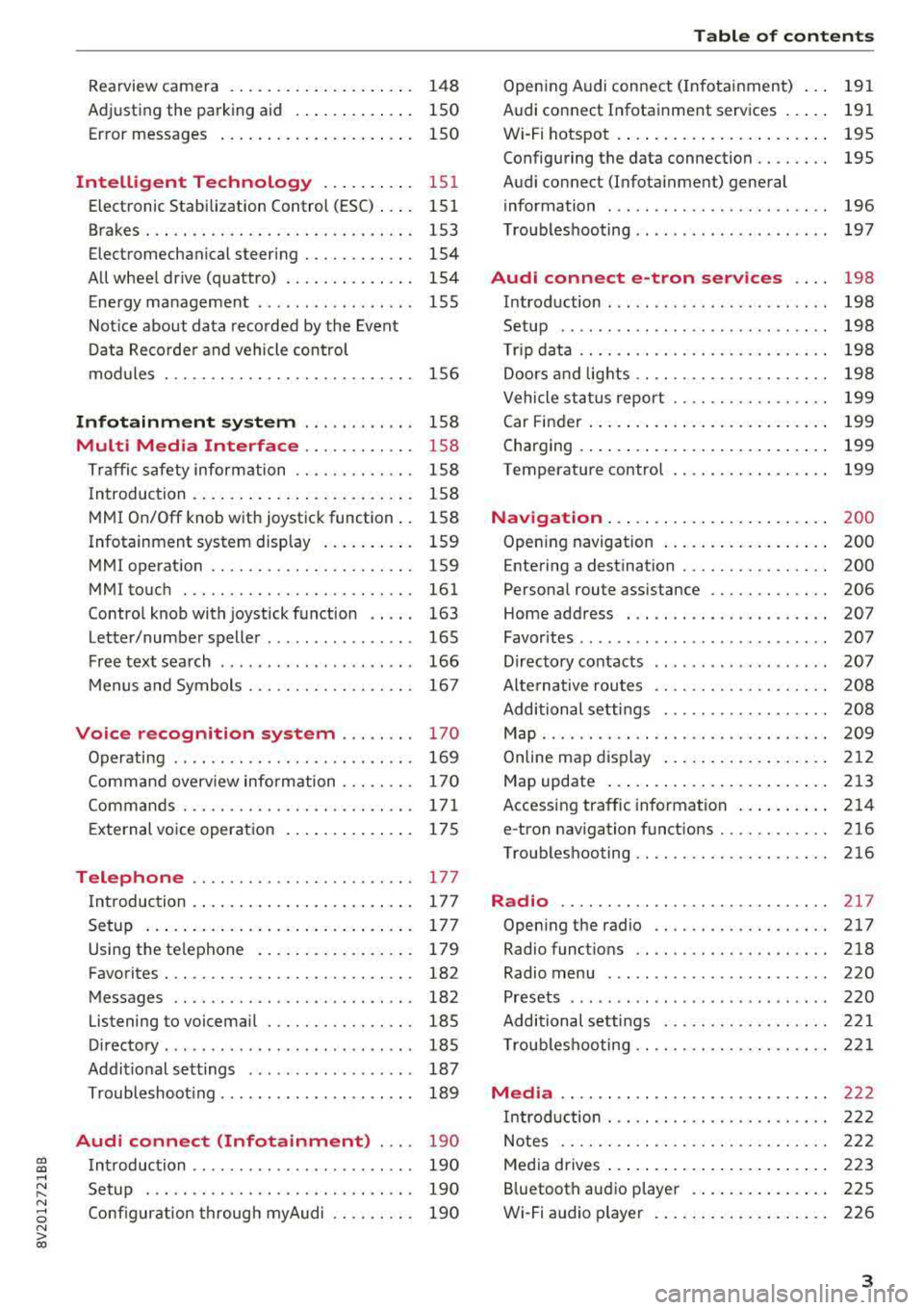
Rearview camera . . . . . . . . . . . . . . . . . . . . 148
Adjusting the parking aid . . . . . . . . . . . . . 150
Error messages . . . . . . . . . . . . . . . . . . . . . 150
Intelligent Technology . . . . . . . . . . 151
Electronic Stabilization Control (ESC) . . . . 151
Brakes. .. .. .. ............... .. .... . 153
Electromechanical steering . . . . . . . . . . . . 154
All wheel drive (quattro) . . . . . . . . . . . . . . 154
Energy management . . . . . . . . . . . . . . . . . 155
Notice about data recorded by the Event
Data Recorder and vehicle control
modules . . . . . . . . . . . . . . . . . . . . . . . . . . . 156
Infotainment system . . . . . . . . . . . . 158
Multi Media Interface . . . . . . . . . . . . 158
Traffic safety information . . . . . . . . . . . . . 158
Introduction . . . . . . . . . . . . . . . . . . . . . . . . 158
MMI On/Off knob with joystick function . . 158
Infotainment system display . . . . . . . . . . 159
MMI operation . . . . . . . . . . . . . . . . . . . . . . 159
MMI touch . . . . . . . . . . . . . . . . . . . . . . . . . 161
Control knob with joystick function . . . . . 163
Letter/number speller . . . . . . . . . . . . . . . . 165
Free text search . . . . . . . . . . . . . . . . . . . . . 166
Menus and Symbols . . . . . . . . . . . . . . . . . . 167
Voice recognition system . . . . . . . . 170
Operating . . . . . . . . . . . . . . . . . . . . . . . . . . 169
Command overview information . . . . . . . . 170
Commands . . . . . . . . . . . . . . . . . . . . . . . . . 171
External voice operation 175
Telephone . . . . . . . . . . . . . . . . . . . . . . . . 177
I ntroduction . . . . . . . . . . . . . . . . . . . . . . . . 177
Setup . . . . . . . . . . . . . . . . . . . . . . . . . . . . . 177
Using the te lephone . . . . . . . . . . . . . . . . . 179
Favorites . . . . . . . . . . . . . . . . . . . . . . . . . . . 182
Messages . . . . . . . . . . . . . . . . . . . . . . . . . . 182
Listening to voicemail . . . . . . . . . . . . . . . . 185
Directory . . . . . . . . . . . . . . . . . . . . . . . . . . . 185
Addit ional settings . . . . . . . . . . . . . . . . . . 187
Troubleshoot ing. . . . . . . . . . . . . . . . . . . . . 189
Audi connect (Infotainment) . . . . 190
Introduction . . . . . . . . . . . . . . . . . . . . . . . . 190
Setup . . . . . . . . . . . . . . . . . . . . . . . . . . . . . 190
Configuration through myAudi . . . . . . . . . 190
Table of contents
Opening Audi connect (Infotainment) . . . 191
Audi connect Infotainment services . . . . . 191
Wi-Fi hotspot . . . . . . . . . . . . . . . . . . . . . . . 195
Configuring the data connection. . . . . . . . 195
Audi connect (Infotainment) general
information . . . . . . . . . . . . . . . . . . . . . . . . 196
Troubleshooting . . . . . . . . . . . . . . . . . . . . . 197
Audi connect e-tron services . . . . 198
Introduction ... .. .. ...... ....... .. .. 198
Setup . . . . . . . . . . . . . . . . . . . . . . . . . . . . . 198
T rip data . . . . . . . . . . . . . . . . . . . . . . . . . . . 198
Doors and lights .. ............... .. .. 198
Vehicle status report . . . . . . . . . . . . . . . . . 199
Car Finder . . . . . . . . . . . . . . . . . . . . . . . . . . 199
Charging . . . . . . . . . . . . . . . . . . . . . . . . . . . 199
Temperature control . . . . . . . . . . . . . . . . . 199
Navigation . . . . . . . . . . . . . . . . . . . . . . . . 2 00
Opening navigation . . . . . . . . . . . . . . . . . . 200
Entering a destination . . . . . . . . . . . . . . . . 200
Personal route assistance . . . . . . . . . . . . . 206
Home address . . . . . . . . . . . . . . . . . . . . . . 207
Favorites . . . . . . . . . . . . . . . . . . . . . . . . . . . 207
Directory contacts . . . . . . . . . . . . . . . . . . . 207
Alternative routes . . . . . . . . . . . . . . . . . . . 208
Additional settings . . . . . . . . . . . . . . . . . . 208
Map . . . . . . . . . . . . . . . . . . . . . . . . . . . . . . . 209
Online map display . . . . . . . . . . . . . . . . . . 212
Map update . . . . . . . . . . . . . . . . . . . . . . . . 213
Accessing traffic information . . . . . . . . . . 214
e-tron navigation functions . . . . . . . . . . . . 216
Troubleshooting .. .. ............... .. 216
Radio ............................. 217
Opening the radio . . . . . . . . . . . . . . . . . . . 217
Radio functions . . . . . . . . . . . . . . . . . . . . . 218
Radio menu . . . . . . . . . . . . . . . . . . . . . . . . 220
Presets . . . . . . . . . . . . . . . . . . . . . . . . . . . . 220
Additional settings . . . . . . . . . . . . . . . . . . 221
Troubleshooting .. .. ............. .. .. 221
Media . . . . . . . . . . . . . . . . . . . . . . . . . . . . . 222
Introduction . . . . . . . . . . . . . . . . . . . . . . . . 222
Notes .... .. .. .. .. ............... .. 222
Media drives . . . . . . . . . . . . . . . . . . . . . . . . 223
Bluetooth audio player . . . . . . . . . . . . . . . 225
Wi-Fi audio player . . . . . . . . . . . . . . . . . . . 226
3
Page 72 of 400

Warm and cold
Warm and cold Climate control system
Description
The climate control system circulates, warms or
cools, and removes humid ity from the air in the
veh icle inter ior .
It is the most effective when the
windows and panorama glass roof* or power top*
are closed. If there is a build-up of heat inside
the vehicle, ventilation can help to speed up the
cooling process.
Pollutant filter
The pollutant filter removes pollutants such as
dust and pollen from the a ir.
Key recognition
Various settings are stored and assigned to the
remote control key be ing used .
These settings are different when the power top* is open or closed .
Presetting
Several functions can be preset in the Infotain
ment system.
Select in the Infotainment system:
I MENU I but
ton
> Vehicle > left control button > Air condi
tioning
A WARNING
Poor visibility can lead to accidents .
- For safer driving, keep all windows free of
ice, snow and fog.
- Become familiar with the correct use and
function of the climate control system as
quickly as possible, especially with the de
frosting and defogging functions.
- When the temperature is below freezing, only use the windshield washer system after
70
the windshield has been warmed by the cli
mate control system. The washer fluid could
freeze on the windshield and impair visibili
ty .
Cl) Note
-If you suspect that the climate control sys
tem is damaged, switch the system off to
prevent further damage and have it checked
by an authorized Audi dealer or authorized
Audi Service Facility.
- Repairs to the Audi climate control system
require special technical knowledge and
special tools . See an authorized Aud i dealer
or authorized Aud i Service Facility .
@ For the sake of the environment
-To save fuel, turn off the climate control
system cooling mode by press ing the A/C
button. This will also reduce emissions . The
climate control system is off when the LED
in the button turns off.
- In vehicl es w ith the efficiency prog ram*,
you can find other consumption information
and more economy tips <=? page 19.
(D Tips
- T o prevent interference with the heating
and cooling output and to prevent the win
dows from fogging over, the a ir intake in
front of the windshie ld must be free of ice,
snow or leaves.
- Condensation from the cooling system* can
drip and form a pudd le of water under the
vehicle. This is norma l and does not mean
there is a leak.
- The energy management system may tem
porarily switch off certain functions, such as
the seat heating* or rear window defogger.
These systems are available again as soon
as the energy supply has been restored.
Page 117 of 400

CXl CXl .... N r--N .... 0 N > 00
e-tron
LED on the control
Symbol Error code
unit@ Meaning
Solution
Disconnect the control
200,210, unit from the power sup-
ply and have the malfunc-
260, 410,
Red On Error in the control unit. tion corrected at an au-450, 460, thorized Audi dea ler or au-
490,500 thorized Audi Service Fa -
ci lity
The control unit is over- Al
low the control un it to
cool down or operate it in
180,190 Red On heating or not cooled
the specified temperature
enough. range.
Have the malfunction cor -
130, 140,
Red On Communication to
the ve- rected by an authorized 470 hid e is malfunctioning. Audi dealer or authorized
Audi Service Facility.
300,310 , Error in the household in-Have the electrical instal-
Red On lation checked by a quali-
370,390 sta llation .
fied electrician.
Have the electrical instal-
480 Red Flashes F
au lt in the household in-
lation up to the control
stallation. unit checked
by a qualified
electrician.
Reset the ground fau lt in-
terrupter with the
IOKI @
Ground fault interrupter
button ~ page 111,
110 Red Flashes (GFI) triggered
in the con-fig. 121. Have the electri-
trol unit.
cal installation checked by
a q ualified electrician if
the same display appears.
Vehicle: charging unit
LED on the vehicle @ Meaning Solution
High-voltage battery cha rging Remove the charger, put the cap
On on and close the cover on the
process is completed.
charging unit.
The high-voltage battery is charg-
Pulsating light ing or the vehicle is being air con-
Green ditioned/heated.
Blinks for approxi- Cha
rging timer was programmed
but the charging process has not
mate ly one minute
started yet. The LED in the button
after leaving the vehi -
@~ page 111, fig. 122 also
cle turns on .
115
Page 201 of 400

CXl CXl .... N r--N .... 0 N > 00
-If a t least two minutes have passed after
the last time the ignition was switched
off,
you can reset the access counter back to "O" as needed after switching the ignition on/
off again .
Vehicle status report
Applies to: veh icles with Audi connect e·tron services
You can access various vehicle statuses using the
services, such as:
- high-voltage battery charge level,
- electri c range,
- mileage,
- next inspection .
For addit ional information,
see ¢ page 97, Power
meter overview
and ¢ page 99, Range display .
A WARNING
Do not ignore messages and warning or indi
cator lights that turn on in the vehicle
be
cause of the information in the status report.
T his could le a d to b reak downs in on the ro ad,
ac cidents and serious injuries .
Car Finder
Applies to: vehicles with Audi connect e-tron services
The vehicle collects data under certa in conditions
a n d se nds it to a se rver.
When data is stored, you can access values such
as these us ing the service :
- Vehicle location d isplay,
- Display of one's own locat ion,
- Ro ute to your vehicle.
I f yo ur mobile device also has a navigation f unc
tion, yo u can navigate to your last know n pa rking
l ocat ion .
(D Tips
-The new pa rking location canno t be dete r
mined with this service if the vehicle is
moved after shutt ing the ve hicle
off and
without switching the ignition on and
off
again, for example when being towed o r if
the veh icle is stolen.
Audi connect e-tron s erv ic es
- If the vehicle is moved and shut off again
using the second key, for example, t he new
park ing location is transmitted to the server
after sw itching the ign ition
off.
Charging
Applies to: vehicles with Audi connect e-t ron services
You can contro l and access the hig h-voltage bat
tery charging process remotely using these serv ices. You have the followi ng options:
- check the battery charge level,
- start/end the cha rging p rocess,
- program the charging t imer with/wit hout cl i-
mate con trol,
- deactivate/activate the cha rg ing timer.
Fo r additional information,
see ¢ page 108,
Charging the battery with the Audi e-tron charg
ing system .
A WARNING
Only perform c harg ing f unct io ns on t he h igh
vol tage battery if t he ve hicl e is shut
off co r
r e ct ly, is con nected to a suitable socket an d if
the ignition is switched
off.
Temperature control
Applies to: vehicles with Audi connect e-tron services
You can co ntro l the clima te control in your vehi
cl e remo tely using these serv ices:
- start/end climate control,
- program the timer,
- deactivate/activate the timer.
For additional information,
see ¢ page 118 , Cli
mate control.
A WARNING "---
Only perform the climate cont rol functions i f
your vehicle was shut
off cor rectly and the ig
ni tion is switched off .
199
Page 232 of 400

Media
-Changed content on a mobile device l) that
is connect ed to the Audi music interface
may not be disp layed in the med ia center .
In this case, reset t he
Med ia settings back
to
Factory settings ¢ page 242.
- Video p layback through the Audi music in
terface is only supported if the connected
device is recog nized as a USB storage device
(fo r example a USB s tic k). Apple devices and
M TP devices (s uch as smartphones) a re not
r e cogni ze d as US B storage devices .
- i Pod/iPhone malfunct io ns also affect the
ope ration of the MMI. Reset your iPod/
iPhone if th is happens.
- For importa nt information on operating
your iPod/iPhone, ref er to th e user guide for
the dev ice. Audi re comme nds up dat ing the
i Po d/i Pho ne so ftwa re to t he lates t ve rsion .
- Fo r more information about the Audi music
i nte rfa ce and supporte d device s, check the
A ud i d ata base fo r mobile devices at
www.audiusa.com/bluetooth or contact an
authorized Audi dea le r or a uthorized Audi
Service Fac ility.
Playing media
Accessing media
You can start and operate various media
through th e
MMI control panel.
Fig . 2 13 Diag ra m : p ossibl e sources i n the Med ia m enu
1> A pplies only t o MTP dev ices . Do es not app ly to Ap ple d evi
c e s a nd U SB ma ss sto ra ge de vice s.
2> Depe ndin g o n the DVD , thi s m ay not be pos sib le d urin g
p la y ba ck.
230
Fi g. 214 D ia gram: possible sour ces i n the Media m en u
Requir ement : a media source must contain au
dio/video*
files ¢ page 2 23 .
.,.. Press the IM EDIA ! button. Press the left cont rol
button unti l t h e sources overview is displayed.
.,.. Select and confirm th e desired source. Or:
press the I MEDIA ! button repeatedly unt il the
desired source is selected .
Depend ing o n the vehicle equipment , the follow
ing sources may be d isplayed in the
Media menu :
(D Jukebo x* ... .. .. .. .. .. .. .... .
@ DVD/CD drive * ... .. .. .. .. .... .
@ SD card re ader ....... ....... .
@ Audi music interface * .. .. . .... .
su ch as iPod , USB st ick
® Extern al audio player ... .. .... .
su ch as an MP3 player connected to
the AUX inp ut
@ Bluetooth audio player* ...... .
(J) Wi-Fi audio player* .... .. .... .
@ Online media * and Internet radio *
224
223,224
223
229
22 9
2 25
226
227
-Playing audio/ video files : select a sourc e in the
Media menu > Category (such as artists > al
bum
> t rack).
-Moving one level up in the folder structu re :
press the I BACK ! button . Or: select and confirm
Fo lder up .
-Selecting the pre vious or ne xt track /chapter*
2>: press t he On/Off knob on the MMI cont rol
panel briefly to the left
l
- Fast-forwarding and rew inding audio /video *
files :
press and hold the On/Off knob on the ..,.
Page 246 of 400

System settings
Show Bluetooth profiles*
You can Connect or Disconnect the Handsfree ,
Messages *, Directory/contacts
and Bluetooth
audio player
profiles separately.
Bluetooth settings*
- Bluetooth :
select and confirm a setting for the
Bluetooth connection v is ibility. Select
Visible
for the MMI to be v isib le to other dev ices. Se
lect
Inv isible for the MMI to not be visible to
other devices. However, it is still possib le to es
tablis h a Bl uetooth connection with paired de
vices when the v is ibility is switched off. Select
Off to turn visibility off. Then a B luetooth con
nect ion is not possible .
-Bluetooth audio player : when this function is
switched
on~, the Bluetooth audio player is
available as a source in the
Media menu .
-Bluetooth name : the MMI Bluetooth name (for
example ,,AUDI MMI 2017") is displayed and
can be changed .
Online settings*
- Data usage counter :
the amount of data pack
ets that are sent and received through the MMI
is d isplayed. You can reset the data usage infor
mation to zero using the
Reset data counter
option.
-Network status : the mobile network provider
for data service as well as the network status
are displayed .
Wi-Fi settings*
Refer to<=> page 195, Wi-Fi hotspot.
Storing as a default telephone
Applies to: vehicles with telephone
Req uiremen t: a cell phone must be connected to
the MMI
¢page 177 .
As soon as th e cell phone is i n range and the
Bluetooth function on the cell phone and in the
MMI is swi tched on, this cell phone is given prior
ity over the other Bluetooth devices and is con
nected direct ly to the MMI. The connected cell
phone is displayed first in the device list.
244
Network settings*
- Login :
you can chose an automatic log in to
your cell phone service provider's network, or
you can choose a
manual l ogin from the list of
avai lab le networks .
-Network selection: available networks in the
present location can be selected under network
selection. This function is on ly availab le for the
Manual l ogin setting .
Apple CarPlay sound settings/ Android Auto
sound settings
Applies to: vehicles with Audi smartphone interface
Refer to ¢ page 245.
About Apple CarPlay/ About Android Auto
Applies to: vehicles with Audi smartphone interface
Here you w ill find legal information regarding
the use of Apple CarPlay or Andro id Aut o and in
formation about device -specific data exchange.
Delete CarPlay device/Delete Android Auto
device
Applies to: vehicles with Audi smartphone interface
Requirement: your cell phone must not be cona
nected to the Audi m usic interface with a USB
adapter .
To remove your cell phon e from the list of all cell
phones that are already paired, select and con
firm
Delete CarPlay device or Delete Android Au
to device .
(D Tips
Some SIM cards do not allow the SIM PIN
queries to be switched off.
System update
.,. Select: !MENUI button> Settings> left control
button >
System maintenance.
- System update :
slide the storage device with
t he update data into the appropriate drive
¢page 223. Select and confirm the drive>
Start update. The length of the process de
pends on the size of the update.
-Reset driver installation: the selected media
driver package is reset to the settings at the
time of delivery .
Page 329 of 400

CXl CXl .... N ,.__
N .... 0 N > 00
Windshield washer system
Fig. 277 Engine co mpa rtment: washer fluid reservoir cap
Observe the safety precautions ¢ page 316,
Working in the engine compartment.
M N
-N ~
"' a,
The windshield washer f luid reservoir~ contains
the cleaning solution for the windshield and the
headlight washer
system* ¢ page 319, fig. 2 71 .
The reservoir capacity can be found in
¢page 375 .
To reduce the risk of lime scale deposits on the
spray nozzles, use clean water with low amounts
of calc ium . Always add window cleaner to the wa
ter. When the outside temperatures are co ld, an
anti-freezing agent should be added to the water
so that it does not freeze.
CD Note
-The concentration of anti-freezing agent
must be adjusted to the vehicle operating
conditions in the respective climate. A con
centration that is too high can lead to veh i
cle damage.
- Never add radiator anti-freeze or other addi
tives to the washer fluid.
- Do not use a glass cleaner that contains
paint solvents, because this could damage
the paint .
Service interval display
The service interval display detects when your ve
hicle is due for service .
The service interva l display works in two stages:
- Inspection or oil change reminder: after a cer-
ta in distance driven, a message appea rs in the
Checking and Filling
instrument cluster display each time the igni
tion is switched on or off. The remaining dis
tance or time is disp layed briefly.
- Inspection or oil change due: if your vehicle
has reached an inspection or oil change interval
or both intervals at the same time, the mes
sage
Inspection due! or Oil change due! or Oil
change and inspection due!
appears briefly af
ter sw itching the ignition on/off.
Checking service intervals
You can check the remaining distance or time un
til the next oi l change or next inspection in the
Infotainment system. Select in the Infotainment
system: the
! MENUI button> Vehicle> left con
trol button
> Service & checks > Service inter
vals.
Resetting the indicator
An authorized Audi dealer or authorized Audi Service Facility will reset the service interval dis
play after performing service .
If you have changed the oi l yourself, you must re
set the oil change interval.
T o reset the disp lay, select in the Infotainment
system: the
! MENUI button> Vehicle> left con
tro l button
> Service & checks > Service intervals
> Reset oil change interval.
CD Note
-Only reset the oil change indicator if the oi l
was changed.
- Following the service intervals is critical to
maintaining the function, service life, and
value of your vehicle, especially the engine.
Even if the mileage on the vehicle is low, do
not exceed the time for the next service.
327