2017 AUDI Q7 phone
[x] Cancel search: phonePage 243 of 402
u co ...... N r-... N ...... 0
0
:E: '
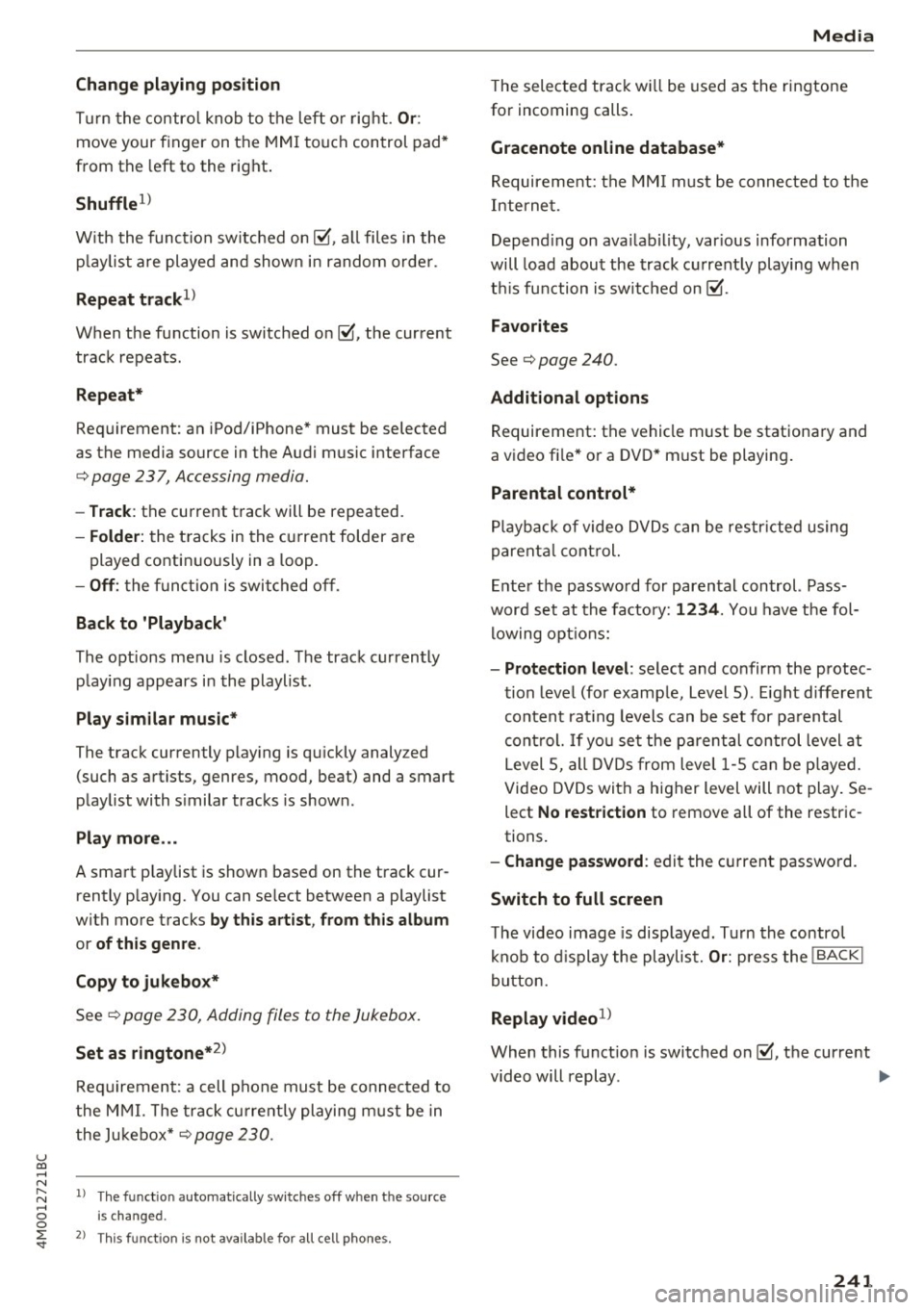
Tu rn the contro l knob to t he left o r right. Or :
move your f inger on the MMI touch con trol pad*
from the left to the right .
Shuffle1
)
W ith the function switc he d on~. all files in the
p lay list a re played and show n in random orde r.
Repeat track1l
When t he function is switched on~ . the cur rent
track repeats.
Repeat*
Req uirement: an iPod/iPhone* must be selected
as the media so urce in t he Audi music interface
c:> page 237 , Accessing media.
- Track: the current t rack will be repeated.
- Folder: the t racks in the c urrent folder a re
played contin uous ly in a loop.
- Off : the functi on is swi tched o ff.
Back to 'Playback'
The o ptions men u is closed . The track c urrently
p lay ing appears i n the playlist.
Play similar music*
The track cur rently play ing is q uickly analyzed
(such as a rtists, genres, mood, beat) and a smart
p lay list with s imilar tracks is shown.
Play more ...
A sma rt p laylist is show n based on the track cur
rently p lay ing. You can se lect between a playlist
with mo re t racks
by this artist , from this album
or of this genre .
Copy to jukebo x*
See c:> page 230, Adding files to the Jukebox.
Set as ringtone*2
)
Req uireme nt: a cell p hone must be connec ted to
the M MI. The track cu rrent ly playing must be in
t he Ju ke box*
c:> page 230.
l ) Th e fun ctio n automa tica lly sw itc hes off w he n th e sou rce
i s ch an ged .
2
> T hi s fun ction is no t availab le for a ll cell pho ne s.
Media
T he selec ted trac k w ill be used as the ringtone
for incoming calls .
Gracenote online database*
Requireme nt: t he MMI must be conne cted to t he
I nterne t.
Depend ing on ava ilabi lity, var ious information
will load abou t the track cu rrent ly playing wh en
t hi s fu nction is sw itch ed on ~-
Favorites
See c:> page 240.
Additional options
Re quirement: the vehi cle must be stationa ry and
a v ideo fi le* o r a DVD* must be playing .
Parental control*
Playba ck of video DV D s c an be res tric ted using
p arent al control.
E nte r th e passwo rd for paren tal con trol. Pass
wor d set at the fa ctory:
1234. You have t he fol
lo wing o ptions:
- Protection level : select and confirm the protec
t ion level (for examp le, Level 5) . E igh t differen t
conten t rat ing levels can be set for p arental
con trol. If yo u se t the pa ren tal con trol level at
Level
5, all DV Ds fr om leve l 1-5 can b e playe d.
Video DV Ds wi th a h igher level will not play . Se
lect
No restriction to remove all of the restr ic
tions .
-Change password : edit the c urrent passwo rd.
Switch to full screen
T he video image is disp lay ed . Tur n the contro l
kn ob to disp lay the pl aylis t.
Or: p ress the ! BACKI
b utt on.
Replay videol)
W hen this f unct io n is swi tched on~, th e curre nt
v ideo will rep lay . ..,.
241
Page 245 of 402
u co .... N r-... N .... 0
0
:E: '
Supported media and file formats
Overview
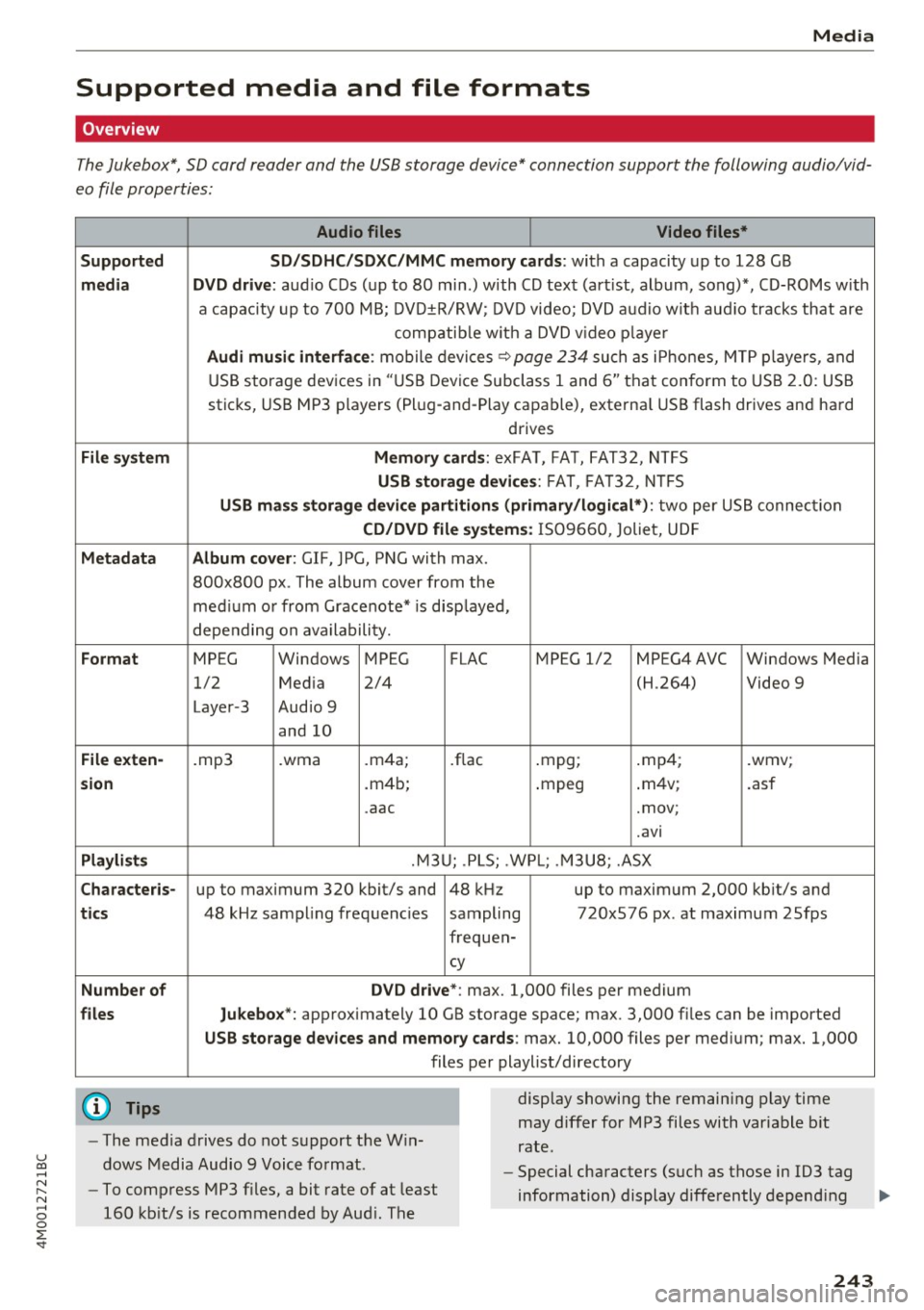
The Jukebox*, SD card reader and th e USB storage d evice* connection support the follo wing audio/vid
e o file prop erti es :
Audio files Video files*
Supported SD/SDHC/SDXC/MMC memory cards :
with a capacity up to 12 8 GB
media DVD drive : audio C Ds ( up to 80 min.) with CD tex t (art ist, album, song)*, CD-ROMs w ith
a capac ity up to 700 MB; DV D±R/RW; DVD video; DVD a udio wit h aud io tracks that are
compatib le w it h a DVD v ideo p laye r
Audi musi c interfa ce : mobile devices~ page 234 such as i Phones, M TP playe rs, and
USB storage dev ices in "USB D evice Subclass 1 and 6" tha t conform to USB 2.0: USB
sticks, USB MP3 players (Pl ug -and-Play capable), external USB flash drives and hard
drives
File sys tem Memor y cards: exFA T, FA T, FAT32, NTFS
USB storag e devices : FAT, FA T32, N TFS
USB mas s storage device partitions (primary /logical*) : two per US B connec tion
CD/DVD file systems : IS 0 9660 , Joliet, UD F
Metadata Album cover : GIF, JPG, PN G with max.
800x800 px . The album cover from the
med ium o r from Gracenote* is disp layed,
depending on availability.
Format MPEG Windows MPEG FLAC MPEG 1/2 MPEG4AVC Windows Media
1/2 Med ia 2/4 (H.264) Video 9
Laye r-3 Audio 9
and 10
File exten-.mp3 .wma .m4a; .flac .mpg; .mp4; .wmv;
sion .m4b; .mpeg .
m4v; .asf
.aac .mov;
.avi
Playlist s .M3U; .PLS; .WP L; . M3U8; .ASX
Characte ris-up to maximum 320 kbit/s and 48 kHz up to maximum 2,000 kb it/s and
ti cs 48 kHz sampling frequencies sampling 720x576 px. at maximum 2Sfps
frequen-
cy
Number of DVD d rive *: max. 1,000 files per medium
files Jukebox*: approx imately 10 GB storage space; max. 3,000 fil es can be imported
USB sto rage dev ices and memory ca rds: max. 10,000 files per med ium; max. 1,000
files per playlist/directory
{O) Tips
- The media drives do not s upport the W in
dows Media Audio 9 Voice format. display
showing the remaining play time
may differ for MP3 files with variable b it
rate.
- Special characters (suc h as those in 103 tag
- To compress MP3 files, a bit rate of at least
160 kb it/s is recommended by Aud i. The information) display differently depend
ing ..,.
243
Page 247 of 402
u co ..... N r--... N ..... 0
0
:E: '
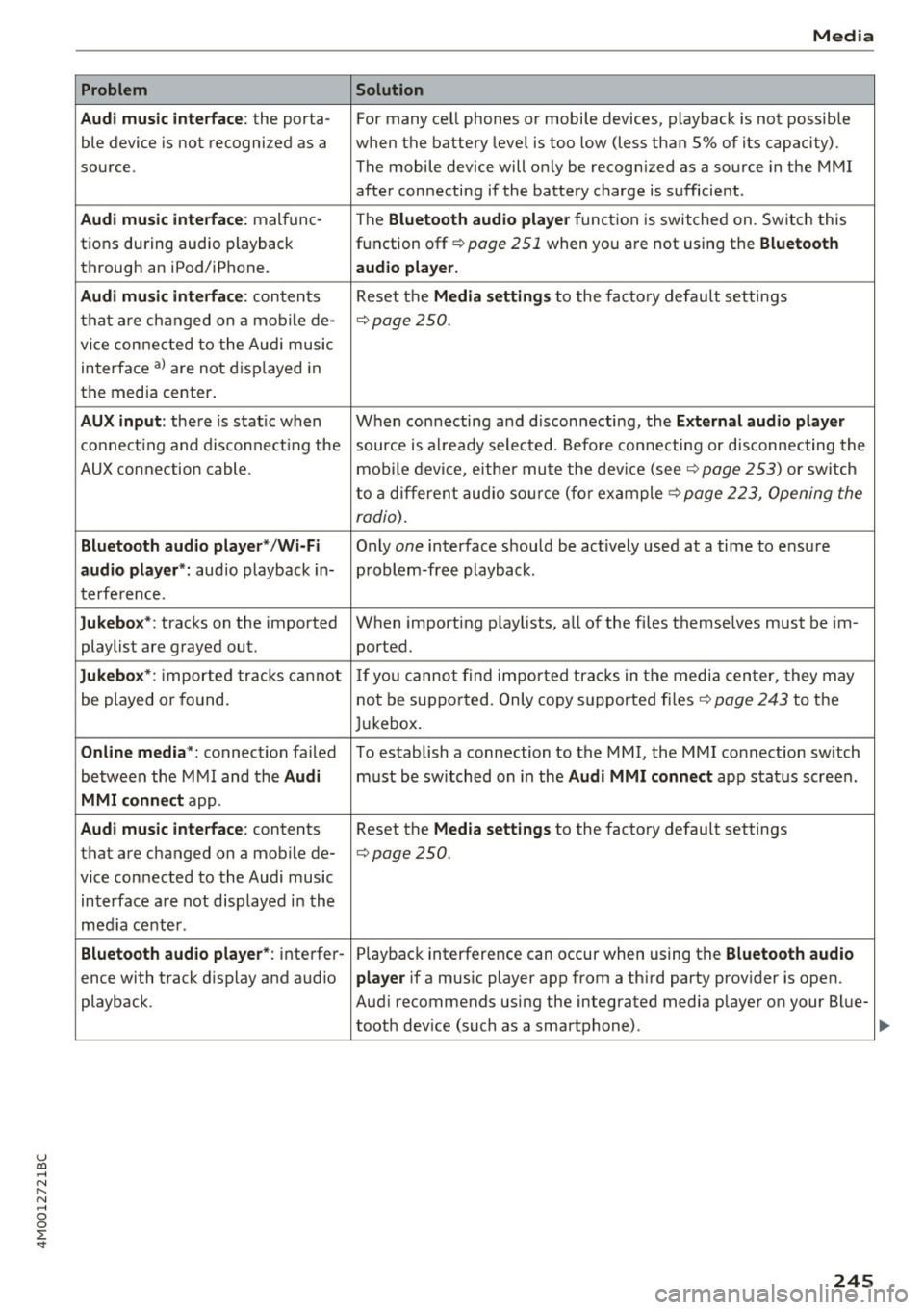
Audi music interface :
the porta-
ble device is not recogni zed as a
source.
Audi music interface : malfunc-
tions during audio playback
through an iPod/ iPhone.
Audi music interface : contents
that are changed on a mobile de-
vice connected to the Audi music
interface al are not displayed in
the media center.
AUX input: there is stat ic when
connecting and disconnecting the
AUX connection cable .
Bluetooth audio player* /Wi-Fi
audio player *:
aud io playback in-
terference.
Jukebox* : tracks on the imported
playlist are grayed out.
Jukebox* : imported tracks cannot
be played or found.
Online media *: connection failed
between the MMI and the
Audi
MMI connect
app.
Audi music interface: contents
that are changed on a mobile de-
vice connected to the Audi music interface are not displayed in the
med ia center .
Bluetooth audio player *: interfer-
ence with track d isplay and audio
playback.
Media
Solution
For many ce ll phones or mobile devices, playback is not possible
when the battery level is too low (less than 5% of its capacity).
The mobile de-vice will only be recognized as a source in the MMI
after connecting if the battery charge is sufficient .
The
Bluetooth audio player f unction is switched on. Switch this
function off
c:> page 2 51 when you a re not using the Bluetooth
audio player.
Reset the Media settings to the facto ry defau lt settings
c:> page250.
When connecting a nd disconnecting, the External audio player
source is already selected. Before connecting or disconnecting the
mobile device, either mute the device (see
c:> page 253) or switch
to a different audio source (for example
c:> page 223, Opening the
radio) .
Only one interface should be act ively used at a time to ensure
problem-free playback .
When importing playlists, a ll of the fi les themselves must be im-
ported.
If yo u cannot find impor ted tracks in the media center, they may
not be supported. Only copy supported files
c:> page 243 to the
Jukebox.
To establish a connection to the MMI, the MMI connection sw itch
must be switched on in the
Audi MMI connect app status screen .
Reset the
Media settings to the factory default settings
c:> page 250.
Playback interference can occur when using the Bluetooth audio
player
if a music player app from a th ird party provider is open.
Aud i recommends using the integrated media player on your Blue-
tooth dev ice (such as a smartphone) .
245
Page 249 of 402
u co ...... N r-... N ...... 0
0
:E: '
Setup
App lies to: veh icles with Audi smartpho ne interface
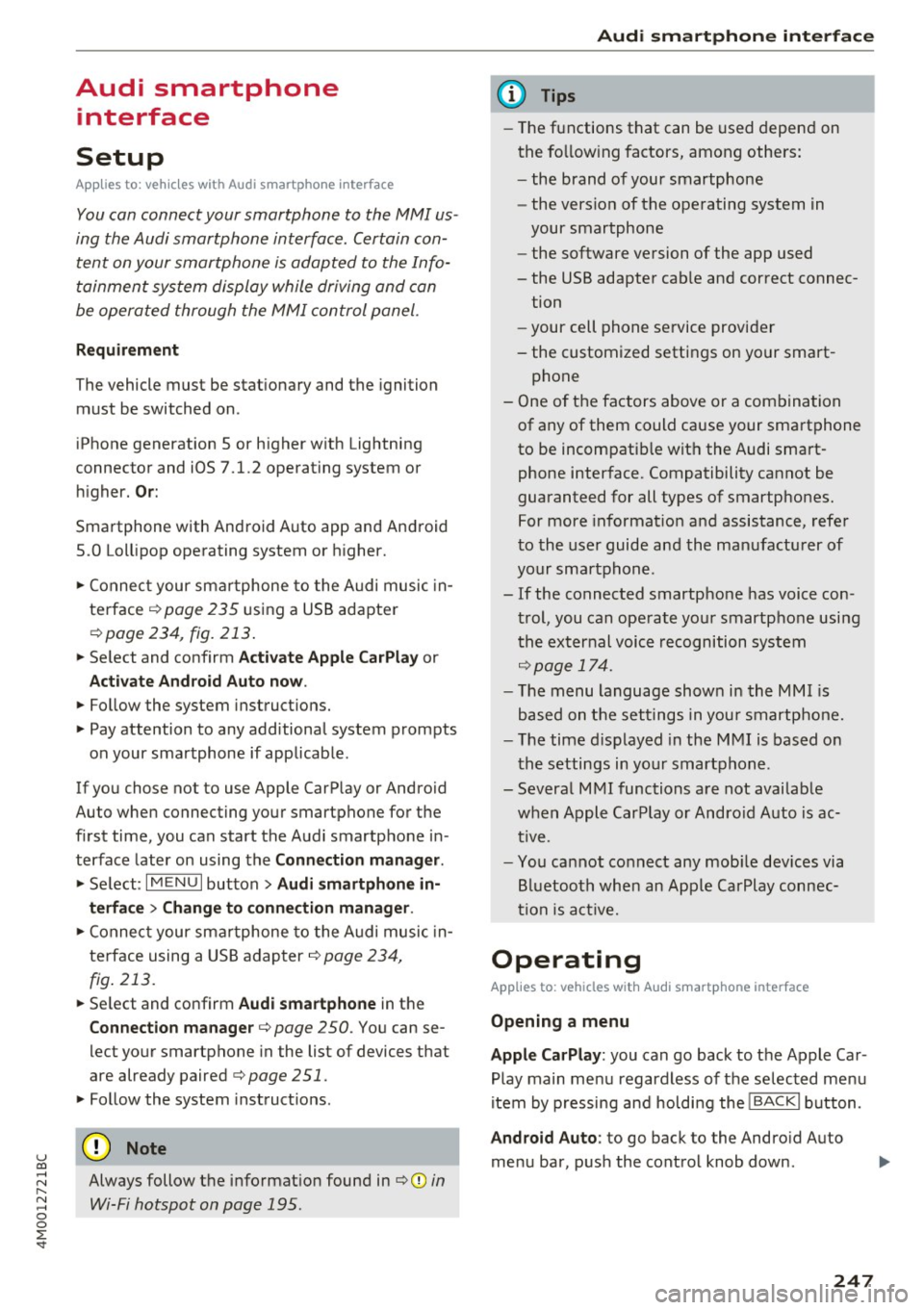
You can connect your smartphone to the MMI us
ing the Audi smartphone interface . Certain con
tent on your smartphone is adapted to the Info
tainment system display while driving and can
be operated through the MMI control panel.
Requirement
The vehicle must be stationary and the ignition
must be switched on.
iPhone generation 5 or higher with Lightning
connector and iOS 7.1.2 operating system or
h igher.
Or:
Smartphone with Android Auto app and Android
5 .0 Loll ipop operating system or higher.
.,. Connect your smar tphone to the Audi music in
te rface
c:> page 235 using a USB adapter
c:>page 234, fig. 213 .
.. Se lect and confirm A cti va te Apple CarPl ay or
Acti vate And roid Auto now.
.. Follow the system instruct ions.
.,. Pay attention to any add itional system prompts
on your smartphone if applicable.
If you chose not to use Apple CarPlay or Android
Auto when connecting your smartphone for the
first time, you can start the Audi smartphone in
terface later on using the
Connection m an ager .
.. Se lect: I MENU I button > Audi smartphone in·
terfa ce
> Change to connecti on manager .
.. Connect your smar tphone to the Audi music in
terface using a USB adapter
c:> page 234,
fig . 213.
.. Se lect and confirm Audi smartphone in the
Connection manager c:> page 250. You can se
lect your smartphone in the list of devices that
are already paired
c:> page 251.
.,. Follow the system instruct ions.
Always follow the informat ion found in
c:>(D in
Wi-Fi hotspot on page 195 .
Audi smartphon e int erfac e
{!) Tips
-The functions that can be used depend on
the fo llow ing factors, among others:
- the brand of your smartphone
- the vers ion of the operating system in
your smartphone
- the software ve rsion of the app used
- the USB adapter cab le and correct connec-
tion
- your cell phone se rvice provider
- the customized settings on your smart -
phone
- One of the factors
above or a combina tion
of any of them could cause your smartphone
to be incompatib le wit h the Audi smart
phone interface. Compatibility cannot be
guaranteed for all types of smartphones.
For more informat ion and assistance, refe r
to the use r guide and the manufactu rer of
your smartphone .
- If the connected smartphone has voice con
tr ol, you can operate your smartpho ne usi ng
t he external voice recognition system
c:>page 174.
-The menu language show n in the MMI is
based on the settings in you r smartphone .
- T he time d isplayed in the MMI is based o n
t he settings in your smartphone.
- Several MMI functions are not avai lab le
when Apple Car Play or Andro id Auto is ac
tive.
- You ca nnot co nnect any mob ile dev ices via
Bl uetooth when an App le CarPlay connec
tion is ac tive .
Operating
Applies to: vehicles wit h Audi smartp hone interface
Opening a menu
App le CarP lay :
you can go back to the Apple Car
Play main menu regardless of the se lec ted menu
item by p ressing and holdi ng the
I BACKI button .
Android Auto : to go back to the Android Auto
me nu bar, push the control knob down.
247
Page 250 of 402
Audi smartphone interface
Opening a menu item
Select and confirm a menu i tem using the MM I
con trol panel.
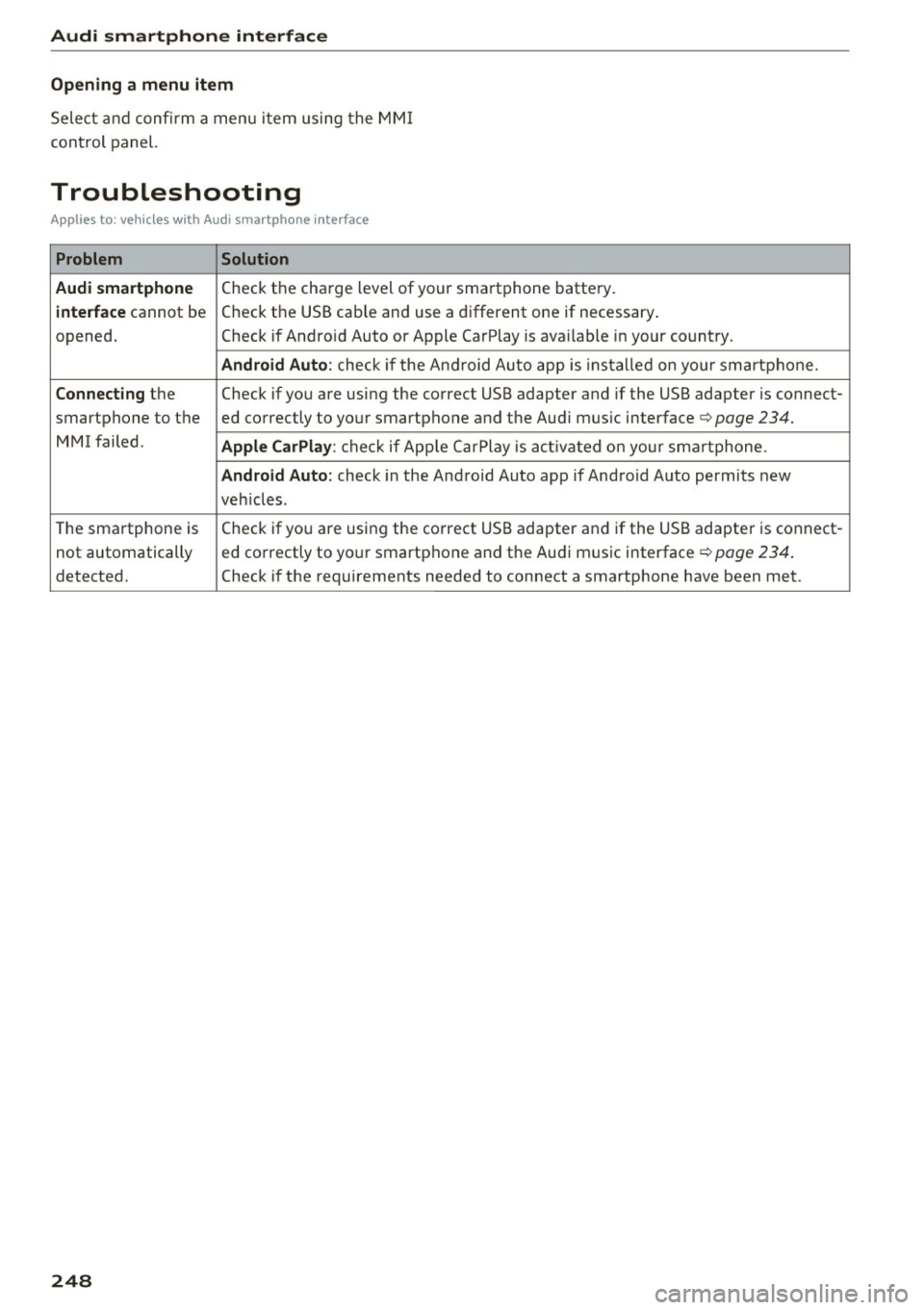
Troubleshooting
App lies to: vehicles with Audi smartphone interface
Problem Solution
Audi smartphone
Check the cha rge level of your sma rtphone battery.
interface cannot be Check t
he USB cab le and use a d ifferent one if necessary .
opened. Check if Andro id Auto or Apple CarPlay is ava ilable in your co untry .
Android Auto : check if the An droid Au to app is ins ta lled on yo ur smart phone .
Connecting the Check if yo u are us ing the correct USB adapter and if the USB adapter is connect-
smartphone to the ed correctly to yo ur smartphone and the Aud i m us ic interface ¢
page 234.
MMI failed . Apple CarPlay : che ck if App le Ca rPlay is act ivated on your sm artphone .
Android Auto: check in the And roid Auto app if And roid Auto permits new
veh icles .
T he sma rtphone is Check if yo
u are us ing the co rre ct USB adapter and if the USB adapter is connect-
not automatically ed co
rrectly to yo ur smartp hone and the Aud i m usic interface ¢
page 234.
detected. Check if the requirements needed to connect a smartphone have been met.
248
Page 252 of 402
System settings
wait for the signal tone (beep) to say a new
command.
Volume: yo u can adjust the volume of the
p rompts by turning the control knob.
Individual speech training (only when the vehi
cle is stat ionary): you can adapt the voice recog
n it ion system to your voice or pronunciation in
order to improve the system's ability to recognize
your speech . Individua l training is comprised of
20 speech entries that consist of commands and
sequences of numbers. You can delete the pro
grammed voice tra ining w ith the
Reset individu
al speech training
function.
Display brightness
You can adjust the brightness of the Infotain
m ent system disp lay by turning the contro l knob.
Factory settings
The following functions can be reset to the facto
ry default settings :
-Sound settings
- Radio
- Media settings
- Jukebox *
- Directory
-Telephone
- Bluetooth and Wi-Fi*
- Navigation settings*
- Navigation and online memory *
- Voice recognition system*
- Shortcut keys
- Message settings*
-Apps*
-Tool tips
- Audi connect *
- Audi smartphone interface*
You can se lect the desired functions individually
or all at once with the option
Select all entries .
Select and confirm Restore factory settings .
(D Tips
Make sure that not only the settings were de
leted but also the stored data, if applicable .
250
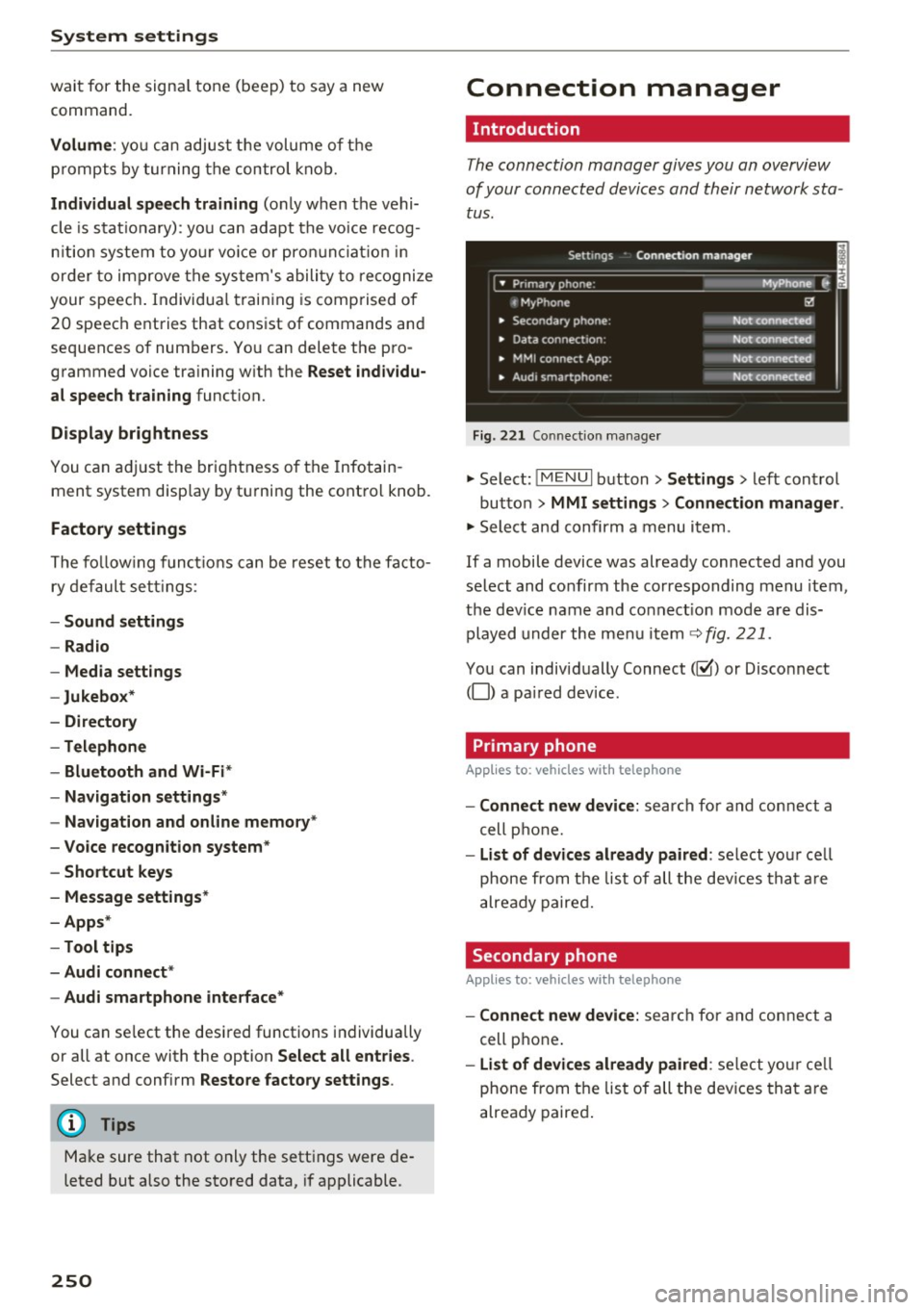
Connection manager
' Introduction
The connection manager gives you an overview
of your connected devices and their network sta
tus.
Settings Conne·ction manager I
====- .. · ~•_P_n_m_•~~-h~o_n~e_: ________ _____ M_ y ~ Phone ~
, MyPhone
• Secondary phone:
• Data connection :
• MMI connect App:
" Audi smartphone:
Fig. 221 Connect io n manager
@
Not connected
Not connected
Not connected
Not connected
"Select : !M ENUI button> Settings > left control
button >
MMI settings> Connection manager .
"Select and confirm a menu item.
If a mobile device was already connected and you
select and confirm the corresponding menu item,
the dev ice name and co nnect ion mode are dis
played under the menu item
c:!;> fig. 221.
You can individually Connect(~ or Disconnect
(0) a paired device .
' Primary phone
Applies to: vehicles with telephone
- Connect new device: search for and connect a
cell phone.
- List of devices already paired : select you r cell
phone from the list of all the devices that are
already paired.
Secondary phone
Applies to: vehicles with telephone
-Connect new device: search for and connect a
cell phone .
-list of devices already paired : select yo ur cell
phone from the list of all the devices that are
already paired.
Page 253 of 402
Data connection
Applies to vehicles w ith A ud i con nect (Infota inme nt)
- T he data connect ion is made using the embed
ded SIM card
l) ¢page 189. You do not need to
adjust any addit ional se ttings.
(D Note
Always follow the info rmat ion found in ~CD in
Wi-Fi hotspot on page 195.
MMI connect app
A pp lies to vehicles w it h Aud i connect (Infota inme nt)
Req uirement: the Audi MMI connec t app must
be installed and open on your mobile device .
-Co nne ct n ew d ev ic e: search for and connec t a
mobile device (such as a smartphone).
- List of d evice s alr ead y paired : select your mo
bile device from the l ist of a ll the devices that
are already paired.
Audio player
Ap plies to vehicles w ith B luetoot h or Wi -Fi aud io playe r
Bluetooth play er*
Requirement: the Bluetooth funct ion and vis ibili
ty must be switched on in the MM I
¢ page 251
and on the ce ll phone.
- Conn ect new d ev ice : press the contro l knob.
Se lect
Bluet ooth a udio pla ye r. Search for and
connect a mobile device.
- List of devi ce s alrea dy pai red : select a Bl ue
too th device from the list of a ll the devices that
are already paired .
Wi-Fi audio pla yer *
Requirement: the W i-Fi hotspot on the M MI
~ page 195 and on you r ce ll phone must be
sw itched on.
- Conn ect new de vice: press the control knob .
Search for and connect a Wi-Fi capable device .
-Di sconn ect Wi-Fi audio pla yer : deactivate the
Wi-Fi on your W i-Fi capab le device. The dev ice
u ~ will be automatically removed from the l ist.
N r-... N ..... 0
0
~ l) S IM card in stalle d in t he vehicle at th e factory.
Sys te m set ting s
(D Note
Always fo llow the information found in ~ 0 in
Wi-Fi hotspot on page 195.
Directory
Applies to : veh icles w it h te lepho ne
Display contacts from a cell phone (or an addi
tional cell phone).
Requirement: no cell phones can be connec ted to
the MMI using the
Handsfr ee prof ile .
- Connect new d evice : search fo r and connect a
new ce ll phone .
-List o f device s alr eady pai red: select your ce ll
pho ne from the list of all the cell phones that
are a lready pai red .
Audi smartphone
Applies to : veh icles w ith Audi s m artp hone interface
- Connect your ce ll phone to the Audi music in
terface ~
page 235 using a USB adapter
¢ page 234, fig . 213 .
- Select your cell phone from the list of cell
phones that have a lready been connected.
Additional options
Depending on the selected function, you can use
the right control button to access the availab le
additional options in the connection manager.
Delete Bluetooth de vic e*
The selected cell phone/mobile device is discon
nected from the MMI and is removed from the
list of all devices that are already paired.
Show Bluetooth profiles *
You can Connect or Disconne ct the H and sfr ee,
Me ssage s*, Director y/conta ct s
and Bluet ooth
aud io pl ayer
profiles separate ly.
Bluetooth settings *
- Bluetooth :
select and confi rm a setting for the
Bl uetooth connection visib ility . Se lect
Vi sible ...,
251
Page 254 of 402
System settings
for the MMI to be visib le to other devices . Se
lect
Invisible for the MMI to not be visible to
other devices. However, it is still possib le to es
tab lish a Bluetooth connection with paired de
vices when the v is ibility is switched off. Select
Off to turn visibility off . Then a Bluetooth con
nect ion is not possible .
-Bluetooth audio player : when this function is
switched on~. the Bluetooth aud io player is
available as a sou rce in the
Media menu .
-Bluetooth name : the MMI Bluetooth name (for
example .,AUDI MMI 2016") is displayed and
can be changed .
Online settings*
- Data usage counter :
the amount of data pack
ets that are sent and received through the MMI
is d isplayed . You can reset the data usage infor
mation to zero using the
Reset data counter
option.
-Network status: the mobile network p rovider
for data service as well as the network status
are displayed.
Wi-Fi settings*
See c> page 195, Wi-Fi hotspot.
Storing as a default telephone
Applies to: vehicles with telephone
Requirement: a cell phone must be connected to
the MMI
c> page 176 .
As soon as the cell phone is in range and the
Bluetooth function on the ce ll phone and in the
MMI is switched on, this cell phone is given prior
ity over the other Bluetooth devices and is con
nected directly to the MMI. The connected cell
phone is displayed first in the device list.
Network settings*
- Login :
you can chose an automatic login to
your ce ll phone service provider's network, or
yo u can choose a
manual login from the list of
available networks.
- Network selection: available networ ks in the
present location can be selected under network
selection. This function is only available for the
Manual login setting.
252
Apple CarPlay sound settings/ Android Auto
sound settings
Applies to: vehicles with Audi smartphone interface
See ¢ page 253.
About Apple CarPlay/ About Android Auto
Applies to: vehicles with Audi smartphone interface
Here you w ill find lega l informa tion regarding
the use of Apple CarPlay or Andro id Auto and in
formation about device-specific data exchange.
Delete CarPlay device/Delete Android Auto
device
Applies to: vehicles with Audi smartphone interface
Requirement: yo ur cell phone must not be con
nected to the Aud i m usic interface with a USB
adapter .
Select:
Audi smartphone > a device from the list
> r igh t control button.
To remove your cell phone from the list, select
and confirm
Delete CarPlay device or Delete An
droid Auto device .
System update
.,,. Select : !ME NUI button> Settings > left control
button >
System maintenance.
- System update:
slide the storage device with
the update data into the appropriate drive
¢ page 229. Select and confi rm the drive>
Start update. The length of the process de
pends on the size of the update.
- Reset driver installation: the selected media
driver package is reset to the settings at the
time of delivery.
-Version information : info rmation on the MMI
sof tware version and the navigation database*
so ftware version is disp layed. The
Software in
formation
function also prov ides information
on the software contained in the MMI and the
licensing agreement.