2017 AUDI A8 infotainment
[x] Cancel search: infotainmentPage 116 of 354

Parking systems
Parking systems
General information
Applies to: vehicles with parking system plus/rearview cam
era/peripheral camera
Depending on your vehicle's equipment , various
parking aids will help you when parking and ma
neuvering.
The
parking system plus assists you when park
ing by audibly and visually indicating objects de
tected in front of and behind the vehicle
¢page 115.
The rearview camera shows the area behind the
vehicle in the Infotainment system display. This
display assists you when you are cross or parallel parking
¢ page 116. The parking system plus
functions are also available
¢ page 115.
The peripheral cameras give various views to
help you when parking or maneuvering
¢ page 119. The parking system plus functions
are also available
¢page 115.
& WARNING
-Always look for traffic and check the area
around your vehicle by looking at it directly
as well. The parking system cannot replace
the driver's attention. The driver is always
responsible when entering or leaving a park
ing space and during similar maneuvers .
- Please note that some surfaces , such as
clothing, are not detected by the system .
- Sensors and cameras have blind spots in
which people and objects cannot be detect
ed . Be especially cautious of small children
and animals .
- The sensors can be displaced by impacts or
damage to the radiator gr ille, bumper,
wheel housing and the underbody . The park
ing system may be impaired as a result.
Have an authorized Audi dealer or author
ized Audi Service Facility check their func
tion .
- Make sure the sensors are not obstructed by
stickers, deposits or other materials. If they
are, the sensor function could be impaired.
For additional information on cleaning, see
c:> page 306.
114
(D Note
-Some objects are not detected or displayed
by the system under certain circumstances:
- Objects such as barrier chains, trailer draw
bars, vertical poles or fences
- Objects above the sensors such as wall ex
tensions
- Objects with certain surfaces or structures
such as chain link fences or powder snow
- If you continue driving closer to a low ob
ject, it may disappear from the sensor range. Note that you will no longer be
warned about th is obstacle.
(D Tips
- The system may provide a warning even
though there are no obstacles in the cover
age area in some situations, such as:
- certain road surfaces or when there is tall
grass.
- external ultrasonic sources such as from cleaning vehicles .
- in heavy rain, snow, or thick vehicle ex
haust.
- We recommend that you practice parking in
a traffic -free location or parking lot to be
come familiar with the system . When doing
this, there should be good light and weath
er conditions.
- You can change the volume and pitch of the
signals as well as the display¢
page 124.
-Please refer to the instructions for towing a
trailer located in
¢page 124.
-What appears in the infotainment display is
somewhat time-delayed.
- The sensors must be kept clean and free of
snow and ice for park aid to operate .
Page 119 of 354

C) C0 ....
"' " "' .... 0 0 :r
the display appear closer or farther away:
- For objects that do not touch the ground,
such as the bumper of a parked vehicle, a
trailer hitch or the rear of a truck. Do not
use the orientation lines in this case.
- If driven from a level surface onto an in
cline, or a downward slope.
- If driven toward protruding objects.
- If the vehicle is carrying too much load in
the rear.
- The accuracy of the orientation lines and
blue surfaces decreases when the vehicle is
raised/lowered ¢
page 110.
(D Note
-Always read and follow the applicable warn
ings
c:> © in General information on
page 114 .
-The orange-colored orientation lines in the
Infotainment display show the vehicle path based on the steering wheel angle . The
front of the vehicle swings out more than
the rear of the vehicle. Maintain plenty of
distance so that an exterior mirror or a cor
ner of the vehicle does not collide with any
obstacles.
Switching on/off
Applies to: vehicles with rearv1ew camera
Switching on
"'Shif t into reverse, or
"' Press the
p,,,A button in the center console
c:>page 115, fig. 131. A short conf irmation
tone sounds and the LED in the button turns
on.
Switching between the rearview camera and
optical display
"' Press the Graphic contro l button ®
c:, page 117, fig. 136 to see the optical display .
"' Press the
Rear view control button to see the
. . rearv,ew camera image.
Switching off
"'Drive faster than 6 mph (10 km/h), or
"' Press the
P'"A button, or
Parking systems
"'Sw itch the ignition off.
@ Tips
- The visual display in the left part of the dis
play should help you detect the critical vehi
cle areas.
- You can change the volume and pitch of the
signals as well as the display ¢
page 124.
Perpendicular parking
Applies to: vehicles with rearview camera
This view may be used when parking in a garage
or in a parking space.
Fig. 136 Infota inment system: a iming at a park ing space
Fig. 137 Infotainment system: aligning the vehicle
"'Turn the Infotainment system on and shift into
reverse gear.
"' The orange orientation lines
(D show the direc
tion of travel of the ve hicle. Turn the steering
wheel until the orange orientation lines appear
in the parking space
c:> fig. 136. Use the mark
ings @to help you estimate the distance to an
obstacle. Each marking represents approxi
mately 3 ft (1 m). The blue area represents an
extension of the vehicle's outline by approxi
mately 16 ft (S meters) to the rear.
117
Page 120 of 354
Parking system s
• While driving in reverse gear, adjust the steer
ing whee l angle to fit the parking space using
the orange orientation lines for assistance
c> & in General information on page 116, c> (D
in General information on page 117. @ repre
sents the rear bumper . At the very latest, stop
the veh icle when t he red orientation line @
borders an object .
Parallel parking
App lies to: ve hicles w ith rearview ca mera
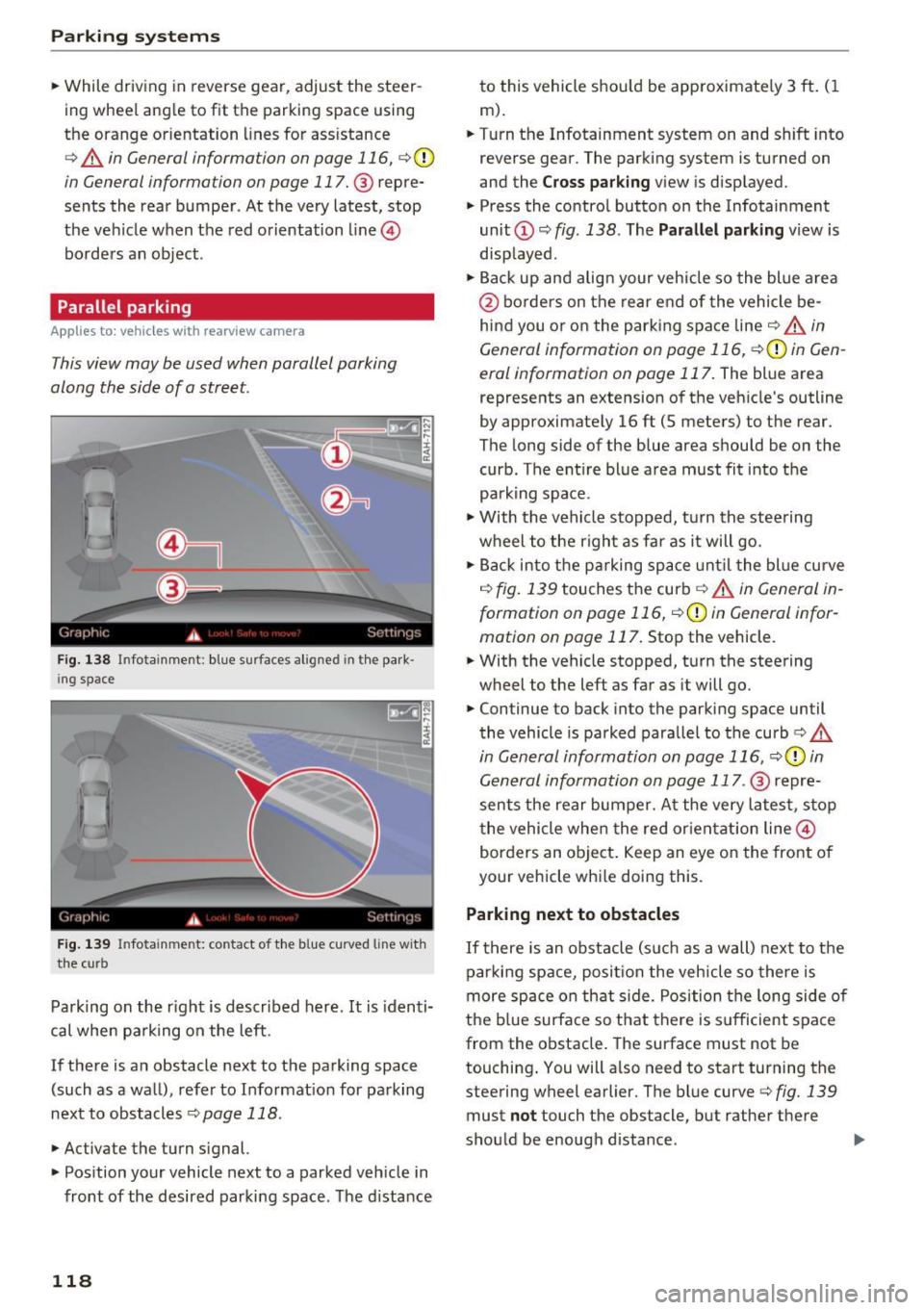
This view may be used when parallel parking
along the side of a street.
F ig. 1 38 Infotainment: blue surfaces aligned in th e par k
i ng space
Fig . 1 39 In fotainment: contact of the bl ue curved line with
t h e curb
Parking on the r ight is described here. It is identi
cal whe n pa rking on the left.
If there is an obstacle next to the parking space (such as a wall), refer to Informat ion for parking
next to obstacles
c:::> page 118 .
• Activate the turn signal.
• Pos ition your vehicle next to a parked veh icle in
front of the desired parki ng space. The distance
118
to this vehicle should be approximate ly 3 ft . (1
m) .
• Turn the Infotainment system on and shift into
reverse gear. The parking system is turned on
and the
C ro ss park ing view is disp layed.
• Press the contro l butto n on the Infotainment
unit ©~
fig. 138 . The Parallel parking view is
disp layed.
• Backup and align your veh icle so the blue a rea
@ bo rders on the rear end of the vehicle be
hind you or on the park ing space line
c:::> & in
General information on page 116,
c:::> (D in Gen
eral information on page 117.
The blue area
represents an extension
of the vehicle's outline
by approximately 16 ft (5 meters) to the rear.
The long side of the blue area should be on the curb. The entire blue area must fit into the
parking space.
• With the vehicle stopped, t urn the steering
wheel to the right as far as it will go.
• Back into the p arking space unt il the bl ue curve
<=:> fig. 139 touches the curb c:::> & in General in
formation on page 116,
<=:> CD in General infor
mation on page 117 .
Stop the vehicle.
• With the vehicle stopped, turn the steering
wheel to the left as far as it will go.
• Continue to back into the parking space until
the vehicle is parked paralle l to the curb
c> &
in General information on page 116, c> (D in
General information on page 117 .
@ repre
sents the rear bumper. A t the very latest, stop
the vehicle whe n the red or ientat ion line @
borders an object . Keep an eye on the front of
your vehicle whi le doing this.
Parking next to obstacles
If there is an obstacle (s uch as a wall) nex t to t he
parking sp ace, posi tion the veh icle so there is
more sp ace on that side. Position the long side o f
the b lue surface so that there is s ufficient space
from the obstacle. The surface must not be
touching . You will a lso need to start turning the
steering wheel earlier. The bl ue curve
c> fig. 139
must not touch the obstacle, but rather there
should be enough distance .
Page 121 of 354

@ Tips
The left or ri ght orientation lines and surfaces
w ill be displayed, depending on the turn sig
nal being used.
Peripheral cameras
Introduction
A ppl ies to: ve hicles with per ip heral came ras
W ith this equipmen t, the parking system p lus*
c::!;> page 115 is supplemented with various periph
e ral cameras.
The fo ur cameras g ive you the fo llow ing v iews :
a rea around the vehicle, front corner view and
rear corne r view, view in front of the ve hicl e and
behind the vehicle .
General information
Appl ies to: ve hicles with pe rip heral ca meras
Fi g. 14 0 Locatio n of perip he ra l cameras
The fo ur per ipheral cameras are located i n the ra
d iator grille, in the luggage compa rtment lid and
on both exterior mirrors
¢ fig . 140 . Make sure
that the lenses are not covered by deposits or any
other obstructions as this may impa ir the system.
For information on cleaning, refer to
¢page 306.
In the Top view mode, black corners are shown i n
the vehicle silhouette. Objects in these areas are
outside of the camera's fie ld of view and are not
detected.
The accuracy of the orientation lines and the blue
~ surfaces is reduced if the adapt ive air suspen-...,
~ sion/sport* is faulty, if the vehicle is lifted or if N
8 the D ynamic mode is activated ¢ page 110. 0 :r
A WARNING
-
-Always read and follow the applicab le warn-
i n gs¢ &.
in General information on
page 114 .
-If the position or the installat io n angle of a
camera was changed, for example afte r a
coll is ion, do not cont inue to use the system
for safety reasons. Have it c hec ked by a n au
thori zed A udi dealer or authorized A udi
Serv ice Facility.
- Keep in mind that the image in the display is
i n cor rec t if the exterio r mirror housing ha s
been manually adjus ted.
- Use the
Rear mode and the corner view
( rear)
mode only when the luggage com
partment lid is comp letely closed. Other
wise the image in the disp lay w il l be distort
ed .
- The vehicle surround ings are shown using
the camera images . The vehicle image is
shown by the system. Objects and obstacles
above the camera are not disp layed.
- Camera lenses enlarge and distort the field
of vision. The objects appear both a ltered
and inaccurate on the screen.
(D Note
- Always read and fo llow the applicab le wa rn
ings
¢ (Din General information on
page 114.
- The Infotainment display shows the direc
tion in which the rear of the ve hicle is travel
ing based on the steering whee l ang le. The
front of the vehicle swings out more than
the rear of the vehicle . Maintain plenty of
dis tance so that a n exte rior m irror or a cor
ner of the vehicle does not coll ide with any
obsta cles.
¢j) Tips
If the 8/cr;J'J/c:s symbol appears in the d is
p lay and the respective d isp lay area is grayed
o ut, then the powe r exter io r mir rors we re
fo lded in or one of t he doors/l ugg age com
partment lid w as opened .
119
Page 122 of 354

Parking systems
Switching on or off
Applies to: ve hicles w ith per ip heral cameras
Fig. 141 Center console: Pw.!. button
F ig . 142 Infotainment system: select the mode
Switching on
.. Shift into reverse, or
.. Press the P"'A button in the center console
c> fig. 141. A short confirmation tone sounds
and the LED in the button turns on.
Selecting the mode
.. Turn the cont rol knob to the symbol for the de
sired mode @ through ®¢
fig. 142 and press
the control knob.
Switching off
.. Drive faster than 6 mph (10 km/h), or
.. Press the
P1#~ button, or
.. Switch the ign ition off.
You may select from the following modes:
@ -Top view
c> page 120
® -Corner view (front) c> page 121
© -Front¢ page 121
@-Rea rc> page121
® -Corner view (rear)¢
page 121
120
Peripheral
Applies to : vehicles wit h per ipheral cameras
Fig. 143 Infota inment system: periphera l mode
This view is ideal for maneuvering. The vehicle
surroundings are shown using the camera im
ages. The vehicle image is shown by the system.
Selecting peripheral
.. Select the@ symbo l with the contro l knob and
press the control knob.
Switching between optical view and camera
image
.. Press the Graphic © control button to see the
optical display .
.. To display the camera image, press the
Camera
control button .
Page 123 of 354

C) C0 ....
"' " "' .... 0 0 :r
Applies to: vehicles with peripheral cameras
Fig . 144 Infotainment system: corner v iew (front)
Fig . 145 Infotainment system: corner view (rear)
This view can assist you for examp le, when you
are exiting from an area w ith poor visibility. The
area at the front and rear s ides of the vehicles is
displayed .
.. To show the side view toward the front, select
the symbol ®~
fig. 144 with the contro l knob
and press the control knob .
.. To show the side view toward the rear, select
the symbol ®
q fig. 145 with the control knob
and press the control knob .
Parking systems
Front
Applies to: vehicles with peripheral cameras
Fig. 146 Infot ainme nt system: front mode
This view assists you for example, in using the
full maneuvering range in front of the vehicle.
The area in front of the vehicle is displayed. The
vehicle surround ings are shown in the left area of
the display . You can switch between the optical
display and camera image
qpage 120 .
.. Select the © symbol with the control knob. The
orange-colored orientat ion lines denote the
projected direction of travel. Stop the vehicle
when the red o rientation line* borders an ob
jec t
q _&. in General information on page 119.
Rear
Applies to: vehicles with peripheral cameras
Fig. 147 Infotainme nt system: rea r mo de
This view assists you for example, in using the
full maneuvering range behind the vehicle. The
area be hind t he vehicle is displayed. The vehicle
s ur rou ndings are shown in the left area of the
display. You can switch between the optical dis
play and ca mera image
qp age 120.
.. Select the symbol @with the contro l knob . Ill>-
121
Page 124 of 354

Parking system s
You can choose between three different views in
this mode.
.,. To cross park, parallel park or position the vehi
cle in front of a tra iler*, press the control but
ton ® on the contro l pane l repeatedly unt il the
symbol for the des ired mode is selected .
Perpendicular parking
Applies to: ve hicles w ith perip hera l cameras
This view may be used when parking in a garage
or in a parking space .
Fig . 14 8 Infotainment system: aiming at a parking space
Fig . 149 Infotainment system: aligning the veh icle
Requ irements: cross parki ng must be selected
q page 121 .
.,. The orange orientation lines (D show the d irec
tion of travel of the vehicle . Turn the steering
wheel until the orange orientation lines appear i n the pa rking space
¢ fig. 148 . Use the ma rk
ings @to he lp you estimate the distance to an
obstacle . Ea ch marking represents approxi
ma tely 3 ft (1 m). The blue area represents an
extension o f the vehicle's outline by approxi
mately 16
ft (S meters) to the rear.
.,. While driv ing in reverse gear, adjust the steer
ing wheel angle to f it the parking space using
122
the o range or ientation lines for assistance
q A in General information on page 119, q (D
in General information on page 119. @repre
sents the rear bumper. You should stop revers
ing at the latest when the red o rientation line
@ borders an object<=>.&. in General informa
tion on page 116.
Parallel parking
App lies to: vehicles wit h peripheral cameras
This view may be used when parallel parking
along the side of a street.
Fi g. 15 0 In fota inment: blue surfaces alig ned in the park
in g space
Fig. 151 Infota inment: contact of the blue c urved line w ith
the cu rb
Parking on the right is descr ibed here . It is identi
ca l when parking on the left.
If there is an obstacle next to the parking space (such as a wall), refer to Information fo r parking
next to obstacles
q page 118 .
.,. Activate the turn signal.
.,. Posit ion your veh icle next to a parked vehicle in
front of the des ired park ing space . The distance
to this vehicle should be approximate ly 3 ft. ( 1
m). ..,.
Page 125 of 354

.. Turn the Infotainment system on and shift into
reverse gear. The parking system is turned on
and the
Cross park ing view is displayed.
.. Press the control button on the Infotainment
unit @¢
page 118, fig. 138. The Para llel pa rk
ing
view is displayed .
.. Back up and align your vehicle so the blue area
@ borders on the rear end of the vehicle be
hind you or on the parking space line¢.,&.
in
General information on page 119, ¢(Din Gen
eral information on page 119 .
The blue area
rep resents an extension of the vehicle's outline
by approximately 16 ft (5 meters) to the rear .
The long s ide of the blue area should be on the
curb. The entire b lue area must f it into the
parking space .
.. With the vehicle stopped, turn the steering
wheel to the r ight as far as it w ill go .
.. Back into the parking space until the b lue curve
¢
fig . 151 touches the cu rb ¢.,&. in General in
formation on page 119, ¢(Din General infor
mation on page 119.
Stop the vehicle .
.. With the vehicle stopped, turn the steering
whee l to the left as far as it will go.
.. Continue to back into the parking space until
the vehicle is parked parallel to the curb¢
/A
in General information on page 119, ¢(Din
General information on page 119.@
repre
sents the rear bumper . At the very latest, stop
the vehicle when the red o rie ntation line@
bo rders an object . Keep an eye on the front of
you r vehicle while doing this.
Parking next to obstacles
If there is an obstacle (such as a wall) next to the
parking space, pos ition the vehicle so t here is
mo re space on that side. Position the long s ide of
the blue area so that there is s ufficient space
from the obje ct. The area must not be on the ob
stacle . You will also need to start tu rning the
steering whee l earlier. The blue curve
¢
page 118, fig . 139 must n ot touch the obsta
cle, but rather there should be enough distance.
@ Tips
C)
~ The left or right orientation lines and surfaces
"' ~ w ill be displayed, depending on the turn sig-
8 na l being used. 0 :r
Trailer mode
Applies to : vehicles wit h peripheral cameras a nd tra iler hitch
This view assists you in positioning the vehicle in
front of a trailer .
Fig. 15 2 In fotainment system: rear mo de
Requirement: the trailer mode m ust be selected
¢page 121, Rear .
.,. Now yo u can posit ion your ve hicle in front of
the t railer
¢ .,&. in General information on
page 119,
¢ (Din General information on
page 119.
The orange orient ation line indicates
the expected path toward the trailer h itch. Use
the blue lines to help you est imate the distance
to the trailer hitch.
Setting the mode
Applies to : vehicles wit h peripheral ca meras
.,. Select: !CAR ! function button> Car systems
control button > Driver assi st > Pa rking aid >
Change to front /re ar > Auto or Manual.
Auto -
This view behind the vehicle (Rear mode)
is d isplayed automat ically when you shift into re
verse. Th is view in front of the vehicle
( Front
mode) is d isplayed automat ica lly when you shift
i n to the forward gea rs.
Manu al -When you switch the system on, the
view beh ind the ve hicle
(Rear mode) is always
displayed and it does not switch to the
Front
mode when a forward gear is se lected .
123