2017 AUDI A3 SEDAN ad blue
[x] Cancel search: ad bluePage 240 of 400
Media
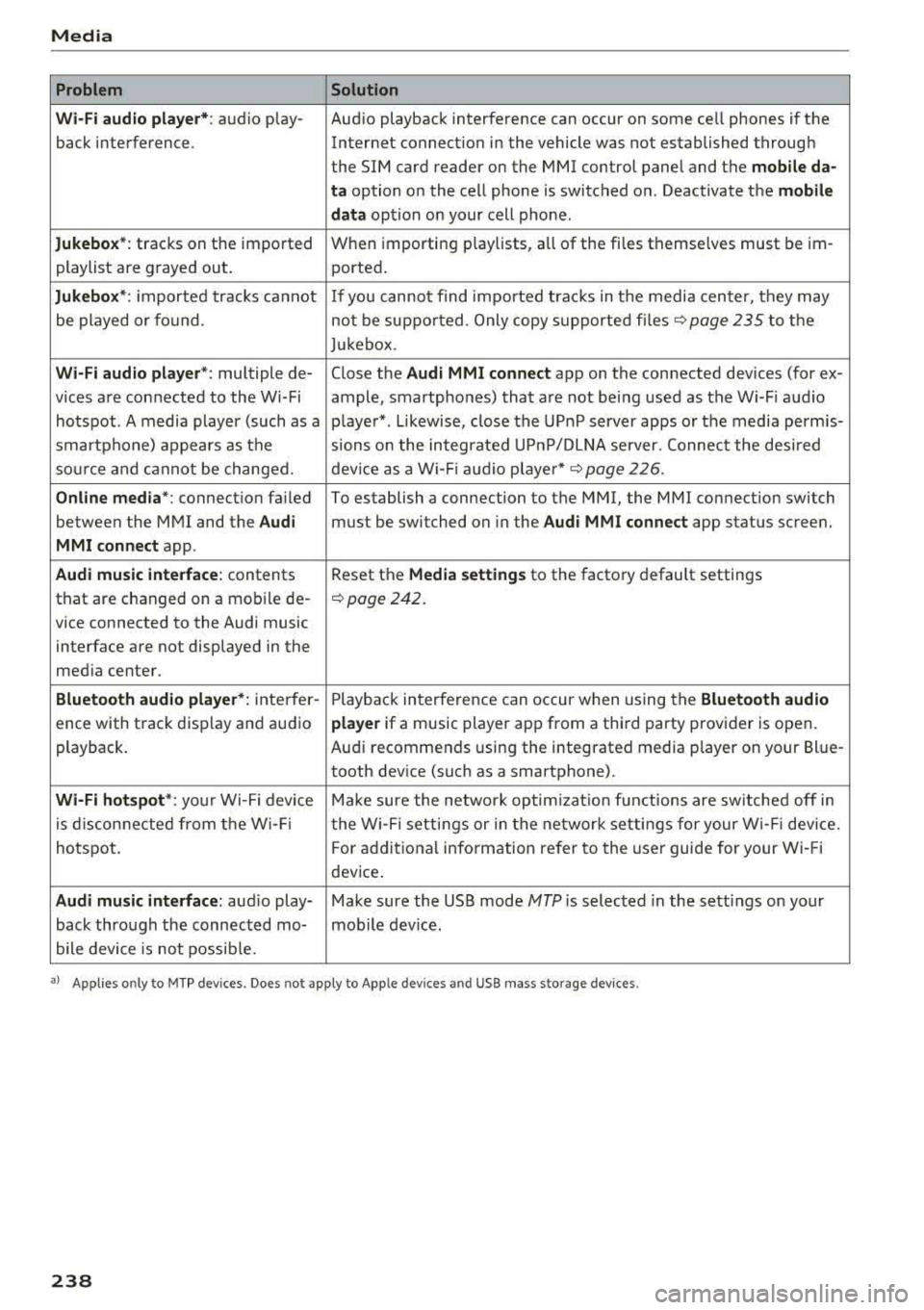
Problem Solution
Wi -Fi audio pl ayer* :
audio play- Aud io playback interference can occur on some ce ll phones if the
back interference . Internet connectilon in the vehicle was not established through
the SIM card reader on the MMI control panel and the
mob ile da-
ta
option on the cell phone is switched o n. Deactivate the mobile
dat a
option on your cell phone.
Jukebox *: tracks on the imported When importing
play lists, a ll of the files themse lves must be im-
playlist are g rayed out . ported.
Jukebox *: imported tracks ca nnot If you canno t find impo rted trac ks in t he media center, they may
be played o r fo und . not be supported . Only copy s upported fi les
~ page 235 to the
Juk eb ox .
Wi-Fi aud io pl ay e r*: multiple de- Close the Audi MMI connect app on the connected dev ices (for ex-
vices a re connected to the Wi-Fi ample, smartphones) that a re not being used as the Wi -F i audio
hotspot . A media player (such as a p laye r*. L ikewise, close the UP nP server apps or the media perm is-
smartphone) appears as the sions o n the integrated U PnP/DLNA server. Connec t the desi red
sou rce and cannot be change d. dev ice as a Wi -Fi
:aud io playe r* c::> page 226 .
Online med ia *: connect io n fa iled To establish a connection to the MMI, the MMI connection switch
between the M MI and the
Audi must be switched on in the Audi MMI connect app status scree n.
MMI conn ect app .
Audi music inte rface: contents Reset the Media settings to the factory default settings
that are changed on a mob ile de-
c::> page 242.
vice connected to the Audi music
interface are not displayed in the
med ia ce nter.
Bluetooth audio player *: inte rfer- Playb ack in terference can occur when us ing the Bluetooth audio
ence with track disp lay and au dio player if a music player app from a thi rd party provider is open .
playback. Au
di recommends using the integrated media p layer on your Bl ue-
tooth dev ice (suc h as a smartphone).
Wi-Fi hotspot *: your Wi-Fi device M ake sure the network optim izati on fun ctions are sw itched off in
is d iscon necte d from t he W i- Fi t he Wi-Fi setti ngs or in t he network setti ngs for your W i- Fi dev ice.
hotspot . For add itional info rm ation refer to the user guide for your Wi- Fi
dev ice .
Audi music interface : audio play- Make sure the USB mode MTP is selected in the sett ings on your
back thro ugh the connec ted mo- mob ile device .
bile device is not possib le.
• > A pp lies o nly to M TP dev ices . Doe s no t app ly to Ap ple dev ices and USB mass storage devices .
238
Page 241 of 400

CXl CXl .... N ,.__
Audi smartphone interface
Setup
App lies to: ve hicles with Audi smartpho ne interface
You can connect your smartphone to the MMI us
ing the Audi smartphone interface . Certain con
tent on your smartphone is adapted to the Info
tainment system display while driving and can
be operated through the
MMI control panel.
R equirement:
The vehicle must be stationary and the ignition
must be switched on.
iPhone generation 5 or higher with Lightning
connector and iOS 7.1.2 operating system or
h igher.
O r:
Smartphone with Android Auto app and Android
5 .0 Loll ipop operating system or higher.
.,. Connect your smar tphone to the Audi music in
te rface
c:> page 229 using a USB adapter
c:> page 228, fig. 211 .
.. Select and confirm A cti va te Apple CarPl ay or
Acti vate And roid Auto no w.
.. Follow the system instruct ions.
.,. Pay attention to any add itional system prompts
on your smartphone if applicable.
If you chose not to use Apple CarPlay or Android
Auto when connecting your smartphone for the
first time, you can start the Audi smartphone in
terface later on using the
Connection m an ager .
.. Select: I MENU I button > Audi smartphone in ·
terfa ce
> Change to connecti on manager .
.. Connect your smar tphone to the Audi music in
terface using a USB adapter
c:> page 228,
fig .211.
.. Se lect and confirm Audi smartphone : in the
Connection manager c:> page 242. You can se
lect your smartphone in the list of devices that
are already paired
c:> page 243.
.,. Follow the system instruct ions.
N .... 0 N iii l) In preparat io n at t he t ime of pr inting.
Aud i smartphon e int erfac e
(D Note
Always fo llow the information found in c:> @ in
Wi-Fi hotspot on page 195.
(D Tips
-The functions that can be used depen d on
the fo llowing factors, among others:
- the brand of your smartphone
- the vers ion of the operating system in
your smartphone
- the software version of the app used
- the USB adapter cab le and correct connec-
tion
- your cell phone service provider
- the customized se ttings on your sma rt-
phone
- O ne of the factors
above or a comb ina tion
o f any of them could cause your sma rtphone
to be incompatib le with the Audi smart
phone interface. Compatibility cannot be
guaranteed for all types of smartphones.
For more informat ion and assistance, refe r
to the user guide and the ma nufacturer of
your smartphone.
- If the connected smartphone has voice con
trol, you can operate you r smartpho ne usi ng
t he exter nal voice recognition system
c:> page 175.
- The menu language shown in the MMI is
based on the sett ings in you r smartphone.
- The time d isplayed in the MMI is based o n
the settings in yo ur smartphone .
- Severa l MMI functions are not avai lab le
when Apple CarPlay or Andro id Auto is ac
t ive.
- You cannot co nnect any mob ile dev ices
via
Bluetooth when an App le CarPlay connec
tion is act ive.
- Whe n the Apple CarPlay connection is ac
t ive,
Tag this song for iTunes*1> is not ava il
able
c:>page 218 .
239
Page 244 of 400

System settings
switched on~, you can say new commands dur
ing announcements. You do not need to wait for
the signal tone (beep) during an announcement.
When the function is switched off
0, you need to
wait for the signa l tone (beep) to say a new com
mand .
Volume: you can adjust the volume of the
prompts by turning the control knob.
Speech training (only when the vehicle is station
ary): you can adapt the voice recognition system
to your voice or pronunciation in order to improve
the system's ability to recogni ze your speech. In
d iv idual training is comprised of 20 speech en
tr ies that consist of commands and sequences of
numbers . You can delete the programmed voice
training with the
Reset individual speech train
ing
function.
Display brightness
Display brightness:
you can adjust the bright
ness of the Infotainment system display by turn
ing the control knob .
Factory settings
The following functions can be reset to the facto
ry default settings :
-Sound settings
- Radio
- Media settings
-Jukebox*
- Directory
- Telephone
- Bluetooth and Wi-Fi*
- Navigation settings*
- Navigation and online memory*
- Speech dialog system*
- Message settings*
- Apps *
- Tool tips
- Audi connect*
- Audi smartphone interface*
You can select the desired functions individually
or all at once with the option
Select all entries .
Select and confirm Restore factory settings.
242
(D Tips
-Make sure that not only the settings were
deleted but also the stored data, if applica
ble .
- If you reset the
Navigation and on line
memory* , Apps* or Audi connect*
to the
factory default settings, the system auto matically restarts after approximately 20
seconds . The Infotainment system display
will be black for several minutes when re
sta rting.
- Please note that the voice recognition sys
tem* is not available in Cabriolets.
Connection manager
Introduction
The connection manager gives you an overview
of your connected dev ices and their network sta
tus .
Fig. 219 Connect ion manager
.. Select: !MENU I button> Settings > left control
button >
MMI settings > Connection manager.
.. Select and confirm a menu item.
If a mobile device was already connected and you
select and confirm the corresponding menu item,
the device name and connect ion mode are dis
played under the menu item
c::>fig. 219.
You can individually Connect(~) o r Disconnect
(0) a paired device.
Using the telephone
Appl ies to: vehicles with telephone
-Connect new device: search for and connect a
cell phone.
..,.
Page 245 of 400

CXl CXl .... N ,.__
N .... 0 N > 00
-List of dev ice s already pa ired : select your cell
phone from the list of all the devices that are
already pa ired .
Secondary telephone
-Connect ne w de vic e: search for and connect a
cell phone.
-Lis t of dev ice s alread y pa ired : select your cell
phone from the list of all the devices that are
already pa ired.
Data connection
App lies to: vehicles with Audi connect (Infotainment)
The data connection is made us ing the embedded
SIM ca rd
~ page 190. You do not need to adjust
any add it ional se ttings .
(D Note
Always follow the i nformat ion found inc:> @ in
Wi-Fi hotspot on page 195.
MMI connect app
Applies to: vehicles with Audi connect (Infotainment)
Requiremen t: the Audi MMI connect app m ust
be i nstalled and open on your mobile device .
-Connect new d evice: search for and connect a
mobile device (s uch as a smartp ho ne).
-Li st of device s already pa ir e d : select your mo
bile device from the list of a ll the devices that
are already paired.
Music
Applies to vehicles with B luetooth or Wi -Fi audio playe r
Audio player *
Requirement: the Bluetooth func tion and v is ib il i
ty must be sw itched on in the MMI
c:> page 244
and on the ce ll phone.
-Connect n ew de vice : press the contro l knob.
Se lect
Bl uetooth audio pla yer . Search for and
connect a mobile device .
-List of devic es alrea dy pa ired : selec t a Blue
too th device from the l ist of a ll the devi ces that
are already paired .
Sys te m set ting s
Wi-Fi audio playe r*
Re quirement: the Wi- Fi hotspot* on the M MI
c:>
page 195 and on yo ur cell phone m ust be
switched on .
-Connect new device : press the cont rol knob .
Search for and connect a W i- Fi capab le dev ice.
-Disconn ect Wi-Fi audio player : deactivate the
Wi- Fi on you r Wi-Fi capable device. The device
w ill be automati cally removed from the list .
(Q) Note
Always fo llow the information found in ~ © in
Wi-Fi hotspo t on page 195.
Directory
Applies to: vehicles with telephone
Display contacts from a cell phone (or an addi
tional cell phone).
Requirement: no cell phones can be connected to
the MMI using the
Hand sfr ee profile.
-Connect new de vice : search for and connect a
new cell phone .
-List of devices alre ad y paired : select your ce ll
phone from the list of all the cell phones that
are already paired .
Audi smartphone
Applies to: vehicles with Aud i smartphone interface
-Connect your ce ll phone to the Audi music in
terface ~ page 229 using a USB adapter
c:> page228, fig. 211 .
-Select your cell phone from the list of cell
p hones that have a lready bee n connected .
Additional options
Depending on the selected function, yo u can use
the right control button to access the availab le
additional options in the connection manager.
Delete Bluetooth device*
T he selected cell phone/mobile device is d iscon
nected from the MM I and is removed from the
list of a ll devices that are a lready paired.
..,.
243
Page 246 of 400
System settings
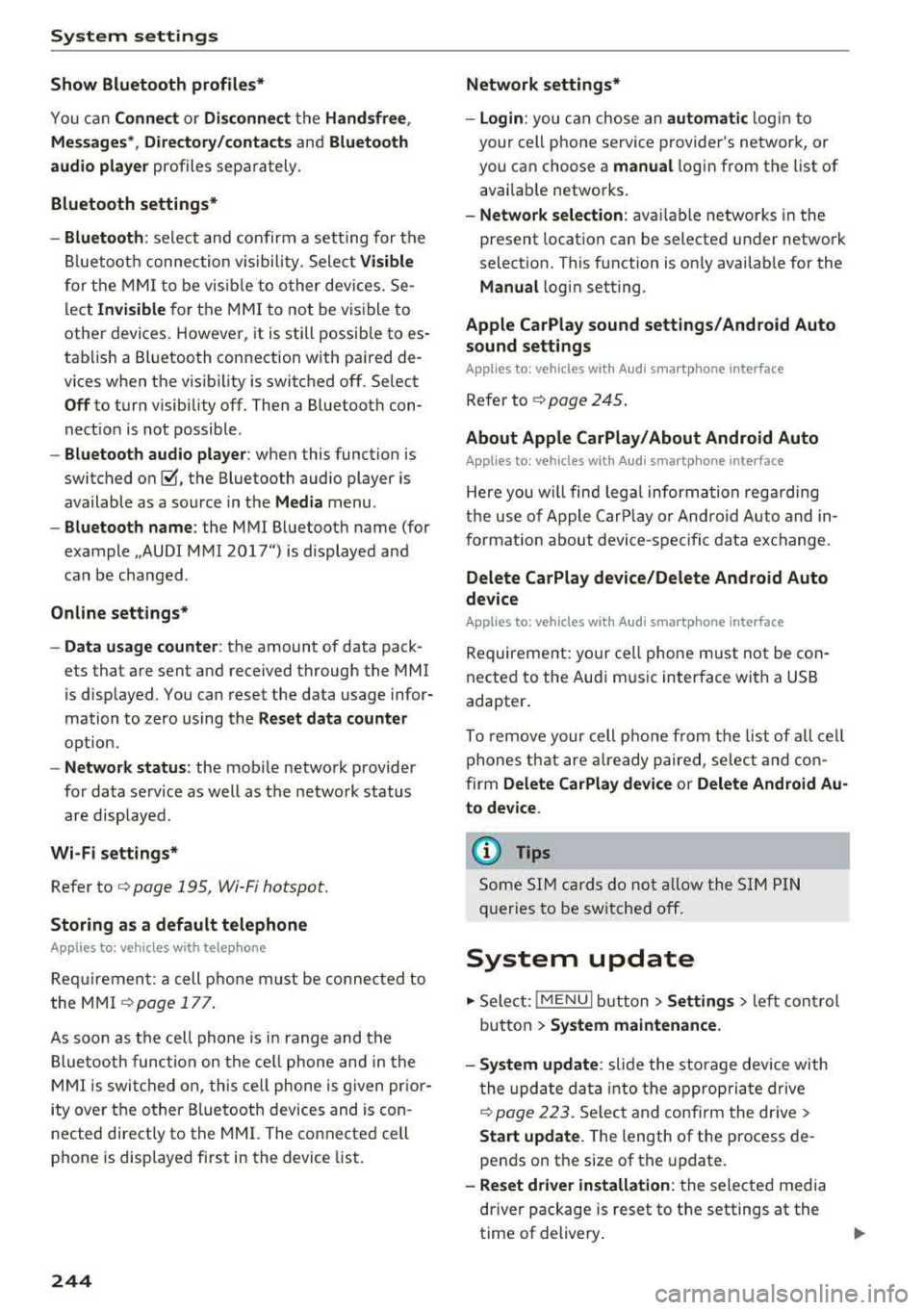
Show Bluetooth profiles*
You can Connect or Disconnect the Handsfree ,
Messages *, Directory/contacts
and Bluetooth
audio player
profiles separately.
Bluetooth settings*
- Bluetooth :
select and confirm a setting for the
Bluetooth connection v is ibility. Select
Visible
for the MMI to be v isib le to other dev ices. Se
lect
Inv isible for the MMI to not be visible to
other devices. However, it is still possib le to es
tablis h a Bl uetooth connection with paired de
vices when the v is ibility is switched off. Select
Off to turn visibility off. Then a B luetooth con
nect ion is not possible .
-Bluetooth audio player : when this function is
switched
on~, the Bluetooth audio player is
available as a source in the
Media menu .
-Bluetooth name : the MMI Bluetooth name (for
example ,,AUDI MMI 2017") is displayed and
can be changed .
Online settings*
- Data usage counter :
the amount of data pack
ets that are sent and received through the MMI
is d isplayed. You can reset the data usage infor
mation to zero using the
Reset data counter
option.
-Network status : the mobile network provider
for data service as well as the network status
are displayed .
Wi-Fi settings*
Refer to<=> page 195, Wi-Fi hotspot.
Storing as a default telephone
Applies to: vehicles with telephone
Req uiremen t: a cell phone must be connected to
the MMI
¢page 177 .
As soon as th e cell phone is i n range and the
Bluetooth function on the cell phone and in the
MMI is swi tched on, this cell phone is given prior
ity over the other Bluetooth devices and is con
nected direct ly to the MMI. The connected cell
phone is displayed first in the device list.
244
Network settings*
- Login :
you can chose an automatic log in to
your cell phone service provider's network, or
you can choose a
manual l ogin from the list of
avai lab le networks .
-Network selection: available networks in the
present location can be selected under network
selection. This function is on ly availab le for the
Manual l ogin setting .
Apple CarPlay sound settings/ Android Auto
sound settings
Applies to: vehicles with Audi smartphone interface
Refer to ¢ page 245.
About Apple CarPlay/ About Android Auto
Applies to: vehicles with Audi smartphone interface
Here you w ill find legal information regarding
the use of Apple CarPlay or Andro id Aut o and in
formation about device -specific data exchange.
Delete CarPlay device/Delete Android Auto
device
Applies to: vehicles with Audi smartphone interface
Requirement: your cell phone must not be cona
nected to the Audi m usic interface with a USB
adapter .
To remove your cell phon e from the list of all cell
phones that are already paired, select and con
firm
Delete CarPlay device or Delete Android Au
to device .
(D Tips
Some SIM cards do not allow the SIM PIN
queries to be switched off.
System update
.,. Select: !MENUI button> Settings> left control
button >
System maintenance.
- System update :
slide the storage device with
t he update data into the appropriate drive
¢page 223. Select and confirm the drive>
Start update. The length of the process de
pends on the size of the update.
-Reset driver installation: the selected media
driver package is reset to the settings at the
time of delivery .
Page 366 of 400

Fuses and bulbs
Fuses and bulbs
Fuses
Changing fuses
A fuse that has blown will have me tal strips that
have burned through .
Fig. 2 99 Stee rin g co lu m n a rea : cove r
Fig. 30 0 Left s ide of the engine co mpart ment: fuse cover
The fuses are located behind a cover in the steer
i n g column
area ¢ fig. 299 or under a cover on
the left side of the engine compartment
¢ fig. 300 .
• Switc h the ignition and all e lectr ica l equipment
off.
• Check the following table to see which fuse be
longs to the
equipment ¢ page 365.
• Remove the cover.
• Remove the plastic cl ip from the fuse panel
cove r in the eng ine
compartment ¢ fig. 300 .
• Remove the fuse us ing the plastic clamp.
• Replace the bu rned fuse w ith an identical new
o ne.
• Reinser t the cover.
364
Fuse color identification
Color Current rating
in amps
Black 1
Purple 3
Light brown 5
Brown 7.5
Red 10
Blue 15
Yellow 20
Wh ite or transpa re nt 25
Green 30
Orange 4 0
A WARNING
-
Do not repair fuses and never replace a blown
f u se with one that has a higher amp rat ing.
This can cause damage to the e lectr ica l sys
tem and a fire.
(D Note
If a new fuse burns out again sho rtly after you
h ave installed it, have the electrical system
checked as soon as possible by an authorized
A udi dealer or authorized Aud i Service Fac ili
ty .
(D Tips
-The following table does not list fuse loca
t ions that are not used.
- Some of the equipment listed in the fo llow
ing tables applies on ly to certai n model ver
sions or certa in optional equipment .
Page 367 of 400

a, co ..... N
" N ..... 0 N > 00
Fuse assignment -interior
Fig. 301 Vehicle interior: fuse assignment
No. Equipment
Fl Ad
Blue engine components
F2 Seat adjustment
F3 Power top hyd
raulic pump
F4 Infotainment control panel, Infotainment
components
FS Gateway
F6 Selector lever (automat ic transmission)
F7 Climate/heating control, auxiliary heating,
rear window defogger relay
Electromechan ica l parking brake sw itch,
F8 light switch,
rain/light sensor, inte rior
lighting, anti-theft alarm system, diagnos -
tic connector, communication box
F9 Steering column sw itch module
Fl0 Infotainment system display
Fll Dr iver's side safety belt tens ioner
F12 Infotainment components
F13 Suspension
control control module, diag-
nostic connector
F14 Heating/air conditioning system blower
FlS Electronic steering column lock
No .
Fl6
F 17
Fl8
F 19
F20
F21
F2 3
F24
F 2S
F26
F 27
F28
F2 9
F 31
F32
F33
F34
F 3S
F36
F3 7
F38
F39
F 40
F41
F42
F43
F44
F47
F4 8
Fuses and bulbs
Equipment
Infotainment components
Instrument cluster
Rearview camera
Convenience access cont rol module
Engine components
Steering column, steering wheel heating
switch module
Right vehicle electrical system control
module
Panorama glass roof/power top control
module, power top latch
Driver's s ide front/rear power w indows
Seat heating
Sound-amplifier
Convertible top control module
Interior lights
Left vehicle electrical system control mod-
ule
Rearview camera, radar sensor control
module
A irbag
Button i llumination, interior sound, re-
versing light switch, temperature sensor,
coil for neck heating relay and socket relay
Fu nct ion lighting, headl ight range control,
a ir quality sensor, automatic dimming
rearview mirror
R ight headlight
l eft headlight
High-voltage battery
Passenger's s ide front/rear power win -
dows
Sockets Passenger's side safety belt tensioner
Cen tral locking components, windshield
washer system
Interior lights
Al l wheel drive
Rear w indow wiper
Outer sound actuator
365
Page 384 of 400

Index
A
A/C (automatic climate control system) . . . . 71
Accessories . . . . . . . . . . . . . . . . . . . . . . . 64, 380
Active lane assist
refer to Audi active lane assist . . . . . . . . . 136
Active rollover protection system . . . . . . . . 256
Retracting rollover protection.......... 257
Adaptive cruise control
refer to Audi adaptive cruise control . . . . 126
Adaptive light
refer to Audi adaptive light . . . . . . . . . . . . . 51
Adjusting the air distribution Automatic climate control system . . . . . . . 72
Adjusting the air vents . . . . . . . . . . . . . . . . . . 73 Automatic climate control system . . . . . . . 72
Adjusting the sound . . . . . . . . . . . . . . . . . . . 245
Advanced key
refer to Convenience key . . . . . . . . . . . . . . . 78
Airbag .... .. .. ............... .... ... 267
Airbag system .. .... .............. 267,287
Advanced Airbag System components . . . 274
Care . . . . . . . . . . . . . . . . . . . . . . . . . . . . . . 282
Ch ildren . . . . . . . . . . . . . . . . . . . . . . . . . . . 294
Ch ild restraints . . . . . . . . . . . . . . . . . . . . . 295
Components (front airbags) . . . . . . . . . . . 274
Danger of fitting a child safety seat on the
front passenger seat . . . . . . . . . . . . . . . . . 268
Disposal . . . . . . . . . . . . . . . . . . . . . . . . . . . 282
Front airbags . . . . . . . . . . . . . . . . . . . . . . . 272
How do the front airbags work? . . . . . . . . 277
How many airbags does my vehicle have? 274
How the Advanced Airbag System compo -
nents work together . . . . . . . . . . . . . . . . . 276
Important safety instructions on the knee
airbag system . . . . . . . . . . . . . . . . . . . . . . . 285
Knee airbags . . . . . . . . . . . . . . . . . . . . . . . . 283
Monitoring . . . . . . . . . . . . . . . . . . . . . . . . . 279
PASSENGER AIR BAG OFF light . . . . . . . . . 279
Repairs . . . . . . . . . . . . . . . . . . . . . . . . . . . . 282
Safety instructions . . . . . . . . . . . . . . . . . . . 281
Side airbags . . . . . . . . . . . . . . . . . . . . . . . . 285
Warning/Indicator lights . . . . . . . . . . . . . 279
When must the system be inspected? . . . 279
Air pressure (tires) . . . . . . . . . . . . . . . . 336, 345
A lignment pin (tire change) . . . . . . . . . . . . . 353
All-weather lights..... ......... .... .. .. 51
382
All season tires
All wheel drive 342
refer to quattro (all wheel drive) . . . . .
. . 154
AMI
refer to Audi music interface . . . . . . . 228, 229
Android Auto
refer to Audi smartphone interface . . . . . 239
Ant i-freeze
Windshield washer system . . . . . . . . . . . . 327
Anti -Lock Braking System (ABS) . . . . . . . . . 151
Anti-Slip Regulation (ASR) . . . . . . . . . . . . . . 151
Apple CarP lay
refer to Aud i smartphone interface . . . . . 239
Audi active lane assist . . . . . . . . . . . . . . . . . 136
Cleaning the camera area . . . . . . . . . . . . . 348
Messages . .. .. .. ... .... ....... .... .
Audi adaptive cruise control ........... . .
Cleaning the sensor . .. .. ........... . . 138
126
348
Distance display, distance warning ..... . 132
Messages . . . . . . . . . . . . . . . . . . . . . . . . . . 133
Audi adaptive light . . . . . . . . . . . . . . . . . 51, 143
Audi connect e-tron services . . . . . . . . . . . . 198
Doors and lights .. .. .. .. ........... .. 198
Audi connect (Infotainment) ........ 190,195
Data protection . . . . . . . . . . . . . . . . . . . . . 196
Services overview . . . . . . . . . . . . . . . . . . . . 191
Start ing . . . . . . . . . . . . . . . . . . . . . . . . . . . 191
Audi drive select . . . . . . . . . . . . . . . . . . . . . . 143
Audi magnetic ride
refer to Suspension control . . . . . . . . . . . . 143
Audi music interface . . . . . . . . . . . . . . . . . . . 228
Audi music stream
refer to Wi-Fi . . . . . . . . . . . . . . . . . . . . . . . 226
Audio files . . . . . . . . . . . . . . . . . . . . . . . . . . . 230
Audio player Bluetooth audio player . . . . . . . . . . . . . . . 225
Wi-Fi audio player . . . . . . . . . . . . . . . . . . . 226
Audio track . . . . . . . . . . . . . . . . . . . . . . . . . . 233
Audi pre sense . . . . . . . . . . . . . . . . . . . . . . . 133
Messages . . . . . . . . . . . . . . . . . . . . . . 133, 136
Settings . . . . . . . . . . . . . . . . . . . . . . . . . . . 136
Audi Service Repair Manuals and Literature 378
Audi side assist . . . . . . . . . . . . . . . . . . . . . . . 139
Cleaning the sensors . . . . . . . . . . . . . . . . . 348
Messages . ....... ... ..... .........
.
Rear cross-traffic assist ... ........... . 143
142