2017 AUDI A3 SEDAN MMI
[x] Cancel search: MMIPage 56 of 400
Lights and Vision
The emergency flashers makes other drivers
aware of your veh icle in dangerous situations.
• P ress t h e ~ button to switch the eme rgency
f lashers on o r off.
You can indicate a lane change or a tu rn when the
emergency flas hers are sw itched on by using the
tur n sig nal lever. The emergency flashers stop
tempo rarily .
The emergency flashers also work when the igni
tion is turned off.
Interior lighting
Front interior lighting
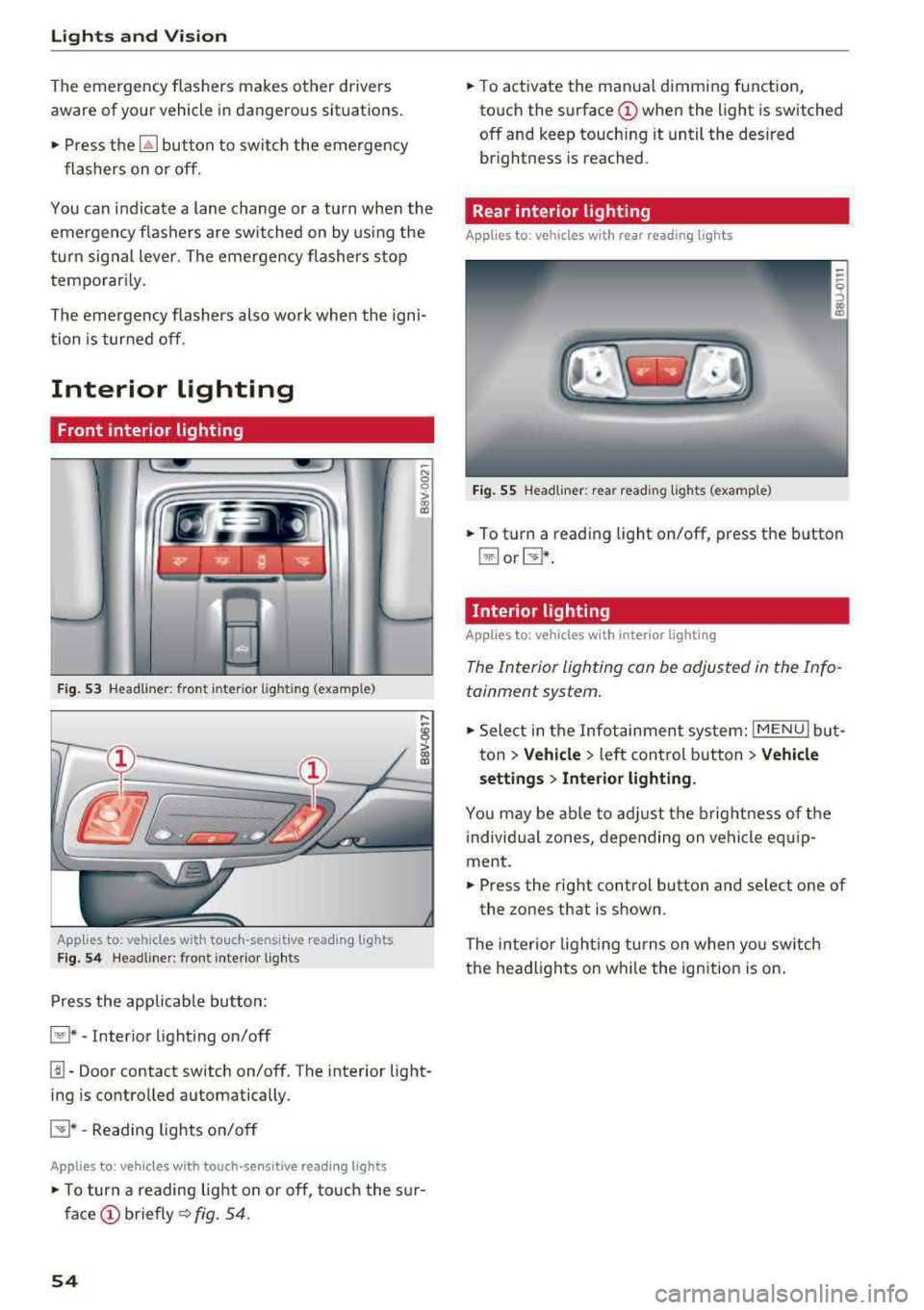
F ig. 53 Headli ner : fr on t in te ri or l ig htin g (exa mple )
Applie,s to: vehicles with touch -sensitive reading lights
Fig . 5 4 Headli ner: fro nt i nte rior lig hts
Press the app licab le bu tton:
@ * -Inter ior light ing on/off
~ N 0
0
> ~
l!I -Door contact switch on/off. The interior light
ing is controlled automatically.
E:!J* -Reading lights o n/o ff
Applies to: vehicles with touch-sensitive reading lights
• T o turn a reading lig ht on or off, to uch the s ur
face (!) briefly ~ fig. 54.
54
• To activate the man ua l dimming function,
to uch the
surface (!) when the light is switched
off and keep touch ing it until the desired
brightness is reached.
Rear interior lighting
Applies to : vehicles with rear reading lights
Fig. 55 Headliner : re ar reading lig hts ( example)
• To t urn a reading light on/off , press the b utton
@ or~ .
Interior lighting
Applies to: vehicles with interior lighting
The Interior lighting can be adjusted in the Info
tainment system .
• Select in the Infotainment system : IMENU! but
t on
> Vehicle > left control b utton > Vehicle
setting s
> Interior lighting.
You may be ab le to ad just the b rig htness of t he
i ndivid ua l zones, depending on ve hicle eq uip
ment .
• Press the right cont rol button and se lect one of
the zones that is shown .
The inter io r li ght ing turns o n when yo u sw itch
t h e headlights on w hile the ignition is on .
Page 58 of 400

Lights and Vision
hand because this would impair the func
tion of the mirror mechanism.
- Applies to vehicles without power folding
exterior mirrors: if the mirror housing was
moved by outside forces (such as an impact
when maneuvering), you must move it back in place by hand.
- If you wash the vehicle in an automatic car
wash, you must fold the exterior mirrors in
to reduce the risk of damage to the mirrors.
Never fold power folding exterior mirrors*
by hand. Only fold them in and out using
the power controls.
(D) Tips
If the power adjustment fails, both mirrors
can be adjusted by hand by pressing on the
edge of the mirror surface.
Dimming the mirrors
Your vehicle is equipped with a manual or auto
matic* dimming rearview mirror .
Manual dimming rearview mirror
• Pull the lever on the bottom of the mirror back .
Automatic dimming mirrors*
• The interior and exterior mirrors dim automati
cally when light shines on them, for example
from headlights on a vehicle behind you.
& WARNING
Applies to: vehicles with automatic dimming rearview
mirror
Electrolyte fluid can leak out from broken
mirror glass. This liquid can irritate the skin,
eyes and respiratory system. If there is con
tact with the fluid, flush immediately with
plenty of water . Consult a physician if neces
sary.
- Repeated or long-term exposure to electro
lyte fluid can lead to irritation of the air
ways, especially in people with asthma or
other respiratory conditions. Take deep
breaths immediately after leaving the vehi
cle or, if this is not possible, open all of the
doors and windows as wide as possible.
56
-
- If electrolyte fluid enters the eyes, flush
them thoroughly with a large amount of clean water for at least 15 minutes and then
seek medical attention.
- If electrolyte fluid comes into contact with
the skin, flush the affected area with clean
water for at least 15 minutes and then clean
with soap and water and seek medical at
tention. Clean affected clothing and shoes
thoroughly before wearing again.
- If the fluid was swallowed and the person is
conscious, flush the mouth with water for at
least 15 minutes. Do not induce vomiting
unless this is recommended by medical pro
fessionals. Seek medical attention immedi
ately.
(D Note
Applies to: vehicles with automatic dimming rearview
mirror
Electrolyte fluid can leak out from broken
mirror glass. This liquid damages plastic sur
faces. Clean this liquid as quickly as possible
with a wet sponge.
(D Tips
Applies to: vehicles with automatic dimming rearview
mirror
- If the Light reaching the rearview mirror is
obstructed, the automatic dimming mirror
will not function correctly,
- The automatic dimming mirrors do not dim
when the interior lighting is turned on or
the reverse gear is selected.
, Sun visors
('--__ ___,)
Fig. 58 Left side: sun visor (example)
Page 160 of 400

Multi Media Interface
Multi Media Interface
Traffic safety information
Aud i recommends performing certa in Infotain
ment system functions, such as entering a desti
nation, only when the vehicle is stationary . Al
ways be p repared to stop opera ting the Info tain
ment system i n the interest of your safety and
t he safe ty of other road users.
_& WARNING
Only use the In fotain ment sys tem w hen tra f
fic con ditions permit and always in a way that
allows you to ma inta in complete control ove r
your vehicle.
@ Tips
Cer tain functi ons are no t avail ab le wh ile driv
ing .
Introduction
The Multi Media Interface , or MMI for short,
combines various
systems for communication ,
navigation* and entertainment in your Audi . You
can operate the MMI using the MMI control pan
el, the multifunction steering wheel or the voice
recognition system* .
Fig. 16 0 MMI co ntro l panel
M MI cont rol panel overview
CD Contro l knob with joystick function"
. . . . . . . . . . . . . . . . . . . . . . . . . . . . 159, 163
@ MMI to uch con trol pad * . . . . . . . . 161
@ Left contro l button . . . . . . . . . . . . 160
@ R ight cont rol b utton . . . . . . . . . . . 160
158
® Buttons fo r opening men us
directly .... . .. .. .. .... .. .... .
@ IMENU I button
(J) I BACK I button . .. .. .... .. ... . .
MMI On/Off knob with
joystick function
Operating
Fig . 161 MM I On/Off k nob w ith joys tick f unctio n
Switching the MMI on /off : the MMI can be
swi tched on/off man ually. 160
160
159
- Switching on manually : press the On/Off knob
CD ¢ fig. 161 briefly. Or : press the I M ENU I but
ton @ ¢ page 1 58, fig. 160 or one of t he bu t
t ons to ope n the me nus d irectl y® ·
-Switch ing off manually : press and hold the
O n/Off knob
CD ¢ fig. 161 until t he M MI
sw itches off .
If the MM I has been swi tch ed off
m an ually, i t does
not swi tch on ag ai n au tomati
cally the ne xt time the ignition is sw itched on.
Additional function s:
- Adjusting the volume :
turn the On/Off knob CD
¢fig. 161 .
-Muting : press the On/Off knob CD¢ fig. 1 61
briefly.
- Selecting the previous/ne xt function (for ex
ample , a r adio station/t rack) :
press the On/Off
knob
CD ¢ fig. 161 briefly toward the left l
l>!>i .
-Fast forwarding /rewinding (fo r example
songs) :
press and hold the On/Off knob CD
¢ fig. 161 toward the left l
Page 161 of 400

a, a, ..... N
" N ..... 0 N > 00
A WARNING
Adjust the volume of the audio system so that signals from outside the vehicle, such as po
lice and fire sirens, can be heard easily at all
times.
@ Tips
The MMI switches off automatically if the en
gine is not running and the vehicle battery is
low.
Infotainment system
display
Extending/retracting
The Infotainment system d isplay automatically
extends and retracts when you switch the MMI
on and off.
- Manually extending/retracting : press the qi
button@) ¢page 8, fig. 2.
When the MMI is switched off and the display is
retracted, you can operate certain functions us
ing the MMI On/Off knob with the joystick func
tion
¢ page 158 .
{!) Tips
-If the vehicle has a cell phone prep", the In
fotainment system display will automatical ly extend whenever there is an incoming
phone call.
- There may be delays when extending or re
tracting the display.
Multi Media Interface
MMI operation
Selecting and confirming a function
Fig. 162 Operat ing the control knob
Selecting and confirming a function in a
menu /list
.,. Selecting a function: turn the control knob (D
¢ fig. 162 to the desired function (such as se
lecting a frequency) .
.,. Confirming a selection: press the control knob
@¢fig, 162.
Returning to functions at higher levels
.,. Press the !BACKI button (i) ¢page 158,
fig. 160 .
Opening the main menu/menu
Fig. 163 Illustration: Ma in menu
159
Page 162 of 400

Multi Media Interface
Open ing th e main menu
.. Press the IM ENU I bu tton @ ¢page 158,
fig . 160.
The MMI menus (such as Radio ) are
displayed ¢ fig. 163. Then you can select and
confirm a function using the control knob .
Opening a menu directly
.. Press the applicable b utton to directly open the
men us ® ¢ page 158, fig. 160 in the direction
of the desired menu (such as
I RADIO I ) . Then
you can select and confirm a f unction using the
contro l knob.
Opening the selection menu /options menu
with the control buttons
F ig . 164 Cont rol butto ns on the MM! control pane l
Selection menu: through the selectio n menu,
you can open addit ional functions within a men u
item (such as
Radio ).
Req uirement: the select ion menu symbol mus t
be disp layed in the Infota inment system display
¢ fig. 164 .
Opening /clos ing th e select ion menu : press the
left contro l button
¢ fig . 164 . Then you can se
lect a nd confi rm a funct ion usi ng the cont rol
knob.
160
Opti ons menu : using the options menu, you can
select and confirm context-dependent functions
as well as settings w ith in a menu item (such as
R ad io ).
Requirement: the options menu symbo l G must
be displayed in the Infotainment system display
¢ fig. 164 . Then you can select and confirm a
funct ion using the control knob.
Opening /clo sing the options menu : press the
right control button
¢ fig . 164. Then you can se
l ect and confirm a function using the control
knob.
Information about paths
This guide shows you at a glance the paths for
opening a desired menu and its settings and
functions .
Example of a path
.. Select: I RADIO I button > le ft control b utton >
FM.
Following the path
.. Press the I RADIO ! button .
.. Press the lef t con trol b utton .
.. Tur n the control knob to the FM menu item to
select it .
.. Press the contro l knob to confirm the selected
FM menu item .
.. The se lected and confirmed function is execut
ed. In this example, the
FM frequency band is
set .
Page 163 of 400

a, a, ..... N
" N ..... 0 N > 00
MMI touch
MMI touch control pad
Appl ies to: ve hicles with MM I touch
You can enter data using handwriting recogni
tion on the MMI touch control pad.
F ig. 165 Ente ring nav igat io n dest inatio n us ing MMI touc h
The MMI touch control pad is located between
the control
buttons¢ fig. 165 .
Entering letters, numbers and symbols
Appl ies to: ve hicles with MMI touch
The MMI touch allows you to enter data on the
MMI touch control pad using handwriting recog
nition.
F ig . 166 Disp lay w hen MM I touch is act ive
Multi Media Interface
R eq uireme nt: i t must be poss ible to en ter tex t or
numbers and t he
symbo l(!) ¢ fig. 166 must ap
pear i n the Infota inment system display .
-Initial entry : write an ind iv id ua l u pper case or
lower case lette r or numbe r/symbol on the
M MI touch cont rol pad usi ng your finger . A
symbo l th at is recogn ized clea rly by the system
is displayed in the Infotainment system disp lay
@ ¢page 161 , fig . 165, confirmed w ith an au
dib le sig na l if necessary, an d transfer red to the
inp ut fiel d.
- Enter ing spaces : move your f inger across t he
M MI touc h cont rol pad from left to right .
-Delet ing characters : move your finge r ac ross
the MMI touch co ntro l pad from right to left .
-Selecting the input suggestion : press the con
trol k nob.
- Switching directly to the results list : turn the
control knob to the rig ht
- Opening the speller : select the right control
button>
Open speller . Text or numbers are en
tered in using the speller
¢page 165.
Moving the crosshairs
App lies to: vehicles wit h MM! to uch
S f 19..,.,0,1 St
Fig . 167 Mov ing the cross hair s
161
Page 164 of 400

Multi Media Interface
R eq uiremen t: a map must be disp layed
<=:> page 209.
- Showing /hiding the cro sshairs : press the con
t ro l knob to show t he crossha irs
CD c::> fig. 167 .
Or: press on the MMI touch cont rol pad . Press
the I BACK I button
0 c::> page 158, fig. 160 to
hide the cross ha irs again .
-Moving the crosshairs on a map : move the
crosshairs shown in the desired d irect ion usi ng
your finger on the
MMI touch contro l pad
c::> fig. 167.
Moving the crosshairs quickly : when the cross
hairs are visible
CD c::> fig . 167, slide your finger
qu ickly ac ross the
MMI touch contro l pad in the
des ired direction
c:;, fig. 167. The c rosshairs w ill
come to a stop after several seconds.
Moving the map
A ppl ies to : ve hicles with MM I touch
I~
• •
F ig . 16 8 Mov ing the map
Req uiremen t: a map must be disp layed
c::> page 209 .
-Show ing /h iding the crosshairs : press the con
trol knob to show the crossha irs
CD c:;, fig . 168 .
Press the I BACK I bu tton 0 c:;, page 158,
fig . 160
to hide the c rosshairs agai n.
162
- Moving the map : when the crosshairs are visi
ble, pull two finge rs in the desired direction
across the
MMI to uch control pad c::> fig. 168 .
-Moving the map quickly : when the crosshairs
are v isible, pull two fingers across the
M MI
to uch control pad quick ly in the des ired direc
tion . The map w ill come to a stop after several
seconds .
Zooming in/out on the map
Applies to : vehicles wit h MMI to uch
Fi g. 169 Zoom in/Zoo m out
Requirement: a map must be displayed
c:;,page209.
- Zooming in/out on the map : press the control
knob to show t he crossha irs. Touch the
M MI
to uch control pad with two fingers and pull
your fingers apart or together
c::> fig . 169.
Press the I BACK I bu tton (f) to hide the cross hairs
<=:> page 158 , fig. 160 .
Adjusting the sound focus
Applies to : vehicles wi th MMI to uch
Requirement: the balance/fader function must
be se lected
c::> page 245 .
-Moving the crosshairs for sound focus : move
your fi nger in the des ired d irectio n on the
M MI
to uch control pad.
- Storing the crosshairs location: press the con
trol knob twice.
Or : press the I BACK I button 0
c:;,page 158, fig. 160 .
Page 165 of 400

CXl CXl .... N r--N .... 0 N > 00
Using the DVD main menu
Applies to: vehicles with MMI touch
Requirement : a DVD must be p lay ing
¢ page 230 .
-Selecting a m enu it em : move your finger up /
down or left/right on the MMI touch contro l
pad.
- Confirming a select ion : press the control knob .
(D Tips
The volume of the voice guidance prompts for
the MMI touch* can be adjusted separate ly
¢ page 246 .
Control knob with
joystick function
Operation
App lies to: vehicles with joystick function
Fig . 170 Oper ating con cept for the co ntro l kn ob wi th jo y
s tick funct ion
You can p ush the cont rol knob up or down (D
¢ fig. 170 o r to the right o r left @.
Opening the entertainment sliding menu
Applies to: vehicles with MMI touch
Opening the entertainment slidin g menu : push
the cont ro l knob down to open the en tertain
ment sliding menu @¢page
167, fig . 174.
Then you can sel ect and confirm a function .
Clo sing the entertainment sliding menu : push
the cont ro l knob up to close the ente rtainment
sliding menu .
Or: press the I BACK I button 0
¢pag e 158, fig . 160.
Multi Media Interfac e
Additional functions
Applies to: vehicles with joystick function
Displaying the input field /switching to
speller input
P u sh the cont rol knob up ¢ page 163, fig . 170 to
reach the beginn ing of a list in the cent ral area or
t h e inp ut fie ld . I f the inp ut fie ld is already open,
switch directly to the speller in the input field by
pushing the cont ro l knob up again
¢ page 165.
On the map
Requirement: a m ap must be d isplayed
¢ page 209 .
-Displaying th e input field : push the cont rol
knob up.
- Displaying route gu idance : when rou te gu id
ance is active, yo u ca n also d isplay the route
guidan ce by pus hing the con trol knob up
¢page 204, fig .188.
- Zo oming in /out on the map (zoom ): turn the
cont rol knob to the right/left to zoom in/out on
t he map .
-Additio nal op tio ns o n th e map : see
¢ page 211
Applies to: vehicles without MMI touch with joystick function
-Showing /h iding the crossh airs : press the con
trol knob. The crossha irs are shown on the
map . Press the
I BACK I button to hide the cross
ha irs.
- Moving the cro sshair s: when the crosshairs are
visible, t urn the control knob in the direction
the c rosshairs should move . P ress the cont rol
knob and hold it until the c rosshairs are in the
desi red poin t on the map.
Ad justing the sound focus
Applies to : vehicles without MMI touch with joystick function
Requirement: the balance/fader function must
be se lected ¢
page 245.
-Moving the sound focus using the crosshairs :
the crosshairs can be moved horizontally. Turn
the contro l knob to the left or to the right .
Press the co ntro l knob to move the crossha irs
vert ica lly . T urn the cont rol knob to the left or
t o the right. Press the co ntrol knob again to
save the set ting .
163