Page 237 of 449
uuBluetooth ® HandsFreeLink ®u HFL Menus
236
Features
1. Press the PHONE button or the button.
2. Rotate to select Phone Setup, then
press .
3. Rotate to select Message Notice, then
press .
4. Rotate to select a mode you want, then
press .
■To Set Up a Message Notice Option1To Set Up a Message Notice Option
On : A pop-up notification co mes on every time you
receive a new text message.
Off : The message you receive is stored in the system
without not ification.
Page 238 of 449
Continued237
uuBluetooth ® HandsFreeLink ®u HFL Menus
Features
You can protect each of the six ce ll phones with a security PIN.
1.Press the PHONE button or the button.
2. Rotate to select Phone Setup, then
press .
u Repeat the procedure to select
Passcode .
3. Select a phone you want to add a security
PIN to.
u Rotate to select a phone you want to
add a security PIN to, then press .
4. You will receive a confirmation message on
the screen.
u Rotate to select Yes, then press .
5. Enter a new four-digit number.
u Rotate to select, then press . Press
to delete. Press to enter the
security PIN.
6. Re-enter the four-digit number.
u The screen returns to the screen in step
2.
■To Create a Security PIN1 To Create a Security PIN
In the phone is already secu rity PIN protected, you
need to enter the current security PIN before clearing
the PIN or creating a new one.
Page 240 of 449
239
uuBluetooth ® HandsFreeLink ®u HFL Menus
Continued
Features
Security codes, paired phones, all stored voice tags, all speed dial entries, and all
imported phonebook data are erased. 1.Press the PHONE button or the button.
2. Rotate to select Phone Setup, then
press .
u Repeat the procedure to select System
Clear.
3. Rotate to select Yes, then press .
4. You will receive a notification message on
the screen. Rotate to select Yes, then
press .
5. You will receive a notification message on
the screen. Rotate to finish.
■To Clear the System
Page 241 of 449
uuBluetooth ® HandsFreeLink ®u HFL Menus
240
Features
When your phone is paired, the contents of its phonebook and call history are
automatically imported to HFL.
■Automatic Import of Cellular Phonebook and Call History1Automatic Import of Cellular Phonebook and Call History
When you select a person from the list in the cellular
phonebook, you can see up to three category icons.
The icons indicate what types of numbers are stored
for that name.
On some phones, it may not be possible to import the
category icons to HFL.
The phonebook is updated after every connection.
Call history is updated after every connection or call.
Pref
Home
Mobile
Work
Pager Car
Fax
Message Other
Voice
Page 243 of 449
uuBluetooth ® HandsFreeLink ®u HFL Menus
242
Features
■To add a voice tag to a stored speed
dial number
1. Press the PHONE button or the button.
2. Rotate to select Phone Setup, then
press .
u Repeat the procedure to select Speed
Dial.
3. Select an existing speed dial entry.
4. Rotate to select Store Voice Tag, then
press .
5. Using the button, fo llow the prompts to
complete the voice tag.
■To delete a voice tag
1. Press the PHONE button or the button.
2. Rotate to select Phone Setup, then
press .
u Repeat the procedure to select Speed
Dial.
3. Select an existing speed dial entry.
4. Rotate to select Delete Voice Tag,
then press .
u You will receive a confirmation message
on the screen. Rotate to select Yes,
then press .
1 Speed Dial
Avoid using duplicate voice tags.
Avoid using “home” as a voice tag.
It is easier for HFL to re cognize a longer name. For
example, use “John Smit h” instead of “John.”
Page 244 of 449
Continued243
uuBluetooth ® HandsFreeLink ®u HFL Menus
Features
■To delete a speed dial number
1. Press the PHONE button or the button.
2. Rotate to select Phone Setup, then
press .
u Repeat the procedure to select Speed
Dial .
3. Select an existing speed dial entry.
4. Rotate to select Delete Speed Dial,
then press .
u You will receive a confirmation message
on the screen. Rotate to select Yes,
then press .
You can make calls by inputting any phone number, or by using the imported
phonebook, call history, speed dial entries, or redial.
■Making a Call1 Making a Call
Any voice-tagged speed dial entry can be dialed by
voice from any screen.
Press the button and follow the prompts.
The maximum range be tween your phone and
vehicles is 30 fe et (10 meters).
Once a call is connected, you can hear the voice of
the person you are call ing through the audio
speakers.
Page 249 of 449
uuBluetooth ® HandsFreeLink ®u HFL Menus
248
Features
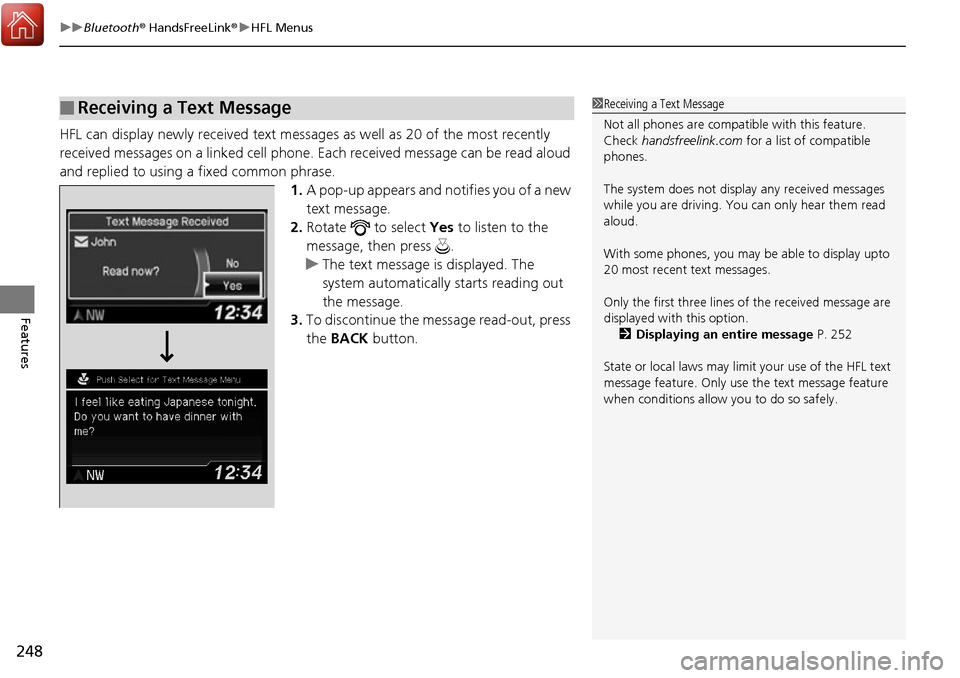
HFL can display newly received text message s as well as 20 of the most recently
received messages on a linked cell phone. Each received message can be read aloud
and replied to using a fixed common phrase. 1.A pop-up appears and notifies you of a new
text message.
2. Rotate to select Yes to listen to the
message, then press .
u The text message is displayed. The
system automatically starts reading out
the message.
3. To discontinue the message read-out, press
the BACK button.
■Receiving a Text Message1Receiving a Text Message
Not all phones are compatible with this feature.
Check handsfreelink.com for a list of compatible
phones.
The system does not display any received messages
while you are driving. You can only hear them read
aloud.
With some phones, you may be able to display upto
20 most recent text messages.
Only the first three lines of the received message are
displayed with this option. 2 Displaying an entire message P. 252
State or local laws may limit your use of the HFL text
message feature. Only use the text message feature
when conditions allow you to do so safely.
Page 250 of 449
Continued249
uuBluetooth ® HandsFreeLink ®u HFL Menus
Features
1. Press the PHONE button or the button.
2. Rotate to select Text Message, then
press .
3. Rotate to select a message, then press
.
u The text message is displayed. The
system automatically starts reading the
message aloud.
■Displaying Messages1Displaying Messages
The icon appears next to an unread message.
Only the first three lines of the received message are
displayed with this option.
2 Displaying an entire message P. 252
If you delete a message on the phone, the message is
also deleted in the system. If you send a message
from the system, the message goes to your phone’s
outbox.


