Page 216 of 449

215
Features
Audio Error Messages*
CD Player
If a disc error occurs, you may see the following error messages.
Error MessageCauseSolution
Unplayable FileTrack/file format not supported●Current track/file will be skipped. The next supported track/file
plays automatically.
Bad Disc Please check
owners manual. Push Eject
Mechanical error
●Press the (eject) button and remo ve the disc, and check that the
error message is cleared.
●Check that the disc is not dama ged or deformed, and insert the
disc again.
2 Protecting CDs P. 220
●If the error message reappears, press the button, and pull out
the disc.
●Insert a different disc.
If the new disc plays, there is a problem with the first disc.
●If the error message repeats, or the disc cannot be removed,
contact a dealer.
Do not try to force the disc out of the player.
Mecha Error
Bad Disc Please check
owners manual.Servo error
Check DiscDisc error●Check that the disc is not damaged or deformed.
2Protecting CDs P. 220
* Not available on all models
Page 217 of 449

216
uuAudio Error Messages*uiPod/USB Flash Drive
Features
iPod/USB Flash Drive
If an error occurs while playing an iPod or USB flash drive, you may see the following
error messages. If you cannot clear the error message, contact a dealer.
Error MessageSolution
USB ErrorAppears when there is a problem with the USB adapter unit. Check if the device is compatible with the
USB adapter unit.
Bad USB Device Please Check
Owners Manual.Appears when an incompatible device is connected. Disconnect the device. Then turn the audio system
off, and turn it on again. Do not reco nnect the device that caused the error.
No SongAppears when the iPod is empty. Check that compatible files are stored on the device.
Unsupported VerAppears when an unsupported iPod is connected. If it appears when a supported iPod is connected,
update the iPod software to the newer version.
Retry ConnectionAppears when the system does not acknowledge the iPod. Reconnect the iPod.
Unplayable FileAppears when the files in the USB flash drive are DRM or an unsupported format. This error message
appears for about 3 seconds, then plays the next song.
No DataAppears when the USB flash drive is empty or ther e are no MP3, WMA, or AAC files in the USB flash
drive. Check that compatible fi les are stored on the device.
UnsupportedAppears when an unsupported device is connect ed. If it appears when a supported device is
connected, reconnect the device.
Page 218 of 449
217
uuAudio Error Messages*uPandora ®
Features
Pandora ®
If an error occurs while playing Pandora ®, you may see the following error messages.
If you cannot clear the error message, contact a dealer.
Error MessageSolution
PANDORA No StationAppears when there is no station list on the device. Use the device to create a station.
PANDORA Requires UpdateAppears when Pandora version is not supported. Please update the device application.
PANDORA UnavailableAppears when Pandora is performing sy stem maintenance. Try again later.
PANDORA Cannot ConnectAppears when Pandora is unable to play music. Check your device.
PANDORA Loading...Appears when Pandora is loading.
U.S. models
Page 219 of 449
218
Features
General Information on the Audio System*
SiriusXM® Radio Service
1. You need your radio ID ready before registering for subscription. To see the ID in
the display: Turn the selector knob until 0 appears.
2. Have your radio ID and credit card num ber ready, and either call or visit the
SiriusXM ® website to subscribe.
Press the (SiriusXM ®) button and stay in this mode for about 30 minutes
until the service is activated. Make sure yo ur vehicle is in an open area with good
reception.
Loading...:
SiriusXM ® is loading the audio or program information.
Channel Off Air:
The channel is not currently broadcasting.
Channel Not Authorized:
SiriusXM ® radio is receiving information update from the network.
No Signal:
The signal is too weak in the current location.
--------:
No such channel exists, the channel is not pa rt of your subscription, or the artist or
title information is unavailable.
Check Antenna:
There is a problem with the SiriusXM ® antenna. Contact a dealer.
■Subscribing to SiriusXM® Radio
■Receiving SiriusXM® Radio
■SiriusXM® Radio Display Messages
1 Subscribing to SiriusXM ® Radio
Contact Information for SiriusXM ® Radio:
US: SiriusXM ® Radio at www.siriusxm.com or (800)
852-9696
Canada: SiriusXM ® Canada at www.siriusxm.ca, or
(877) 209-0079
1 Receiving SiriusXM ® Radio
The SiriusXM ® satellites are in orbit over the equator;
therefore, objects south of the vehicle may cause
satellite reception interruptions. Sa tellite signals are
more likely to be blocked by tall buildings and
mountains the farther north you travel from the
equator.
You may experience rece ption problems under the
following circumstances:
•In a location with an obstruction to the south of
your vehicle.
•In tunnels•On the lower level of a multi-tiered road
•Large items carried on the roof rack
* Not available on all models
Page 227 of 449
226
uuBluetooth ® HandsFreeLink ®u HFL Menus
Features
HFL Menus
The power mode must be in ACCESSORY or ON to use HFL.
PHONE or
*1: Appears only when a phone is connected to HFL.1 HFL Menus
To use HFL, you must first pair your Bluetooth-
compatible cell phone to th e system while the vehicle
is parked.
Some functions are limited while driving. A message
appears on the screen when the vehicle is moving
and the operation is canceled.
Display your speed dial entry lists.
(up to 15 entries per paired phone)
Display the last 20
outgoing calls.
Display the last 20
incoming calls.
Display the last 20
missed calls.
Display the paired phone’s phonebook.
Enter a phone number to dial.
PHONE
Speed Dial*1
Call History*1
Phonebook*1
Dial*1
Dialed Calls
Received Calls
Missed Calls
Page 228 of 449
227
uuBluetooth ® HandsFreeLink ®u HFL Menus
Continued
Features
*1: Appears only when a phone is connected to HFL.
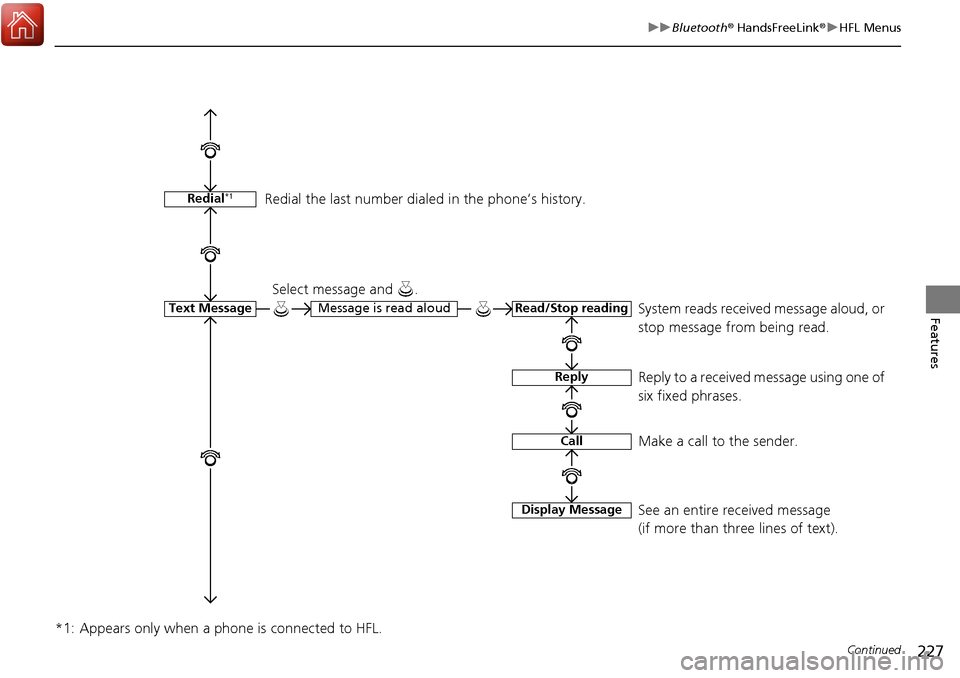
Redial*1
Text MessageRead/Stop readingMessage is read aloud
Reply
Call
Display Message
System reads received message aloud, or
stop message from being read.
Select message and .
Reply to a received message using one of
six fixed phrases.
Make a call to the sender.
See an entire received message
(if more than three lines of text).
Redial the last number dial
ed in the phone’s history.
Page 231 of 449
230
uuBluetooth ® HandsFreeLink ®u HFL Menus
Features
*1: Appears only when a phone is connected to HFL.
Passcode*1
Auto Transfer
Caller ID InfoName Priority
Number Priority
Text Message Notice
System Clear
Set calls to automatically transfer from your phone to HFL when you
enter the vehicle.
Prioritize the caller’s name as the
caller ID.
Prioritize the caller’s phone number as
the caller ID.
Create a security PIN for a paired phone.
Turn incoming text message notifications on or off.
Clear the system of all paired phone s, phonebook entries, and security
codes.
Page 236 of 449
235
uuBluetooth ® HandsFreeLink ®u HFL Menus
Continued
Features
■To delete a paired phone
1. Press the PHONE button or the button.
2. Rotate to select Phone Setup, then
press .
u Repeat the procedure to select
Connection , then Delete a Phone .
3. Rotate to select a phone you want to
delete, then press .
4. You will receive a confirmation message on
the screen. Rotate to select Yes, then
press .
u You will receive a notification on the
screen if it is successful.