Page 147 of 449

uuOperating the Switches Around the Steering Wheel uENGINE START/STOP Button
146
Controls
Warning buzzers may sound from inside or/
and outside the vehicle to remind you that the
keyless access remote is out of the vehicle. If
the buzzer continues even after the remote is
put back inside, place it within its operational
range.
■When the power mode is in ON
If the keyless access remote is taken out of the
vehicle, and the driver’s door is closed,
warning buzzers sound from both inside and
outside the vehicle. A warning message on
the multi-information display notifies the
driver inside that the remote is out.
■When the power mode is in
ACCESSORY or in VEHICLE OFF (LOCK)
If the keyless access remote is taken out of the
vehicle, and the driver’s door is closed, a
warning buzzer sounds from outside the
vehicle.
■Keyless Access Remote Reminder1 Keyless Access Remote Reminder
When the keyless access remote is within the
system’s operational range, and the driver’s door is
closed, the warni ng function cancels.
If the keyless access remote is taken out of the vehicle
after the engine has been started, you can no longer
change the ENGINE START/STOP button mode or
restart the engine. Always make sure if the remote is
in your vehicle when you operate the ENGINE
START/STOP button.
Removing the keyless access remote from the vehicle
through a window does not activate the warning
buzzer.
Do not put a keyless access remote on the dashboard
or in the glove box. It may cause the warning buzzer
to go off. Under some other conditions that can
prevent the vehicle from locating the remote, the
warning buzzer may al so go off even if the remote is
within the system’s operational range.
Models with full color display
Models without full color display
Page 186 of 449
185
Features
This chapter describes how to operate technology features.
Audio System*
About Your Audio System ................ 186
USB Port .......................................... 187
Auxiliary Input Jack .......................... 187
Audio System Theft Protection ......... 188
Audio Remote Controls .................... 189
Audio System Basic Operation
*....... 190
Audio/Information Screen ................ 191
Wallpaper Setup .............................. 194
Display Setup ................................... 196
Adjusting the Sound ........................ 197
Playing the AM/FM Radio ................. 198
Playing the SiriusXM ® Radio ............. 200 Playing a CD .................................... 202
Playing an iPod ................................ 205
Playing Pandora
®............................. 208
Playing a USB Flash Drive ................. 210
Playing Bluetooth ® Audio................. 213
Audio Error Messages
*..................... 215
General Information on the Audio System
*............................................ 218
HomeLink ® Universal Transceiver
Training HomeLink ........................... 222
Bluetooth® HandsFreeLink®
Using HFL ........................................ 224
HFL Menus....................................... 226 Compass
*.......................................... 253
* Not available on all models
Page 188 of 449
187
uuAudio System*uUSB Port
Features
USB Port
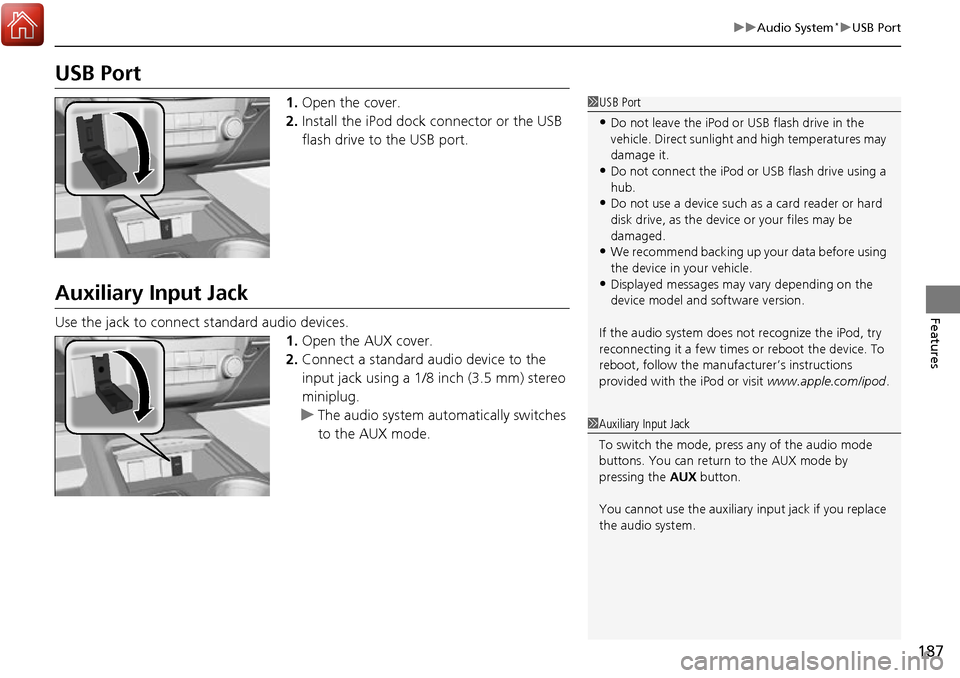
1. Open the cover.
2. Install the iPod dock connector or the USB
flash drive to the USB port.
Auxiliary Input Jack
Use the jack to connect standard audio devices.
1.Open the AUX cover.
2. Connect a standard audio device to the
input jack using a 1/8 inch (3.5 mm) stereo
miniplug.
u The audio system auto matically switches
to the AUX mode.
1 USB Port
•Do not leave the iPod or USB flash drive in the
vehicle. Direct sunlight and high temperatures may
damage it.
•Do not connect the iPod or USB flash drive using a
hub.
•Do not use a device such as a card reader or hard
disk drive, as the device or your files may be
damaged.
•We recommend backing up yo ur data before using
the device in your vehicle.
•Displayed messages may vary depending on the
device model and software version.
If the audio system does not recognize the iPod, try
reconnecting it a few times or reboot the device. To
reboot, follow the manufac turer’s instructions
provided with the iPod or visit www.apple.com/ipod.
1Auxiliary Input Jack
To switch the mode, pres s any of the audio mode
buttons. You can return to the AUX mode by
pressing the AUX button.
You cannot use the auxiliary input jack if you replace
the audio system.
Page 195 of 449
194
uuAudio System Basic Operation*uWallpaper Setup
Features
Wallpaper Setup
You can change, store, and delete the wa llpaper on the audio/information screen.
See the navigation system manual for how to change the wallpaper.
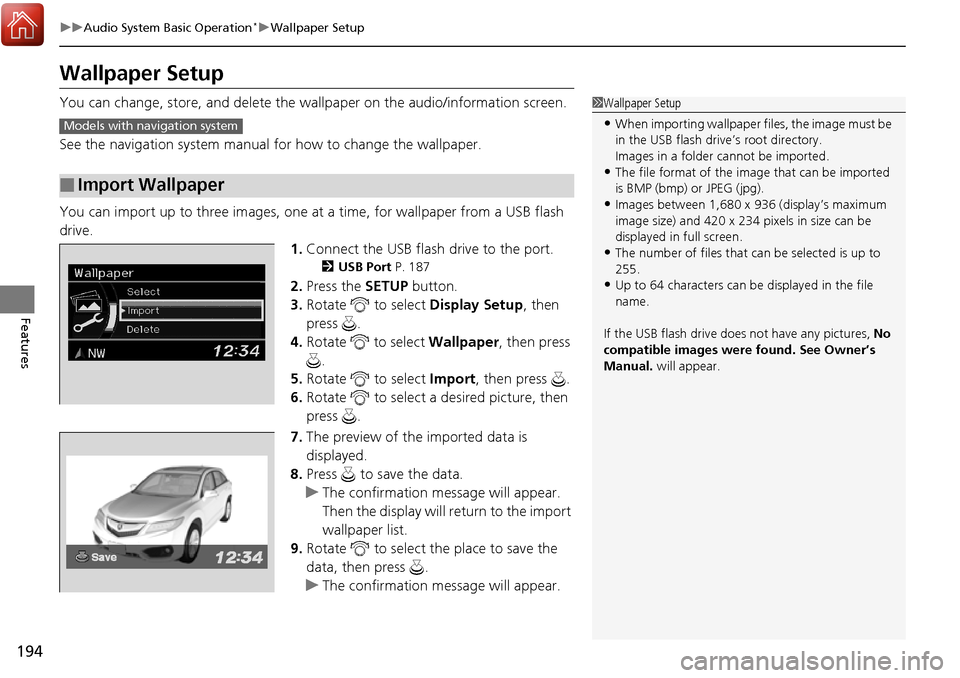
You can import up to three images, one at a time, for wallpaper from a USB flash
drive. 1.Connect the USB flash drive to the port.
2 USB Port P. 187
2.Press the SETUP button.
3. Rotate to select Display Setup, then
press .
4. Rotate to select Wallpaper, then press
.
5. Rotate to select Import, then press .
6. Rotate to select a desired picture, then
press .
7. The preview of the imported data is
displayed.
8. Press to save the data.
u The confirmation message will appear.
Then the display will return to the import
wallpaper list.
9. Rotate to select the place to save the
data, then press .
u The confirmation message will appear.
■Import Wallpaper
1Wallpaper Setup
•When importing wallpaper files, the image must be
in the USB flash drive’s root directory.
Images in a folder cannot be imported.
•The file format of the im age that can be imported
is BMP (bmp) or JPEG (jpg).
•Images between 1,680 x 936 (display’s maximum
image size) and 420 x 234 pixels in size can be
displayed in full screen.
•The number of files that can be selected is up to
255.
•Up to 64 characters can be displayed in the file
name.
If the USB flash drive doe s not have any pictures, No
compatible images were found. See Owner’s
Manual. will appear.
Models with navigation system
Page 196 of 449
195
uuAudio System Basic Operation*uWallpaper Setup
Features
1. Rotate to select Select on the wallpaper setup menu, then press .
u The screen will change to the wallpaper list.
2. Rotate to select desired wallpaper and press .
u The confirmation message will appear. Then the display will return to the
wallpaper setup menu.
1. Rotate to select Delete on the wallpaper setup menu, then press .
u The screen will change to the delete wallpaper list.
2. Rotate to select wallpaper that you want to delete and press .
u The confirmation me ssage will appear.
3. Rotate to select OK, then press to delete completely.
u The confirmation me ssage will appear.
■Select Wallpaper
■Delete Wallpaper
Page 207 of 449
uuAudio System Basic Operation*uPlaying an iPod
206
Features
1. Press to display the iPod menu.
2. Rotate to select a menu.
3. Press to display the items on that menu.
4. Rotate to select an item, then press .
■How to Select a File from the iPod Menu1Playing an iPod
Available operating functi ons vary on models or
versions. Some functions ma y not be available on the
vehicle’s audio system.
If there is a problem, you may see an error message
on the audio/information screen. 2 iPod/USB Flash Drive P. 216
iPod® Menu
Page 210 of 449
209
uuAudio System Basic Operation*uPlaying Pandora ®
Features
You can operate some of the Pandora menu items from your vehicle’s audio system.
The available items are:
•Station List (QuickMix is also available)
• Like
• Dislike
• Resume/Pause
• SKIP
• Bookmark this song
• Bookmark this artist
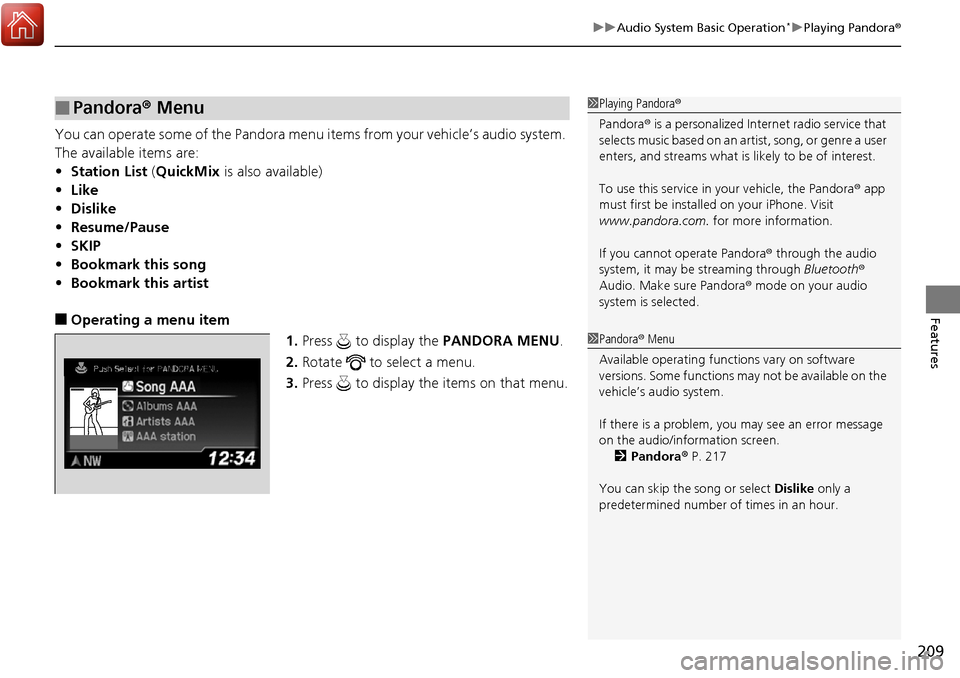
■Operating a menu item
1.Press to display the PANDORA MENU.
2. Rotate to select a menu.
3. Press to display the items on that menu.
■Pandora ® Menu1 Playing Pandora ®
Pandora ® is a personalized Internet radio service that
selects music based on an artist, song, or genre a user
enters, and streams what is likely to be of interest.
To use this service in your vehicle, the Pandora ® app
must first be installe d on your iPhone. Visit
www.pandora.com. for more information.
If you cannot operate Pandora ® through the audio
system, it may be streaming through Bluetooth®
Audio. Make sure Pandora ® mode on your audio
system is selected.
1 Pandora ® Menu
Available operating functi ons vary on software
versions. Some functions ma y not be available on the
vehicle’s audio system.
If there is a problem, you may see an error message
on the audio/information screen. 2 Pandora ® P. 217
You can skip the song or select Dislike only a
predetermined number of times in an hour.
Page 212 of 449
Continued211
uuAudio System Basic Operation*uPlaying a USB Flash Drive
Features
1. Press to switch the display to a folder list.
2. Rotate to select a folder.
3. Press to change the display to a list of
files in that folder.
4. Rotate to select a file, then press .
■How to Select a File from a Folder with the Selector Knob1Playing a USB Flash Drive
Use the recommended USB flash drives.
2 General Information on the Audio System
*
P. 218
Files in WMA format prot ected by digital rights
management (DRM) are not played.
The audio system displays Unplayable File, and then
skips to the next file.
If there is a problem, you may see an error message
on the audio/information screen.
2 iPod/USB Flash Drive P. 216
Folder Selection
Track Selection
* Not available on all models


