Page 234 of 357
Continued233
uuPlaying an iPod uSong By VoiceTM (SBV)
Audio
H SETTINGS button uSystem Settings uSong By Voice Phonetic
Modification
Add phonetic modifications of difficult or fo reign words so that it is easier for SBV
to recognize artists, songs, albums, and composers in voice commands when
searching for music on the HDD or iPod.
1.Move and rotate to select
New Modification . Press .
2. Rotate to select HDD or iPod.
Press .
■ Phonetic Modification1
Phonetic Modification
Phonetic Modification is grayed out when Song By
Voice is set to Off.
You can store up to 2, 000 phonetic modification
items.
16 ACURA RDX NAVI-31TX48300.book 233 ページ 2015年8月5日 水曜日 午後4時12分
Page 236 of 357
235
uuPlaying an iPod uSong By VoiceTM (SBV)
Audio
6. Enter the phonetic spelling you
wish to use (e.g., “ Artist A”) when
prompted.
7. Rotate to select OK to exit.
The artist “ No Name” is
phonetically modified to “ Artist
A.” When in the SBV mode, you
can press the (Talk) button and
use the voice command “ Play
‘Artist A’ ” to play songs by the
artist “ No Name .”
16 ACURA RDX NAVI-31TX48300.book 235 ページ 2015年8月5日 水曜日 午後4時12分
Page 237 of 357
236
Audio
Playing Internet Radio
Selecting Internet Radio Mode
1.Connect a compatible phone through Bluetooth®.
2. Press the MENU button.(in AUDIO mode)
3. Rotate to select Change Source. Press .
4. Rotate to select Pandora
* or Aha . Press .
1. Connect a compatible phone through Bluetooth®.
2. Select Audio Source.
3. Select the Pandora
* or Aha icon.
You can also connect the phone using your dock connector to the USB port.
1 Selecting Internet Radio Mode
To find out if your phone is compatible with this
feature, call 1-888-528-7876 or visit acura.com/
handsfreelink (U.S.) or handsfreelink.ca (Canada).
*: Pandora ® is available on U.S. models only.Interface Dial
On Demand Multi-Use DisplayTM
iPhone
16 ACURA RDX NAVI-31TX48300.book 236 ページ 2015年8月5日 水曜日 午後4時12分
Page 238 of 357
237
uuPlaying Internet Radio uPandora ® Menu*
Continued
Audio
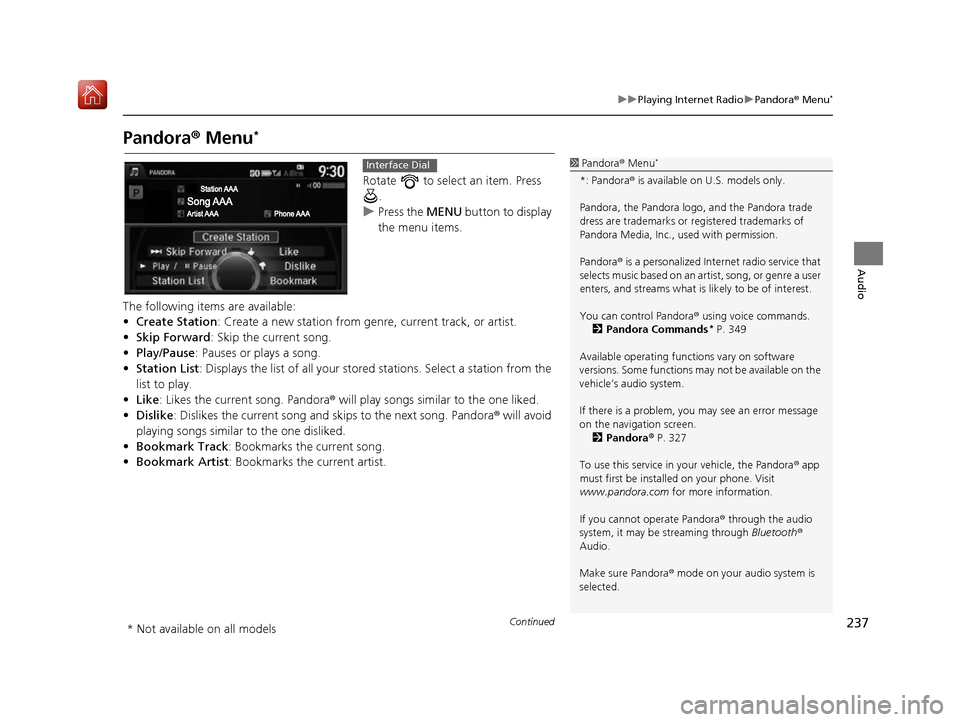
Pandora ® Menu*
Rotate to select an item. Press
.
u Press the MENU button to display
the menu items.
The following items are available:
• Create Station: Create a new station from genre, current track, or artist.
• Skip Forward: Skip the current song.
• Play/Pause : Pauses or plays a song.
• Station List : Displays the list of all your stored stations. Select a station from the
list to play.
• Like: Likes the current song. Pandora ® will play songs similar to the one liked.
• Dislike : Dislikes the current song and skips to the next song. Pandora® will avoid
playing songs similar to the one disliked.
• Bookmark Track : Bookmarks the current song.
• Bookmark Artist : Bookmarks the current artist.
1Pandora ® Menu*
*: Pandora ® is available on U.S. models only.
Pandora, the Pandora logo, and the Pandora trade
dress are trademarks or registered trademarks of
Pandora Media, Inc., used with permission.
Pandora ® is a personalized Internet radio service that
selects music based on an artist, song, or genre a user
enters, and streams what is likely to be of interest.
You can control Pandora ® using voice commands.
2 Pandora Commands
* P. 349
Available operating functi ons vary on software
versions. Some functions ma y not be available on the
vehicle’s audio system.
If there is a problem, you may see an error message
on the navigation screen. 2 Pandora ® P. 327
To use this service in your vehicle, the Pandora ® app
must first be installed on your phone. Visit
www.pandora.com for more information.
If you cannot operate Pandora ® through the audio
system, it may be streaming through Bluetooth®
Audio.
Make sure Pandora ® mode on your audio system is
selected.
Interface Dial
* Not available on all models
16 ACURA RDX NAVI-31TX48300.book 237 ページ 2015年8月5日 水曜日 午後4時12分
Page 239 of 357
uuPlaying Internet Radio uPandora ® Menu*
238
Audio
1. Select or to change a
station.
2. Select to skip a song.
u Select to pause or play a
song.
u Select or to evaluate a
song.
u Select More to display the
menu item.
2 Adjusting the Sound P. 183
2 Changing the Screen
Settings P. 87
1Pandora ® Menu*
There are restrictions on the number of songs you
can skip or dislike in a given hour.
On Demand Multi-Use DisplayTM
16 ACURA RDX NAVI-31TX48300.book 238 ページ 2015年8月5日 水曜日 午後4時12分
Page 240 of 357
239
uuPlaying Internet Radio uAhaTM Radio Menu
Continued
Audio
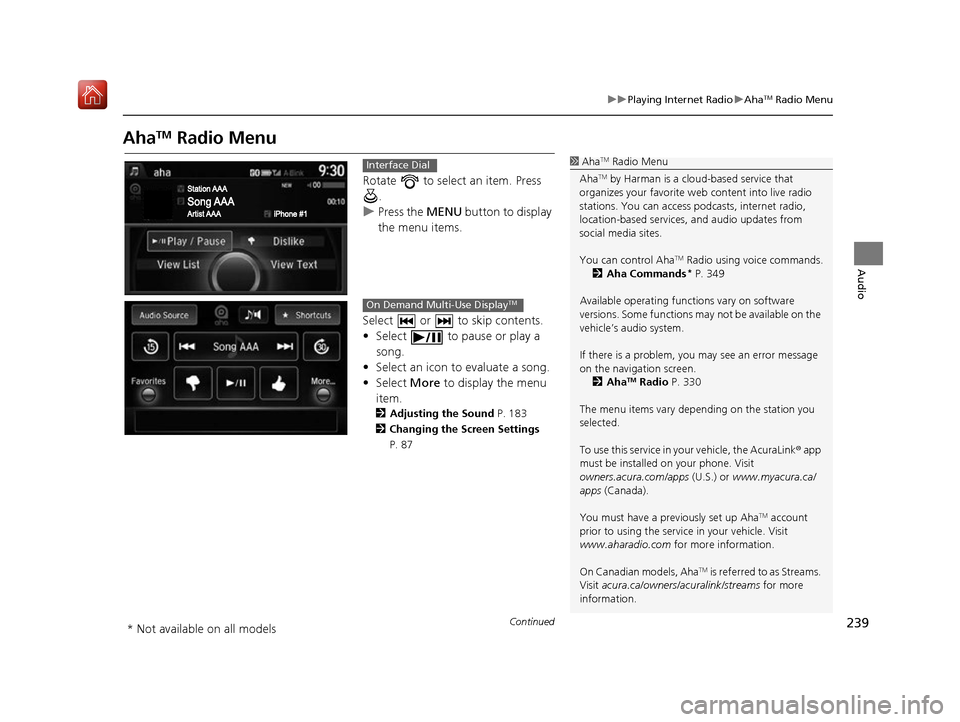
AhaTM Radio Menu
Rotate to select an item. Press
.
u Press the MENU button to display
the menu items.
Select or to skip contents.
• Select to pause or play a song.
• Select an icon to evaluate a song.
• Select More to display the menu
item.
2 Adjusting the Sound P. 183
2 Changing the Screen Settings
P. 87
1AhaTM Radio Menu
Aha
TM by Harman is a clou d-based service that
organizes your favorite we b content into live radio
stations. You can access podcasts, internet radio,
location-based services , and audio updates from
social media sites.
You can control Aha
TM Radio using voice commands.
2 Aha Commands* P. 349
Available operating functi ons vary on software
versions. Some functions ma y not be available on the
vehicle’s audio system.
If there is a problem, you may see an error message
on the navigation screen.
2 Aha
TM Radio P. 330
The menu items vary depending on the station you
selected.
To use this service in your vehicle, the AcuraLink ® app
must be installed on your phone. Visit
owners.acura.com/apps (U.S.) or www.myacura.ca/
apps (Canada).
You must have a previously set up Aha
TM account
prior to using the service in your vehicle. Visit
www.aharadio.com for more information.
On Canadian models, Aha
TM is referred to as Streams.
Visit acura.ca/owners/acuralink/streams for more
information.
Interface Dial
On Demand Multi-Use DisplayTM
* Not available on all models
16 ACURA RDX NAVI-31TX48300.book 239 ページ 2015年8月5日 水曜日 午後4時12分
Page 243 of 357
242
uuPlaying a USB Flash Drive uSelecting USB Mode
Audio
Selecting USB Mode
1. Connect the USB flash drive to the USB port in the console compartment.
2. Press the MENU button. (in AUDIO mode)
3. Rotate to select Change Source. Press .
4. Rotate to select USB. Press .
1. Connect the USB flash drive to the USB port in the console compartment.
2. Select Audio Source.
3. Select the USB icon.
1Selecting USB Mode
You can control a USB flash drive using voice
commands. 2 USB Commands P. 349
Files in WMA/ACC format protected by digital rights
management (DRM) cannot be played.
The audio system displays Unplayable File, and then
skips to the next file.
If there is a problem, you may see an error message
on the navigation screen. 2 iPod/USB Flash Drive P. 326Interface Dial
On Demand Multi-Use DisplayTM
16 ACURA RDX NAVI-31TX48300.book 242 ページ 2015年8月5日 水曜日 午後4時12分
Page 244 of 357
243
uuPlaying a USB Flash Drive uAudio Screen Control
Audio
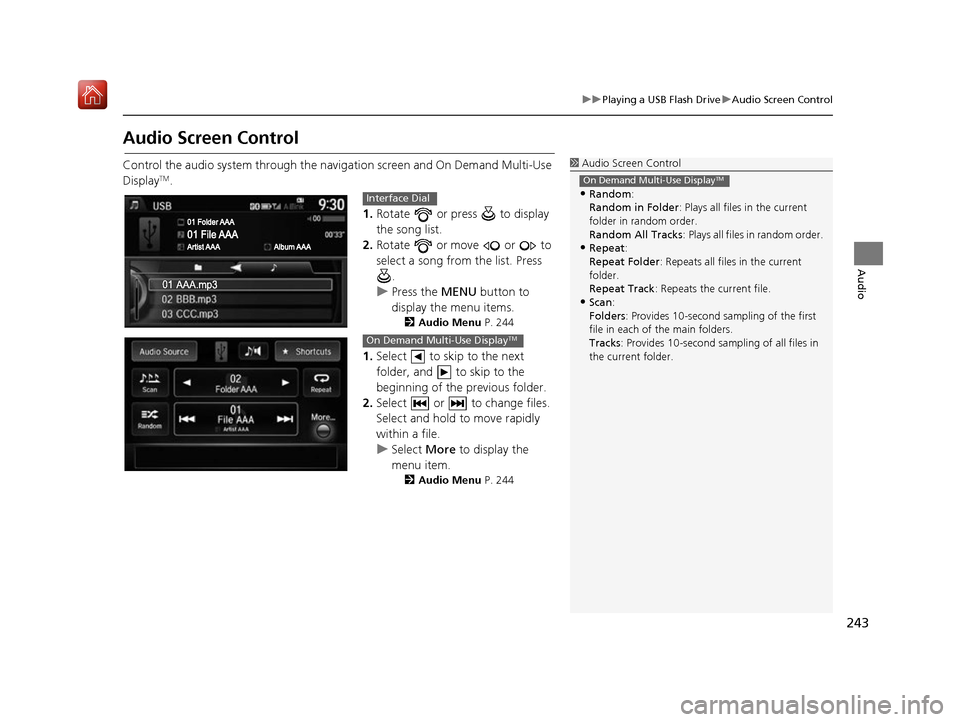
Audio Screen Control
Control the audio system through the navigation screen and On Demand Multi-Use
DisplayTM.
1.Rotate or press to display
the song list.
2. Rotate or move or to
select a song from the list. Press
.
u Press the MENU button to
display the menu items.
2 Audio Menu P. 244
1.Select to skip to the next
folder, and to skip to the
beginning of the previous folder.
2. Select or to change files.
Select and hold to move rapidly
within a file.
u Select More to display the
menu item.
2 Audio Menu P. 244
1Audio Screen Control
•Random:
Random in Folder : Plays all files in the current
folder in random order.
Random All Tracks : Plays all files in random order.
•Repeat:
Repeat Folder : Repeats all files in the current
folder.
Repeat Track : Repeats the current file.
•Scan:
Folders: Provides 10-second sampling of the first
file in each of the main folders.
Tracks : Provides 10-second sampling of all files in
the current folder.
On Demand Multi-Use DisplayTM
Interface Dial
On Demand Multi-Use DisplayTM
16 ACURA RDX NAVI-31TX48300.book 243 ページ 2015年8月5日 水曜日 午後4時12分


