2016 TOYOTA COROLLA Map
[x] Cancel search: MapPage 259 of 294

259
COROLLA_14CY_Navi_U
NAVIGATION SYSTEM
8
6. TIPS FOR THE NAVIGATION SYSTEM
1. GPS (GLOBAL POSITIONING SYSTEM)
The Global Positioning System (GPS) de-
veloped and operated by the U.S. Depart-
ment of Defense provides an accurate
current position, normally using 4 or more
satellites, and in some case 3 satellites.
The GPS system has a certain level of in-
accuracy. While the navigation system
compensates for this mo st of the time, oc-
casional positioning errors of up to 300 ft.
(100 m) can and should be expected. Gen-
erally, position errors will be corrected
within a few seconds. When the vehicle is receiving signals from
satellites, the “GPS” mark appears at the
top left of the screen.
The GPS signal may be physically ob-
structed, leading to inaccurate vehicle po-
sition on the map screen. Tunnels, tall
buildings, trucks, or even the placement of
objects on the instrument panel may ob-
struct the GPS signals.
The GPS satellites may not send signals
due to repairs or improvements being
made to them.
Even when the navigation system is re-
ceiving clear GPS signals, the vehicle po-
sition may not be shown accurately or
inappropriate route guidance may occur in
some cases.
LIMITATIONS OF THE
NAVIGATION SYSTEM
This navigation system calculates the
current position using satellite signals,
various vehicle signals, map data, etc.
However, an accurate position may not
be shown depending on satellite condi-
tions, road configuration, vehicle con-
dition or other circumstances.
NOTICE
●
The installation of window tinting may
obstruct the GPS signals. Most window
tinting contains some metallic content
that will interfere with GPS signal recep-
tion of the antenna in the instrument
panel. We advise against the use of win-
dow tinting on vehicles equipped with
navigation systems.
Page 260 of 294

260
6. TIPS FOR THE NAVIGATION SYSTEM
COROLLA_14CY_Navi_U
Accurate current position may not be
shown in the following cases:
• When driving on a small angled Y-
shaped road.
• When driving on a winding road.
• When driving on a slippery road such as in sand, gravel, snow, etc.
• When driving on a long straight road.
• When freeway and surface streets run in parallel.
• After moving by ferry or vehicle carrier.
• When a long route is searched during high speed driving.
• When driving without setting the current position calibration correctly.
• After repeating a change of direction by going forward and backward, or turning
on a turntable in a parking lot.
• When leaving a covered parking lot or parking garage.
• When a roof carrier is installed.
• When driving with tire chains installed.
• When the tires are worn.
• After replacing a tire or tires.
• When using tires that are smaller or larger than the factory specifications.
• When the tire pressure in any of the 4
tires is not correct.
Inappropriate route guidance may occur in
the following cases:
• When turning at an intersection off the
designated route guidance.
• If you set more than 1 destination but skip any of them, auto reroute will dis-
play a route returning to the destination
on the previous route.
• When turning at an intersection for which there is no route guidance.
• When passing through an intersection for which there is no route guidance.
• During auto reroute, the route guidance
may not be available for the next turn to
the right or left.
• During high speed driving, it may take a long time for auto reroute to operate. In
auto reroute, a detour route may be
shown.
• After auto reroute, the route may not be changed.
• If an unnecessary U-turn is shown or announced.
• If a location has multiple names and the
system announces 1 or more of them.
• When a route cannot be searched.
• If the route to your destination includes
gravel, unpaved roads or alleys, the
route guidance may not be shown.
• Your destination point might be shown
on the opposite side of the street.
• When a portion of the route has regula- tions prohibiting the entry of the vehicle
that vary by time or season or other rea-
sons.
• The road and map data stored in the
navigation system may not be complete
or may not be the latest version.
If the vehicle cannot receive GPS sig-
nals, the current position can be
adjusted manually. For information on
setting the current position calibration:
P. 2 5 1
After replacing a tire: P. 2 5 1
INFORMATION
● This navigation system uses tire turning
data and is designed to work with fac-
tory-specified tires for the vehicle.
Installing tires that are larger or smaller
than the originally equipped diameter
may cause inaccurate display of the cur-
rent position. The tire pressure also
affects the diameter of the tires, so make
sure that the tire pressure of all 4 tires is
correct.
Page 261 of 294
261
6. TIPS FOR THE NAVIGATION SYSTEM
COROLLA_14CY_Navi_U
NAVIGATION SYSTEM
8
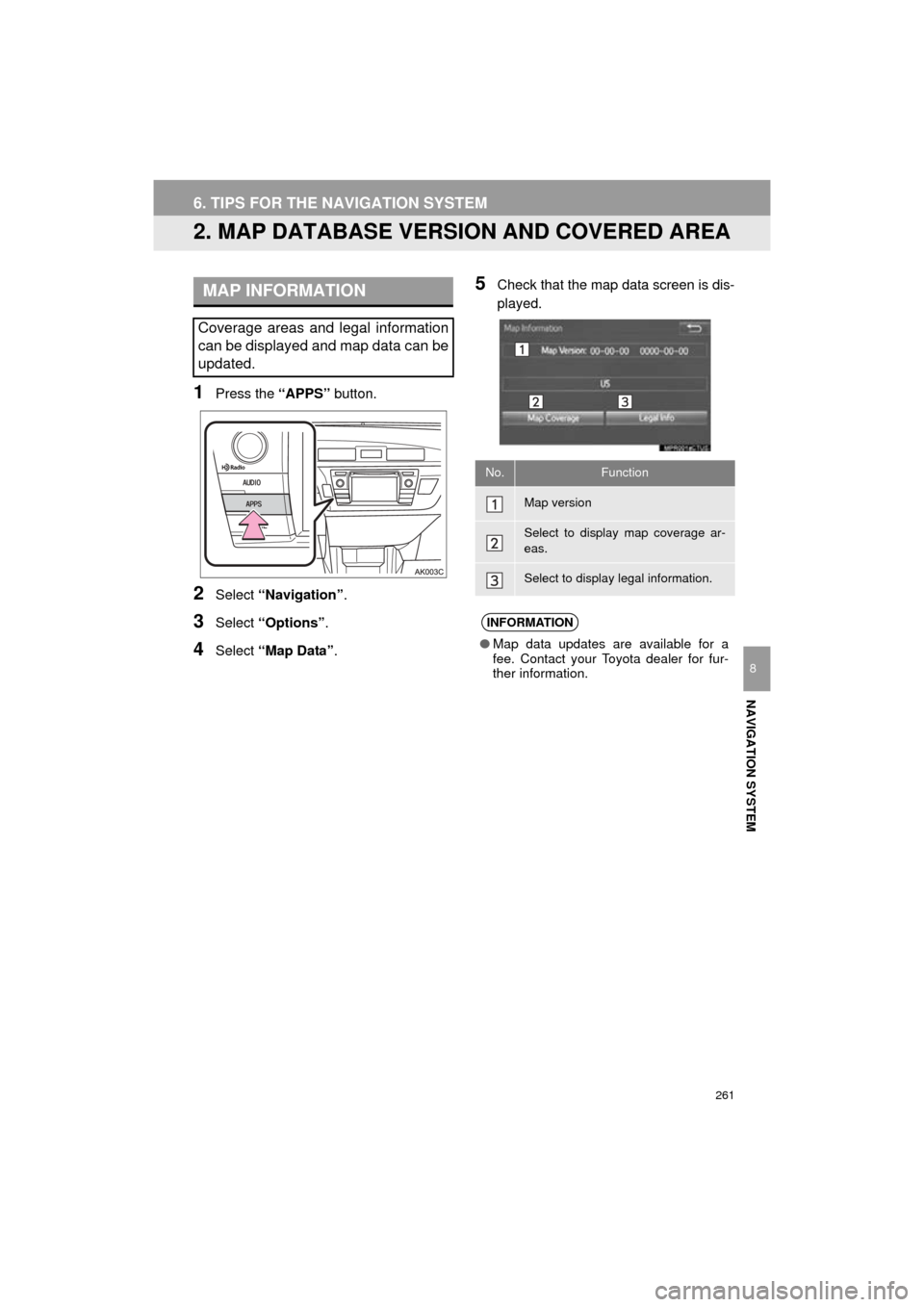
2. MAP DATABASE VERSION AND COVERED AREA
1Press the “APPS” button.
2Select “Navigation” .
3Select “Options” .
4Select “Map Data” .
5Check that the map data screen is dis-
played.MAP INFORMATION
Coverage areas and legal information
can be displayed and map data can be
updated.
No.Function
Map version
Select to display map coverage ar-
eas.
Select to display legal information.
INFORMATION
●Map data updates are available for a
fee. Contact your Toyota dealer for fur-
ther information.
Page 262 of 294

262
6. TIPS FOR THE NAVIGATION SYSTEM
COROLLA_14CY_Navi_U
ABOUT THE MAP DATA
Map data for the navigation system is
contained in a SD card that is inserted
in the SD card slot.
Do not eject the SD card, as doing so
may deactivate the navigation system.
NOTICE
●Do not edit or delete the map data on
the SD card, as doing so may deactivate
the navigation system.
INFORMATION
●microSDHC Logo is a trademark of SD-
3C,LLC.
Page 273 of 294

273
2. Entune App Suite OPERATION
COROLLA_14CY_Navi_U
Entune App Suite
9
1Press the “APPS” button.
2Select “Navigation” .
3Select “Dest.” .
4Select “Web Search” .
5Check that the “Web Search” screen is
displayed.
1Display the “Web Search” screen.
(P.273)
2Select the desired application button to
search.
3Enter a search term, and select “GO”.
4Select “Map”.
5Select “Go to ” .
6Select “OK” to start guidance.
LINKING Entune App Suite
AND NAVIGATION
FUNCTION*
The navigation system can set a desti-
nation and make a hands-free call via
Entune App Suite. For details about
the function and service of each appli-
cation, refer to http://www.toyota.com/
entune/.
*: With navigation function
SETTING A DESTINATION
USING Entune App Suite
Locations that were searched using
Entune App Suite can be set as a des-
tination.
For the operation of the route guidance
screen and the function of each screen
button: P.225
Page 279 of 294
279
COROLLA_14CY_Navi_U
F
FM radio................................................... 77
G
General settings....................................... 57
GPS (Global Positioning System) .......... 259Limitations of the navigation system ............ .......................... ...... 259
H
HOME button ........................................... 12
“Home” screen ......................................... 16
Home screen operation ........................... 36
I
Initial screen............................................. 32
Internet radio............................................ 94
iPod........................................................ 102
iPod audio .......................................... 106
iPod video .......................................... 106
K
Keyboard ................................................. 37
M
Maintenance ............................................ 64
Map database version and covered area ...................................... 261
Map screen information ......................... 206
Displaying information about the icon where the cursor is set ...... 208
Standard map icons ........................... 209
Map screen operation ............................ 201
Adjusting location in small increments ...................................... 205
Current position display ...................... 201
Map scale ........................................... 201
Orientation of the map ........................ 202
Screen scroll operation....................... 205
Switching the map mode .................... 203
Memory points settings .......................... 240
Deleting previous destinations ........... 248
Setting up address book..................... 244
Setting up areas to avoid.................... 246
Setting up home ................................. 241
Setting up preset destinations ............ 242
Microphone ............................................ 130
MP3.......................................................... 95
N
Navigation .............................................. 197
Page 280 of 294

280
ALPHABETICAL INDEX
COROLLA_14CY_Navi_U
O
Operating information ............................ 120CD player and disc ............................. 121
Error messages .................................. 128
File information ................................... 124
iPod .................................................... 123
Radio .................................................. 120
Terms ................................................. 127
Overview buttons ..................................... 12
P
Phonebook ............................................. 164
Phone/message settings........................ 177
“Contact/Call History Settings” screen ............................................. 179
“Messaging Settings” screen .............. 187
“Phone Display Settings” screen ........ 188
Phone/message settings screen ........ 177
“Sound Settings” screen ..................... 178
PWR/VOL button ..................................... 12
R
Rear view monitor system ...................... 148
Receiving doppler weather information .......................................... 142
Receiving on the Bluetooth
® phone ....... 168
Incoming calls ..................................... 168
Receiving traffic map information ........... 210
Registering home ..................................... 22
Registering preset destinations ................ 24
Registering/connecting Bluetooth
®
device ................................................... 42
Certification........................................... 46
Profiles.................................................. 44
Registering a Bluetooth
® audio player
for the first time ................................. 43
Registering a Bluetooth
® phone
for the first time ................................. 42
Route guidance screen .......................... 229
During freeway driving ........................ 231
Route overview ................................... 230
Screen for route guidance .................. 229
Turn list screen ................................... 233
Turn-by-turn arrow screen .................. 233
When approaching intersection .......... 232
Route trace............................................. 208
Page 281 of 294
281
COROLLA_14CY_Navi_U
S
Satellite Radio.......................................... 88
Screen adjustment ................................... 40
Search operation ................................... 215Searching by address ........................ 217
Searching by address book................ 221
Searching by coordinates................... 224
Searching by emergency ................... 222
Searching by intersection and freeway ........................................... 222
Searching by map .............................. 224
Searching by point of interest............. 218
Searching from previous destinations .................................... 221
Selecting search area ........................ 216
Setting home as destination ............... 216
Setting preset destinations as destination ................................. 216
Setting Bluetooth
® details ........................ 49
“Bluetooth* Setup” screen .................... 49
Connecting a Bluetooth
® device .......... 52
Deleting a Bluetooth® device ............... 51
Editing the Bluetooth® device
information ........................................ 54
Registering a Bluetooth
® device .......... 50
“System Settings” screen ..................... 55
Setting home as the destination .............. 27
“Setup” screen ......................................... 20
Starting route guidance.......................... 225
Steering switches................................... 115
T
Talking on the Bluetooth® phone ........... 169
Incoming call waiting .......................... 171
Touch screen gestures ............................ 34
Touch screen operation ........................... 35
Traffic information .................................. 210
Traffic settings........................................ 253
Auto avoid traffic................................. 254
My traffic routes .................................. 255
Screen for traffic settings.................... 253
Troubleshooting ..................................... 189
TUNE/SCROLL button ............................. 12
Typical voice guidance prompts............. 234
U
USB/AUX port .......................................... 75
USB memory............................................ 98
Playing a USB audio .......................... 101
V
Voice command system ......................... 130
Voice settings........................................... 62
W
WMA ........................................................ 95
X
XM Satellite Radio ................................... 88Displaying the radio ID ......................... 92
How to subscribe to an XM Satellite Radio ....................... 90
If the satellite radio tuner malfunctions...................................... 93
Presetting a channel............................. 92
Selecting a channel from the list .......... 92
*:Bluetooth is a registered trademark of Bluetooth SIG, Inc.